August 19, 2026 · Updated August 23, 2026 · 11 min read
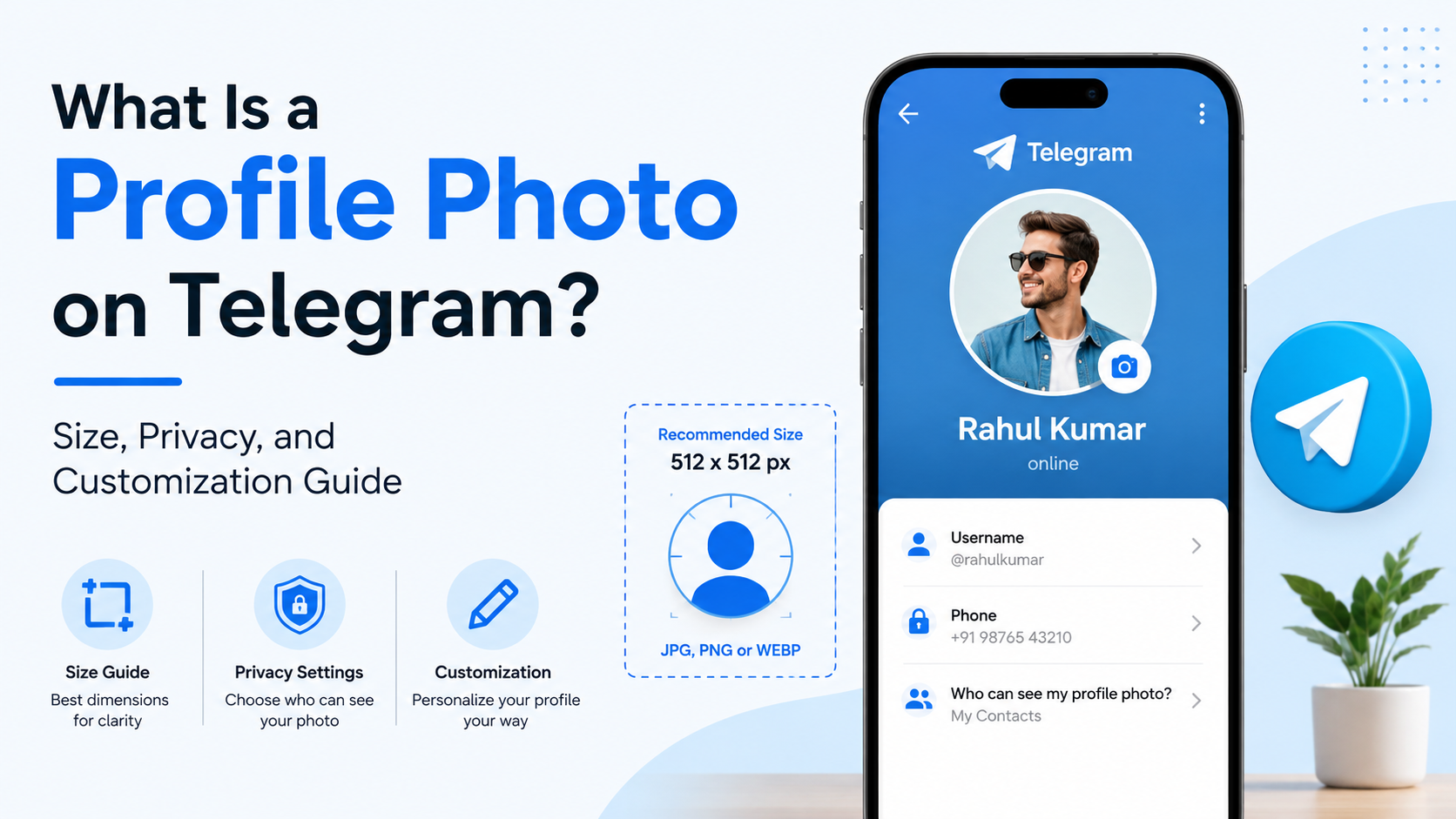
What Is a Profile Photo on Telegram? Size, Privacy, and Customization Guide
On this page
- What Is a Telegram Profile Photo?
- What Is the Best Telegram Profile Photo Size?
- How to Change Your Telegram Profile Photo
- Telegram Profile Photo Privacy Settings Explained
- How to Choose a Professional Telegram Profile Photo
- Telegram Profile Photo Customization Ideas
- Common Telegram Profile Photo Problems and Fixes
- Frequently Asked Questions
- Conclusion
What Is a Profile Photo on Telegram? Size, Privacy, and Customization Guide
Your Telegram profile photo is a small visual detail with a major effect. It appears beside your messages, in group conversations, and on your profile—often becoming the quickest way for people to recognize you or your brand.
Whether you use Telegram for personal chats, client communication, community building, or channel management, a thoughtful profile image makes your account easier to trust and remember. This guide explains what a Telegram profile photo is, the best image size, how its privacy settings work, and how to customize it effectively.
Key Takeaways
- Use a square source image—ideally 1080 × 1080 pixels—so it stays sharp after Telegram’s circular crop.
- Keep the subject or logo centered, with breathing room near the edges.
- Review Settings > Privacy and Security > Profile Photo before uploading a personal image.
- Set a public profile image when you want non-contacts to see a less personal version of your photo.
- Choose a clear headshot for professional accounts and a simple, high-contrast logo for brands.
- Refresh your Telegram profile photo when your appearance, role, or brand identity changes.
What Is a Telegram Profile Photo?
A Telegram profile photo is the image associated with your account. It is displayed as a circular thumbnail in private chats, groups, contact lists, search results, and your profile page.
Its purpose is simple: visual recognition. A contact scanning a busy group can identify your messages faster when your profile image is distinctive and consistent.
Where Your Profile Photo Appears
Your image can be visible in several places, including:
- One-to-one conversations
- Group chats and community discussions
- Channel comments and linked discussions
- Your profile information page
- Search results, depending on the viewer and your privacy settings
- Forwarded-message previews in some contexts
Because it can travel across different conversations, a Telegram profile photo should fit the audience you expect to reach—not only the people you know personally.
Profile Photo vs. Username and Display Name
Your profile photo is only one part of your Telegram identity:
- Display name: The name shown on your profile. Contacts may see the name they saved for you instead.
- Username: An optional, searchable handle beginning with
@. - Profile photo: Your visual identifier.
For example, a consultant might use “Maya Chen | Growth Strategy” as a display name, @mayachen as a username, and a polished headshot as the profile image. Together, these elements make the account easier to recognize and verify.
What Is the Best Telegram Profile Photo Size?
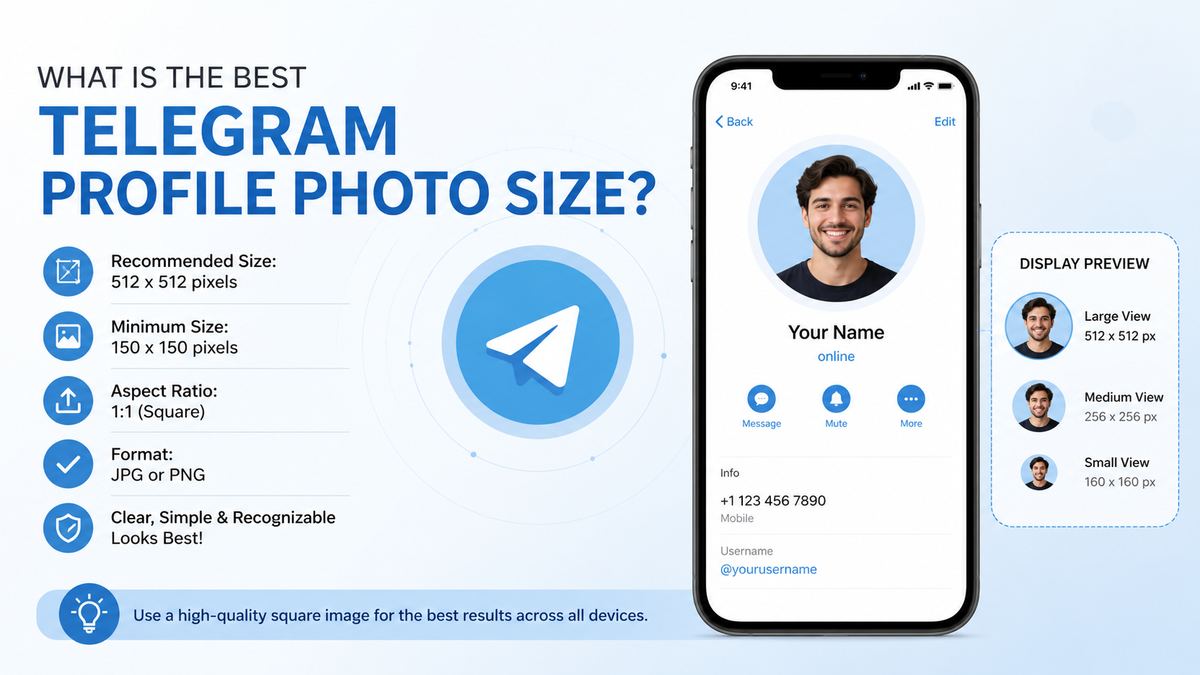
Telegram does not require one fixed image dimension for profile photos. However, it displays the image in a circle, so starting with a high-quality square image gives the best result.
Recommended Dimensions and Format
For a sharp Telegram profile photo, use:
- Recommended size: 1080 × 1080 pixels
- Minimum practical size: 500 × 500 pixels
- Aspect ratio: 1:1 square
- Best formats: JPG or PNG
- Color mode: Standard RGB
An 800 × 800-pixel image also works well. The key is to upload a clean, square original rather than a small screenshot, a heavily compressed image, or a rectangular image that relies on aggressive cropping.
Design for the Circular Crop
Telegram converts the square image into a circular avatar in many views. Anything near the corners can be cut off.
Keep these elements in the central area:
- Your face, especially the eyes
- Your business logo
- Important text or initials
- A product image or recognizable icon
Avoid placing tiny words, website addresses, or detailed graphics around the borders. They may disappear in the circular crop or become unreadable in small chat previews.
A Practical Safe-Zone Rule
Imagine a large circle centered inside your square image. Place the main subject inside that circle, leaving about 10–15% empty space around the edges.
For a headshot, frame the face and shoulders rather than using a full-body image. For a logo, use a simplified mark with generous padding. This creates a cleaner result at every screen size.
How to Change Your Telegram Profile Photo
Changing a Telegram profile photo takes only a few taps, but the exact button names can vary slightly between Android, iPhone, desktop, and web versions.
Steps on Mobile
In the Telegram mobile app:
- Open Settings.
- Tap your current photo, name, or Edit Profile.
- Select the camera or profile-photo option.
- Choose an image from your gallery or take a new photo.
- Position and crop the image.
- Save your changes.
Before saving, preview the circular crop carefully. If your face, logo, or text looks cramped, go back and select a version with more space around the subject.
Steps on Desktop
On Telegram Desktop, open the menu and go to Settings, then open your profile or edit option. Choose a new image, adjust the crop, and save.
Desktop is particularly useful when you are uploading a prepared brand asset or a professionally edited portrait from your computer.
Can You Use a Video Profile Photo?
Telegram supports profile videos in supported app versions. A brief, subtle motion clip can make a profile feel more dynamic, but it is not always the best professional choice.
Use a profile video when:
- You are a creator, artist, or public-facing personality.
- The motion reinforces your brand.
- The first frame still looks strong as a static thumbnail.
Avoid fast cuts, flashing visuals, or movement that makes your profile hard to identify at a glance.
Telegram Profile Photo Privacy Settings Explained
A profile image can reveal more than you intend: your face, location clues, workplace, family members, or hobbies. Telegram provides profile-photo privacy controls so you can choose who sees it.
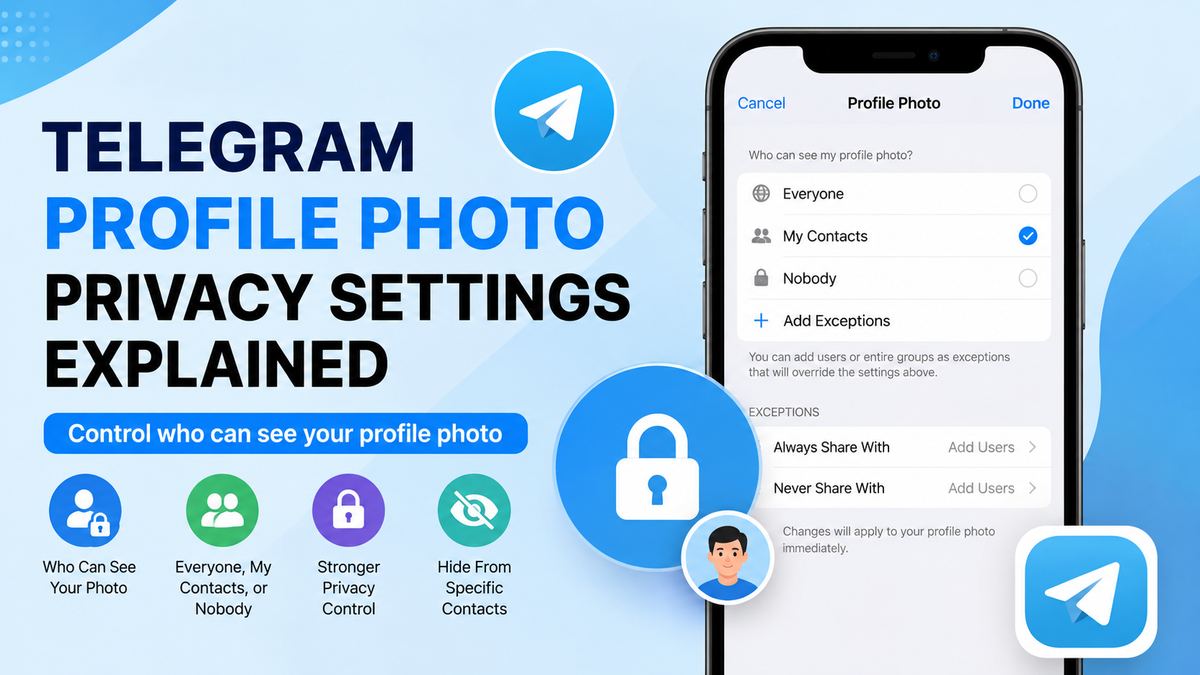
Telegram’s profile-photo settings are available through Settings > Privacy and Security > Profile Photo. Telegram also supports exceptions and, when your photo access is restricted, a separate public photo for others. Telegram’s profile-photo privacy update explains these controls.
Choose Who Can See Your Photo
Depending on your settings, you can generally choose visibility for:
- Everybody: Useful for public-facing creators, businesses, and communities.
- My Contacts: A solid default for most personal accounts.
- Nobody: Best for people who want maximum privacy.
You can also use exceptions to allow or block specific people or groups. This is helpful when your professional contacts need access but unknown users do not.
Use a Public Photo Strategically
If you restrict access to your main profile photo, Telegram lets you set a public profile image for everyone else. This is a useful privacy layer.
For example:
- Your contacts see a personal headshot.
- Non-contacts see a logo, illustrated avatar, or neutral professional image.
That approach allows recognition without exposing the same personal image to every stranger who encounters you in a public group.
Privacy Mistakes to Avoid
Before uploading, avoid images that reveal:
- Your home address, house number, or regular location
- Children or other people who have not agreed to be shown
- Company dashboards, documents, or client information
- Travel details that reveal where you currently are
- Scannable badges, tickets, or QR codes
A profile photo may be small, but viewers can often open it or save a screenshot. Treat it as public unless you have deliberately limited visibility.
How to Choose a Professional Telegram Profile Photo
For professional use, clarity beats creativity. Your image should help clients, colleagues, and community members recognize you quickly.
Best Practices for Individuals
A strong professional Telegram profile photo usually includes:
- Good, even lighting
- A clear view of your face
- A simple or uncluttered background
- Clothing that matches your industry or role
- A natural, approachable expression
For example, a recruiter can use a friendly head-and-shoulders image against a neutral background. A software consultant might choose a clean portrait with business-casual clothing and subtle brand colors.
Best Practices for Businesses and Teams
Business accounts should use a recognizable, high-contrast logo or mark. At small sizes, intricate logos often become illegible.
Choose:
- A simple icon or monogram
- Brand colors with strong contrast
- A version without fine print
- Consistency with your website and other social profiles
If your organization uses several Telegram accounts, create a visual system. For example, use the main logo for the primary account and color-coded logo variations for support, sales, and community accounts.
Keep Your Identity Consistent
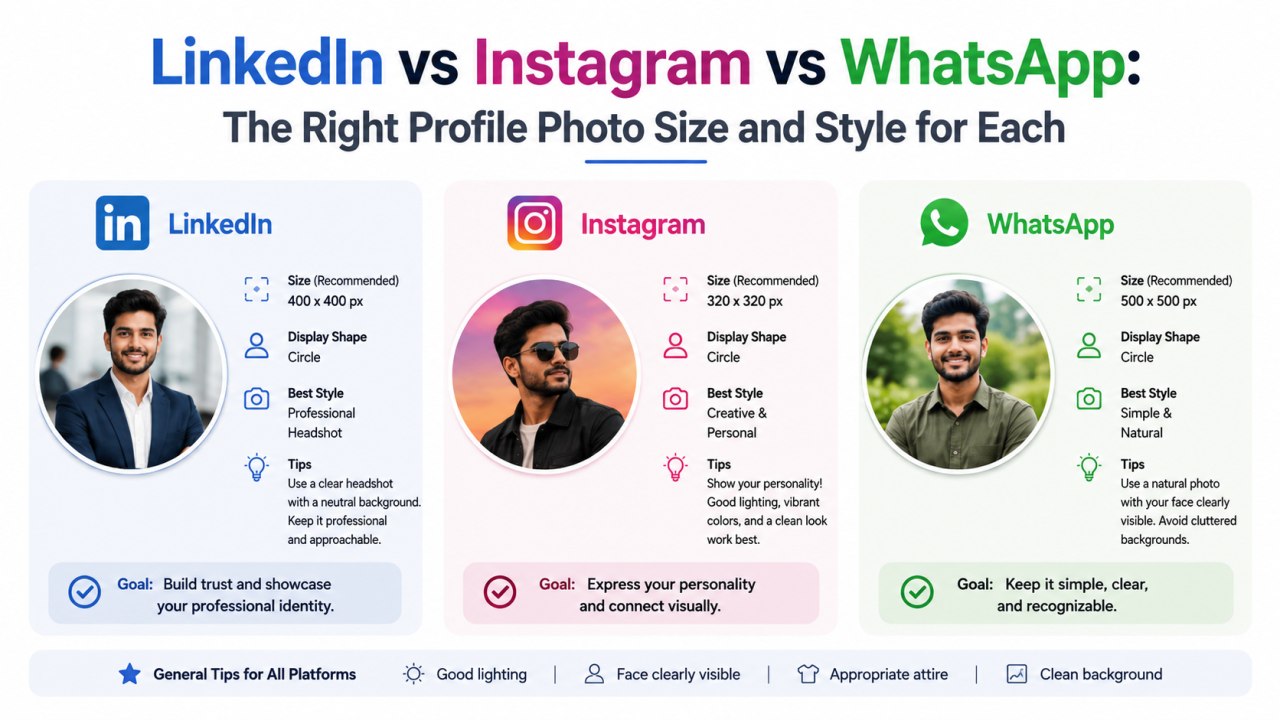
Using the same—or a closely related—profile image across Telegram, LinkedIn, email, and other professional channels reduces uncertainty. People are more likely to respond when they can quickly confirm that an account belongs to the person or organization they expect.
Telegram Profile Photo Customization Ideas
Customization does not require an elaborate design. The best choice depends on the purpose of your account and the audience you serve.
Ideas for Personal Accounts
Consider:
- A recent, well-lit portrait
- A favorite hobby image with your face still visible
- A simple illustrated avatar
- A pet or landscape image, if privacy matters more than personal recognition
If you participate in large public groups, an illustrated avatar can provide personality while limiting facial exposure.
Ideas for Professional Accounts
For a professional Telegram profile photo, try:
- A high-quality headshot
- A headshot with a subtle brand-color background
- Your company’s clean logo
- A branded monogram
- A polished avatar illustration that resembles you
A designer, for instance, might use a headshot framed by their signature color. A legal firm may prefer a simplified logo rather than individual employee photos on a shared account.
Use Editing Tools Carefully
Basic editing can improve a profile image dramatically. Crop it square, brighten it slightly, and remove distracting background elements. Telegram’s media editor includes drawing, blur, text, and shape tools, though preparing the image before upload usually offers more control. Telegram’s official update outlines its photo-editing capabilities.
Avoid excessive filters, tiny captions, or decorative borders. They tend to look cluttered once reduced to a chat-sized circle.
Common Telegram Profile Photo Problems and Fixes
A profile photo that looks good in your gallery can look poor in Telegram due to compression, cropping, or small-screen viewing.
The Image Looks Blurry
Use a larger original file—preferably 800 × 800 pixels or more. Do not upload a screenshot of a profile photo, an image copied from a low-resolution messaging app, or a heavily compressed file.
My Face or Logo Is Cropped
Select an image with more empty space around the subject. If necessary, add a solid-color background or canvas around the original image before uploading it.
The Photo Does Not Look Professional
Simplify it. Replace busy backgrounds, dark lighting, or distant full-body shots with a clear, centered headshot or clean logo.
People Cannot See My Photo
Check Settings > Privacy and Security > Profile Photo. Your visibility rule or an exception may be limiting who can view it. If you want strangers to see a neutral image while keeping your personal photo private, set a public profile photo.
Frequently Asked Questions
What size should a Telegram profile photo be?
Use a square image at 1080 × 1080 pixels for the best balance of quality and flexibility. Telegram does not require that exact size, but it provides a sharp source image for circular cropping.
Does Telegram crop profile photos into a circle?
Yes. Telegram commonly displays profile photos as circular avatars, so keep faces, logos, and important details centered. The corners of the original square image may not be visible.
Can strangers see my Telegram profile photo?
They may be able to, depending on your privacy settings. Review Settings > Privacy and Security > Profile Photo and choose Everybody, My Contacts, or Nobody, then adjust exceptions if needed.
Can I set a different photo for contacts and non-contacts?
Yes. If you limit access to your main photo, Telegram allows you to set a public profile picture for everyone else. This is useful for separating personal identity from public visibility.
Can I remove my Telegram profile photo?
Yes. Open your profile settings, select the current photo, and use the available delete or remove option. Your account will display a default avatar based on your profile details instead.
Conclusion
A Telegram profile photo is more than an avatar: it is a fast visual signal of identity, credibility, and privacy. Start with a high-quality square image, keep your subject centered for the circular crop, and choose a style that fits the people you want to reach.
Most importantly, review your profile-photo privacy settings before making a personal image visible. Update your Telegram profile photo today with a clear, secure, and recognizable image that represents you or your brand with confidence.