August 19, 2026 · Updated August 23, 2026 · 10 min read
What Size Is a Facebook Profile Photo? Updated Dimensions and Upload Tips
On this page
- Facebook Profile Photo Dimensions: The Quick Answer
- Why Facebook Profile Photos Need a Square Canvas
- The Best Facebook Profile Photo Size for Personal Accounts
- The Best Facebook Profile Photo Size for Business Pages
- Choose the Right File Format and Color Settings
- How to Prepare Your Image Before Uploading
- How to Upload or Change Your Facebook Profile Photo
- Common Facebook Profile Photo Mistakes to Avoid
- Frequently Asked Questions
- Conclusion
What Size Is a Facebook Profile Photo? Updated Dimensions and Upload Tips
A Facebook profile photo is one of the most visible elements of your online presence. It appears beside posts, comments, messages, search results, and Page activity—often at a very small size. Whether you are updating a personal account, representing a business, or refining a professional brand, choosing the right Facebook profile photo dimensions helps ensure your image stays sharp, recognizable, and properly framed.
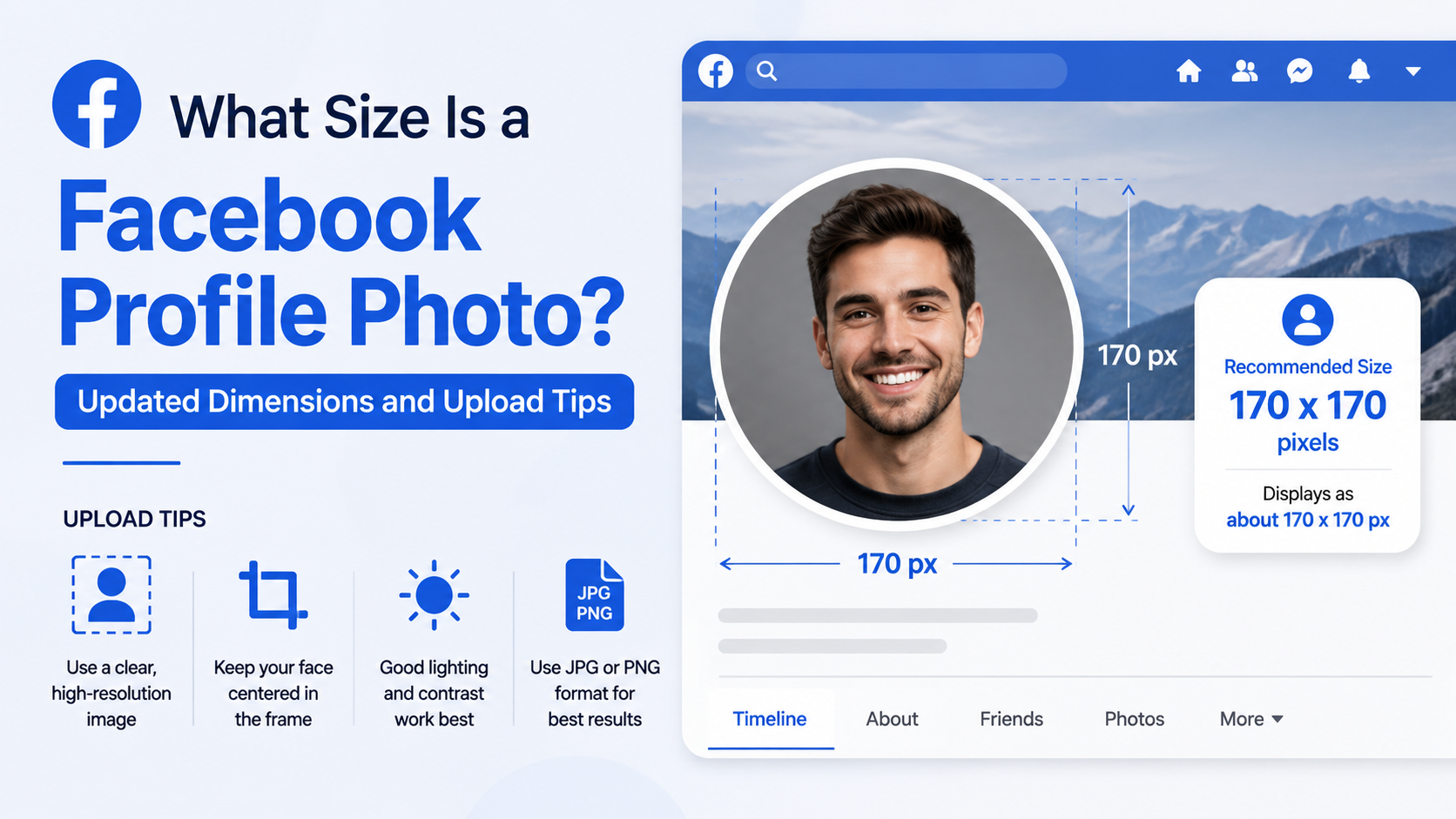
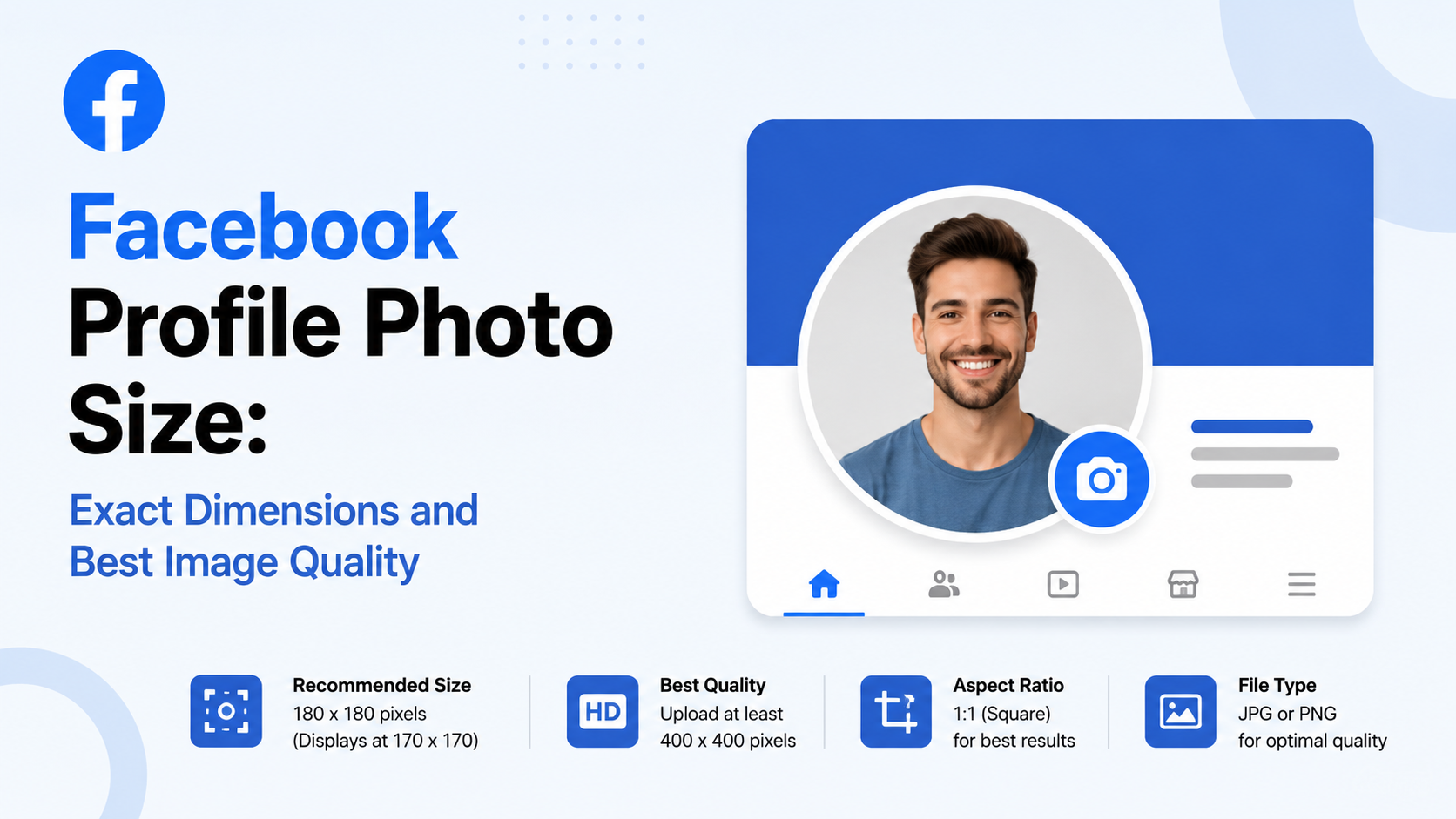
The short answer: create a square image that is at least 320 × 320 pixels. Facebook displays profile images as circles, so the composition matters just as much as the file dimensions.
Key Takeaways
- Upload a square profile image of at least 320 × 320 pixels for the best Facebook quality.
- Use a larger square file, such as 1080 × 1080 pixels, to retain detail before Facebook compresses it.
- Facebook displays profile photos in a circular crop, so keep faces, logos, and important text away from the corners.
- Facebook Page profile photos display at 176 × 176 pixels on desktop and 196 × 196 pixels on smartphones.
- Use JPG for photographs and PNG for logos, icons, or images containing text.
- Preview your image at a small size before uploading; clarity at thumbnail scale matters most.
Facebook Profile Photo Dimensions: The Quick Answer
Facebook recommends that profile pictures be at least 320 pixels wide by 320 pixels tall for optimal quality. Because the profile photo area is square before it is rendered as a circle, your source file should use a 1:1 aspect ratio.
Recommended Upload Size
For the best balance of quality and flexibility, use one of these square image sizes:
- Minimum recommended: 320 × 320 pixels
- Reliable standard: 500 × 500 pixels
- High-quality working size: 1080 × 1080 pixels
A larger source image does not mean your profile photo will display at 1080 pixels everywhere. Instead, it gives Facebook more image information to work with during resizing and compression. This is particularly helpful for professional headshots, logos, and images with fine details.
Display Sizes to Know
For Facebook Pages, the platform states that profile pictures display at:
- 176 × 176 pixels on desktop Page views
- 196 × 196 pixels on smartphones
- 36 × 36 pixels on many basic mobile devices
Personal profile photos can appear at different sizes depending on the device, interface, and placement. For example, the version shown beside a comment is much smaller than the version on your profile page. That is why a simple, high-contrast image generally performs better than a detailed composition.
Why Facebook Profile Photos Need a Square Canvas
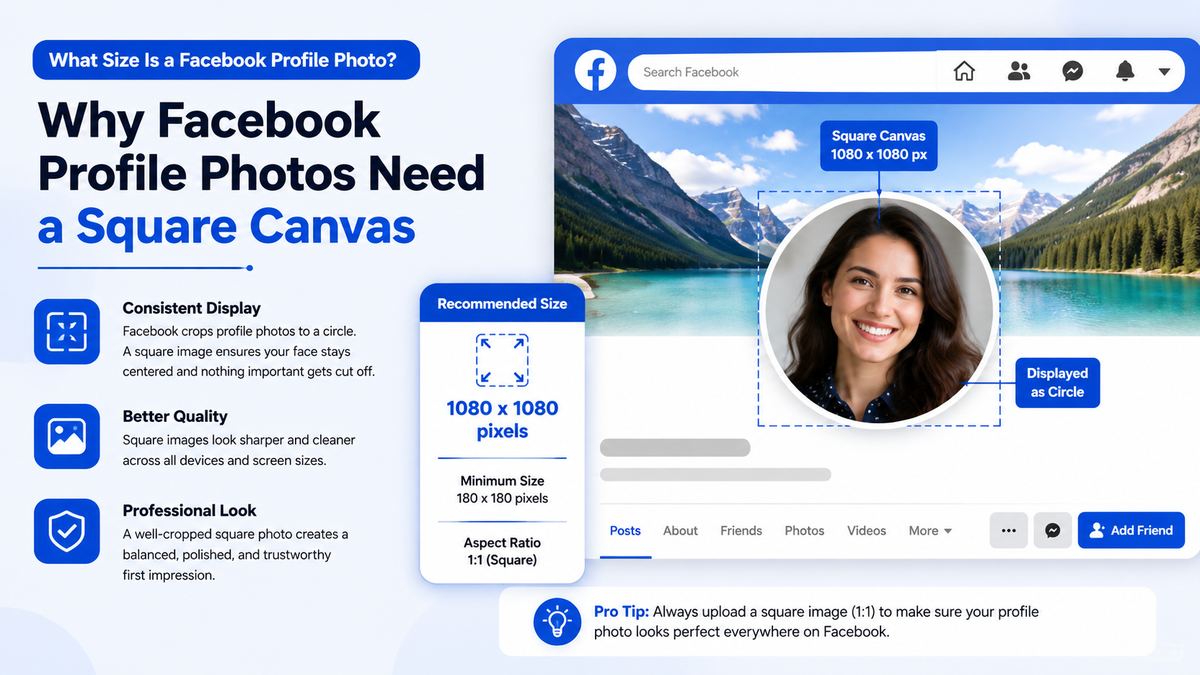
Although Facebook uses a circular display style, you should not upload a circular image file as your starting point. Upload a square image with your subject safely positioned in the middle.
The Circle Crop Rule
Facebook crops profile images into a circle. This means all four corners of your original square image are likely to be hidden.
If you upload a 1080 × 1080 image, imagine a circle centered within that square. Anything outside the circle—including details near the corners—may not be visible.
Keep these elements inside the center area:
- Faces and facial features
- Company logos
- Initials and icon marks
- Product imagery
- Essential text
- Borders or decorative elements
For example, a real estate agent using a headshot should leave visible space around their head and shoulders. A tightly cropped forehead or chin can look awkward when the circular crop is applied.
Avoid Edge-to-Edge Text
Text is rarely ideal in a Facebook profile photo because the image often appears as a tiny thumbnail. If you use text, limit it to a short brand name, initials, or a simple lettermark.
A restaurant logo with a full slogan around the outside edge may look fine in a design program, yet lose half the wording after Facebook applies its circular crop. A simplified logo mark or initials usually works better.
The Best Facebook Profile Photo Size for Personal Accounts
For personal accounts, the ideal Facebook profile image is a clear, well-lit square portrait. While 320 × 320 pixels meets Facebook’s quality guidance, a 1080 × 1080-pixel upload offers more room for editing and future reuse.
Personal Profile Photo Best Practices
Choose an image that makes it easy for people to recognize you. In most cases, that means:
- Use a recent photo that resembles you now.
- Keep your face prominent in the frame.
- Use natural or even lighting.
- Pick a background that does not compete with your face.
- Wear colors that contrast with the background.
- Avoid group photos, unless the account represents a couple or family.
A useful framing guideline is to let your face occupy roughly 60% to 70% of the visible circular area. This keeps the image recognizable in small comment thumbnails without feeling uncomfortably close.
Make It Work at Thumbnail Size
Open your image and reduce it to roughly 40 × 40 pixels before uploading. Can you still tell who it is? If not, simplify the composition.
For instance, a full-body vacation photo may be meaningful to you, but it can become an indistinct blur beside a Facebook comment. A head-and-shoulders image will normally be more effective.
The Best Facebook Profile Photo Size for Business Pages
A Facebook Page profile photo has a different job: it must represent the brand quickly and consistently across comments, posts, messages, and search results.
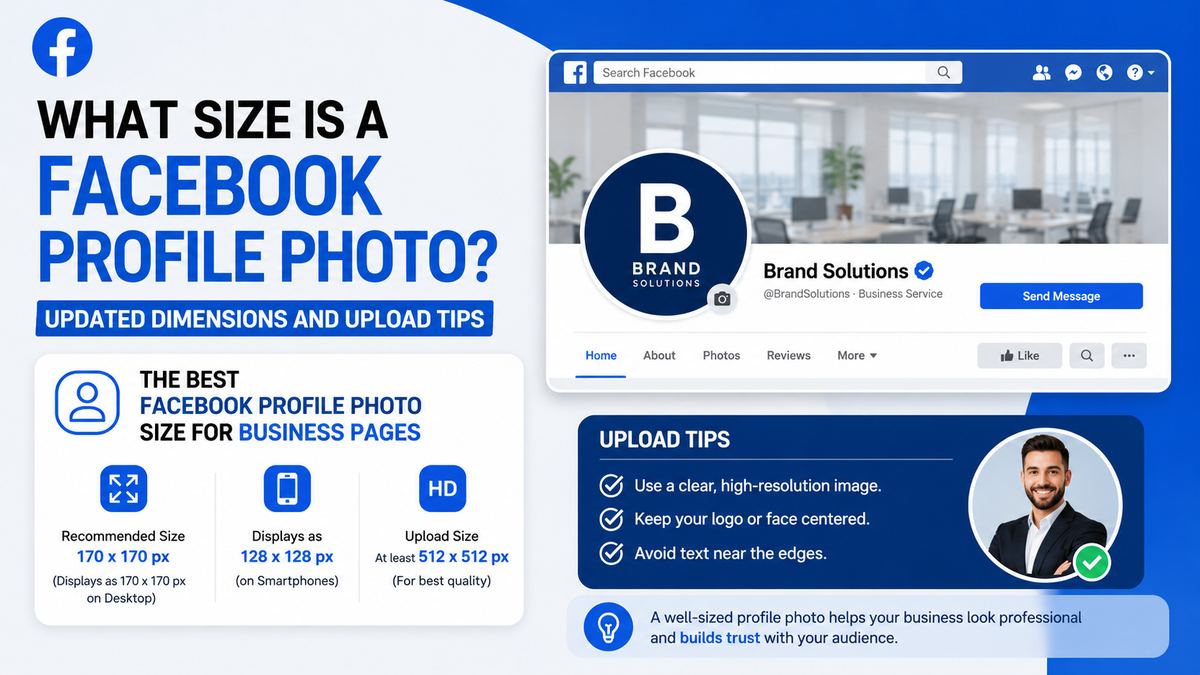
Use a square image of at least 320 × 320 pixels, but prepare it at 1080 × 1080 pixels when possible. Facebook will display it as a circle.
Use a Logo or a Recognizable Brand Mark
Most established businesses should use their primary logo, logo icon, or an abbreviated brand mark. The goal is instant recognition, not a miniature advertisement.
Good options include:
- A simple icon-only logo
- A monogram or initials
- A mascot illustration
- A clean product symbol
- A founder headshot for a personal-brand business
A consultant’s Page may benefit from the consultant’s professional headshot, while a software company is usually better served by its app icon or logo mark.
Keep Branding Consistent Across Platforms
Use the same or closely related profile image on Facebook, Instagram, LinkedIn, Google Business Profile, and other major platforms. Consistency helps people recognize your organization even when they encounter it outside your website.
Before uploading, compare the icon with your other social profiles. Confirm that colors, typography, and logo treatment match your current brand guidelines.
Choose the Right File Format and Color Settings
The image dimensions are important, but file choice also affects how professional your profile picture looks after upload.
JPG vs. PNG: Which Should You Use?
Use JPG when your profile photo is a photograph, such as a headshot, team photo, or lifestyle image. JPG files handle photographic color gradients efficiently and often produce manageable file sizes.
Use PNG when the image contains:
- A logo
- Small text
- Sharp lines
- Flat colors
- Transparent-background artwork
- Icons or illustrations
PNG can preserve crisp edges better than JPG, which is especially useful for logo-based Facebook Page profile photos. However, large PNG files may not render as cleanly after upload, so keep them optimized.
Use sRGB and Avoid Overcompression
Export images in the sRGB color profile, the standard color space used across most web and mobile experiences. This helps colors look more predictable across devices.
Also avoid uploading a file that has already been compressed repeatedly. Saving a JPG over and over can produce visible artifacts, especially around hair, lettering, and logo edges. Start with the original or a freshly exported master file whenever possible.
Facebook recommends keeping uploaded photos below 15 MB. For PNG images, keeping the file below 1 MB can help prevent display issues.
How to Prepare Your Image Before Uploading
A few minutes of preparation can prevent the most common Facebook profile photo mistakes.
Build a Safe Area
When designing your square image, place critical content comfortably inside the central portion of the canvas. Leave generous padding near all four corners.
For a business logo, avoid placing a circular badge, tagline, or tiny lettering along the outer edge. For a personal photo, make sure the top of the head, chin, and shoulders remain within the visible circle.
Sharpen Carefully
A little sharpening can help a portrait or logo stay clear after Facebook resizes it. Too much sharpening, however, can make edges look harsh and artificial.
If you are editing a headshot:
- Correct exposure before increasing sharpness.
- Use moderate contrast.
- Avoid heavy beauty filters.
- Preserve natural skin texture.
- Check that the eyes remain clear at small sizes.
For logos, use a high-resolution original rather than enlarging a small image. Upscaling a 100 × 100-pixel logo to 1080 × 1080 does not create real detail; it only enlarges existing pixels.
How to Upload or Change Your Facebook Profile Photo
Facebook lets you update a profile image from your profile or through Accounts Center. The exact labels may differ slightly by device and app version.
Uploading From Your Facebook Profile
On desktop or mobile, the typical process is:
- Go to your Facebook profile or Page.
- Select your current profile photo.
- Choose the option to update, upload, or select a profile picture.
- Choose your prepared square image.
- Reposition and scale the image within Facebook’s crop tool.
- Preview the circular framing.
- Save the changes.
Do not skip the final preview. Facebook’s upload screen is your opportunity to confirm that the face, logo, or key visual element remains centered.
Check the Live Result
After publishing, view your profile on both desktop and mobile if possible. Look at the photo in several contexts:
- Your profile header
- A recent comment
- A post in the feed
- Facebook search results
- Messenger or message-related views
A photo that looks excellent in the larger profile view may still be hard to identify in a 36-pixel thumbnail. If that happens, crop closer, simplify the image, or use a higher-contrast alternative.
Common Facebook Profile Photo Mistakes to Avoid
A technically correct image can still underperform if the visual strategy is weak.
Using a Detailed Image
A busy scene, distant face, or complex product shot becomes difficult to understand at small sizes. Keep the central subject obvious.
Placing Important Details in the Corners
Remember the circle crop. Corners are not safe for logos, labels, facial features, or text.
Uploading a Blurry or Tiny File
Facebook cannot restore detail that does not exist in the original. Start with a sharp, properly sized source image instead of enlarging a blurry screenshot or tiny logo.
Ignoring Public Visibility
Your current Facebook profile photo is public. Choose an image you are comfortable having visible to anyone who visits your profile or encounters your activity on the platform.
Frequently Asked Questions
What are the Facebook profile photo dimensions?
Facebook recommends a profile photo that is at least 320 × 320 pixels. Use a square 1:1 image, because Facebook crops and displays it as a circle.
What is the best size to upload for a Facebook profile photo?
A 1080 × 1080-pixel square image is an excellent upload size. It provides strong source quality while remaining easy to crop, edit, and reuse on other social platforms.
Does Facebook crop profile pictures into a circle?
Yes. Facebook displays profile pictures as circles. Upload a square image, but keep important details centered and away from the corners so they are not cut off.
Should I use PNG or JPG for a Facebook profile picture?
Use JPG for photographs and PNG for logos, icons, or images with text. PNG is often better for preserving crisp branding elements, while JPG is usually more efficient for portraits.
Why does my Facebook profile photo look blurry?
Blurriness can result from a low-resolution source image, repeated JPG compression, poor lighting, overediting, or uploading a file that is too small. Start with a sharp square image of at least 320 × 320 pixels, preferably 1080 × 1080 pixels.
Conclusion
The best Facebook profile photo dimensions start with a square image of at least 320 × 320 pixels, while 1080 × 1080 pixels is a practical high-quality choice. Because Facebook displays the image in a circle and often at thumbnail size, center your subject, simplify the composition, and choose the right format for the content.
Review your current profile image today: check the crop, test its readability at a small size, and replace it with a clear, current, brand-appropriate image that makes the right first impression.