August 19, 2026 · Updated August 23, 2026 · 11 min read
What Is the Best Profile Photo Size for Social Media?
On this page
- Why Profile Photo Size Matters
- The Best Universal Profile Photo Size
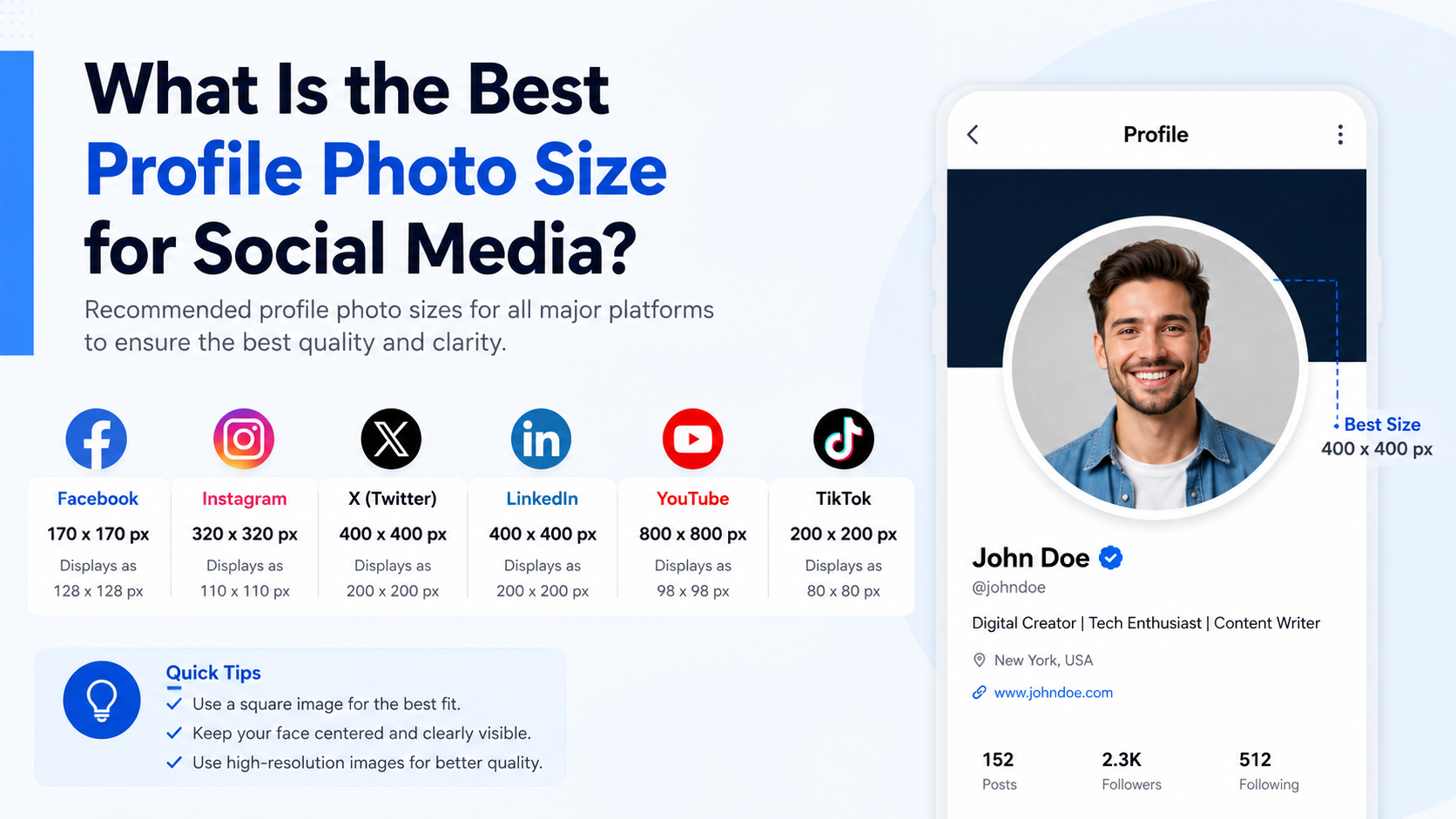
- Recommended Profile Photo Sizes by Platform
- Choose the Right Image Format and File Quality
- How to Compose a Profile Photo That Works Everywhere
- Create a Safe Zone Before You Upload
- Common Profile Photo Mistakes to Avoid
- Frequently Asked Questions
- Conclusion
What Is the Best Profile Photo Size for Social Media?
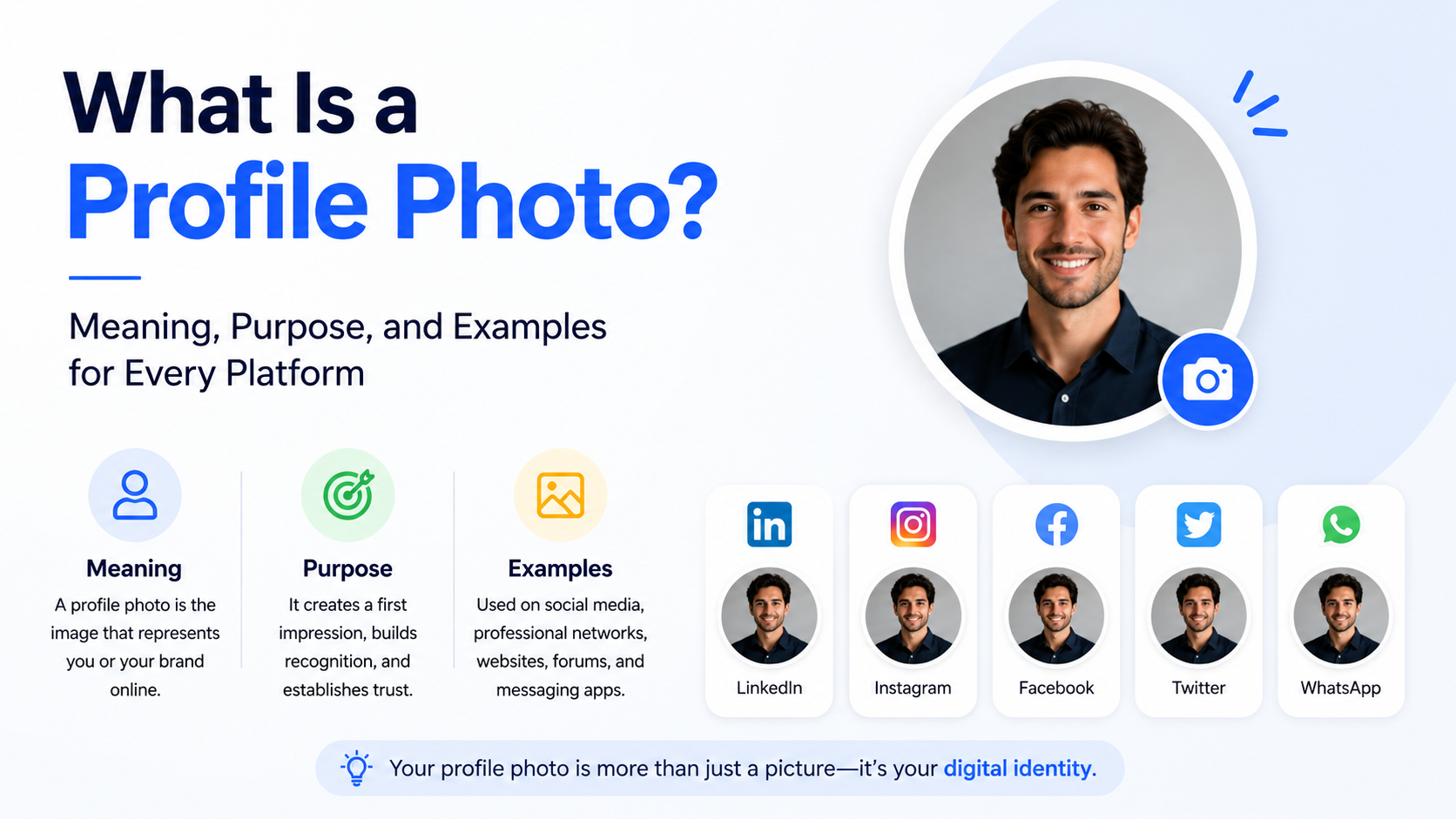
Your profile image is often the smallest asset in your social media toolkit—and one of the most important. It appears beside comments, messages, search results, recommendations, and posts, where it must make an immediate impression at a glance.
The best profile photo size is not simply the largest image you can upload. It is a sharp, square image designed to survive circular crops, mobile screens, and platform compression. Whether you are presenting yourself as a professional, creator, job seeker, or business, the right dimensions help your photo look credible, recognizable, and consistent everywhere.
Key Takeaways
- Start with a high-quality square master image at 1080 × 1080 pixels for flexible reuse.
- Keep faces, logos, and important details inside a centered “safe zone” because many platforms display profile photos as circles.
- Use 400 × 400 pixels or larger for most platforms; use 800 × 800 pixels when a higher-resolution upload is recommended.
- Choose JPG for photographs and PNG for logos, text, or graphics with crisp edges.
- Test your image at thumbnail size before uploading—clarity matters more than elaborate detail.
- Review platform specifications periodically, as social networks can update their image requirements.
Why Profile Photo Size Matters
A profile photo has to work in several contexts at once. It may look large on a profile page but appear as a tiny icon in a comment thread or direct message. A poorly sized image can become blurry, cropped awkwardly, or difficult to recognize.
Small Images Carry a Big Branding Job
Your image communicates identity before someone reads your bio. For an individual, it signals approachability and professionalism. For a company, it acts as a compact visual identifier that reinforces brand recognition.
For example, a consultant using a well-lit headshot with a clean background is easier to identify in a LinkedIn comment feed than someone using a distant vacation photo. Similarly, a local business with a simple, high-contrast logo is easier to recognize than one that squeezes a full slogan into a tiny circular image.
Display Size Is Different From Upload Size
Platforms often display profile images at relatively small sizes but accept much larger files. Uploading a larger, properly prepared square image gives the platform more visual information to work with when it resizes the file.
That does not mean bigger is always better. A huge file may be compressed heavily, and an oversized image with poor composition will still look poor. The goal is a clean, optimized source image—not maximum file size.
The Best Universal Profile Photo Size
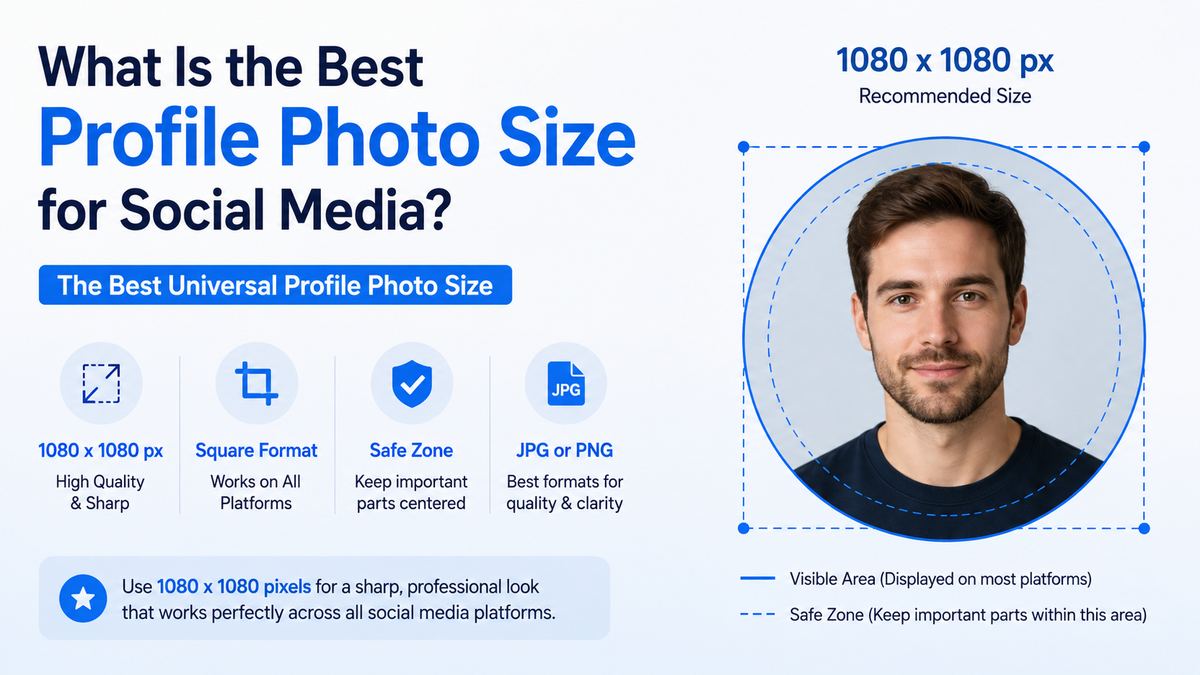
If you want one practical starting point for multiple platforms, create a 1080 × 1080-pixel square image.
Why 1080 × 1080 Pixels Works
A 1080-pixel square is large enough to remain sharp on modern high-density displays and can be resized down easily for platforms with smaller recommendations. It also gives you flexibility to crop slightly without sacrificing quality.
Use this as your master file, then export platform-specific versions when necessary.
- For a personal photo: Keep your face centered and visible from the shoulders up.
- For a logo: Use a simplified mark rather than a detailed horizontal logo lockup.
- For a creator brand: Use a recognizable portrait, illustration, or icon with strong contrast.
- For a team or organization: Favor one clear symbol over a crowded group photo.
Build for a Circular Crop
Even if you upload a square image, many networks show it inside a circle. Anything close to the corners may disappear.
A simple rule: keep the important subject within the center 70–80% of the square. Leave comfortable empty space around the edge.
For instance, if a photographer uses a portrait with their face near the upper-left corner, a circular crop may cut off part of their head. Repositioning the face in the center solves the problem before upload.
Recommended Profile Photo Sizes by Platform
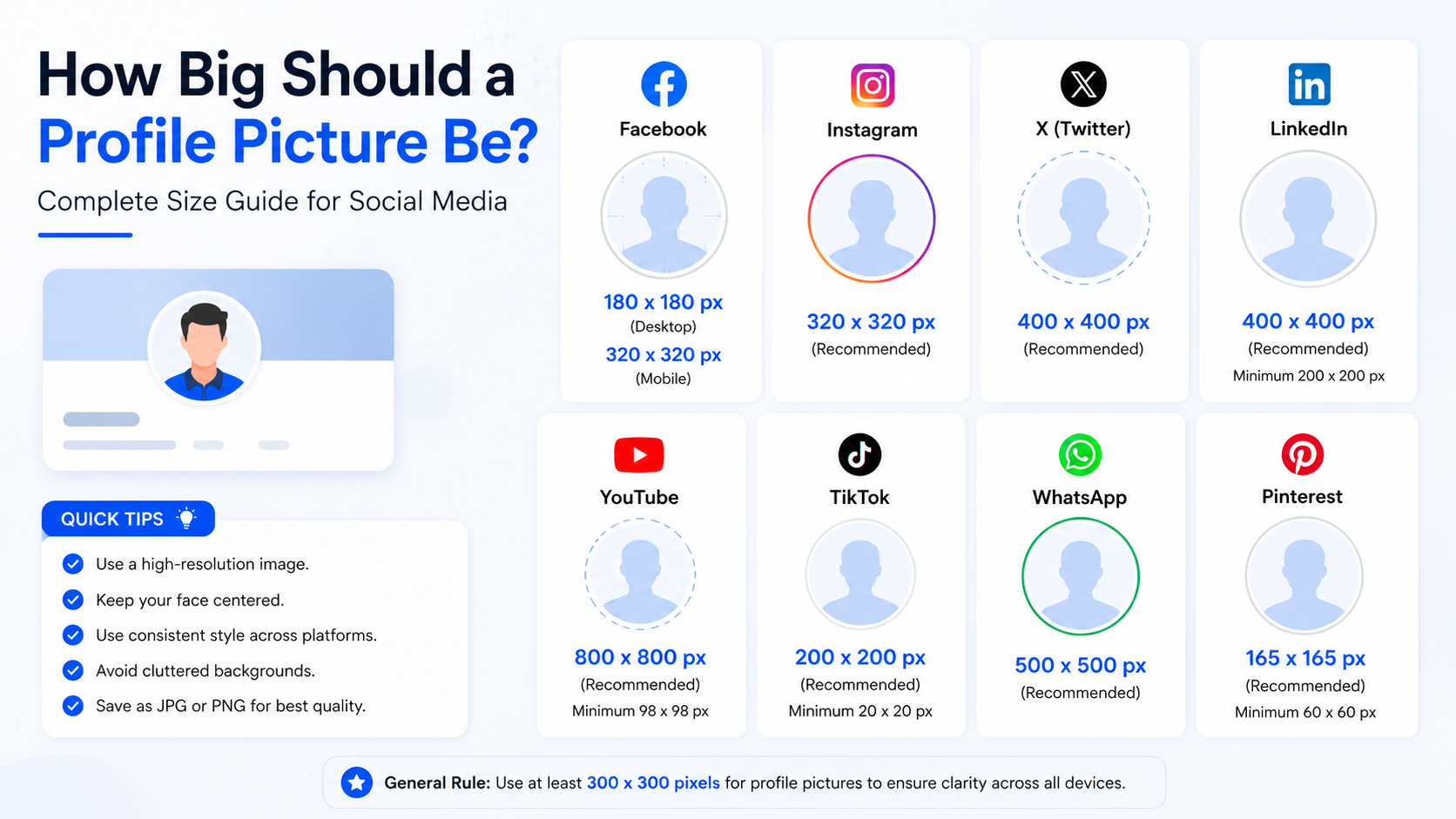
The following are practical upload targets for common social platforms. Requirements can change, so use each platform’s current help center as the final authority.
Facebook: 320 × 320 Pixels
For Facebook profiles and Pages, upload at least 320 × 320 pixels. Facebook displays profile pictures as circles and may show them at different sizes across desktop and mobile.
Use PNG if your image contains a logo or text; use JPG for standard photographs. Facebook’s guidance confirms that Page profile images are cropped to a circle and recommends 320 × 320 pixels for quality. Facebook Help Center
Instagram: 1080 × 1080 Pixels
Instagram profile images are displayed as small circles, so a 1080 × 1080-pixel upload is an excellent working size. The platform may render the image much smaller, but the larger square source helps preserve sharpness.
Avoid thin text, intricate patterns, and edge-to-edge logos. An Instagram account for a bakery, for example, should use a bold logo mark or a close-up, recognizable product image—not a full menu design.
LinkedIn: 400 × 400 Pixels Minimum
LinkedIn accepts profile photos from 400 × 400 pixels upward. For a polished result, upload an 800 × 800-pixel square headshot or logo.
LinkedIn allows JPG and PNG files up to 8 MB and recommends choosing an image that does not need heavy cropping. LinkedIn Help
X: 400 × 400 Pixels
X recommends 400 × 400 pixels for profile images. Keep your design square and center the subject because the image appears as a circle in much of the interface.
X supports JPEG, GIF, and PNG for profile photos, with a maximum file size of 2 MB. X Help Center
TikTok: 400 × 400 Pixels
A 400 × 400-pixel square image is a practical choice for TikTok. Since users often discover accounts through small icons in the For You feed and comments, bold contrast and a simple focal point matter more than intricate design.
Creators should prioritize a close, expressive face or a distinctive brand mark. If your niche is education, for example, a clear portrait with a consistent color background is more memorable than a tiny illustration filled with text.
YouTube: 800 × 800 Pixels
For YouTube, use an 800 × 800-pixel square image. YouTube may display the channel image at much smaller sizes, but 800 pixels provides a high-quality source for channel pages, comments, and video interfaces.
YouTube’s official artist-avatar guidance specifies a 1:1 image at 800 × 800 pixels, while standard channel guidance emphasizes a square or round image. YouTube Help
Pinterest: 600 × 600 Pixels
For Pinterest, a 600 × 600-pixel square image is a dependable choice. Use a clean portrait for personal brands or a simplified logo for business accounts.
Because Pinterest is visually driven, your profile image should match the visual style of your Pins. A minimalist interior-design brand, for instance, may use a restrained monogram in its core palette rather than a busy room photograph.
Choose the Right Image Format and File Quality
Correct dimensions are only part of the equation. File type, color, and compression all affect the final result.
JPG vs. PNG
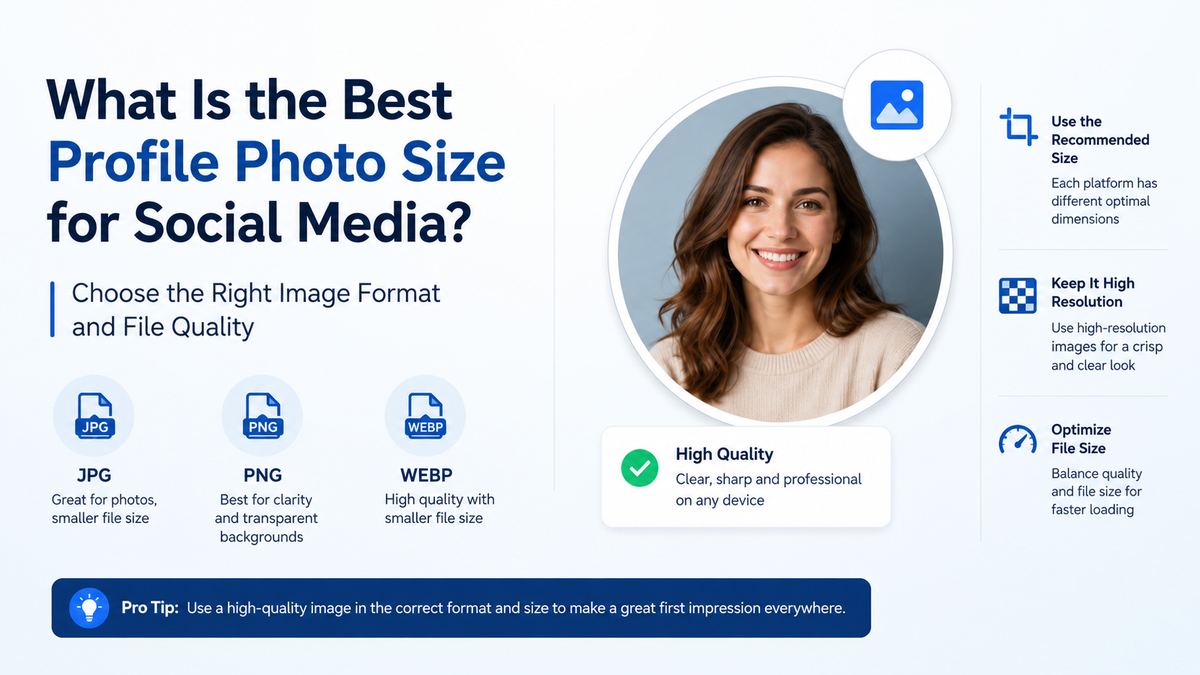
Choose the format based on the image itself:
- JPG: Best for photographs, portraits, and images with natural gradients.
- PNG: Best for logos, illustrations, text, flat-color graphics, and transparent backgrounds.
- GIF: Usually unnecessary for profile images; some platforms do not support animated profile photos.
A professional headshot generally looks excellent as a high-quality JPG. A logo with crisp lettering and solid colors is usually better as a PNG.
Use the sRGB Color Profile
Export images in the sRGB color space, the standard for web and social media. This reduces the chance that brand colors will shift unexpectedly after upload.
Also avoid repeatedly downloading, editing, and re-uploading the same social-media image. Each round can add compression artifacts. Keep an original master file and export fresh versions from it.
How to Compose a Profile Photo That Works Everywhere
An image can meet every technical requirement and still fail if the composition is weak. Profile photos should be designed for quick recognition.
Best Practices for Personal Photos
Use a recent, well-lit image that clearly resembles you. A simple background helps the viewer focus on your face.
Aim for:
- Head and shoulders in frame
- Eye-level camera angle
- Natural expression appropriate to your audience
- Even lighting with minimal harsh shadows
- Clothing that contrasts with the background
A corporate attorney may choose a polished headshot with neutral clothing and a clean background. A fitness creator may choose an energetic outdoor portrait. Both can be effective when they match the account’s purpose.
Best Practices for Brand Logos
A profile icon is not the place for a full business card. Simplify the logo for small-screen visibility.
- Use one symbol, monogram, or abbreviated wordmark.
- Eliminate tiny taglines and legal text.
- Maintain high contrast between the logo and background.
- Add padding so the mark does not touch the circular crop.
- Use the same core icon across major channels.
For example, a coffee shop’s profile image should feature its cup icon or initials, not the full storefront sign with a street address.
Create a Safe Zone Before You Upload
A safe zone protects your subject from platform cropping. Think of the center of your square image as the area that must remain visible no matter how the platform displays it.
Use the Center-Weighted Layout
Keep faces, logos, and essential text near the center. Leave the corners and outer edges for background color or nonessential visual detail.
A useful workflow is:
- Create a square canvas at 1080 × 1080 pixels.
- Place your main subject in the center.
- Preview the image inside a circle.
- Shrink the preview to about 50–100 pixels.
- Adjust until the subject remains instantly recognizable.
Test on Mobile and Desktop
Most profile-image mistakes are obvious only after viewing the image at a small size. Before publishing, check how it looks on a phone and on a desktop browser.
Ask these questions:
- Can I recognize the person or logo instantly?
- Is any part of the subject cut off?
- Does text remain readable?
- Is the image sharp rather than pixelated?
- Does it fit the tone of the account?
Common Profile Photo Mistakes to Avoid
A few recurring problems make otherwise strong accounts look less polished.
Using a Low-Resolution Screenshot
Screenshots, cropped group photos, and images downloaded from messaging apps often lack enough detail. When enlarged or compressed by a social platform, they can look blurry.
Start with the original photo whenever possible. If you only have a small file, do not expect resizing alone to restore detail.
Putting Too Much Text in the Image
Text rarely performs well in a profile icon. At thumbnail size, even a short company name may be unreadable.
Use your logo mark or initials instead. Put your full company name in the account name, bio, and banner areas where it can be read clearly.
Changing Your Image Too Frequently
Updating a profile photo for a major rebrand is sensible. Changing it constantly can weaken recognition, particularly for businesses and professionals building a consistent presence.
Keep a recognizable core image and update it when your appearance, branding, or positioning genuinely changes.
Frequently Asked Questions
What is the best profile photo size for all social media?
A 1080 × 1080-pixel square image is the best universal master size. It is large enough for high-quality resizing and works well for Instagram, Facebook, LinkedIn, TikTok, X, YouTube, and most other networks.
Should a profile photo be square or round?
Upload a square image, but design it to work inside a circle. Most platforms use circular display crops in at least some areas of their interface, so keep your face, logo, or focal point centered.
Is 400 × 400 pixels large enough for a profile photo?
Yes. A 400 × 400-pixel image meets or exceeds the practical recommendation for many platforms, including X and LinkedIn’s minimum upload size. However, 800 × 800 or 1080 × 1080 gives you more flexibility and can look sharper on high-density screens.
Should I use a logo or a photo for my business profile?
Use a logo when the account represents a company, product, or organization. Use a professional photo when the account represents an individual expert, founder, consultant, or creator. A founder-led brand may use the person’s photo on their personal profile and the logo on the business account.
Why does my profile photo look blurry after uploading?
Blurriness usually comes from a low-resolution source image, repeated compression, heavy cropping, or an unsuitable file format. Upload a fresh, high-quality square file, use JPG for photos or PNG for graphics, and avoid enlarging a small original image.
Conclusion
The best profile photo size is one that combines the right dimensions with clear visual design. Start with a 1080 × 1080-pixel square master, keep important details inside a centered safe zone, and tailor exports to each platform’s recommended specifications.
A sharp, recognizable profile image strengthens your credibility, improves brand consistency, and helps people identify you wherever they encounter your content. Review your current profile photo today, test it at thumbnail size, and replace it if it is blurry, crowded, or no longer reflects the identity you want to build.