August 19, 2026 · Updated August 23, 2026 · 11 min read
Where Is My Profile Photo Stored? How to Find It on Your Phone and Accounts
On this page
- Understand the Difference Between a Photo File and a Profile Photo
- Find Your Profile Photo on an iPhone
- Find Your Profile Photo on an Android Phone
- Check the Accounts Where Your Profile Photo Appears
- Look in Cloud Storage and Backups
- Download or Save a Usable Copy Safely
- Why You May Not Be Able to Find the Original
- Create a Simple Profile-Photo Organization System
- Frequently Asked Questions
- Conclusion
Where Is My Profile Photo Stored? How to Find It on Your Phone and Accounts
Your profile photo may appear everywhere—on your phone, email account, messaging apps, social networks, work platforms, and cloud services. Yet when you need the original image for a new account, a resume, or a quick update, finding it can feel surprisingly difficult.
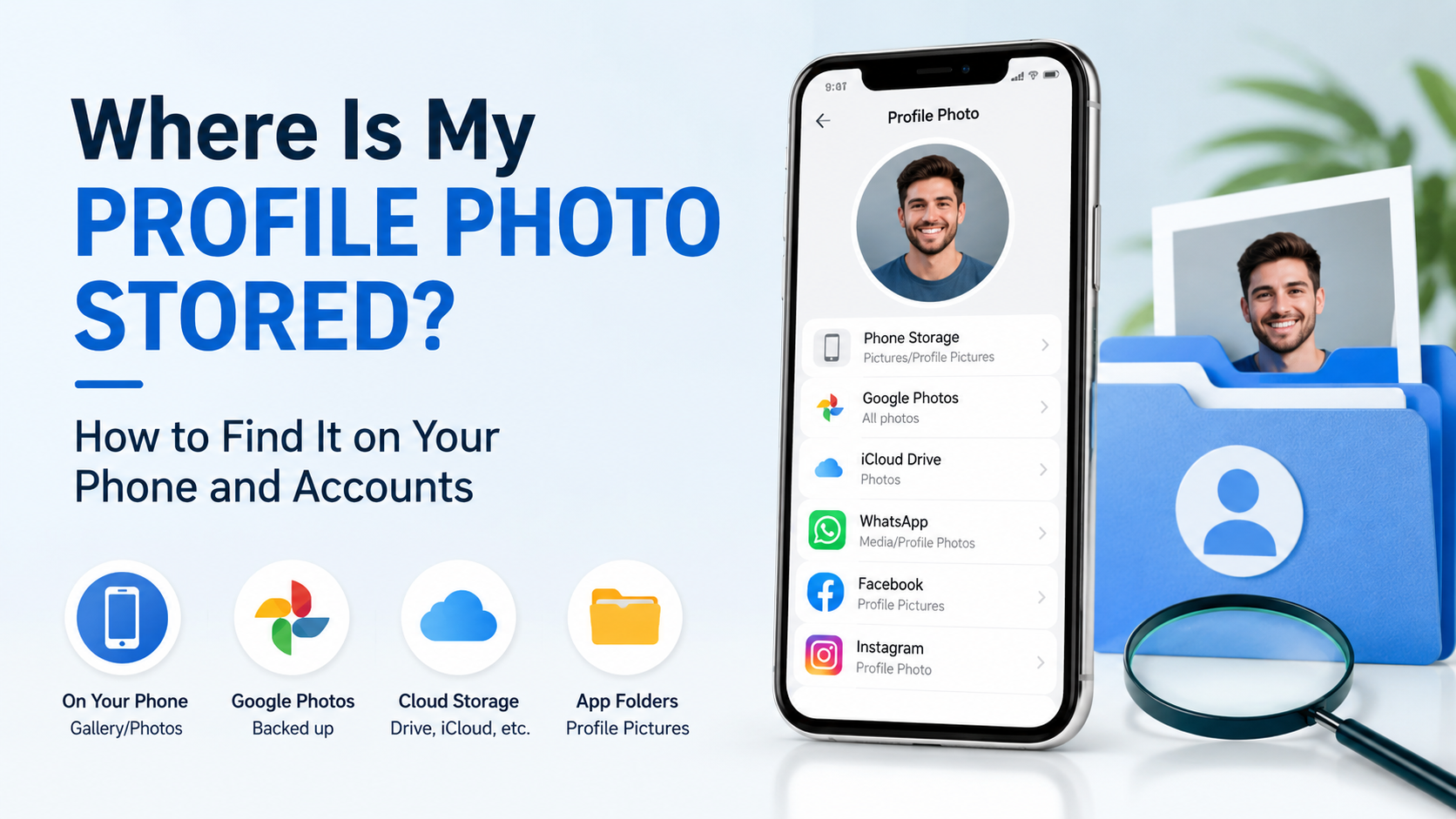
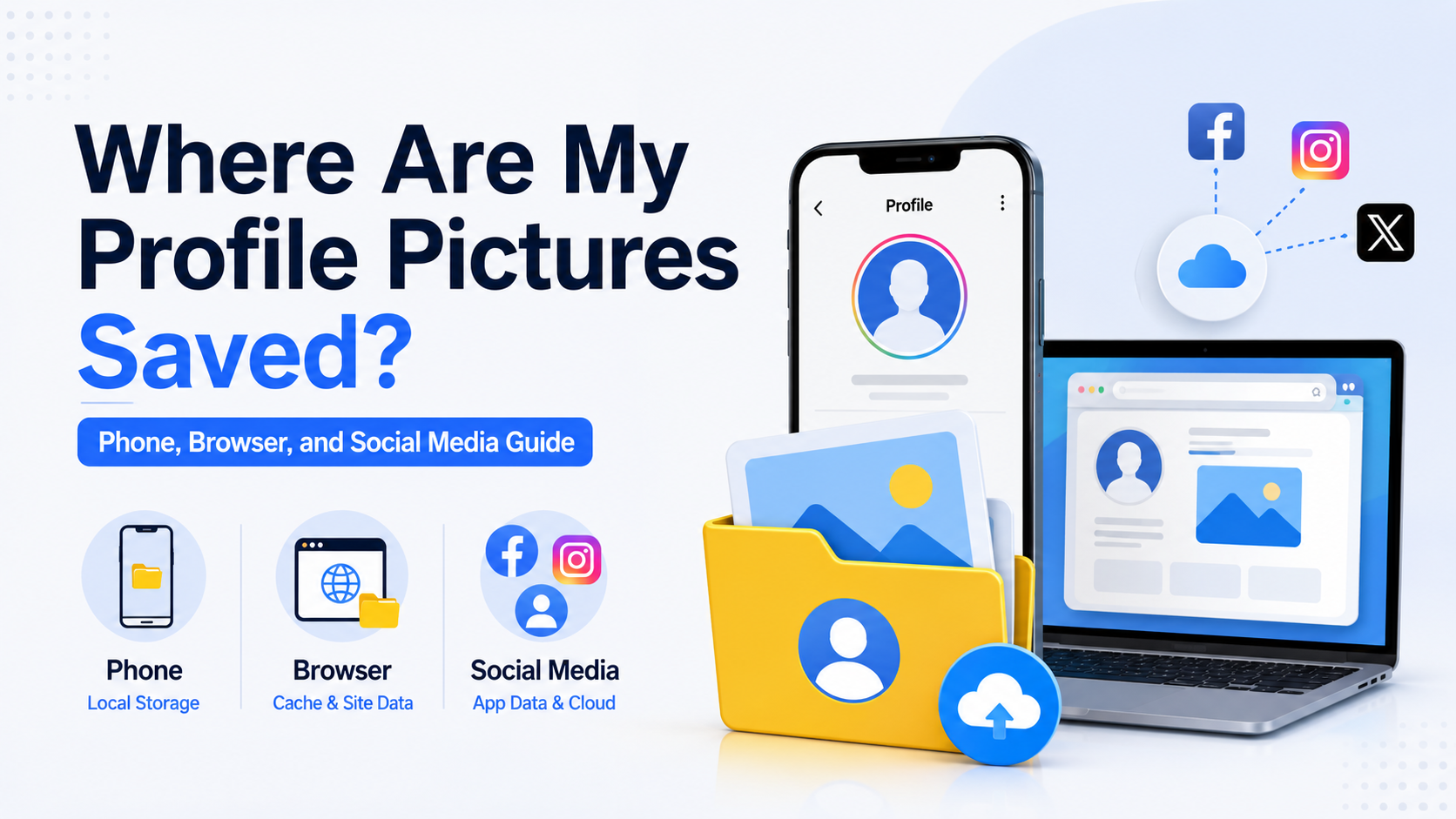
The answer to “where is my profile photo?” depends on how it was added. It may be saved as a regular image in your phone’s gallery, stored only inside an app, synced to cloud storage, or attached to a specific online account. This guide shows you where to look, how to retrieve the best-quality version, and how to manage your profile pictures more confidently.
Key Takeaways
- Your profile photo may be stored locally on your phone, in cloud backup, or only within a specific account.
- Check your Photos or Gallery app first, especially albums such as Camera, Downloads, Screenshots, or App Images.
- Most social and work platforms let you view, replace, or sometimes download your current profile photo from account settings.
- A profile image shown in an app is not always saved as a reusable file on your device.
- Save a high-resolution “master” profile photo in a clearly named folder to avoid searching again later.
Understand the Difference Between a Photo File and a Profile Photo
A profile photo is not always the same thing as a photo file. The image may have started as a file on your phone, but after uploading it to an account, the platform often creates and stores its own version.
Your original image file
The original file is the image you selected before uploading it. It could be:
- A camera photo taken with your phone
- A professionally taken headshot sent by email
- A downloaded image from a cloud folder
- A cropped screenshot
- An image received through a messaging app
This original is usually the best version to find because it is likely higher resolution and less compressed than the version displayed in an app.
Your account’s profile-photo copy
After you upload an image, services such as Google, Facebook, LinkedIn, Microsoft Teams, WhatsApp, and Apple may store a resized or optimized copy on their servers. That version can appear in search results, messages, meetings, and account dashboards.
For example, the square headshot shown in LinkedIn may be a cropped version of a larger photo you uploaded years ago. Even if you can see it on LinkedIn, the original camera image may be somewhere else entirely.
Find Your Profile Photo on an iPhone
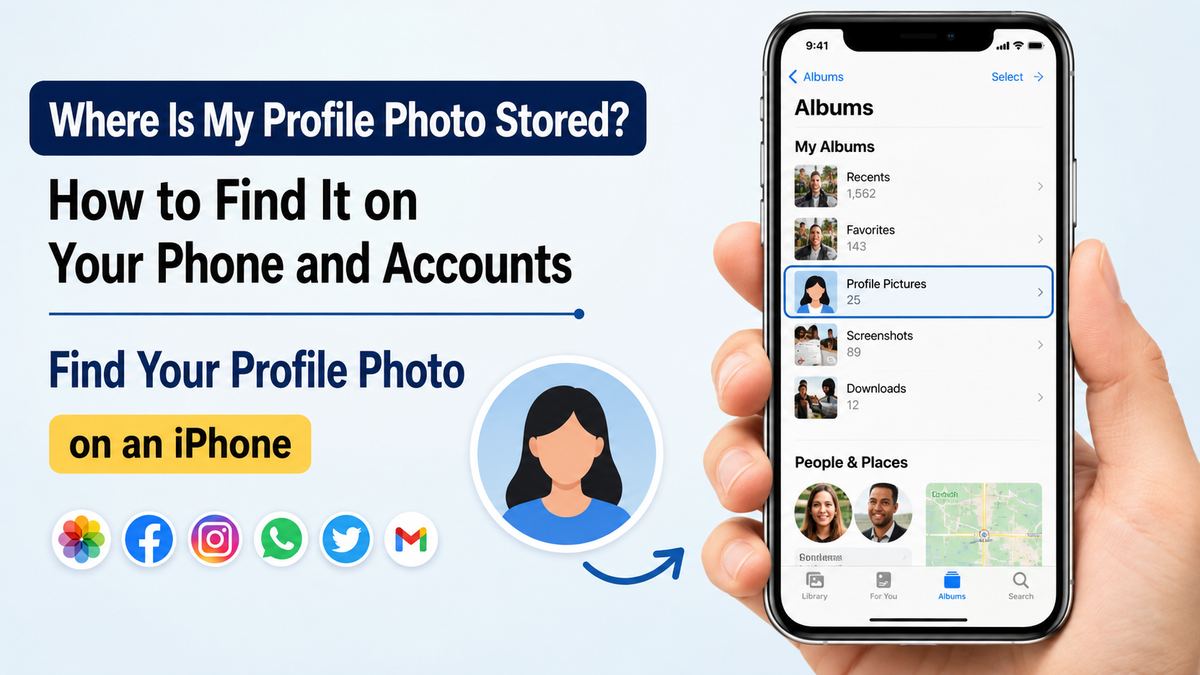
On an iPhone, profile images commonly live in the Photos app, Files app, Messages attachments, or iCloud Photos. Start with the simplest option: search your photo library.
Search in the Photos app
Open Photos and use the Search tab. Try terms that describe when or how the image was created:
- Your name or a person’s name
- “Selfie”
- “Portrait”
- The location where the photo was taken
- The month or year you updated your profile
- A company, event, or school name
If the photo includes your face, the People & Pets section may also identify it automatically. Open your person album to see photos the iPhone has grouped as likely images of you.
Check hidden, shared, and recently saved images
If the image does not appear in your main library, review these places:
- Recently Deleted: Useful if the original was removed within the last 30 days.
- Hidden: Profile photos are sometimes hidden to keep a library tidy.
- Shared Albums: A friend, photographer, or family member may have shared the original there.
- Screenshots: You may have captured your profile photo from an app.
- Files: Look in the Files app under Downloads, iCloud Drive, and On My iPhone.
A professional headshot sent from a photographer might be in Files as a JPG, PNG, or HEIC file rather than in the Photos app.
Find Your Profile Photo on an Android Phone
Android devices vary by manufacturer, but the process is similar whether you use Google Photos, Samsung Gallery, or another gallery app.
Search Google Photos or your Gallery app
Open your main photo app and use search terms such as “selfie,” “portrait,” your name, or a date range. Google Photos can often recognize people, places, and objects, making it especially useful when you do not remember the filename.
Also inspect albums or folders including:
- Camera
- Pictures
- Downloads
- Screenshots
- WhatsApp Images
- Telegram
- Bluetooth
- Edited
- Social media app folders
For instance, if you changed your Instagram image from a picture sent on WhatsApp, the original may still be in the WhatsApp Images folder.
Use the Files app for downloaded headshots
Open Files by Google, My Files, or your phone’s file manager. Search for image extensions such as .jpg, .jpeg, .png, or .heic.
Sort files by date if you remember roughly when you changed the profile image. This is particularly effective for work photos downloaded from email, company portals, or cloud services.
Check the Accounts Where Your Profile Photo Appears
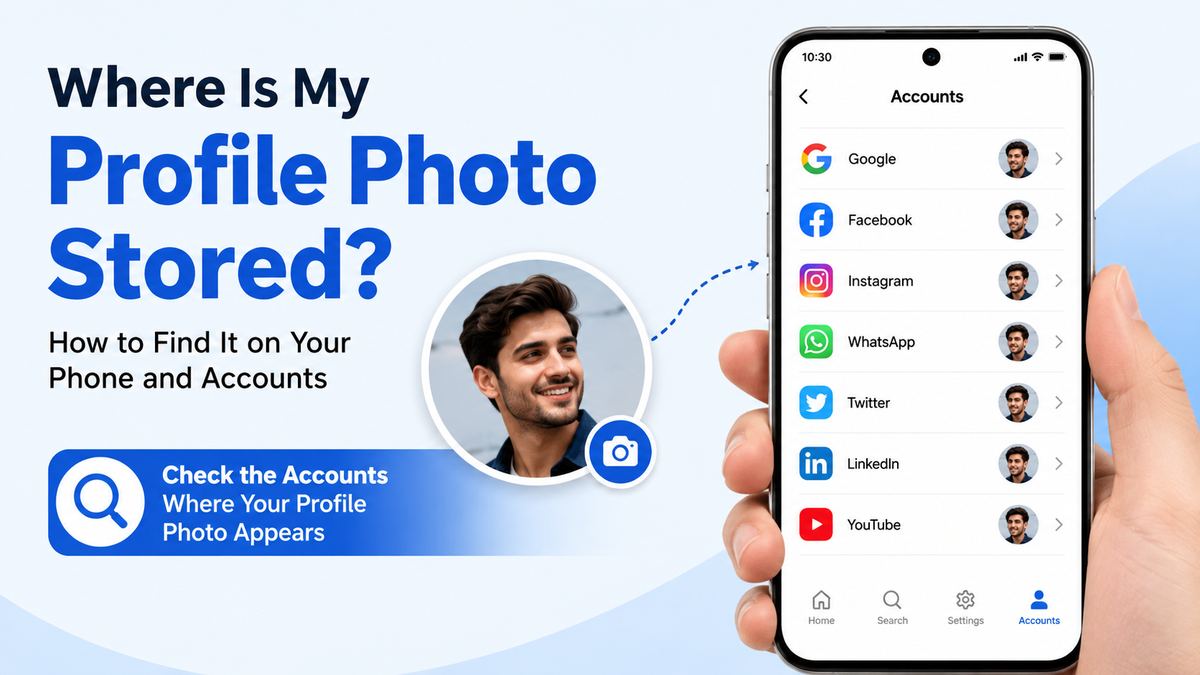
If you cannot find the image locally, go directly to the service where you use it. Many platforms allow you to view your current profile photo, replace it, or download a copy.
Social media accounts
On social networks, look for Profile, Edit Profile, Account Center, or Settings. Your current image is usually shown at the top of the profile-editing screen.
Common examples include:
- Facebook: Open your profile and select your profile picture to view or change it.
- Instagram: Go to Profile, then Edit Profile, and select Edit Picture or Avatar.
- LinkedIn: Open your profile and select the pencil icon near your photo.
- X: Open Profile, then Edit Profile, and select the image.
- TikTok: Go to Profile, then Edit Profile, and select Change Photo.
Some platforms show only a compressed display version. If image quality matters, use the account copy as a reference to locate the original elsewhere.
Email, work, and video-meeting accounts
Professional profile photos are often tied to identity systems rather than stored in a personal photo folder.
Check:
- Google Account: Visit your Google Account settings and select your personal information or profile picture.
- Microsoft account: Review account profile settings; workplace photos may be managed through Microsoft 365.
- Slack: Select your profile, then edit your profile photo.
- Microsoft Teams: Open your account/profile menu and choose your picture or account settings.
- Zoom: Sign in to your profile page and select Change under the profile image.
In an organization, IT administrators may control your profile image. If you cannot change it yourself, ask your company’s help desk whether the photo is managed through Microsoft 365, Google Workspace, Active Directory, or another employee directory.
Look in Cloud Storage and Backups
Your profile photo may no longer be on your current phone but still exist in the cloud. This often happens after switching devices, deleting old files, or using automatic backups.
Search photo backup services
Check the service you use for photo syncing:
- iCloud Photos
- Google Photos
- OneDrive
- Dropbox
- Amazon Photos
- Samsung Cloud, where available
Search by date, location, person, or keyword. If your current device has a small photo library, signing into an older cloud account can uncover photos that were never transferred to your new phone.
Review email and messaging history
Many people receive profile photos from photographers, recruiters, employers, or friends. Search email for terms like:
- “Headshot”
- “Photo”
- “Portrait”
- “Profile picture”
- “Attached”
- The photographer’s or sender’s name
Also review message conversations where someone may have sent you the image. Download the attachment and save it to a dedicated folder before using it again.
Download or Save a Usable Copy Safely
Finding the displayed profile photo is only the first step. You also need a version that is suitable for reuse.
Choose the highest-quality source
Prioritize sources in this order:
- The original image from your phone, camera, photographer, or cloud drive
- The full-resolution file attached to email or shared by a colleague
- A downloadable copy from the account
- A screenshot of the displayed profile image
Screenshots should be a last resort. They are typically lower resolution, may include interface elements, and can look blurry when uploaded to professional platforms.
Avoid accidental cropping and compression
Before reusing an image, confirm that it is not overly cropped or compressed. Many services display profile photos as circles, but the uploaded image itself is usually square or rectangular.
For a polished result:
- Keep your face centered with space around the edges.
- Use a high-resolution original whenever possible.
- Export a square copy for platforms that use circular profile frames.
- Check the preview before saving changes.
- Avoid repeatedly downloading and reuploading compressed versions.
A 1,000-by-1,000-pixel square image is generally flexible enough for most major platforms.
Why You May Not Be Able to Find the Original
Sometimes the profile photo is visible but the original file is gone. This is common and does not necessarily mean anything is wrong.
The account stores only an uploaded copy
You may have uploaded the picture from an old phone, computer, or temporary download folder. The service still displays its stored copy, but the original is no longer in your current gallery.
For example, you may see the same profile image in Gmail from 2018 even though the phone used to upload it has long been replaced.
Someone else uploaded the image
A company administrator, family member, school, photographer, or colleague may have uploaded the photo on your behalf. In that case, ask the person or organization that supplied it for the source file.
The image was replaced or deleted
Some apps retain a current profile photo but remove older versions. Check account activity, archives, old devices, cloud backups, and conversations where the photo was originally shared.
Create a Simple Profile-Photo Organization System
Once you locate your image, take a few minutes to make future updates easy.
Save a master profile-photo folder
Create a folder called something clear, such as:
Profile Photos
Store:
- The original high-resolution image
- A square cropped version
- A professional version for work platforms
- A casual version for personal social accounts
- Any approved company headshot
Use descriptive filenames, such as jordan-lee-professional-headshot-2026.jpg, instead of generic names like IMG_4821.jpg.
Keep your account images consistent
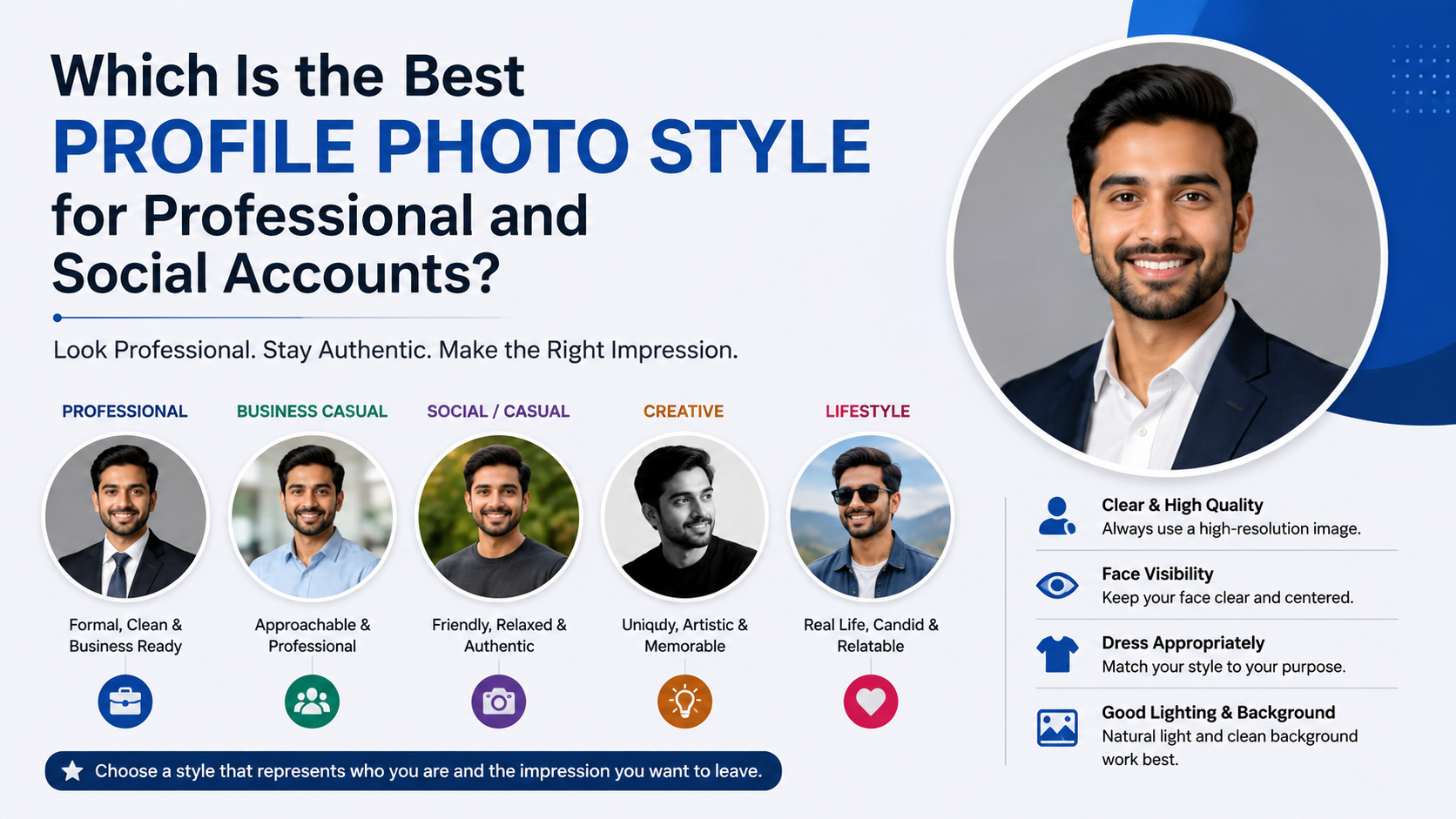
Using a recognizable image across key professional channels helps people identify you quickly. Consider aligning your photo across:
- Your company directory
- Email profile
- Video-meeting platforms
- Portfolio website
- Professional association accounts
You do not need identical photos everywhere, but keeping the same general appearance builds consistency and credibility.
Frequently Asked Questions
Where is my profile photo stored on my phone?
It may be in your Photos or Gallery app, a Downloads folder, a messaging-app folder, or cloud photo storage. If you uploaded it from an app years ago, it may no longer be stored locally and may exist only in that account.
Can I download my current profile picture from an app?
Sometimes. Many platforms let you view the image, but download options vary. Check the profile-editing page, account data-download settings, or open the image in a browser. If downloading is unavailable, ask the original uploader for the highest-quality file.
Why does my profile photo look blurry after uploading?
The source image may be too small, a screenshot, or an already compressed copy. Upload the original high-resolution file and follow the platform’s cropping preview. Repeatedly saving and reuploading images can also reduce quality.
Is my Google profile photo saved in Google Photos?
Not necessarily. Your Google Account profile photo is managed through your account settings, while Google Photos stores images in your photo library. They may be the same image, but changing one does not always update the other.
Can my employer control my work profile photo?
Yes. Many organizations manage employee photos through Microsoft 365, Google Workspace, or internal directory systems. If editing options are unavailable, contact your IT or HR team for guidance.
Conclusion
When you are asking, “where is my profile photo?” start with your phone’s photo library and file manager, then check cloud backups, messages, email attachments, and the account where the image appears. The visible profile image may be an account-specific copy, so locating the original file is the best way to preserve image quality.
Once you find it, save a clearly labeled master copy and a few platform-ready versions. You will be able to update your accounts faster, maintain a professional presence, and avoid another frustrating search the next time your profile needs a refresh.