August 19, 2026 · Updated August 23, 2026 · 11 min read
Where Is Color Profile in Photoshop? Find and Manage ICC Settings
On this page
- What a Color Profile Does in Photoshop
- Where Is Color Profile in Photoshop?
- How to Open Photoshop Color Settings
- Assign Profile vs. Convert to Profile
- Choosing the Right Profile for Web, Photography, and Print
- How to Embed an ICC Profile When Saving
- Troubleshooting Common Photoshop Color Profile Problems
- Frequently Asked Questions
- Conclusion
Where Is Color Profile in Photoshop? Find and Manage ICC Settings
Colors that look perfect on your monitor can shift dramatically on another screen, in a browser, or when printed. The usual reason is not the image itself—it is color management. Knowing where is color profile in Photoshop gives you control over how Photoshop interprets, displays, and outputs your file.
Whether you create social graphics, edit product photographs, or prepare press-ready artwork, Photoshop’s ICC profile tools help maintain predictable color from start to finish.
Key Takeaways
- Find a document’s active profile in the status area at the bottom of the document window.
- Open Edit > Color Settings to control Photoshop’s default working spaces and profile-warning behavior.
- Use Edit > Assign Profile only when the file is being interpreted with the wrong profile.
- Use Edit > Convert to Profile when preparing the same visual appearance for a new output space.
- Embed ICC profiles when saving PSD, TIFF, JPEG, PDF, or PSB files to preserve color intent.
- Use sRGB for most web delivery and follow your printer’s required CMYK profile for professional print work.
What a Color Profile Does in Photoshop
ICC profiles translate color between devices
An ICC color profile is a standardized description of how a color space or device reproduces color. It helps Photoshop translate RGB or CMYK numbers into predictable visual color across monitors, cameras, printers, and applications.
For example, RGB values of 255, 0, 0 represent red, but the exact red you see depends on the color space used. A red in sRGB can look different from the same numeric red interpreted as Adobe RGB or Display P3.
Photoshop uses color profiles to answer a critical question: “What do these color numbers mean?”
Common Photoshop color spaces
You will frequently encounter these profiles:
- sRGB IEC61966-2.1: The standard choice for websites, social media, email, and most consumer displays.
- Adobe RGB (1998): A wider-gamut RGB space often used in photography and print-oriented workflows.
- ProPhoto RGB: An extremely wide-gamut editing space, commonly used in high-end raw photography workflows.
- CMYK printer profiles: Output-specific profiles supplied by a print provider, describing a particular press, ink set, paper, and printing condition.
A profile does not automatically make colors better. It tells Photoshop how to interpret and reproduce them accurately.
Where Is Color Profile in Photoshop?
View the active document profile
The quickest way to find the color profile in Photoshop is in the document status area:
- Open the image in Photoshop.
- Look at the bottom of the document window.
- Click the small arrow beside the document information.
- Choose Document Profile.
Photoshop will display the active profile, such as sRGB IEC61966-2.1, Adobe RGB (1998), or a CMYK press profile.
This is the best first check when a file looks unexpectedly dull, overly saturated, or different from another version.
Check the profile through document settings
You can also review the current working document’s profile when using profile-related commands:
- Go to Edit > Assign Profile to see how Photoshop currently interprets the document.
- Go to Edit > Convert to Profile to view the current source space and choose a destination profile.
These dialogs are useful when you need to diagnose or intentionally change a file’s color-management setup.
Confirm the profile before delivery
Before exporting a client file or sending artwork to print, check the profile one more time. This small habit prevents common mistakes, such as sending an Adobe RGB image to a web platform that expects sRGB or delivering a generic CMYK file to a printer that requires a specific press profile.
How to Open Photoshop Color Settings
Navigate to the Color Settings dialog
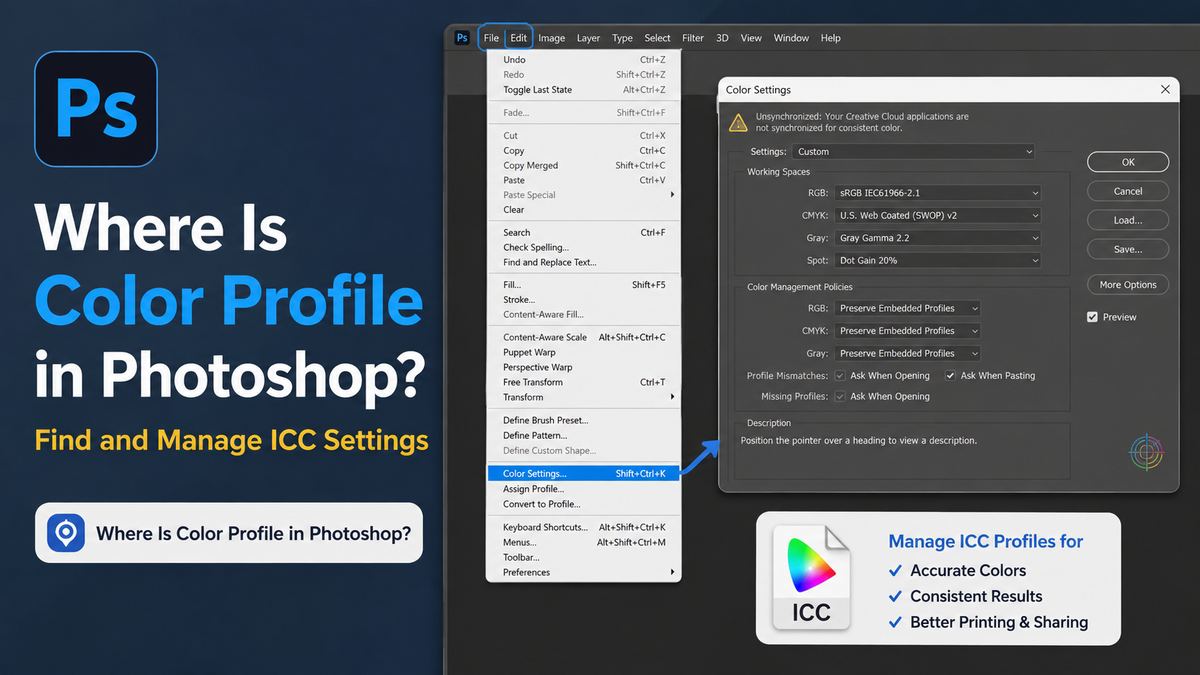
To manage Photoshop’s broader ICC settings, choose:
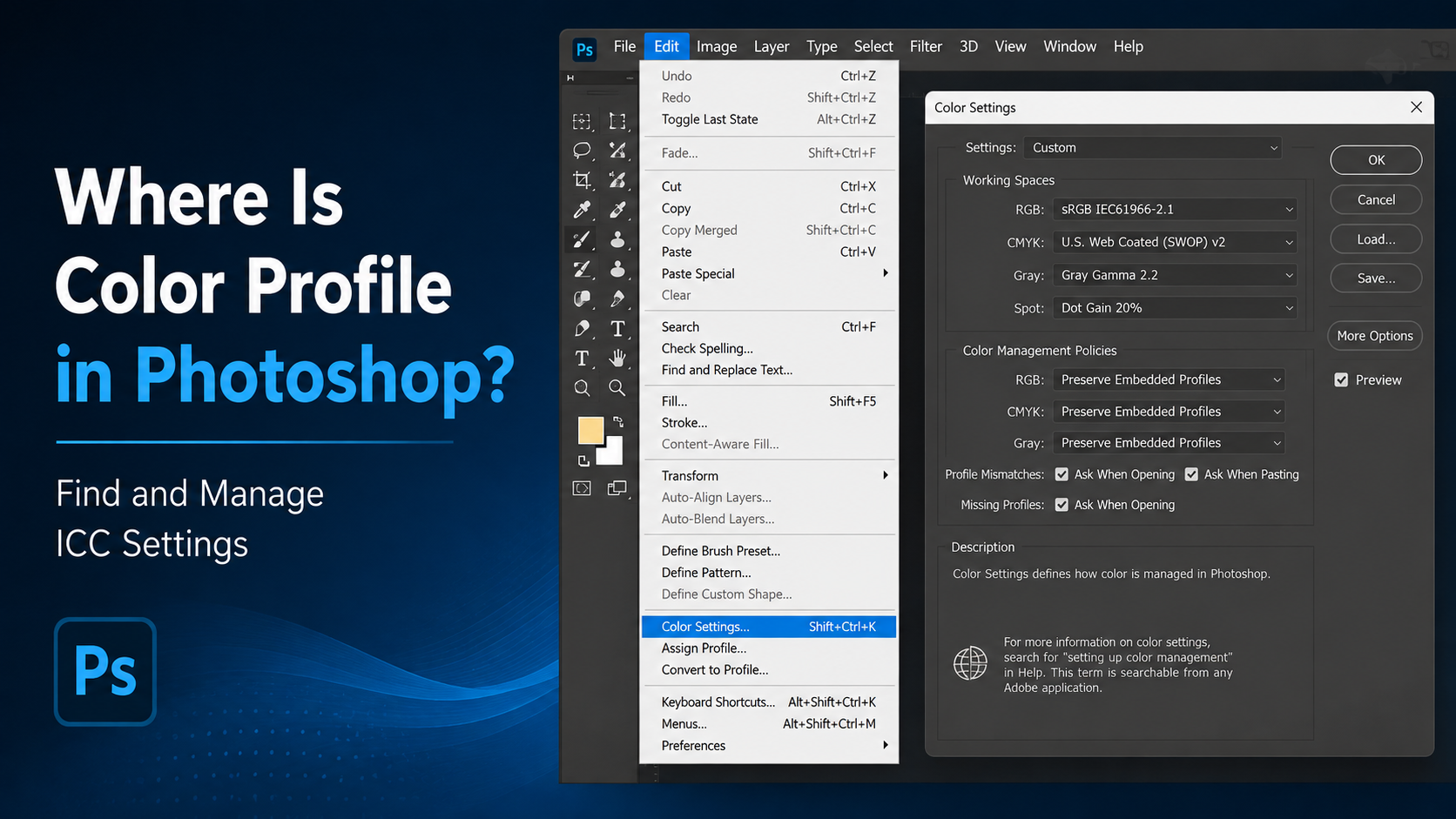
Edit > Color Settings
On Windows, the shortcut is commonly Ctrl+Shift+K. On macOS, use Command+Shift+K.
This dialog controls the default color-management behavior Photoshop applies to new documents and incoming files.
Set appropriate working spaces
Under Working Spaces, Photoshop lets you choose default profiles for:
- RGB
- CMYK
- Gray
- Spot colors
For most general-purpose digital work, an RGB working space of sRGB is simple and dependable. Photographers who need more editing headroom may use Adobe RGB or ProPhoto RGB, provided they understand how to convert files correctly for final delivery.
For CMYK, do not choose a profile at random. Use the profile recommended by your print provider, especially for packaging, magazines, fine-art printing, or branded collateral.
Configure color-management policies
The Color Management Policies section determines how Photoshop handles files that already contain profiles.
A practical, cautious setup is to preserve embedded profiles and enable warnings for:
- Profile mismatches
- Missing profiles
These warnings are valuable. They tell you when an incoming file’s color space differs from your working space or when Photoshop has no profile information to interpret the file accurately.
Assign Profile vs. Convert to Profile
Use Assign Profile to correct interpretation
Choose Edit > Assign Profile when the document’s existing color values are correct, but Photoshop is interpreting them with the wrong color profile.
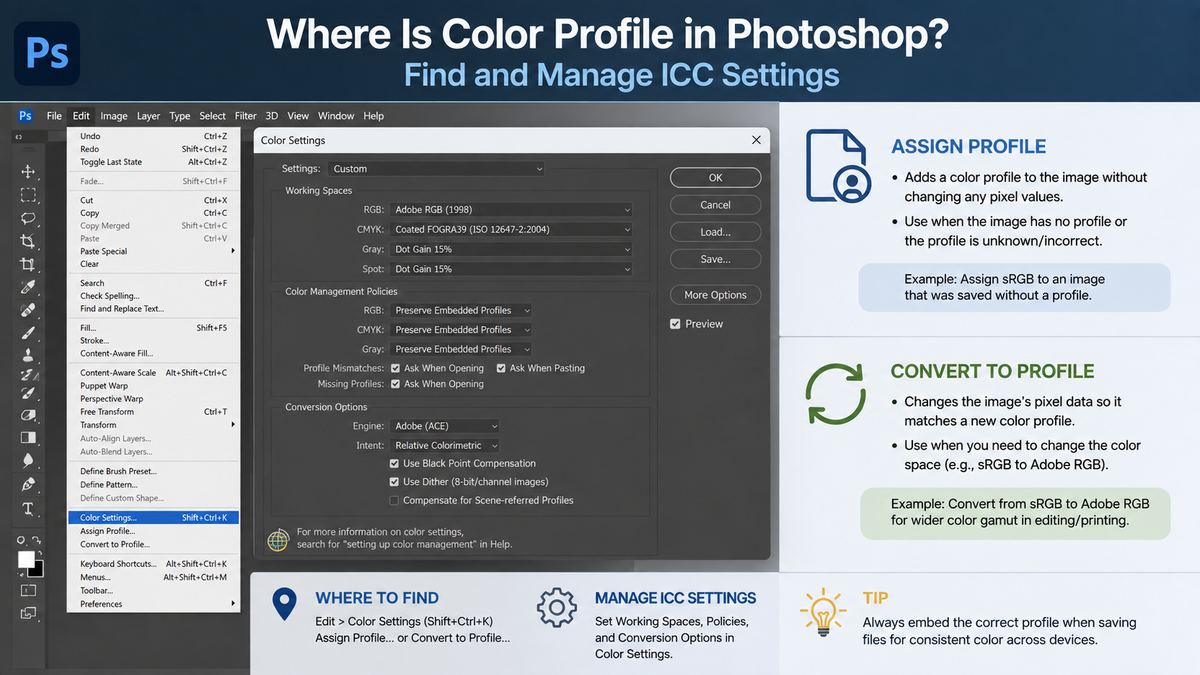
Assigning a profile does not change the file’s RGB or CMYK numbers. It changes the meaning Photoshop assigns to those numbers, so the image can change appearance significantly.
Use it when:
- An old or untagged image is known to have been created in a specific color space.
- A scanner or camera file was assigned the wrong profile.
- A file looks wrong because it was opened without its original profile.
For example, if a designer sends an untagged image that was actually created in Adobe RGB, assigning Adobe RGB may restore the intended appearance. Assigning sRGB instead could make the image appear incorrect.
Use Convert to Profile to preserve appearance
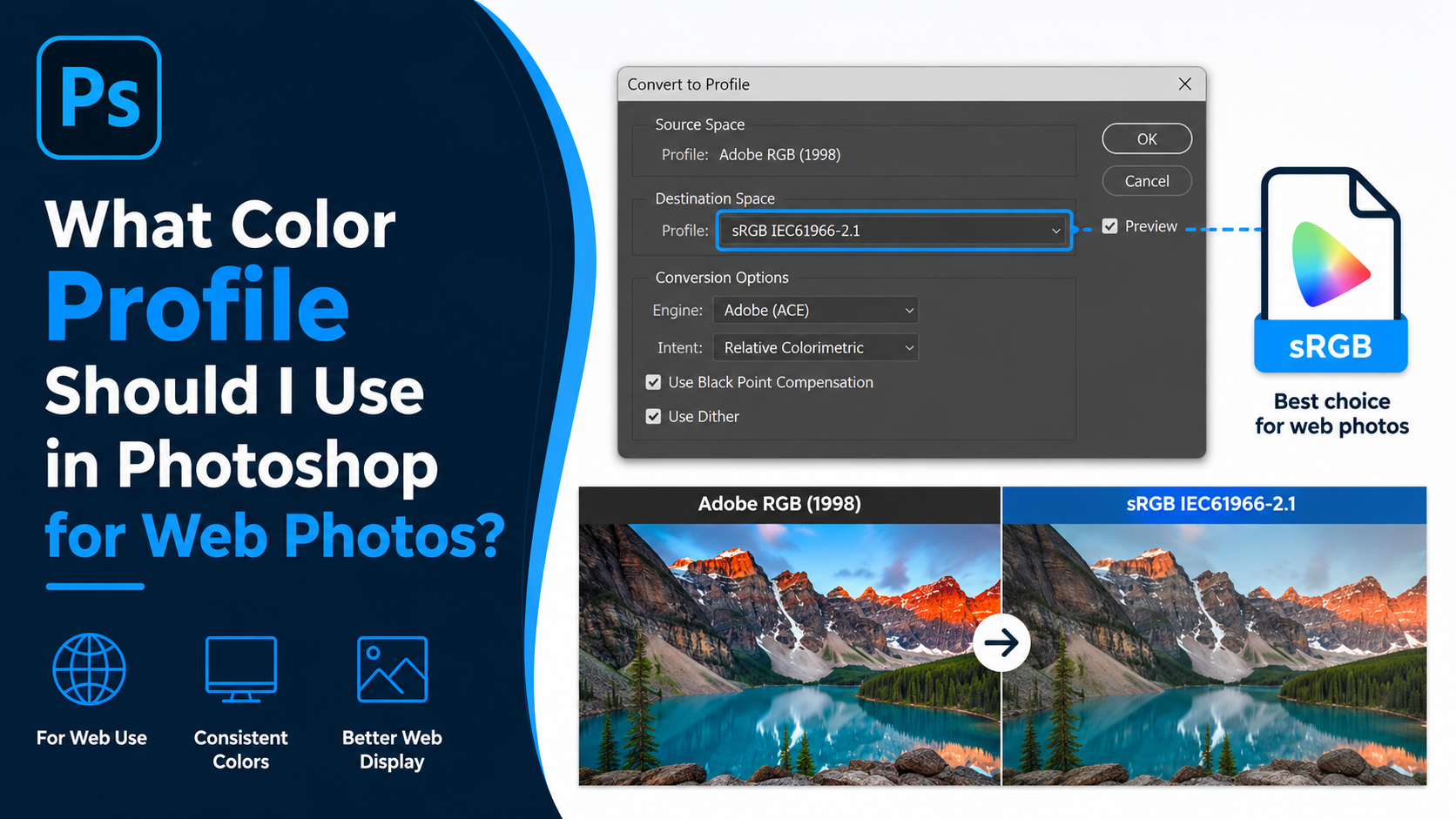
Choose Edit > Convert to Profile when you need to move a document into another color space while preserving its visual appearance as closely as possible.
Converting changes the color numbers so the image can maintain a similar look in the destination color space.
Use it when:
- Converting an Adobe RGB or ProPhoto RGB image to sRGB for the web.
- Preparing an RGB design for a specific CMYK print workflow.
- Standardizing files for a shared production pipeline.
In the Convert to Profile dialog, choose the destination profile and review the conversion options. Adobe generally recommends the Adobe Color Engine (ACE), while Black Point Compensation is often useful for retaining shadow detail during conversions. Use Preview to inspect the result before confirming.
Choosing the Right Profile for Web, Photography, and Print
Web and social media: use sRGB
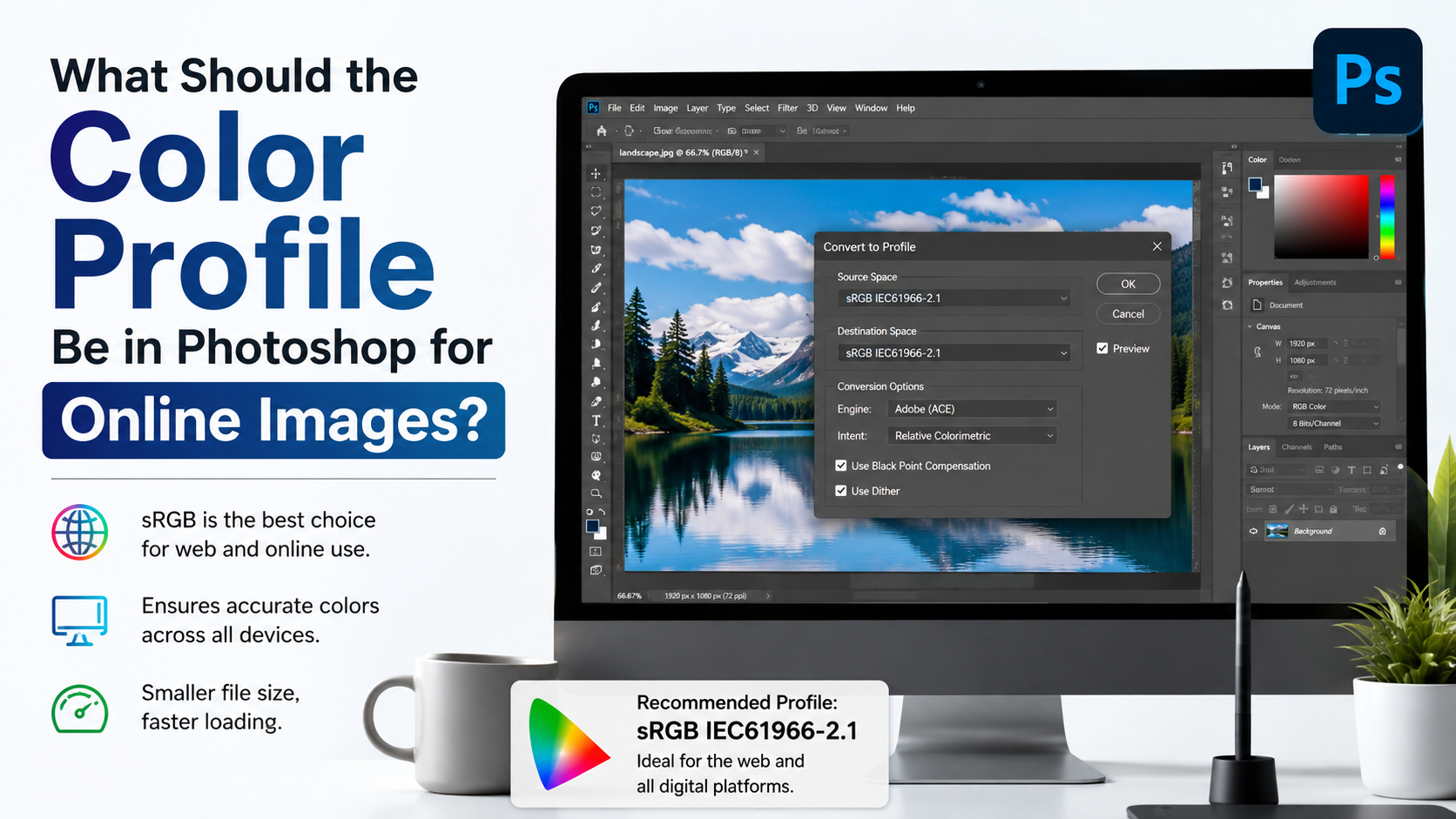
For websites, ecommerce listings, email campaigns, and most social platforms, convert final images to sRGB IEC61966-2.1 and embed the profile.
Why? Most browsers and consumer displays handle sRGB predictably. A wide-gamut image without proper conversion or embedding can appear muted, oversaturated, or inconsistent on different devices.
A reliable web workflow is:
- Edit in your preferred RGB working space.
- Create a final export copy.
- Convert that copy to sRGB.
- Save or export with the ICC profile embedded.
Photography: preserve gamut until output
Professional photographers may capture and edit images in Adobe RGB or ProPhoto RGB to retain a wider range of colors. This can be beneficial for saturated landscapes, product photography, and archival master files.
However, wide-gamut profiles are not automatically ideal for every output. Keep a high-quality master file, then create purpose-specific versions:
- sRGB JPEG for client galleries and websites
- Print-provider profile conversion for physical prints
- PSD or TIFF master with layers and embedded profile
Commercial print: follow the printer’s profile
CMYK is not one universal color space. Printing conditions vary based on paper stock, inks, press technology, and region. A coated-sheet magazine profile differs from an uncoated packaging profile.
Ask your printer for:
- Their recommended ICC profile
- Preferred file format
- Required PDF or TIFF specifications
- Bleed, resolution, and total ink-limit requirements
- Whether they want RGB files, converted CMYK files, or PDFs with profiles embedded
Avoid converting a print file to generic CMYK early in the creative process unless your production workflow requires it. Early conversion can limit color-editing flexibility.
How to Embed an ICC Profile When Saving
Save with the profile included
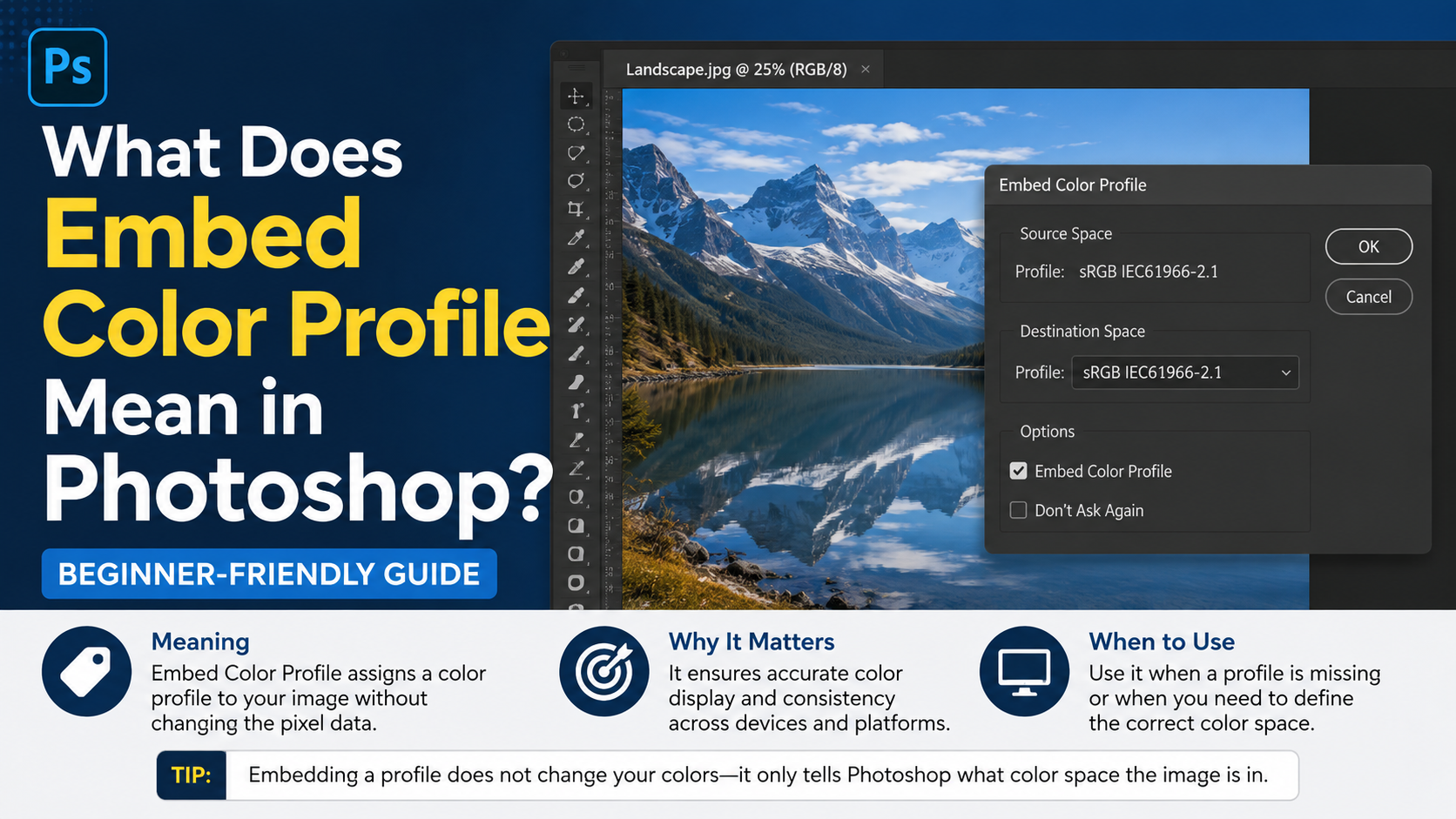
Embedding a profile keeps your color intent attached to the file. Photoshop supports embedded profiles in formats such as PSD, TIFF, JPEG, PDF, and PSB.
When using File > Save As, select a supported format and enable Embed Color Profile when the option appears.
Without an embedded profile, another application must guess how to interpret the color values. That guess is a common cause of color shifts.
Keep master and delivery files separate
A good production habit is to save two versions:
- Master file: Layered PSD or TIFF with the editing profile embedded.
- Delivery file: A purpose-built JPEG, PNG, TIFF, or PDF converted for web, client, or print requirements.
For instance, keep a product image master in Adobe RGB if that suits your editing workflow, but export an embedded sRGB JPEG for the online store.
Do not confuse profile embedding with conversion
Embedding attaches profile information; it does not alter the color values. Conversion changes the color values to work in a different destination space.
If your image is already sRGB, embedding the sRGB profile tells other software how to display it. If your image is Adobe RGB and you need a web-ready file, convert it to sRGB first, then embed the sRGB profile.
Troubleshooting Common Photoshop Color Profile Problems
The image looks different in a browser
First, verify that the exported file is sRGB and that the ICC profile was embedded. Browsers are more color-managed than they once were, but sRGB remains the safest standard for broad compatibility.
Also compare the file in more than one application. If Photoshop and the browser differ substantially, confirm that your monitor profile and display calibration are current.
Photoshop warns about a profile mismatch
A profile mismatch does not automatically mean something is wrong. It means the opened file’s embedded profile differs from your current working space.
Read the prompt carefully:
- Use the embedded profile when preserving the creator’s intent.
- Convert to the working space when your workflow requires consistent internal standards.
- Discard the embedded profile only when you are certain it is incorrect.
For most client-supplied images, preserving the embedded profile is the safest starting point.
The print is darker or less saturated than the screen
A bright monitor can make prints seem unexpectedly dark. Soft proofing, monitor calibration, and correct printer profiles are essential for reliable print evaluation.
Use View > Proof Setup and View > Proof Colors to simulate a target print condition on screen. Soft proofing cannot replace a physical proof, but it can reveal out-of-gamut colors and likely tonal changes before production.
Frequently Asked Questions
Is color profile the same as color mode in Photoshop?
No. Color mode describes the structure of the image, such as RGB, CMYK, Grayscale, or Lab. A color profile defines how colors within that mode should be interpreted. Two RGB files can have different appearances if one uses sRGB and the other uses Adobe RGB.
Where can I see the ICC profile of an open Photoshop file?
Click the arrow in the document information area at the bottom of the Photoshop window and select Document Profile. You can also inspect the current interpretation through Edit > Assign Profile.
Should I assign or convert a color profile?
Assign a profile when Photoshop is interpreting existing color numbers incorrectly. Convert to a profile when you need to change color spaces while preserving the image’s appearance as closely as possible. Assigning changes interpretation; converting changes the color values.
What color profile should I use for Instagram and websites?
Use sRGB IEC61966-2.1 for most online uses. Convert the final exported image to sRGB and embed the profile for the most dependable cross-device results.
Should I always embed the color profile?
Usually, yes. Embedding a profile gives other applications the information needed to display your colors correctly. The main exception is a workflow with explicit delivery instructions that say otherwise.
Conclusion
If you have been asking, “Where is color profile in Photoshop?” start by checking Document Profile in the status area, then open Edit > Color Settings to manage your default ICC workflow. From there, use Assign Profile to correct a file’s interpretation and Convert to Profile to prepare it for a new output destination.
Keep sRGB as your dependable web standard, use printer-supplied profiles for professional print work, and embed profiles whenever you save deliverable files. Make profile checking part of your final export checklist, and your colors will remain far more consistent from Photoshop to screen to print.