August 19, 2026 · Updated August 23, 2026 · 11 min read
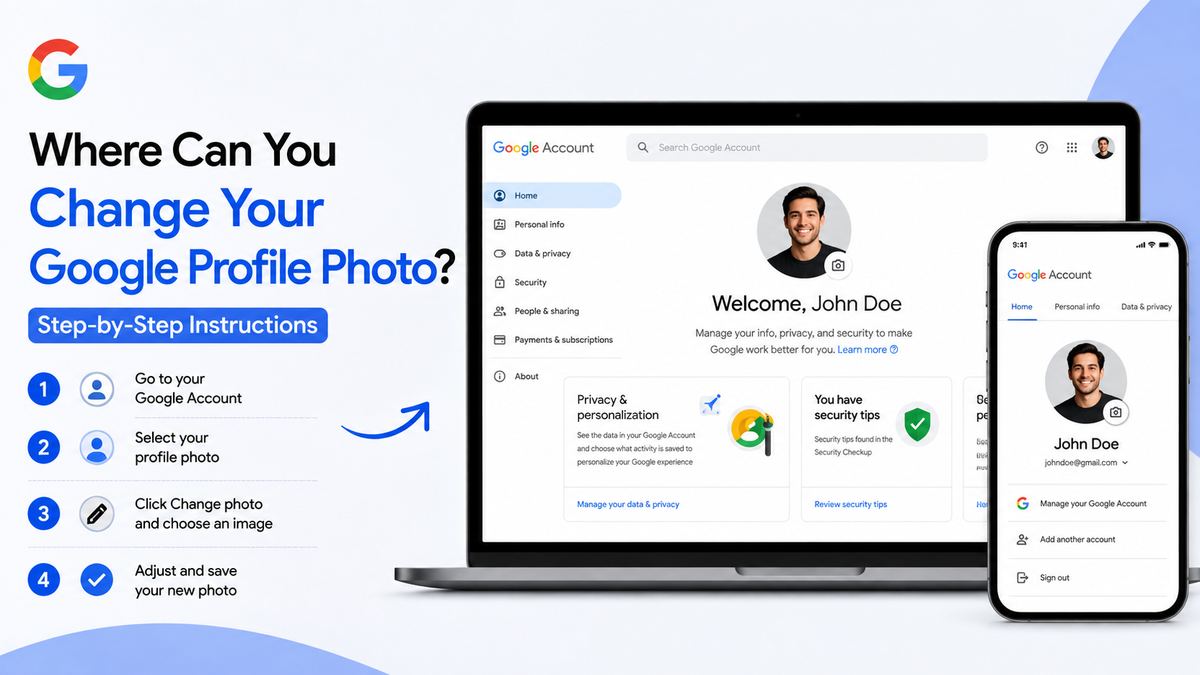
Where Can You Change Your Google Profile Photo? Step-by-Step Instructions
On this page
- Why Your Google Profile Photo Matters
- Where to Change Google Profile Photo on a Computer
- How to Change Your Google Profile Photo in Gmail
- How to Change Your Google Profile Photo on Android
- How to Change Your Google Profile Photo on iPhone or iPad
- Updating a Google Workspace Work or School Photo
- What Happens After You Change Your Photo
- Common Google Profile Photo Problems and Fixes
- Frequently Asked Questions
- Conclusion
Where Can You Change Your Google Profile Photo? Step-by-Step Instructions
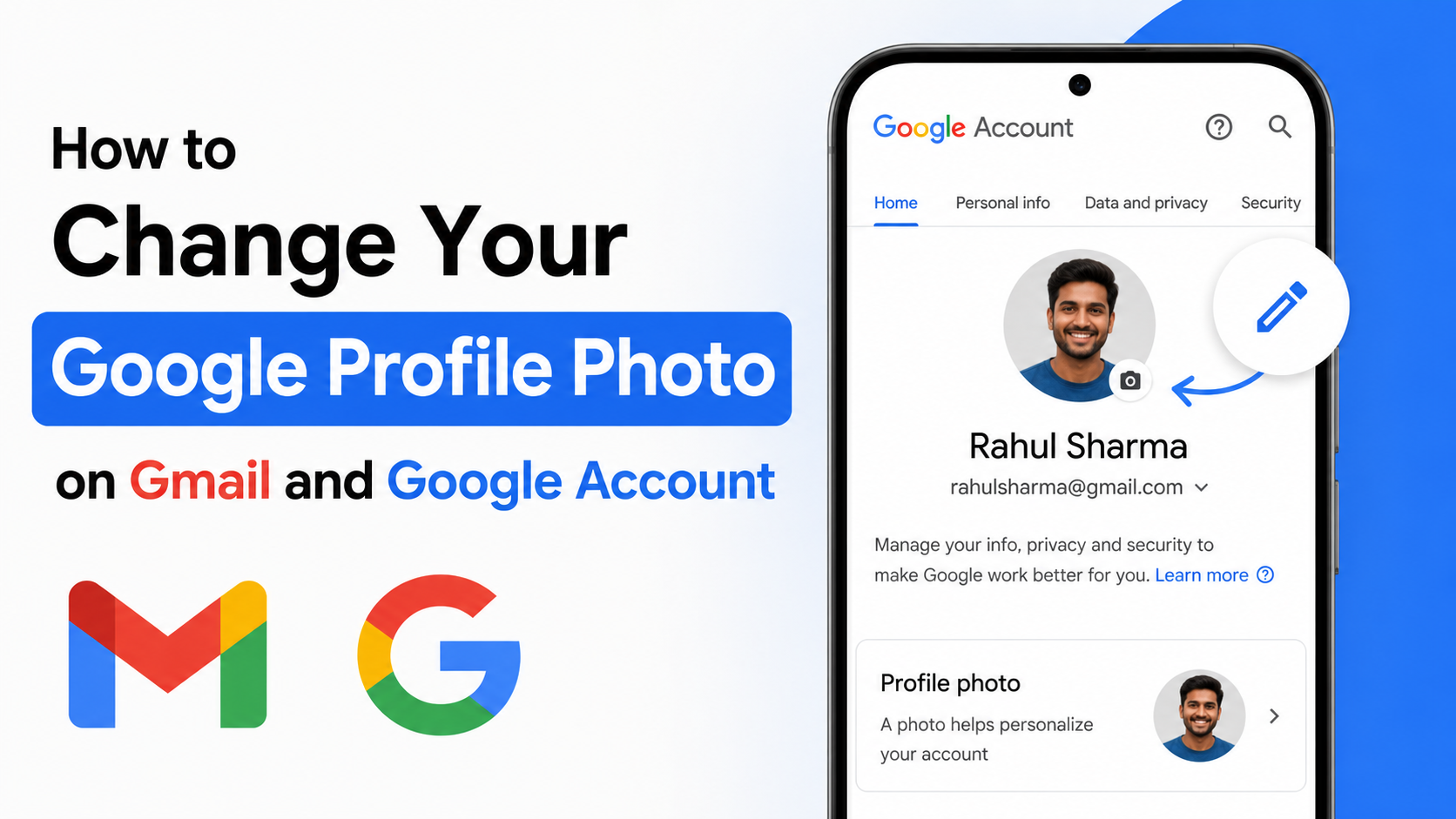
Your Google profile photo is more visible than you might realize. It can appear in Gmail messages, Google Meet calls, Drive sharing, Calendar invitations, YouTube, Maps contributions, and other Google services. Whether you want a more professional headshot or simply need to replace an outdated picture, the change is managed through your Google Account.
This guide explains where to change Google profile photo settings, how to update the image on every major device, and what to do if the new photo does not appear immediately.
Key Takeaways
- Change your photo centrally through your Google Account’s Personal info settings.
- On a computer, start at
myaccount.google.comfor the most reliable route. - Android and iPhone users can update the photo from the Google, Gmail, or account-settings apps.
- Your new image may take time to appear across Gmail, Meet, YouTube, and other services.
- A work or school Google Workspace account may have administrator-controlled photo settings.
- Use a clear, well-lit, recognizable image for a more professional online presence.
Why Your Google Profile Photo Matters
A Google profile photo acts as your visual identity across Google’s ecosystem. It helps colleagues recognize you in email threads, makes meetings feel more personal, and gives shared documents a clearer sense of ownership.
Where Your Photo Can Appear
Depending on the Google products you use and your privacy settings, your profile photo may appear in:
- Gmail email conversations and contact cards
- Google Meet meetings
- Google Drive, Docs, Sheets, and Slides collaboration
- Google Calendar invitations
- YouTube channels and comments
- Google Maps reviews and contributions
- Google Chat conversations
- Google Contacts and shared Google services
For example, a consultant who shares proposals through Google Docs may want to use the same polished headshot that appears on their company website. A personal user may prefer a casual but recognizable photo for family Gmail threads and Google Meet calls.
One Photo, Many Google Services
Google generally connects your profile image to the Google Account itself rather than requiring separate updates in every app. This means changing it once can update the image in many places.
However, different services may refresh at different speeds. Your new photo may show immediately in Gmail but take longer to appear in Google Meet or on a YouTube channel.
Where to Change Google Profile Photo on a Computer
The desktop Google Account page is usually the simplest and most complete way to update your picture.
Use Your Google Account Settings
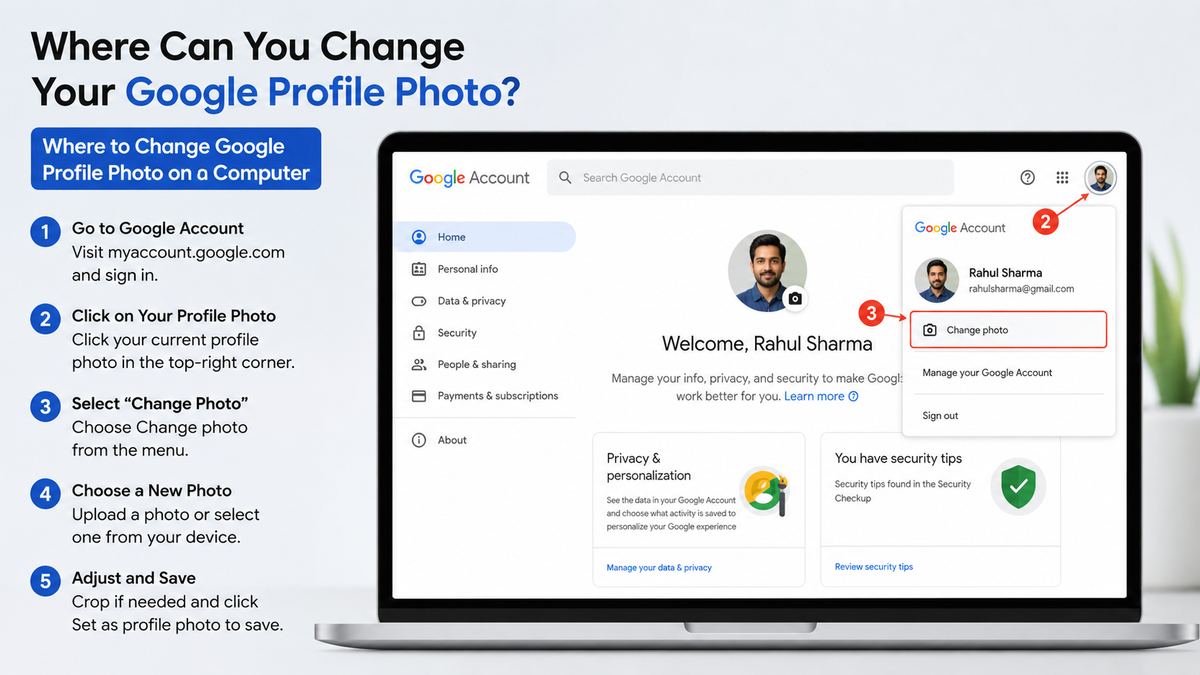
Follow these steps:
- Open a browser and go to myaccount.google.com.
- Sign in to the Google Account whose photo you want to change.
- Select Personal info from the left-side menu.
- Under Basic info, select your current profile photo.
- Choose Change or Add profile picture.
- Upload a new image or select one from available photos.
- Crop or adjust the image, then save your changes.
If you are signed in to multiple Google accounts, check the account icon in the upper-right corner before making changes. It is easy to update the wrong account when switching between a personal Gmail address and a work account.
Choose the Right Image File
For the best result, use a recent, high-quality image where your face is clearly visible. Square images work especially well because Google displays profile photos in a circular frame in many places.
Before uploading, consider these practical guidelines:
- Use a well-lit photo with your face centered.
- Avoid tiny, blurry, or heavily filtered images.
- Leave some space around your face so the circular crop does not cut it off.
- Use a professional headshot for business-facing accounts.
- Avoid logos unless the account represents a business or organization.
How to Change Your Google Profile Photo in Gmail
Gmail provides a convenient shortcut to your Google Account photo settings. This is particularly useful if you notice an outdated image while reading or sending email.
Change It From Gmail on the Web
- Open Gmail in your browser.
- Click your profile image or initial in the upper-right corner.
- Select the camera icon or choose Manage your Google Account.
- Open Personal info.
- Select your profile photo.
- Upload, crop, and save the new picture.
This route ultimately leads to the same Google Account setting. The difference is simply convenience: Gmail gets you there in a few clicks.
Change It From the Gmail Mobile App
In the Gmail app on Android or iPhone:
- Tap your profile picture in the upper-right corner.
- Select Manage your Google Account.
- Tap Personal info.
- Tap your profile photo.
- Choose or upload a new image.
- Adjust the crop and confirm the update.
The exact button labels can vary slightly by device and app version, but the destination remains the same: your Google Account’s personal information settings.
How to Change Your Google Profile Photo on Android
Android offers several paths because Google Account controls are integrated into the operating system.
Use the Google App
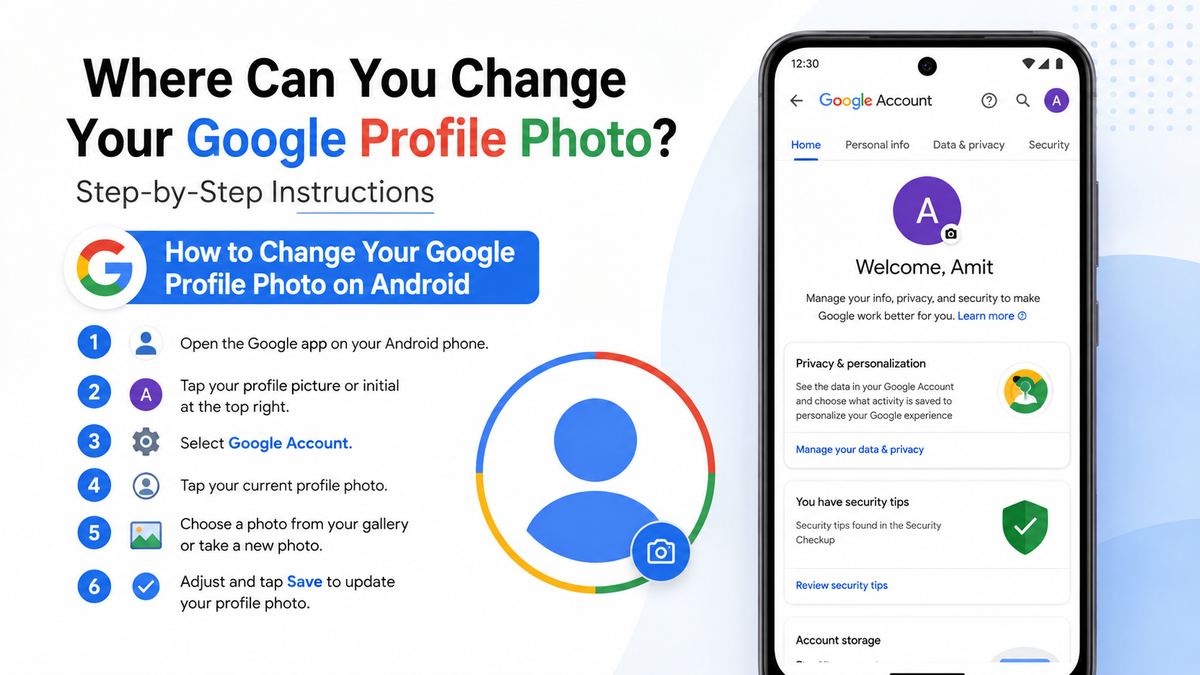
A straightforward method is through the Google app:
- Open the Google app.
- Tap your profile image in the top-right corner.
- Select Manage your Google Account.
- Tap Personal info.
- Select your profile photo.
- Choose a new image and save it.
Use Android Settings
You can also access the same controls through device settings:
- Open Settings.
- Tap Google.
- Select Manage your Google Account.
- Choose Personal info.
- Tap your profile image and update it.
This is helpful when you are setting up a new Android phone and want your Google identity to look consistent before using Gmail, Meet, or Drive.
How to Change Your Google Profile Photo on iPhone or iPad
You do not need an Android device to manage your Google Account photo. iPhone and iPad users can make the same update through Google apps or a web browser.
Use the Gmail or Google App
Start with either the Gmail app or Google app:
- Open the app and tap your profile image.
- Select Manage your Google Account.
- Tap Personal info.
- Tap your existing photo.
- Select a new photo from your device or take one with the camera.
- Crop and save the image.
Allow the app permission to access your photo library if prompted. Without that permission, you may be able to take a new picture but not select an existing one from your device.
Use Safari or Another Browser
You can also visit myaccount.google.com in Safari, Chrome, or another browser. Sign in, open Personal info, and change the profile photo just as you would on a desktop computer.
This option is useful if you prefer a larger editing view or if the Google app is not installed.
Updating a Google Workspace Work or School Photo
Google Workspace accounts often follow the same process, but organizations can apply their own directory and identity rules.
When You Can Change It Yourself
If your administrator allows personal profile-photo updates, use the standard Google Account path:
- Sign in with your work or school account.
- Go to Manage your Google Account.
- Open Personal info.
- Select your profile photo.
- Upload and save the new image.
A professional headshot is usually the best choice for a Workspace account. It makes it easier for clients, coworkers, and external collaborators to identify you in Meet calls and document comments.
When the Option Is Missing or Locked
Some companies and schools control directory photos centrally. If you cannot find the change option, or the option is disabled, contact your IT team or Google Workspace administrator.
They may require photos to meet internal standards, such as:
- A plain background
- A recent headshot
- No filters or group photos
- A company-approved branding image
- A designated photo-submission process
Do not assume changing your public Google Account image will override an organization-managed directory photo. In managed environments, the administrator’s settings may take precedence.
What Happens After You Change Your Photo
Saving the image does not always mean it appears everywhere instantly. Google services can refresh profile information on different schedules.
Give Google Time to Sync
In many cases, the new image appears quickly in your account menu and Gmail. Other services may take several minutes or longer to display it consistently.
If your old image remains visible, try:
- Refreshing the page or reopening the app
- Signing out and back in
- Clearing the browser cache if the issue persists
- Checking the account currently signed in
- Waiting before making repeated changes
For example, you might see the new profile photo in Google Drive immediately while a meeting invite recipient still sees the prior photo for a short period. That does not necessarily mean the update failed.
Understand Privacy and Visibility
Changing your profile photo updates the image linked to your account, but where others can see it depends on the Google service, your settings, and the context in which you interact.
If privacy matters, choose a photo you are comfortable showing to people who email you, join your meetings, view shared files, or encounter your public contributions. For a more neutral approach, use a simple headshot or a clean brand image rather than a highly personal photograph.
Common Google Profile Photo Problems and Fixes
Most update issues have a simple explanation. Before assuming there is a technical problem, confirm that you changed the correct account and saved the edit.
You Changed the Wrong Google Account
This is common for users signed in to several accounts. Check the email address shown in the account menu, then switch to the intended account and repeat the process.
A freelancer, for instance, may have a personal Gmail account, a business Workspace account, and a client account open in the same browser. Each can have a separate profile photo.
The New Photo Is Not Showing
First, allow time for synchronization. Then refresh the relevant app or page. If the image is still not visible after a reasonable wait, confirm that:
- The upload completed successfully
- The image was saved after cropping
- You are viewing the same Google Account
- The app is updated
- A Workspace administrator is not controlling the photo
The Photo Looks Cropped Incorrectly
Google often displays images in a circular format. Reopen the profile-photo editor and move or zoom the image so your face or logo sits comfortably inside the visible circle.
A wider photo with your subject near the edge may look fine in a rectangular gallery but lose important details in a circular profile crop.
Frequently Asked Questions
Can I change my Google profile photo without changing my Gmail address?
Yes. Your profile photo and Gmail address are separate account details. Updating your picture does not change your email address, messages, contacts, or files.
Where is the fastest place to change my Google profile photo?
The fastest universal route is usually myaccount.google.com, then Personal info, then your profile photo. You can also start from the profile icon in Gmail or the Google app.
Why is my new Google profile photo not showing in Google Meet?
Google Meet may take time to refresh the image. Close and reopen Meet, refresh the browser, and verify that you joined with the same account you updated. If you use a work account, your organization may manage profile photos.
Can my employer stop me from changing my work Google photo?
Yes. Google Workspace administrators can restrict profile-photo changes or manage directory images for employees and students. Contact your organization’s IT or support team if the option is unavailable.
Does changing my Google profile photo update YouTube too?
It can, because YouTube is connected to your Google Account. However, changes may not appear immediately, and YouTube channels with separate branding or management settings may require additional review.
Conclusion
The answer to where to change Google profile photo is simple: open your Google Account, go to Personal info, and select your existing profile image. You can reach that setting from a desktop browser, Gmail, the Google app, Android settings, or an iPhone or iPad.
Choose an image that fits how you use the account, save the update, and allow time for Google services to sync. Take a moment now to review your current photo and replace it with one that represents you clearly and confidently wherever Google displays it.