August 19, 2026 · 11 min read
WhatsApp Profile Photo Size: Best Dimensions and Resolution for 2026
On this page
- What Is the Best WhatsApp Profile Photo Size?
- Does WhatsApp Display Profile Pictures as Squares or Circles?
- Best Resolution and Image Quality for WhatsApp
- Which File Format Should You Use?
- How to Crop a Personal WhatsApp Profile Photo
- WhatsApp Business Profile Photo Best Practices
- Common WhatsApp Profile Photo Mistakes to Avoid
- How to Change Your WhatsApp Profile Photo
- Frequently Asked Questions
- Conclusion
WhatsApp Profile Photo Size: Best Dimensions and Resolution for 2026
Your WhatsApp profile photo is often the first visual impression you make—whether someone is saving your number, joining a group chat, or deciding whether to reply to a business message. A blurry, poorly cropped, or outdated image can make even a professional account feel less trustworthy.
The good news is that getting the right WhatsApp profile photo size is simple once you understand how the platform handles images. This guide explains the best dimensions, resolution, cropping rules, file formats, and practical design tips for personal and business profiles in 2026.
Key Takeaways
- Use a square image at 640 × 640 pixels for a sharp, flexible WhatsApp profile photo.
- Keep important details within the center because WhatsApp displays profile pictures in a circular frame.
- Choose a high-quality JPG or PNG file, preferably under a few megabytes.
- Avoid tiny source images, screenshots, and heavily compressed files that can look blurry after upload.
- For business accounts, use a clear logo or recognizable headshot with strong contrast.
- Preview your image as a circle before uploading to prevent faces, text, or logos from being cut off.
What Is the Best WhatsApp Profile Photo Size?
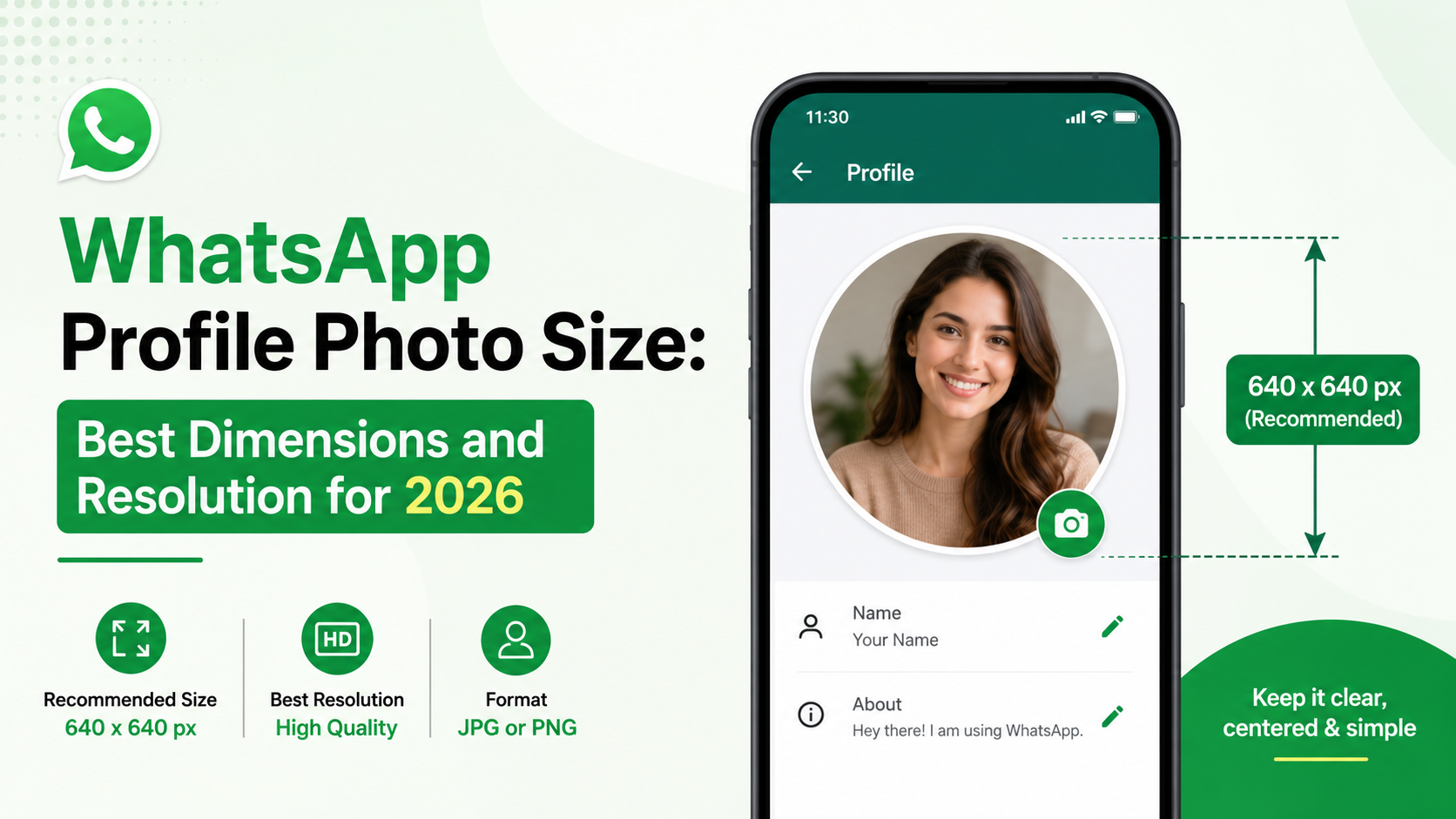
The best WhatsApp profile photo size for 2026 is 640 × 640 pixels. This square format provides enough resolution to look crisp on modern phones while remaining easy to create, edit, and upload.
Recommended dimensions at a glance
| Use case | Recommended size | Aspect ratio | |---|---:|---:| | Best all-purpose upload | 640 × 640 px | 1:1 | | Minimum practical quality | 320 × 320 px | 1:1 | | High-resolution source file | 1080 × 1080 px | 1:1 | | Avoid using | Below 200 × 200 px | 1:1 |
WhatsApp can accept images in different sizes, but it crops and compresses them for display. Uploading a square image gives you the most control over how it appears.
Why 640 × 640 pixels is the sweet spot
A 640-pixel square is large enough for clear detail without being unnecessarily heavy. It works well for:
- Personal portraits
- Company logos
- Creator or freelancer headshots
- Team profile images
- Storefront or product-focused business accounts
You can also start with a 1080 × 1080 pixel image if your original photo is high quality. WhatsApp will reduce it as needed, but beginning with a clean source image helps preserve clarity.
Does WhatsApp Display Profile Pictures as Squares or Circles?
Although you upload a square image, WhatsApp generally displays profile photos inside a circle across chats, groups, contact lists, and profile screens.
That distinction matters. A full square logo may look fine in an editor but lose text or important visual elements once the corners are hidden by the circular crop.
Keep important content in the center
Treat the center of your square image as a “safe zone.” Faces, logos, initials, and product details should sit well away from the edges.
A useful rule is to keep essential elements inside the central 70–80% of the image.
For example:
- A headshot should show the face and upper shoulders, not a full-body photo.
- A business logo should have padding around it.
- Text-based logos should avoid small taglines near the edges.
- A group photo should place the main person in the middle.
Use a circular crop preview
Before uploading, open your image in a design app or photo editor that supports a circular frame. This lets you spot problems early, such as:
- A forehead or chin being too close to the crop edge
- A logo icon appearing off-center
- Text becoming unreadable at small sizes
- A busy background distracting from the main subject
The profile image may look relatively large on your own phone, but many people will see it as a small circle next to a message. Prioritize instant recognition over fine detail.
Best Resolution and Image Quality for WhatsApp
Resolution affects how sharp your profile image appears, especially on high-density phone screens. For most users, 640 × 640 pixels delivers an excellent balance of quality and file size.
Use pixels, not DPI, to judge quality
For online profile images, pixel dimensions matter far more than DPI or PPI. A file labeled “300 DPI” will not automatically look better on WhatsApp if its actual image dimensions are only 150 × 150 pixels.
Focus on these factors instead:
- A square canvas with enough pixels
- A sharp original image
- Good lighting and contrast
- Minimal compression before upload
- A clean crop around the main subject
Avoid low-resolution source images
Images can become soft or pixelated when WhatsApp scales them up. Avoid uploading:
- Small thumbnails downloaded from the web
- Heavily compressed social-media screenshots
- Old images sent repeatedly through messaging apps
- Cropped photos that are already blurry
- Logos exported at tiny dimensions
If you only have a small image, recreate the logo or use the original photo file whenever possible. Upscaling can help in some cases, but it cannot fully restore missing detail.
Make your image readable at small sizes
WhatsApp profile photos often appear at a compact size. An image that looks great full-screen may be unclear in a conversation list.
To improve readability:
- Use a simple background.
- Increase contrast between the subject and background.
- Avoid thin fonts and tiny lettering.
- Use one clear focal point.
- Sharpen lightly, but do not overprocess the image.
For a personal account, a bright, well-lit face against a plain background is usually more effective than an artistic but dark photo.
Which File Format Should You Use?
The best file formats for a WhatsApp profile photo are JPG and PNG. Both are widely supported and work well for profile images.
Use JPG for photographs
JPG is usually the best option for portraits, selfies, office headshots, and other photographs. It keeps file sizes manageable while retaining good visual quality.
Choose JPG when your image includes:
- Natural skin tones
- Gradients
- Detailed backgrounds
- Photography with many colors
Export at high quality rather than maximum compression. A clear JPG is typically more useful than an oversized file with barely noticeable extra detail.
Use PNG for logos and graphics
PNG is ideal for logos, icons, illustrations, and text-based designs. It preserves clean edges and sharp typography better than JPG.
Choose PNG when your image includes:
- Brand marks
- Flat-color graphics
- Crisp text
- Icons and illustrations
- Transparent backgrounds
However, remember that transparency may not display as expected against every interface background. For consistency, consider placing the logo on a solid or branded square background before uploading.
Keep the file size reasonable
There is no need to upload an extremely large image file. A profile photo should load quickly and remain easy to manage.
As a practical guideline:
- Aim for a file under 2 MB when possible.
- Export JPG images at high quality.
- Use PNG only when its sharper edges or transparency provide a real advantage.
- Remove unnecessary metadata if an export tool gives you the option.
How to Crop a Personal WhatsApp Profile Photo
A great personal WhatsApp profile image should feel natural, current, and easy to recognize. The ideal crop depends on how you use WhatsApp, but the core principle is consistent: make your face clear.
Choose the right framing
For most personal and professional profiles, use a head-and-shoulders composition. Your face should occupy a meaningful portion of the circle without feeling cramped.
A reliable framing approach is:
- Place your eyes near the upper-middle area.
- Leave some space above your head.
- Include your shoulders for context.
- Keep your face centered.
- Avoid cropping too tightly around the forehead or chin.
This style works particularly well for consultants, job seekers, sales professionals, recruiters, and remote teams.
Improve lighting before you upload
Lighting has a bigger impact than expensive camera equipment. A photo taken near a window in soft daylight can look more polished than a dark image from a high-end camera.
For better results:
- Face a light source instead of standing with it behind you.
- Avoid harsh overhead lighting that creates deep shadows.
- Use a clean background with contrast.
- Correct obvious exposure issues before cropping.
- Avoid beauty filters that make you look unrecognizable.
A professional WhatsApp profile photo does not need to feel overly formal. It simply needs to be clear, current, and aligned with the impression you want to make.
WhatsApp Business Profile Photo Best Practices
For businesses, the WhatsApp profile photo size is only one part of the equation. The image also needs to strengthen recognition and trust.
Use a logo for established brands
A logo is often the best choice for a company, online shop, restaurant, agency, or customer-support account. Use a version designed specifically for small circular display.
The strongest logo profile images typically include:
- A recognizable icon or monogram
- High contrast
- Minimal or no small text
- Generous padding around the logo
- Brand-consistent colors
For example, a bakery might use a simple cupcake icon on a cream background instead of a full horizontal logo with a long business name.
Use a headshot for personal brands
Freelancers, coaches, real-estate professionals, consultants, and account managers often benefit more from a professional headshot than a corporate logo.
A face can make conversations feel more personal, especially when clients expect direct communication. If your business relies on one-to-one trust, a clear headshot may outperform a generic logo.
Test the image in context
Before finalizing a business profile picture, ask a practical question: can someone identify it in one second while scrolling through chats?
If the answer is no, simplify it. Consider removing:
- Small text
- Detailed illustrations
- Multiple product images
- Thin borders
- Low-contrast colors
- Overcrowded visual elements
Common WhatsApp Profile Photo Mistakes to Avoid
Even a technically correct image can underperform if it is poorly composed or inconsistent with your purpose.
Using a rectangular image without checking the crop
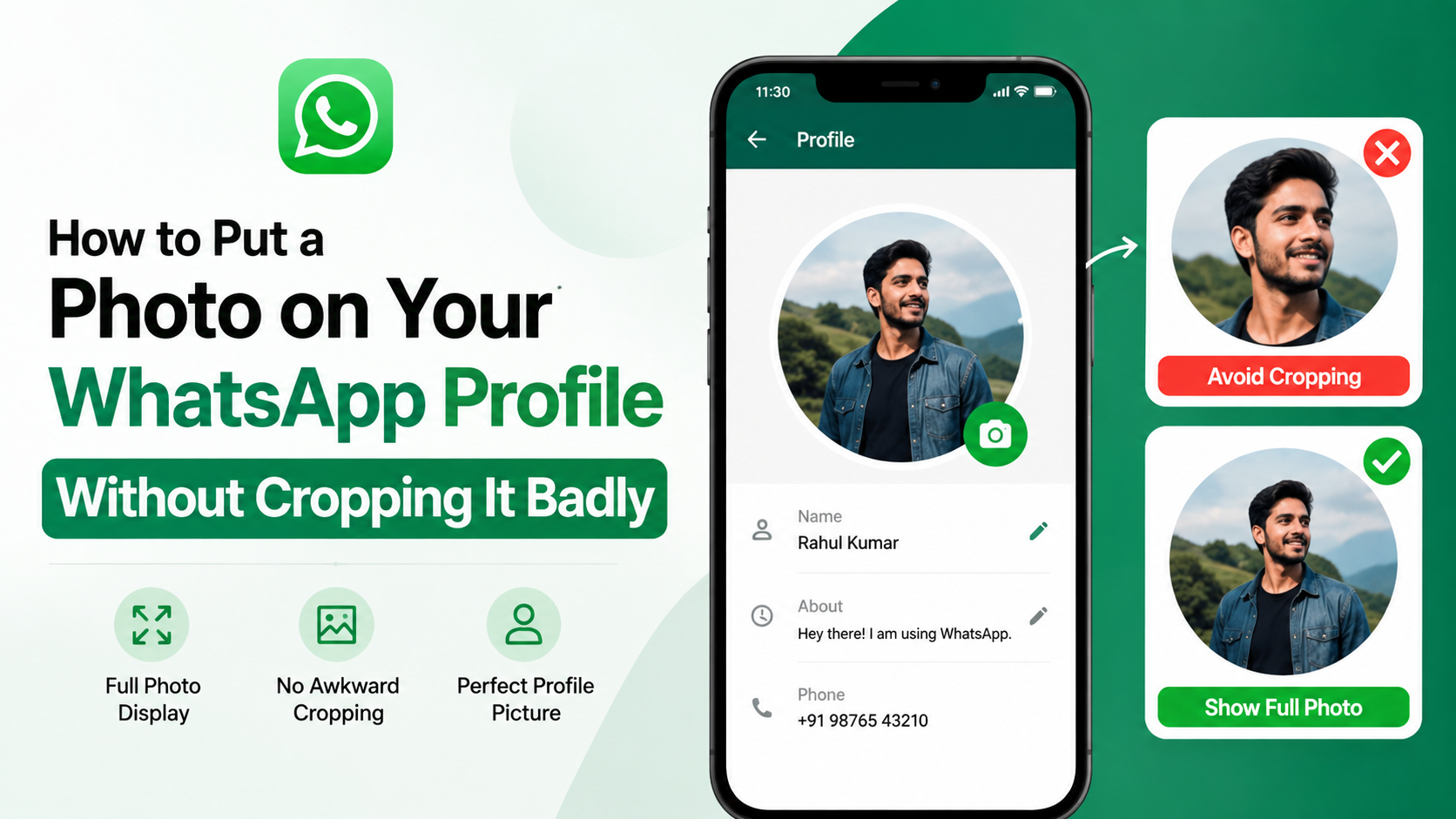
A landscape or portrait photo can be uploaded, but WhatsApp will require cropping. This often leads to awkward framing, missing faces, or cut-off logos.
Start with a square image whenever possible.
Placing text near the corners
Corners are the first parts of the image to disappear in a circular display. Keep slogans, names, and other important content close to the center—or remove them entirely.
Uploading an outdated photo
Your profile image should help people recognize you. If it no longer resembles your current appearance, replace it with a newer photo.
This is especially important for professionals who use WhatsApp for networking, client communication, or job opportunities.
Overediting the image
Extreme filters, excessive skin smoothing, aggressive sharpening, and heavy color effects can make a profile image look less credible. Subtle editing is usually more effective.
Forgetting about background distractions
A cluttered room, crowded event, or bright object behind your head can make the profile photo hard to read. Crop tightly enough to keep attention on the subject.
How to Change Your WhatsApp Profile Photo
Updating your profile picture only takes a few moments.
On Android
- Open WhatsApp.
- Tap the three-dot menu and choose Settings.
- Tap your profile photo or name.
- Select the camera icon on your current image.
- Choose a photo from your gallery or take a new one.
- Crop and position it, then save.
On iPhone
- Open WhatsApp.
- Go to Settings.
- Tap your name and current profile photo.
- Select Edit.
- Choose a photo or take a new one.
- Adjust the crop and confirm your selection.
After updating, check how the image appears in a chat list and group conversation. If the main subject is too small or off-center, revise the crop.
Frequently Asked Questions
What is the ideal WhatsApp profile photo size in pixels?
The ideal WhatsApp profile photo size is 640 × 640 pixels. It provides strong image quality, uses the recommended square format, and gives WhatsApp enough detail to display the image clearly on most devices.
Can I use a 1080 × 1080 image for my WhatsApp profile picture?
Yes. A 1080 × 1080 pixel image is an excellent high-resolution source file. WhatsApp may compress or resize it for display, but starting with a sharp square image helps maintain quality.
Why does my WhatsApp profile photo look blurry?
A blurry photo is usually caused by a low-resolution original, excessive compression, poor lighting, or a screenshot being used instead of the original image. Upload a clean square image of at least 640 × 640 pixels for better results.
Will WhatsApp crop my profile image into a circle?
WhatsApp generally displays profile images as circles, even though the uploaded file is square. Keep faces, logos, and text in the center to prevent important details from being hidden.
Should a business use a logo or a person’s photo?
Use a logo if the account represents a recognizable company or customer-support team. Use a professional headshot if clients communicate directly with a founder, consultant, agent, or account manager. The right choice depends on whether brand recognition or personal trust is more important.
Conclusion
The best WhatsApp profile photo size for 2026 is a square 640 × 640 pixel image, with your most important visual elements safely centered for WhatsApp’s circular display. Use a crisp JPG for photographs or a PNG for logos, prioritize strong lighting and contrast, and avoid tiny text or cluttered backgrounds.
Take a moment to review your current profile photo on a small screen. If it is blurry, outdated, or difficult to recognize, replace it with a clean, well-cropped image that represents you or your business with confidence.
Advertisement