August 19, 2026 · 10 min read
LinkedIn Profile Photo Size: Dimensions and Recommended Resolution
On this page
- LinkedIn Profile Photo Size Requirements
- Recommended Resolution for a Clear Profile Photo
- How LinkedIn’s Circular Crop Affects Your Photo
- Choosing a Professional Photo That Builds Trust
- Lighting, Background, and Visual Composition
- Uploading and Adjusting Your LinkedIn Profile Photo
- Common LinkedIn Profile Photo Mistakes to Avoid
- Frequently Asked Questions
- Conclusion
LinkedIn Profile Photo Size: Dimensions and Recommended Resolution
Your LinkedIn profile photo is often the first impression you make on a recruiter, client, colleague, or potential business partner. It appears in search results, messages, connection requests, comments, and profile views—usually at a small size. That makes image quality, composition, and the correct linkedin profile photo size more important than many professionals realize.
A polished headshot does not need to be expensive or overly formal. It does need to be clear, current, recognizable, and formatted so LinkedIn displays it well across desktop and mobile screens. This guide covers the required dimensions, best resolution, file settings, cropping advice, and practical ways to choose a photo that supports your professional goals.
Key Takeaways
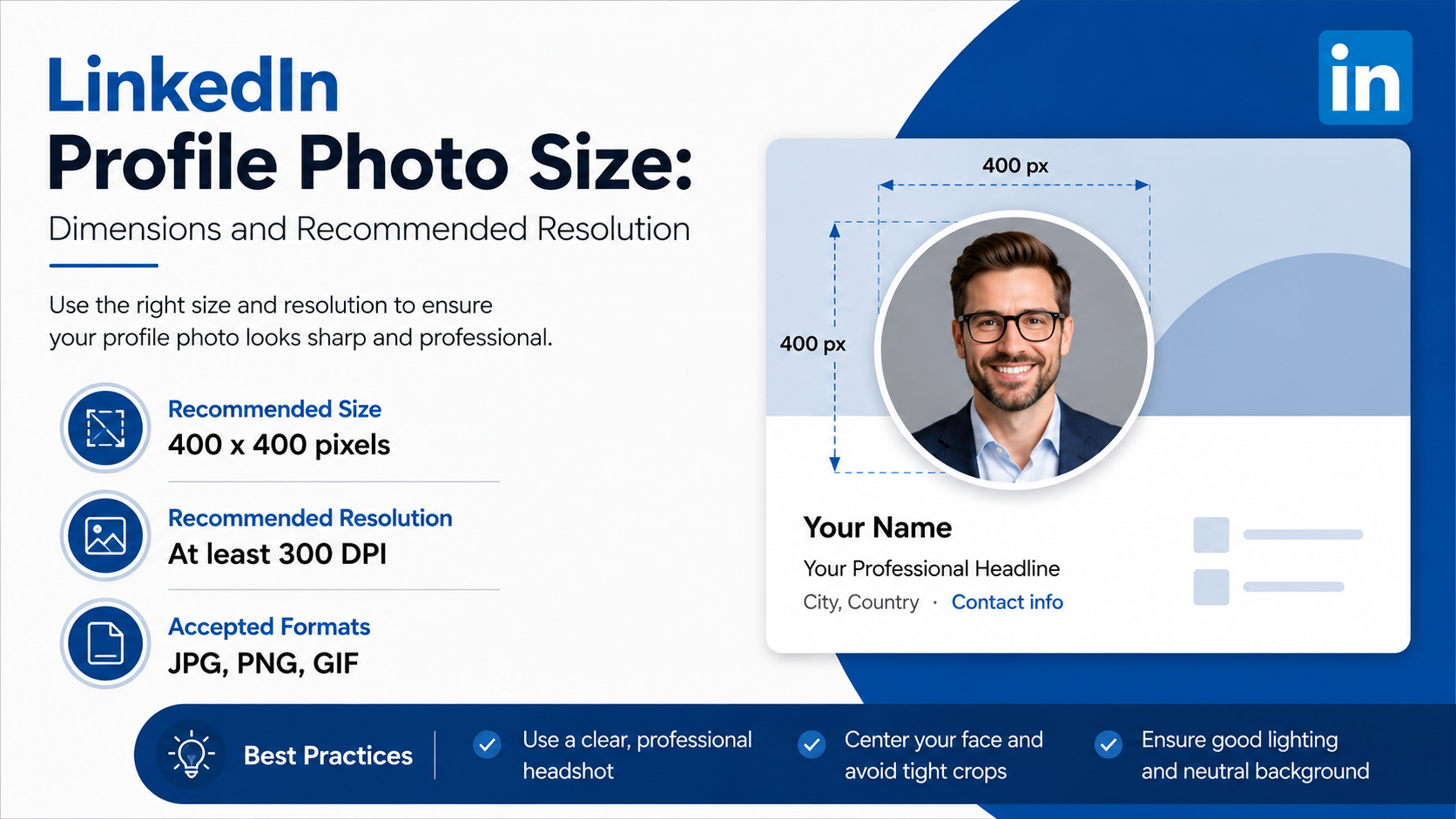
- Upload a square image at 400 × 400 pixels or larger; 800 × 800 pixels is an excellent practical target.
- LinkedIn accepts profile images up to 7,680 × 4,320 pixels and a maximum file size of 8 MB.
- Use a high-quality JPG or PNG file with your face centered, since LinkedIn displays the photo in a circular crop.
- Make your face occupy roughly 60–70% of the frame so it remains recognizable in small previews.
- Choose a recent, well-lit photo that reflects the professional context of your industry and audience.
- Review the image on both desktop and mobile after uploading, then adjust the crop if necessary.
LinkedIn Profile Photo Size Requirements
The technical requirements for a LinkedIn profile photo are straightforward, but following the minimum requirement is not always the same as choosing the best file for display quality.
Minimum and Maximum Dimensions
LinkedIn allows profile-photo uploads between:
- Minimum: 400 × 400 pixels
- Maximum: 7,680 × 4,320 pixels
- Maximum file size: 8 MB
- Accepted formats: JPG and PNG
Although LinkedIn accepts rectangular photos within its maximum dimensions, a square image is the safest choice. The platform presents profile photos in a circular frame, and an off-center or wide image can force an awkward crop.
For example, a 400 × 400-pixel headshot meets the minimum requirement, but an 800 × 800-pixel version gives LinkedIn more image detail to work with. It will typically look sharper on high-resolution screens without creating an unnecessarily large file.
The Best Aspect Ratio
Use a 1:1 aspect ratio, meaning the width and height are identical.
Good options include:
- 400 × 400 pixels
- 600 × 600 pixels
- 800 × 800 pixels
- 1,000 × 1,000 pixels
Avoid relying on a tightly cropped landscape photo, such as 1,200 × 800 pixels. It may technically upload, but LinkedIn’s circular crop can remove important parts of your shoulders, hair, or face.
Recommended Resolution for a Clear Profile Photo
Resolution affects how crisp your image looks, particularly when someone opens your profile photo at a larger size or views it on a high-density display.
Aim for 800 × 800 Pixels
For most users, 800 × 800 pixels is the ideal LinkedIn profile photo size. It balances sharpness, upload speed, and manageable file size.
This size works well because it:
- Provides enough detail for desktop and mobile displays
- Leaves flexibility for LinkedIn’s crop tool
- Reduces the risk of visible pixelation
- Is easy to export from a phone, camera, or editing program
A professional photographer may provide a much larger original file. Keep that original for future use, then export a dedicated square version for LinkedIn.
Preserve Image Quality During Export
When saving your final image, use these settings:
- Export as a high-quality JPG for photographs.
- Use PNG if the image includes crisp graphic elements or requires a transparent background.
- Keep the file under 8 MB.
- Avoid repeatedly editing and re-saving a compressed JPG, which can reduce clarity.
- Use the original image rather than a screenshot of a photo.
If your photo looks blurry after uploading, start with a larger original, export it again at 800 × 800 pixels or higher, and make sure the image is in focus before compression.
How LinkedIn’s Circular Crop Affects Your Photo
LinkedIn displays your profile photo as a circle, even if the uploaded file is square or rectangular. Planning for that circular crop prevents common framing problems.
Keep Your Face Centered
Place your eyes and face near the center of the square canvas. Leave a modest amount of space around the top of your head and shoulders, but do not make yourself so small that your face becomes difficult to recognize.
A reliable framing approach is:
- Show your head and upper shoulders.
- Position your eyes roughly in the upper third of the image.
- Keep your face centered horizontally.
- Leave enough margin so the circular crop does not cut off your hair or chin.
Imagine a sales consultant using a full-body photo from a conference. In a circular LinkedIn thumbnail, they may become nearly unrecognizable. A closer head-and-shoulders crop is far more effective.
Test the Crop Before Saving
Many photo editors allow you to apply a circular overlay or square crop. If yours does not, upload the square version to LinkedIn and use the built-in crop tool before saving.
Check that:
- Both eyes are visible and unobstructed.
- Your face is not too close to the edge.
- Your head is not cut off.
- The background remains clean around the circular border.
- The image still looks natural at a small size.
Choosing a Professional Photo That Builds Trust
The right dimensions make the photo technically sound. The content of the image determines whether it feels credible and approachable.
Use a Recent, Recognizable Likeness
Your LinkedIn photo should look like you today. Aim to update it when your appearance changes significantly or when your existing photo becomes dated.
A useful rule: if someone meeting you professionally would struggle to recognize you from the image, it is time for a replacement.
LinkedIn requires profile photos to reflect your likeness. Company logos, landscape images, animals, text-only graphics, celebrity images, and stock portraits are not appropriate substitutes for a personal profile photo.
Match the Level of Formality to Your Field
Professional does not always mean a dark suit against a plain gray background. Your photo should fit your role and industry.
Examples include:
- A financial advisor may choose polished business attire and a neutral office-style background.
- A creative director may use a well-lit portrait with more personality and subtle color.
- A construction project manager may wear clean, work-appropriate clothing in a relevant—but uncluttered—environment.
- A job seeker in a corporate role may use a simple headshot with business-casual attire.
The goal is consistency. Your photo should support the impression created by your headline, banner image, and experience—not contradict it.
Lighting, Background, and Visual Composition
Even a correctly sized image can underperform if the lighting and composition distract from your face.
Prioritize Clear, Natural Lighting
Soft natural light from a window is often enough to create a strong headshot. Face the light source rather than standing with your back to it. This keeps your face bright and reduces harsh shadows.
Avoid:
- Strong backlighting from a window
- Dim indoor lighting
- Heavy colored lighting
- Flash reflections on glasses
- Filters that significantly alter skin tone or facial features
If you use a smartphone, clean the lens first, turn off extreme portrait effects, and take several shots. A stable, well-lit image usually matters more than expensive camera equipment.
Keep the Background Simple
Choose a background that adds context without competing for attention. Solid walls, lightly blurred offices, outdoor shade, or clean architectural settings can work well.
A good background should be:
- Uncluttered
- Well separated from your clothing
- Free of distracting people or objects
- Consistent with your professional brand
For instance, a marketing strategist could use a softly blurred workspace, while a lawyer might choose a neutral background. In both cases, the viewer’s attention should go to the person first.
Uploading and Adjusting Your LinkedIn Profile Photo
Uploading is quick, but taking a minute to inspect the final display can make a meaningful difference.
Step-by-Step Upload Process
To add or change your photo on LinkedIn:
- Open your LinkedIn profile.
- Select your current photo or the camera icon in the introduction section.
- Choose Add photo or Change photo.
- Upload your JPG or PNG image.
- Use LinkedIn’s editing tools to adjust the crop, position, size, rotation, or filters.
- Review the result and select Save.
LinkedIn also lets you control who can view your image. Visibility options may include first-degree connections, your network, all LinkedIn members, or anyone, depending on your settings.
Check the Photo in Real Context
Do not judge the image only in the editing window. After saving it, view your profile from both desktop and mobile if possible.
Ask yourself:
- Can I recognize my face instantly at thumbnail size?
- Does the crop leave comfortable space around my head?
- Is the background too busy?
- Does the image look sharp rather than soft or pixelated?
- Does it match the tone of my profile and career goals?
A photo that looks excellent at full size may feel too distant or poorly framed when reduced to a small circular icon.
Common LinkedIn Profile Photo Mistakes to Avoid
The best LinkedIn profile photo is rarely the most elaborate one. It is clear, intentional, and easy to recognize.
Using a Low-Resolution or Poorly Cropped Image
A blurry, stretched, or overly compressed photo can make an otherwise strong profile look neglected. Avoid uploading a tiny image and hoping LinkedIn will improve it.
Instead, start with a square image of at least 400 × 400 pixels, ideally 800 × 800 pixels or more.
Choosing a Casual or Distracting Image
Vacation photos, group shots, cropped wedding photos, dark sunglasses, and heavily filtered selfies can create confusion or weaken your professional message.
This does not mean your photo must be stiff. A warm expression, natural posture, and approachable clothing often work better than an overly formal pose.
Forgetting to Update It
Your profile photo is part of your professional identity. Review it every year or two, and replace it when it no longer represents your current appearance, role, or brand.
A fresh profile photo can be especially valuable when you are:
- Looking for a new position
- Building a client-facing business
- Moving into leadership
- Speaking at events
- Updating your personal brand
Frequently Asked Questions
What is the ideal LinkedIn profile photo size?
The ideal LinkedIn profile photo size is 800 × 800 pixels in a square 1:1 format. LinkedIn accepts photos as small as 400 × 400 pixels, but 800 × 800 pixels generally offers better clarity and cropping flexibility.
Can I use a rectangular photo for LinkedIn?
Yes, LinkedIn can accept a rectangular image, but it displays profile photos in a circular frame. A square photo gives you more control and reduces the chance that the crop cuts off part of your face or head.
What file format should I use for a LinkedIn profile photo?
Use a JPG for most professional photographs. Use a PNG when you need crisp graphic detail. LinkedIn does not support GIFs for profile-photo uploads, and the file should remain under 8 MB.
Why does my LinkedIn profile photo look blurry?
Blurriness usually comes from a small original image, excessive compression, poor focus, or a screenshot being used instead of the source file. Export a focused square image at 800 × 800 pixels or larger, then upload the original export.
Should I use a logo instead of a headshot on LinkedIn?
For an individual LinkedIn profile, use a recognizable photo of yourself. A logo is better suited to a LinkedIn Page for a company or organization. Your personal profile photo should represent your likeness.
Conclusion
The right linkedin profile photo size starts with a square image: 400 × 400 pixels is the minimum, while 800 × 800 pixels is an excellent recommended resolution for a sharp, flexible result. Pair those dimensions with a centered head-and-shoulders composition, clear lighting, a simple background, and an image that reflects who you are professionally.
Take five minutes to review your current photo today. If it is blurry, dated, poorly cropped, or hard to recognize at a glance, replace it with a well-framed square headshot that makes your next professional first impression count.
Advertisement