August 19, 2026 · 12 min read
Facebook Profile Photo Size: Exact Dimensions and Best Image Quality
On this page
- The Exact Facebook Profile Photo Size
- Understand the Circular Crop Before You Upload
- Choose the Best File Format for Image Quality
- Create a Profile Photo That Works at Thumbnail Size
- Best Practices for Personal Facebook Profile Photos
- Best Practices for Facebook Business Page Profile Photos
- How to Prepare and Upload Your Image
- Frequently Asked Questions
- Conclusion
Facebook Profile Photo Size: Exact Dimensions and Best Image Quality
Your Facebook profile photo is often the first visual cue people see when they visit your profile, encounter a comment, receive a message, or find your business in search. It may appear small, but it carries outsized weight for recognition, credibility, and brand consistency.
Using the correct facebook profile photo size helps prevent blurry uploads, awkward crops, and logos that become unreadable once Facebook displays them as a small circle. Whether you are updating a personal headshot, a company logo, or a creator brand, this guide explains the exact dimensions, image formats, framing rules, and quality practices that make a profile image look professional everywhere.
Key Takeaways
- Upload a square image at 320 × 320 pixels or larger for strong Facebook profile photo quality.
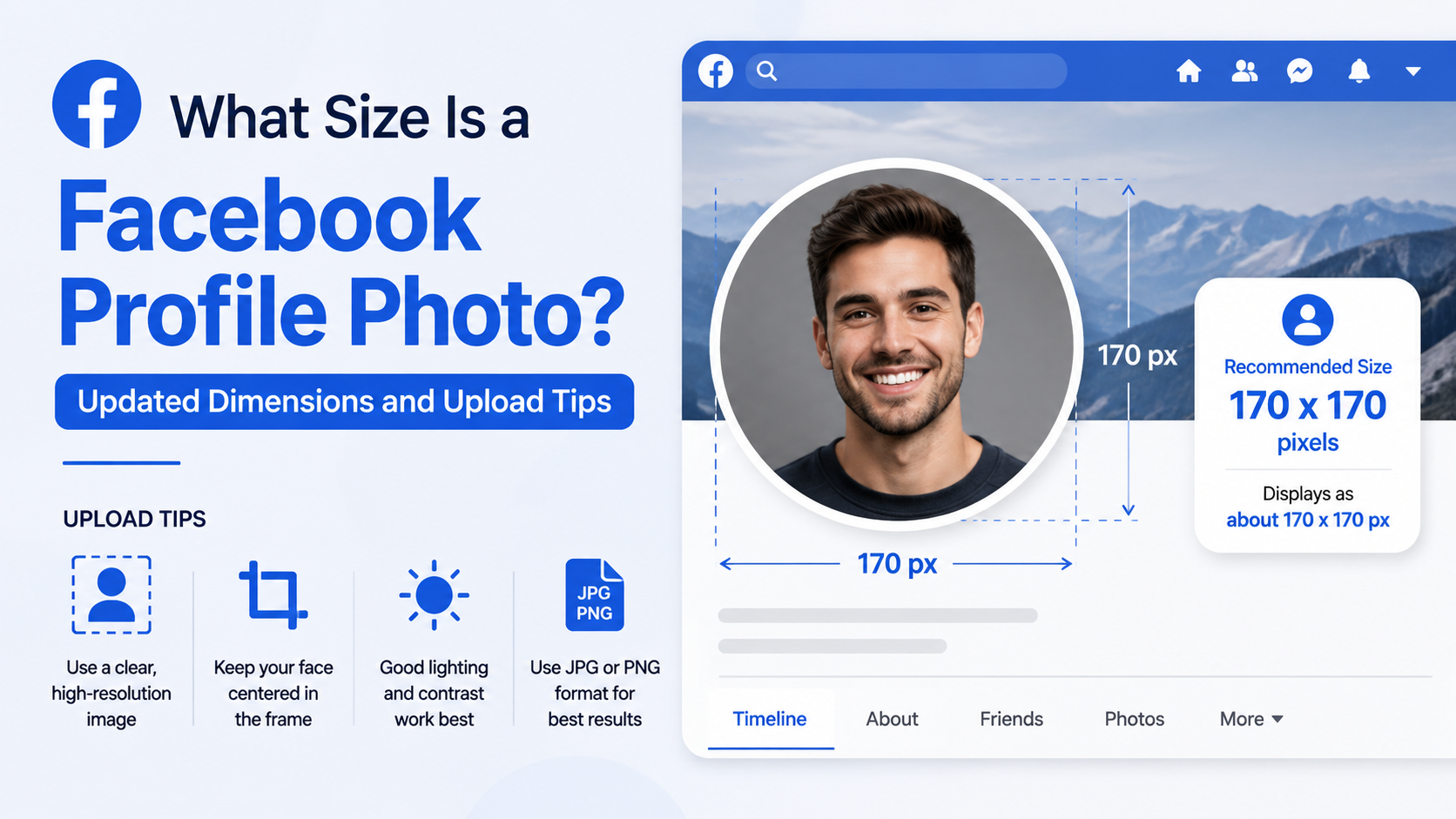
- Facebook displays profile photos at approximately 176 × 176 pixels on desktop and 196 × 196 pixels on smartphones.
- Profile photos are shown as a circle, so keep faces, logos, and text away from the corners.
- Use a PNG for logos, graphics, and text-heavy artwork; use a high-quality JPG for photographs.
- Test your image at thumbnail size before publishing, because it will often appear much smaller in comments and search.
- Keep the same recognizable profile image across major social platforms to build faster brand recognition.
The Exact Facebook Profile Photo Size
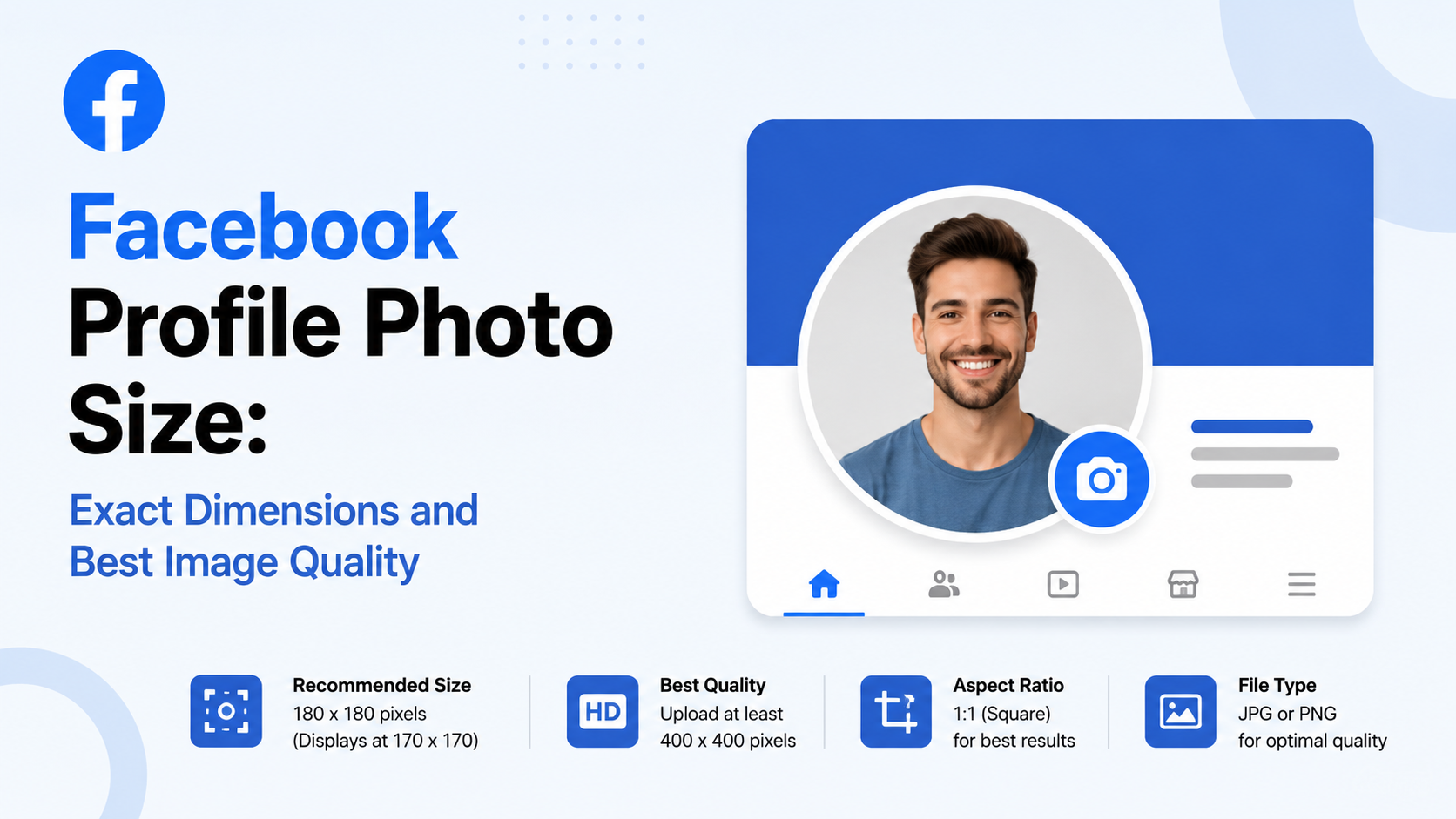
The recommended Facebook profile photo size is 320 × 320 pixels. This square size provides reliable quality while meeting Facebook’s own guidance for profile-picture uploads.
Although 320 × 320 pixels is the practical minimum for a crisp result, you can upload a larger square source file if it is well prepared. For example, a 1080 × 1080-pixel master file gives you flexibility for reuse across other social platforms. Facebook will resize and compress the uploaded image for display.
Facebook Profile Photo Display Dimensions
Facebook changes image presentation based on device and placement. Common display sizes include:
| Placement | Approximate Display Size | |---|---:| | Desktop profile or Page view | 176 × 176 pixels | | Smartphone profile or Page view | 196 × 196 pixels | | Feature phones | 36 × 36 pixels | | Comment and small thumbnail placements | Often around 32 × 32 pixels |
The key lesson is simple: upload a sharp square image, but design it to stay recognizable at very small sizes.
Recommended Upload Size vs. Display Size
A display size is not the same as an upload size. Facebook may show your image at 176 × 176 pixels on a desktop, but uploading a file at exactly that size leaves little room for compression or scaling.
For the best result:
- Use 320 × 320 pixels as the dependable upload baseline.
- Use 1080 × 1080 pixels when creating a reusable master asset.
- Avoid uploading images below 320 × 320 pixels.
- Keep the image square at a 1:1 aspect ratio.
A larger, well-exported source image generally gives Facebook more image data to work with before it creates smaller versions.
Understand the Circular Crop Before You Upload
Facebook profile images are uploaded as squares but displayed in a circular frame. This is where many otherwise good photos and logos go wrong.
Keep Important Content in the Center
The four corners of your square image will be cropped away by the circular presentation. Place the most important content in the center area.
For a personal profile photo:
- Keep your eyes and face near the center.
- Leave breathing room around the top of your head and shoulders.
- Avoid placing your face directly against an edge.
- Use a clean background that does not compete with your features.
For a business logo:
- Center the logo mark.
- Leave generous padding around the mark.
- Avoid thin details near the edges.
- Do not rely on tiny taglines or URLs to communicate your brand.
Use a Safe Zone
A useful design rule is to treat the center 80% of the square as your safe zone. Keep essential elements inside that area so they remain visible after the circle crop.
For example, a coffee shop can use its simple cup icon centered on a solid color background. A complex horizontal logo with a slogan underneath may look excellent on a website header but become illegible inside a Facebook profile circle.
Preview the Crop on Mobile
Mobile users often see profile photos at a larger size than desktop visitors, but the circular crop remains. Before saving your new image, use Facebook’s crop preview and inspect it on a phone if possible.
Look for:
- Cropped hair, hats, or shoulders in a headshot
- Text cut off near the edges
- A logo that appears too small in the circle
- Low contrast between the subject and background
Choose the Best File Format for Image Quality
The correct dimensions matter, but the file format also affects how polished the final profile photo looks.
Use JPG for Photographs
JPG is typically the best choice for photos with natural color gradients, such as portraits, team photos, or product lifestyle images.
Use a high-quality JPG when your profile photo includes:
- A professional headshot
- A candid portrait
- A photograph of a storefront
- A detailed product image
- Soft backgrounds, shadows, or skin tones
Before uploading, export at high quality rather than aggressively shrinking the file. Excessive JPG compression can create blocky edges, muddy color transitions, and visible artifacts around faces.
Use PNG for Logos and Text
PNG is often the stronger choice for branding graphics, especially when a profile photo contains clean lines, solid colors, or text.
Choose PNG for:
- Logos
- Icons
- Illustrated brand marks
- High-contrast graphic designs
- Images with fine text or sharp edges
For instance, a law firm using a dark-blue monogram on a white background will usually preserve cleaner edges in PNG than in a heavily compressed JPG.
Use the sRGB Color Profile
Export images in the sRGB color profile whenever possible. It is the standard color space for web browsers and social platforms, helping colors display more predictably across devices.
A vibrant brand color can look dull or shift unexpectedly if an image uses an uncommon color profile. Exporting in sRGB reduces that risk.
Create a Profile Photo That Works at Thumbnail Size
A Facebook profile photo may be displayed large on your profile, but many people will see it first as a small thumbnail beside a comment, message, recommendation, or post.
Prioritize Recognition Over Detail
At 32 pixels wide, viewers cannot read fine text or appreciate intricate illustration. They can recognize a clear face, a bold logo shape, or a distinctive color combination.
A strong profile image should communicate one idea quickly:
- “This is the person behind the account.”
- “This is the company’s recognizable logo.”
- “This is the creator or organization I know.”
If your image tries to include several products, multiple faces, a long slogan, and a logo, it will likely feel cluttered and unrecognizable at small sizes.
Test the Small-Version Rule
Before uploading, zoom your image out until it is about the size of a comment thumbnail. Ask these questions:
- Can you still identify the person or brand immediately?
- Does the subject stand out from the background?
- Is the logo mark recognizable without the company name?
- Does any text become too small to read?
- Does the image still look clean in a circle?
If the answer is no, simplify the composition.
Use Contrast Deliberately
Contrast improves visibility in crowded Facebook feeds. A dark logo on a dark background or a subject wearing colors similar to the background can disappear at small sizes.
Consider these practical fixes:
- Put a light logo on a dark, solid background.
- Use a plain wall or blurred background for a headshot.
- Add a subtle outline to a logo if it blends into the page interface.
- Choose a background color that supports, rather than overwhelms, your brand mark.

Best Practices for Personal Facebook Profile Photos
For individual professionals, a profile photo is an extension of your personal brand. It should look approachable, current, and appropriate for the audiences who may find you through work, networking, community groups, or referrals.
Use a Clear, Current Headshot
A strong personal profile image usually includes your face clearly and uses simple composition. You do not need a studio session, but the image should be well lit and intentional.
Aim for:
- Natural, even lighting
- A recent photo that looks like you now
- Your face occupying a meaningful part of the frame
- A background with minimal distractions
- Clothing that contrasts with the background
For example, a consultant might use a waist-up portrait in natural window light, wearing solid-color clothing against a softly blurred neutral background. The image remains recognizable even when reduced to a small circle.
Match Your Professional Context
Your Facebook photo does not need to look identical to a LinkedIn headshot, but consistency helps people recognize you across platforms.
A creative professional may use a more expressive image with a colorful background. A financial adviser, attorney, or recruiter may prefer a polished, straightforward headshot. In either case, authenticity matters more than excessive retouching.
Avoid Common Personal Photo Mistakes
Avoid photos that create confusion or reduce trust, including:
- Group photos where viewers must guess which person you are
- Dark selfies with poor lighting
- Overly distant full-body images
- Vacation photos with distracting scenery
- Filters that dramatically alter your appearance
- Images where your face is obscured by sunglasses, shadows, or objects
Best Practices for Facebook Business Page Profile Photos
For a business Page, the profile image should function as a compact visual identifier. In most cases, the best choice is your logo rather than a promotional graphic.
Use a Simplified Logo Variation
A full logo lockup may include a symbol, business name, tagline, and descriptive line. That version is valuable for signs and websites, but a Facebook profile photo has limited space.
Create a profile-specific version using:
- A logo icon or monogram
- A single initial in your brand typeface
- A simplified emblem
- A recognizable product silhouette
- A bold version of your primary brand color
For example, a fitness studio called “Northline Training” may use an “N” icon inside a bold circle instead of its complete wordmark and slogan.
Keep Branding Consistent
Use the same core logo treatment on Facebook, Instagram, LinkedIn, Google Business Profile, and other major channels when possible. Consistency helps customers recognize you faster as they move between search results, social feeds, emails, and advertisements.
Keep these elements aligned:
- Brand colors
- Logo shape
- Icon or monogram
- Overall visual tone
- Image subject, if you use a founder or spokesperson instead of a logo
Refresh Without Losing Recognition
It is fine to modernize your profile image, but avoid changing it so often that customers lose visual recognition. If you update a logo, retain one or two familiar elements, such as the primary color or signature icon.
Seasonal frames and campaign overlays can work for short promotions, but make sure the underlying logo remains legible.
How to Prepare and Upload Your Image
A reliable workflow prevents last-minute cropping and quality problems.
Prepare the Master File
Start with a square canvas. If you are working with a photograph, crop it to 1:1 before uploading rather than relying entirely on Facebook’s crop tool.
Use this checklist:
- Canvas size: 320 × 320 pixels minimum
- Preferred master size: 1080 × 1080 pixels
- Aspect ratio: 1:1 square
- Color profile: sRGB
- Format: JPG for photos; PNG for logos or text
- Important elements: centered inside the circular safe zone
Save the master file separately so you can reuse it for other channels or make future edits without starting from a compressed social-media download.
Upload and Adjust the Crop
To change a Facebook profile photo, open your profile or Page, select the profile image, and choose the option to upload or edit the photo. Facebook provides on-screen instructions for cropping and saving.
During the preview stage:
- Check that the face or logo is centered.
- Confirm no important details sit in the circular crop area.
- Inspect sharp edges, especially for text and logos.
- Save the image.
- Review it on desktop and mobile after publishing.
Check the Live Result
Do not stop after the upload preview. Open a recent post, comment, or message thread and inspect the thumbnail. That is where many people will encounter the image first.
If it looks soft, too small, or hard to recognize, revise the source file rather than repeatedly re-uploading the same low-resolution version.
Frequently Asked Questions
What is the best facebook profile photo size?
The best facebook profile photo size is 320 × 320 pixels or larger in a square 1:1 format. Facebook commonly displays profile images at about 176 × 176 pixels on desktop and 196 × 196 pixels on smartphones, so a 320-pixel-square upload provides a clean result.
Can I upload a 1080 × 1080 image to Facebook?
Yes. A 1080 × 1080-pixel image is a good high-resolution master size for a Facebook profile photo. Facebook will resize and compress it for display, but starting with a larger, sharp image can help preserve quality and makes the asset easier to reuse on other platforms.
Why does my Facebook profile photo look blurry?
Blurriness usually comes from uploading an image that is too small, already compressed, poorly lit, or repeatedly saved as a low-quality JPG. Start with a sharp original file, use at least 320 × 320 pixels, export in sRGB, and avoid downloading and re-uploading an image from Facebook.
Should I use JPG or PNG for a Facebook profile picture?
Use JPG for photographs, portraits, and images with soft color gradients. Use PNG for logos, icons, text, and graphics with sharp edges. PNG is often the better choice for a business Page profile image because it can preserve cleaner-looking lines and lettering.
Will Facebook crop my square profile picture?
Yes. Facebook displays the square upload inside a circular frame in many placements. The corners are cropped, so keep faces, logos, and important text near the center of the image and leave some padding around the edges.
Conclusion
The right Facebook profile photo combines the correct technical setup with clear visual design. Upload a square image at 320 × 320 pixels or larger, keep the important content safely centered for Facebook’s circular crop, and choose JPG or PNG based on the type of image you are using.
Most importantly, design for recognition at small sizes. A clear headshot, bold logo mark, strong contrast, and consistent branding will make your profile photo work harder across profiles, comments, search results, and mobile feeds. Review your current image today, create a polished square master file, and update it with confidence.
Advertisement