August 19, 2026 · 11 min read
Why Do Profile Photos Disappear From WhatsApp? Common Causes and Fixes
On this page
- Understanding What a Missing WhatsApp Profile Photo Means
- WhatsApp Privacy Settings: The Most Common Cause
- Could You Have Been Blocked?
- Contact-Sync and Number-Saving Problems
- App, Network, and Cache Issues
- How to Fix Your Own Missing WhatsApp Profile Photo
- Preventing Future Profile-Photo Confusion
- Frequently Asked Questions
- Conclusion
Why Do Profile Photos Disappear From WhatsApp? Common Causes and Fixes
A missing WhatsApp profile photo can feel surprisingly personal—especially when a contact’s familiar image suddenly turns into the default silhouette. In many cases, though, it is not a technical failure or a definite sign that someone has blocked you.
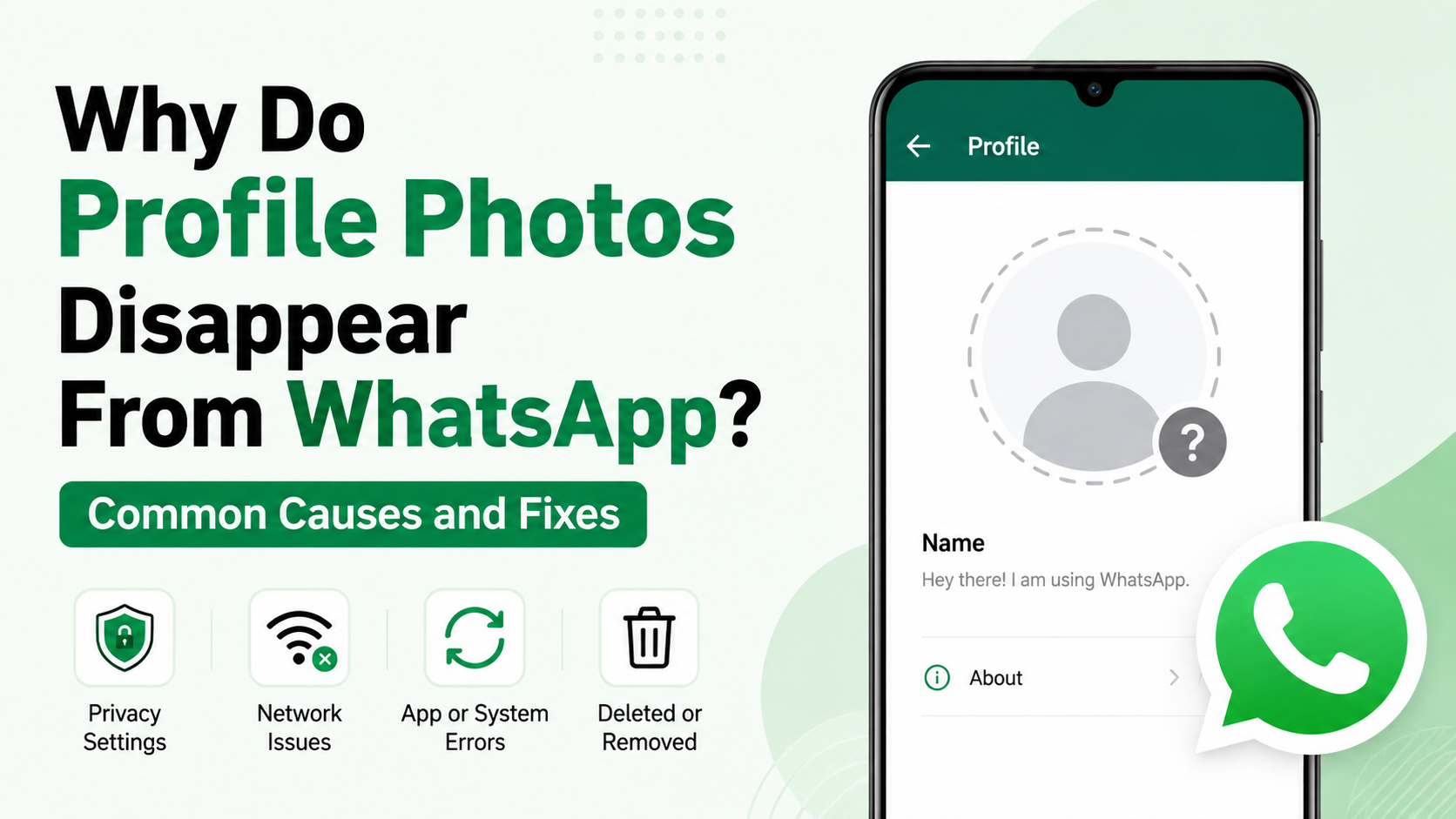
A WhatsApp profile photo disappear issue can stem from privacy settings, a removed photo, contact-list changes, connectivity problems, or an outdated app. The key is to avoid jumping to conclusions and troubleshoot the visible, fixable causes first.
Key Takeaways
- A missing profile photo often results from the other person’s privacy settings or their decision to remove the image.
- Being blocked is one possibility, but a photo disappearing alone does not prove it.
- Check that the contact’s phone number is saved correctly, including the country code.
- Update WhatsApp, refresh contact permissions, and confirm your internet connection before assuming the problem is permanent.
- If your own photo is missing for others, review Privacy > Profile photo in WhatsApp settings.
- Respect privacy boundaries; there is no legitimate workaround for viewing a photo someone has chosen to hide.
Understanding What a Missing WhatsApp Profile Photo Means
WhatsApp lets each user control who can see their profile photo. As a result, the default avatar can mean several different things, from an intentional privacy choice to a simple syncing issue.
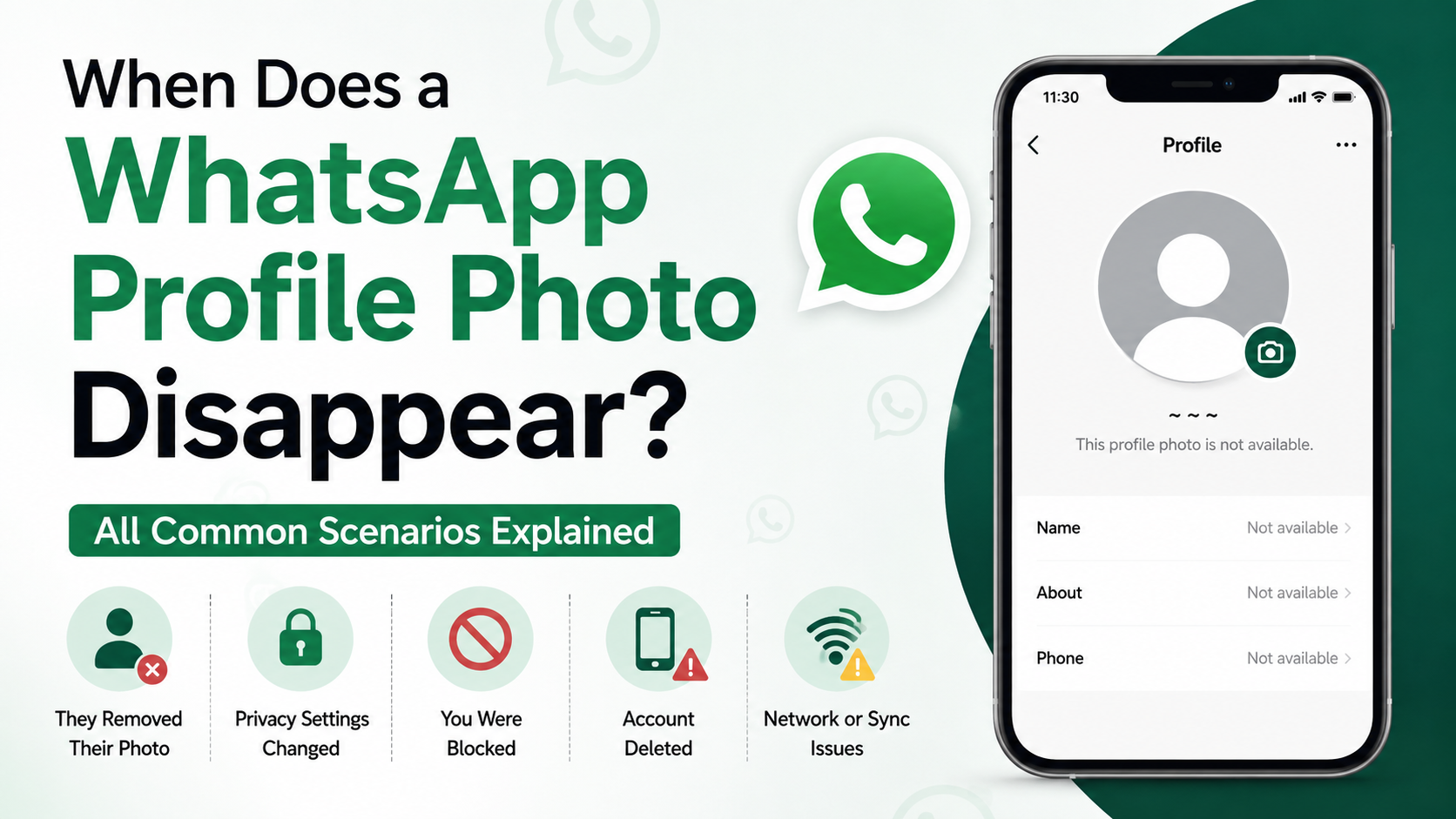
The photo may have been removed
The simplest explanation is that the person deleted their profile photo and did not replace it. Many users remove images temporarily when changing jobs, traveling, taking a social-media break, or tightening privacy.
For example, a client who previously used a company headshot may remove it after leaving an organization. Their messages can still arrive normally, but their profile will display WhatsApp’s standard gray icon.
The image may be hidden from you
WhatsApp allows users to limit photo visibility. A contact may have selected a privacy option that prevents you from viewing it, even while other people can still see it.
This is why two colleagues can have different experiences: one can see a mutual contact’s profile photo, while the other sees only the default avatar.
A missing photo is not a status report
A profile photo does not reliably indicate whether someone is active, upset, offline, or ignoring you. It is one small privacy-controlled element of an account.
Before interpreting it emotionally or professionally, check whether messages still deliver and whether the issue affects multiple contacts. That distinction helps separate a contact-specific privacy change from a problem on your device.
WhatsApp Privacy Settings: The Most Common Cause
Privacy controls are the most frequent explanation for a WhatsApp profile photo disappear situation. These settings are designed to give users control over personal information without requiring them to leave WhatsApp.
Profile photo visibility options
Depending on the app version, profile-photo privacy can usually be set to one of these options:
- Everyone: Any WhatsApp user who can access the account may see the photo.
- My Contacts: Only people saved in the account owner’s phone contacts can see it.
- My Contacts Except…: The photo is visible to selected contacts but hidden from chosen exceptions.
- Nobody: No one can view the profile photo.
If someone switches from Everyone to My Contacts, people who are not saved in that person’s address book may immediately lose access to the image.
Why saving a number can matter
When a person uses My Contacts, your number generally needs to be stored in their contacts for you to qualify. Saving their number only on your own phone does not automatically grant you access to their photo.
For business communication, this can be especially common. A vendor may save internal staff and active customers but not every inquiry number. Their profile picture may therefore be visible to colleagues but not to new leads.
How to review your own setting
If others cannot see your profile image, review your own privacy configuration:
- Open WhatsApp.
- Go to Settings.
- Select Privacy.
- Choose Profile photo.
- Select the audience you want, such as My Contacts or Everyone.
If you use My Contacts Except…, review the exclusions carefully. It is easy to add someone accidentally and later forget that they were excluded.
Could You Have Been Blocked?
Blocking can prevent someone from seeing certain account details, including changes to a profile photo. However, it should never be diagnosed from the missing photo alone.
Signs that may occur together
A block may be more likely when several signs appear at the same time:
- You no longer see updates to the person’s profile photo.
- You cannot see their last seen or online status, if they previously shared it.
- Your messages consistently show only one check mark.
- WhatsApp calls to that contact do not connect.
- You cannot add the person to a group.
Even this combination is not conclusive. The person may have strict privacy settings, no network connection, a changed phone number, or settings that restrict group invitations.
Avoid relying on one indicator
WhatsApp intentionally keeps blocking signals ambiguous to protect user privacy. A vanished photo could reflect a block, but it could just as easily mean the person changed privacy settings or removed the image.
The practical approach is simple: do not attempt to bypass privacy controls or create alternate accounts to investigate. If you have a legitimate personal or business reason to reconnect, use an appropriate channel and respect the person’s boundaries.
Contact-Sync and Number-Saving Problems
Your phone’s address book and WhatsApp need correct information and permission to work smoothly. A contact-sync issue can make profile details appear inconsistent or outdated.
Confirm the full phone number
Save the contact using the correct international format, including the country code. For example, a US number should typically include +1 before the area code.
Common mistakes include:
- Omitting the country code.
- Saving an old number after a contact changes phones.
- Creating duplicate entries for the same person.
- Including an incorrect extra zero or digit.
- Storing the number in a work account that WhatsApp cannot access.
After correcting the entry, close and reopen WhatsApp. You may also need to refresh your contacts list, depending on your device and app version.
Check WhatsApp contact permissions
WhatsApp needs permission to access your contacts. If that permission is disabled, contact names, photos, and updates may not display as expected.
On most phones, open the device’s app settings, select WhatsApp, and confirm that Contacts permission is enabled. Then restart the app.
For example, after switching to a new phone, a user might restore WhatsApp chats successfully but deny contact access during setup. Their chats remain intact, but new contact information may not populate properly until permission is restored.
Account and device contact sync
If you use Google Contacts, iCloud, Microsoft Exchange, or a company directory, make sure the correct account is syncing to your phone. A contact stored only in an unsynced work account may not be available to WhatsApp.
In a professional environment, check with your IT team before changing corporate sync policies or privacy settings.
App, Network, and Cache Issues
Although privacy is usually the answer, technical issues can occasionally affect profile-photo visibility. These issues are often temporary and relatively easy to resolve.
Start with the basics
Work through these checks in order:
- Confirm that your Wi-Fi or mobile data connection is stable.
- Open a website or send a message to test connectivity.
- Force-close WhatsApp and reopen it.
- Restart your phone.
- Update WhatsApp through the official app store.
- Check that your phone has sufficient available storage.
A weak connection can delay the loading of images and contact updates. If several profile photos fail to load at once, a device or network issue is more likely than an individual privacy setting.
Clear cache carefully on Android
Android users can often clear WhatsApp’s cache through the phone’s app settings. This removes temporary files and may resolve display problems without deleting chats.
Do not select options that erase app data unless you have confirmed that your chats are backed up and understand the consequences. Cache clearing is generally the safer troubleshooting step.
iPhone troubleshooting
iPhones do not offer the same app-specific cache-clearing controls. Instead, try updating WhatsApp, restarting the phone, verifying storage space, and checking permissions.
If the issue persists across many contacts, make sure iOS is current and consider reinstalling WhatsApp only after confirming a successful chat backup.
How to Fix Your Own Missing WhatsApp Profile Photo
If friends, customers, or coworkers tell you that your photo disappeared, you can usually resolve it quickly.
Re-upload the image
Open your WhatsApp profile, tap the profile photo area, and upload a new image or select the existing one again. Choose a clear, square image with good lighting so it displays well in WhatsApp’s circular crop.
For professionals, use a recognizable headshot or a simple company-approved logo where appropriate. Avoid text-heavy images, since they become difficult to read at small sizes.
Check visibility and exclusions
After uploading, go to Settings > Privacy > Profile photo and confirm that the selected audience matches your intention.
If you choose My Contacts, remind important contacts that their number must be saved correctly in your phone for them to view it. If you serve new customers or receive public inquiries, Everyone may be more practical—but only if you are comfortable with the broader visibility.
Test with a trusted contact
Ask a trusted colleague or friend to check your profile after you make changes. This is more reliable than checking from your own account, which may show the image even when another audience cannot access it.
If the photo remains missing for everyone after re-uploading and updating the app, contact WhatsApp support through the in-app help options.
Preventing Future Profile-Photo Confusion
A little account maintenance can reduce misunderstandings and make WhatsApp easier to use.
Keep your contact list accurate
Periodically merge duplicate contacts, remove outdated numbers, and ensure key contacts include the correct country codes. For businesses, establish a clear policy for saving customer and staff numbers when communication occurs through WhatsApp.
Treat profile data as private information
Profile photos, status updates, and last-seen information are personal choices. Avoid treating visibility changes as proof of intent. A contact may be protecting privacy, reducing exposure, or simply updating their account.
Use WhatsApp professionally with clear expectations
If WhatsApp is part of your work communication, do not rely on profile photos as identity verification. Confirm identity through known business channels, signed email, verified contact information, or your organization’s established process.
This is especially important when handling invoices, payment requests, login codes, or sensitive documents.
Frequently Asked Questions
Why did someone’s WhatsApp profile picture disappear but I can still message them?
They may have removed the photo, changed its privacy setting, or hidden it from selected contacts. If messages still deliver, that only confirms the account is reachable; it does not reveal why the photo is unavailable.
Does a blank WhatsApp profile photo mean I am blocked?
No. A blank photo by itself does not confirm a block. It can also result from privacy settings, a deleted image, a number no longer being saved, or a temporary app issue.
Why can my friend see a profile photo that I cannot?
The account owner may use My Contacts or My Contacts Except… privacy settings. Your friend may be included in the visible audience while you are not.
How do I restore a contact’s WhatsApp profile picture?
You cannot restore or force another person’s image to appear. You can check your internet connection, update WhatsApp, confirm the number is saved correctly, and refresh contact permissions. If the owner hid or removed the photo, only they can change that.
Why can nobody see my WhatsApp profile photo?
Check whether you removed the image, set the visibility to Nobody, excluded contacts unintentionally, or need to re-upload the photo. Updating WhatsApp and asking a trusted contact to test visibility can help identify the cause.
Conclusion
When a WhatsApp profile photo disappears, the most likely explanation is a privacy setting, a removed image, or a contact-list change—not necessarily a block. Start with the practical checks: verify the number, refresh permissions, update the app, and review your own profile-photo privacy settings.
If the photo belongs to someone else, respect their control over what they share. If it is your photo, update your visibility settings and test them with a trusted contact so the right people can recognize you on WhatsApp.
Advertisement