August 19, 2026 · 10 min read
Why Is My WhatsApp Profile Photo Blurry? Causes and Quality Fixes
On this page
- How WhatsApp Compression Affects Profile Photo Quality
- Incorrect Image Size and Aspect Ratio
- Screenshots, Downloads, and Reused Images Reduce Clarity
- Blurry Photos Can Be Caused by Poor Lighting or Focus
- WhatsApp Display, Cache, and Connection Issues
- How to Prepare a High-Quality WhatsApp Profile Picture
- Common Upload Mistakes to Avoid
- Frequently Asked Questions
- Conclusion
Why Is My WhatsApp Profile Photo Blurry? Causes and Quality Fixes
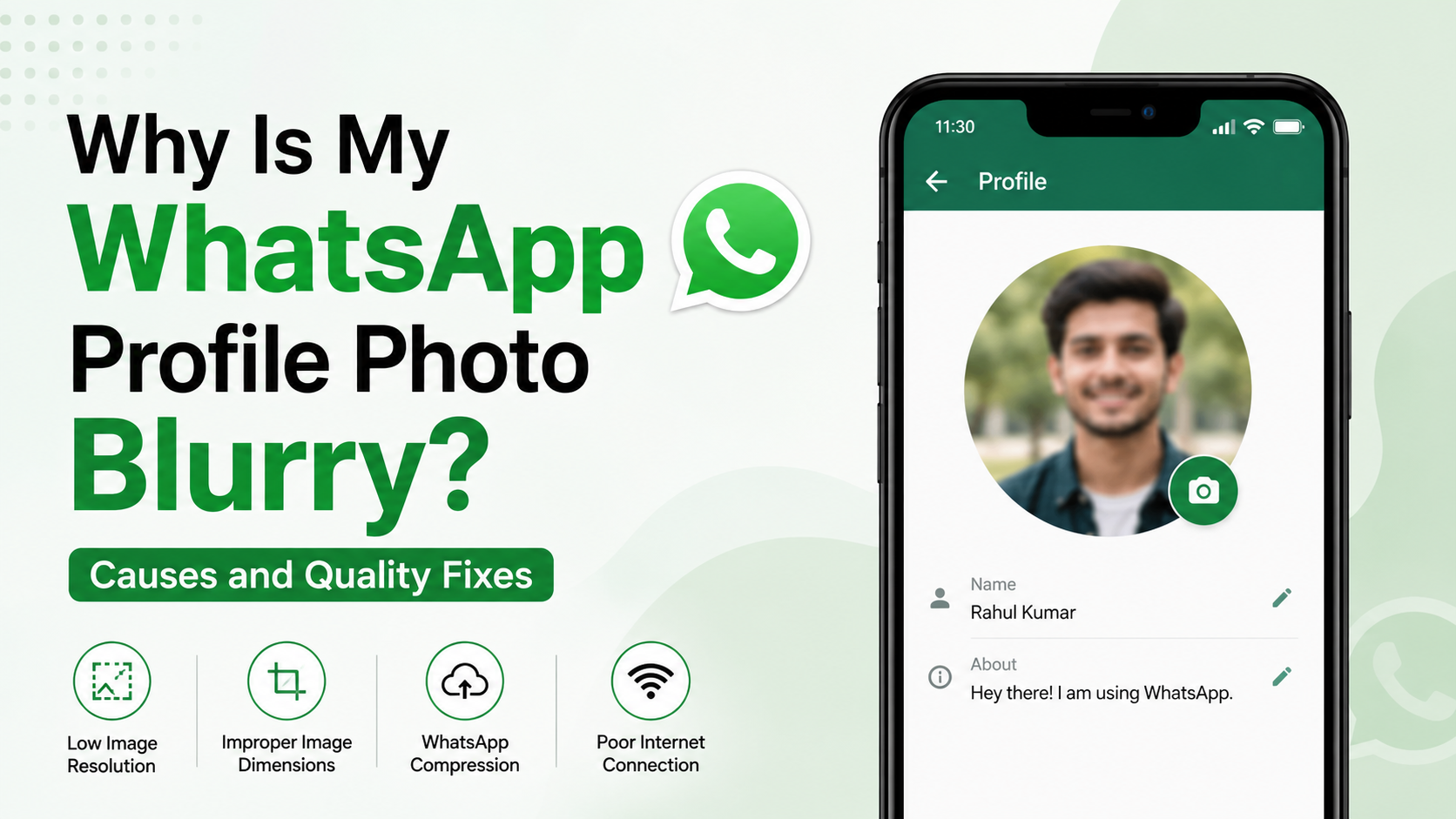
A blurry WhatsApp profile picture can make an otherwise professional headshot, brand logo, or favorite personal photo look low-quality. The frustrating part is that the image may appear perfectly sharp in your phone’s gallery before you upload it.
Usually, the problem is not one single mistake. WhatsApp compresses profile images, crops them into a circular display, and may show a lower-quality preview depending on the device or connection. Fortunately, choosing the right source image and preparing it correctly can make a noticeable difference.
Key Takeaways
- Start with a sharp, well-lit original image rather than a screenshot or previously shared photo.
- Use a square image with your face or logo centered before uploading it to WhatsApp.
- Upload an image larger than the displayed profile icon to reduce visible pixelation.
- Avoid repeatedly editing, saving, and re-uploading the same compressed file.
- Check whether the blur appears only on your device, as cache, network, or display settings can affect previews.
- For business use, prioritize clean backgrounds, strong contrast, and simple logo details.
How WhatsApp Compression Affects Profile Photo Quality
WhatsApp is designed to send and display images quickly across a huge range of devices and network conditions. To do that efficiently, it compresses profile photos. Compression reduces file size, but it can also reduce fine details, sharp edges, and color accuracy.
A high-resolution image may still look softer after upload because WhatsApp creates optimized versions for profile previews, contact lists, chats, and larger profile views.
Why Small Details Become Blurry
Compression is most noticeable when an image contains intricate details, including:
- Thin text in a business logo
- Fine hair, jewelry, or fabric patterns
- Low-contrast facial features
- Busy backgrounds
- Highly detailed illustrations
For example, a company logo with a long slogan under the brand name may look clear in a design file but become unreadable as a small WhatsApp profile image. The solution is not simply making the file larger; it is simplifying the visible design.
Compression Versus a Low-Quality Original
WhatsApp compression can soften an image, but it cannot create detail that was never there. If the source photo is already grainy, out of focus, dark, or heavily cropped, compression makes those flaws more obvious.
Before blaming the app, zoom into the original image in your phone gallery. If it looks blurry there, use a better original photo.
Incorrect Image Size and Aspect Ratio
A WhatsApp profile photo is displayed as a circle, but the image you upload is positioned within a square crop area. Photos with the wrong proportions can be enlarged or aggressively cropped, which often makes them look blurred or poorly framed.
Use a Square Canvas Before Uploading
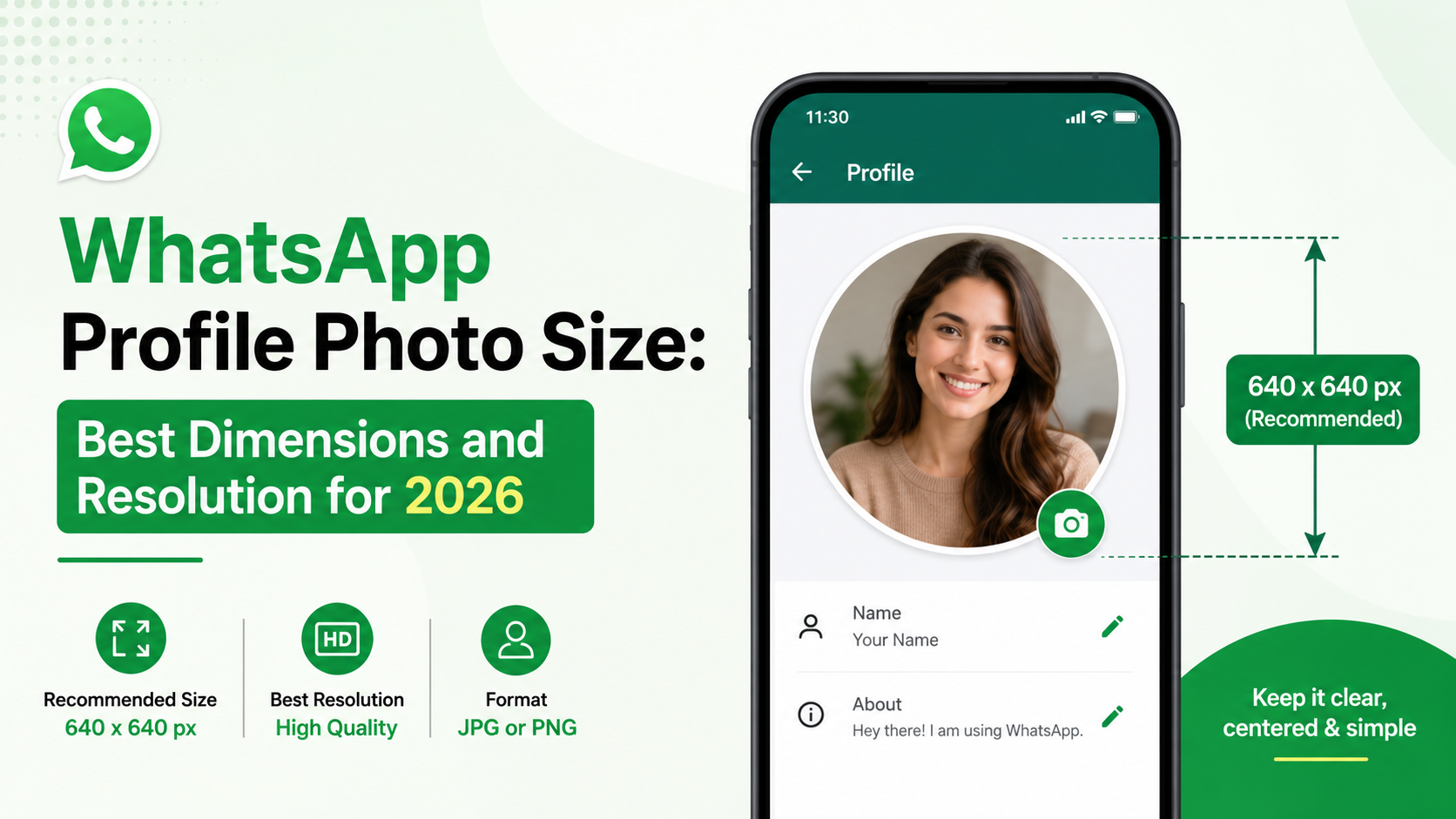
Prepare your profile photo on a square canvas. A practical target is at least 640 × 640 pixels, although a larger clean source image is also fine.
When creating your square version:
- Keep the main subject in the center.
- Leave extra space around your face or logo.
- Avoid placing text near corners.
- Check that no important features sit at the edge of the circle.
For a headshot, your face should occupy a clear portion of the frame without being so close that the circular crop cuts off your forehead, chin, or shoulders.
Avoid Extreme Cropping
Cropping a distant photo to isolate a face can leave too few pixels for a clean result. This often happens when someone takes a group photo, zooms in on one person, and uses the crop as a profile picture.
Instead, use the original portrait if available. If not, choose a less tightly cropped image where the subject remains sharp.
Screenshots, Downloads, and Reused Images Reduce Clarity
One of the most common reasons for a WhatsApp profile photo blurry issue is using an image that has already been compressed several times. Screenshots and images downloaded from social media platforms are frequent culprits.
Why Screenshots Are a Poor Source
A screenshot captures only what was displayed on the screen at that moment. It may have lower resolution than the original photo, and it can include scaling artifacts from the app or website where it was viewed.
This is especially important for logos. A screenshot of a logo from a browser, email signature, or social profile may look passable at first, but it often becomes soft after WhatsApp processes it again.
Use the original exported PNG, JPG, or brand asset whenever possible.
The “Compression Loop” Problem
Image quality degrades when a photo is repeatedly:
- Sent through a messaging app
- Saved to a device
- Edited or cropped
- Re-uploaded to another app
- Saved and shared again
Each step can introduce a new layer of compression. If you need to update your profile photo, return to the highest-quality original rather than using a version copied from a chat or social media post.
Blurry Photos Can Be Caused by Poor Lighting or Focus
Not every blurry profile image is a technical upload problem. A photo taken in dim lighting or with poor focus may appear acceptable full-screen but lose clarity when reduced to a small circular icon.
Use a Sharp, Well-Lit Original
For the best result, choose a photo with:
- Good natural or soft indoor lighting
- Clear focus on the face or main subject
- Minimal motion blur
- A simple, contrasting background
- Balanced exposure without harsh shadows
A professional-looking profile photo does not require expensive equipment. A modern phone camera, a window-facing position, and a steady hand can produce a strong image.
Watch for Artificial Sharpening
Some photo-editing apps add heavy sharpening, smoothing, or portrait effects. These edits can create halos, strange skin texture, or smeared details once the image is compressed.
Use edits sparingly. Slight brightness, contrast, and crop adjustments are usually more reliable than aggressive filters.
WhatsApp Display, Cache, and Connection Issues
Sometimes the uploaded image is fine, but WhatsApp temporarily displays a low-quality preview. This is more likely when your connection is weak, the app has cached an older version, or the device is low on storage.
Check Whether the Blur Is Temporary
Try these simple checks:
- Open your profile photo on a stable Wi-Fi or mobile data connection.
- Close and reopen WhatsApp.
- Ask a trusted contact whether your picture appears clear on their device.
- Update WhatsApp through your device’s app store.
- Restart your phone if the issue persists.
If other people see a clear profile photo while yours looks blurry, the problem is likely local to your device rather than the uploaded image.
Clear Cache Carefully on Android
Android users can often clear the WhatsApp cache through device settings. This can remove temporary files without deleting chats, although you should always review the option before confirming.
On iPhone, there is no equivalent per-app cache button in the same way. Updating or reinstalling the app may help, but back up chats first if you choose to reinstall.
How to Prepare a High-Quality WhatsApp Profile Picture
The best fix is to prepare the image before uploading it. This gives WhatsApp a clean source file that holds up better after compression and circular cropping.
A Reliable Preparation Workflow
Use this workflow for personal photos, team portraits, and business branding:
- Select the original, highest-resolution image.
- Crop it into a square format.
- Center the face, product, or logo.
- Ensure the subject is bright and easy to recognize.
- Export as a high-quality JPG or PNG.
- Upload directly from your gallery or files app.
Avoid taking a photo of another screen, using tiny web images, or uploading a file that has already passed through several messaging platforms.
Best Practices for Professional and Business Accounts
A WhatsApp business profile picture should be recognizable at a glance. In many conversations, recipients see it at a very small size.
For a personal professional profile, use a friendly, current headshot with a clean background. For a business, use a simple logo with bold shapes and minimal text. If your full logo contains fine wording, create a profile-specific icon that uses only the symbol, initials, or primary mark.
For instance, a law firm could use a simple monogram instead of a full logo containing the firm name, practice areas, and tagline. The monogram will remain readable in WhatsApp’s circular thumbnail.
Common Upload Mistakes to Avoid
Even a strong image can lose quality when uploaded incorrectly. A few common mistakes repeatedly cause disappointing profile-photo results.
Uploading an Image From a Chat
Images received through WhatsApp have often already been compressed. Reusing one as your profile photo means the image is processed again.
Always upload from your original gallery file when possible.
Using Text-Heavy Designs
Text is difficult to read in a small profile circle. Tiny letters become blurred long before large shapes or faces do.
If text is necessary, keep it short, high-contrast, and large. Better still, reserve detailed text for your WhatsApp business description or status rather than the profile image itself.
Zooming In Too Far
Zooming enlarges pixels rather than adding real detail. A face or logo can quickly look blocky after upload if it has been magnified too much during cropping.
Leave a little breathing room around the subject. A well-composed image usually looks clearer and more polished than an overly tight crop.
Frequently Asked Questions
Why does my WhatsApp profile photo look clear to me but blurry to others?
Your phone may be displaying a cached or locally stored version that differs from what others receive. WhatsApp may also generate different image sizes for various views. Ask someone to check the image after you upload it, and re-upload a clean original if multiple people report blur.
What is the best size for a WhatsApp profile picture?
A square image of at least 640 × 640 pixels is a practical choice. Larger source images are acceptable, but make sure the subject remains centered and recognizable after WhatsApp’s circular crop.
Does WhatsApp intentionally reduce profile picture quality?
WhatsApp compresses images to improve performance, storage efficiency, and loading speed. This is normal behavior, not necessarily a fault with your phone. Starting with a sharp, properly prepared source image minimizes the visible quality loss.
Should I use JPG or PNG for my WhatsApp profile photo?
Use JPG for photographs because it provides good quality with a manageable file size. Use PNG for simple graphics, logos, and designs with sharp edges or transparent backgrounds. In either case, WhatsApp may still optimize the uploaded image.
Can I make a blurry WhatsApp profile photo sharp again?
You can sometimes improve mild blur with editing tools, but no app can fully restore detail missing from an out-of-focus or heavily compressed original. The best solution is using the highest-quality original photo and preparing a fresh square crop.
Conclusion
A WhatsApp profile photo becomes blurry most often because of compression, poor source quality, incorrect cropping, repeated saving, or a temporary display issue. The most reliable fix is simple: start with a sharp original image, create a well-centered square crop, and upload it directly without using screenshots or previously shared copies.
Review your current profile picture at full size, replace it with a clean original if needed, and ask a contact to confirm the result. A clear profile photo improves recognition, credibility, and first impressions in every WhatsApp conversation.
Advertisement