August 19, 2026 · 11 min read
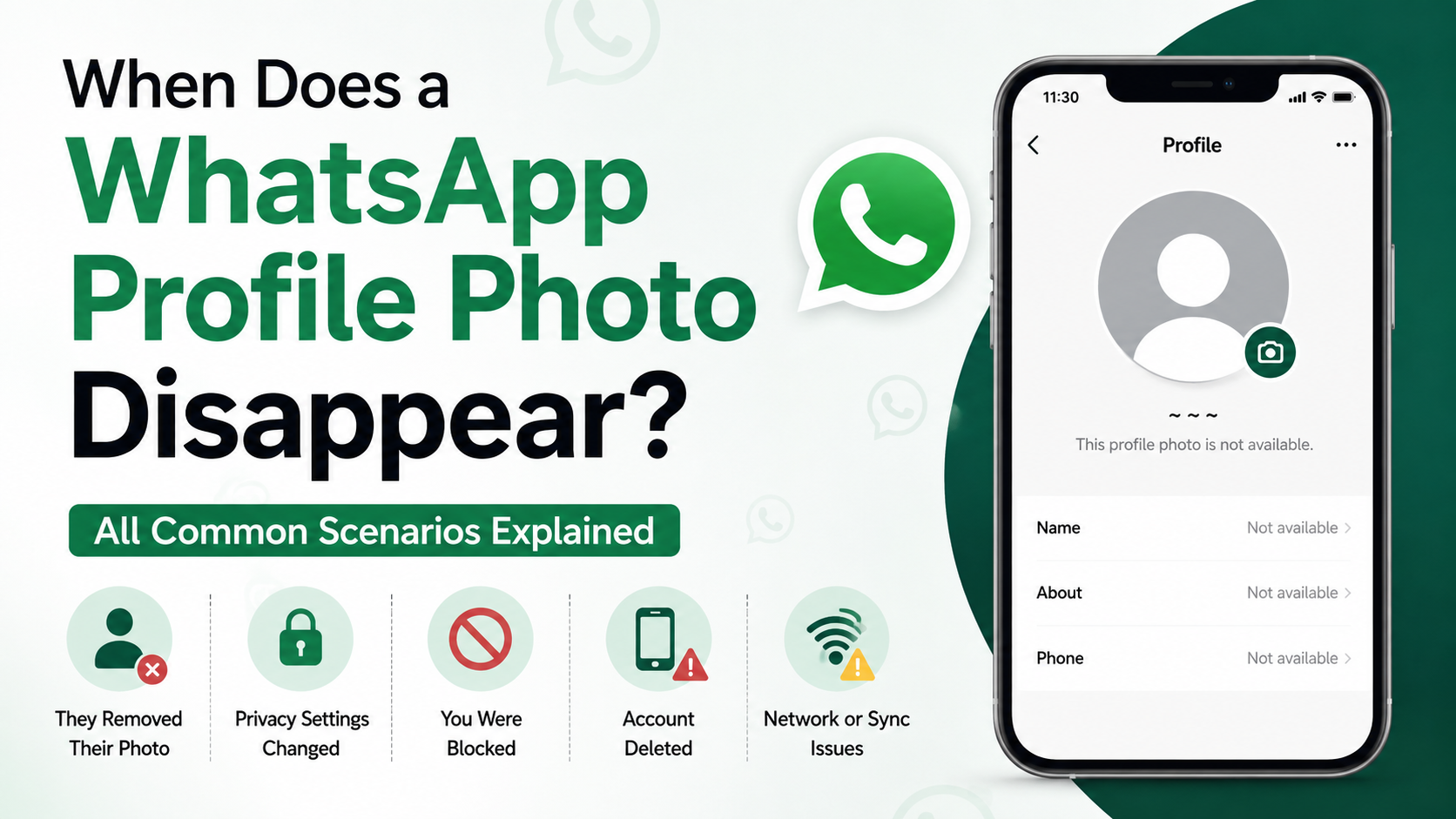
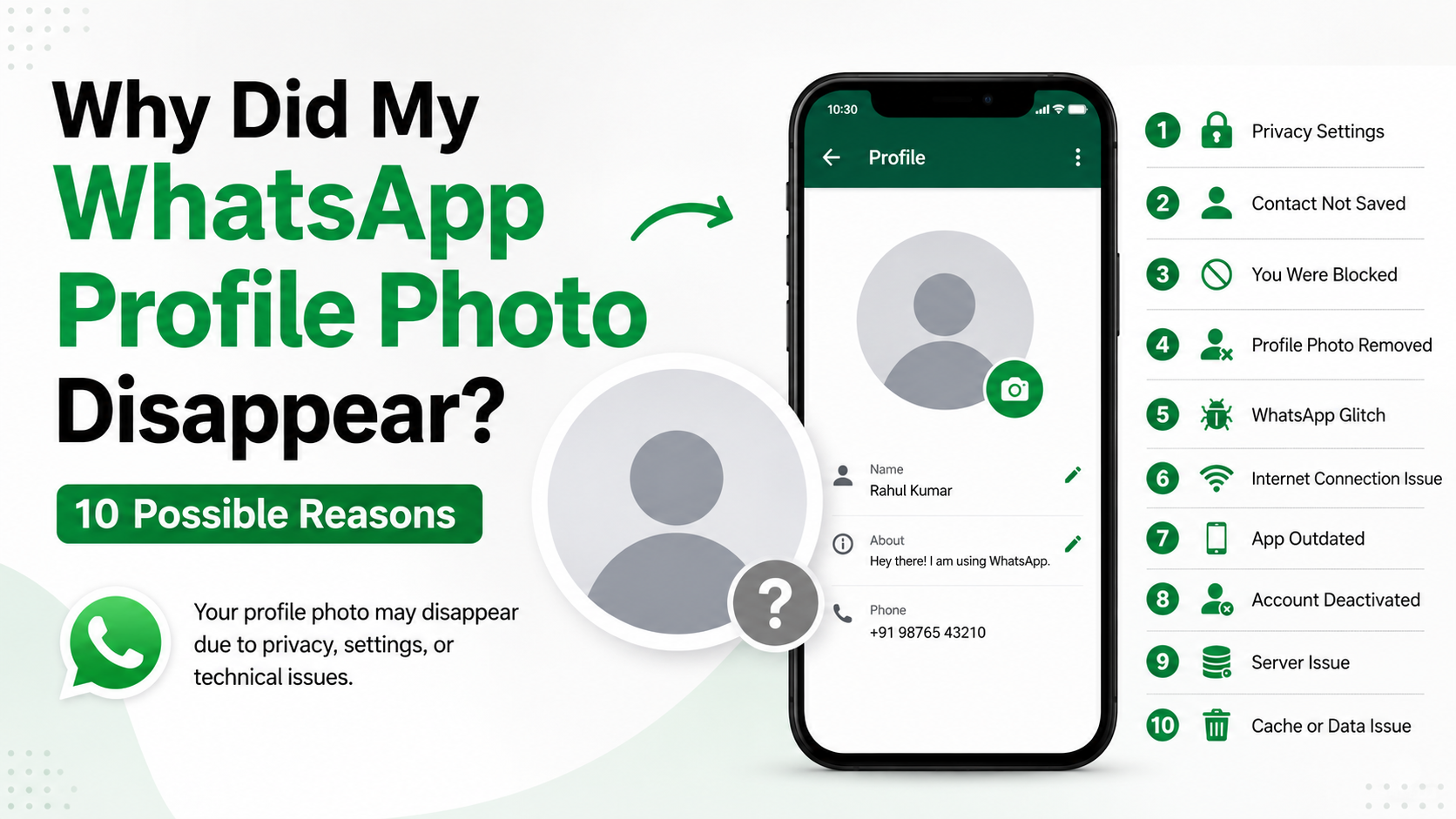
Why Did My WhatsApp Profile Photo Disappear? 10 Possible Reasons
On this page
- 1. Your Profile Photo Privacy Settings Changed
- 2. You Accidentally Removed or Replaced the Photo
- 3. WhatsApp Does Not Have Photo or Storage Permission
- 4. Your Internet Connection Is Unstable
- 5. The Other Person Has Not Saved Your Number
- 6. You Blocked the Contact—or They Blocked You
- 7. Your WhatsApp App Is Out of Date
- 8. A Temporary App Glitch or Cache Problem Is Affecting Display
- 9. A Linked Device Is Showing an Old Version
- 10. Your Account, Number, or Device Setup Recently Changed
- How to Tell Whether the Problem Is on Your Side
- Frequently Asked Questions
- Conclusion
Why Did My WhatsApp Profile Photo Disappear? 10 Possible Reasons
Seeing that your WhatsApp profile photo has vanished can be confusing, especially when you are unsure whether others can still see it. The problem may be as simple as a changed privacy setting, an outdated app, or an accidental deletion. In other cases, it can relate to your contact list, account status, or a temporary connection issue.
The good news is that most cases of a WhatsApp profile photo disappeared issue are easy to diagnose. This guide explains 10 likely reasons, how to identify each one, and what you can do to restore your photo or control who sees it.
Key Takeaways
- Check WhatsApp’s profile-photo privacy settings before assuming your image was deleted.
- Make sure the app has permission to access your photos and storage.
- Confirm whether the photo is missing for everyone or only for specific contacts.
- Update WhatsApp and restart your phone to rule out temporary glitches.
- Review blocked contacts, saved numbers, and account changes that can affect visibility.
- Avoid repeatedly uploading photos until you have checked your connection and app status.
1. Your Profile Photo Privacy Settings Changed
One of the most common reasons a WhatsApp profile photo disappears is a privacy-setting change. WhatsApp lets you choose exactly who can view your profile image.
Review your profile-photo visibility setting
Open WhatsApp and go to:
- Settings
- Privacy
- Profile Photo
You will typically see options such as:
- Everyone — Anyone with your phone number may see your photo.
- My Contacts — Only people saved in your contacts can see it.
- My Contacts Except… — Your contacts can see it except selected people.
- Nobody — Your profile photo is hidden from everyone.
If the setting is set to Nobody, your photo may still exist on your profile but will appear missing to everyone else.
A practical example
Suppose you changed your privacy settings before a work trip and selected “My Contacts Except…” to hide your photo from a few people. If you accidentally selected a larger group—or all contacts—your profile picture may seem to have disappeared.
Revisit this setting whenever you update your privacy preferences or switch phones.
2. You Accidentally Removed or Replaced the Photo
Sometimes the simplest explanation is the correct one: the profile picture was removed, changed, or failed to upload properly.
Check your own profile page
Go to:
- Settings
- Tap your profile name or photo area
If you see the default blank avatar instead of your image, the photo is no longer attached to your account. You can upload it again directly from this screen.
Upload a new image carefully
When adding a photo:
- Choose a clear image from your gallery or camera.
- Crop it so your face, logo, or main subject remains visible in WhatsApp’s circular preview.
- Wait for the upload to finish before closing the app.
- Check your profile after a few moments.
A weak or interrupted internet connection can prevent a profile photo from syncing correctly, even if it briefly appears on your device.
3. WhatsApp Does Not Have Photo or Storage Permission
If WhatsApp loses permission to access your phone’s photo library, it may have trouble selecting, updating, or displaying profile images.
Check permissions on Android
On most Android devices:
- Open Settings
- Select Apps
- Choose WhatsApp
- Tap Permissions
- Allow access to Photos and videos or Files and media
The exact labels vary by Android version and device manufacturer.
Check permissions on iPhone
On an iPhone:
- Open Settings
- Scroll to WhatsApp
- Tap Photos
- Select Full Access or the appropriate access level
If permission is limited, WhatsApp may not be able to access the image you selected. Regranting access and reopening the app often resolves the issue.
4. Your Internet Connection Is Unstable
WhatsApp profile photos need an internet connection to upload and sync across devices. If your connection drops during an update, your image may not appear properly.
Signs that connectivity is the problem
Look for these clues:
- Messages remain stuck with a clock icon.
- Your new profile photo appears only on your phone.
- Other contacts’ profile pictures are also loading slowly.
- WhatsApp Web or linked devices do not show the updated image.
How to troubleshoot the connection
Try the following steps:
- Switch between Wi-Fi and mobile data.
- Turn airplane mode on for a few seconds, then turn it off.
- Restart your router if other apps are also slow.
- Disable a VPN temporarily if it is interfering with connectivity.
- Reopen WhatsApp after your connection stabilizes.
For professionals using WhatsApp for customer communication, a reliable connection matters because an updated photo can reinforce trust and brand recognition.
5. The Other Person Has Not Saved Your Number
This reason matters when your photo is missing only for certain people. If your privacy setting is My Contacts, people who have not saved your number may not be able to see your image.
Understand how contact-based visibility works
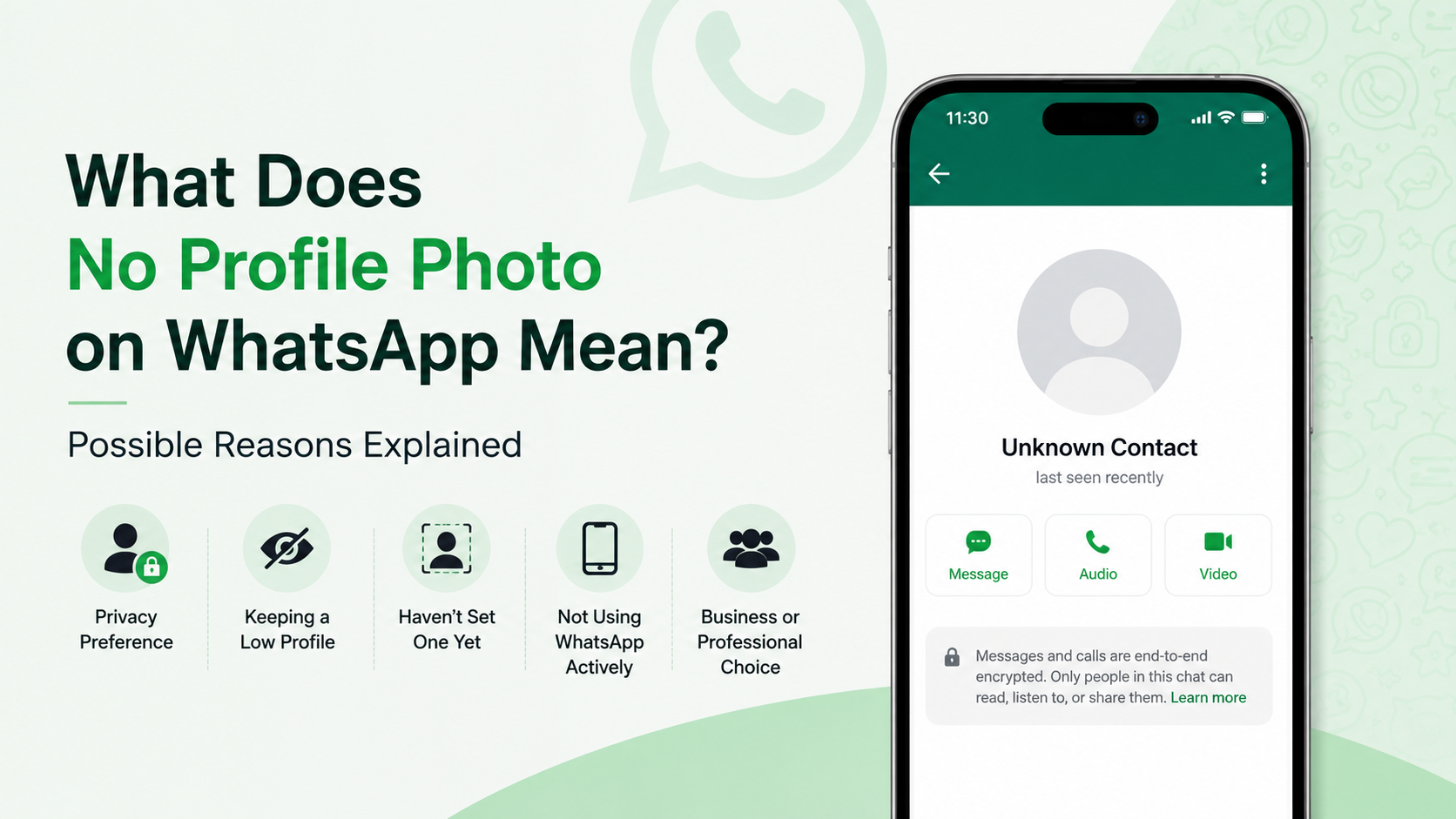
“My Contacts” generally means your profile photo is shown according to your saved-contact relationship and selected exclusions. If a client, colleague, or new acquaintance has not added your number, they may see a blank profile image instead.
Choose the right setting for your purpose
Consider your audience:
- Use Everyone if you use WhatsApp for public-facing business communication.
- Use My Contacts if you want stronger privacy for personal use.
- Use My Contacts Except… when you need more precise control.
For example, a consultant who shares a business number with prospective clients may choose “Everyone,” while keeping their status updates limited to contacts.
6. You Blocked the Contact—or They Blocked You
Blocking affects what users can see. If you are trying to determine why a particular person cannot see your profile picture, blocking may be involved.
What happens when you block someone
A blocked contact generally cannot view updates to your profile photo, last seen information, or status. They may continue seeing an older image for a period, but they will not receive future changes.
Could they have blocked you?
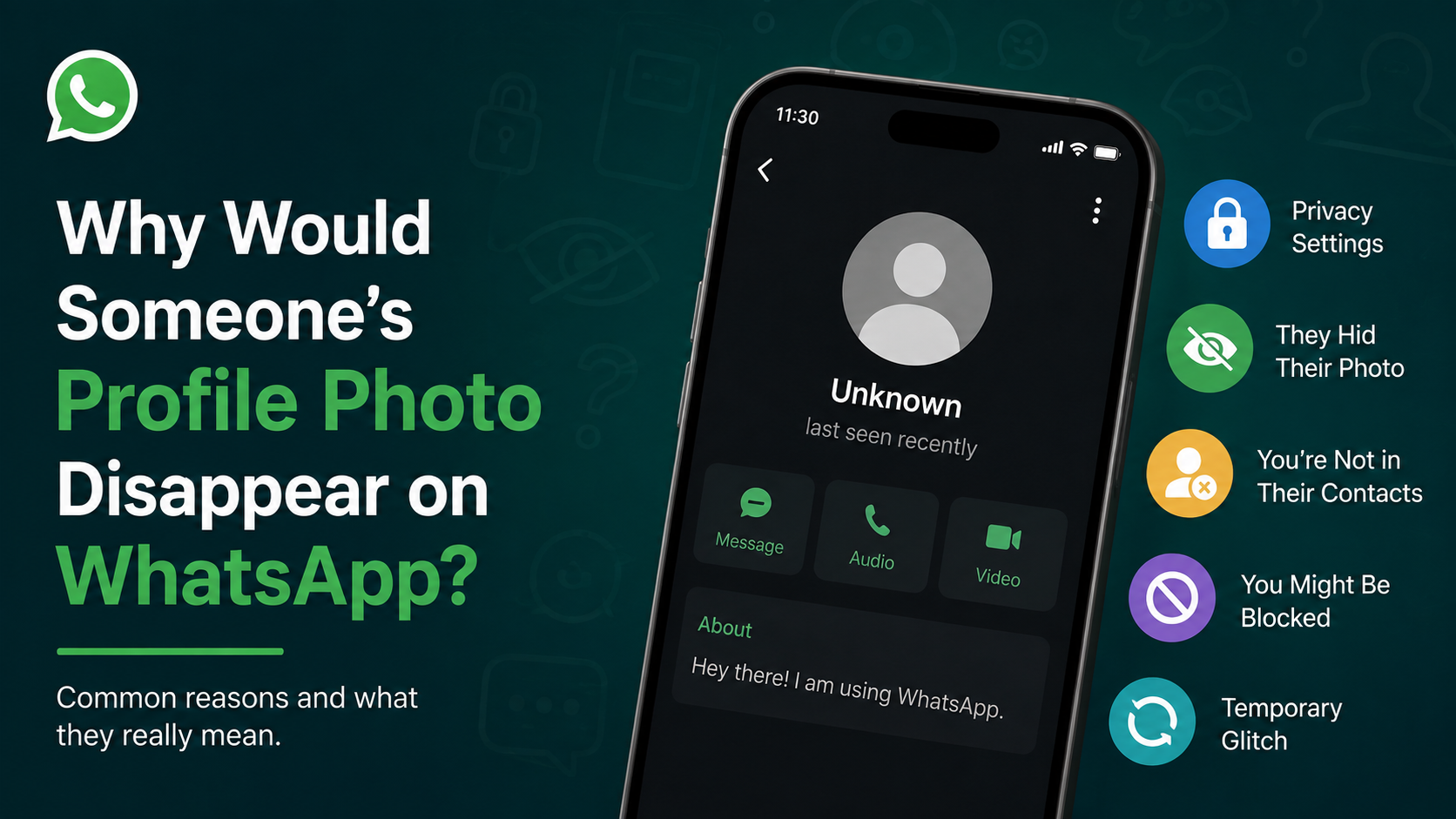
If another person’s photo has disappeared from your view, blocking is one possible explanation—but it is not proof. Their image may also be hidden because they changed privacy settings, removed the photo, or deleted your number.
Avoid jumping to conclusions based on one sign alone. WhatsApp intentionally keeps block-related information private.
7. Your WhatsApp App Is Out of Date
An outdated app can cause sync problems, display errors, and compatibility issues. If your WhatsApp profile photo disappeared after an operating-system update or device change, app versioning may be the cause.
Update WhatsApp from the official store
Use the official app marketplace for your device:
- Google Play Store for Android
- Apple App Store for iPhone
Search for WhatsApp and install any available update. Then restart your phone and check your profile again.
Why updates matter
Updates often include fixes for:
- Photo and media handling
- Linked-device syncing
- Privacy controls
- Performance issues
- Device-specific bugs
Do not rely on unofficial modified versions of WhatsApp. They can create reliability and security problems, and may put your account at risk.
8. A Temporary App Glitch or Cache Problem Is Affecting Display
Sometimes your photo is still attached to your account, but WhatsApp is not displaying it correctly on one device.
Try the basic refresh sequence
Use this order:
- Force-close WhatsApp.
- Restart your phone.
- Reopen WhatsApp and check your profile.
- Ask a trusted contact whether they can see your photo.
- Update the app if an update is available.
This helps distinguish a local display issue from a genuine profile-photo problem.
Clear cache on Android
Android users can often clear WhatsApp’s cache without deleting chats:
- Open Settings
- Go to Apps > WhatsApp
- Select Storage
- Tap Clear Cache
Do not tap Clear Data unless you understand the consequences and have a current chat backup. Clearing data can sign you out or remove locally stored information.
9. A Linked Device Is Showing an Old Version
WhatsApp Web, desktop apps, tablets, and other linked devices may not update instantly. If your profile photo looks correct on your phone but blank or outdated on a computer, synchronization may be delayed.
Refresh your linked session
Try these actions:
- Reload WhatsApp Web in your browser.
- Close and reopen the desktop application.
- Check that your phone has an active internet connection.
- Log out of the linked device and link it again if the issue continues.
Real-world example
A business owner may update their WhatsApp profile picture to a new company logo on their phone, while a laptop still displays the previous image. This does not necessarily mean the update failed; the linked device may simply need a refresh.
10. Your Account, Number, or Device Setup Recently Changed
Changing phone numbers, moving to a new device, restoring a backup, or reinstalling WhatsApp can affect profile details temporarily.
Common situations that can trigger the issue
Your photo may disappear or fail to sync after:
- Changing to a new phone number
- Reinstalling WhatsApp
- Restoring chats from a backup
- Switching between Android and iPhone
- Logging in again after account verification
- Using a new device before setup is fully complete
Restore the profile after migration
After completing the account setup:
- Confirm that the correct phone number is verified.
- Open your WhatsApp profile.
- Add or reselect your profile photo.
- Confirm your privacy preference.
- Allow time for the image to sync to linked devices.
If you use WhatsApp for work, update your business information, profile name, and photo after any migration. Consistent account details make it easier for customers and colleagues to recognize you.
How to Tell Whether the Problem Is on Your Side
When your WhatsApp profile photo disappeared, first determine whether the issue affects your own profile, another person’s profile, or only a particular device.
Check from multiple perspectives
Ask yourself:
- Can you see the photo on your own profile page?
- Can a trusted contact see it?
- Is it missing on your phone, desktop app, or both?
- Did you recently change privacy settings, numbers, or devices?
- Is the problem limited to one specific person?
This simple diagnostic process prevents unnecessary troubleshooting.
Use a trusted contact test
Ask a friend or colleague who is not blocked and has your number saved to check your profile. Their answer can quickly reveal whether:
- The photo is publicly visible.
- Your “My Contacts” privacy setting is working as intended.
- The problem exists only on your own device.
- A particular person is excluded or blocked.
Frequently Asked Questions
Why did my WhatsApp profile photo disappear for only one person?
Your privacy settings may exclude that person, they may not meet your contact-visibility criteria, or one of you may have blocked the other. Check Privacy > Profile Photo, review exclusions, and verify whether their number is saved correctly.
Can someone know if I hid my WhatsApp profile photo from them?
No. WhatsApp does not notify people when you hide your profile photo. They will simply see the default blank profile image or no visible photo.
Why can I see my WhatsApp profile photo but others cannot?
Your photo may be present, but your privacy setting may be set to “Nobody,” “My Contacts,” or an exclusion list. Check your profile-photo visibility setting and ask a trusted contact to confirm what they see.
Will reinstalling WhatsApp restore my profile photo?
Not necessarily. Reinstalling can resolve certain app glitches, but it may also require you to verify your account and restore your settings again. Try updating the app, restarting your phone, and checking permissions before reinstalling. Always back up chats first.
Does blocking remove a WhatsApp profile photo?
Blocking does not automatically delete your profile photo. However, blocked contacts cannot see future updates to it. If you block someone, they may no longer see your current profile image as you intended.
Conclusion
A WhatsApp profile photo disappeared issue is usually caused by privacy settings, permissions, connectivity, outdated software, blocked contacts, or device synchronization. Start with the simplest checks: confirm the photo still exists on your profile, review who can see it, update WhatsApp, and test visibility with a trusted contact.
If the image is still missing after these steps, re-upload it on a stable connection and review recent device, number, or account changes. Taking a few minutes to verify your settings can restore your profile photo—and ensure it is visible only to the people you want to see it.
Advertisement