August 19, 2026 · 11 min read
How to Set a Profile Photo on WhatsApp: Complete Beginner Guide
On this page
- Why Your WhatsApp Profile Photo Matters
- Before You Add a WhatsApp Profile Photo
- How to Set a Profile Photo on WhatsApp for Android
- How to Set a Profile Photo on WhatsApp for iPhone
- How to Change Your Profile Photo on WhatsApp Web or Desktop
- Control Who Can See Your WhatsApp Profile Photo
- Best Practices for a Professional WhatsApp Profile Photo
- Troubleshooting Common WhatsApp Profile Photo Problems
- Frequently Asked Questions
- Conclusion
How to Set a Profile Photo on WhatsApp: Complete Beginner Guide
Your WhatsApp profile photo is often the first visual cue people see when they receive your message, open a chat, or search for your contact. A clear, appropriate image makes it easier for friends, family, clients, and colleagues to recognize you quickly.
If you are wondering how to do profile photo in WhatsApp, the process is simple—but choosing the right image, adjusting privacy settings, and resolving upload issues can make a big difference. This guide walks you through every step on Android, iPhone, and WhatsApp Web/Desktop.
Key Takeaways
- Add or change your WhatsApp profile photo from the Settings menu.
- Use a clear, well-lit square image for the best result after WhatsApp crops it into a circle.
- Control who sees your photo through WhatsApp’s built-in privacy settings.
- You can update your photo at any time without notifying contacts directly.
- If your photo will not upload, check your internet connection, permissions, and app updates.
- Choose a professional image for work-related communication and a personal image for private use.
Why Your WhatsApp Profile Photo Matters
A profile photo may seem like a small detail, but it helps establish identity and trust. In busy group chats, people often recognize a face or logo faster than a name. This is especially useful when contacts have not saved your number.
Make Yourself Easy to Recognize
A recognizable profile photo helps prevent confusion, particularly if you have a common name or use WhatsApp for multiple groups.
For example:
- A parent in a school group can use a clear headshot so other parents know who they are.
- A freelancer can use a professional portrait so clients can quickly identify them.
- A business can use a clean company logo to create consistent brand recognition.
Create the Right Impression
Your profile photo should match the context in which you use WhatsApp. A casual holiday picture may be perfect for family chats, while a polished headshot is usually better when communicating with customers, recruiters, or colleagues.
Remember that people may form an impression of you before reading your first message. Choose an image that supports the way you want to be perceived.
Before You Add a WhatsApp Profile Photo
Before learning how to do profile photo in WhatsApp, take a moment to choose an image that will display well on a small screen.
Choose a Clear, High-Quality Image
WhatsApp displays profile pictures in a circular format. Although you can upload a rectangular photo, WhatsApp will ask you to crop it before saving.
For the best result, choose an image that:
- Has good lighting and a sharp focus.
- Keeps your face, logo, or main subject near the center.
- Uses a simple background where possible.
- Is not heavily pixelated, blurry, or overly dark.
- Looks good when viewed as a small circle.
A square image is ideal because it gives you more control over the final crop.
Decide Between a Personal Photo and a Logo
The right choice depends on how you use your account.
Use a personal photo when:
- You mainly chat with friends, relatives, and colleagues.
- You want people to recognize you in groups.
- You are building a personal professional presence.
Use a logo when:
- You manage a business WhatsApp account.
- Your organization communicates through one shared number.
- Brand consistency matters more than individual identity.
For a consultant or small-business owner, a professional headshot often feels more personal than a logo. For a customer-support account, a clear company logo can be the better option.
How to Set a Profile Photo on WhatsApp for Android
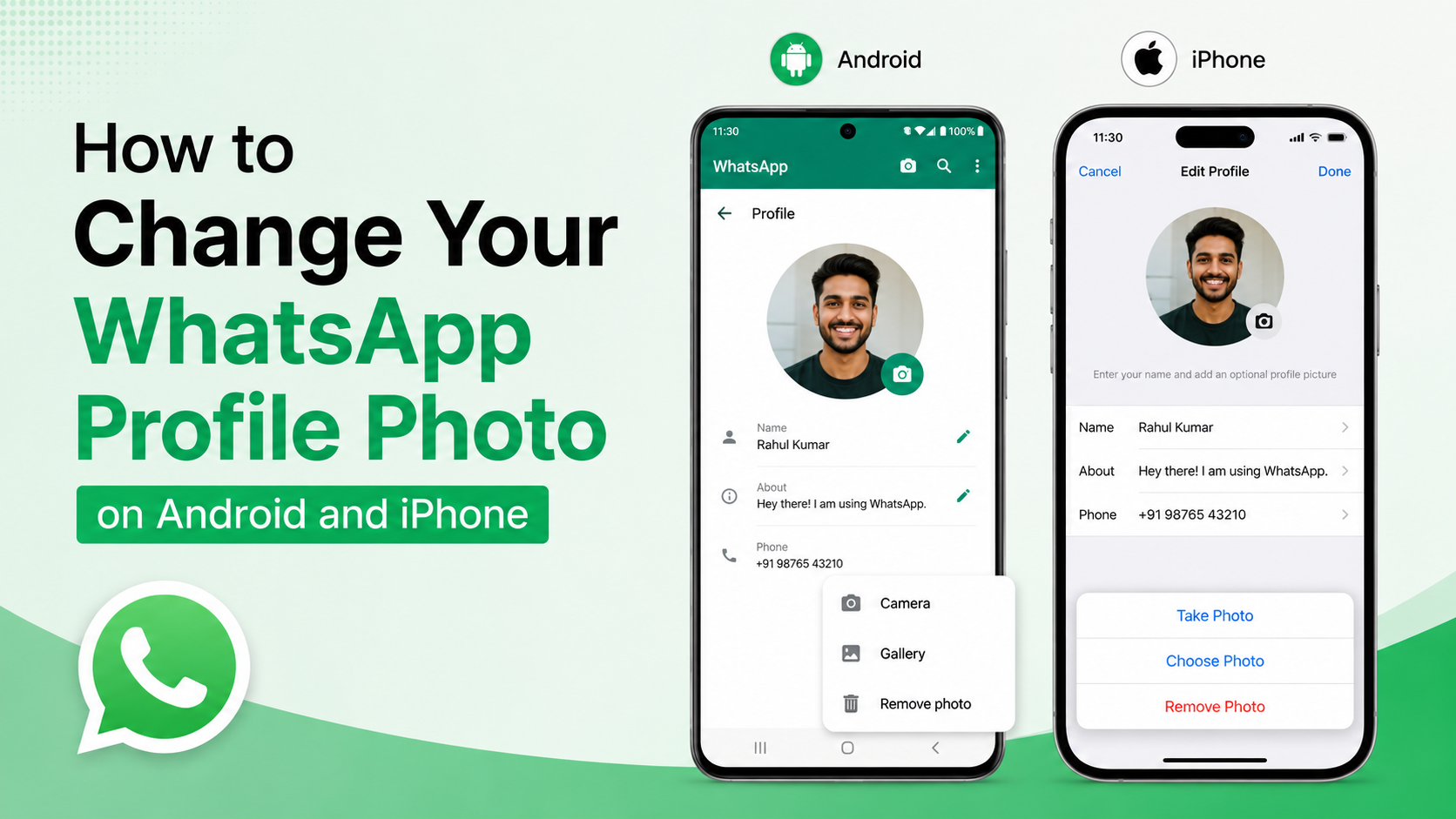
On Android phones, you can add or change your photo through your WhatsApp profile settings.
Step-by-Step Instructions for Android
Follow these steps:
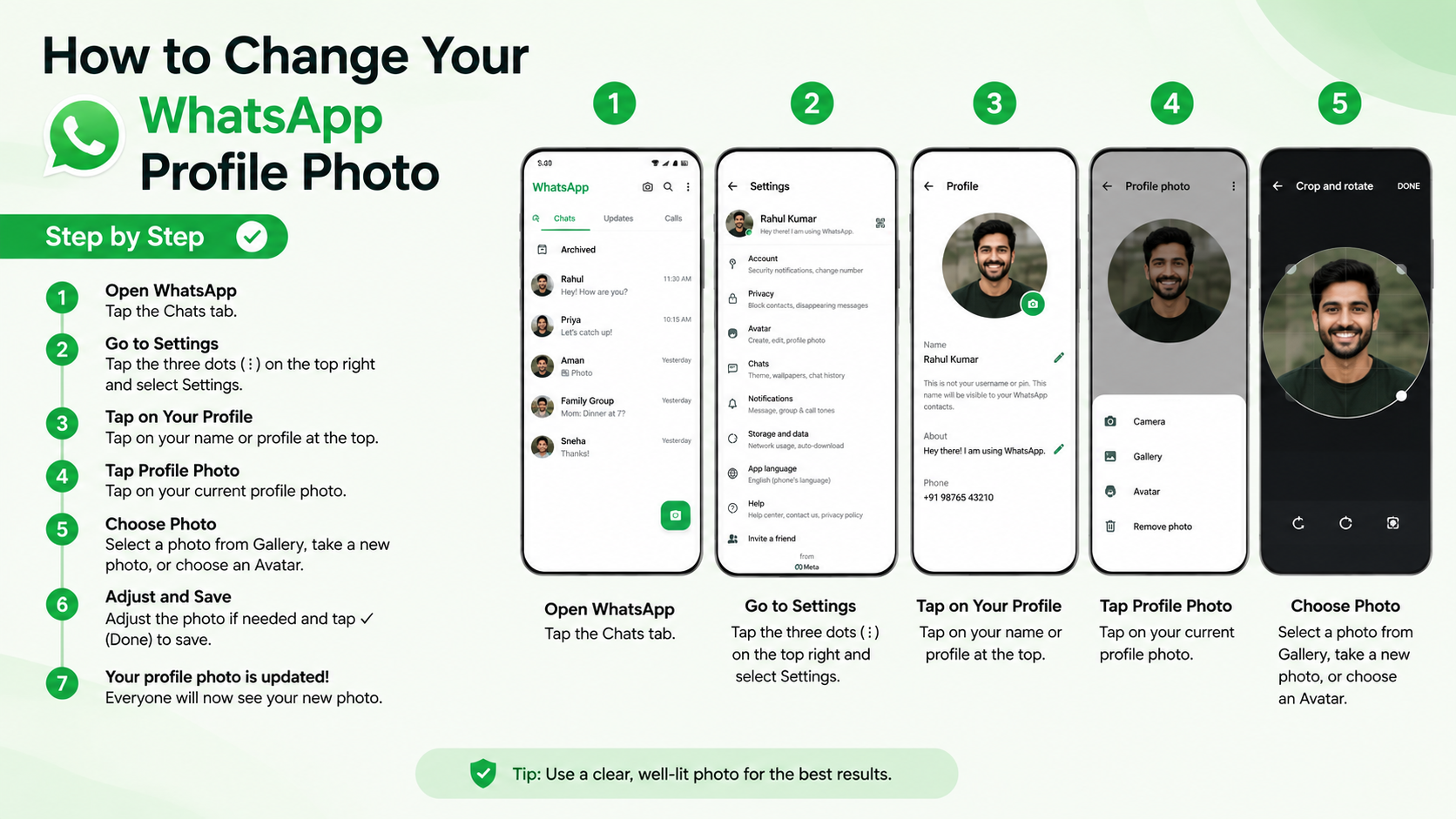
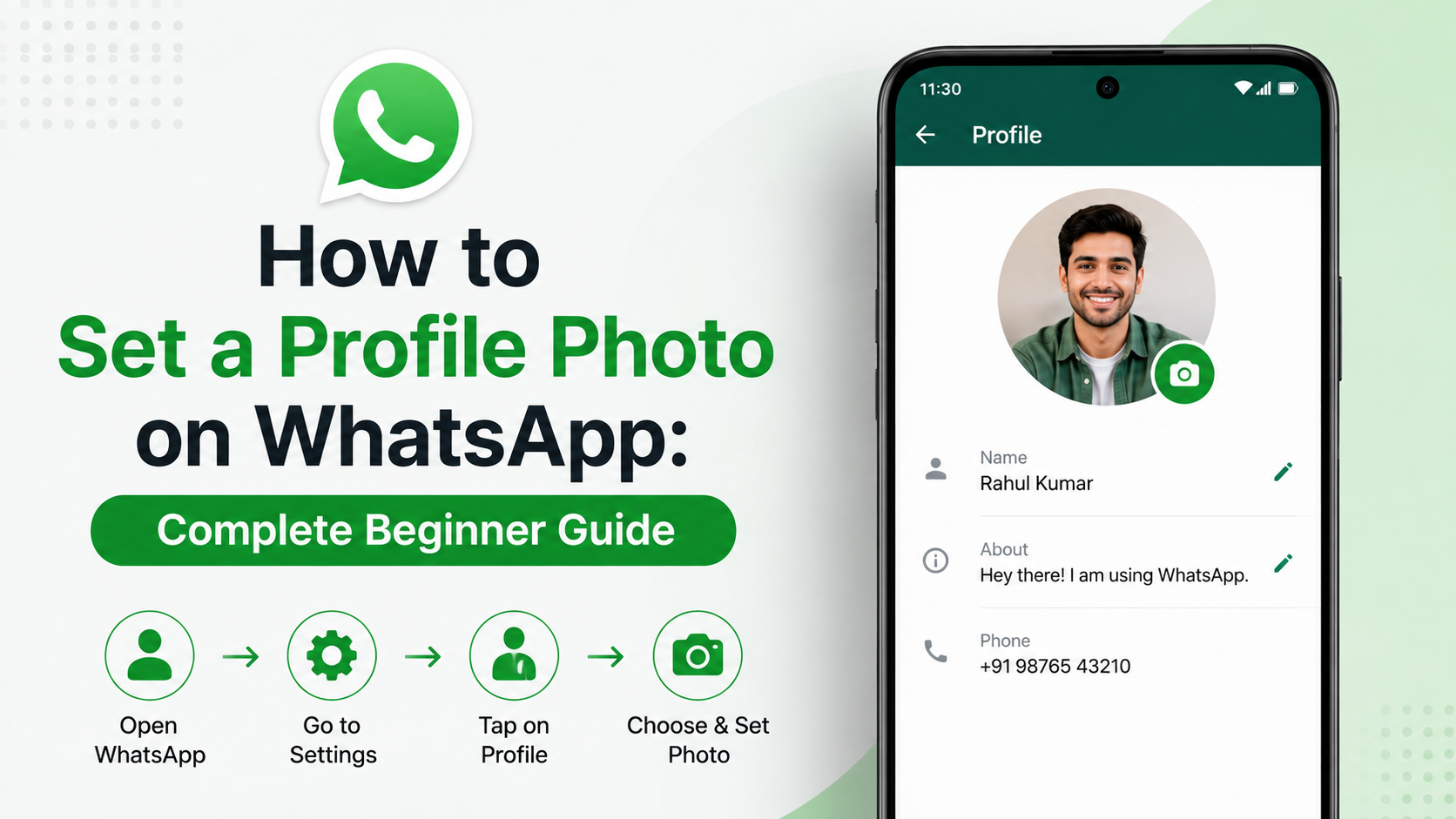
- Open WhatsApp on your Android device.
- Tap the three dots in the upper-right corner.
- Select Settings.
- Tap your name or current profile photo at the top.
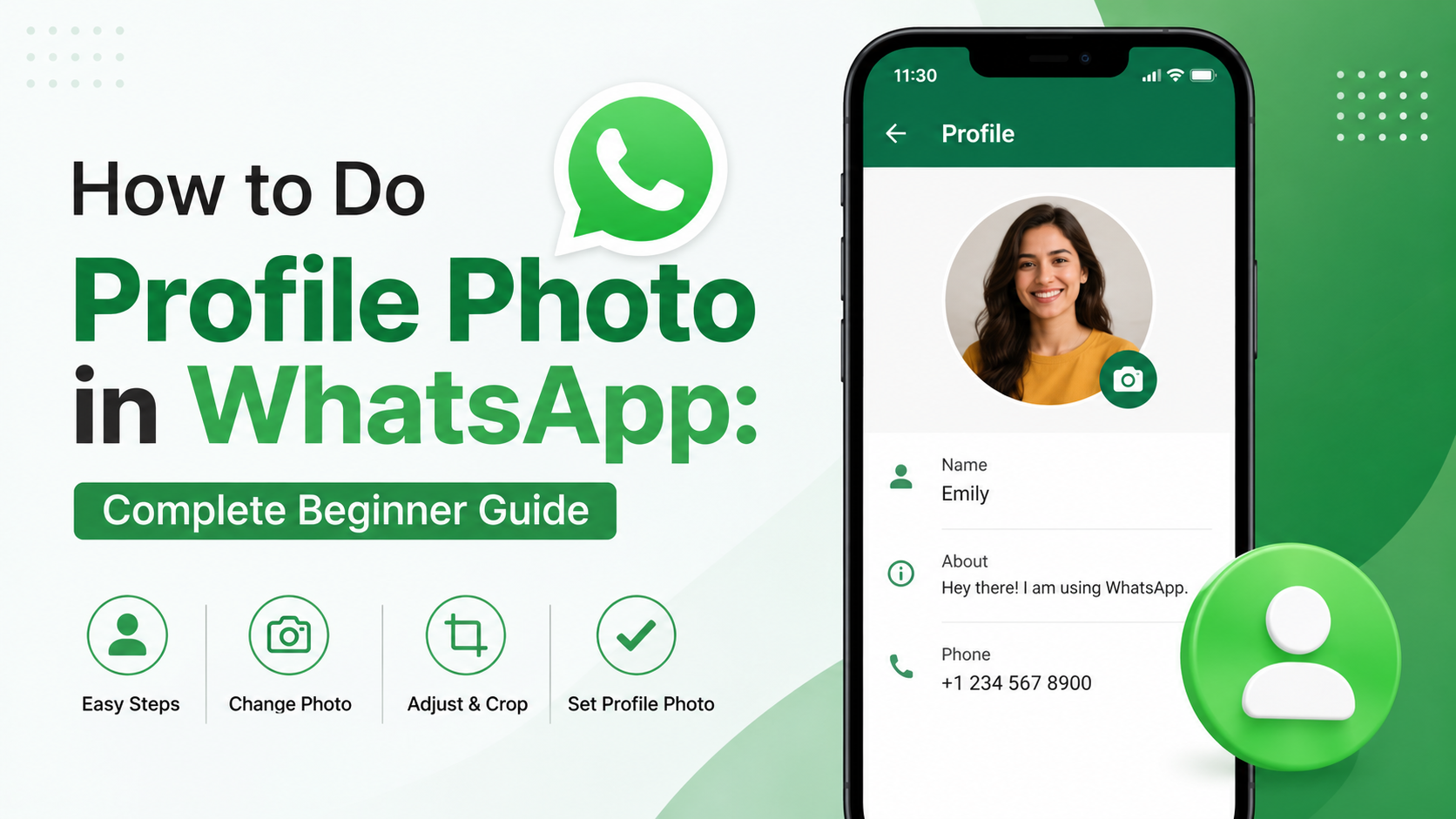
- Tap the camera icon on your profile picture.
- Choose one of the available options:
- Camera to take a new photo. - Gallery to select an existing image. - Remove photo to delete your current image.
- Select or take your picture.
- Adjust the crop so the important part of the image fits inside the circle.
- Tap Done or the checkmark to save it.
Your new photo should appear immediately on your profile.
Tips for Cropping on Android
When the crop screen appears, avoid placing your face or logo close to the edge. WhatsApp’s circular display can cut off corners, text, or parts of an image.
If you are using a logo, make sure:
- The full logo remains visible inside the circular frame.
- Small text is large enough to read.
- There is some empty space around the edges.
How to Set a Profile Photo on WhatsApp for iPhone
The process on iPhone is very similar, although the buttons and menu placement may look slightly different.
Step-by-Step Instructions for iPhone
To set your WhatsApp profile photo on an iPhone:
- Open WhatsApp.
- Tap Settings in the bottom-right corner.
- Tap your name or current profile image at the top.
- Select Edit beneath your photo.
- Tap Edit again on the profile image.
- Choose:
- Take Photo to use your camera. - Choose Photo to select an image from your Photos app. - Delete Photo to remove the current picture.
- Position and resize the image within the crop area.
- Tap Choose or Done to confirm.
WhatsApp will save the selected image as your new profile photo.
Give WhatsApp Photo Permission if Needed
If WhatsApp cannot access your photo library, your iPhone may be blocking permission.
To fix this:
- Open the iPhone Settings app.
- Scroll down and tap WhatsApp.
- Tap Photos.
- Select Full Access or allow access to the photos you want to use.
- Return to WhatsApp and try again.
Without photo access, you may still be able to take a new image with the camera, but you will not be able to select one already stored on your phone.
How to Change Your Profile Photo on WhatsApp Web or Desktop
WhatsApp Web and the WhatsApp Desktop app also let you update your image. This is convenient when the image you want is already saved on your computer.
Change Your Photo on WhatsApp Web
To update your photo using a browser:
- Open WhatsApp Web and link your account if necessary.
- Click your profile photo in the upper-left area.
- Click your current image again.
- Select the option to upload a new photo.
- Choose an image file from your computer.
- Adjust the crop and save your changes.
The update will sync to WhatsApp on your phone automatically.
Change Your Photo in the Desktop App
In the WhatsApp Desktop app:
- Open the app and select your profile picture.
- Click the current profile image.
- Choose Upload Photo or the equivalent camera option.
- Select a file from your computer.
- Crop the photo and confirm the change.
Desktop is particularly useful for businesses that need to upload a high-resolution logo or a professionally edited headshot.
Control Who Can See Your WhatsApp Profile Photo
Adding a profile photo does not mean everyone must be able to see it. WhatsApp includes privacy controls that let you decide who can view your image.
Find Your Profile Photo Privacy Settings
On Android or iPhone:
- Open WhatsApp Settings.
- Tap Privacy.
- Select Profile Photo.
- Choose the audience you prefer.
You will generally see these options:
- Everyone: Anyone with your phone number may see your photo.
- My Contacts: Only people saved in your contacts can see it.
- My Contacts Except…: Your contacts can see it except for selected people.
- Nobody: No one can see your profile photo.
Choose the Right Privacy Option
For most people, My Contacts offers a sensible balance between visibility and privacy. It allows friends, relatives, and known colleagues to recognize you without exposing your photo to unknown numbers.
Use My Contacts Except… if you need to exclude a specific person, such as a former client, an unwanted contact, or someone in a large group chat.
Choose Nobody if you prefer maximum privacy or use WhatsApp mainly for business messages where a profile photo is unnecessary.
Best Practices for a Professional WhatsApp Profile Photo
A good WhatsApp profile photo does not need to look overly formal. It simply needs to be clear, appropriate, and consistent with the type of communication you do.
Use a Professional Headshot for Work
For professional communication, choose a photo that includes:
- Your face clearly visible.
- Natural lighting.
- A neat background.
- Clothing appropriate to your industry.
- A friendly, confident expression.
You do not need an expensive studio portrait. A well-lit photo taken near a window with a plain background can work extremely well.
For instance, a real estate agent might use a welcoming headshot, while a graphic designer could use a polished portrait with a subtle creative background.
Avoid Common Profile Photo Mistakes
Some images make it harder for people to recognize you or can appear unprofessional.
Try to avoid:
- Group photos where people cannot tell which person is you.
- Heavily filtered selfies.
- Pictures taken from too far away.
- Dark or grainy images.
- Photos containing private documents, addresses, or identification details.
- Logos with tiny lettering that disappears at small sizes.
If you are uncertain, open the image on your phone and view it at a small size. If the main subject is still clear, it is likely a good choice.
Troubleshooting Common WhatsApp Profile Photo Problems
Sometimes your image may fail to upload, appear blurry, or not display for other people. Most issues have a straightforward solution.
My Profile Photo Will Not Upload
If WhatsApp does not save your new image, check the following:
- Confirm that you have a stable Wi-Fi or mobile data connection.
- Close and reopen WhatsApp.
- Make sure WhatsApp has permission to access your photos or camera.
- Update WhatsApp through the Google Play Store or Apple App Store.
- Restart your phone and try again.
- Choose a different image in case the original file is damaged.
If the problem continues, check whether WhatsApp is experiencing a wider service outage before changing account settings.
My Photo Looks Blurry or Cropped Incorrectly
Profile pictures are small and circular, so some loss of detail is normal. However, you can improve the result by uploading a clearer original image.
Try these fixes:
- Use a higher-resolution photo.
- Start with a square image.
- Crop the picture before uploading it.
- Keep the important subject in the middle.
- Avoid screenshots, which may be lower quality.
For a logo, create a version specifically designed for circular profile spaces. A simple icon or initials often perform better than a full horizontal logo.
Other People Cannot See My Profile Photo
If certain contacts cannot see your picture, review your privacy settings. You may have selected Nobody or excluded them under My Contacts Except….
Also remember that if you set the photo visibility to My Contacts, the other person may need to be saved in your contacts list to view it.
Frequently Asked Questions
Can I set a WhatsApp profile photo without showing it to everyone?
Yes. Go to Settings > Privacy > Profile Photo and select My Contacts, My Contacts Except…, or Nobody. These settings let you control exactly who can see your image.
Will WhatsApp notify my contacts when I change my profile photo?
WhatsApp does not normally send a direct notification when you update your profile photo. However, contacts may notice the new image when they open your chat, view your profile, or see you in a group.
Can I use a photo from my gallery as my WhatsApp profile picture?
Yes. When editing your photo, choose Gallery on Android or Choose Photo on iPhone. Select any suitable image from your device, crop it, and save the change.
Why does WhatsApp crop my profile photo into a circle?
WhatsApp displays profile photos in a circular frame throughout the app. You can move and resize the image during setup, but the visible result will remain circular. Keep the important part of the image centered to prevent it from being cut off.
Can I remove my WhatsApp profile photo later?
Yes. Open your profile settings, tap your current profile picture, and select Remove Photo or Delete Photo. You can add a new image later whenever you want.
Conclusion
Learning how to do profile photo in WhatsApp takes only a few minutes, whether you use Android, iPhone, WhatsApp Web, or the desktop app. The most important steps are choosing a clear image, cropping it thoughtfully, and setting privacy controls that match your comfort level.
Use a friendly personal photo to stay recognizable in everyday chats, or choose a polished headshot or logo for professional communication. Open your WhatsApp settings today, update your profile photo, and make every conversation easier to identify and more trustworthy.
Advertisement