August 19, 2026 · 10 min read
How to Change Your WhatsApp Profile Photo on Android and iPhone
On this page
- Why Your WhatsApp Profile Photo Matters
- How to Change WhatsApp Profile Photo on Android
- How to Change WhatsApp Profile Photo on iPhone
- How to Choose a Profile Photo That Looks Great
- Control Who Can See Your WhatsApp Profile Photo
- Fix Problems When Your New Photo Will Not Upload
- Remove or Replace a WhatsApp Profile Photo
- Keep Your WhatsApp Profile Professional and Secure
- Frequently Asked Questions
- Conclusion
How to Change Your WhatsApp Profile Photo on Android and iPhone
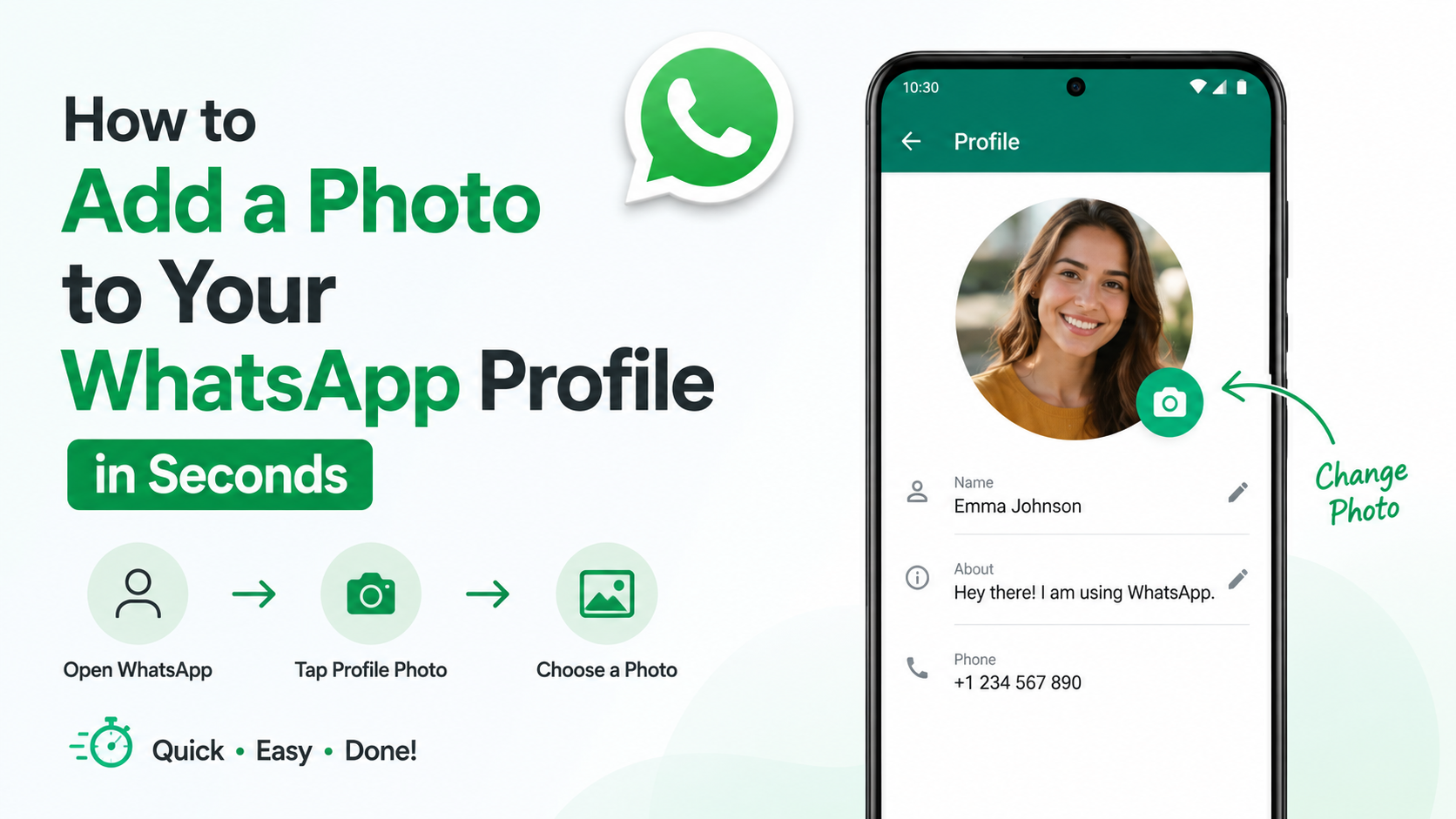
Your WhatsApp profile photo is often the first visual cue people see before opening a conversation. Whether you are updating a professional headshot, adding a clearer personal photo, or replacing an outdated image, changing it takes only a few taps.
The process is similar on Android and iPhone, although button labels and placement differ slightly. This guide explains how to change WhatsApp profile photo, make it look good in WhatsApp’s circular crop, control who can view it, and resolve common problems.
Key Takeaways
- Update your photo from your WhatsApp profile settings—not from an individual chat.
- Android typically uses a camera or edit icon; iPhone generally uses an Edit option.
- Choose a bright, high-quality image with the subject centered for the best circular crop.
- Review profile-photo privacy settings immediately after uploading a new image.
- Grant WhatsApp photo or camera permission if you cannot select or take a picture.
- A new photo may take a little time to appear consistently across contacts and devices.
Why Your WhatsApp Profile Photo Matters
A small image with a big identification role
A profile photo helps contacts recognize you quickly, especially in active group chats where names and phone numbers may be unfamiliar. For personal users, it can make conversations feel more human. For professionals, it can reinforce trust and consistency.
For example, a consultant who uses WhatsApp to communicate with clients may choose the same clear headshot used on LinkedIn. A family member may prefer a friendly recent photo that makes them easy to identify in busy family groups.
Personal, professional, and privacy considerations
Before uploading an image, decide what role WhatsApp plays in your life:
- Personal use: A relaxed portrait, pet photo, avatar, or favorite image may fit.
- Professional use: Use a clean headshot, good lighting, and a neutral background.
- Business use: Consider a recognizable logo or polished brand image, particularly on WhatsApp Business.
- Privacy-focused use: Use an avatar, a less identifiable photo, or limit who can see the image.
Your photo does not need to be formal, but it should match the audience likely to see it.
How to Change WhatsApp Profile Photo on Android
Open your WhatsApp profile
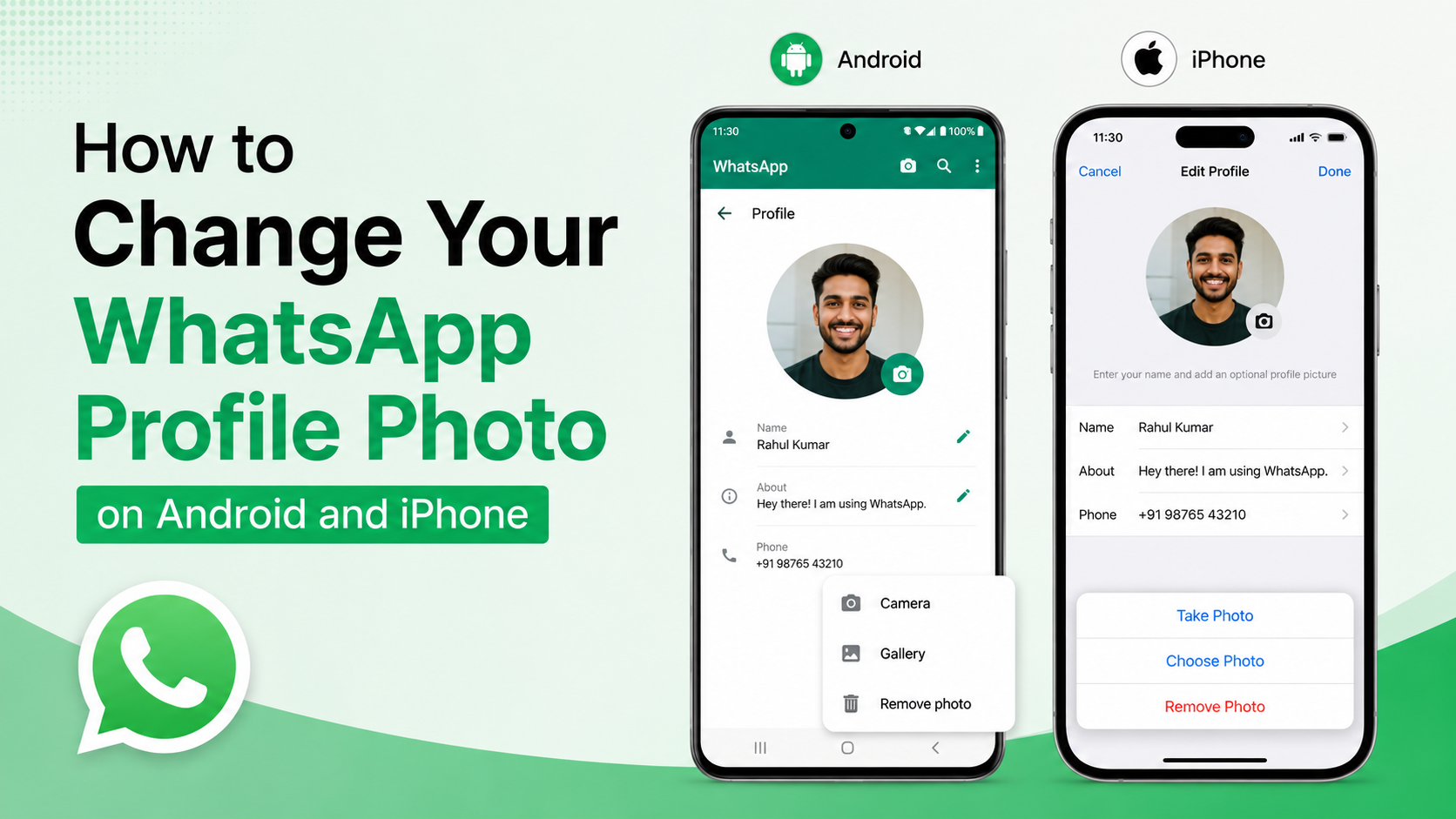
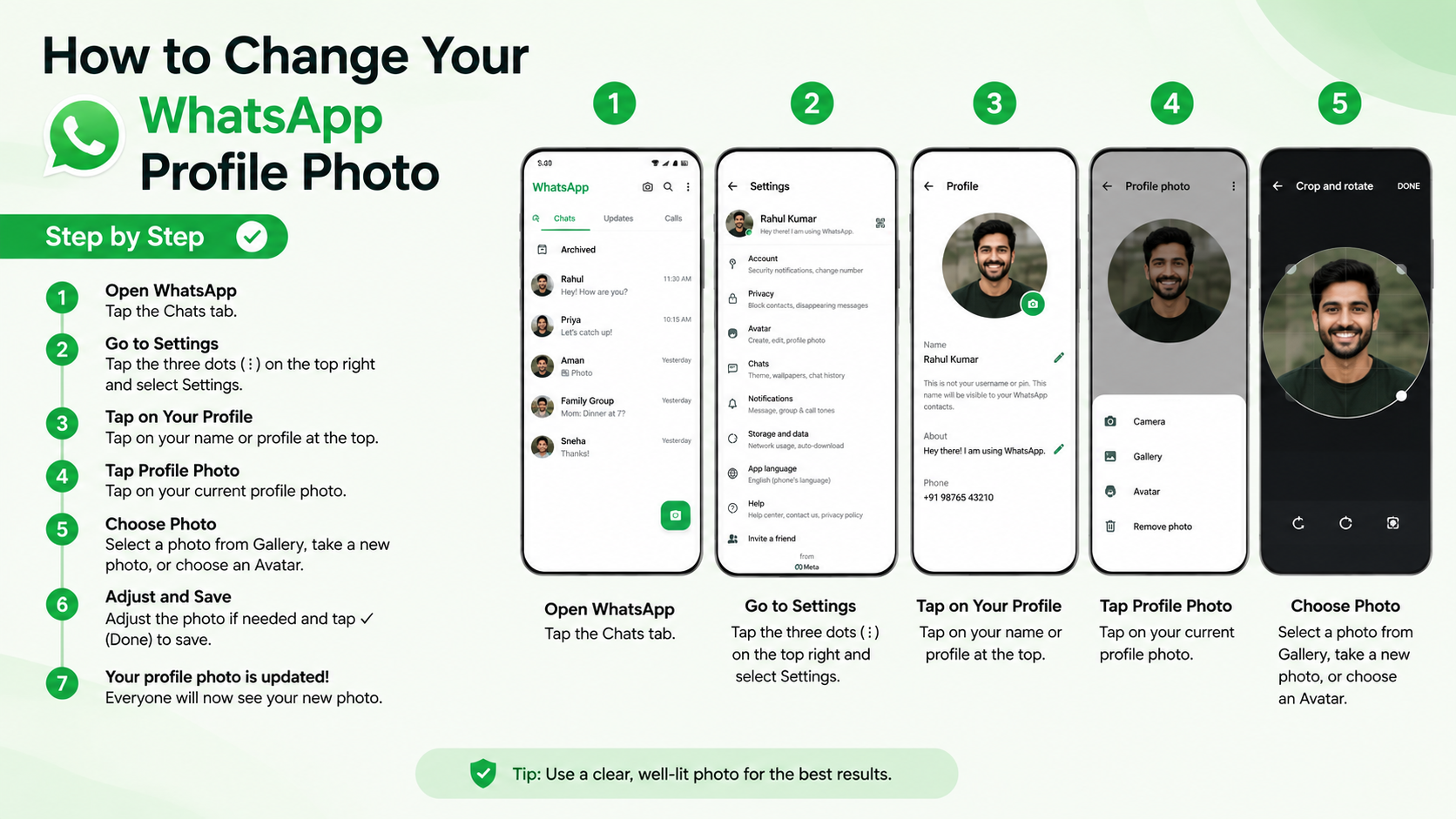
To change WhatsApp profile photo on an Android phone:
- Open WhatsApp.
- Tap the three-dot menu in the upper-right corner.
- Select Settings.
- Tap your name or current profile photo at the top of the screen.
- Tap your current image, then select the camera, pencil, or edit icon.
The exact icon can vary by WhatsApp version, but it is normally displayed near your existing photo.
Choose, take, and save your new picture
After opening the photo-editing options, choose one of the available actions:
- Gallery/Photos: Select an existing image stored on your phone.
- Camera: Take a new photo immediately.
- Avatar: Use your WhatsApp avatar if that option is available.
- Remove photo: Delete the existing profile picture.
Select the image you want, then adjust its position within the crop frame. When you are satisfied, tap Done, the checkmark, or the confirmation button.
A practical tip: position your face or primary subject near the center before saving. WhatsApp displays profile photos as circles in many places, so details near the corners can disappear.
How to Change WhatsApp Profile Photo on iPhone
Navigate through the Settings tab
On an iPhone, the route is usually more direct:
- Open WhatsApp.
- Tap Settings in the bottom-right corner.
- Tap your name or profile photo at the top.
- Tap your existing photo.
- Select Edit.
From there, WhatsApp may offer options such as Choose Photo, Take Photo, Use Avatar, or Remove Photo.
Adjust the crop before confirming
Choose an image from the Photos library or take a new one with the camera. WhatsApp will display a crop tool before applying it to your profile.
Use the crop screen to:
- Drag the image to reposition the subject.
- Pinch to zoom in or out.
- Keep important details inside the visible circular area.
- Avoid cropping a face too tightly at the top, bottom, or sides.
Tap Choose, Done, or the equivalent confirmation control to save the change. Current Android and iPhone workflows both begin in WhatsApp settings, then move to your profile image and editing controls. Android Authority’s mobile guide provides a comparable walkthrough.
How to Choose a Profile Photo That Looks Great
Use an image that works in a circle
WhatsApp may let you choose a rectangular image, but its profile display often appears circular. That means the best photo is not necessarily the most visually impressive full-size image.
Choose a picture with:
- A clear main subject in the center.
- Good contrast between the subject and background.
- Even lighting, especially on faces.
- Enough empty space around the edges for cropping.
- A high enough resolution to avoid blur.
Avoid photos where the important detail sits in a corner. A wide group photo, for instance, may look fine in your gallery but turn into a tiny, unrecognizable image once cropped.
Match the photo to your purpose
For professional communication, use a current photo where your face is visible and your expression feels approachable. A background with minimal distractions is usually most effective.
For a business account, a simple logo can work better than a small, detailed product image. If the logo includes text, make sure it remains readable at a small size. In many cases, a symbol or icon version of the logo performs better than the full wordmark.
Control Who Can See Your WhatsApp Profile Photo
Find the profile-photo privacy settings
Uploading a photo and deciding who can view it are separate actions. To review visibility, go to:
WhatsApp Settings > Privacy > Profile Photo
You will usually see options similar to:
- Everyone
- My Contacts
- My Contacts Except…
- Nobody
Some versions may also show a custom exception setting that lets you hide your photo from specific people.
Select the right visibility level
Use the option that aligns with your communication needs:
- Choose Everyone if you use WhatsApp for broad public-facing communication and want new contacts to identify you easily.
- Choose My Contacts for a balanced default that limits visibility to saved contacts.
- Choose My Contacts Except… if you want to keep the photo visible to most people but exclude certain contacts.
- Choose Nobody if you prefer not to share a profile photo at all.
For example, a recruiter who exchanges WhatsApp messages with candidates may use Everyone during a hiring campaign. A manager who uses WhatsApp mostly with colleagues and family may prefer My Contacts.
Fix Problems When Your New Photo Will Not Upload
Check photo and camera permissions
If WhatsApp cannot access your pictures, the app may not have the necessary permissions.
On Android, open your phone’s settings and review WhatsApp permissions under Apps or App management. Allow access to photos, videos, or files as required by your device.
On iPhone, go to Settings > WhatsApp and confirm that Photos access is allowed. You can also enable camera access if you want to take a picture directly in WhatsApp.
After updating permissions, close and reopen WhatsApp before trying again.
Resolve slow updates and display differences
Sometimes you can see your new image immediately while another person still sees the old one. This does not necessarily mean the update failed.
Try these steps:
- Confirm that the new photo appears in your own WhatsApp profile.
- Check that you have a stable internet connection.
- Close and reopen the app.
- Update WhatsApp from Google Play or the App Store.
- Ask the contact to refresh WhatsApp or wait briefly for the change to sync.
Privacy settings can also explain apparent issues. If a contact is excluded from viewing your profile photo, they may see a blank image or default icon rather than your new picture.
Remove or Replace a WhatsApp Profile Photo
Remove the image entirely
If you no longer want a photo on your account, follow the same route used to edit it:
- Open Settings.
- Tap your profile.
- Tap the current image.
- Choose Remove Photo or the trash/delete option.
- Confirm the removal.
WhatsApp will replace it with a default profile icon. This is useful if you want a more private account without changing your number or other profile details.
Replace it strategically instead of frequently
There is no practical need to update your WhatsApp photo constantly. Frequent changes can confuse clients, teammates, or group-chat members who use the image to recognize you.
A sensible approach is to update it when:
- Your appearance has changed significantly.
- You have a newer professional headshot.
- You are rebranding a business profile.
- The current photo is outdated, unclear, or no longer appropriate.
- You want to improve your privacy settings.
Consistency matters more than novelty, particularly for professional or customer-facing communication.
Keep Your WhatsApp Profile Professional and Secure
Separate your profile image from your status
Your profile photo is persistent until you replace it. WhatsApp Status updates are temporary and usually disappear after 24 hours. Use your profile photo for stable identification and Status for timely announcements, event updates, or casual moments.
For instance, a business owner can keep a recognizable logo as the profile image while posting limited-time offers in Status.
Review your whole profile occasionally
When changing your photo, take a moment to check the other visible elements of your profile:
- Display name
- About section
- Profile-photo privacy
- Last seen and online privacy
- Status privacy
- Linked devices and account security
This quick review helps ensure your WhatsApp presence remains accurate and appropriate for the people who contact you.
Frequently Asked Questions
Can I change my WhatsApp profile photo without notifying contacts?
Yes. WhatsApp does not send a direct notification announcing that you changed your profile photo. Contacts may notice the new image when they open your chat, view your profile, or see you in a group conversation.
Why can’t I see the option to change my profile picture?
Usually, the issue is one of three things: you are not in your profile settings, WhatsApp lacks photo permissions, or the app interface has changed after an update. Open WhatsApp settings, tap your name or photo, and look for an edit, camera, or pencil icon. If the option is still missing, update the app and restart your phone.
Can everyone see my WhatsApp profile photo?
Not necessarily. Visibility depends on your settings. Go to Settings > Privacy > Profile Photo and select Everyone, My Contacts, My Contacts Except…, or Nobody. Choose the setting that suits your privacy needs.
Can I use a logo as my WhatsApp profile photo?
Yes. A logo is often a strong choice for businesses, teams, and professional accounts. Use a clean version with a simple design and enough contrast to remain recognizable inside WhatsApp’s small circular profile display.
Why does my WhatsApp profile photo look blurry?
The original image may be low-resolution, heavily compressed, or enlarged too much during cropping. Start with a sharp image, avoid screenshots when possible, and do not zoom in excessively. A centered, well-lit photo generally stays clearer after WhatsApp processes it.
Conclusion
To change WhatsApp profile photo, open your profile settings, select your current image, choose a new photo or take one, crop it carefully, and save. The steps are quick on both Android and iPhone, but the result can improve how easily friends, colleagues, clients, and new contacts recognize you.
Choose an image that fits your purpose, check the circular crop, and set profile-photo privacy deliberately. Open WhatsApp now, review your current profile image, and update it to one that represents you clearly and confidently.
Advertisement