August 19, 2026 · 11 min read
How to Change Your WhatsApp Profile Photo Step by Step
On this page
- Why Your WhatsApp Profile Photo Matters
- Before You Change Your WhatsApp Profile Photo
- How to Change WhatsApp Profile Photo on Android
- How to Change WhatsApp Profile Photo on iPhone
- How to Change WhatsApp Profile Photo on Desktop
- Control Who Can See Your WhatsApp Profile Photo
- Troubleshooting: Why Your New WhatsApp Profile Photo Is Not Showing
- Best Practices for a Better WhatsApp Profile Photo
- Frequently Asked Questions
- Conclusion
How to Change Your WhatsApp Profile Photo Step by Step
Your WhatsApp profile photo is often the first visual cue people see when they open a conversation with you. Whether you use WhatsApp mainly for friends and family, client communication, or team coordination, keeping your photo current helps people recognize you quickly and adds credibility to your account.
The process to change WhatsApp profile photo is simple, but the exact steps vary slightly across Android, iPhone, and desktop. This guide walks through every method, explains privacy controls, and helps you resolve common problems if your new picture does not appear right away.
Key Takeaways
- You can change your WhatsApp profile photo from the mobile app or WhatsApp Desktop.
- Android and iPhone menus differ slightly, but both updates take less than a minute.
- Choose a clear, well-lit image that still looks good when cropped into a circle.
- Use WhatsApp privacy settings to control who can view your profile picture.
- If a photo does not update, check your internet connection, permissions, and app version.
Why Your WhatsApp Profile Photo Matters
A profile photo is more than a decorative account setting. It makes communication easier and helps others confirm they are messaging the right person.
Improve recognition in busy chats
In group chats, a recognizable image helps people identify you at a glance. This is especially useful in active family groups, community chats, school discussions, and workplace conversations.
For example, if several people in a project group share similar names, a clear headshot or distinctive professional image can prevent confusion.
Support a professional presence
If you use WhatsApp for Business or communicate with colleagues and customers through your personal account, your profile image contributes to first impressions.
A professional profile photo should usually be:
- Bright and in focus
- Centered on your face or brand logo
- Free of distracting backgrounds
- Appropriate for your industry and audience
A real-estate agent, consultant, or freelancer may use a polished headshot, while a small business can use a recognizable company logo.
Keep your identity current
Changing an outdated profile picture after a major appearance change, job update, or brand refresh helps contacts recognize you. It also reduces the chance that a customer or coworker mistakes your account for an inactive one.
Before You Change Your WhatsApp Profile Photo
Taking a moment to prepare the image can make the final result look much better. WhatsApp displays profile photos in a circular frame, so not every rectangular photo will crop well.
Choose the right image size and composition
WhatsApp automatically crops and compresses images, so you do not need an exact image dimension. Still, square photos tend to work best because they leave more room around the subject.
For the strongest result:
- Use a high-quality image rather than a blurry screenshot.
- Keep your face, logo, or main subject near the center.
- Leave some empty space around the edges for circular cropping.
- Avoid tiny text that may become unreadable in a contact list.
Decide what you want your image to communicate
Your photo should match how you use WhatsApp. A casual image may be ideal for personal chats, while a client-facing account often benefits from a more polished choice.
Consider these common options:
- Personal use: A recent, natural photo of yourself.
- Professional use: A clean headshot with a neutral background.
- Business use: A high-resolution company logo.
- Privacy-focused use: A simple graphic, landscape, or avatar instead of a personal image.
Check photo permissions
If WhatsApp cannot access your gallery or camera, you may not be able to upload a picture. You can grant access through your phone’s settings.
On Android, review WhatsApp permissions under Settings > Apps > WhatsApp > Permissions. On iPhone, go to Settings > WhatsApp and make sure Photos and Camera access are enabled.
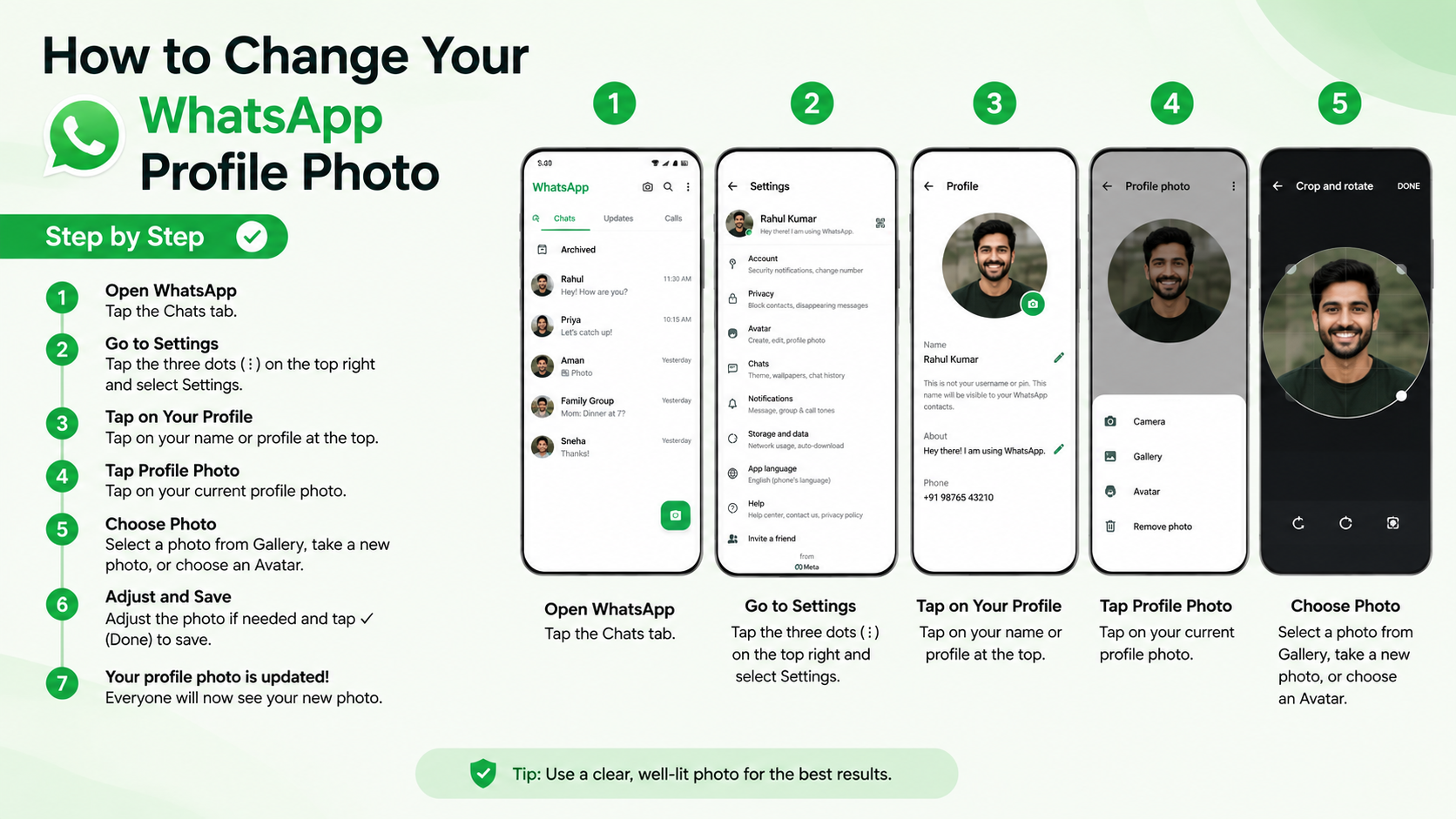
How to Change WhatsApp Profile Photo on Android
Android users can update their photo directly from the WhatsApp Settings screen.
Open your profile settings
- Open WhatsApp.
- Tap the three-dot menu in the top-right corner.
- Select Settings.
- Tap your profile photo or your name at the top of the screen.
- Tap the camera icon on your current profile picture.
Select a new picture
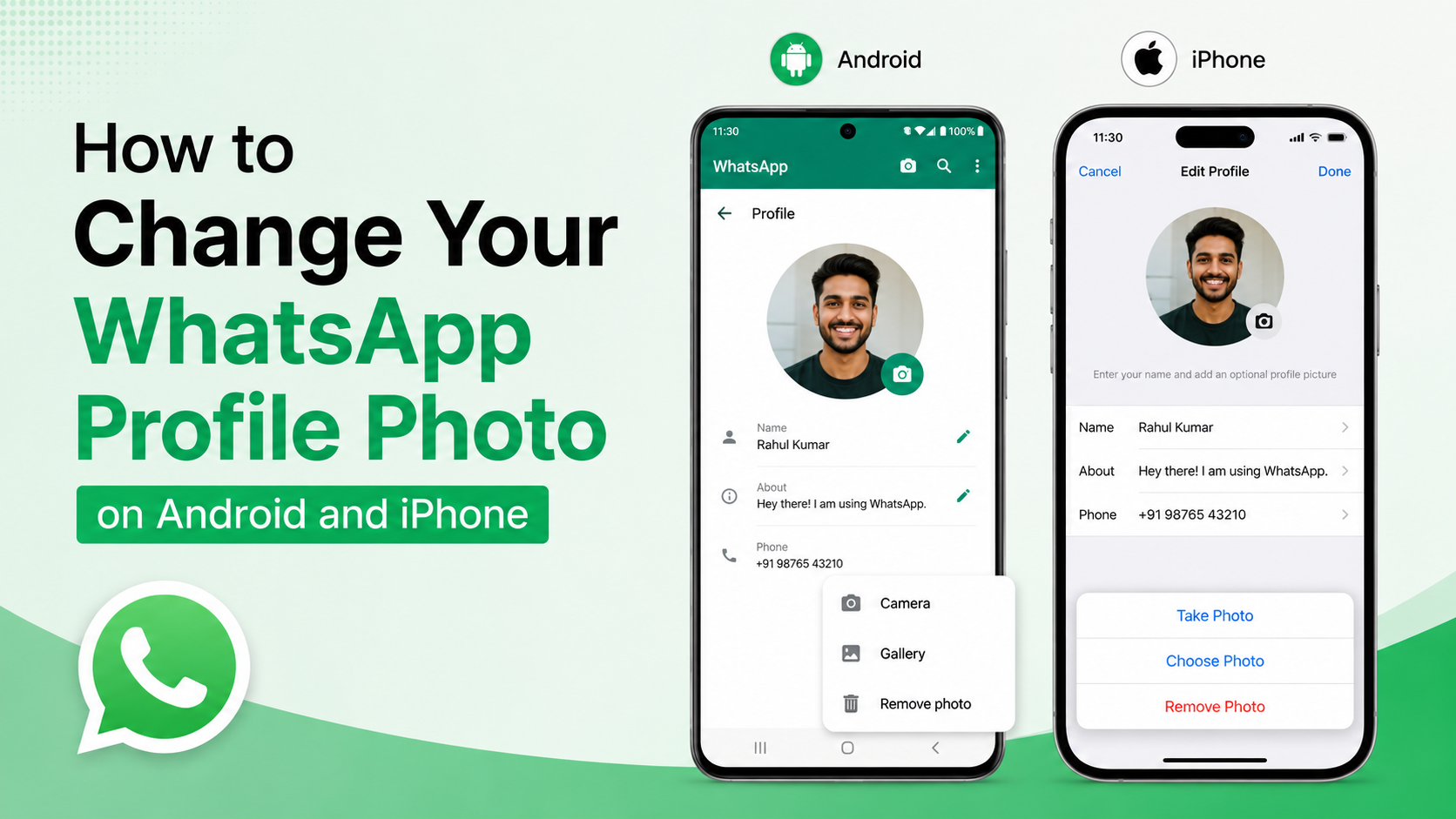
WhatsApp will offer several choices:
- Camera: Take a new photo immediately.
- Gallery: Choose an existing image from your phone.
- Avatar: Use a WhatsApp avatar image, if available.
- Remove photo: Delete your current profile image without adding a replacement.
After selecting an image, adjust the crop area so your face or logo remains centered. Then tap Done or Save.
Confirm the update
Your new WhatsApp profile photo should appear on your profile instantly. Contacts may see it immediately, although some people’s apps can take a little longer to refresh.
For example, if you update a business logo before a product launch, your own profile should reflect the change right away, while contacts with weak internet connections may see the previous image briefly.
How to Change WhatsApp Profile Photo on iPhone
The iPhone process is similarly quick, though the navigation labels differ from Android.
Access your WhatsApp profile
- Open WhatsApp.
- Tap Settings in the bottom-right corner.
- Tap your name and current profile photo at the top.
- Tap Edit beneath or beside your image.
- Choose Edit Photo.
Upload or take a new photo
You can choose from the following options:
- Take Photo: Opens your iPhone camera.
- Choose Photo: Lets you select an image from Photos.
- Remove Photo: Deletes the existing profile image.
Select the new image, position it within WhatsApp’s circular crop preview, and tap Done to save it.
Get a better crop on iPhone
If your photo looks too zoomed in, return to your Photos app and create a square copy with more background around the subject. Uploading that adjusted version gives you more control over the WhatsApp crop.
This is particularly useful for professional headshots, where cutting off part of your hair, shoulders, or logo can make the image look unpolished.
How to Change WhatsApp Profile Photo on Desktop
WhatsApp Desktop and WhatsApp Web also allow you to update your profile photo, which is convenient when your preferred image is stored on your computer.
Update your photo in WhatsApp Web
- Open WhatsApp Web in your browser and link your account.
- Click your profile picture in the upper-left area.
- Click the camera icon on the profile image.
- Select Upload Photo.
- Choose an image file from your computer.
- Adjust the crop and save the image.
Update your photo in the desktop app
In the WhatsApp Desktop app, click your profile image or open Settings, then select your profile. Click the camera icon and upload a new image from your computer.
Use desktop for brand assets
Desktop can be the easiest option for business users because logos, campaign graphics, and approved headshots are often saved on a work computer.
Before uploading, use a PNG or JPG file with a simple, centered design. Avoid uploading a wide banner or detailed promotional graphic, as the circular crop may hide key elements.
Control Who Can See Your WhatsApp Profile Photo
Changing your picture is only part of managing your WhatsApp presence. You can also decide which contacts are allowed to view it.
Adjust profile photo privacy settings
On both Android and iPhone, go to:
WhatsApp Settings > Privacy > Profile Photo
You will typically see these options:
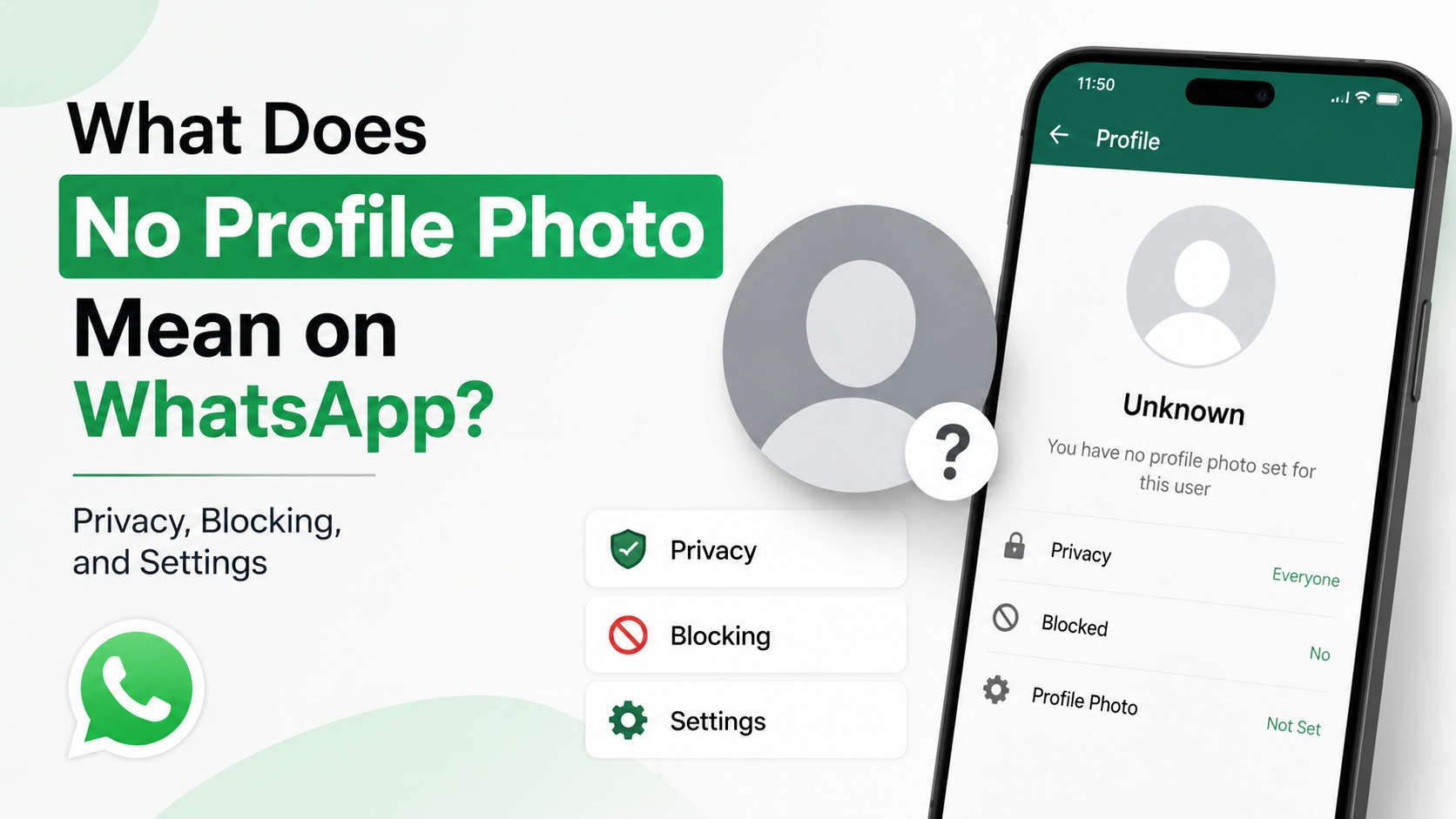
- Everyone: Any WhatsApp user who can contact you may see the photo.
- My Contacts: Only people saved in your contacts can view it.
- My Contacts Except: Hide it from selected contacts.
- Nobody: No one can see your profile photo.
Choose a setting that fits your situation
For most personal users, My Contacts offers a good balance between visibility and privacy. Professionals who receive messages from clients may prefer Everyone, while people handling unwanted messages can choose My Contacts Except or Nobody.
For instance, a consultant may allow everyone to see a professional headshot so prospective clients can verify their identity. A private individual dealing with unknown callers may limit visibility to saved contacts only.
Remember that privacy is not absolute
Even with privacy settings enabled, someone who can view your profile photo may be able to take a screenshot. Avoid using profile images that reveal sensitive information, such as home addresses, identification documents, travel details, or children’s school uniforms.
Troubleshooting: Why Your New WhatsApp Profile Photo Is Not Showing
Most profile-photo issues resolve quickly. If your new image does not appear as expected, work through a few basic checks.
Check your internet connection
WhatsApp needs a stable connection to upload and sync the picture. Switch between Wi-Fi and mobile data, then reopen the app and check your profile again.
Restart WhatsApp and update the app
Close WhatsApp completely, reopen it, and verify that the change saved. If the image still does not appear, install the latest WhatsApp update from the Google Play Store or Apple App Store.
Outdated app versions can sometimes cause syncing problems or limit access to newer settings.
Verify phone storage and permissions
If WhatsApp cannot access your photo library, it may fail to upload the image. Confirm that the app has Photos, Files, or Storage permission, depending on your device.
You should also ensure your phone has enough available storage space to process and cache images.
Understand contact-side delays
Your profile picture may look updated to you while another person still sees the old one. Their app could be offline, using cached data, or blocked by your privacy settings.
Ask them to reopen WhatsApp after checking their internet connection. If they still cannot see it, confirm that they are not excluded under Privacy > Profile Photo.
Best Practices for a Better WhatsApp Profile Photo
A thoughtful photo makes your account easier to recognize without requiring frequent updates.
Use a clear focal point
Your profile photo is displayed at a small size in most chat lists. A close, clear face or bold logo works better than a busy group photo or distant landscape.
A good rule: if you cannot recognize the image when it is the size of a small coin, simplify it.
Keep branding consistent
Businesses and independent professionals should use the same visual identity across WhatsApp, email signatures, LinkedIn, and other customer-facing channels where practical.
Consistency can include:
- The same logo version
- Similar colors and background style
- A matching professional headshot
- Current job title or brand identity
Refresh it with purpose
You do not need to change your profile image constantly. Update it when it improves accuracy, recognition, or relevance—such as after a rebrand, a professional photo session, or a meaningful change in your appearance.
Frequently Asked Questions
Can I change my WhatsApp profile photo without notifying contacts?
Yes. WhatsApp does not send a direct notification when you change your profile photo. However, contacts who can view your picture may notice the update when they open your chat or contact information.
Why can’t some contacts see my new WhatsApp profile photo?
Check your privacy settings under Settings > Privacy > Profile Photo. You may have selected “My Contacts,” excluded specific people, or restricted visibility entirely. The contact may also have an outdated app, weak connection, or cached version of the image.
Can I use a profile photo on WhatsApp without showing my face?
Absolutely. You can use a logo, illustration, avatar, pet photo, landscape, or simple graphic. If privacy matters, choose an image that is recognizable to contacts without revealing personal details.
Does changing my WhatsApp profile photo delete the old one?
No. Changing your WhatsApp profile photo replaces the image shown on your WhatsApp account, but it does not delete the original file from your phone’s photo gallery. Delete it separately from your device if you no longer want to keep it.
Can I change my WhatsApp profile photo from WhatsApp Web?
Yes. Open WhatsApp Web, click your profile image, select the camera icon, upload a photo from your computer, adjust the crop, and save it. The update syncs to your WhatsApp account across devices.
Conclusion
To change WhatsApp profile photo, open your profile settings, select a new image from your camera or gallery, crop it carefully, and save your update. Whether you are using Android, iPhone, or desktop, the process takes only a few moments.
Choose an image that is clear, current, and appropriate for the people you communicate with. Then review your privacy settings to make sure the right audience can see it. Open WhatsApp now, refresh your profile picture, and make your first impression count.
Advertisement