August 19, 2026 · 10 min read
How to Add a Photo to Your WhatsApp Profile in Seconds
On this page
- Why Your WhatsApp Profile Photo Matters
- How to Add a Photo to WhatsApp Profile on Android
- How to Add a Photo to WhatsApp Profile on iPhone
- Choose the Best Photo for Your WhatsApp Profile
- Control Who Can See Your WhatsApp Profile Photo
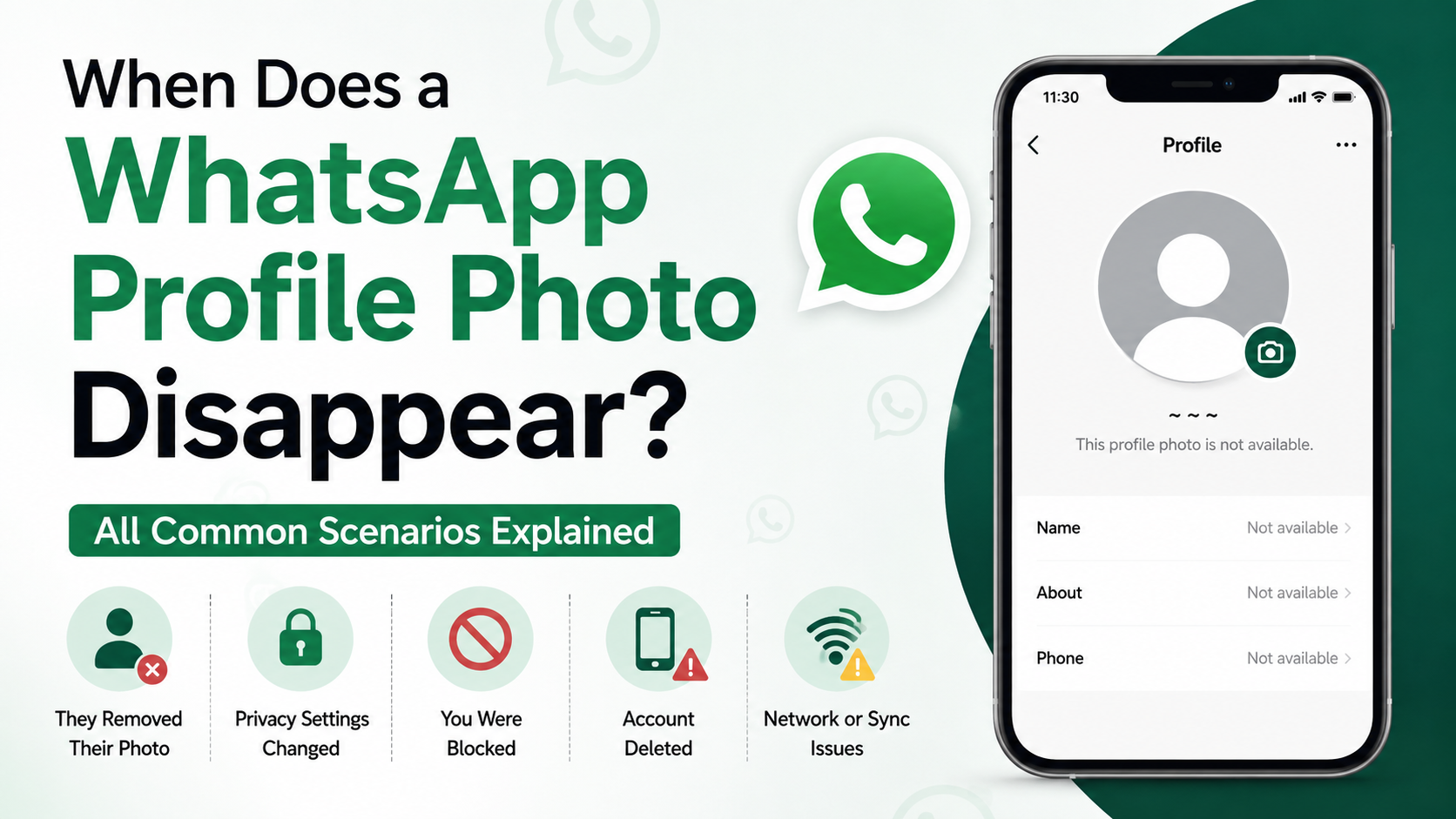
- Troubleshooting When Your Profile Photo Will Not Update
- Professional Best Practices for WhatsApp Profile Photos
- Frequently Asked Questions
- Conclusion
How to Add a Photo to Your WhatsApp Profile in Seconds
Your WhatsApp profile photo is often the first visual cue people see when they open a chat, search for your name, or add you to a group. Whether you use WhatsApp for family conversations, client communication, networking, or team coordination, a clear and appropriate image helps people recognize you quickly.
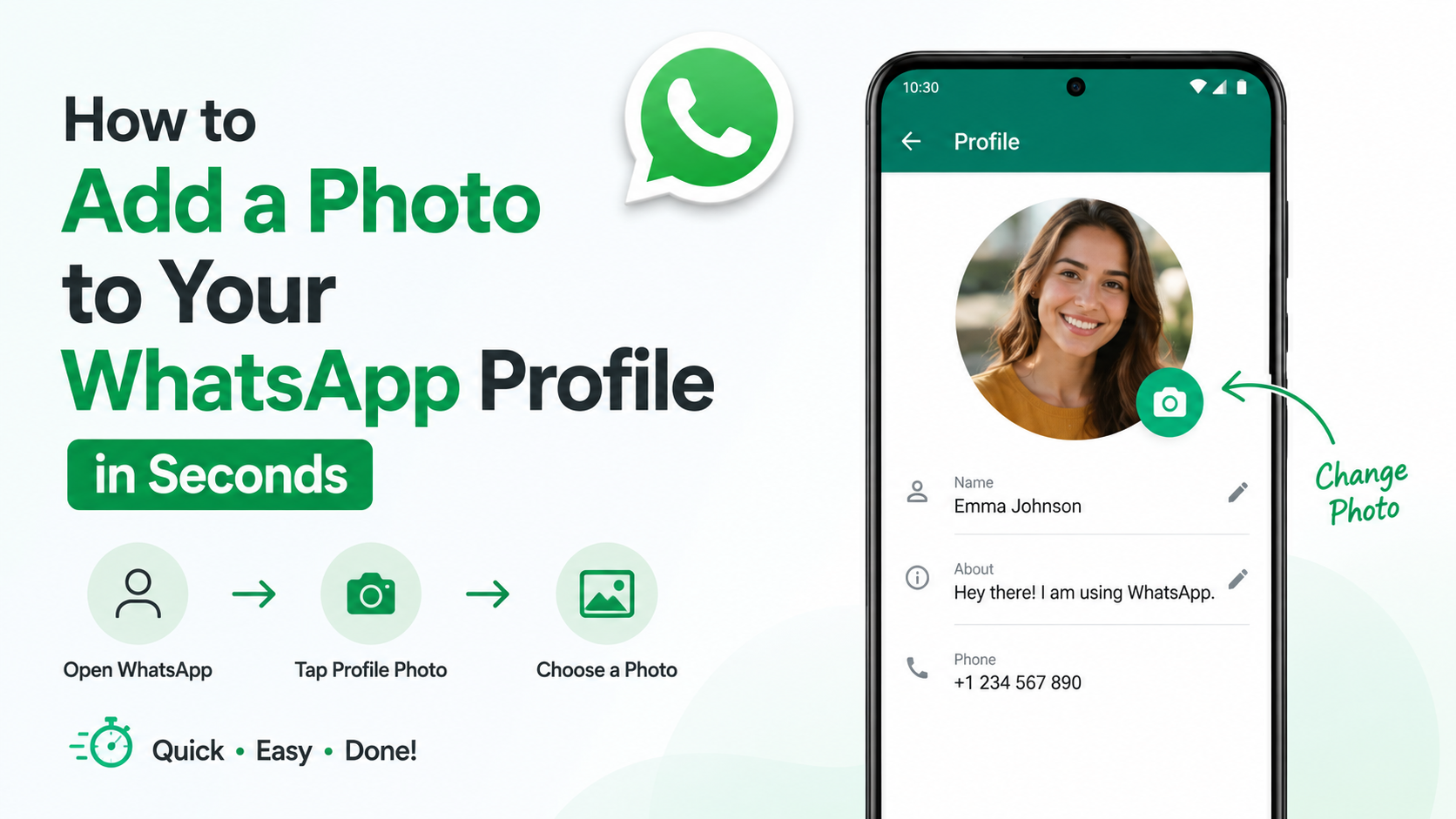
The good news: it takes only a few taps to add photo to WhatsApp profile. This guide covers the process on Android and iPhone, photo-selection tips, privacy controls, troubleshooting, and professional best practices.
Key Takeaways
- You can update your WhatsApp profile photo from the app’s Settings or Profile screen.
- Use a clear, well-lit square image so it displays well inside WhatsApp’s circular crop.
- Set profile-photo privacy to Everyone, My Contacts, or Nobody based on your needs.
- A professional headshot is best for work accounts, while personal accounts allow more flexibility.
- If your picture does not update, check your internet connection, app permissions, and WhatsApp version.
Why Your WhatsApp Profile Photo Matters
A profile photo may seem like a small detail, but it can make conversations feel more personal, credible, and organized. In busy group chats or professional message threads, people often recognize faces faster than names.
Make Conversations Easier to Navigate
When contacts see a recognizable image next to your name, they can identify you faster. This is especially useful when:
- You participate in large family, school, or community groups.
- You communicate with clients, coworkers, or vendors.
- You use a separate WhatsApp Business account.
- You have a common name that may be shared by several contacts.
For example, a project manager in a team group can use a clean headshot so new contractors immediately know who is coordinating the work.
Build Trust in Professional Chats
For work-related communication, a polished profile picture gives your messages more context. It reassures clients that they are speaking with a real person and helps create consistency across communication channels.
A professional WhatsApp photo does not need to look overly formal. A simple image with good lighting, a neutral background, and a friendly expression is usually enough.
How to Add a Photo to WhatsApp Profile on Android
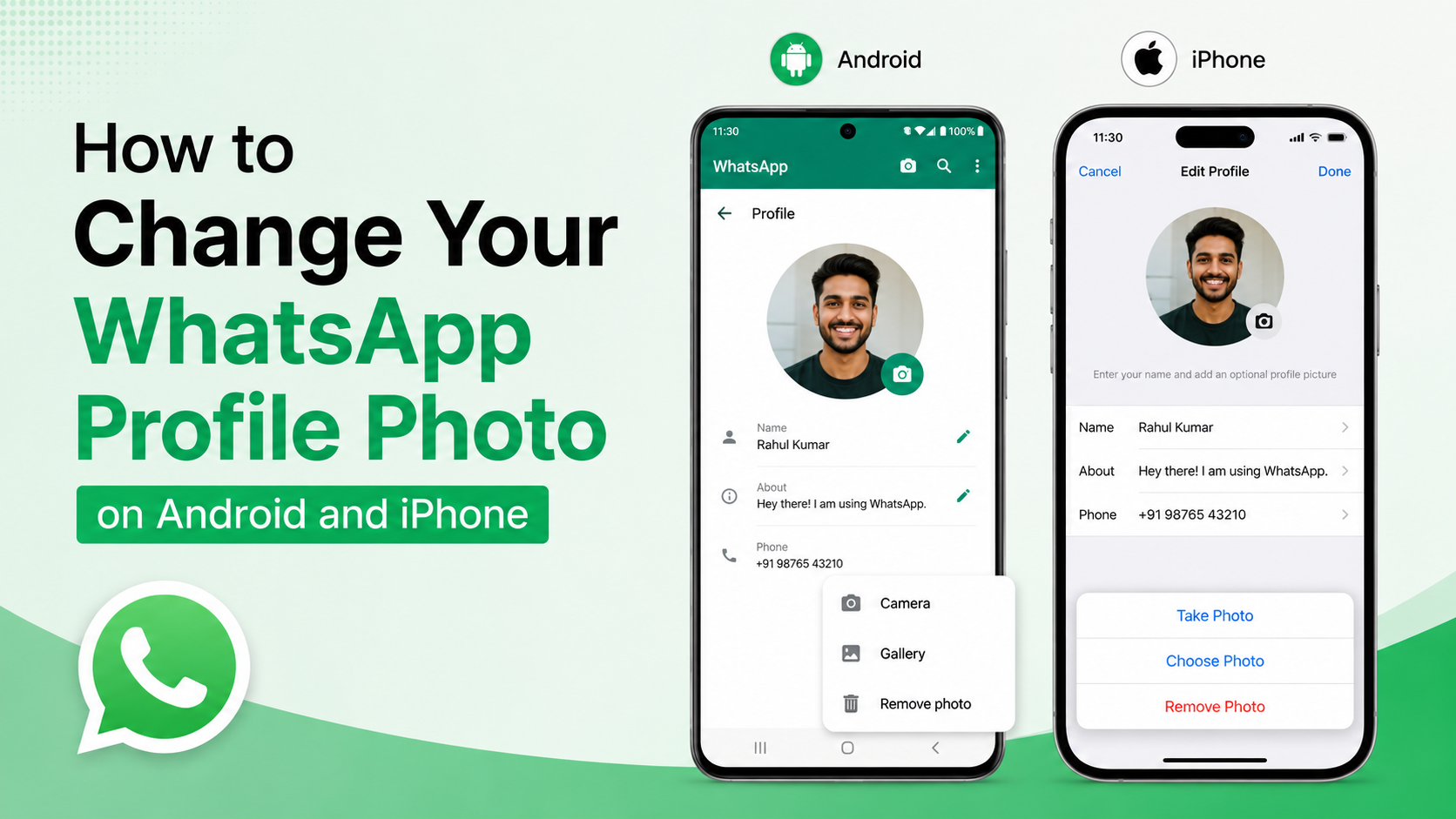
Android users can change their WhatsApp profile picture in less than a minute. The exact labels may vary slightly by device or app version, but the process is nearly identical.
Open Your WhatsApp Profile Settings
Follow these steps:
- Open WhatsApp on your Android phone.
- Tap the three-dot menu in the top-right corner.
- Select Settings.
- Tap your name or current profile-photo area at the top.
- Tap the camera icon beside your profile image.
You will then see options to take a new photo, choose one from your gallery, or remove your existing image.
Choose and Crop Your Image
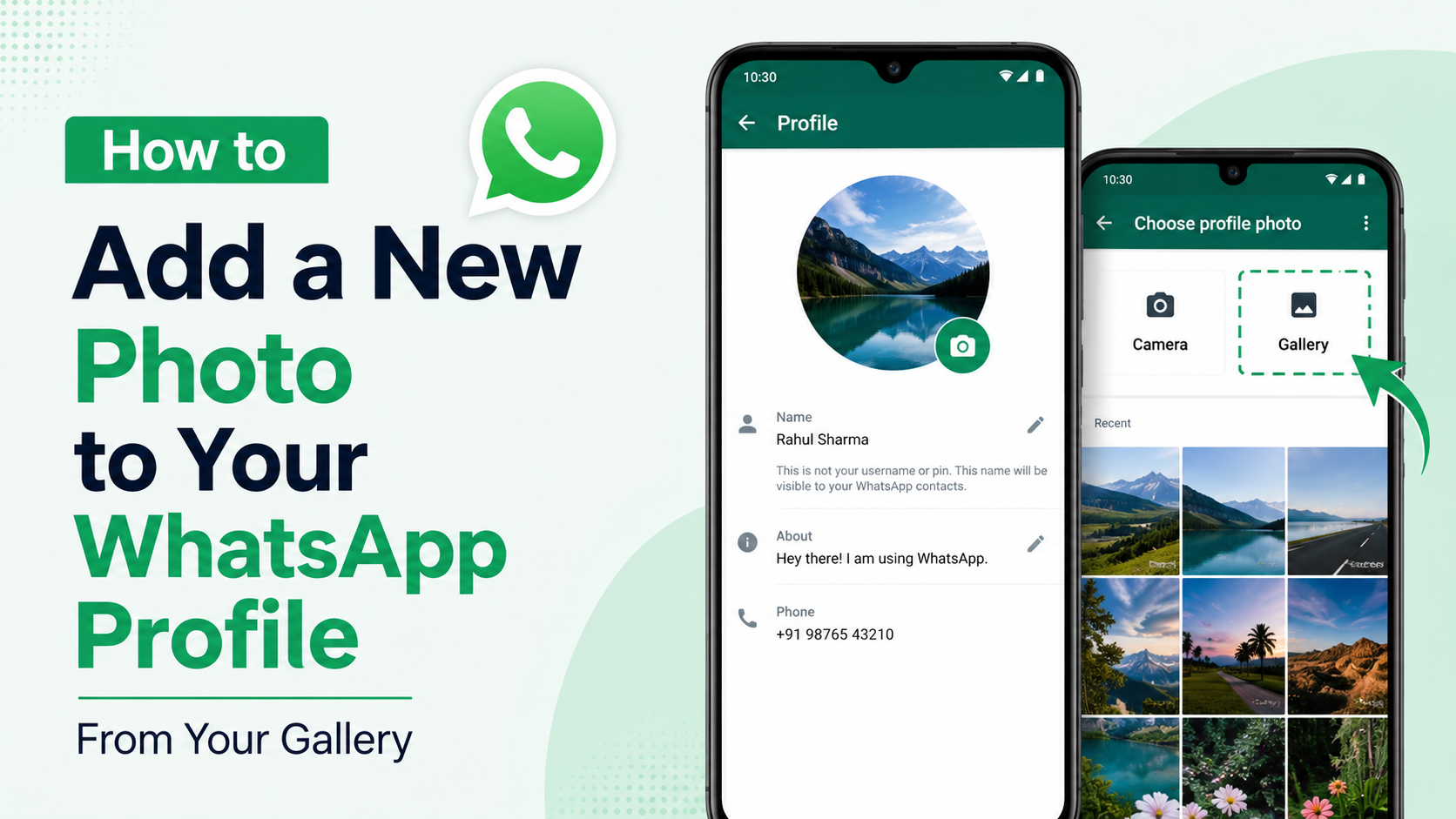
Select Gallery or Choose Photo to upload an existing picture. WhatsApp will let you move and crop the image before saving it.
For the best result:
- Center your face or main subject in the frame.
- Avoid placing important details near the corners.
- Choose a photo with enough contrast against the background.
- Preview the circular crop before confirming.
Once the photo looks right, tap Done, Save, or the checkmark icon. WhatsApp should update your profile photo immediately.
How to Add a Photo to WhatsApp Profile on iPhone
The iPhone process is similarly quick, though the navigation is slightly different from Android.
Access Your Profile in WhatsApp Settings
To update your photo on iPhone:
- Open WhatsApp.
- Tap Settings in the bottom-right corner.
- Tap your name at the top of the screen.
- Tap Edit beneath or near your current profile photo.
- Select Choose Photo or Take Photo.
If you choose an image from your Photos library, WhatsApp may ask for permission to access your photos. Approve the request to continue.
Adjust the Image Before Saving
WhatsApp presents your profile image as a circle, even though the original image is square or rectangular. Use the crop screen to position the most important part of the photo in the center.
For instance, if you are using a headshot, make sure your face fills a reasonable portion of the visible circle. A photo taken from too far away may look unclear when displayed in a small chat icon.
Tap Done when you are satisfied. Your updated image should appear beside your name throughout WhatsApp.
Choose the Best Photo for Your WhatsApp Profile
Knowing how to add photo to WhatsApp profile is simple. Choosing the right image requires a little more thought, especially if you use WhatsApp for both personal and professional conversations.
Use a Clear, High-Quality Image
WhatsApp compresses images, and profile photos appear at small sizes. Start with a high-quality photo so it remains recognizable after resizing.
Look for an image that has:
- Good natural or soft indoor lighting.
- A sharp focus on your face or subject.
- A simple, uncluttered background.
- Natural colors and balanced contrast.
- A square-friendly composition.
Avoid heavily pixelated screenshots, dark photos, or images with several people. If a group photo is meaningful to you, crop it carefully so contacts can still tell which person is you.
Match the Photo to Your Purpose
Your best profile photo depends on who you communicate with.
For personal use, you might choose:
- A relaxed portrait.
- A favorite travel photo.
- A picture with a pet or hobby.
- A simple avatar or illustration.
For professional use, consider:
- A recent headshot.
- A neat, approachable photo in business-casual clothing.
- A company logo for a shared business account.
- A branded image that matches your website or social profiles.
For example, a freelance designer may use the same friendly headshot on WhatsApp, LinkedIn, and their portfolio site to make their personal brand more consistent.
Control Who Can See Your WhatsApp Profile Photo
Adding a profile picture does not mean everyone should automatically see it. WhatsApp gives you useful privacy controls to decide who has access.
Change Profile-Photo Privacy Settings
To manage profile-photo visibility:
- Open WhatsApp Settings.
- Tap Privacy.
- Select Profile Photo.
- Choose the visibility option you prefer.
Depending on your WhatsApp version, you may see these choices:
- Everyone: Any WhatsApp user who has your number may see your image.
- My Contacts: Only people saved in your contacts can see it.
- My Contacts Except…: Show your photo to contacts while hiding it from specific people.
- Nobody: No one can see your profile photo.
Pick the Right Privacy Level
For many users, My Contacts offers a practical balance between visibility and privacy. It lets friends, family, and known coworkers see your image while limiting exposure to unfamiliar numbers.
Choose Everyone if you run a customer-facing business account and want new clients to recognize your brand. Choose Nobody if you prefer minimal personal visibility or frequently receive messages from unknown contacts.
Remember that profile-photo privacy is separate from your WhatsApp Status privacy and Last Seen settings. Review each option individually for the level of control you want.
Troubleshooting When Your Profile Photo Will Not Update
Most profile-photo changes work instantly, but occasional issues can prevent an image from uploading or appearing correctly.
Check the Most Common Problems
If your new photo is not showing, try these steps:
- Confirm that you have a stable Wi-Fi or mobile-data connection.
- Close and reopen WhatsApp.
- Restart your phone.
- Update WhatsApp through the Google Play Store or Apple App Store.
- Make sure WhatsApp has permission to access your photos or media.
- Try uploading a different image file.
On Android, photo permissions are usually found under Settings > Apps > WhatsApp > Permissions. On iPhone, go to Settings > WhatsApp > Photos and allow appropriate access.
Understand Delays and Cached Images
Sometimes your photo updates on your device, but another person still sees the old image. This can happen because WhatsApp or the other person’s phone has temporarily cached the previous profile photo.
Ask the contact to reopen WhatsApp, check their connection, or wait a little while. In most cases, the new image appears after the app refreshes.
If the issue continues, remove the profile picture, save the change, and then upload it again. This can force a fresh update.
Professional Best Practices for WhatsApp Profile Photos
If WhatsApp is part of your workday, your photo should support the way you want colleagues and clients to perceive you.
Keep Your Image Current and Consistent
An outdated photo can create confusion, especially when meeting new clients or attending virtual events. Update your image when your appearance changes significantly or when your professional branding evolves.
Consistency also helps. Using a similar headshot across WhatsApp, email signatures, LinkedIn, and company directories makes you easier to recognize.
Avoid Common Professional Mistakes
A profile photo does not need to be stiff or overly edited, but avoid images that may distract from your credibility:
- Photos with poor lighting or harsh filters.
- Party images or photos where you have been cropped from a group.
- Pictures containing sensitive personal information.
- Images with offensive text, gestures, or symbols.
- Overly busy backgrounds that make your face difficult to see.
For a shared business line, a recognizable company logo can work well. If customers expect one-on-one communication, however, a real team member’s photo often feels warmer and more trustworthy.
Frequently Asked Questions
Can I add a WhatsApp profile photo without showing it to everyone?
Yes. After you upload your image, go to Settings > Privacy > Profile Photo and select My Contacts, My Contacts Except…, or Nobody. These options let you control exactly who can view it.
Why does my WhatsApp profile photo look blurry?
Your photo may look blurry if the original file is low resolution, heavily compressed, poorly lit, or enlarged too much during cropping. Start with a clear, high-resolution image and keep the key subject centered in the crop area.
Can I use a logo instead of my face?
Yes. A logo is a good choice for a business, organization, team, or shared customer-service account. For an individual professional account, a clear headshot is often more personable and easier for clients to recognize.
How often should I change my WhatsApp profile picture?
There is no required schedule. For personal accounts, update it whenever you want. For professional use, change it when your current image no longer reflects your appearance, role, or brand. Avoid changing it too frequently if consistent recognition matters.
Can someone save my WhatsApp profile photo?
WhatsApp privacy settings can limit who sees your photo, but they cannot fully prevent a person who can view it from taking a screenshot or saving it through other means. Use an image you are comfortable sharing with the audience you allow.
Conclusion
To add photo to WhatsApp profile, open your profile settings, choose or take an image, adjust the crop, and save your changes. The process only takes seconds, but the right profile photo can make your chats more recognizable, professional, and personal.
Choose a clear image, review your privacy settings, and use a photo that fits the people you communicate with most. Open WhatsApp now, update your profile image, and make every conversation easier to recognize.
Advertisement