August 19, 2026 · 12 min read
How to Change Your Facebook Profile Photo on Phone and PC
On this page
- Why Your Facebook Profile Photo Matters
- How to Change Facebook Profile Photo on an Android Phone
- How to Change Facebook Profile Photo on an iPhone or iPad
- How to Change Facebook Profile Photo on a PC or Mac
- How to Choose the Best Facebook Profile Photo
- Manage Privacy When You Update Your Profile Photo
- Add Frames, Captions, and Temporary Profile Photos
- Troubleshoot Problems When Changing Your Facebook Profile Photo
- Frequently Asked Questions
- Conclusion
How to Change Your Facebook Profile Photo on Phone and PC
Your Facebook profile photo is often the first thing friends, colleagues, clients, and new contacts notice. Whether you are refreshing an outdated selfie, adding a professional headshot, or updating your image for a milestone, knowing how to change Facebook profile photo settings correctly helps you control how you appear online.
The process is straightforward on both mobile and desktop, but Facebook offers several options that can affect cropping, privacy, posting, and visibility. This guide walks you through every step, including practical tips for choosing a strong image and resolving common upload problems.
Key Takeaways
- You can change your Facebook profile photo from the Facebook app or a desktop browser in a few steps.
- Use a clear, square image to avoid awkward cropping in Facebook’s circular profile-photo display.
- Review privacy settings before publishing if you do not want every update visible to the public.
- Add a frame, temporary profile photo, or caption when the update supports an event or campaign.
- If an upload fails, check your internet connection, image format, app version, and file size.
Why Your Facebook Profile Photo Matters
Your profile photo represents you across Facebook: on your timeline, comments, Messenger conversations, friend requests, Groups, Pages, and event activity. Because it appears in a small circular format in many places, clarity matters more than visual complexity.
Create a recognizable first impression
For a personal profile, choose a recent photo where your face is easy to identify. Avoid distant group shots, heavily filtered images, or photos with distracting backgrounds.
For professional use, a polished headshot can support credibility. For example, a freelancer who uses Facebook Groups to network may benefit from a well-lit photo with a neutral background, while a local business owner might choose an image that reflects their industry and personality.
Keep branding consistent across platforms
If you use Facebook alongside LinkedIn, Instagram, X, or a business website, consider using the same or a visually similar profile image. Consistency makes it easier for customers, colleagues, and contacts to recognize you.
A strong profile photo should ideally be:
- Recent and accurate
- Bright, sharp, and high resolution
- Centered on the main subject
- Simple enough to remain clear at a small size
- Appropriate for the audience you want to reach
How to Change Facebook Profile Photo on an Android Phone
The Facebook app for Android lets you update your picture using an existing Facebook photo, an image saved on your phone, or a newly taken photo.
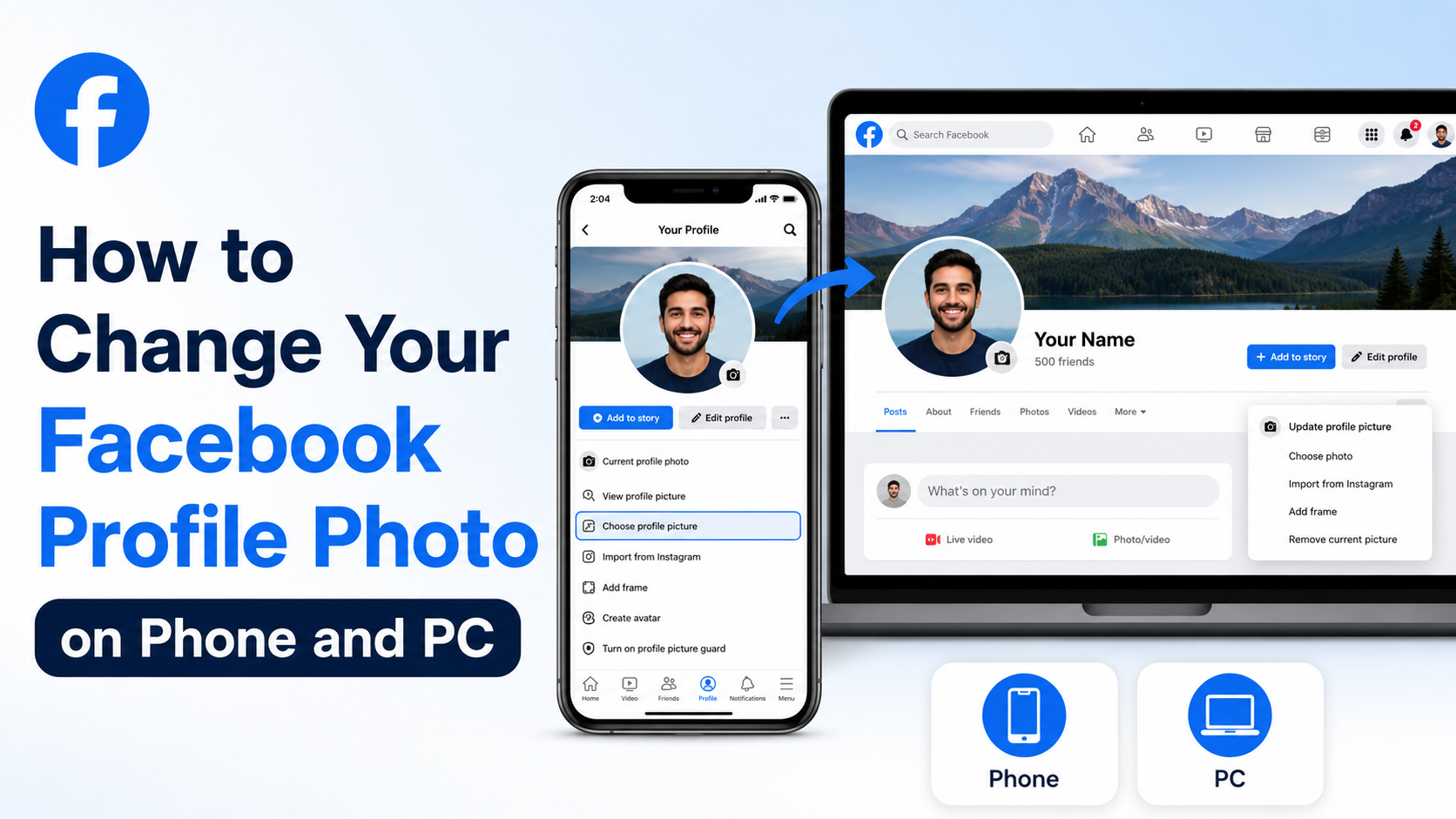
Open your profile and select the camera icon
- Open the Facebook app and sign in.
- Tap your profile picture, usually located near the top of the screen, to open your profile.
- Tap the camera icon on your current profile photo.
- Select Select profile picture or a similarly labeled option.
Facebook’s labels may vary slightly depending on your app version, but the profile-photo camera icon is the fastest route.
Choose, crop, and save your photo
You can now select a photo from your Facebook uploads, choose one from your device gallery, or take a new picture.
After selecting an image:
- Drag the image to position it within the crop area.
- Pinch to zoom in or out.
- Use Facebook’s editing options if available, such as frames or background effects.
- Choose whether to share the update to your feed.
- Tap Save or Done.
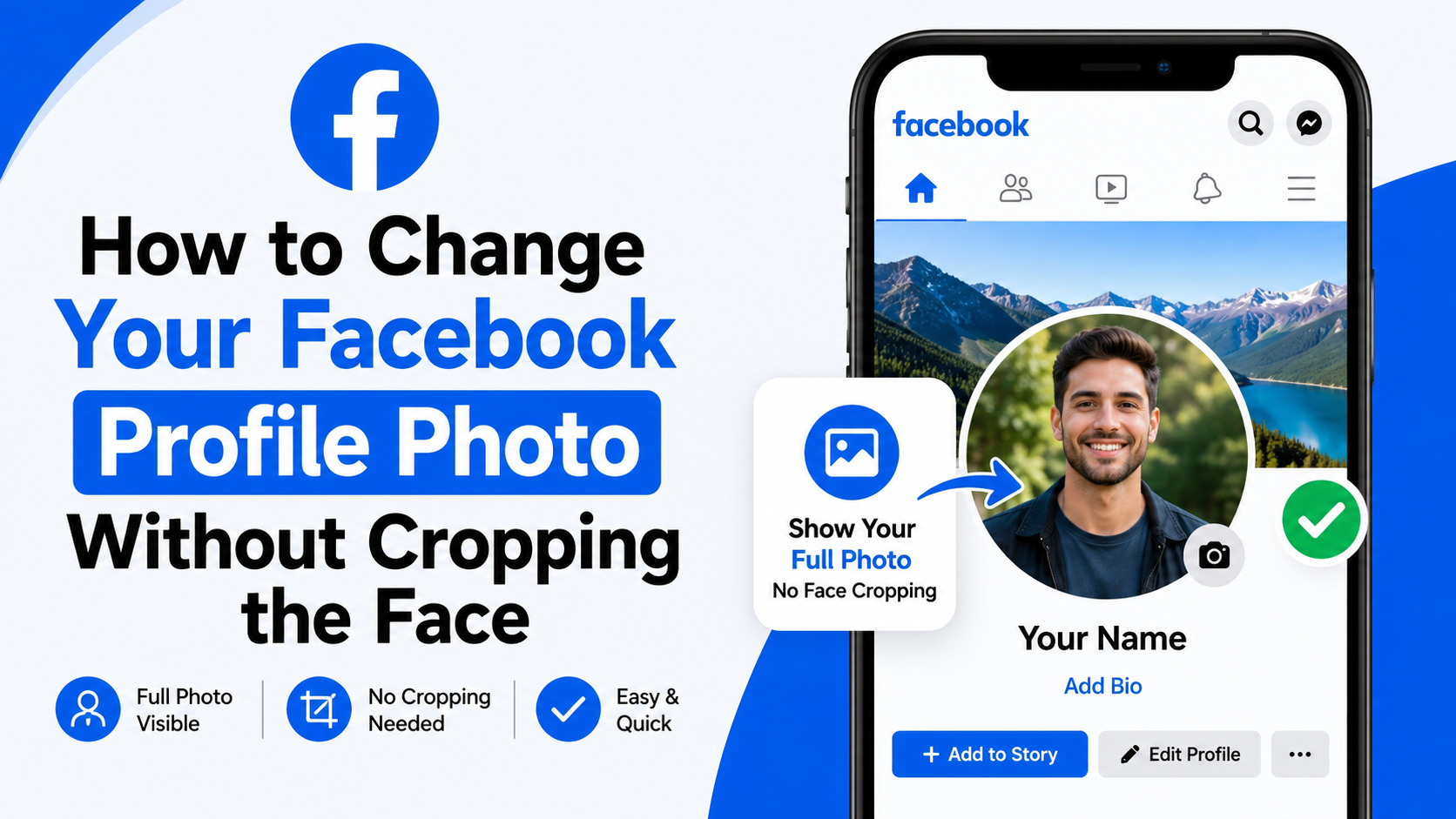
Facebook displays profile photos in a circle, even if you upload a square or rectangular image. Leave enough space around your face or logo so important details are not cut off.
Example: Updating a conference headshot
Imagine you have attended an industry conference and received a professional portrait from the event photographer. Before uploading it, crop it into a square with your face in the center. This keeps the image effective in comments and Messenger, where it appears much smaller.
How to Change Facebook Profile Photo on an iPhone or iPad
The process on iPhone and iPad is very similar to Android, although button locations and wording can differ slightly.
Access your Facebook profile photo settings
- Open the Facebook app.
- Tap your profile photo or the menu icon, then select your name to visit your profile.
- Tap the camera icon on your profile picture.
- Choose Select profile picture.
You may need to grant Facebook permission to access your Photos library if you have not done so previously.
Upload a new image from your Photos library
Select the image you want to use, then adjust the crop and placement. You can also use editing features such as:
- Profile frames
- Temporary profile-photo dates
- Background or visual effects, when available
- Captions for the profile update post
Once the image looks right, tap Save. If you want the change to be more private, review who can see the associated post before confirming.
Use a temporary profile photo when appropriate
A temporary profile photo automatically returns to your previous image after a chosen period. This is useful for short-term events, awareness campaigns, seasonal branding, or team initiatives.
For example, a nonprofit volunteer might use a temporary event frame during a fundraising week, then automatically revert to their usual headshot afterward.
How to Change Facebook Profile Photo on a PC or Mac
Changing your profile picture from a computer gives you a larger screen for reviewing image quality and cropping details.
Go to your Facebook profile in a browser
- Visit Facebook and sign in.
- Click your profile picture in the top-right corner.
- Select your name to open your profile.
- Hover over your profile photo and click Update profile picture.
Depending on Facebook’s current layout, you may see an edit button, camera icon, or menu instead.
Upload, edit, and confirm your new profile photo
Choose Upload photo to select an image from your computer. You can also choose a photo already uploaded to Facebook.
Before saving, use the preview screen to:
- Reposition the image
- Zoom in or out
- Add a frame
- Choose a temporary duration
- Decide whether to share the update to your timeline
Click Save when finished. Refresh your profile page to confirm the new image appears correctly.
Check the photo at multiple sizes
A photo can look excellent in the large profile preview but lose impact as a small thumbnail. After saving, check how it appears in your comments, on your timeline, and in Messenger if possible.
For a company logo, avoid small text or fine details. A simplified logo mark usually performs better than a full logo with a tagline.
How to Choose the Best Facebook Profile Photo
Knowing how to change Facebook profile photo is useful, but selecting the right image is what makes the update effective.
Use the right size and format
Facebook can accept common formats such as JPG and PNG. For the best balance of quality and flexibility, start with a square image at least 320 × 320 pixels. Higher-resolution images are preferable because Facebook may compress uploads.
A practical choice is a 1080 × 1080 pixel JPG or PNG. This size gives you room to crop without sacrificing clarity.
Optimize the composition for a circular crop
Because Facebook commonly displays profile photos as circles:
- Keep faces, logos, and key objects centered.
- Avoid placing text near the corners.
- Leave space around the subject.
- Use contrast between the subject and the background.
For example, a dark-haired person photographed against a dark wall may blend into the background at thumbnail size. A lighter, uncluttered background makes the profile photo easier to recognize.
Match the image to your purpose
Different Facebook users need different types of profile photos:
- Personal users: A natural, current portrait often works best.
- Job seekers: Use a professional, approachable headshot.
- Business owners: Choose an image that builds trust and matches your brand.
- Creators: Use a consistent image that aligns with your content niche.
- Organizations: Use a clean logo rather than an individual employee’s photo.
Manage Privacy When You Update Your Profile Photo
Your current profile picture is generally visible publicly because Facebook uses it to help people identify accounts. However, the post created when you change it can have its own audience settings.
Control who sees the update post
When updating your photo, Facebook may offer an audience selector for the timeline post. Typical options include:
- Public
- Friends
- Friends except specific people
- Only me
- A custom audience
If you want the image updated without drawing attention to it, set the post’s audience to Only me where available. Keep in mind that the profile image itself may still be visible beyond that audience.
Review your profile information regularly
After changing your photo, take a moment to review the rest of your public-facing profile. Check your cover photo, introductory details, featured content, and public posts. A cohesive profile looks more intentional to recruiters, customers, and new contacts.
Be careful with sensitive or location-based images
Avoid profile images that reveal private details you would not want widely shared, such as your home address, children’s school information, travel plans, ID cards, or confidential workplace material.
Add Frames, Captions, and Temporary Profile Photos
Facebook includes optional features that can make your profile-photo update more meaningful.
Add a profile frame
Frames are visual overlays that appear around your picture. They are often used for celebrations, causes, sports events, schools, or community campaigns.
Use frames selectively. A frame can help show support for an event, but a heavily detailed one can obscure a professional headshot or brand logo.
Write a useful caption
When Facebook creates a post for your new profile photo, you can add a caption. This is optional, but it can be valuable when your update has context.
For instance, a consultant might write: “New headshot, same focus: helping growing teams simplify their operations.” This adds personality and reinforces a professional message without sounding overly promotional.
Set an automatic return date
If the profile photo is tied to a temporary campaign or holiday, select the temporary-photo option and choose when Facebook should restore your previous image. This prevents you from forgetting to switch it back later.
Troubleshoot Problems When Changing Your Facebook Profile Photo
Most profile-photo updates work immediately, but technical issues can occasionally interrupt the process.
Fix upload and processing errors
If Facebook will not upload your photo, try these steps:
- Confirm that your internet connection is stable.
- Close and reopen the Facebook app or refresh your browser.
- Update the Facebook app to the latest available version.
- Try a JPG or PNG file instead of an unusual image format.
- Reduce an extremely large file size or image resolution.
- Clear the app cache on Android, if needed.
- Try uploading from a different device or browser.
If the upload appears successful but the old image remains visible, wait a few minutes and refresh. Cached images can sometimes delay the visible update.
Resolve cropping issues
If Facebook cuts off part of your face, logo, or text, edit the original image before re-uploading it. Add extra background space around the subject, save a square version, and then upload it again.
Do not rely on Facebook’s crop tool to rescue a tightly framed image. Starting with more space gives you better control.
Address visibility concerns
If someone says they cannot see your new profile photo, check whether they are seeing a cached version. Ask them to refresh Facebook or reopen the app. Also verify that you saved the update and did not accidentally cancel it before completing the process.
Frequently Asked Questions
Can I change my Facebook profile photo without posting it to my timeline?
In many cases, yes. During the update process, Facebook may allow you to set the profile-update post’s audience to Only me. This limits who can see the announcement post, although your current profile picture may still remain publicly visible.
Why does Facebook crop my profile picture into a circle?
Facebook uses a circular display style for profile images across much of its interface. The original file may remain square or rectangular, but viewers typically see a circular crop. Centering your subject and leaving margin around it prevents important details from being hidden.
Can I use an old Facebook photo as my new profile picture?
Yes. When you choose to update your profile photo, Facebook usually provides access to photos you have already uploaded. Select the existing image, adjust the crop, and save it as your profile picture.
How often should I update my Facebook profile photo?
There is no fixed rule. Update it whenever it no longer represents you accurately, such as after a major appearance change, a new professional headshot, or a brand refresh. Professionals who use Facebook for networking may benefit from reviewing it once or twice a year.
Can I change my Facebook profile photo back to a previous one?
Yes. Open your profile-photo options, select a previously uploaded image, and set it as your current profile picture. If you used a temporary profile photo, Facebook can also automatically restore the previous image when the selected duration ends.
Conclusion
To change Facebook profile photo on a phone or computer, open your profile, select the camera or edit option on your current picture, choose an image, adjust the crop, and save. The technical process is quick, but choosing a clear, well-composed image and reviewing privacy settings can make a lasting difference.
Take a few minutes to update your profile photo today—whether that means adding a polished headshot, refreshing an old image, or aligning your personal profile with your professional brand.
Advertisement