August 19, 2026 · 12 min read
How to Change Your Profile Photo on Any Device: Simple Step-by-Step Guide
On this page
- Why Updating Your Profile Photo Matters
- How to Change Profile Photo on a Smartphone
- How to Change Profile Photo on a Computer
- How to Change Your Profile Photo on Popular Platforms
- Choose the Right Profile Photo Before You Upload
- Crop, Resize, and Format Your Image Correctly
- Protect Your Privacy When Updating a Profile Photo
- Fix Common Problems When You Change a Profile Photo
- Frequently Asked Questions
- Conclusion
How to Change Your Profile Photo on Any Device: Simple Step-by-Step Guide
Your profile photo is often the first thing people notice when they visit your account, send you a message, or see your name in a search result. Whether you are updating a professional headshot, replacing an outdated selfie, or creating a more consistent online presence, knowing how to change profile photo settings quickly can save time and prevent common mistakes.
The exact steps vary between apps and websites, but the overall process is usually simple: open your profile, select the existing image, upload or take a new photo, crop it, and save your changes. This guide explains how to do it from virtually any device while helping you choose a photo that looks clear, appropriate, and recognizable.
Key Takeaways
- Open the app or website’s profile or account settings to find your current photo.
- Use a high-quality, well-lit image that still looks clear when displayed as a small circle.
- Crop your photo with your face or main subject centered.
- Check privacy settings before uploading a personal image.
- Allow time for changes to sync across devices and cached pages.
- Keep a professional version of your photo ready for work-related platforms.
Why Updating Your Profile Photo Matters
A profile photo is a small detail with a large effect. On social media, it helps friends, customers, and colleagues recognize you. On professional platforms, it supports credibility and makes your account feel more complete. In messaging apps, it helps reduce confusion in group chats and contact lists.
Create a More Recognizable Online Presence
Using a consistent profile image across important accounts makes you easier to identify. For example, a consultant might use the same headshot on LinkedIn, Zoom, Slack, and their company website. This consistency helps clients connect a name, face, and role more quickly.
If you use different photos everywhere, people may struggle to recognize which account belongs to you—especially if your name is common.
Keep Your Information Current
An old, blurry, or inaccurate image can make a profile appear neglected. Updating your photo is particularly useful when you:
- Start a new role or business
- Update your professional brand
- Change your appearance significantly
- Create a new social or community account
- Need a clearer image for collaboration tools
A current photo does not need to be taken today. It simply needs to represent you accurately and appropriately for the platform.
How to Change Profile Photo on a Smartphone
Most people update profile pictures from a phone because their camera and photo library are immediately available. The process is similar on both iPhone and Android devices.
Steps for iPhone Users
To change your profile photo on an iPhone:
- Open the app where you want to update the photo.
- Tap your profile icon, avatar, or menu button.
- Select Profile, Edit Profile, or Account Settings.
- Tap your existing profile photo.
- Choose Take Photo to use the camera or Choose Photo to select one from your library.
- Adjust the crop, zoom, and positioning.
- Tap Save, Done, or Update.
Many apps request permission to access your photos or camera. If you deny access by mistake, go to Settings, select the app, and enable Camera or Photos permissions.
Steps for Android Users
The Android process follows the same general pattern:
- Launch the relevant app.
- Tap your account icon, often in the top-right or top-left corner.
- Open Profile or Manage Account.
- Tap the current photo or camera symbol.
- Select an image from your gallery or take a new picture.
- Crop and confirm the image.
- Save your updated profile.
Depending on the phone manufacturer and Android version, you may see options such as Gallery, Photos, Files, or Camera. Choose the location where your new image is stored.
Mobile Troubleshooting Tip
If the app will not let you upload a photo, check these common causes:
- Your internet connection is unstable.
- The image format is unsupported.
- The file is too large.
- The app needs an update.
- The app does not have photo-storage permission.
Try using a JPG or PNG file and selecting a different image if the upload repeatedly fails.
How to Change Profile Photo on a Computer
Using a desktop or laptop can be easier when your preferred image is already saved in a folder. It also gives you a larger screen for cropping and reviewing the final result.
Update Your Photo Through a Website
For most websites, follow these steps:
- Sign in to your account.
- Click your profile icon, usually in the top-right corner.
- Select Profile, Settings, Account, or Edit Profile.
- Click your existing photo, avatar, or Change Photo button.
- Choose Upload Photo.
- Browse to the image file on your computer.
- Crop or reposition the image if prompted.
- Click Save Changes, Apply, or Update Profile.
Look for your account menu first if you are unsure where to begin. On many platforms, the profile-photo controls are located under account settings rather than privacy settings.
Upload From Cloud Storage When Needed
If your photo is stored in Google Drive, OneDrive, Dropbox, or iCloud, download it to your computer first if the platform does not support direct cloud selection. Save it in an easy-to-find folder, such as Downloads or Pictures, before uploading.
For smoother uploads, rename the image clearly. A filename such as professional-headshot-2026.jpg is easier to find than a generic name such as IMG_4839.jpg.
How to Change Your Profile Photo on Popular Platforms
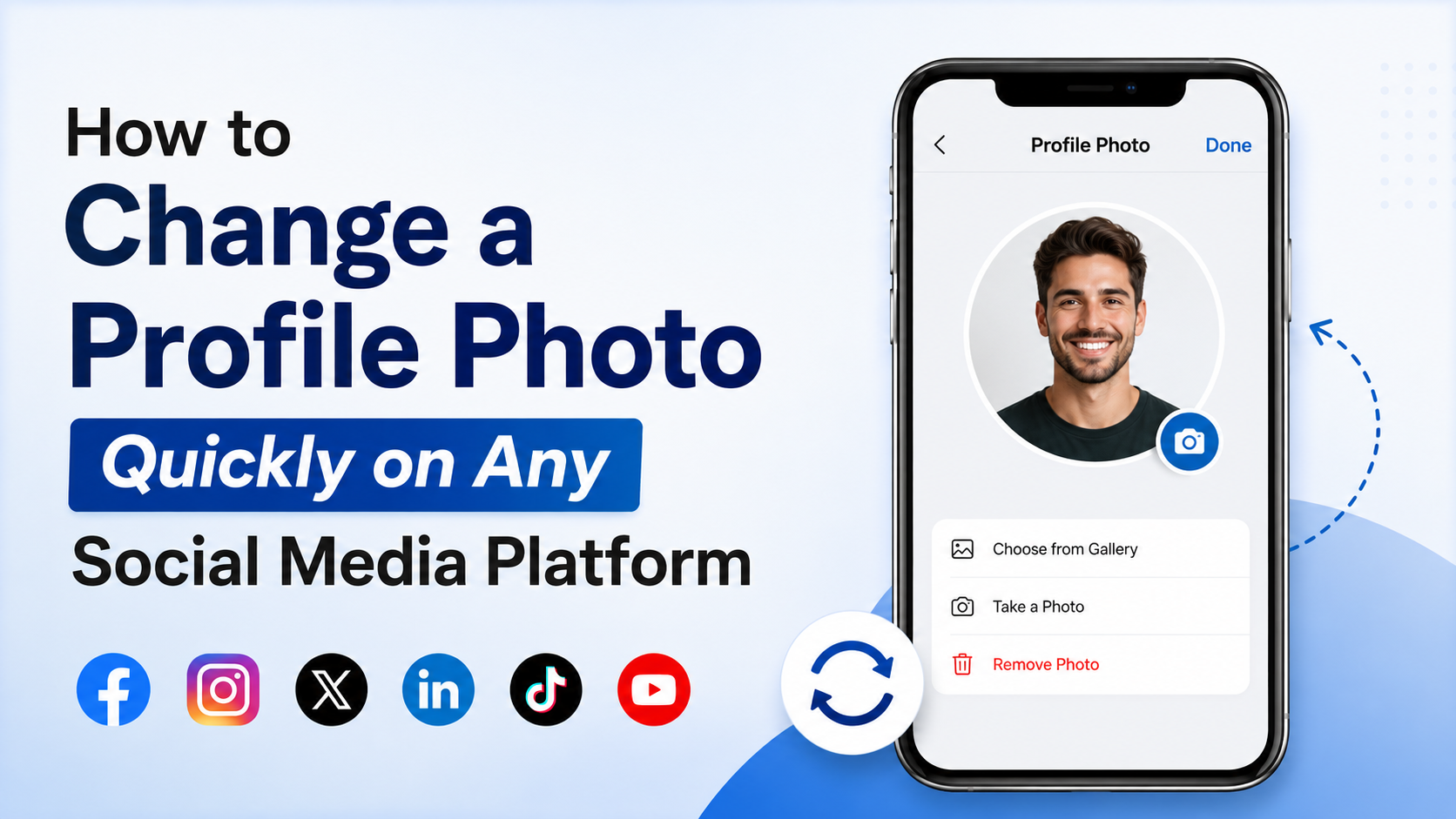
While the labels vary, nearly every platform uses the same core workflow: profile page, current photo, upload, crop, save.
Social Media Platforms
On platforms such as Facebook, Instagram, X, TikTok, and Threads, start by opening your own profile page. Tap or click your existing image, then select an option such as Edit Profile Picture, Change Photo, or Upload Photo.
Before saving, consider the audience. A casual vacation photo may work well for a personal account, while a public creator account may benefit from a clearer, more intentional image.
Useful social-media photo guidelines include:
- Use a close-up image if your account is centered on you.
- Avoid heavy filters that make you difficult to recognize.
- Make sure the image still looks good in a circular crop.
- Check whether the platform posts your photo update publicly.
For example, if you update a Facebook image, you may be able to choose who can view the profile-picture update as a post. Review the audience setting before publishing.
Professional Platforms
For LinkedIn, Microsoft Teams, Slack, Zoom, Google Workspace, and similar work tools, choose a photo that supports your professional identity. A simple head-and-shoulders image with good lighting is usually the safest choice.
When learning how to change profile photo settings on a professional platform, look for View Profile, Edit Profile, or Personal Settings. In managed workplace accounts, your organization may control whether you can change your image yourself.
A strong professional profile photo typically includes:
- A clear view of your face
- A neutral or uncluttered background
- Natural lighting or balanced indoor light
- Clothing appropriate to your industry
- A friendly, confident expression
For instance, a real estate agent may choose a polished business-casual headshot, while a graphic designer might use a more creative but still recognizable image.
Messaging and Community Apps
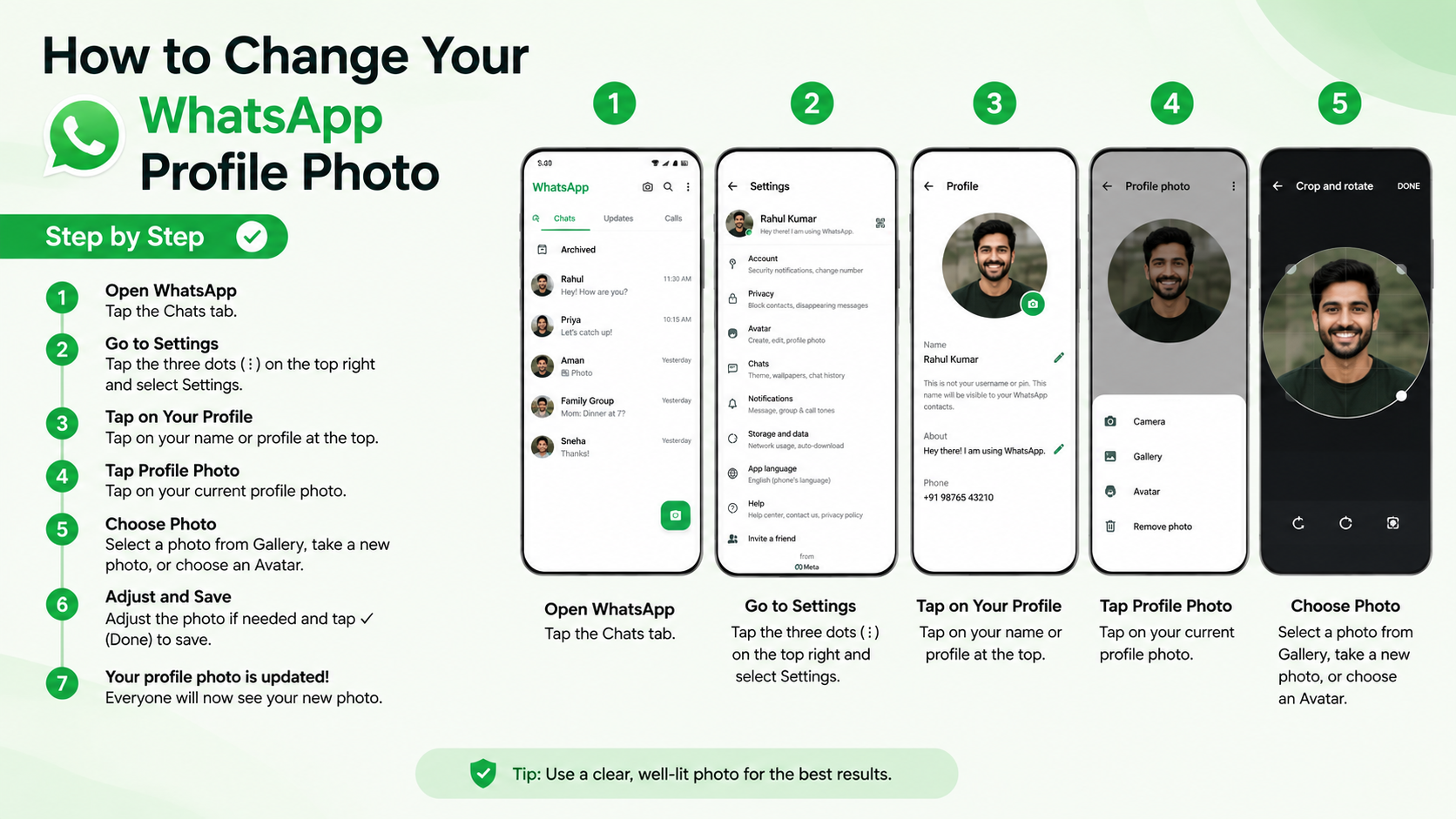
Apps such as WhatsApp, Telegram, Discord, Signal, and workplace chat tools usually place photo controls under your account profile. Look for Edit, a pencil icon, or a camera icon over your existing picture.
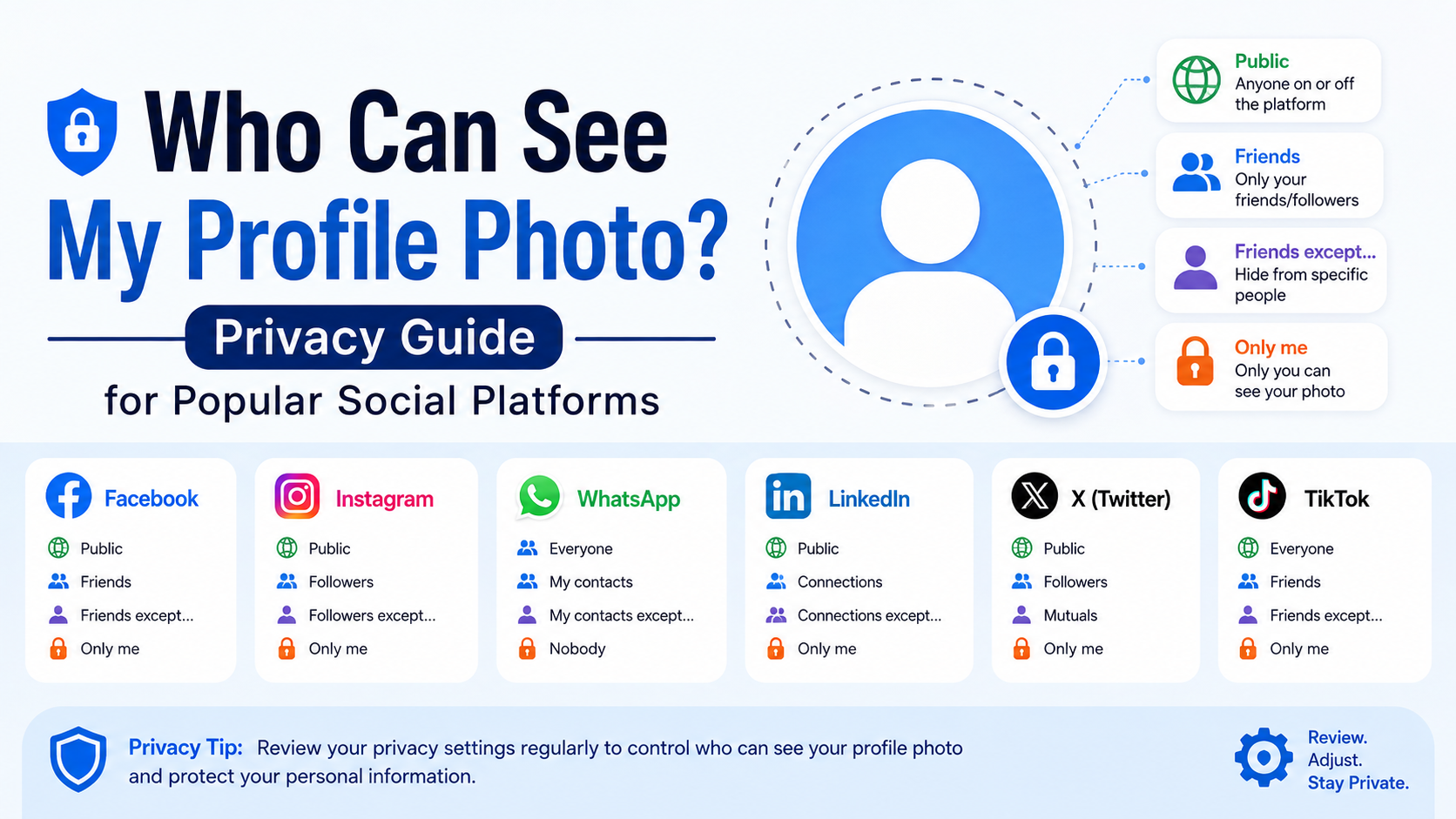
Remember that messaging-platform profile photos may be visible to people outside your saved contacts, depending on your privacy settings. If privacy matters, choose a less personal image or restrict visibility to contacts only.
Choose the Right Profile Photo Before You Upload
Changing a profile photo is easy; selecting one that works well everywhere takes a little more thought.
Prioritize Image Quality and Composition
A profile image is usually displayed at a small size. An elaborate scene can become hard to understand once it is reduced to a small circular icon. Choose an image with a clear focal point.
For personal or professional profiles, your face should generally occupy a meaningful portion of the frame. Avoid photos where you are standing far away, hidden in a group, or surrounded by distracting details.
Before uploading, check that the image is:
- Sharp rather than blurry
- Bright enough to see clearly
- Centered around the main subject
- Free of unwanted background clutter
- Suitable for the intended audience
Match the Image to the Platform
You do not have to use one photo on every account. The right image depends on why people visit the platform.
A practical approach is to maintain three versions:
- A professional headshot for work accounts
- A friendly personal photo for social networks
- A logo, illustration, or brand mark for business pages and creator accounts
For a company profile, use a high-resolution logo that remains readable at a small size. Avoid placing tiny text in the image because it may become illegible in profile circles.
Crop, Resize, and Format Your Image Correctly
Even a great photo can look poor if it is cropped badly or uploaded in an incompatible format.
Understand Circular Crops
Many services display profile photos as circles, even if the uploaded file is square or rectangular. Important parts of the image near the corners may be cut off.
Keep your face, logo, or main subject in the center. Leave a small amount of space around the edges so the crop does not remove key details.
Use Common File Formats
JPG and PNG are the safest file formats for profile images. JPG is often best for photographs because it balances quality and file size. PNG can work well for logos, illustrations, and images requiring transparency.
If an upload is rejected, try these fixes:
- Save the image as JPG or PNG.
- Reduce the file size.
- Use a square version, such as 800 x 800 pixels.
- Remove unusual symbols from the filename.
- Reopen the app or refresh the browser before uploading again.
You rarely need an extremely large file. A square image between 500 and 1,000 pixels wide is generally more than sufficient for most platforms.
Protect Your Privacy When Updating a Profile Photo
Your profile image can reveal more than you intend. Before uploading, take a moment to consider what appears in the background and who can access the photo.
Review Visibility Settings
Some platforms allow anyone to view your profile photo, while others offer options such as public, friends, contacts, followers, or only you. Review these settings after changing your image—not just before.
For example, a messaging app may let you show your photo only to saved contacts. This can be useful if you use your personal number for work or community groups.
Avoid Sharing Sensitive Details
Do not use a photo that displays personal documents, home addresses, vehicle license plates, children’s school information, travel plans, or other sensitive details.
Also be cautious with group photos. Uploading one as your profile image may unintentionally feature people who did not expect their image to be used publicly.
Fix Common Problems When You Change a Profile Photo
Sometimes your new picture does not appear immediately or looks different than expected. Most issues are easy to resolve.
Your Old Photo Still Appears
If you changed the image but still see the old one, the platform may be caching the previous version. Try these steps:
- Refresh the page or close and reopen the app.
- Sign out and sign back in.
- Clear the app cache, if available.
- Wait a few minutes for the change to sync.
- Check the profile from another device or browser.
If other people still see the old picture while you see the new one, give the platform some time. Image delivery systems can update at different speeds.
The New Image Looks Blurry
Blurriness usually means the original image was too small, compressed, or enlarged excessively. Upload a higher-resolution original instead of a screenshot or an image forwarded repeatedly through messaging apps.
If the platform automatically compresses your image, start with a sharper source file and avoid overediting it before upload.
Frequently Asked Questions
How do I change my profile photo if I cannot find the option?
Look under your account icon for Profile, Edit Profile, Settings, or Account. On many platforms, tapping the existing photo itself opens the upload menu. If you are using a work-managed account, your administrator may have restricted profile-photo changes.
Why is my profile photo not updating for everyone?
The platform may need time to synchronize the new image across its servers. Browser and app caches can also display an older version temporarily. Refresh the app, sign in again, or wait several minutes before assuming the update failed.
What size should a profile photo be?
A square image of roughly 500 x 500 to 1,000 x 1,000 pixels is a reliable choice for most platforms. Use a JPG for photos and a PNG for logos or graphics. Always keep the main subject centered for circular cropping.
Can I use the same profile photo on every platform?
Yes, and doing so can make you easier to recognize. Many people use one professional photo across work platforms and a more casual image for personal accounts. Choose the approach that matches your privacy preferences and personal brand.
Is it safe to use a personal photo as a profile picture?
It can be safe if you understand the platform’s visibility settings. Avoid images that reveal private information, and limit access to contacts or approved followers when the platform offers that option.
Conclusion
Knowing how to change profile photo settings on any device gives you a quick way to keep your online presence current, recognizable, and aligned with your goals. Open your profile settings, upload a clear image, crop it carefully, save the change, and review privacy controls afterward.
Take a few minutes today to review your most important accounts. Replace outdated images, use a photo that fits each platform, and make sure the version people see represents you well.
Advertisement