August 19, 2026 · 13 min read
How to Change a Profile Photo Quickly on Any Social Media Platform
On this page
- Why Your Profile Photo Matters More Than You Think
- Prepare the Right Image Before You Upload
- The Universal Steps for How to Change Profile Photo
- How to Change a Profile Photo on Major Platforms
- Avoid Common Profile Photo Problems
- Match Your Photo to Your Purpose and Audience
- Check Privacy, Permissions, and Account Settings
- Frequently Asked Questions
- Conclusion
How to Change a Profile Photo Quickly on Any Social Media Platform
Your profile photo is often the first thing people notice when they find you online. Whether you are updating an old selfie, refreshing your professional brand, or replacing a photo for privacy reasons, knowing how to change profile photo settings quickly can save time and help you make a stronger first impression.
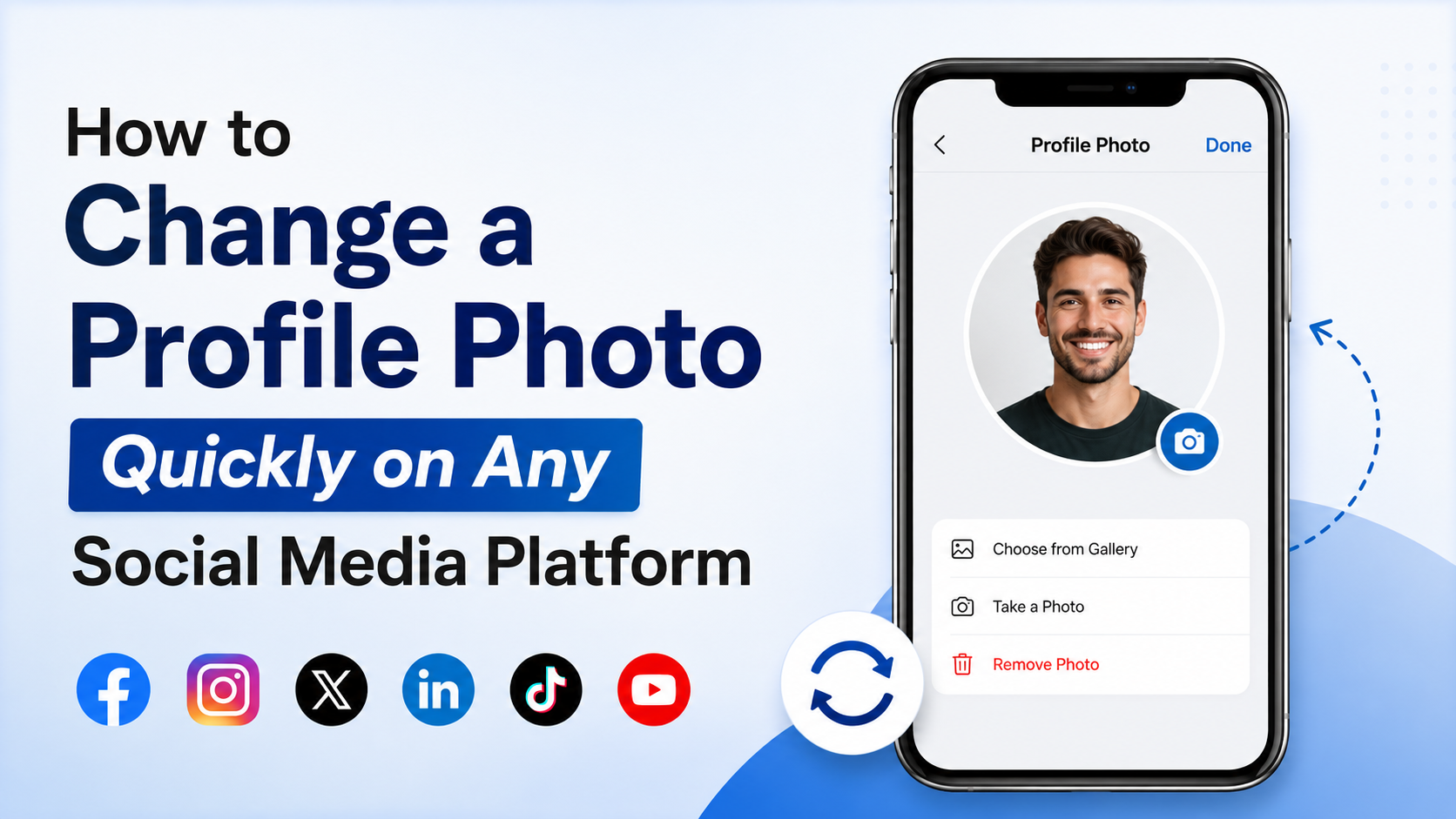
The process is similar on most platforms: open your profile, select your current image, upload a new one, crop it, and save. Still, small differences in menus, privacy settings, and image dimensions can make the update less straightforward than expected. This guide walks you through the process on nearly any social platform while helping you choose a photo that looks polished everywhere.
Key Takeaways
- Use a clear, recent, high-resolution image before beginning your update.
- Look for an Edit Profile, camera, or pencil icon near your current profile photo.
- Crop with the platform’s circular preview in mind so your face or logo stays visible.
- Check your privacy and audience settings before making the new photo public.
- Update your image consistently across professional and personal accounts when appropriate.
- Keep an original copy of your photo so you can resize or reuse it later.
Why Your Profile Photo Matters More Than You Think
A profile photo does more than identify your account. It helps people decide whether to follow, trust, contact, or remember you. On professional networks, it can influence credibility. On social platforms, it helps friends recognize you quickly. For businesses, it can reinforce brand recognition across every customer touchpoint.
First Impressions Happen Fast
People may see your profile photo in search results, comments, direct messages, group conversations, and recommended-account lists before they ever visit your full profile. A blurry, outdated, or poorly cropped image can create confusion or make an account feel inactive.
For example, a consultant using a clear headshot with a simple background is easier for potential clients to recognize in a LinkedIn comment thread. Likewise, a local bakery using its recognizable logo as a profile image makes it easier for customers to identify its posts on Facebook or Instagram.
Consistency Builds Recognition
Using a similar photo across platforms can make your online presence more coherent. This is particularly valuable for professionals, creators, and businesses.
Consider matching these elements across your accounts:
- Your core headshot or business logo
- Background color or visual style
- Clothing, lighting, and overall tone
- The way your face or logo is centered in the frame
You do not need to use the exact same photo everywhere, but the images should feel connected when someone views your profiles side by side.
Prepare the Right Image Before You Upload
The fastest way to change a profile photo is to prepare the image first. If you upload a random photo and try to fix everything inside the app, you may end up with awkward cropping, low resolution, or a picture that does not suit the platform.
Choose a Clear, Current Photo
For a personal account, select an image that genuinely represents you and is easy to recognize at a small size. For professional profiles, choose a recent headshot that matches your industry and the impression you want to create.
A strong profile photo usually includes:
- Good lighting, preferably natural or evenly balanced
- A visible face looking toward the camera
- A clean, uncluttered background
- A relaxed but confident expression
- High resolution without filters that obscure facial details
For business accounts, use a logo that remains readable in a small circular frame. Avoid logos with tiny text, detailed illustrations, or wide horizontal layouts that may become difficult to see after cropping.
Use a Square Image With Extra Space Around the Subject
Most social networks display profile photos in a circle, even if you upload a square image. Start with a square image whenever possible, ideally at least 400 by 400 pixels. Larger files are generally fine, as platforms will compress them automatically.
Leave some room around your face or logo. If the subject fills the entire image, the circular crop can cut off important details. A headshot where your shoulders and head are fully visible usually works better than an extreme close-up.
Create Platform-Friendly Variations
You can save time by creating a small collection of ready-to-use images:
- A professional headshot for LinkedIn, work profiles, and speaker pages
- A casual but clear photo for personal social accounts
- A logo-only image for business pages
- A high-contrast version for platforms that use very small thumbnails
This approach is especially useful if you manage several accounts or need to update your profiles after a rebrand.
The Universal Steps for How to Change Profile Photo
Although each app labels its controls differently, the basic process is nearly identical. Once you learn the pattern, you can update your photo quickly on almost any service.
Step 1: Open Your Profile Page
Log in to the social media platform and navigate to your profile. On mobile, this is usually accessible through your avatar, profile icon, or menu tab. On desktop, look for your name or current profile image in a sidebar or top navigation area.
Step 2: Select Your Existing Profile Image
Tap or click your current profile photo. Many platforms display a small camera icon, pencil icon, or Edit button when you hover over or select the image.
Common labels include:
- Change profile picture
- Edit profile photo
- Update photo
- Upload image
- Choose from gallery
If you do not see a direct option, open Edit Profile and look for the profile picture section.
Step 3: Upload or Choose a New Image
Select an image from your device, camera roll, cloud storage, or existing platform photos. Some platforms also let you take a new photo immediately through your phone’s camera.
Before confirming, make sure you selected the intended file. This matters if you keep multiple versions of similar images in your gallery.
Step 4: Crop, Position, and Preview
Use the built-in crop tool to center your face or logo. Review the circular preview carefully because it may look different from the original square image.
Make sure that:
- Your eyes and face are not too close to the edge
- Your logo is fully visible
- Important text is not cut off
- The image remains clear at thumbnail size
Step 5: Save and Verify the Change
Select Save, Done, Apply, or Confirm. Then revisit your profile and, if possible, view it from another account or browser window to ensure the image displays correctly.
Some platforms update your image instantly. Others may take a few minutes to refresh across comments, messages, search results, and cached previews.
How to Change a Profile Photo on Major Platforms
The exact interface changes over time, but the following paths reflect the usual workflow on popular social platforms.
On Facebook, open your profile and select your current profile image. Choose the option to update or select a new profile picture, then upload an image or choose one already in your Facebook photos.
Facebook may offer additional options, such as:
- Adding a temporary profile picture
- Creating an avatar-based image
- Editing the audience for the profile-picture update post
- Adjusting the thumbnail crop separately
If you prefer not to announce the change, review the audience settings for the related post before publishing it.
To change your profile photo on Instagram, go to your profile tab and select Edit Profile. Choose Change Profile Picture, then select a photo from your device, Facebook account, or camera.
Instagram profile photos are displayed in a small circular format, so simple images perform best. A tightly cropped face or bold logo with minimal text typically remains recognizable in comments and Stories.
On LinkedIn, open your profile and select your profile photo. Choose the edit option, upload a new image, adjust the crop, and save your changes.
For professionals, LinkedIn is usually the platform where photo quality matters most. Use a recent, well-lit headshot and avoid overly casual group photos, sunglasses, heavily filtered images, or distracting backgrounds.
A practical example: a job seeker applying for client-facing roles may choose a friendly headshot with business-casual clothing, while a creative director may use a more stylized but still recognizable portrait that reflects their field.
X, TikTok, and Similar Social Apps
On X, TikTok, Threads, and many other apps, open your profile and select Edit Profile. Then tap your current image, upload a replacement, crop it, and save.
The essential difference tends to be image style rather than process. Fast-moving social platforms often reward personality and recognizability, while professional platforms generally reward clarity and polish.
YouTube and Other Creator Platforms
On YouTube, your profile image is connected to your channel identity and appears beside videos, comments, and community posts. Update it through your channel customization or account settings, depending on the interface you use.
Creators should prioritize a photo or logo that is recognizable at very small sizes. If your channel has a visual identity, use the same colors, fonts, or recognizable character across thumbnails, banners, and profile imagery.

Avoid Common Profile Photo Problems
A quick update can go wrong when the image is not optimized for small circular displays. Taking a minute to check common issues can prevent you from needing to redo the process.
Blurry or Pixelated Photos
Blurriness usually happens because the original image is too small, overly compressed, or enlarged beyond its intended size. Upload the highest-quality original available rather than a screenshot, a photo copied from another app, or an image downloaded from a compressed source.
If your image still looks soft, try exporting a square version at a larger resolution before uploading.
Awkward Cropping
Many platforms force a circular crop, which can cut off hair, shoulders, logos, or text. If the crop tool does not give you enough control, edit the image outside the app first. Add background space around the subject, place the photo on a square canvas, and upload the revised version.
Using a Photo That Is Too Busy
A full-body photo, group picture, scenic shot, or complicated logo may look fine on a large screen but become unclear as a tiny icon. The best profile photos are simple and easy to identify immediately.
Ask yourself: “Would someone recognize this at the size of a comment icon?” If not, simplify the image.
Match Your Photo to Your Purpose and Audience
The best profile photo depends on how you use the account. A single image is not always right for every social platform.
Professional Profiles
For LinkedIn, company websites, portfolios, and work-related communities, favor a clean headshot. Wear clothing appropriate to your industry, use neutral lighting, and choose a background that does not compete with your face.
A lawyer, financial advisor, or recruiter may prefer a formal image. A designer, photographer, or musician can show more personality, provided the image still looks intentional and clear.
Personal Profiles
On personal accounts, authenticity matters more than formality. A favorite travel photo, candid portrait, or image with a pet can work well if your face remains visible and the crop is clean.
However, think about your privacy. If your public profile can be viewed by people you do not know, avoid using photos that reveal sensitive details such as your home address, school location, vehicle license plate, or children’s identifying information.
Brand and Organization Profiles
Businesses, nonprofits, and teams should usually use a logo rather than an employee’s headshot. This maintains continuity when staff members change and makes the account easier to recognize.
If your logo is too detailed for a small profile image, create a simplified icon version. For example, a restaurant with a long wordmark might use only its initials, emblem, or signature graphic in the profile photo.
Check Privacy, Permissions, and Account Settings
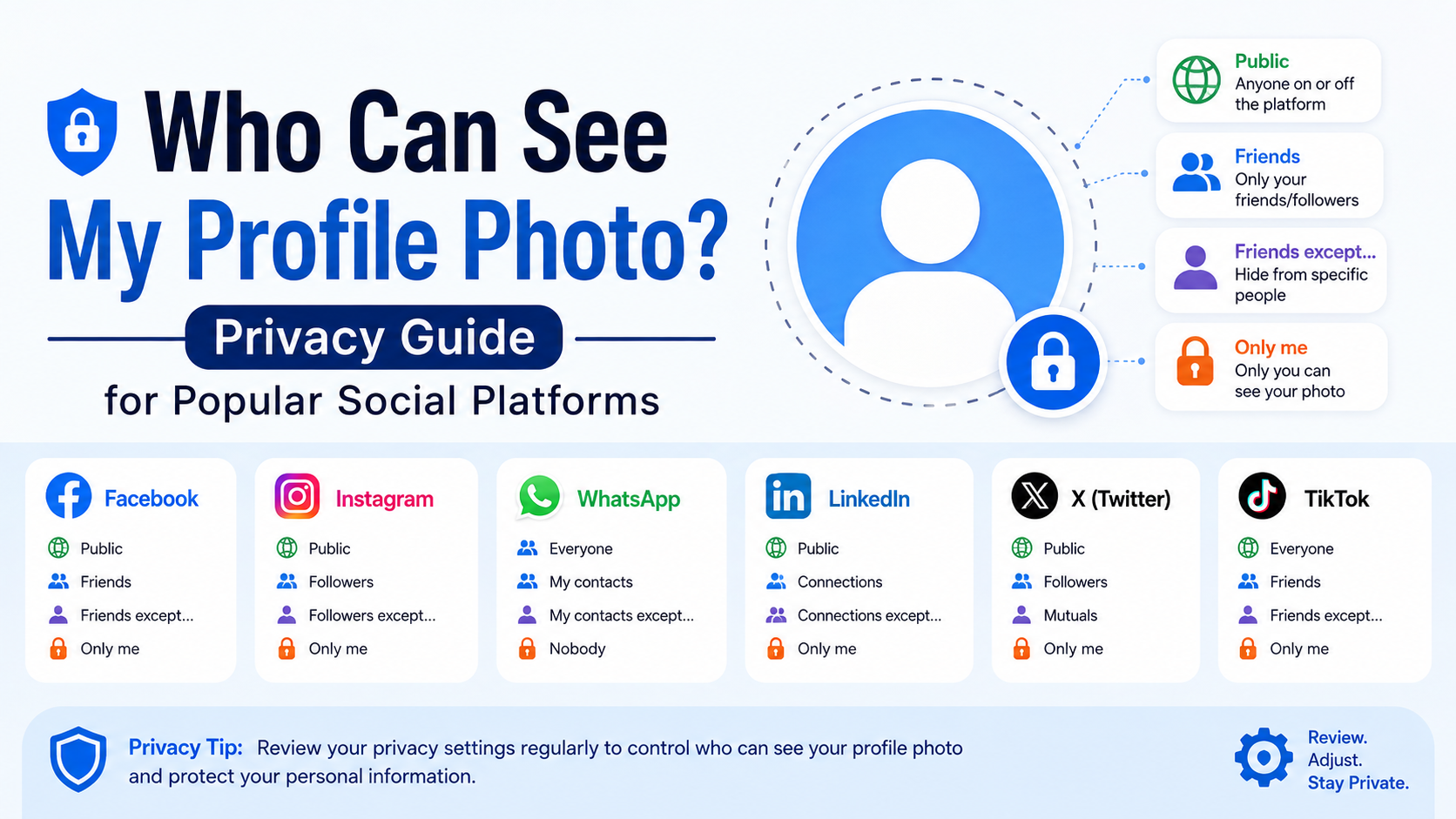
Changing a profile image is simple, but visibility rules differ widely between platforms. Your image may be public even if other posts are private.
Review Who Can See the Photo
Before saving, check whether the platform allows you to choose who can view the update. In some cases, your profile image itself remains public, while the announcement post can be limited to friends, followers, or only you.
Review these settings when available:
- Profile visibility
- Public search appearance
- Who can view the update in their feed
- Tagging and sharing permissions
- Whether the photo is included in a public photo album
Confirm You Have the Right to Use the Image
Use your own image, a licensed stock image, or a brand asset you are authorized to publish. Do not use a photographer’s work, a company logo, or another person’s likeness without permission.
This is especially important for organizations. Make sure staff members approve headshots used on public company accounts, and keep the original consent or release information when required.
Frequently Asked Questions
How do I change my profile photo without notifying everyone?
Many platforms create an activity post when you update your profile picture. Before saving, look for an audience or visibility control and set the related post to Only Me, private, or a limited audience. Keep in mind that your profile photo itself may still be visible publicly depending on the platform’s default settings.
Why does my profile photo look different after I upload it?
Most platforms automatically crop images into a circle, compress file sizes, and display photos differently across devices. Upload a high-resolution square image with extra space around your face or logo, then review the final preview on both mobile and desktop if possible.
What size should a profile photo be?
A square image of at least 400 by 400 pixels is a dependable starting point for most platforms. If you have access to a larger original, such as 800 by 800 or 1,000 by 1,000 pixels, that is also helpful. Focus less on an exact size and more on clarity, centered composition, and a crop that works in a circle.
Should I use the same profile photo on every social media account?
Usually, yes—especially if you use social media professionally or want people to find you easily. A consistent photo improves recognition. You can still use slight variations for different audiences, such as a formal headshot on LinkedIn and a more relaxed portrait on Instagram.
How often should I update my profile photo?
Update it whenever your appearance, branding, or professional role changes noticeably. For many professionals, refreshing a headshot every one to three years is reasonable. Businesses should update their profile image during a rebrand or whenever the logo changes.
Conclusion
Knowing how to change profile photo settings quickly is a small digital skill with a meaningful impact. Start with a clear, high-quality image, use the platform’s edit tools to crop it carefully, and verify your privacy settings before you save.
Whether you are building a professional reputation, maintaining a personal account, or managing a business presence, your profile photo should be current, recognizable, and suited to the audience you want to reach. Take a few minutes today to review your social profiles and update the image that represents you best.
Advertisement