August 19, 2026 · 11 min read
Who Can See My Profile Photo? Privacy Guide for Popular Social Platforms
On this page
- Why Profile Photo Privacy Matters
- Start With a Smart Profile Photo Strategy
- Facebook Profile Photo Privacy: What You Can and Cannot Hide
- Instagram: Private Accounts Still Need a Public-Safe Photo
- WhatsApp: Limit Visibility to Trusted Contacts
- LinkedIn: Balance Professional Visibility and Privacy
- X and TikTok: Private Content Does Not Always Mean a Private Photo
- Perform a Regular Profile Photo Privacy Audit
- Frequently Asked Questions
- Conclusion
Who Can See My Profile Photo? Privacy Guide for Popular Social Platforms
Your profile photo is more than a small image beside your name. It can appear in searches, comments, direct messages, workplace networks, and shared screenshots—often reaching people you did not expect.
That does not mean you should avoid using one. A clear photo can make a personal account feel authentic and a professional profile easier to trust. The important part is understanding the limits of each platform’s profile photo privacy controls, then choosing an image and audience that match your goals.
Key Takeaways
- Treat your current profile photo as potentially public unless the platform explicitly offers a visibility setting.
- Use a different photo for professional networks than for private messaging or social accounts.
- Check whether changing account privacy also changes profile photo visibility—it often does not.
- Remove location clues, children, home addresses, work badges, and other identifying details from profile images.
- Review old profile-photo albums, public-profile settings, and search-engine visibility regularly.
- Remember that privacy settings reduce exposure but cannot prevent screenshots, copying, or impersonation.
Why Profile Photo Privacy Matters
A profile photo helps people recognize you, but it also creates a consistent visual link between your accounts. When the same headshot appears on several public platforms, someone can more easily connect your personal, professional, and social identities.
Your Profile Picture Appears Beyond Your Profile
Depending on the platform, your image may show up beside:
- Comments, replies, and reviews
- Friend or connection requests
- Direct-message threads and group chats
- Search results and account suggestions
- Tags, mentions, shared posts, and notifications
- Public profile previews
For example, a freelancer may use LinkedIn to attract clients but prefer not to make their family-life photo easy to find through Facebook or TikTok.
Privacy Is Not the Same as Security
A private account can limit who sees posts, but it may not hide the profile photo itself. Even when an image is visible only to approved contacts, someone can screenshot, download, or reuse it.
Think of profile photo privacy as exposure management. It helps you decide who can access your image through the platform; it cannot guarantee that viewers will not save or share it.
Start With a Smart Profile Photo Strategy
The best privacy setting begins with the image you choose. Before adjusting controls, decide what you are comfortable having associated with your name long term.
Choose an Image for the Account’s Purpose
Use context-specific photos rather than one identical image everywhere.
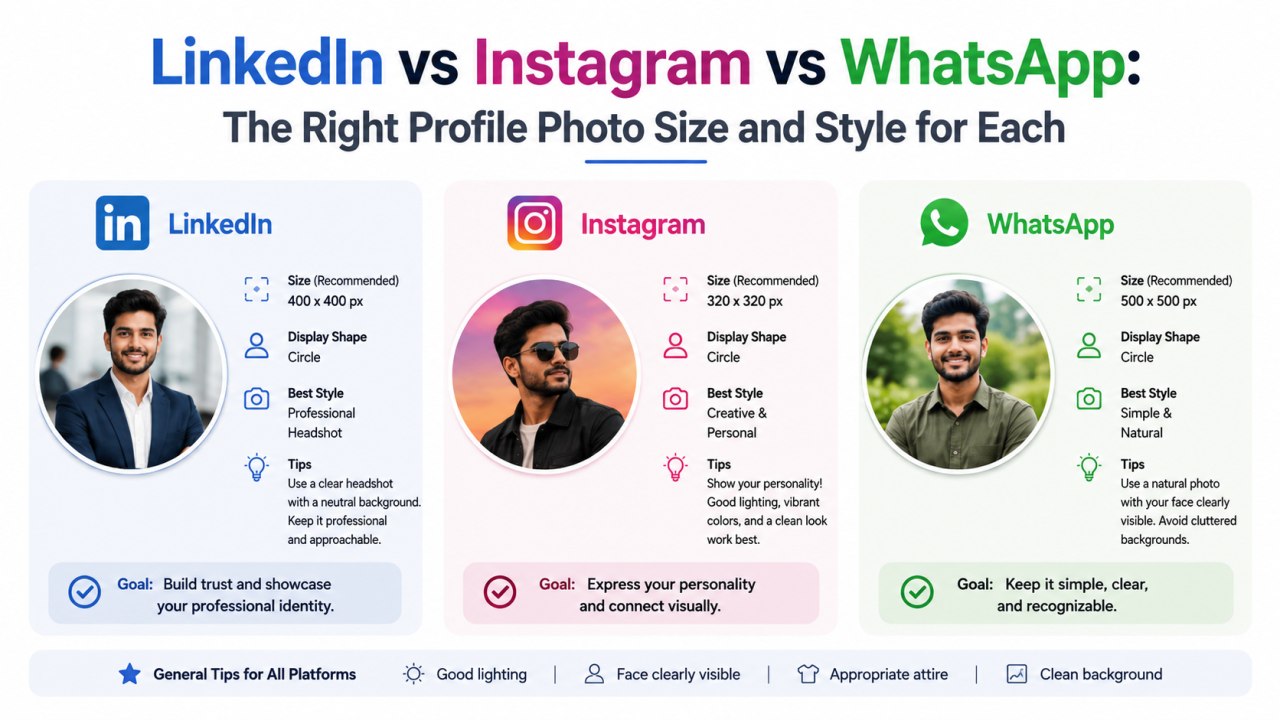
- Professional account: A simple, recent headshot with a neutral background.
- Personal social account: A relaxed image that does not reveal your home, school, or routine.
- Private messaging account: A low-detail portrait, avatar, or non-identifying image if you communicate with unfamiliar people.
- Public creator account: A recognizable brand image, logo, or carefully selected portrait.
A recruiter needs to recognize a candidate on LinkedIn. A person selling items through local groups may want a profile image that feels genuine without revealing family members or their home.
Remove Unnecessary Identifiers
Before uploading, inspect the full image—not just your face. Avoid photos that reveal:
- House numbers, street signs, license plates, or workplace signage
- School uniforms, children’s names, or event badges
- Travel details that indicate where you are right now
- Highly recognizable daily locations
- Sensitive documents or screens in the background
Cropping is useful, but it is not foolproof. Keep the original image private and upload only the version intended for public viewing.
Facebook Profile Photo Privacy: What You Can and Cannot Hide
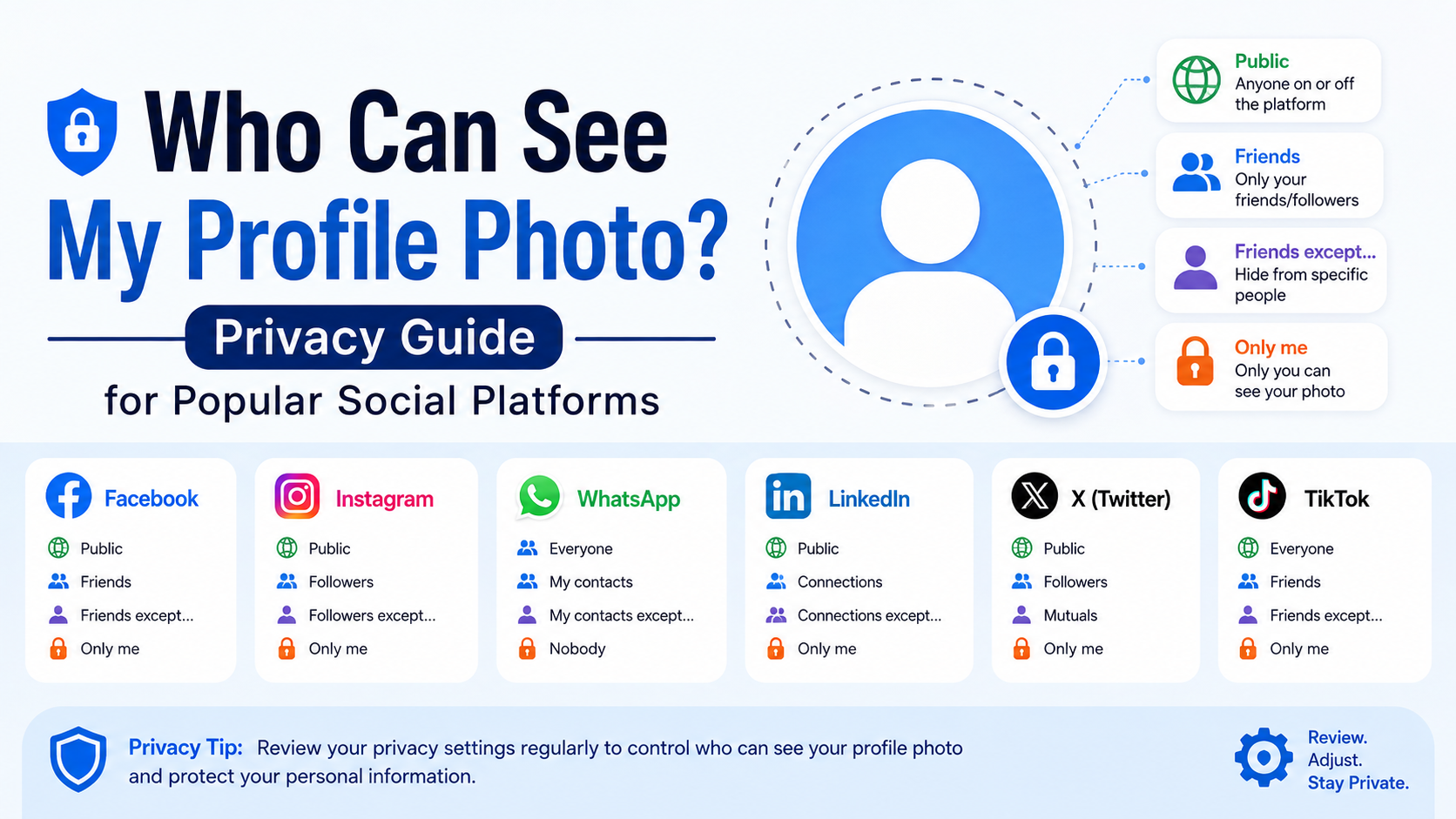
Facebook’s current profile photo is generally public. Meta states that current profile pictures and cover photos can be seen by anyone on or off Facebook, even if other parts of your profile are restricted. Facebook Help Center
Current vs. Previous Profile Pictures
The key distinction is between your current image and older ones.
- Your current profile picture is public.
- A previous profile picture can often have its audience adjusted or be deleted.
- The thumbnail may appear next to your name in posts, comments, and other areas of Facebook.
If you need a private Facebook presence, use a photo you would be comfortable showing publicly. Then review the Profile Pictures album for older images that may reveal more than you intend.
Practical Facebook Privacy Steps
- Open your profile and select Photos.
- Review the Profile Pictures album.
- Open old images individually and adjust the audience where available, or delete them.
- Use View As to inspect what non-friends can see.
- Review external search-engine linking in your privacy settings.
Facebook’s View As tool is particularly useful because it shows the public-facing version of your profile. Facebook Help Center
Instagram: Private Accounts Still Need a Public-Safe Photo
A private Instagram account restricts who can see your posts, Stories, and follower-approved content. However, account-level privacy is not a reason to assume every profile element is hidden from people outside your follower list.
Keep Your Profile Identity Minimal
For a private account, use a photo that identifies you to approved followers without exposing more than necessary. A close-cropped portrait or simple avatar is often enough.
Avoid using:
- Children or other people who have not agreed to be featured
- Your front door, office, car, or neighborhood landmark
- A photo that you also use on public dating, work, or marketplace accounts
Review Related Discovery Settings
Profile photo privacy is affected by more than the image itself. Review who can:
- Follow you and view your approved content
- Mention or tag you
- Message you or add you to groups
- Find your account through synced contacts
- See content you are tagged in
If you use Instagram for both private life and public work, consider separate accounts. A public professional account can use a brand-oriented headshot, while a private personal account can use a less searchable image.
WhatsApp: Limit Visibility to Trusted Contacts
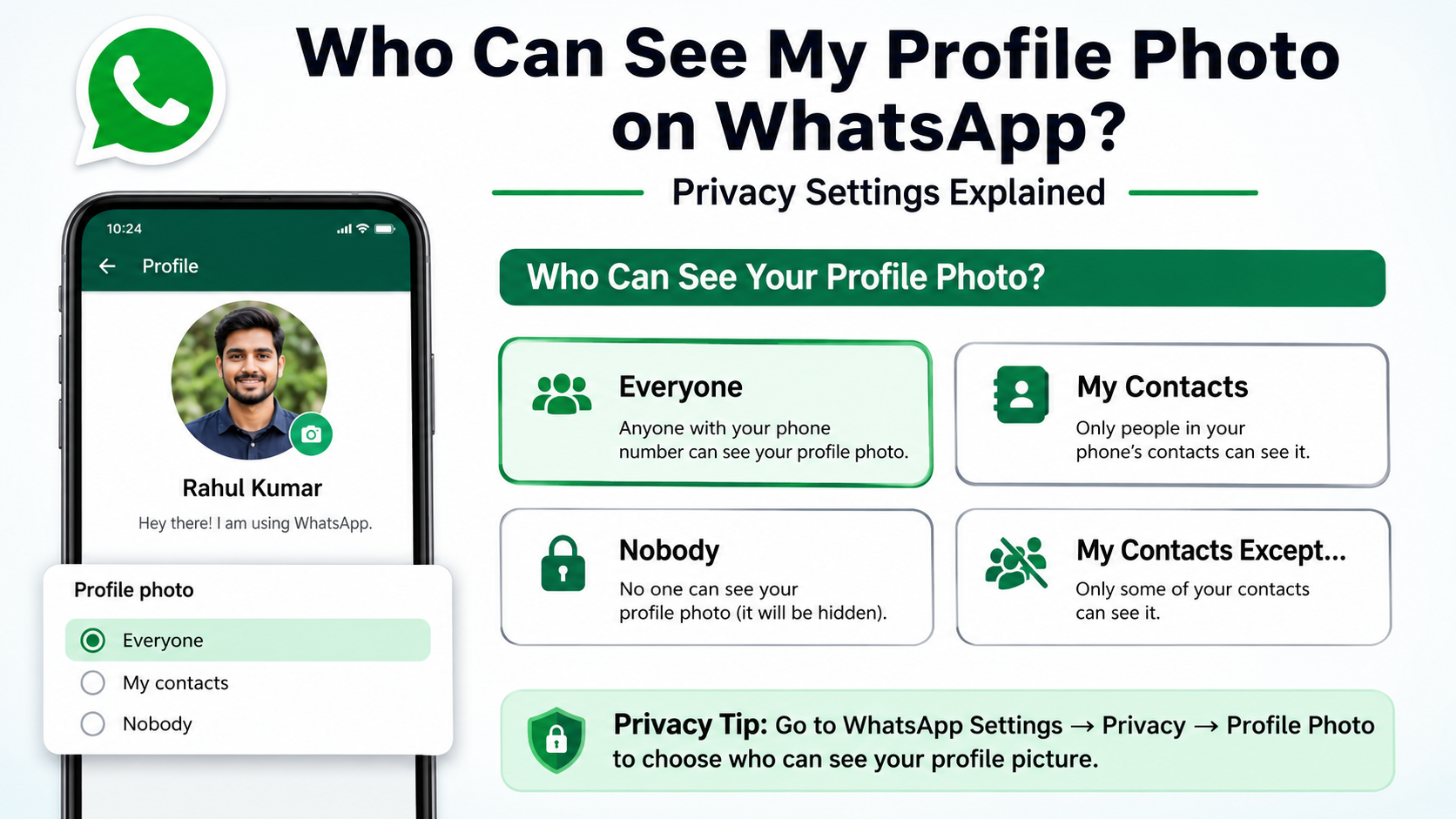
WhatsApp offers one of the more useful profile photo privacy controls. In its privacy settings, you can typically choose who sees your profile photo, such as everyone, your contacts, everyone except selected contacts, or nobody.
Choose the Right Audience Option
A practical approach is:
- Everyone: Suitable only if you use WhatsApp publicly for a business or community role.
- My Contacts: A strong default for most people.
- My Contacts Except: Best for excluding acquaintances, customers, former colleagues, or specific people.
- Nobody: Appropriate when you regularly communicate with strangers or want maximum separation.
For example, a consultant who receives client inquiries through WhatsApp may choose “My Contacts Except” to prevent unknown leads from seeing a personal photo until trust is established.
Pair Photo Privacy With Messaging Controls
Profile image visibility is only one part of WhatsApp privacy. Also review:
- Last seen and online status
- About information
- Status updates
- Read receipts
- Group invitations
- Blocked contacts
If your WhatsApp photo reveals your employer, children, or living space, restricting it to contacts is a simple but meaningful safeguard.
LinkedIn: Balance Professional Visibility and Privacy
LinkedIn is designed for professional discovery, so a visible photo can improve recognition and credibility. Unlike many social platforms, LinkedIn provides specific photo-visibility options, including first-degree connections, your network, LinkedIn members, and anyone. LinkedIn Help
Select Visibility Based on Your Career Goal
- Anyone: Useful for job seekers, consultants, speakers, and public-facing professionals.
- All LinkedIn members: Limits some off-platform exposure while remaining discoverable within LinkedIn.
- Your network: A reasonable option for established professionals who prioritize privacy.
- 1st-degree connections only: Best for people with sensitive roles or a limited networking need.
A public-facing designer may benefit from broad visibility. An employee in a security-sensitive role may prefer visibility limited to existing connections.
Review Public Profile and Search Visibility
Your LinkedIn photo can have separate implications for people browsing LinkedIn and people finding your profile through search engines. Review your public-profile settings in addition to the photo’s own visibility controls.
Do not assume that a polished LinkedIn photo must include your company office, ID badge, or a recognizable workplace background. A plain, well-lit background looks more professional and reveals less.
X and TikTok: Private Content Does Not Always Mean a Private Photo
On public-first platforms, profile identity often remains broadly visible even when you protect posts or videos.
X: Protect Posts, but Audit Your Entire Profile
X lets you protect posts so that only approved followers can see them. Public posts are visible to anyone by default, while protected posts are restricted to followers. X Help
However, protecting posts should not be treated as a guarantee that every profile detail is hidden. Use a profile image that is safe for a broader audience, and review your name, bio, location, links, and previous public activity.
TikTok: Profile Photos Remain Visible
TikTok states that your nickname, username, and profile photo remain visible to anyone on or off TikTok, whether the account is public or private. TikTok Support
That makes profile-photo choice especially important. A private TikTok account can protect videos and follower access, but it cannot make a profile image fully private.
Use a cropped headshot, illustration, or branded icon if you want to post privately without putting a detailed personal photo in public view.
Perform a Regular Profile Photo Privacy Audit
Privacy controls change, and an old image can stay accessible long after you stop using it. Schedule a quick audit every few months—or immediately after a job change, move, breakup, or shift in online visibility.
Use This Five-Minute Checklist
- Search your name and usernames in a private browser window.
- Visit each profile while logged out, where possible.
- Check old profile-photo albums and remove unneeded images.
- Confirm account, follower, and public-profile settings.
- Review tagged photos and tagging approvals.
- Replace images containing outdated workplace, location, or family information.
Keep a Simple Replacement Plan
If you discover that an image is too exposed, act quickly:
- Replace your current photo with a safer one.
- Delete or restrict previous profile pictures.
- Remove public tags where possible.
- Ask friends or colleagues to remove reposts that create a risk.
- Report impersonation accounts using the platform’s reporting process.
Changing a profile photo does not erase screenshots, cached search results, or copies made by others—but it does stop the platform from presenting the old image as your current identity.
Frequently Asked Questions
Can someone see my profile photo if my account is private?
Possibly. Private-account settings usually limit posts and approved content, but some platforms still display profile photos, names, and usernames publicly. TikTok explicitly states that profile photos are visible regardless of whether an account is public or private. Always check the platform’s current rules before relying on account privacy alone.
Can I stop Google from showing my profile photo?
You can reduce future exposure by limiting public-profile visibility and disabling search-engine linking where the platform allows it. However, search engines may retain cached versions temporarily, and copied images on other websites require separate removal requests.
Is it safer to use an avatar instead of a real photo?
An avatar can reduce facial-image exposure and make cross-platform identification harder. It is a strong choice for pseudonymous accounts, community forums, and accounts used to contact unfamiliar people. For professional networking, a real but carefully chosen headshot may be more useful.
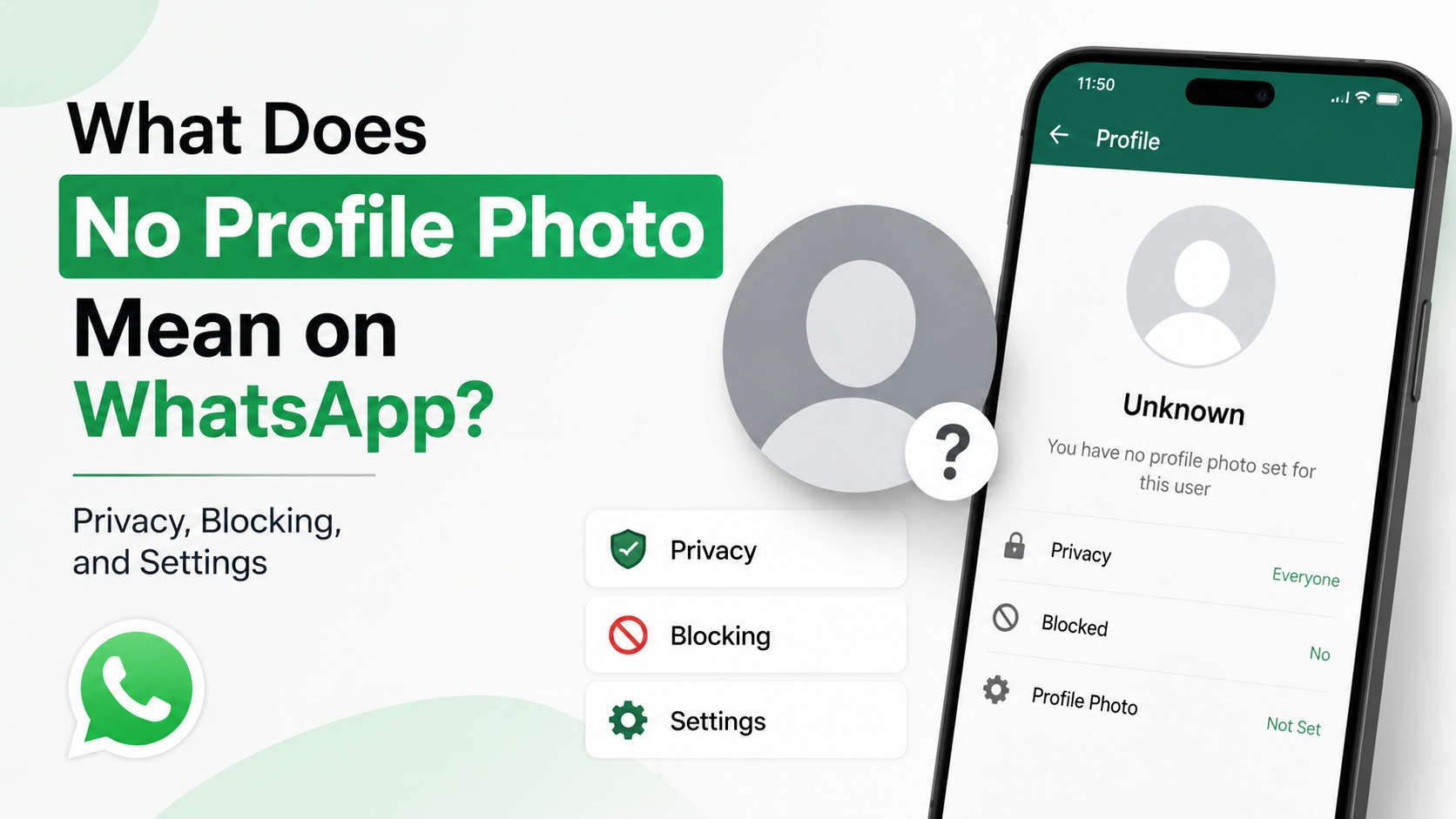
Can blocked users still see my profile photo?
Blocking generally prevents a person from interacting with or accessing your profile through their blocked account, but it cannot remove copies they saw or saved previously. It also does not prevent them from viewing public information through a different, unblocked account.
Should I use the same profile picture everywhere?
Usually, no. Reusing one image makes it easier to connect your accounts through reverse-image search or visual recognition. Use a professional headshot for work platforms, a more limited photo for personal accounts, and an avatar or logo for public-facing accounts where privacy matters most.
Conclusion
Profile photo privacy is not about becoming invisible online. It is about making deliberate choices: use an image appropriate for the account, understand each platform’s visibility limits, and audit old photos before they become an overlooked public record.
Start today by reviewing your current profile picture on every social platform you use. Replace any image that reveals more than you intended, restrict old photos where possible, and choose a visibility level that supports both your personal privacy and professional goals.
Advertisement