August 19, 2026 · Updated August 23, 2026 · 12 min read
Which Color Profile Is Best for Photoshop? sRGB, Adobe RGB, and CMYK Explained
On this page
- What Is a Color Profile in Photoshop?
- sRGB: The Best Photoshop Color Profile for Most Digital Work
- Adobe RGB: Best for High-Quality Photography and Print
- CMYK: Best for Commercial Print—But Only with the Right Profile
- How to Choose the Best Photoshop Color Profile by Project Type
- Recommended Photoshop Color Settings
- Convert to Profile vs. Assign Profile in Photoshop
- Soft Proofing: See Print Limitations Before You Print
- Frequently Asked Questions
- Conclusion
Which Color Profile Is Best for Photoshop? sRGB, Adobe RGB, and CMYK Explained
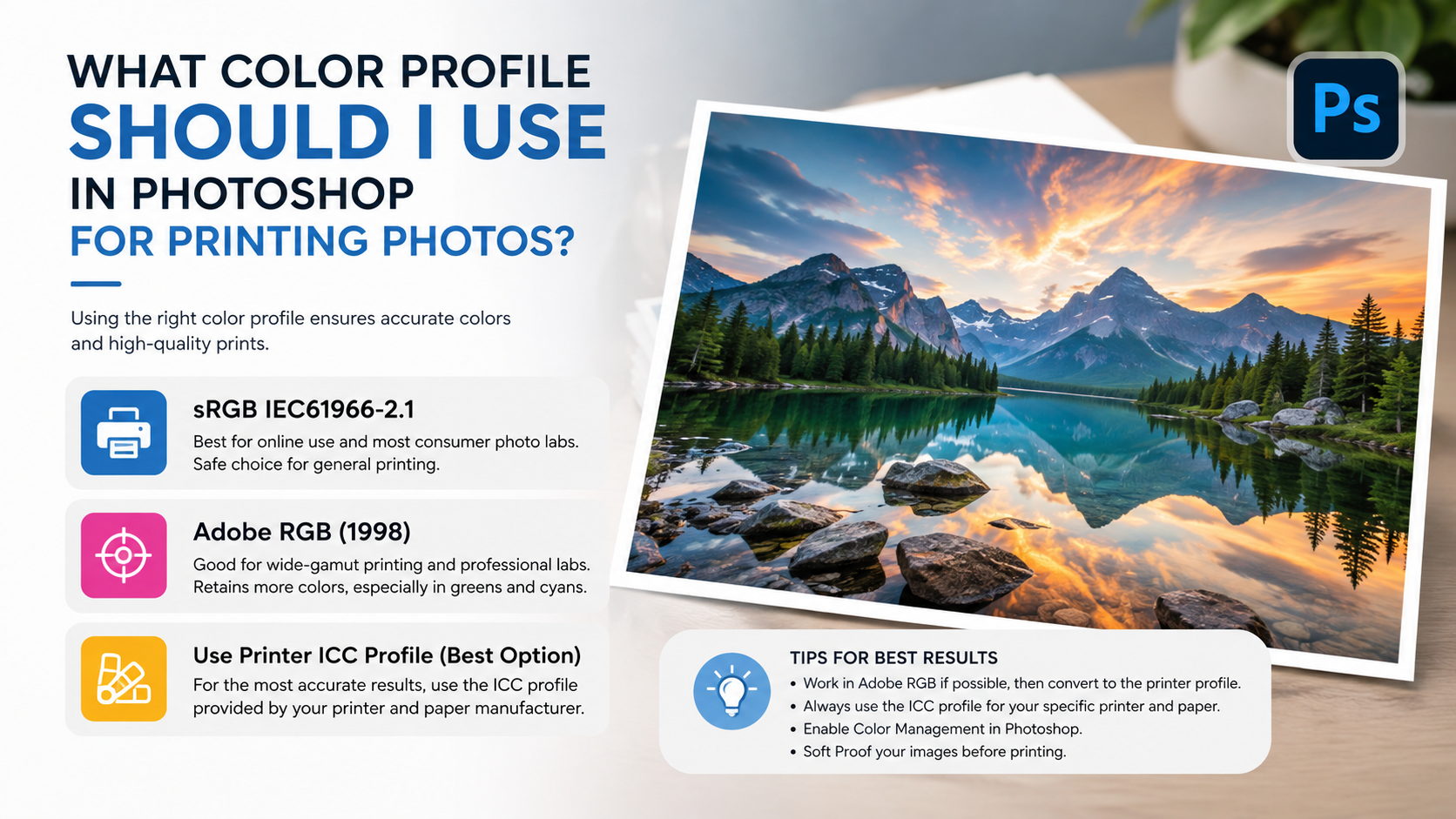
Choosing the best Photoshop color profile can feel confusing because there is no single “best” option for every project. The right profile depends on where your work will appear: a website, social media platform, professional photo print, product packaging, magazine, or large-format display.
Color profiles tell Photoshop how to interpret and display color values. Without them, a vivid blue on your calibrated monitor may become dull online or print with an unexpected purple cast. Understanding when to use sRGB, Adobe RGB, and CMYK helps you keep color predictable from first edit to final output.
Key Takeaways
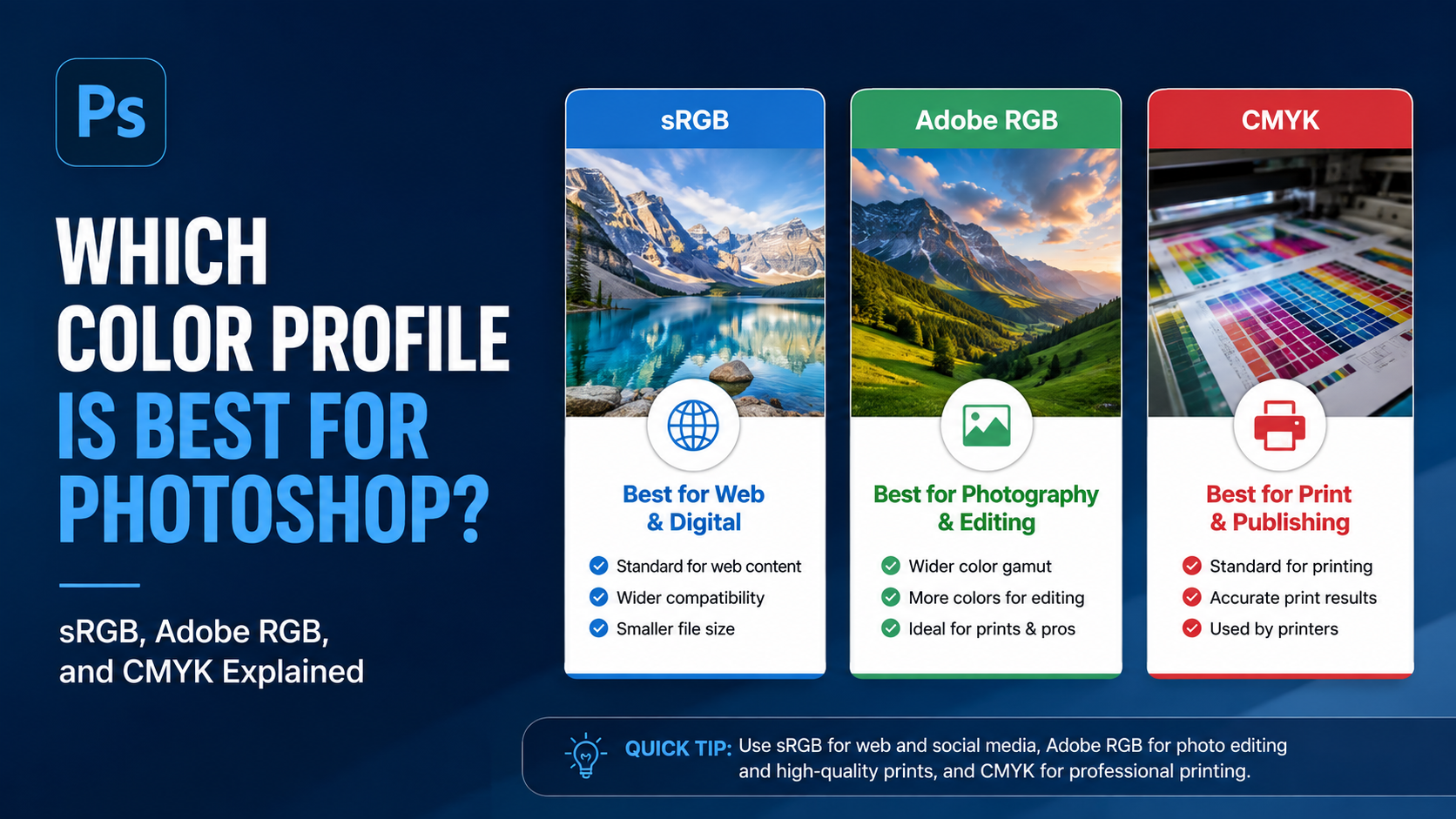
- Use sRGB as the default for websites, social media, email, and most everyday digital images.
- Use Adobe RGB (1998) when editing high-quality photographs intended for capable printers or controlled print workflows.
- Use CMYK only when a printer or publication specifically requires it, using their recommended ICC profile.
- Keep photos in RGB while editing whenever possible; convert to CMYK near the end of a print workflow.
- Embed the correct color profile when exporting files so other devices and applications interpret colors properly.
- Soft-proof print jobs in Photoshop before converting to identify out-of-gamut colors early.
What Is a Color Profile in Photoshop?
A color profile is a set of instructions—usually an ICC profile—that defines how color values should appear. A pixel with RGB values of 255, 0, 0 is technically “red,” but the exact shade of red can vary depending on the color space used.
Photoshop uses profiles to translate colors between devices and outputs, including:
- Cameras
- Monitors
- Printers
- Web browsers
- Mobile screens
- Commercial printing presses
Color Space vs. Color Profile
These terms are often used interchangeably, but they are slightly different.
A color space is a range of colors a system can represent. sRGB, Adobe RGB, and CMYK are common examples. A color profile defines how that particular color space should behave on a specific device or workflow.
For example:
- sRGB IEC61966-2.1 is the most common profile for web images.
- Adobe RGB (1998) is a wider-gamut RGB profile often used in photography.
- A CMYK profile such as Coated GRACoL 2006 or a printer-provided ICC profile describes expected press behavior.
Why Profiles Matter
When a file has no embedded profile, Photoshop and other applications must guess how to display it. That guess can cause visible color shifts.
A common real-world example is a designer exporting a saturated logo in Adobe RGB for a website. On a color-managed display it may look fine, but on older browsers, apps, or devices, the colors can look muted or incorrect. Converting the file to sRGB before export prevents that issue.
sRGB: The Best Photoshop Color Profile for Most Digital Work
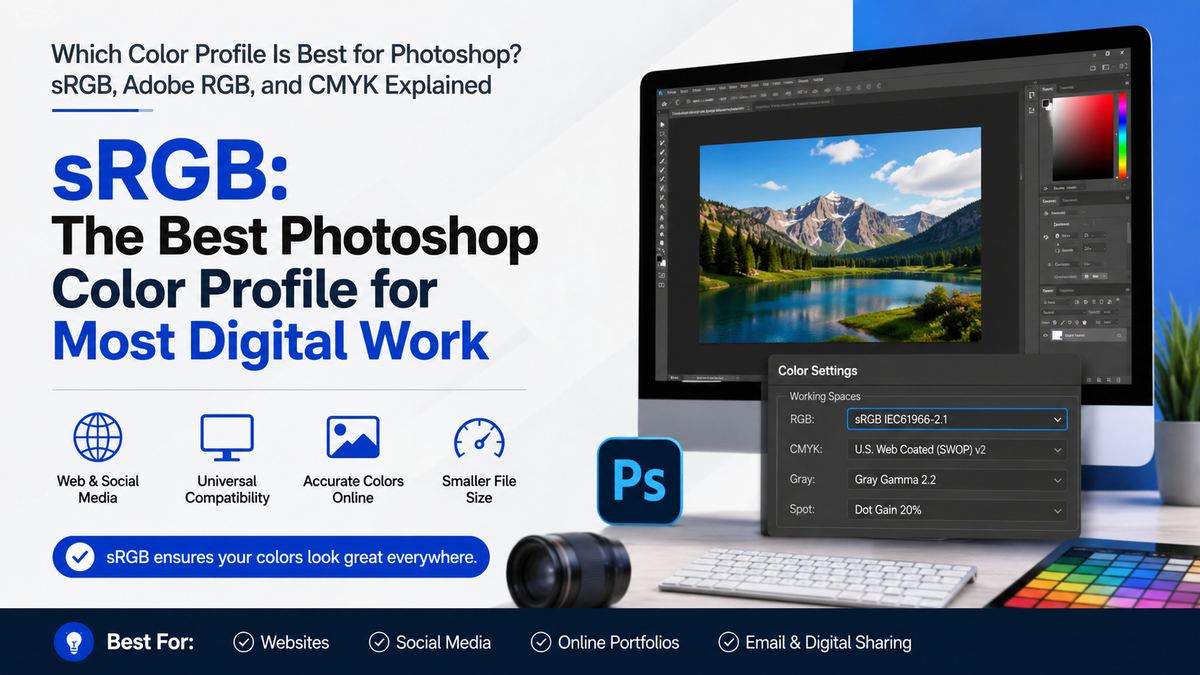
For most people, sRGB is the best Photoshop color profile. It is the standard color space for the web and is broadly supported by browsers, operating systems, phones, tablets, social platforms, and consumer printers.
When to Use sRGB
Use sRGB for:
- Website images
- Blog graphics
- Social media posts
- Email marketing graphics
- Presentation slides
- Screenshots
- Online portfolios
- Most client previews
- Everyday digital photography
If an image will primarily be viewed on screens, sRGB is usually the safest choice.
Why sRGB Works So Well Online
sRGB has a smaller color gamut than Adobe RGB, meaning it cannot represent as many highly saturated colors. However, this limitation is also its strength: it creates a consistent baseline across countless devices.
Most screens and web platforms expect sRGB. When you use it, your colors are more likely to look similar for you, your client, and your audience.
For example, a food blogger publishing images on a website should export photos as sRGB. A slightly narrower color range is far better than having rich reds and greens display unpredictably across browsers.
sRGB Limitations
sRGB is not ideal when your output device can reproduce a larger gamut, such as a professional inkjet printer or a high-end commercial print process. You may lose some intense greens, cyans, and other saturated colors when editing entirely in sRGB.
That does not mean sRGB is poor quality. It simply means it is optimized for compatibility rather than maximum color range.
Adobe RGB: Best for High-Quality Photography and Print
Adobe RGB (1998) offers a wider color gamut than sRGB, especially in green and cyan areas. It is popular among photographers, retouchers, and designers preparing images for premium print workflows.
When Adobe RGB Is the Better Choice
Choose Adobe RGB when:
- You shoot RAW photos and want greater editing latitude
- You create fine-art or gallery prints
- You use a professional photo printer
- Your print lab specifically supports Adobe RGB
- You work on a calibrated, wide-gamut monitor
- Your client requests Adobe RGB files
A landscape photographer editing lush forests, turquoise water, or highly saturated flowers may benefit from Adobe RGB because it preserves more of those colors during editing.
Adobe RGB Requires a Managed Workflow
Adobe RGB is useful only when the rest of your workflow supports it. If you send an Adobe RGB file to a non-color-managed app or device, colors can appear dull because the device may interpret the values as sRGB.
Before using Adobe RGB, make sure you can answer “yes” to most of these questions:
- Is my monitor calibrated?
- Does my output device or printer support a wider gamut?
- Does my print lab accept Adobe RGB files?
- Will I convert web exports to sRGB?
- Do I understand how to embed color profiles?
If the answer is no, sRGB may produce more reliable results.
Adobe RGB vs. ProPhoto RGB
Some photographers use ProPhoto RGB, an even larger color space. It can be valuable for high-bit-depth RAW workflows but demands careful color management and is easier to misuse.
For most general and professional Photoshop users, Adobe RGB is a practical middle ground: broader than sRGB but less extreme than ProPhoto RGB.
CMYK: Best for Commercial Print—But Only with the Right Profile
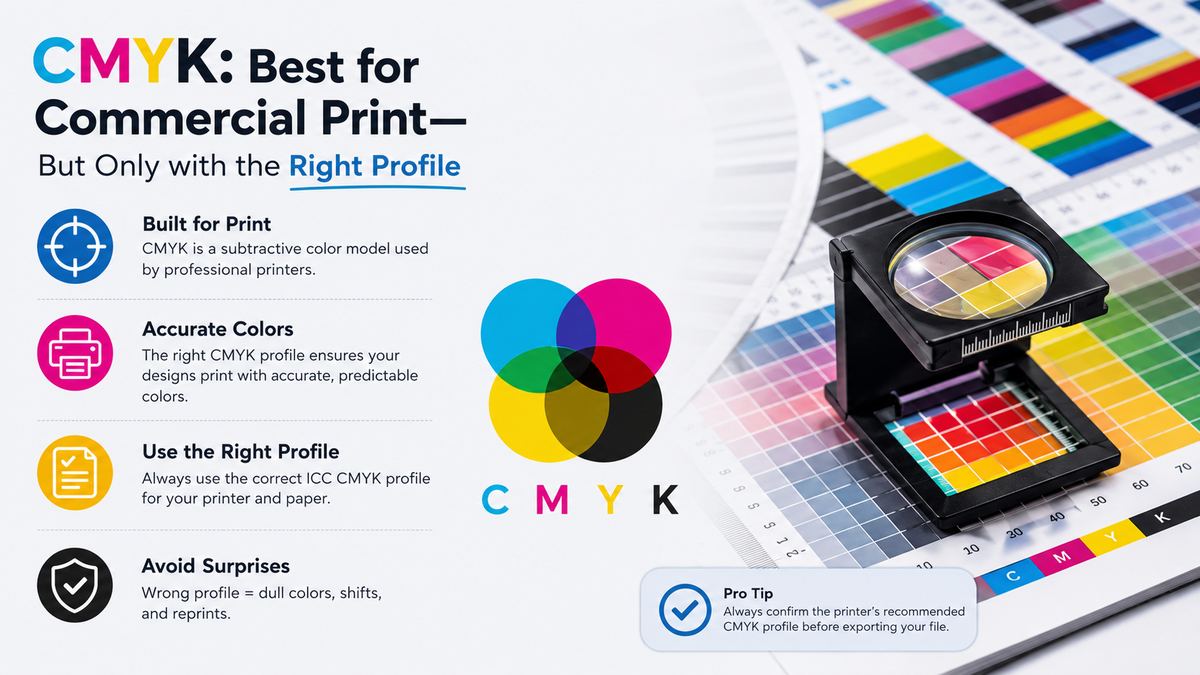
CMYK stands for cyan, magenta, yellow, and black. Unlike RGB, which creates color with light, CMYK creates color with ink. It is used for many printed materials, including brochures, magazines, packaging, catalogs, and signage.
When to Use CMYK in Photoshop
Use CMYK when:
- A commercial printer requests a CMYK file
- You are preparing artwork for an offset press
- You are designing packaging or print ads
- A publication provides a specific CMYK ICC profile
- You need to inspect ink coverage and print gamut
CMYK is not automatically the best format for anything that will be printed. Many modern print providers prefer RGB files and convert them using their own workflow. Always check the printer’s specifications first.
Why There Is No Single “Best” CMYK Profile
CMYK output depends on the printing process, paper stock, inks, press calibration, and region. A coated magazine stock and an uncoated business card stock will reproduce color differently.
Your printer may request a profile such as:
- Coated GRACoL
- U.S. Web Coated (SWOP)
- FOGRA39
- PSO Coated v3
- A custom printer ICC profile
Using the wrong CMYK profile can make photos darker, reduce shadow detail, or alter brand colors. A printer-provided profile is almost always the best choice.
Why You Should Avoid Converting to CMYK Too Early
CMYK has a smaller gamut than RGB. Once you convert an RGB image to CMYK, some color information is permanently reduced.
A better workflow is:
- Edit the original image in RGB.
- Keep layers and adjustment flexibility intact.
- Soft-proof using the printer’s CMYK profile.
- Make selective corrections if needed.
- Convert a final copy to CMYK only when required.
This preserves the strongest master file while producing a print-ready version.
How to Choose the Best Photoshop Color Profile by Project Type
The best choice becomes simpler when you start with the final destination.
For Websites, Social Media, and Digital Marketing
Use sRGB.
This includes Instagram graphics, YouTube thumbnails, ecommerce images, website banners, online ads, and newsletters. Convert to sRGB before export and embed the profile whenever possible.
Example: A marketing team designing banner ads should work in RGB and export final PNG or JPEG files in sRGB. A CMYK conversion would only reduce available color and create unnecessary complications.
For Professional Photography Prints
Use Adobe RGB or the print lab’s recommended RGB profile.
If your lab accepts Adobe RGB and your display is calibrated, it can preserve a wider range of printable color. If the lab requests sRGB, follow its specifications—even for premium prints.
Example: A wedding photographer may edit a master image in Adobe RGB, then export sRGB files for an online gallery and separate print files according to the lab’s submission requirements.
For Magazines, Packaging, and Offset Printing
Use the printer’s requested CMYK profile.
Do not assume Photoshop’s default CMYK setting matches your printer. Request the production specifications before finalizing artwork.
Example: A packaging designer should receive the printer’s ICC profile, total ink limit, black-generation requirements, and spot-color instructions before converting final art.
Recommended Photoshop Color Settings
Photoshop’s color settings control how it handles new documents and files with embedded profiles.
A Practical Default Setup
For general digital work, consider these settings in Edit > Color Settings:
- RGB Working Space: sRGB IEC61966-2.1
- CMYK Working Space: Your regional or printer-recommended CMYK profile
- Color Management Policies: Preserve Embedded Profiles
- Profile Mismatches: Ask When Opening
- Missing Profiles: Ask When Opening
These settings help Photoshop preserve the original intent of incoming files instead of silently changing their colors.
Why “Preserve Embedded Profiles” Matters
If a client sends an Adobe RGB photo, Photoshop should retain that profile rather than automatically converting it to your default sRGB space. Preserving profiles prevents accidental color shifts and gives you control over when conversion happens.
When Photoshop asks about a profile mismatch, do not click through automatically. Check the intended destination of the file before deciding whether to preserve, convert, or assign a profile.
Convert to Profile vs. Assign Profile in Photoshop
These commands sound similar, but they do very different things.
Convert to Profile
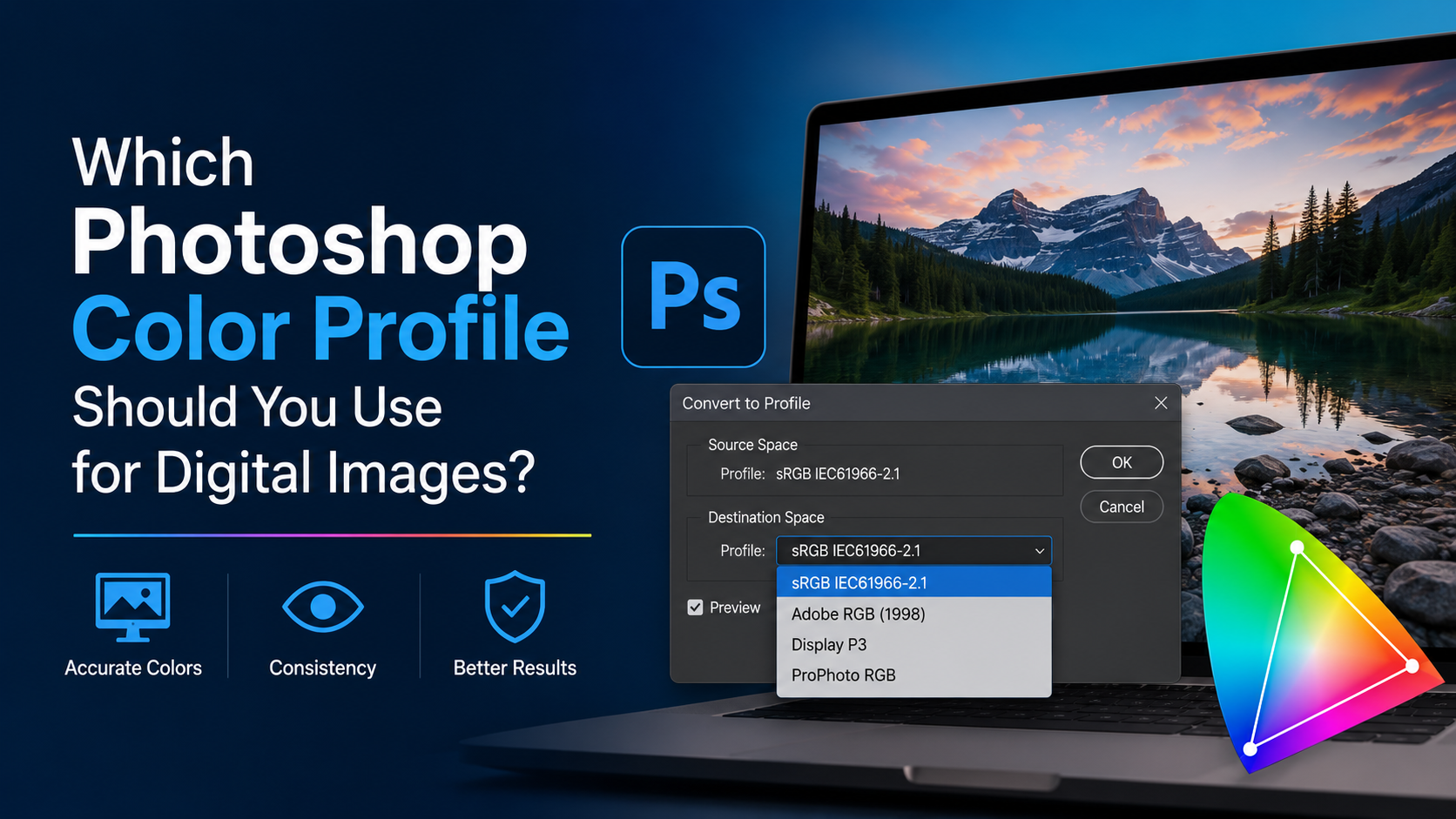
Use Edit > Convert to Profile when you want to change the document’s color space while maintaining its visual appearance as closely as possible.
For example, use Convert to Profile when exporting an Adobe RGB image for a website in sRGB.
The RGB numbers will change, but the image should retain a similar appearance in a color-managed workflow.
Assign Profile
Use Edit > Assign Profile only when the file has no profile or has been tagged incorrectly.
Assigning a profile changes Photoshop’s interpretation of the existing numbers. It can cause dramatic color changes if you choose the wrong one.
For example, if an untagged image was actually created in sRGB, assigning Adobe RGB will usually make it look less saturated or otherwise incorrect. Assignment is a repair tool, not a routine conversion method.
Soft Proofing: See Print Limitations Before You Print
Soft proofing simulates how a file may look under a specific printer and paper profile. It is one of the most useful color-management features for professional Photoshop work.
How to Soft-Proof in Photoshop
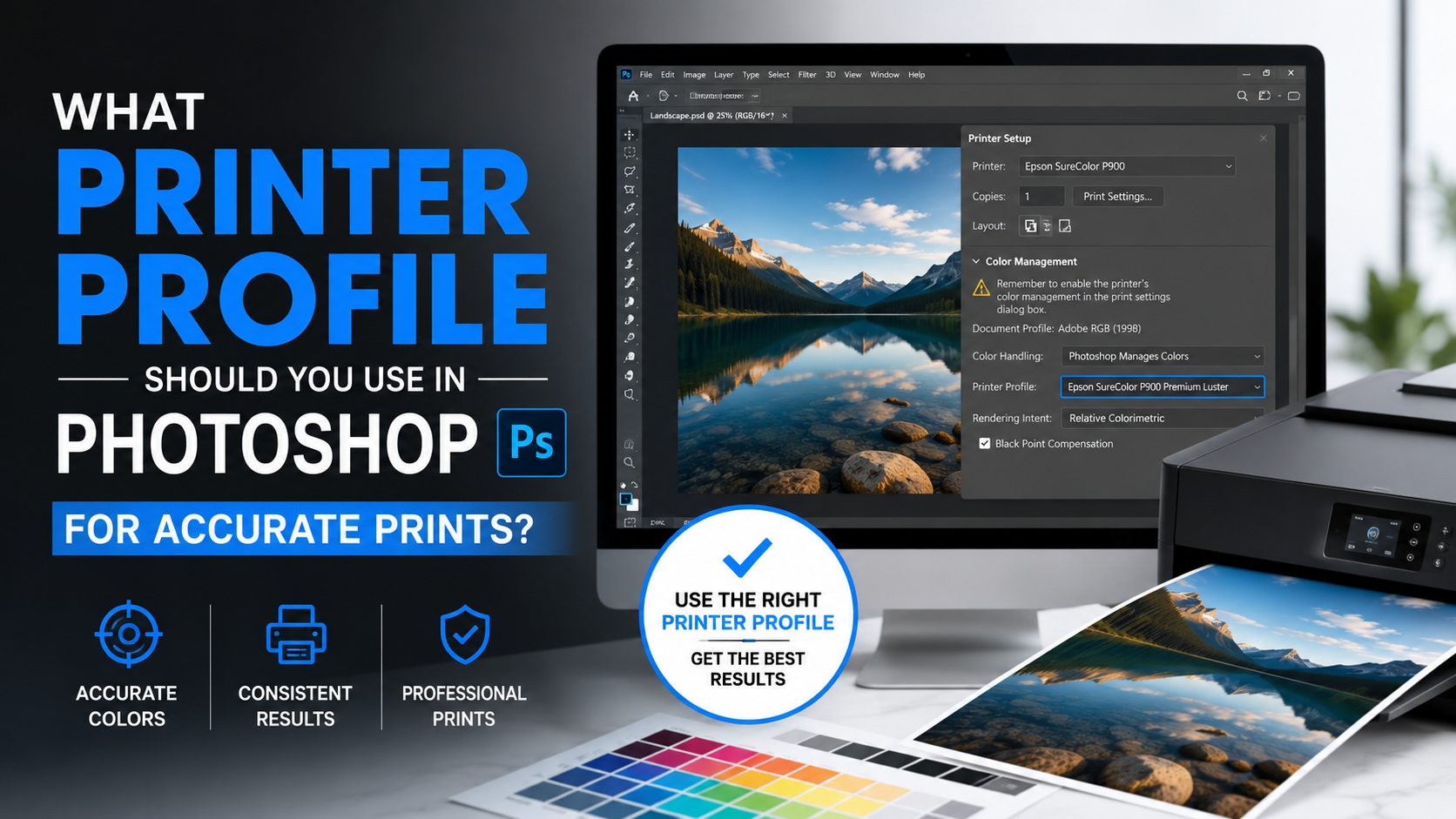
Go to View > Proof Setup > Custom, then select the printer’s ICC profile. Enable options such as:
- Preserve RGB Numbers, when appropriate for a specific workflow
- Black Point Compensation
- Simulate Paper Color
- Simulate Black Ink
Then toggle View > Proof Colors to compare the proofed and unproofed versions.
What to Look For
Pay close attention to:
- Neon or saturated colors losing intensity
- Dark shadows becoming blocked up
- Bright highlights losing detail
- Brand colors shifting
- Neutral grays taking on a color cast
If important colors fall outside the printer’s gamut, use targeted adjustment layers to refine them before producing the final CMYK file.
Frequently Asked Questions
Is sRGB or Adobe RGB better for Photoshop?
sRGB is better for general digital use because it provides broad compatibility across screens, browsers, and platforms. Adobe RGB is better for advanced photography and print workflows that support its wider gamut. The best choice depends on your final output.
Should I use CMYK when creating something that will be printed?
Not necessarily. Many printers prefer RGB files and perform their own CMYK conversion. Use CMYK only when the printer, publisher, or production workflow specifically requests it. Always ask for the required ICC profile.
What color profile should I use for Instagram and social media?
Use sRGB. It is the safest profile for Instagram, Facebook, LinkedIn, X, Pinterest, and most other social platforms. Exporting in sRGB reduces the risk of unexpected color shifts after upload.
Does converting Adobe RGB to sRGB reduce quality?
It reduces the available color gamut, but it does not inherently lower image resolution, sharpness, or file quality. For web delivery, converting to sRGB is usually the correct choice because it improves consistency across devices.
Should I embed the color profile when exporting from Photoshop?
Yes. Embed the profile whenever the export format and destination support it. An embedded profile tells browsers, apps, and other software how to interpret your file’s colors correctly.
Conclusion
The best Photoshop color profile depends on where your image will end up. Use sRGB for dependable digital and web color, Adobe RGB for controlled high-quality photography and wider-gamut print work, and CMYK only when a commercial printer requires a specific production profile.
Build your workflow around the final output, preserve embedded profiles, avoid early CMYK conversions, and soft-proof important print jobs. Set up Photoshop’s color settings today, then create separate export versions for web and print so every project looks intentional wherever it appears.