August 19, 2026 · Updated August 23, 2026 · 12 min read
What Should the Color Profile Be in Photoshop for Online Images?
On this page
- Why Color Profiles Matter for Online Images
- The Best Photoshop Color Profile Settings for the Web
- sRGB vs. Adobe RGB vs. ProPhoto RGB
- Convert to Profile vs. Assign Profile in Photoshop
- How to Export Images Correctly for the Web
- Managing Images From Cameras, Designers, and Clients
- Display P3 and Wide-Gamut Screens: Should You Use Them?
- How to Check Whether an Image Uses sRGB
- Frequently Asked Questions
- Conclusion
What Should the Color Profile Be in Photoshop for Online Images?
A perfectly edited image can still look wrong once it is uploaded. Colors may appear muted on a website, overly saturated on a phone, or noticeably different in a client’s browser. In most cases, the issue is not the edit—it is the color profile.
Understanding Photoshop color profile settings is essential for anyone creating images for websites, social media, email, online stores, portfolios, or digital ads. The right setup helps your images retain their intended appearance across the widest possible range of screens and browsers.
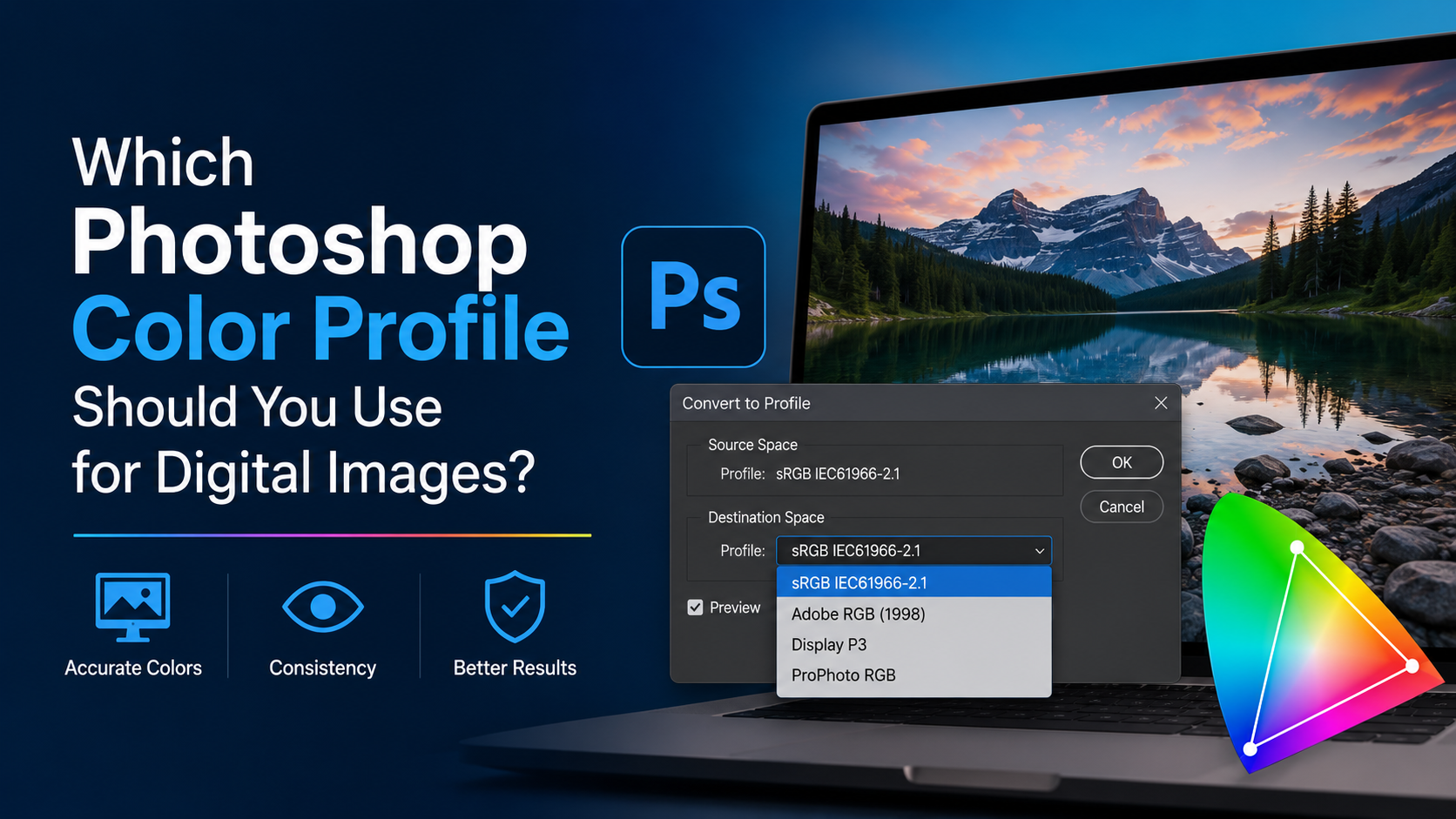
For nearly every online use case, the answer is simple: use sRGB. The details, however, matter. Your working space, embedded profile, export method, and source files all influence the final result.
Key Takeaways
- Use sRGB IEC61966-2.1 as the default color profile for web and social media images.
- Embed the sRGB profile when exporting to improve color consistency across modern browsers and devices.
- Convert images to sRGB before saving for online use; do not simply assign an sRGB profile.
- Use wider color spaces such as Adobe RGB or ProPhoto RGB only when your workflow requires them before web export.
- Check Photoshop’s Color Settings to prevent unwanted profile mismatches.
- Export with “Convert to sRGB” enabled when using Photoshop’s Export As or Save for Web tools.
Why Color Profiles Matter for Online Images
A color profile is a set of instructions that tells a device how to interpret the numerical color values in an image. For example, an RGB value of 255, 0, 0 may display differently depending on whether the file uses sRGB, Adobe RGB, or ProPhoto RGB.
Without a profile, software and devices must make assumptions. Those assumptions can lead to color shifts.
The Challenge of Different Screens
Online images are viewed on a huge variety of displays:
- Office monitors
- High-end wide-gamut displays
- Smartphones and tablets
- Older laptops
- TVs and digital signage
- Browsers with different color-management behavior
A color-managed workflow cannot make every display identical, but it can make your image more predictable. sRGB is the safest common standard because it is the color space most widely expected by web browsers, operating systems, and consumer devices.
What Happens When Profiles Are Missing or Incorrect
When an image is exported with the wrong profile—or without one—common problems include:
- Oversaturated reds, greens, and blues
- Flat or washed-out colors
- Inconsistent appearance between browsers
- Product images that do not match real-world items
- Branding colors that appear inaccurate
- Social media uploads that look different from the original file
For a business, these are not merely cosmetic issues. In ecommerce, inaccurate product color can contribute to confusion, returns, and lost buyer confidence.
The Best Photoshop Color Profile Settings for the Web
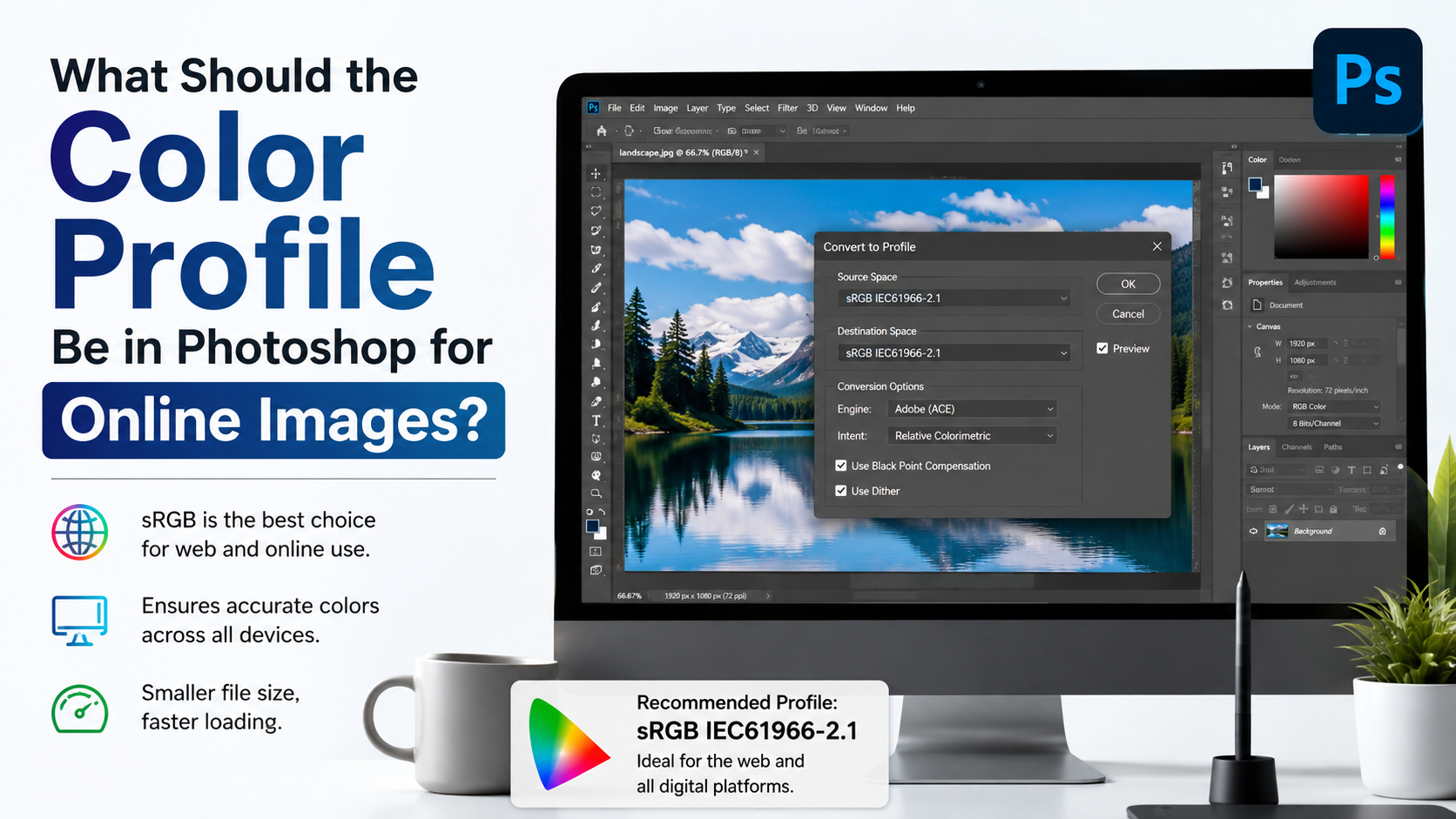
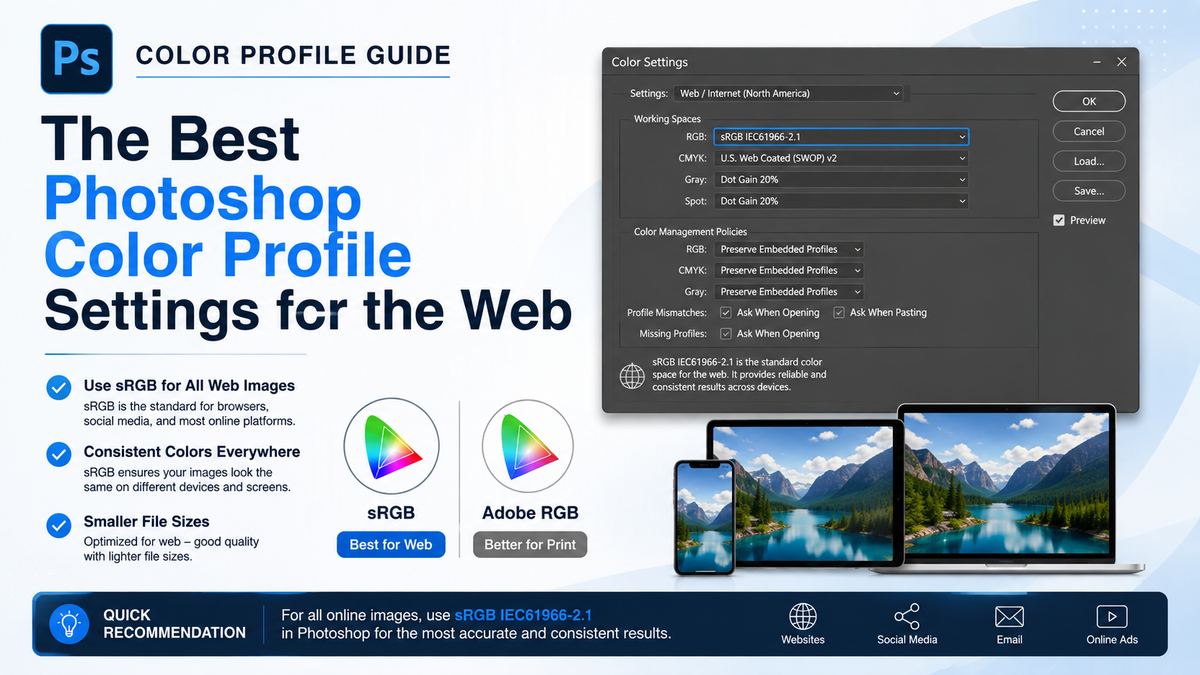
For online images, use sRGB IEC61966-2.1. This is Photoshop’s standard sRGB profile and the recommended choice for most digital publishing workflows.
Why sRGB Is the Web Standard
sRGB was designed to match the typical color capabilities of standard displays. Although newer devices may support wider color gamuts, sRGB remains the most reliable baseline for broad online viewing.
It is ideal for:
- Website images
- Blog graphics
- Social media posts
- Email marketing images
- Digital advertisements
- Ecommerce product photography
- Online portfolios
- Web banners and thumbnails
When an image is prepared in sRGB, a browser has clear instructions for displaying its colors. Even on wide-gamut screens, modern color-managed browsers can interpret the file correctly.
Recommended Color Settings in Photoshop
To review or update your settings, go to:
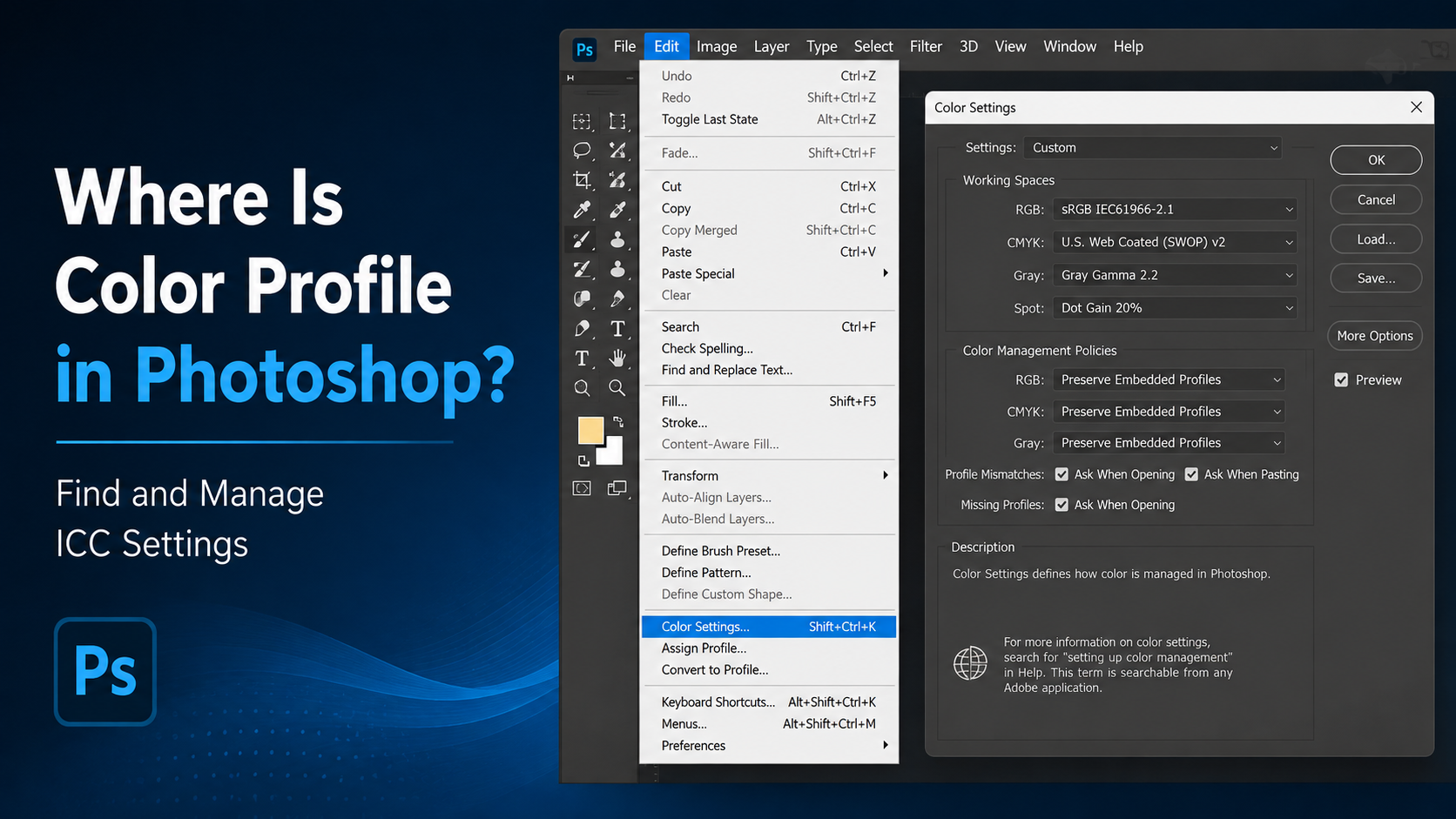
Edit > Color Settings
For a web-focused workflow, use these practical settings:
| Setting | Recommended Choice | |---|---| | RGB Working Space | sRGB IEC61966-2.1 | | CMYK Working Space | Depends on print provider | | Color Management Policies: RGB | Preserve Embedded Profiles | | Profile Mismatches | Ask When Opening | | Missing Profiles | Ask When Opening |
The most important setting is the RGB working space. Setting it to sRGB helps ensure that new documents are created with a web-friendly profile by default.
sRGB vs. Adobe RGB vs. ProPhoto RGB
Not every color space serves the same purpose. Choosing the right one depends on where the image will be used.
sRGB: Best for Online Publishing
sRGB has a smaller color gamut than Adobe RGB and ProPhoto RGB, but that is exactly why it is dependable for online work. It is the most universally supported option.
Use sRGB when the image will primarily appear online or when you need consistent color on the greatest number of devices.
Adobe RGB: Useful for Some Photography and Print Workflows
Adobe RGB contains a wider range of colors than sRGB, especially in greens and cyans. It can be useful when editing high-quality photographs intended for print or when working with wide-gamut displays.
However, uploading an Adobe RGB file directly to the web can cause problems in environments that do not handle embedded profiles properly.
A landscape photographer may edit a master image in Adobe RGB to preserve color detail, then create a separate sRGB copy for their website, Instagram, or client gallery.
ProPhoto RGB: Best Reserved for Advanced Editing
ProPhoto RGB offers an extremely large color gamut. It is often used in high-end RAW photography workflows because it can preserve more captured color information during editing.
Its downside is that it is not suitable as a final web delivery profile. Because its gamut is so wide, an unconverted ProPhoto RGB image can display dramatically differently on unmanaged devices.
A practical workflow is:
- Edit a master RAW image in ProPhoto RGB or Adobe RGB if needed.
- Keep that master file for archival and print purposes.
- Convert a duplicate to sRGB for online export.
Convert to Profile vs. Assign Profile in Photoshop
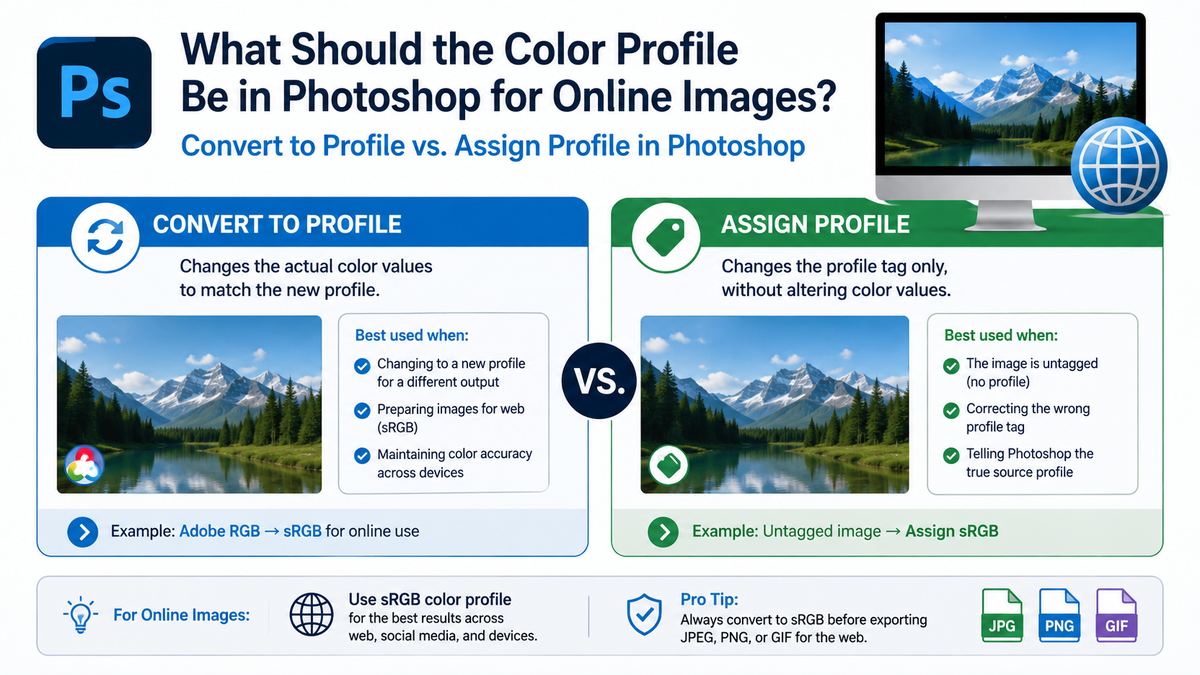
These two commands sound similar, but they do very different things. Confusing them is one of the fastest ways to create unexpected color shifts.
What “Convert to Profile” Does
When you choose:
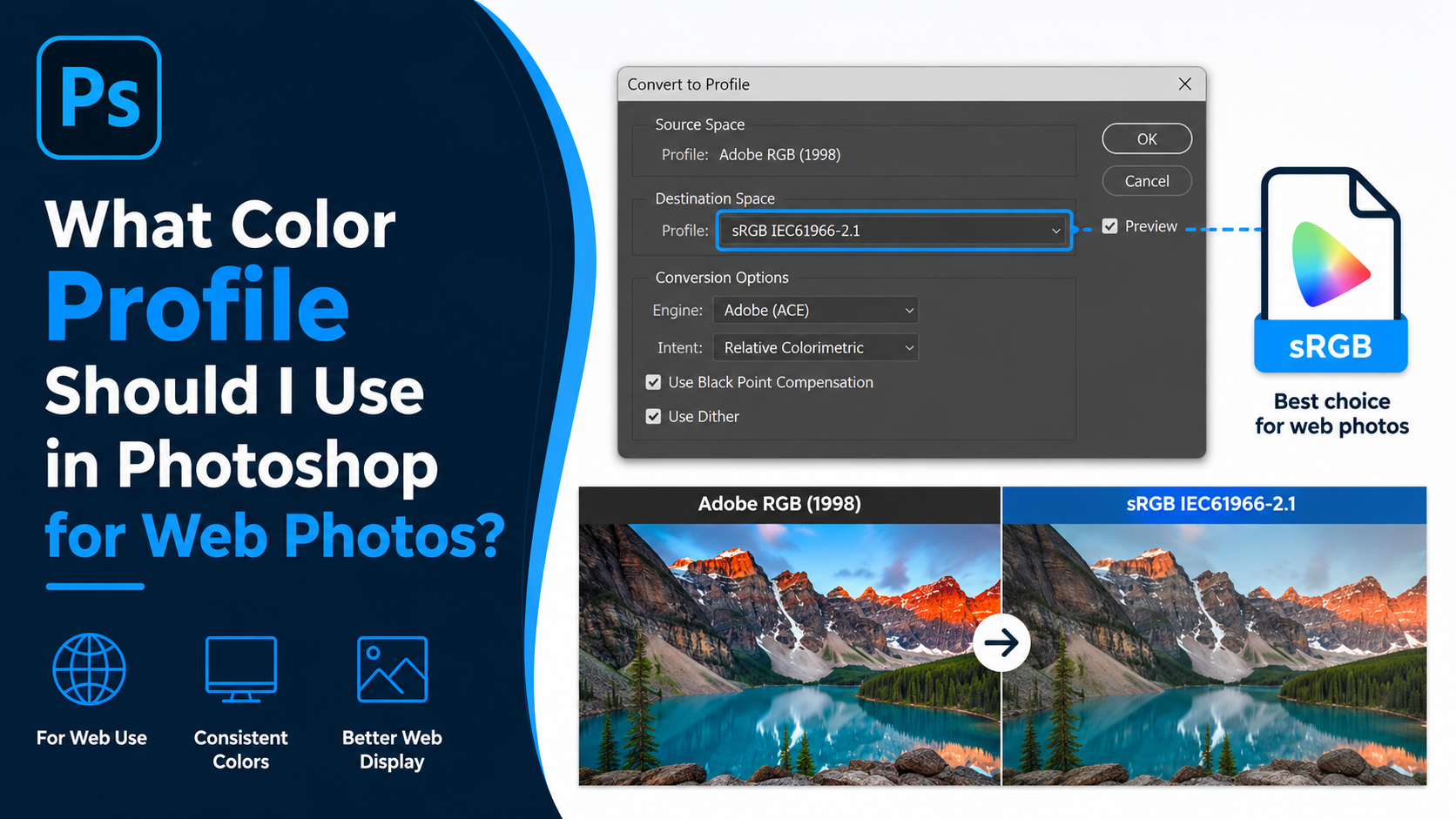
Edit > Convert to Profile
Photoshop changes the image’s color values to preserve its visual appearance as closely as possible in the new color space.
For example, converting an Adobe RGB image to sRGB adjusts the RGB numbers so the image continues to look similar within the smaller sRGB gamut.
For online delivery, this is the correct method.
What “Assign Profile” Does
When you choose:
Edit > Assign Profile
Photoshop attaches a new profile to existing RGB values without changing those values. As a result, the image’s appearance can shift significantly.
Assign Profile is useful only when a file has no profile or has been tagged incorrectly and you know which profile it was originally intended to use.
A Real-World Example
Imagine a logo file was designed in Adobe RGB and displays rich blue tones. If you use Assign Profile to label it as sRGB, Photoshop reinterprets the existing color values under the sRGB rules. The blue may look noticeably different.
If you use Convert to Profile instead, Photoshop recalculates the values so the logo remains visually closer to the intended blue.
For web images, choose Convert to Profile, not Assign Profile.
How to Export Images Correctly for the Web
Selecting sRGB in the document is important, but your export settings matter just as much.
Export As Settings
Go to:
File > Export > Export As
For most online JPEG, PNG, and GIF exports, use these settings:
- Enable Convert to sRGB
- Enable Embed Color Profile
- Choose appropriate image dimensions
- Select JPEG for photos and PNG for graphics requiring transparency
- Adjust quality to balance clarity and file size
“Convert to sRGB” is especially useful when your source document uses Adobe RGB, Display P3, or ProPhoto RGB.
Save for Web (Legacy) Settings
Photoshop’s legacy web export tool remains useful for detailed optimization. Access it through:
File > Export > Save for Web (Legacy)
Recommended settings include:
- Check Convert to sRGB
- Check Embed Color Profile
- Preview at 100% size
- Compare JPEG quality levels before exporting
For many photographs, JPEG quality between 60 and 80 provides a strong balance between visual quality and loading speed. Product images and portfolio work may justify higher quality settings.
PNG, JPEG, and WebP Considerations
Your profile choice should remain sRGB regardless of format.
- JPEG: Best for photographs and gradients.
- PNG: Best for logos, transparent images, screenshots, and sharp text.
- WebP: Often offers smaller file sizes while maintaining strong visual quality.
A well-optimized sRGB WebP image can improve page speed without changing your color-management approach.
Managing Images From Cameras, Designers, and Clients
Many files arrive in Photoshop with embedded profiles that differ from your standard workflow. Avoid automatically converting everything without checking first.
Opening Files With Embedded Profiles
When Photoshop alerts you to a profile mismatch, review the available choices carefully.
In most cases, select:
- Use the embedded profile when opening the file.
- Convert to your working space only when you understand the final use and need a consistent editing environment.
Preserving the embedded profile helps prevent Photoshop from changing the appearance unexpectedly during the initial opening process.
Handling Untagged Images
An untagged image has no embedded color profile. Photoshop cannot know how those RGB values were intended to look.
If you know the image came from a typical web source, assigning sRGB may be appropriate. If it came from a professional camera or older design workflow, investigate before assigning a profile.
When uncertain, compare how the image appears after assigning likely profiles such as sRGB and Adobe RGB. Choose the profile that most plausibly reflects the intended original appearance, then convert the file to sRGB for online use.
Working With Brand Assets
Brand colors need special care because a small shift can make a logo or campaign asset look wrong.
For brand assets:
- Obtain official RGB values from the brand guidelines.
- Build digital assets in sRGB unless another delivery requirement is specified.
- Test key colors on a calibrated display.
- Export a web-ready sRGB version separately from print-ready files.
- Avoid using CMYK files as the source for online graphics whenever possible.
Display P3 and Wide-Gamut Screens: Should You Use Them?
Display P3 is a wider-gamut color space commonly supported by newer Apple devices and other modern displays. It can show more vivid colors than sRGB, particularly in reds and greens.
When Display P3 Makes Sense
Display P3 can make sense for tightly controlled environments, such as:
- A native iOS or macOS app
- A premium digital art showcase
- A modern web experience tested extensively on color-managed browsers
- Content designed specifically for wide-gamut displays
However, it is not the best default for general web publishing. Not all devices, browsers, ad platforms, and social networks preserve or interpret P3 content consistently.
Why sRGB Is Still the Safer Default
Most websites serve diverse audiences. A visitor may view your image on a new iPhone, an older Windows laptop, or a low-cost Android device. sRGB creates the most dependable experience across that range.
If you work in Display P3, consider exporting two versions:
- A P3 version for controlled, high-end environments
- An sRGB version for standard web and social distribution
For most creators and businesses, the added complexity is unnecessary. sRGB remains the practical default.
How to Check Whether an Image Uses sRGB
Before uploading an image, verify its profile in Photoshop.
Check the Document Profile
Look at the bottom-left area of the Photoshop document window. Click the status information menu and select Document Profile. You should see:
RGB/8 - sRGB IEC61966-2.1
You can also check through:
Edit > Convert to Profile
The current profile appears in the document’s profile information.
Build a Simple Pre-Upload Checklist
Before publishing an image online, confirm:
- The document is converted to sRGB.
- The export includes an embedded color profile.
- The image dimensions match the destination.
- The file size is optimized for fast loading.
- The image looks correct in a browser preview.
- Any text, logo, or product color is still accurate at final size.
This small checklist prevents many of the color issues that otherwise appear after publication.
Frequently Asked Questions
Should I use sRGB or Adobe RGB for Photoshop web images?
Use sRGB for images intended for websites, social media, email, and most other online platforms. Adobe RGB is useful during some professional photography and print workflows, but you should convert the final web export to sRGB.
Should I embed the color profile when exporting from Photoshop?
Yes. Embed the sRGB profile whenever possible. Modern browsers and devices use that embedded information to display the image more accurately. The added file size is usually minimal compared with the consistency benefit.
Why do my Photoshop images look dull after uploading?
The image may have been edited in Adobe RGB, ProPhoto RGB, or Display P3 and then uploaded without being converted to sRGB. It may also be missing an embedded profile. Convert the image to sRGB, export again with the profile embedded, and compare the result in a modern browser.
Is “Convert to sRGB” enough when exporting?
In most cases, yes—provided you also use a sensible export format, dimensions, and quality level. Enabling “Embed Color Profile” adds another layer of reliability. It is also wise to check the exported image in a browser before publishing it broadly.
Can I use CMYK images online?
You should generally avoid using CMYK images online. Web browsers and digital screens are built around RGB color. Convert CMYK images to sRGB before exporting for online use to avoid dull, inaccurate, or inconsistent results.
Conclusion
The best Photoshop color profile for online images is sRGB IEC61966-2.1. It is the most widely supported standard and gives your images the best chance of looking consistent across browsers, devices, and platforms.
Set your RGB working space to sRGB for web-focused projects, preserve embedded profiles when opening files, use Convert to Profile for final delivery files, and enable both Convert to sRGB and Embed Color Profile during export. Make these Photoshop color profile settings part of your regular workflow, and your online images will look far more reliable wherever they appear.