August 19, 2026 · Updated August 23, 2026 · 13 min read
Should You Embed a Color Profile in Photoshop Files?
On this page
- What an Embedded Color Profile Actually Does
- Why You Should Usually Embed a Color Profile in Photoshop
- When You Should Always Embed a Profile
- When Not to Embed a Profile—or When to Follow Other Instructions
- Understanding Assign Profile and Convert to Profile
- Best Photoshop Settings for Color-Managed Workflows
- How to Export for Web, Social Media, and Digital Use
- Preparing Photoshop Files for Print
- A Practical File-Sharing Workflow for Teams
- Frequently Asked Questions
- Conclusion
Should You Embed a Color Profile in Photoshop Files?
A Photoshop file can look perfect on your screen and still appear noticeably different on another computer, in a web browser, or on a printed sheet. In many cases, the problem is not the artwork—it is missing color-management information.
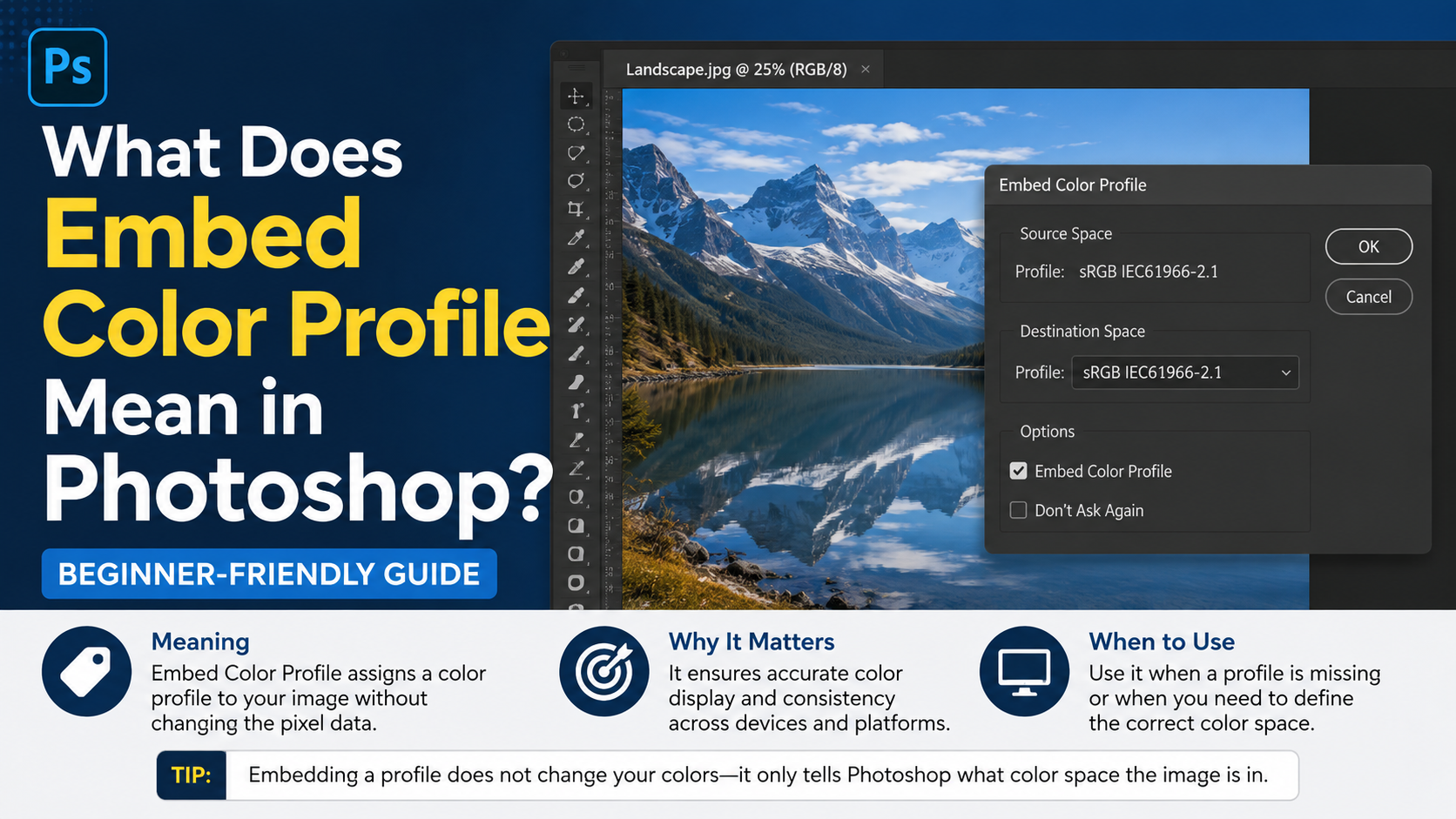
Choosing whether to embed color profile Photoshop files is one of the most important decisions in a reliable creative workflow. An embedded profile tells other software and devices how to interpret the numeric color values in your image. Without it, the same RGB or CMYK numbers can produce very different visual results.
For most professional workflows, embedding a profile is the safest choice. However, there are exceptions, especially when a client, printer, platform, or production pipeline specifies an exact color-handling requirement.
Key Takeaways
- Embed a color profile when sharing PSD, TIFF, JPEG, or PDF files to preserve intended color appearance.
- Use a consistent working space, such as sRGB, Adobe RGB, Display P3, or a printer-provided CMYK profile.
- Do not confuse Assign Profile with Convert to Profile; they produce very different results.
- For web images, convert to and embed sRGB unless the platform specifically supports another color space.
- Follow your print provider’s requested ICC profile and PDF export specifications before converting artwork to CMYK.
- Treat untagged files as a risk: confirm the intended color space before editing or exporting them.
What an Embedded Color Profile Actually Does
A color profile, often called an ICC profile, acts as an interpretation guide for color values. It explains what a file’s RGB or CMYK numbers are supposed to look like in real color.
For example, an RGB value of R: 255, G: 0, B: 0 is numerically red. But the exact shade of red depends on the color space used. sRGB, Adobe RGB, and Display P3 can all interpret that value differently.
Color Numbers Need Context
Photoshop stores color as numbers, but numbers alone do not describe color completely. An embedded profile gives those numbers meaning.
A profile can communicate details such as:
- The range of colors the file can contain
- How bright and saturated colors should appear
- The intended white point
- How colors should translate to another device or color space
Think of a profile as the legend on a map. The map may still exist without it, but people can interpret it incorrectly.
Embedded Profiles vs. Monitor Profiles
An embedded profile belongs to the image file. A monitor profile belongs to the display you are using.
Photoshop uses both:
- The embedded image profile defines the file’s intended appearance.
- Your monitor profile helps Photoshop display that appearance accurately on your screen.
Calibrating your monitor is valuable, but it does not replace embedding profiles in shared files. A correctly calibrated display cannot fix an untagged image sent to someone else.
Why You Should Usually Embed a Color Profile in Photoshop
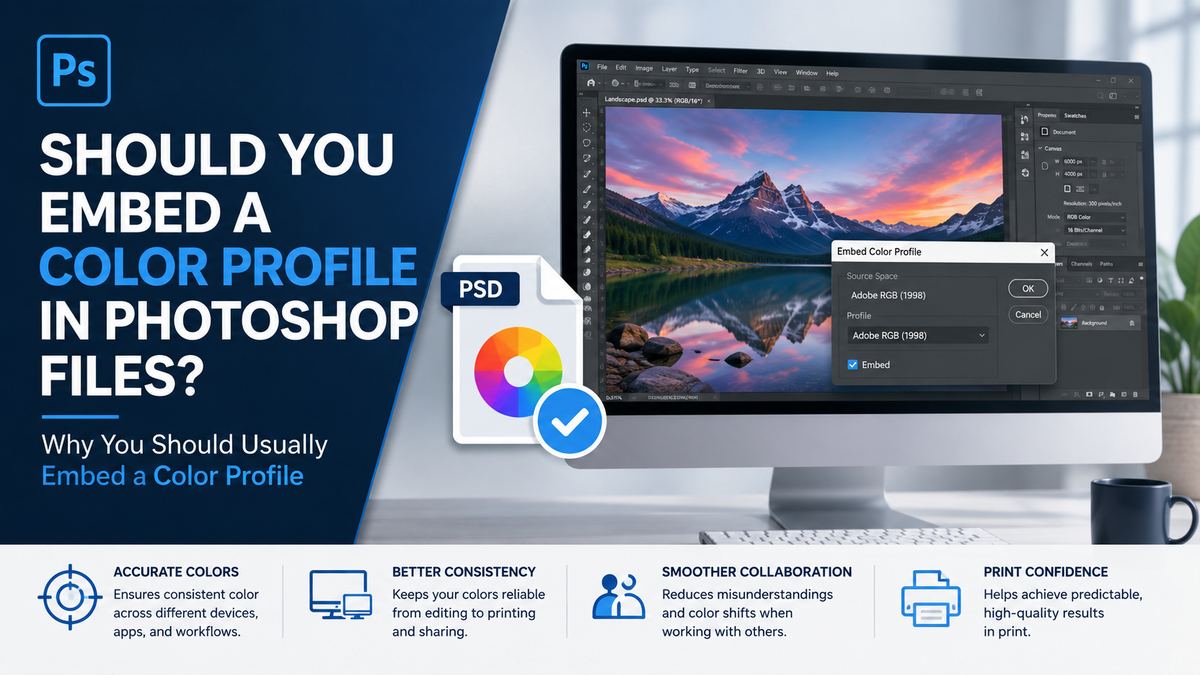
For most design, photography, marketing, and production work, embedding a profile is best practice. It makes the file more portable and reduces uncertainty when it leaves your computer.
It Protects Your Creative Intent
When you embed color profile Photoshop documents, you help ensure that collaborators see colors closer to what you intended.
This is especially important for:
- Brand colors and logos
- Product photography
- Editorial image retouching
- Social media graphics
- Client proofs
- Packaging and print layouts
Imagine a cosmetics brand using a soft pink background for an online campaign. If the PSD is sent without a profile, another designer may open it in a different default working space. The pink may appear warmer, duller, or more saturated than intended.
It Reduces Color Warnings and Guesswork
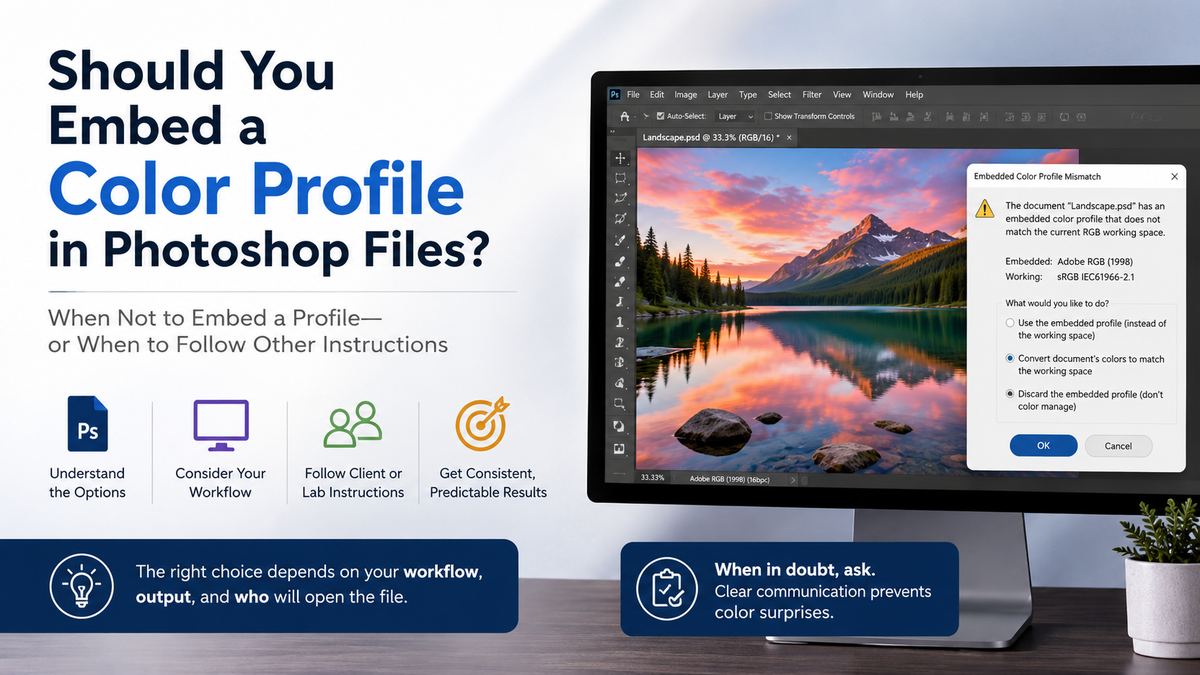
Photoshop displays profile mismatch warnings when you open a file whose embedded profile differs from your working space. While these warnings may seem inconvenient, they are useful. They give you a chance to preserve the file’s appearance rather than silently changing it.
Embedding a profile means the next person can make an informed choice:
- Preserve the embedded profile
- Convert the file to their working space
- Compare the profile with the workflow requirements
Without a profile, Photoshop and other applications must guess how to interpret the color values.
When You Should Always Embed a Profile
Some workflows leave little room for ambiguity. In these situations, embedding the profile should be your default.
When Sending Files to Clients or Collaborators
A client may open files in Photoshop, Preview, Affinity Photo, a browser, or a digital asset management system. Each application can handle untagged color differently.
Embed profiles in files you send for review, especially when color approval matters. This includes:
- PSD and TIFF master files
- JPEG proofs
- PDF presentations
- Portfolio exports
- Digital campaign assets
A small increase in file size is usually worth the confidence that the recipient sees a faithful representation of the work.
When Archiving Master Files
A master PSD may be reopened months or years later, after your Photoshop settings, monitor, operating system, or team have changed. Embedding a profile preserves essential context for future edits.
A sound archive includes:
- The original or master PSD/TIFF
- Its embedded ICC profile
- Clear file naming and versioning
- Notes about the final output purpose, such as web, offset print, or packaging
This is particularly helpful for recurring campaigns and long-lived brand libraries.
When Exporting Files for Print
Print production relies on controlled color conversion. If your printer supplies an ICC profile, use it according to their instructions and embed the correct output profile when exporting.
For instance, a commercial printer may request a PDF/X file using a specific CMYK condition. In that workflow, the embedded profile helps production systems understand the intended CMYK color behavior.
Always confirm whether the printer wants:
- RGB artwork with profiles preserved
- Artwork converted to a supplied CMYK profile
- A PDF/X preset with a specific output intent
- Spot colors left untouched
When Not to Embed a Profile—or When to Follow Other Instructions
Embedding a profile is usually correct, but it is not a universal rule that overrides production requirements.
Follow a Printer or Platform Specification First
Some printers, marketplaces, or automated production systems have strict delivery requirements. They may ask for untagged CMYK files, a particular PDF/X standard, or a custom export preset.
Do not remove profiles merely because someone says “we print in CMYK.” Ask for the complete specification. CMYK is not one universal color space; different printing conditions require different profiles.
A useful question is: “Which ICC profile or PDF/X output intent should this file use?”
Legacy or Controlled Internal Systems
Certain older workflows assume all incoming files use one known color space. In those narrowly controlled environments, embedded profiles can conflict with automated handling.
Before omitting a profile, verify that:
- The receiving system documents its assumed color space
- Everyone in the workflow uses the same standard
- The file will not be reused outside that system
- You have a color-managed master file archived separately
In other words, remove a profile only because the destination explicitly requires it—not because it seems unnecessary.
Understanding Assign Profile and Convert to Profile
One of Photoshop’s most common color-management mistakes is using the wrong command when changing color settings.
Assign Profile Changes Interpretation
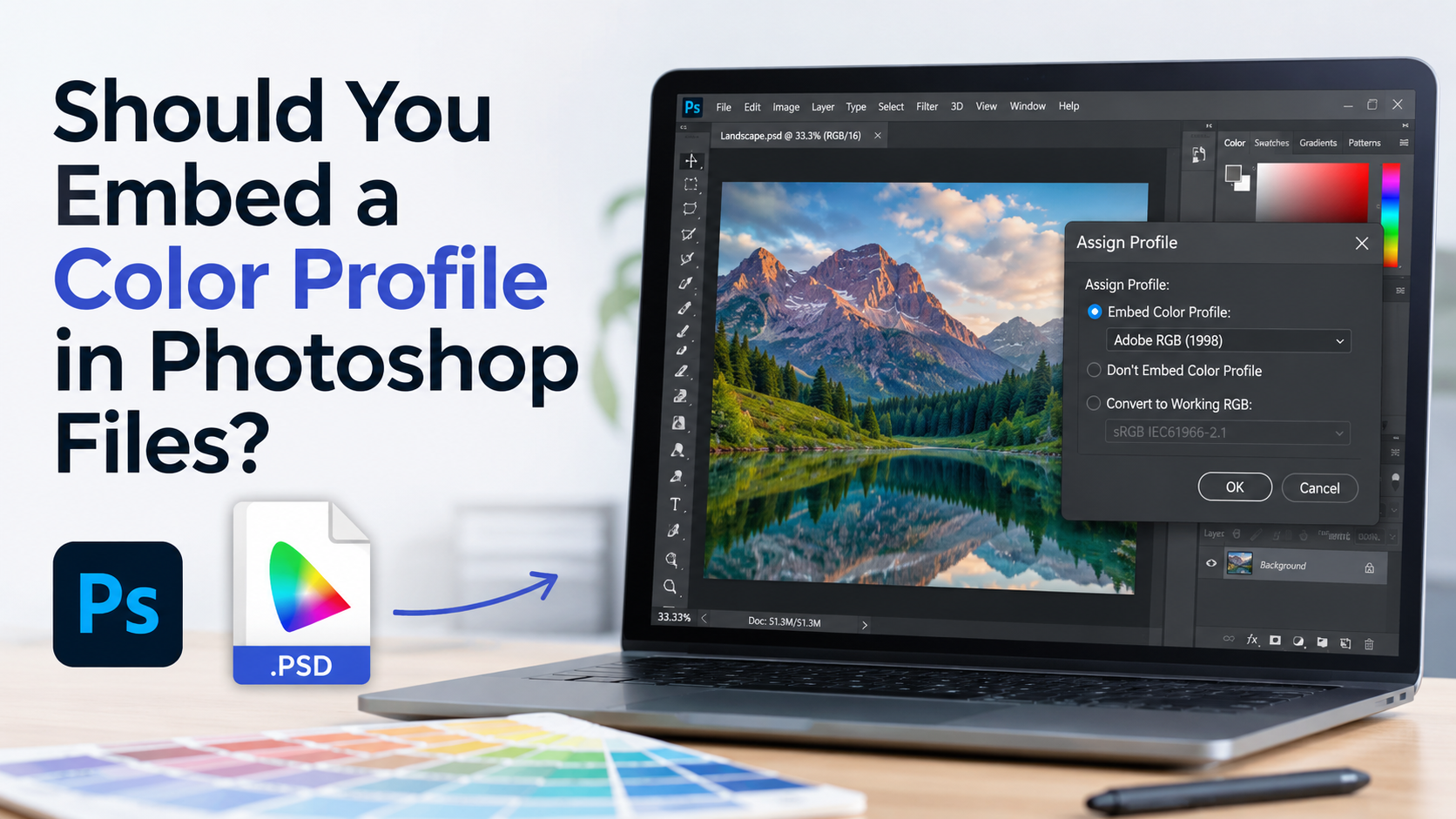
Use Edit > Assign Profile when a file is untagged or tagged incorrectly and you need to tell Photoshop what its existing color numbers mean.
Assigning a profile does not change the underlying RGB or CMYK numbers. It changes how Photoshop interprets them, so the image can shift dramatically onscreen.
For example, if an untagged image was created in Adobe RGB but Photoshop assumes sRGB, assigning Adobe RGB may restore the intended appearance.
Convert to Profile Changes Color Values
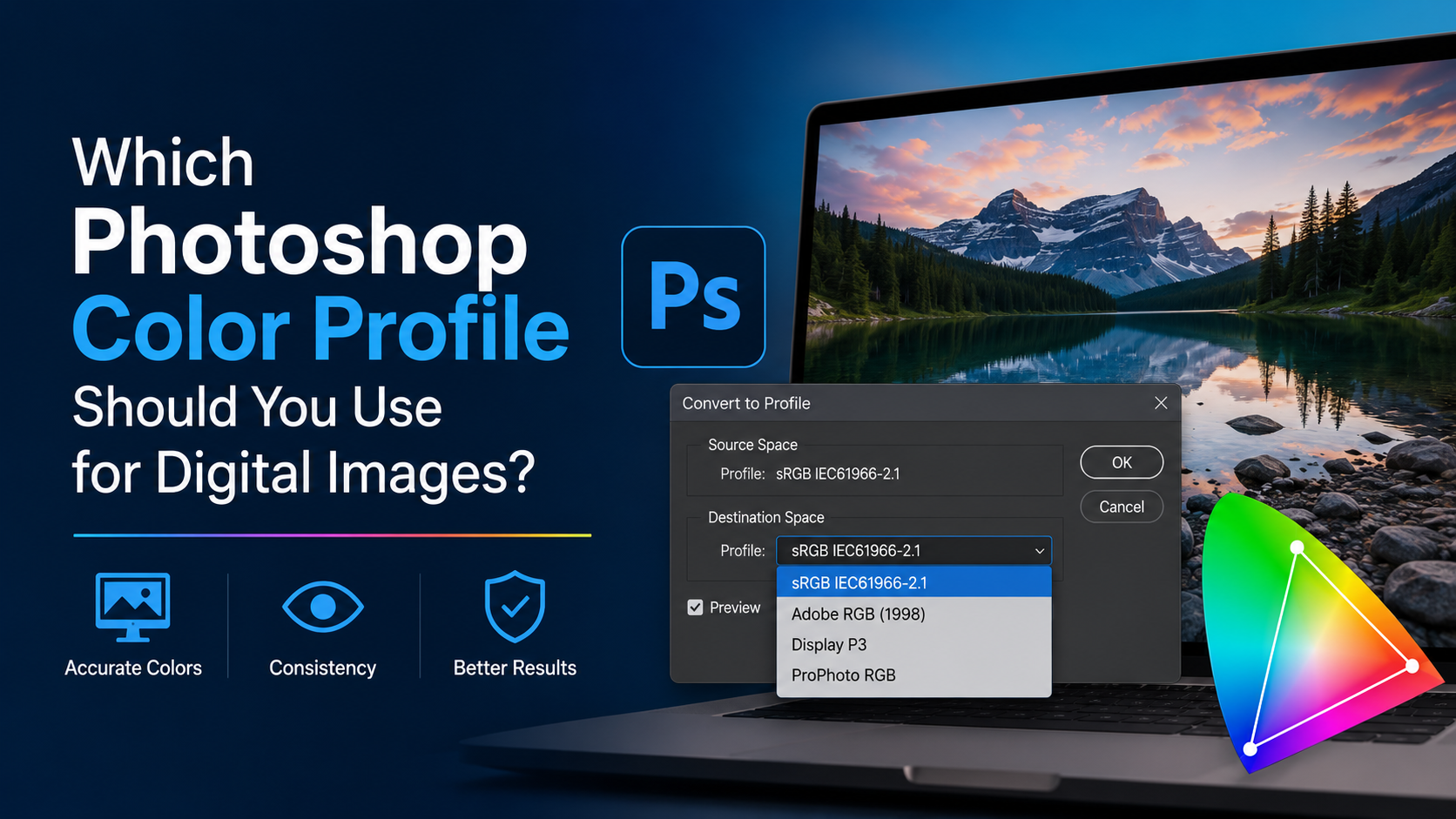
Use Edit > Convert to Profile when you want the image to maintain a similar visual appearance while moving to a new color space.
Photoshop recalculates color values to fit the destination profile. This is what you typically do when preparing a file for a defined use, such as:
- Adobe RGB to sRGB for web delivery
- RGB to a printer’s CMYK profile
- Display P3 to sRGB for broader compatibility
A simple rule helps:
- Assign Profile: Correct the color-space label.
- Convert to Profile: Prepare the image for a different color space.
Best Photoshop Settings for Color-Managed Workflows
Consistent Photoshop settings make profile decisions easier and reduce accidental conversions.
Choose Working Spaces Deliberately
Open Edit > Color Settings and select working spaces that match your typical output.
Common choices include:
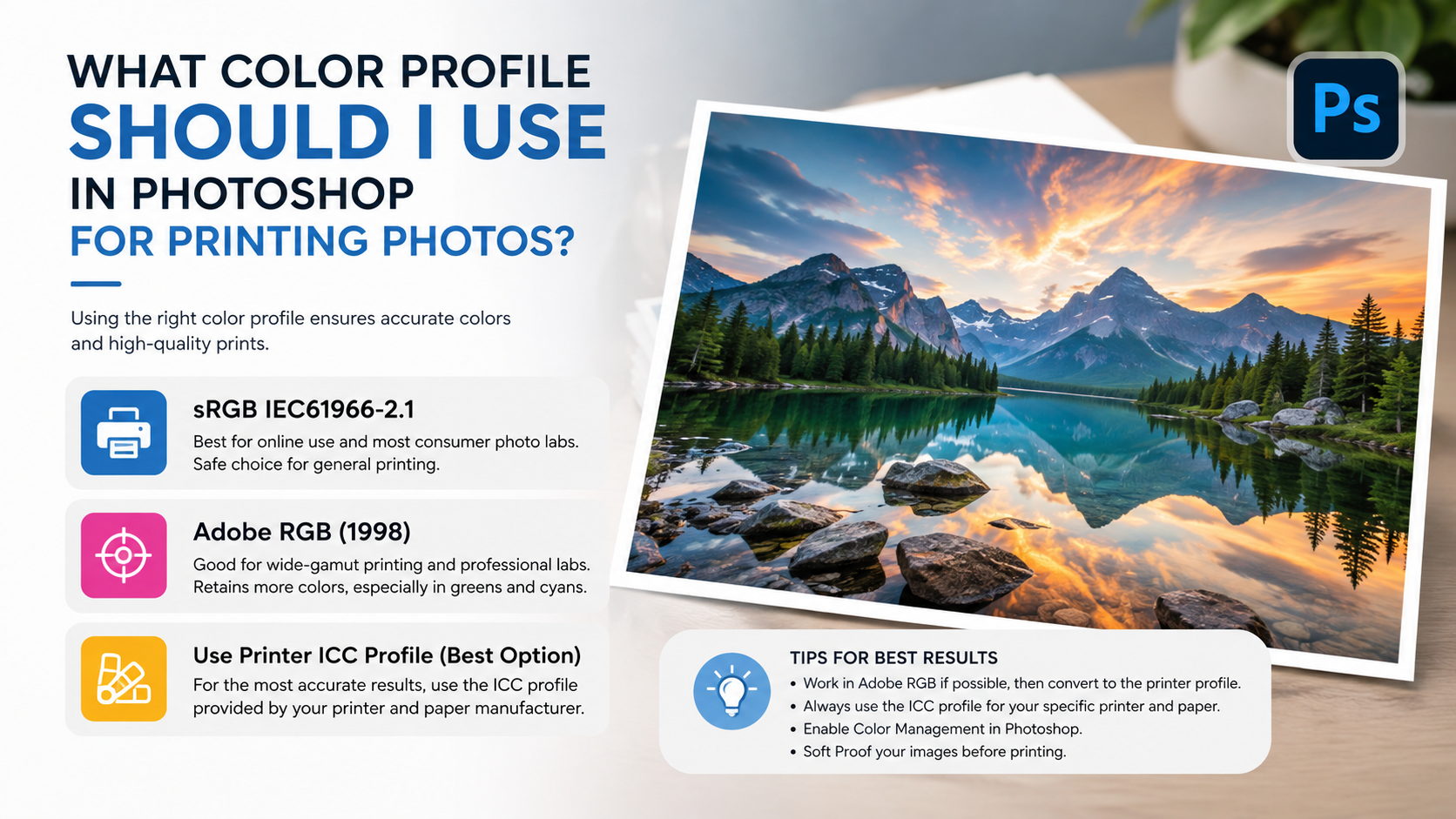
- sRGB IEC61966-2.1: Best default for most web, email, social, and everyday screen use
- Adobe RGB (1998): Useful for high-quality photography and some print-oriented workflows
- Display P3: Useful for modern wide-gamut screen content when the full publishing pipeline supports it
- Printer-supplied CMYK profile: Best for specific commercial print conditions
For general marketing teams, sRGB is often the most practical RGB standard because it is widely supported and predictable.
Enable Profile Mismatch Warnings
In Photoshop’s Color Settings, enable prompts for profile mismatches and missing profiles. These alerts help you avoid silent color changes.
When opening a file, use the warning dialog to determine whether to:
- Preserve the embedded profile
- Convert the document to the working space
- Assign a profile to an untagged file after confirming its origin
Preserving the embedded profile is usually the safest initial choice when you are unsure.
How to Export for Web, Social Media, and Digital Use
Online publishing is a major source of color inconsistency because browsers, apps, and platforms do not all handle wide-gamut or untagged content the same way.
Convert to sRGB for Broadest Compatibility
For standard web and social delivery, convert the final image to sRGB, then embed the profile.
In Photoshop, this usually means:
- Choose Edit > Convert to Profile.
- Select sRGB IEC61966-2.1 as the destination space.
- Export using Export As or Save for Web (Legacy).
- Enable Convert to sRGB and Embed Color Profile when those options are available.
This workflow minimizes surprises in browsers, email clients, content management systems, and social platforms.
Use Wide-Gamut Color Only Intentionally
Display P3 can produce more vivid colors than sRGB on supported devices. However, an image intended for P3 may look muted or inconsistent in software that does not fully support it.
Use P3 only when:
- The delivery platform supports color-managed wide-gamut images
- Your audience is likely to view the work on compatible devices
- You have tested the published asset in the real destination environment
For most business websites, sRGB remains the dependable default.
Preparing Photoshop Files for Print
Print is where color profiles become especially consequential. Ink, paper, press conditions, and finishing methods all influence the final result.
Keep an RGB Master Whenever Possible
Many modern print workflows prefer RGB source images and convert them later using a production-managed process. Keeping an RGB master preserves a broader range of editable colors.
Your workflow may look like this:
- Edit and archive the master in RGB
- Soft proof using the printer’s profile
- Create a dedicated print conversion only when required
- Keep the RGB master unchanged for future reuse
This approach prevents repeated RGB-to-CMYK conversions and makes the file easier to repurpose for digital channels.
Soft Proof Before Final Conversion
Soft proofing simulates, as closely as possible, how the image may reproduce under a selected print condition.
In Photoshop, use View > Proof Setup > Custom and select the printer’s profile. Then review:
- Out-of-gamut warnings
- Loss of saturated greens, blues, and oranges
- Shadow detail
- Neutral gray balance
- Skin tone shifts
If brand color accuracy is critical, request a physical proof. A monitor preview is informative, but it cannot fully predict every press, substrate, or finishing result.
A Practical File-Sharing Workflow for Teams
The strongest color workflow is simple enough that everyone can follow it consistently.
Build a Repeatable Handoff Process
Before sharing a Photoshop file, check these items:
- Is the document’s intended color space correct?
- Is the profile embedded?
- Is the file clearly labeled for web, print, or master use?
- Has the file been converted only when necessary?
- Does the recipient have special delivery requirements?
A naming convention can reduce confusion. For example:
ProductHeroMaster_AdobeRGB.psdProductHeroWeb_sRGB.jpgProductHeroPrint_CoatedGRACoL.pdf
The file name should not replace the embedded profile, but it gives collaborators immediate context.
Include Color Details in Production Notes
For high-stakes jobs, include a short handoff note with the file. State the intended output, profile, proofing condition, and any required conversion steps.
For example: “Master artwork is Adobe RGB. Web JPEG has been converted to sRGB and includes the sRGB profile. Print PDF is exported to the printer’s supplied CMYK profile.”
That small note can prevent expensive revisions and production errors.
Frequently Asked Questions
Should I embed a color profile in every Photoshop file?
In most cases, yes. Embed profiles in master files, shared PSDs, TIFFs, PDFs, and final exports unless a printer, platform, or internal system explicitly instructs you not to. Profiles make files more predictable when opened elsewhere.
Does embedding a color profile make a file much larger?
Usually, no. ICC profiles add relatively little data compared with image pixels, layers, Smart Objects, and other Photoshop content. The practical benefit of reliable color typically outweighs the small file-size increase.
Should I use sRGB or Adobe RGB in Photoshop?
Use sRGB for content primarily intended for the web, social platforms, email, and general screen viewing. Adobe RGB can be useful for photography and print workflows that benefit from a larger color gamut. The best option depends on your output, but sRGB is the safer default for broad digital compatibility.
What happens if I open a Photoshop file with no embedded profile?
Photoshop must use your working-space assumption or prompt you to assign one. If that assumption is wrong, the image may appear too saturated, flat, warm, cool, or otherwise inaccurate. Ask the creator which color space was used before assigning a profile.
Can I convert a CMYK file back to RGB to restore lost colors?
You can convert it back to RGB, but you cannot reliably restore colors that were clipped or altered during the original CMYK conversion. Keep an RGB master file whenever possible and create CMYK versions only for defined print needs.
Conclusion
For most creative workflows, the answer is clear: embed color profile Photoshop files to protect color accuracy, preserve your visual intent, and make handoffs more reliable. Profiles are especially important when files move between devices, team members, browsers, printers, and clients.
Use a consistent working space, preserve profiles in master files, convert deliberately for each output channel, and follow any printer or platform specifications. Start by reviewing your Photoshop Color Settings and make “embed profile” part of every final export checklist.