August 19, 2026 · Updated August 24, 2026 · 12 min read
How to Change Your Google Profile Photo on Gmail and Google Account
On this page
- Why Your Google Profile Photo Matters
- Before You Change Your Google Profile Photo
- How to Change Your Google Profile Photo on a Computer
- How to Change Your Google Profile Photo on Android and iPhone
- Where Your New Google Profile Photo Will Appear
- Best Practices for a Professional Google Profile Photo
- How Long Does It Take for a Google Profile Photo to Update?
- Troubleshooting Google Profile Photo Problems
- Frequently Asked Questions
- Conclusion
How to Change Your Google Profile Photo on Gmail and Google Account
Your Google profile photo is a small detail with a large impact. It appears beside your name in Gmail, Google Meet, Google Drive, Calendar, Contacts, and other Google services—often before someone reads a single word you have written.
Whether you are updating an outdated picture, creating a more professional presence, or simply making your account easier to recognize, changing your Google profile photo is quick once you know where to look. This guide explains how to update it on desktop and mobile, choose an effective image, manage visibility, and troubleshoot common issues.
Key Takeaways
- Change your Google profile photo through your Google Account settings, Gmail, or the Gmail mobile app.
- Your new image can appear across Gmail, Meet, Drive, Calendar, and other connected Google services.
- Use a clear, recent headshot for work-facing accounts and a recognizable photo for personal accounts.
- Updates may take time to appear everywhere because Google services and recipients’ contact lists can cache older photos.
- Check privacy and organization policies if you use a Google Workspace account.
- You can remove or replace your Google profile photo at any time.
Why Your Google Profile Photo Matters
A Google profile photo is more than an account decoration. It helps people identify you in busy inboxes, video calls, shared documents, and event invitations.
Improve recognition in Gmail and Google Workspace
In Gmail, recipients may see your profile photo near your sender name. In collaborative tools such as Google Drive and Google Docs, it can also help coworkers identify who commented, edited, or shared a file.
For example, a consultant who frequently shares proposals through Google Drive can use a professional headshot to make client interactions feel more personal and consistent. A clear photo reduces the chance that a client mistakes the consultant’s account for an unknown sender.
Support a professional online presence
If you use Gmail for work, your image should align with the impression you want to create. A polished, current photo can make your communication feel more credible—especially when emailing new clients, recruiters, vendors, or colleagues.
For personal accounts, the goal is usually simpler: choose an image that friends and family can recognize quickly.
Create consistency across Google services
Your Google profile photo may appear in several places, including:
- Gmail
- Google Meet
- Google Calendar
- Google Drive, Docs, Sheets, and Slides
- Google Chat
- Google Contacts
- YouTube and other Google-linked services
Because one image can travel across many services, it is worth choosing a photo you are comfortable displaying broadly.
Before You Change Your Google Profile Photo
A few minutes of preparation can prevent an awkward crop, blurry image, or unintended privacy issue.
Choose the right type of image
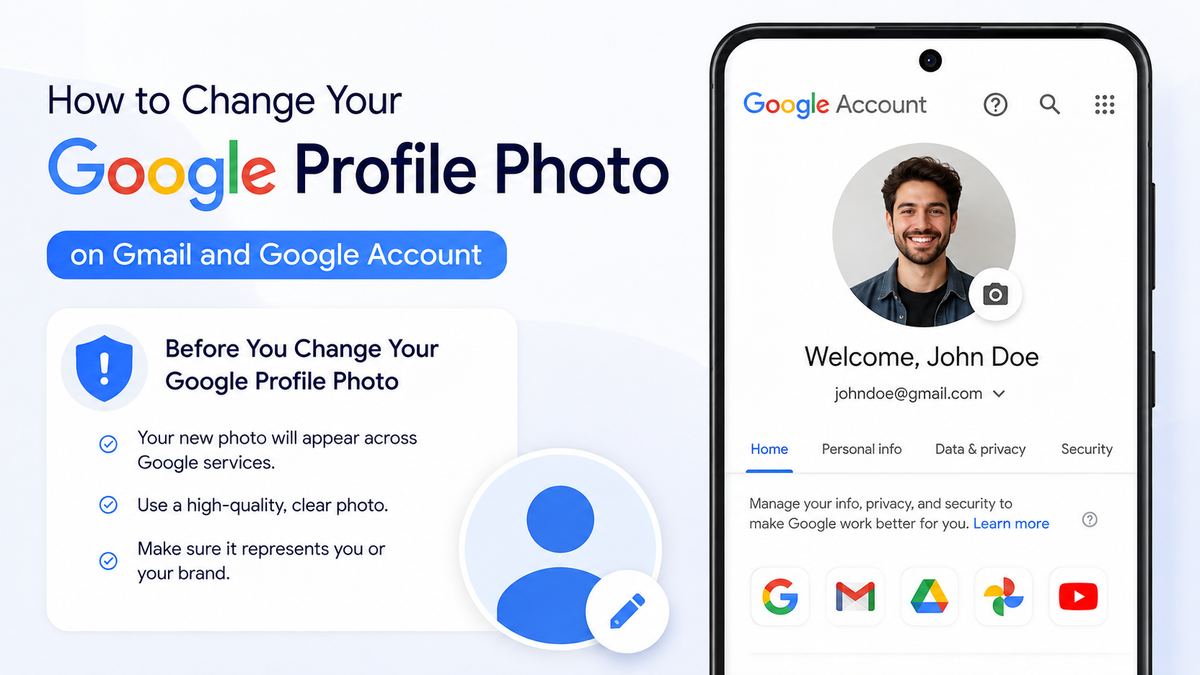
Google profile photos are generally displayed as small circular thumbnails. Choose an image that still works at a small size.
For professional use, look for:
- A recent head-and-shoulders photo
- Good lighting and a clear face
- A simple or uncluttered background
- Clothing appropriate for your industry
- A natural, approachable expression
For a personal Google account, you can be more flexible. A favorite portrait, pet photo, illustration, or recognizable avatar can work well—as long as people who need to identify you can do so easily.
Use a high-quality source file
A large, sharp image gives Google more room to crop without reducing clarity. Avoid screenshots, heavily compressed photos, or images where your face occupies only a tiny part of the frame.
A square image usually makes the process easier. If the original photo is wide or tall, Google lets you reposition the crop, but you may lose important parts of the picture.
Consider account ownership and workplace policies
A personal Google Account gives you the most control over your photo. However, if you use a work or school Google Workspace account, your organization may set rules about profile pictures.
For instance, an employer may require a recognizable headshot, prohibit logos, or let an administrator manage directory photos. If you cannot change the image or your update reverts, contact your organization’s IT administrator.
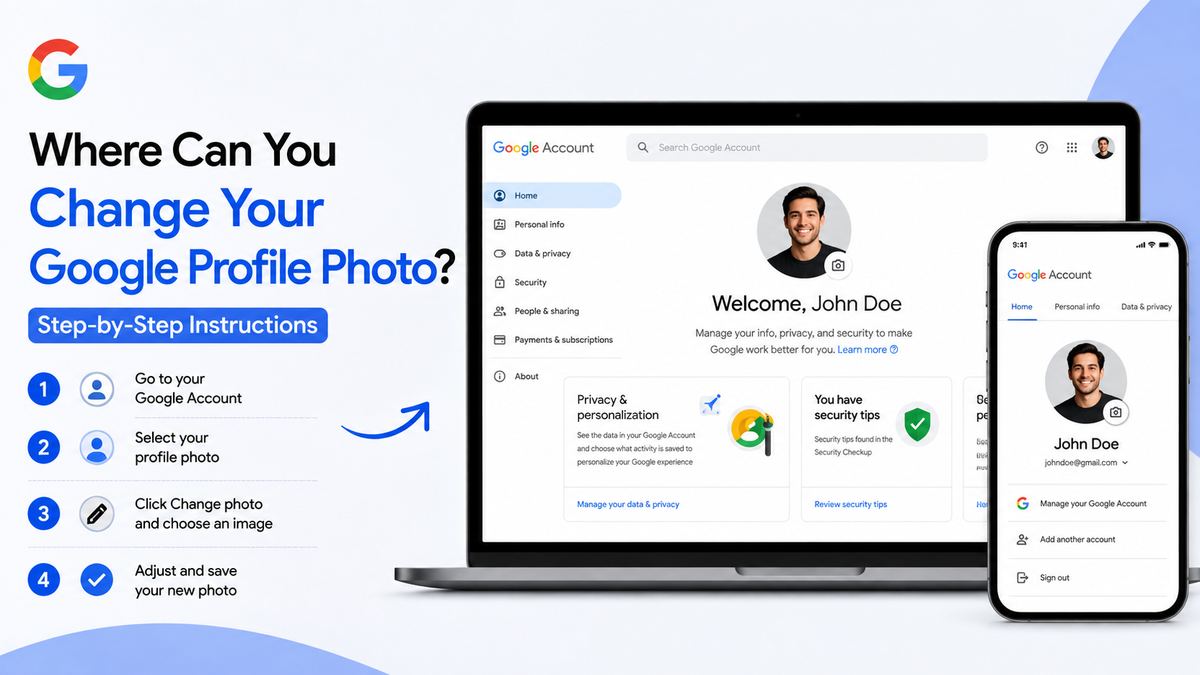
How to Change Your Google Profile Photo on a Computer
The most reliable method is to update the image directly from your Google Account.
Change your photo from Google Account settings
- Sign in to the Google Account you want to update.
- Open myaccount.google.com.
- Select Personal info.
- Under Basic info, select your current photo or the profile-photo placeholder.
- Choose Change or Add profile picture.
- Upload an image from your computer or select an available photo.
- Adjust the crop so your face or focal point is centered.
- Select Save as profile picture.
After saving, your new Google profile photo becomes associated with that account.
Change your photo from Gmail in a browser
You can also begin from Gmail:
- Open Gmail and sign in.
- Select your profile photo or initial in the upper-right corner.
- Choose the camera icon or select Manage your Google Account.
- Open the profile photo section.
- Upload, crop, and save your new image.
The exact wording may vary slightly depending on Gmail’s interface, but it will lead to the same Google Account profile settings.
Verify that you changed the correct account
Many people are signed in to more than one Google Account at once. Before uploading a new photo, check the email address shown in the account menu.
This matters if you have separate accounts for personal email, freelance work, and an employer. Updating one profile photo will not automatically change photos on your other Google Accounts.
How to Change Your Google Profile Photo on Android and iPhone
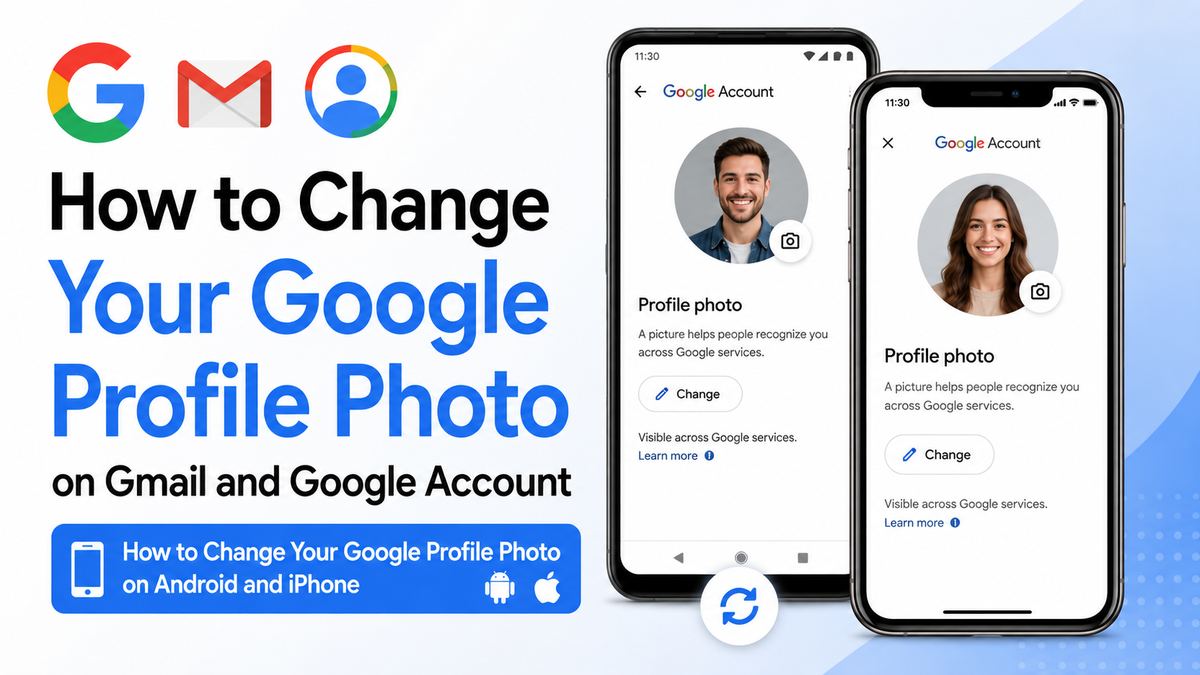
You can update your profile photo through the Gmail app or the Google app on most mobile devices.
Update your photo in the Gmail mobile app
- Open the Gmail app.
- Tap your current profile photo or initial in the upper-right corner.
- Select Manage your Google Account.
- Tap Personal info.
- Select your profile photo.
- Choose a photo from your device or take a new one.
- Crop the image and save your changes.
This process is similar on Android and iPhone, although button names and layouts may differ slightly.
Use the Google app or device settings
On Android, you may also find Google Account settings through your phone’s Settings app:
- Open Settings.
- Tap Google.
- Select Manage your Google Account.
- Tap Personal info.
- Select your profile image and update it.
On iPhone, the Google app can provide the same account-management path. Open the app, tap your profile image, and select Manage your Google Account.
Take a new photo carefully
If you take a photo directly from your phone, use natural light when possible and clean the camera lens first. Hold the camera at eye level and leave enough space around your head for circular cropping.
A photo that looks good full-screen may feel cramped once reduced to a small profile thumbnail.
Where Your New Google Profile Photo Will Appear
A changed photo does not affect only Gmail. It can become part of your wider Google identity.
Gmail, Calendar, and Google Meet
Your profile image may be visible when you:
- Send or receive email
- Join a Google Meet call
- Create or attend Calendar events
- Chat with people through Google Chat
- Share files with collaborators
For professionals, this consistency creates a recognizable identity across daily communication channels.
Google Drive and collaborative documents
In Google Drive, Docs, Sheets, and Slides, your photo can identify your account while you are viewing, editing, commenting, or sharing content.
Imagine a project document with ten contributors. A recognizable profile photo helps teammates quickly understand who made a suggestion or replied to a comment without hunting through email addresses.
External visibility may vary
Not everyone will see your photo in exactly the same way. Visibility can depend on the Google service, your account’s privacy settings, your Google Workspace organization, and whether the other person has saved you in their contacts.
Also, a recipient may see a photo they personally assigned to you in their Google Contacts instead of your current account photo.
Best Practices for a Professional Google Profile Photo
Your profile image does not need to be a studio portrait, but it should be intentional.
Keep the focus on your face
Because Google commonly displays the image in a circle, your face should be centered and easy to see. Avoid group photos, distant full-body photos, or images with competing visual elements.
A useful test is to shrink the image on your screen. If you can immediately identify the person in the thumbnail, it will likely work well as a Google profile photo.
Match the image to your audience
The ideal photo depends on how you use the account:
- Job seekers: Use a friendly, professional headshot that matches your résumé or LinkedIn presence.
- Client-facing professionals: Choose a current photo that reflects your brand and workplace expectations.
- Students and educators: Use a clear, approachable image that helps classmates and instructors recognize you.
- Personal users: Choose something recognizable and comfortable to share with contacts.
Consistency matters. If your profile photo is dramatically different from your image on professional networking sites or company materials, people may struggle to connect your accounts.
Avoid common photo mistakes
Try to avoid:
- Dark, grainy, or backlit images
- Sunglasses or anything that obscures your face
- Busy backgrounds
- Excessive filters
- Logos or text that become unreadable in a small circle
- Old photos that no longer resemble you
A simple photo with good lighting nearly always performs better than an overly edited image.
How Long Does It Take for a Google Profile Photo to Update?
In many cases, your new profile photo appears in your Google Account immediately. However, it may take longer to update in every Google product or for every person who interacts with you.
Why you may still see the old photo
Google services can cache profile information temporarily. Your browser, phone, or a recipient’s app may also retain an older image for some time.
Common causes include:
- Browser or app caching
- Delays between Google services
- A recipient’s saved Google Contacts photo
- Google Workspace directory synchronization
- Multiple signed-in accounts causing confusion
It may take several hours, and occasionally longer, for the updated image to appear consistently.
Ways to check the update
To confirm that the change was saved:
- Visit your Google Account’s Personal info page.
- Open Gmail in an incognito or private browsing window.
- Check your account profile in another Google app.
- Ask a trusted contact to check what they see.
- Refresh or restart the Gmail app.
If your Google Account settings show the new image, the update was likely successful even if one service still shows the previous photo.
Troubleshooting Google Profile Photo Problems
Most profile photo issues have a straightforward explanation.
You cannot upload or save a photo
First, make sure the file is a supported image type, such as JPG or PNG, and that it is not corrupted. Try a different image or save the file again before uploading.
If you are using a work or school account, the organization may have disabled profile-photo changes. In that case, contact your Google Workspace administrator.
The old image keeps returning
This is often an organization-managed account issue. A company directory, identity provider, or administrator-controlled profile setting may be overriding your personal change.
Check with IT to learn which system controls employee photos. Do not repeatedly replace the image until you know the source, since the managed directory may continue restoring the approved version.
Gmail shows a different photo than expected
If another person sees a different photo, they may have assigned an image to your email address in their own Google Contacts. That contact-specific photo can take priority in their view.
You cannot directly change a photo stored in someone else’s contacts. You can ask the person to update or remove their contact image if the difference causes confusion.
You accidentally removed your profile photo
Return to Google Account > Personal info > Profile picture, then upload a replacement image. If you prefer not to use a photo, you can remove it and allow Google to display your initial instead.
Frequently Asked Questions
Can I change my Google profile photo without changing my Gmail address?
Yes. Your Google profile photo and Gmail address are separate settings. Updating your image does not change your email address, inbox, contacts, messages, or account data.
Does changing my Google profile photo change my YouTube picture?
It can. Your Google Account photo is connected to many Google services, including YouTube. Depending on your YouTube channel setup and settings, the updated image may also appear there. Review your channel appearance after making the change if YouTube is important to your brand.
Why can’t my coworkers see my new Google profile photo?
The change may still be propagating, or your organization may manage user photos through Google Workspace. Coworkers may also be seeing a cached image or a picture stored in their contacts. Give the update some time, then ask your IT administrator if it remains unchanged.
Can I use a logo as my Google profile photo?
Yes, particularly for a business, team, or shared inbox account. However, a logo may be less effective for a personal professional account because people generally recognize faces faster than brand marks. Use a high-contrast, simple logo that remains clear at a small size.
Can I delete my Google profile photo completely?
Yes. In your Google Account’s profile-photo settings, select the option to remove the current image. Google will typically replace it with a default initial or account placeholder.
Conclusion
Changing your Google profile photo is a fast way to improve how you appear in Gmail and across the Google services you use every day. Choose a clear image, update it through your Google Account settings, and allow time for the change to reach Gmail, Meet, Drive, and other connected tools.
Take a moment to review your current Google profile photo today. If it is outdated, unclear, or inconsistent with how you want to be seen, replace it with an image that makes your account instantly recognizable.