August 19, 2026 · Updated August 24, 2026 · 13 min read
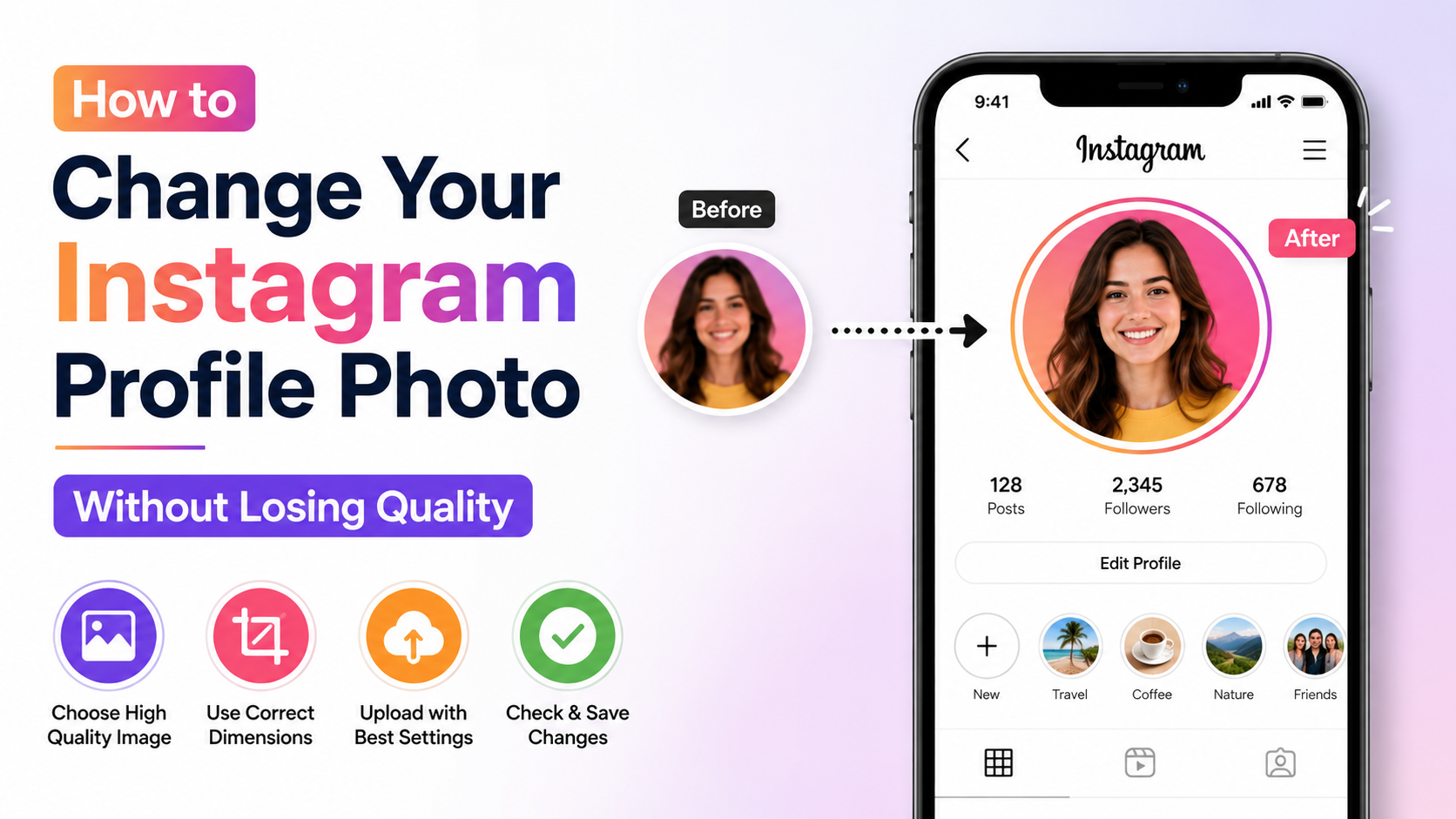
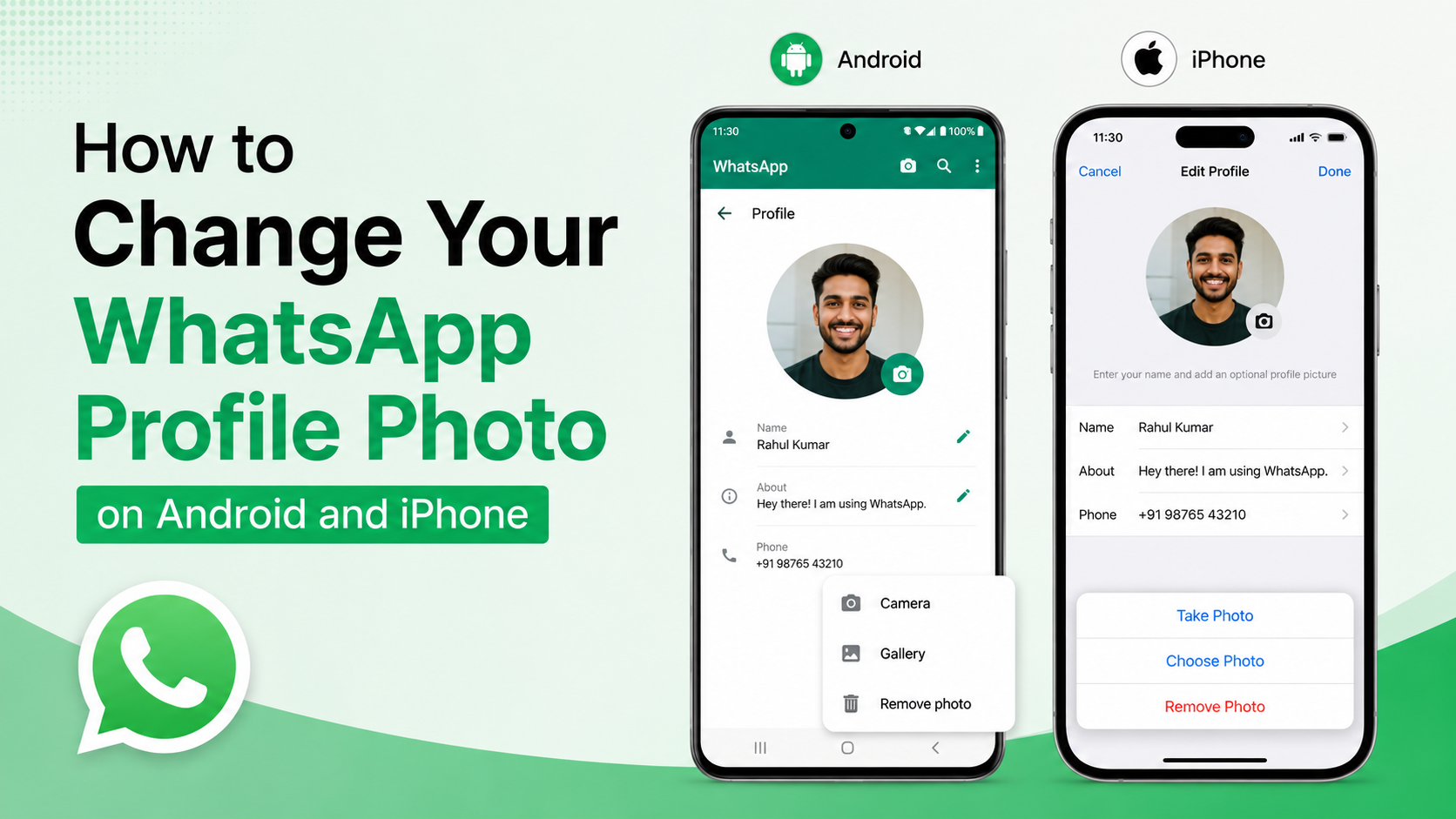
How to Change Your Instagram Profile Photo on Android, iPhone, and Web
On this page
- Why Your Instagram Profile Photo Matters
- Before You Change Your Instagram Profile Photo
- How to Change Your Instagram Profile Photo on Android
- How to Change Your Instagram Profile Photo on iPhone
- How to Change Your Instagram Profile Photo on the Web
- How to Crop and Position Your Profile Photo Correctly
- Common Problems When You Change an Instagram Profile Photo
- When Should You Update Your Instagram Profile Photo?
- Frequently Asked Questions
- Conclusion
How to Change Your Instagram Profile Photo on Android, iPhone, and Web
Your Instagram profile photo is one of the first things people notice when they visit your account. Whether you are updating a personal selfie, refreshing your business branding, or switching to a seasonal campaign image, a strong profile picture makes your account easier to recognize and trust.
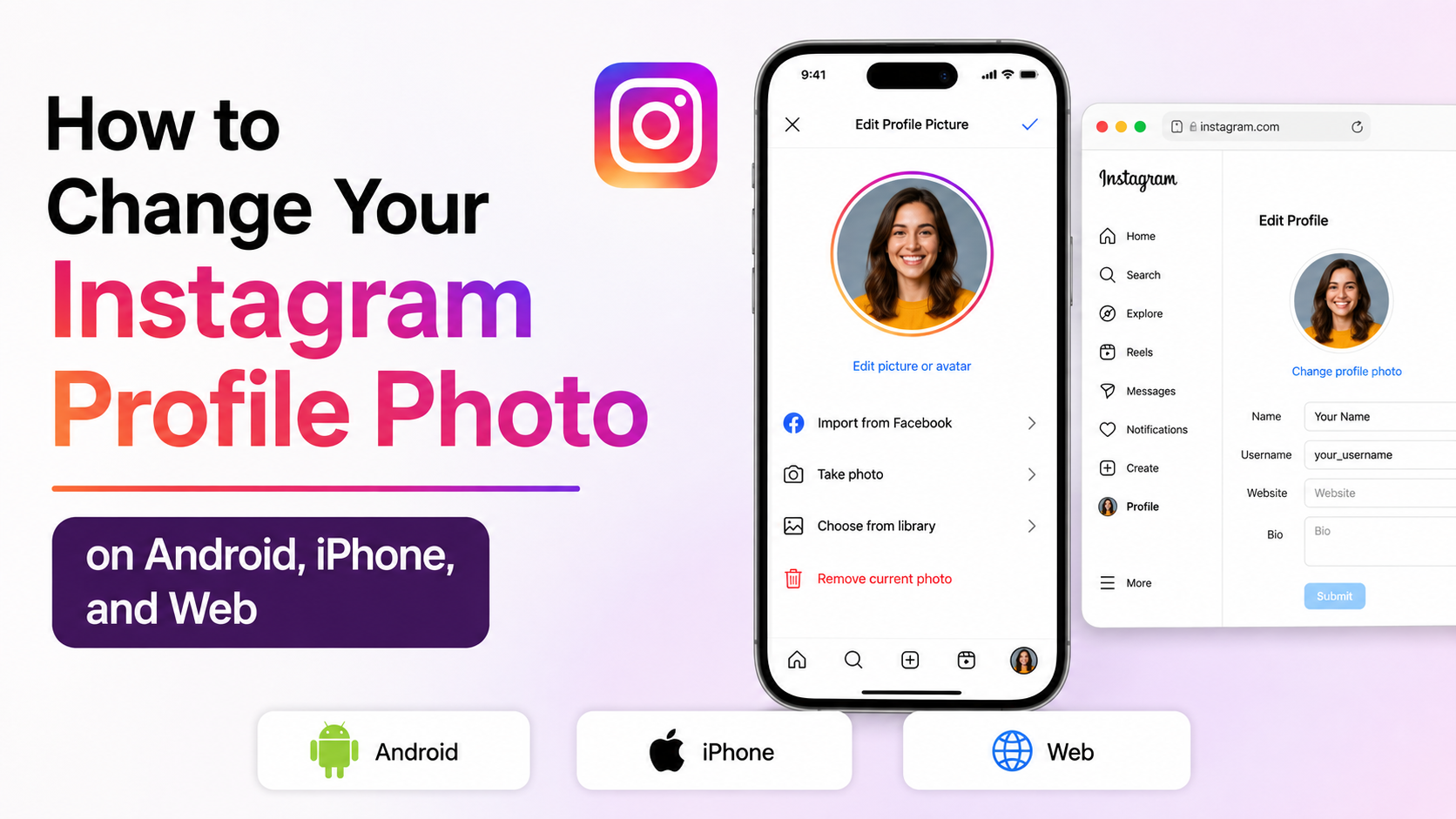
Fortunately, changing it takes only a few taps—or a few clicks on desktop. This guide explains exactly how to change your Instagram profile photo on Android, iPhone, and the web, along with practical tips to help your image look great inside Instagram’s circular crop.
Key Takeaways
- You can change your Instagram profile photo from the mobile app or Instagram.com.
- Instagram lets you upload a new image, use an image from Facebook, or remove your current photo.
- Choose a high-resolution, well-lit image with the main subject centered.
- Keep important text, logos, and faces away from the edges because Instagram displays profile photos as circles.
- Businesses should use a consistent logo or recognizable brand image across social platforms.
- Update your photo strategically when you rebrand, launch a campaign, or want to improve account recognition.
Why Your Instagram Profile Photo Matters
Your profile photo may be small, but it has an outsized impact. It appears beside your comments, direct messages, Stories, search results, notifications, and profile page. In many cases, it is the visual cue that helps someone recognize you before they read your username.
It Builds Recognition and Trust
For personal accounts, a clear photo of your face helps friends, followers, recruiters, and collaborators identify you quickly. For a professional account, a polished headshot can make your profile feel more credible.
For example, a freelance designer may use a bright, consistent headshot across Instagram, LinkedIn, and their portfolio website. When a potential client sees the same image on each platform, the brand feels more cohesive and legitimate.
It Supports Your Brand Identity
Businesses, creators, and organizations often use a logo rather than a portrait. The goal is the same: make the account recognizable at a glance.
A local bakery, for instance, might use a simplified version of its logo with a bold icon and minimal text. A detailed logo with tiny lettering can become unreadable in Instagram’s small circular thumbnail, so simplicity is essential.
It Helps People Find the Right Account
Similar names are common on Instagram. Your profile picture can help people distinguish your account from another person, fan page, or impersonator.
If you are a public-facing professional, creator, or company, using the same profile image consistently is one of the simplest ways to reduce confusion.
Before You Change Your Instagram Profile Photo
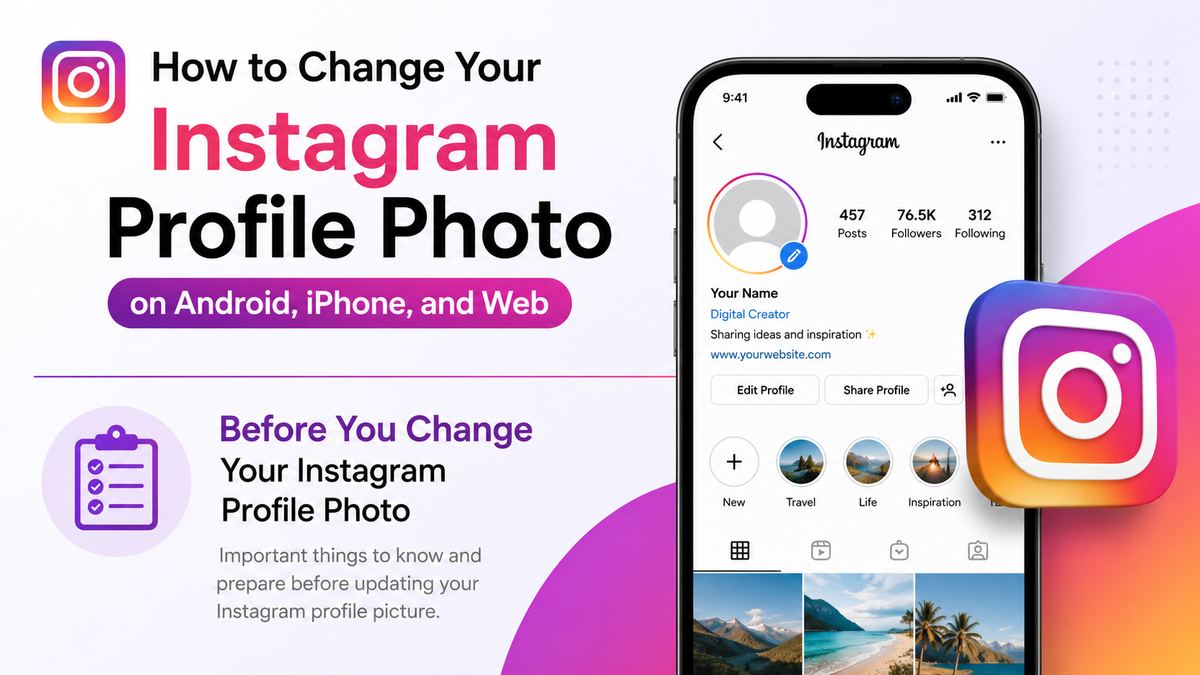
A little preparation can prevent a blurry, awkwardly cropped, or hard-to-recognize result. Instagram supports several image formats, but the final profile image is displayed as a circle.
Choose an Image That Works in a Circle
Instagram may show you a square editing frame, but your profile photo appears as a circular thumbnail throughout the platform. Place the important part of the image near the center.
Avoid images where:
- Your face sits very close to an edge.
- A logo has text around its outer border.
- Important visual details extend into the corners.
- The background is cluttered or visually distracting.
A simple test is to imagine a circle placed over the center of the image. If the face, logo, or product is fully visible inside that circle, it will likely work well.
Use a High-Quality File
A profile photo does not need to be enormous, but it should be sharp. Start with a square image that is at least 320 × 320 pixels. Larger files are fine, as Instagram will resize them.
For best results:
- Use JPG or PNG files.
- Start with a square crop when possible.
- Avoid heavily compressed screenshots.
- Use good lighting for portraits.
- Check that your logo remains sharp when viewed at a small size.
Decide Whether to Use a Photo or Logo
There is no single best choice. It depends on the account’s purpose.
| Account type | Strong profile photo choice | |---|---| | Personal account | A clear, recent photo of yourself | | Creator or consultant | A professional but approachable headshot | | Company or store | A clean, simplified logo | | Podcast or community | A recognizable icon, logo, or branded graphic | | Product-focused brand | A logo is usually better than a product image |
If you are the face of your business, a portrait can be more effective than a logo because people tend to connect with people. If your company has several employees or a broader brand identity, a logo often makes more sense.
How to Change Your Instagram Profile Photo on Android
The Instagram app for Android makes it easy to update your profile image directly from your profile page. The wording may vary slightly depending on your app version, but the process is generally the same.
Step-by-Step Instructions for Android
- Open the Instagram app and sign in to the account you want to update.
- Tap your profile picture or profile icon in the bottom-right corner.
- Tap Edit profile.
- Tap Edit picture or avatar near your current profile image.
- Select New profile picture.
- Choose an image from your Android device’s gallery or camera roll.
- Adjust the crop and position so your face or logo is centered.
- Tap Done, Next, or the checkmark icon to save the change.
Instagram should update your image immediately, although the old image may remain visible temporarily in some parts of the app because of caching.
Other Android Profile Photo Options
When you tap Edit picture or avatar, Instagram may give you additional choices, such as:
- Import from Facebook: Use your connected Facebook profile picture.
- Remove current picture: Replace the image with Instagram’s default profile icon.
- Create avatar: Make or update a Meta avatar for use across supported Meta features.
Importing from Facebook can save time, but it is worth checking the crop after the image transfers. A Facebook profile photo that looks good in one layout may not be ideal for Instagram’s smaller circular display.
Android Troubleshooting Tip
If Instagram cannot access your gallery, check your phone permissions. Go to your Android device’s settings, find Instagram under Apps, then review its photo, media, or storage permissions. Allowing photo access should restore the upload option.
How to Change Your Instagram Profile Photo on iPhone
On iPhone, the process is nearly identical to Android. You can upload from the Photos app library, take a new picture, or use a connected Facebook image.
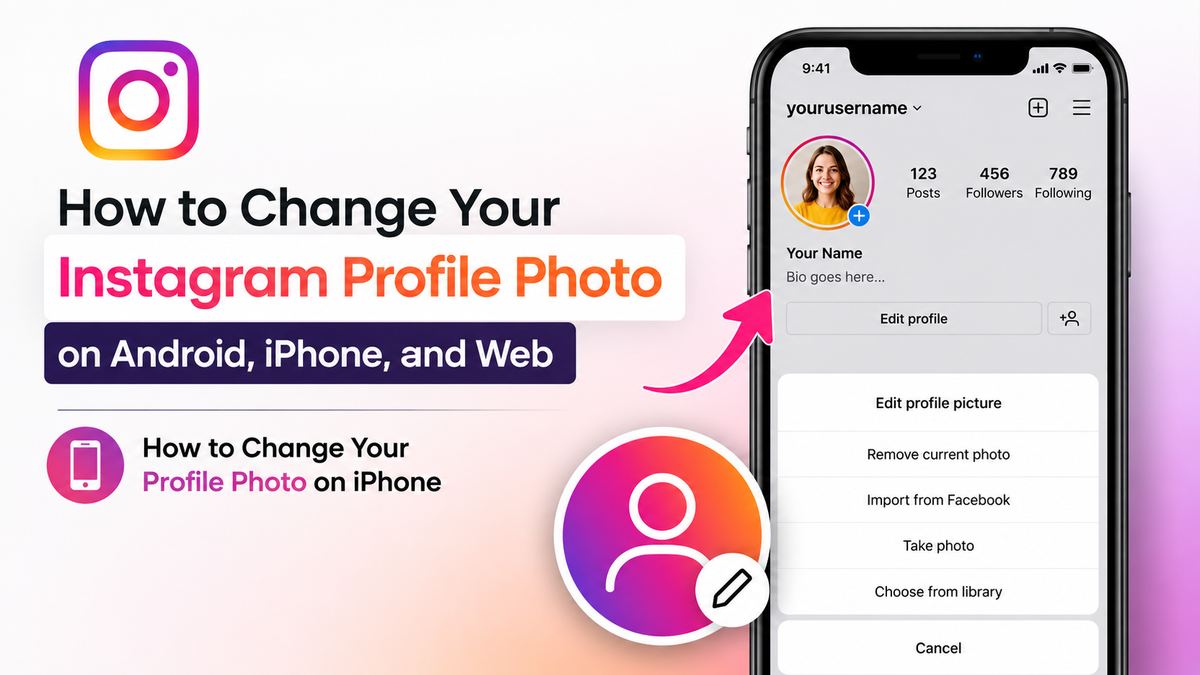
Step-by-Step Instructions for iPhone
- Open Instagram on your iPhone.
- Tap your profile icon in the bottom-right corner.
- Select Edit profile.
- Tap Edit picture or avatar.
- Choose New profile picture.
- Select a photo from your iPhone library.
- Reposition or zoom the image until it looks right in the preview.
- Tap Done to save your new Instagram profile photo.
After saving, visit your profile page to make sure the result is centered and clear.
Allow Instagram Access to Your Photos
If the app does not show your full photo library, iPhone privacy settings may be limiting its access. Go to Settings, select Instagram, then tap Photos. Choose the appropriate access level, such as full access or selected photos, depending on your preference.
If you select only certain photos, make sure the new profile image is among the allowed images.
Use Your iPhone Camera for a Fresh Headshot
If you need a quick personal photo, you can take one before opening Instagram or use the app’s available camera option. For a professional-looking result, face a window or soft light source, keep the background uncluttered, and hold the camera at eye level.
A simple photo with natural light often looks better than an overly edited image with harsh filters.
How to Change Your Instagram Profile Photo on the Web
Using Instagram on a computer is useful when your new image is stored on your desktop, has been edited in a design program, or needs to match branding files held by your marketing team.
Step-by-Step Instructions for Instagram.com
- Visit Instagram.com in a web browser and sign in.
- Click your profile picture in the lower-left area or use the profile option in the navigation.
- Click Profile to open your account page.
- Select Edit profile.
- Click Change profile photo.
- Choose Upload photo.
- Select the image file from your computer.
- Adjust the crop if prompted, then save the update.
Desktop navigation can change slightly as Instagram updates its interface. If you do not see the option immediately, open your profile page first and look for Edit profile near your account details.
When the Web Version Is the Best Option
The web version is especially convenient when you are working with branded assets, such as:
- A PNG logo exported from Adobe Illustrator or Canva.
- A new campaign image provided by a designer.
- A professionally retouched headshot.
- A photo saved in cloud storage and downloaded to your computer.
Before uploading, make sure you are using the final approved file. This is particularly important for business accounts, where an outdated logo or campaign mark can create confusion.
How to Crop and Position Your Profile Photo Correctly
Changing your image is easy; making it look polished is where a few extra seconds matter. Instagram’s small circular format rewards images that are simple and well-composed.
Portrait Cropping Best Practices
For profile photos featuring a person:
- Keep your eyes and face in the center area.
- Leave a little space above your head.
- Use contrast between your hair, clothing, and background.
- Avoid group photos unless your account represents the entire group.
- Choose an expression that fits your audience and profession.
For example, a career coach might use a warm head-and-shoulders photo with a calm background. A musician may choose a more expressive image that reflects their visual style, as long as it remains recognizable at thumbnail size.
Logo Cropping Best Practices
For a company logo:
- Use a simplified icon if the full logo contains small wording.
- Add a small amount of padding around the mark.
- Choose a high-contrast background.
- Use your established brand colors consistently.
- Preview the image at a small size before uploading.
If your logo is wide and horizontal, consider using a square icon, monogram, or symbol rather than squeezing the complete wordmark into the circular frame.
Common Problems When You Change an Instagram Profile Photo
Most profile-photo updates work immediately. When they do not, the issue is usually related to connectivity, permissions, image format, or cached app data.
The New Photo Will Not Upload
First, confirm that you have a stable Wi-Fi or mobile-data connection. Then try using a different image file, ideally a standard JPG or PNG saved directly to your device.
If the issue continues:
- Close and reopen Instagram.
- Update the Instagram app from the App Store or Google Play.
- Restart your phone.
- Try uploading from the web version.
- Check whether Instagram has access to your photos.
Avoid repeatedly submitting the same upload if the app appears frozen. Close the screen, reopen your profile, and try once more after confirming your connection.
The Photo Looks Blurry
Blurriness usually means the source file was low quality, compressed, or enlarged too much during cropping. Upload a sharper original image instead of a screenshot, thumbnail, or photo copied from a messaging app.
For logos, use the original exported PNG whenever possible. For portraits, start with the original camera photo rather than a version that has been repeatedly saved and shared.
Other People Still See the Old Image
Instagram may take a short time to refresh profile images across comments, messages, and search results. Your device—or another person’s device—may also be showing a cached version.
Check your profile from another browser or ask a trusted contact to confirm whether the new image appears. If the old picture remains after a reasonable wait, try logging out and back in, then verify that the update was saved on your profile page.
When Should You Update Your Instagram Profile Photo?
You do not need to change your image frequently, but intentional updates can be useful. Consistency matters more than novelty, especially for accounts that rely on recognition.
Good Reasons to Update It
Consider changing your Instagram profile photo when:
- Your appearance has changed significantly and your current photo is outdated.
- You have rebranded your business.
- Your company launched a new visual identity or logo.
- You want a more professional image for client-facing work.
- You are running a temporary campaign that benefits from a recognizable visual cue.
For instance, a nonprofit may use its standard logo year-round but add a subtle campaign-colored version during an annual fundraising month. The image should still remain recognizable as the same organization.
Avoid Changing It Too Often
Frequent profile-photo changes can make it harder for regular followers to recognize your account in their feeds, comments, and inboxes. If you are building a personal brand or business presence, aim for a consistent look and update only when there is a clear reason.
Frequently Asked Questions
Can I change my Instagram profile photo without posting it?
Yes. Changing your Instagram profile photo does not create a regular feed post or Story. People may notice the new image on your profile, comments, direct messages, and search results, but it is not published as a separate post.
Can I use a profile photo from Facebook on Instagram?
Yes, if your Facebook and Instagram accounts are connected through Meta Accounts Center. When editing your image, select the option to import your Facebook profile picture. Review the crop afterward, since the image may display differently on Instagram.
Why can’t I change my Instagram profile photo?
Common causes include weak internet access, outdated app software, missing photo permissions, or a temporary Instagram issue. Restart the app, confirm your phone can access your photo library, and try a different JPG or PNG file. You can also attempt the update from Instagram.com.
What size should an Instagram profile photo be?
A square image of at least 320 × 320 pixels is a good starting point. Use a larger high-quality square image if available, but make sure the main subject stays centered because Instagram displays the result as a circle.
Can I remove my Instagram profile photo?
Yes. Open Edit profile, tap Edit picture or avatar, then choose Remove current picture. Instagram will replace it with the default profile icon. Keep in mind that accounts without a photo can be harder for people to recognize.
Conclusion
Learning how to change your Instagram profile photo is simple on Android, iPhone, and the web, but choosing the right image can make a meaningful difference. Use a sharp, centered image that remains clear inside a circular crop, and keep it consistent with your personal or professional identity.
Open your Instagram profile today, review how your current photo looks at a small size, and update it if it no longer represents you or your brand clearly.