August 19, 2026 · Updated August 24, 2026 · 11 min read
How to Download a WhatsApp Profile Photo: What Is Possible and Safe?
On this page
- What “Download WhatsApp Profile Photo” Actually Means
- What WhatsApp Allows—and What It Does Not
- The Safest Way to Save a Profile Photo
- Why Third-Party Profile Photo Downloaders Are Risky
- How to Protect Your Own WhatsApp Profile Photo
- Ethical and Professional Uses of Contact Photos
- Troubleshooting: Why You Cannot See or Save a Photo
- Frequently Asked Questions
- Conclusion
How to Download a WhatsApp Profile Photo: What Is Possible and Safe?
A WhatsApp profile photo can be useful for recognizing a colleague, updating a contact card, or saving an image someone has explicitly shared with you. But “download WhatsApp profile photo” searches often lead to questionable apps, privacy-invasive workarounds, and misleading promises.
The safe answer is simple: WhatsApp does not offer a universal “download” button for another person’s profile photo, and privacy controls or screenshot protections may prevent you from saving it. Whether you can view or preserve an image depends on the account owner’s settings, your device, and—most importantly—their permission.
This guide explains what is realistically possible, which methods to avoid, and how to manage your own WhatsApp profile photo safely.
Key Takeaways
- WhatsApp does not provide a standard feature to download another user’s profile photo directly.
- The safest option is to ask the person to send you the original image in a chat.
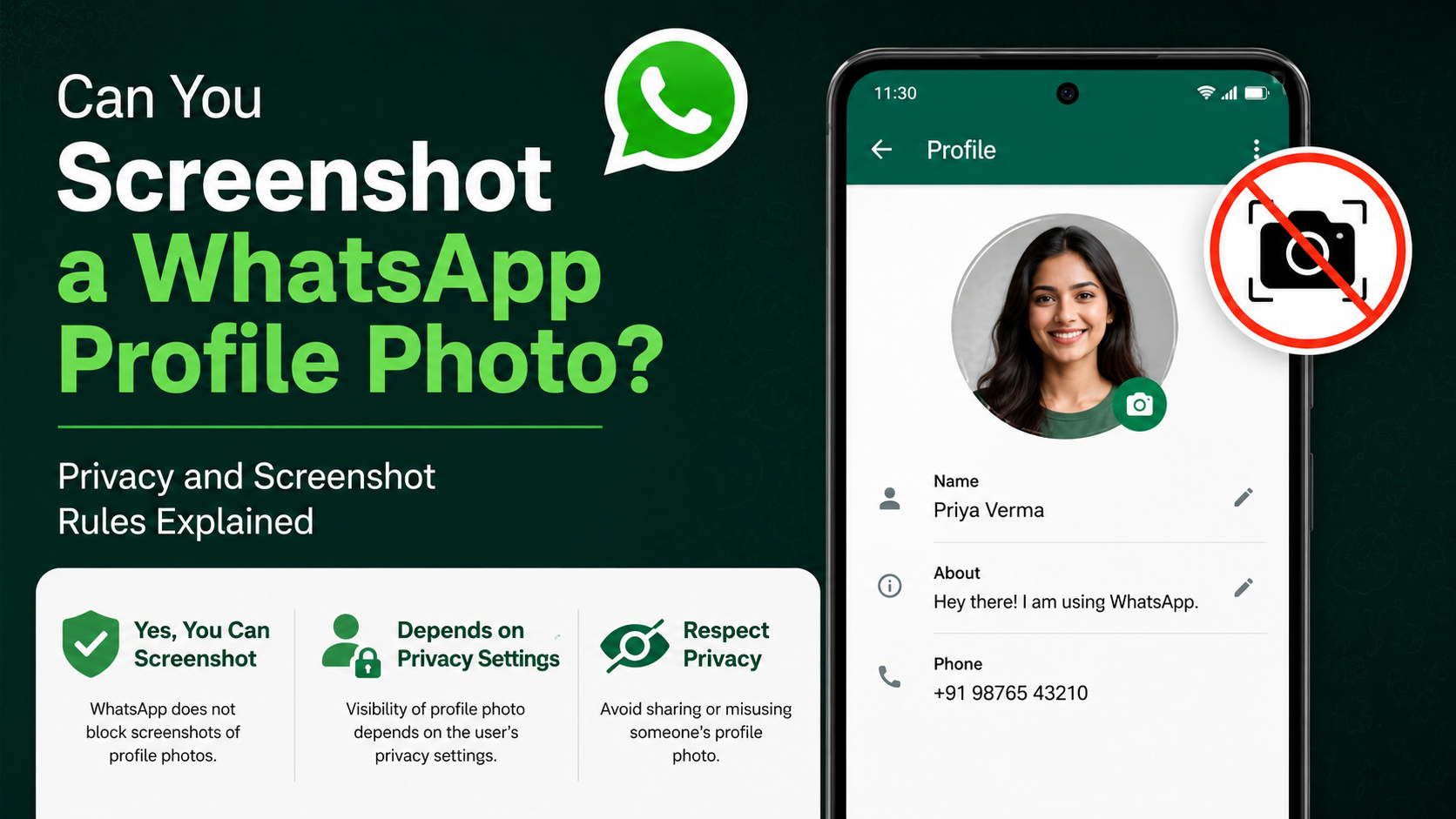
- Screenshot behavior varies by device and WhatsApp version; profile-photo screenshot blocking may apply.
- Never use third-party “WhatsApp profile picture downloader” sites that request a phone number, login, or QR code.
- Treat profile photos as personal data: save, share, or reuse them only with clear permission.
- Use WhatsApp’s Profile Photo privacy settings to control who can see your own image.
What “Download WhatsApp Profile Photo” Actually Means
The phrase can describe several different needs, and each has a different safe solution.
Saving Your Own WhatsApp Profile Photo
If you want a copy of your own profile image, the best source is usually your phone’s photo library, cloud backup, or the original file you uploaded. This gives you the highest-quality version and avoids any need to extract it from WhatsApp.
If you no longer have the original:
- Check your device’s Photos or Gallery app.
- Search your cloud storage, such as iCloud Photos, Google Photos, OneDrive, or a work drive.
- Ask a trusted person to send back the original only if you previously shared it with them.
- Replace the profile picture with a current, saved copy you control.
Saving Someone Else’s Profile Photo
A visible profile photo is not automatically an invitation to copy, repost, or use it elsewhere. It may be displayed solely to help contacts identify that person in WhatsApp.
For example, a recruiter may use a professional headshot so candidates can recognize them. Saving it to attach to an internal contact card may be reasonable if your organization permits it. Downloading it to post on social media, create a fake account, or share it with others is not.
Why the Difference Matters
A profile image can reveal someone’s identity, workplace, family, location, or other personal details. Responsible handling protects both the person in the photo and your own reputation.
What WhatsApp Allows—and What It Does Not
WhatsApp is designed for private communication, not as a public image-download platform. Its features reflect that purpose.
No Universal Download Button for Contact Photos
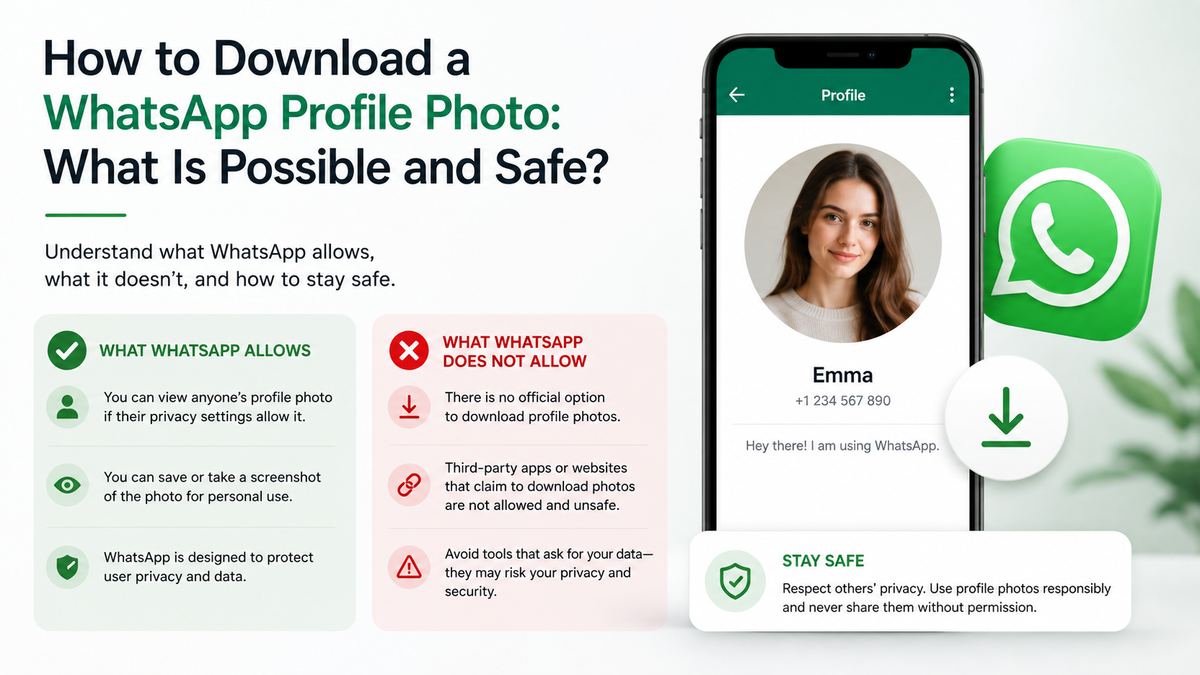
Unlike some social platforms, WhatsApp generally does not give you a built-in button to save another user’s profile picture to your device. You may be able to view the image, but viewing and downloading are separate actions.
This limitation is intentional. It reduces frictionless copying of personal images and supports users who choose restrictive profile-photo privacy settings.
Privacy Settings Can Limit Visibility
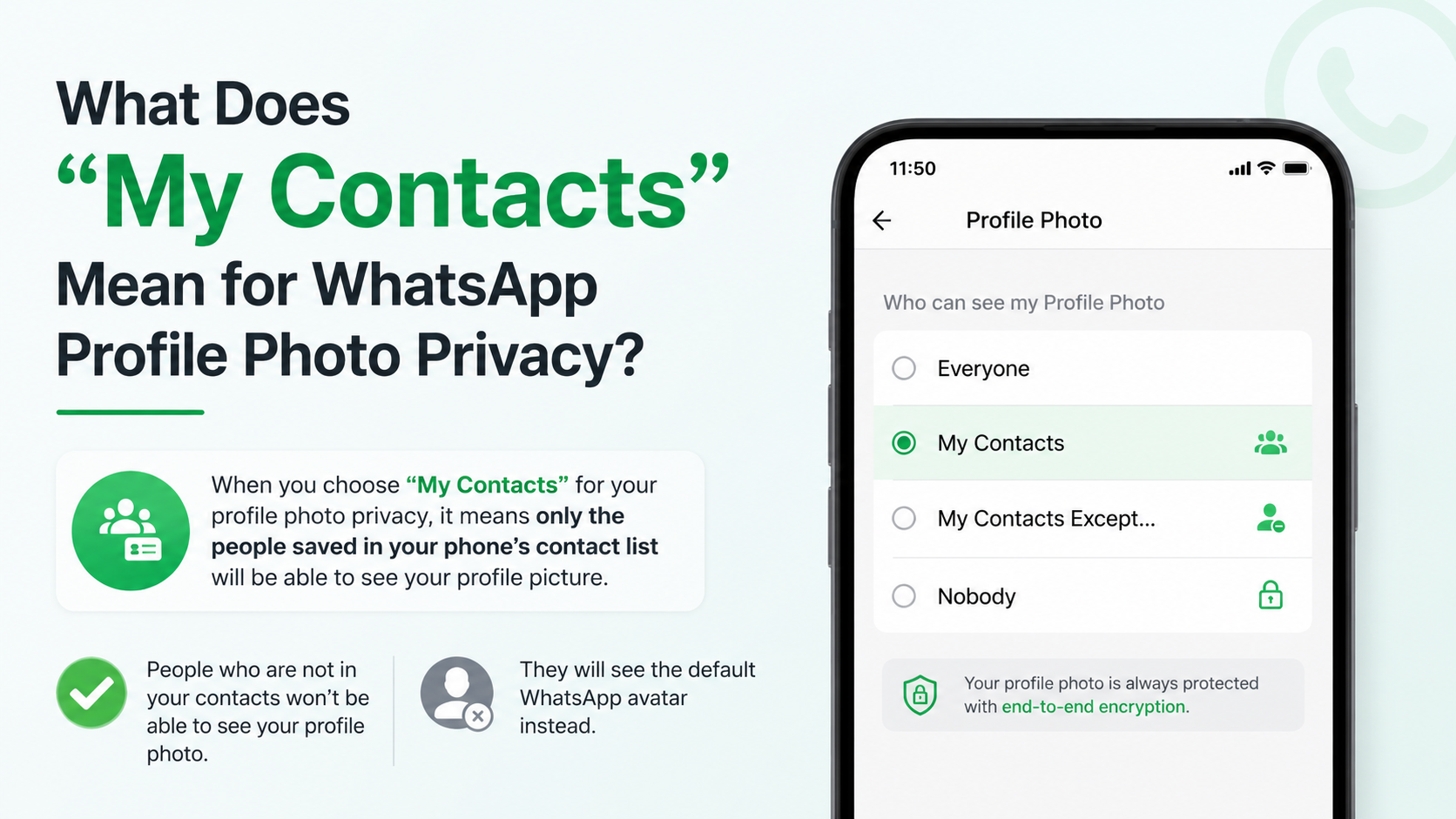
WhatsApp users can choose who sees their profile photo through the app’s privacy settings. Common options include:
- Everyone: Anyone who can reach the account may be able to see the photo.
- My Contacts: Visibility is limited to people saved in the user’s contacts.
- My Contacts Except: The user can exclude specific contacts.
- Nobody: The profile photo is hidden.
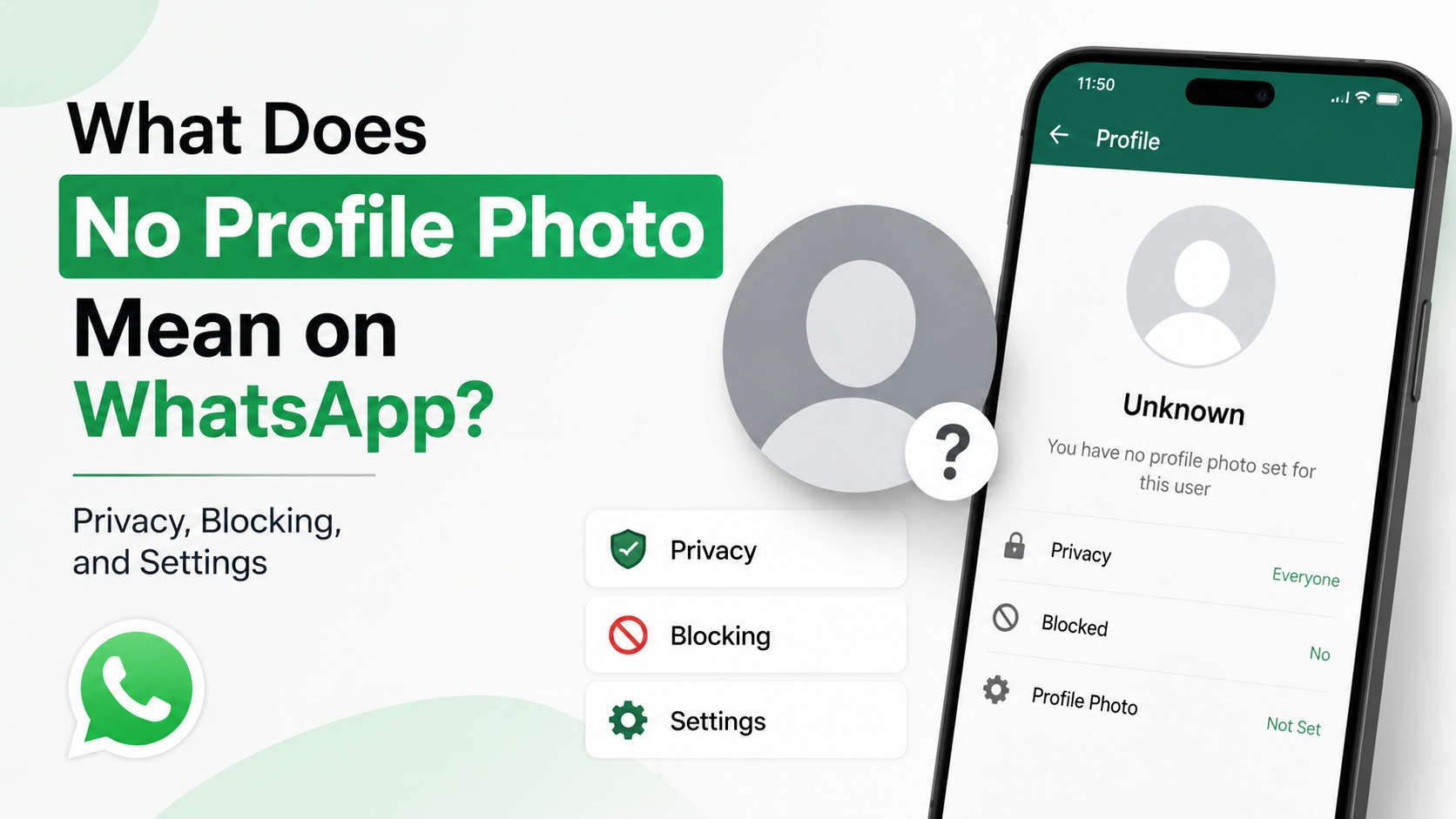
If you cannot see someone’s photo, do not assume there is a technical workaround you should try. They may have changed their settings, removed the image, excluded you, or blocked the account.
Screenshot Restrictions May Apply
WhatsApp has introduced screenshot protections for profile-photo views on some devices and app versions. As a result, a screenshot may be blocked, show a blank image, or work differently depending on your operating system.
That inconsistency is not a cue to look for a bypass. It is a privacy signal: use a permission-based alternative instead.
The Safest Way to Save a Profile Photo
When you genuinely need an image, direct communication is the cleanest and most reliable option.
Ask for the Original File
Send a short, specific message explaining why you need it. For example:
“Hi Maya—could you send me the headshot you’d like us to use for the speaker page? I want to make sure we use the right version.”
This approach gives the person control over the image, format, quality, and intended use. It also creates clarity if the image will appear in a professional setting.
Have Them Send It as a Document for Full Quality
When image quality matters—for a staff directory, press kit, event page, or print material—ask the person to send the file as a document rather than as a standard compressed image.
A practical workflow is:
- Ask for a current photo and permission to use it for a defined purpose.
- Request the original JPG, PNG, or approved headshot file.
- Store it only in the approved work location.
- Label it with its intended use and review date.
- Remove or replace it if consent changes.
Use a Shared Asset Source for Teams
Professionals should avoid relying on WhatsApp profile photos as an unofficial asset library. A shared drive, employee directory, digital asset manager, or approved brand portal is better.
For example, an events team can request speaker photos through an intake form and store each approved image with usage rights, credit details, and expiration dates.
Why Third-Party Profile Photo Downloaders Are Risky
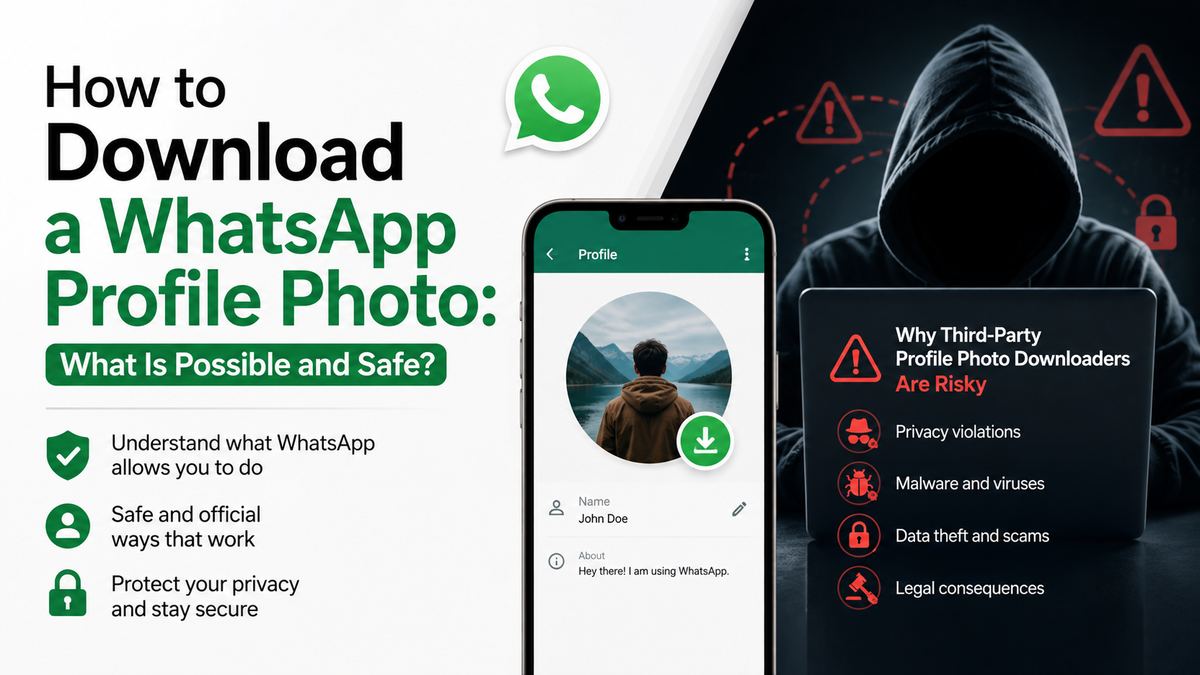
Search results for a WhatsApp profile picture downloader often promise to retrieve high-resolution photos from a phone number. These tools are rarely worth the risk.
They May Collect Sensitive Information
A suspicious site may ask for:
- A WhatsApp phone number
- Your WhatsApp login details
- A verification code
- A QR-code scan to link WhatsApp Web
- Contacts access or app permissions
- Payment details for a “premium” download
Never share a verification code or scan a QR code for an untrusted service. Either action can help someone access or link your WhatsApp account.
They Can Violate Privacy and Platform Rules
Services that claim to reveal hidden photos or bypass privacy settings should be treated as a major warning sign. A profile photo set to private is not content that a downloader should obtain.
Even if a tool appears to work, it may expose you to account compromise, malware, data collection, or legal and workplace consequences.
They Often Deliver Poor or Misleading Results
Many of these sites simply display a small, cached thumbnail—or show an unrelated image after prompting for data. Others use aggressive ads, fake download buttons, or subscription traps.
A legitimate need does not require a secret tool. Ask for the file.
How to Protect Your Own WhatsApp Profile Photo
Understanding how to download WhatsApp profile photo safely also means protecting your own image from unwanted use.
Review Your Profile Photo Privacy Settings
In WhatsApp, open Settings, then go to Privacy and select Profile Photo. Choose the audience that fits your situation.
For many people, My Contacts is the sensible default. It limits exposure to people you have saved rather than every unknown number that messages you.
Use My Contacts Except if you need to exclude particular people without blocking them. Choose Nobody when you want the strongest limit on visibility.
Choose an Image With Low Personal Exposure
A profile photo does not need to be a high-resolution face portrait. Consider using:
- A professional headshot without location details
- A logo for a business account
- An avatar or illustration
- A cropped photo that does not show children, home addresses, badges, or travel documents
This is especially useful for freelancers, recruiters, customer-service workers, and anyone who communicates with unfamiliar numbers.
Remember That Screenshots Are Not the Only Risk
No privacy setting can fully control what an approved viewer does with a visible image. Someone may photograph another screen, retain an old copy, or receive the photo from another contact.
The goal is risk reduction, not a guarantee of perfect control. Share only what you are comfortable having seen beyond the app.
Ethical and Professional Uses of Contact Photos
Context determines whether saving an image is appropriate.
Appropriate Examples
Saving may be reasonable when the person has agreed and the use is limited:
- Adding a colleague’s approved headshot to a company directory
- Updating a CRM contact record with a client-provided image
- Saving a family member’s photo for contact identification
- Using a speaker’s submitted image on an event page
In each case, document consent when the setting is professional or public.
Uses to Avoid
Do not save or reuse a profile photo to:
- Impersonate someone online
- Build a database of people without their knowledge
- Share it in group chats or social media
- Investigate, shame, harass, or monitor a person
- Create AI-generated edits, memes, or promotional content without permission
A quick consent check can prevent a serious privacy mistake.
Troubleshooting: Why You Cannot See or Save a Photo
If a profile photo has disappeared or cannot be opened, several ordinary explanations are possible.
The Owner Changed Their Privacy Settings
They may have limited their photo to contacts, excluded certain contacts, or set visibility to nobody. Respect that choice rather than repeatedly checking from other accounts or asking mutual contacts to retrieve it.
The Image Was Removed or Replaced
People update profile photos frequently. If the image matters for legitimate work, ask for the latest approved version instead of using an old cached copy.
Your App or Connection Needs Attention
If multiple contacts’ photos fail to load, update WhatsApp, check your connection, and confirm that the app has necessary contact permissions. This may restore ordinary display behavior, but it will not override a person’s privacy settings.
You May Have Been Blocked—but Do Not Jump to Conclusions
A missing photo can be one signal among several, but it is not proof that you were blocked. Privacy settings, account changes, or temporary sync issues can produce the same result. Avoid drawing conclusions from one indicator.
Frequently Asked Questions
Can I download a WhatsApp profile photo directly?
Usually, no. WhatsApp does not provide a universal download option for another person’s profile picture. The best and safest method is to ask the person to send you the image directly.
Can I screenshot a WhatsApp profile picture?
It depends on your device, app version, and the view you are using. WhatsApp may block screenshots of profile photos in some situations. Do not attempt to bypass screenshot protections; ask for permission and the original image instead.
Does WhatsApp notify someone when I screenshot their profile photo?
WhatsApp has not generally provided a standard notification to the profile-photo owner for screenshots. However, the absence of a notification is not permission to capture or reuse someone’s image.
Are WhatsApp profile picture downloader websites safe?
Treat them as unsafe by default, especially if they request phone numbers, credentials, QR-code scans, verification codes, app installations, or payment information. Use WhatsApp’s normal features and direct consent instead.
How can I stop strangers from seeing my WhatsApp profile photo?
Open WhatsApp Settings > Privacy > Profile Photo and choose My Contacts, My Contacts Except, or Nobody. Review this setting periodically, especially if you use WhatsApp for work or communicate with unknown numbers.
Conclusion
To download a WhatsApp profile photo safely, start with consent—not a workaround. WhatsApp does not provide a universal direct-download feature, and screenshot protections or privacy settings may prevent copying for good reason.
If you need an image for a legitimate personal or professional purpose, ask the owner to send the original and explain how it will be used. Skip third-party downloaders, never try to defeat privacy controls, and review your own profile-photo audience today to keep your information in the right hands.