August 19, 2026 · Updated August 24, 2026 · 11 min read
How to Delete Your TikTok Profile Photo and Replace It With a New One
On this page
- Why Your TikTok Profile Photo Matters
- How to Delete Your TikTok Profile Photo
- How to Replace Your TikTok Profile Photo With a New One
- Choose a Profile Photo That Looks Good on TikTok
- Remove an Old Photo Without Losing Your Brand Identity
- Troubleshoot TikTok Profile Photo Update Problems
- Privacy and Professionalism Considerations
- Frequently Asked Questions
- Conclusion
How to Delete Your TikTok Profile Photo and Replace It With a New One
Your TikTok profile photo is often the first visual cue people see before deciding whether to follow, visit your website, or watch another video. Whether your current image is outdated, poorly cropped, off-brand, or simply no longer feels like you, refreshing it takes only a few minutes.
This guide explains how to delete a TikTok profile photo where that option is available, replace it with a new image, prepare a photo that looks sharp on mobile, and solve common update problems.
Key Takeaways
- Open Profile and select Edit profile to manage your TikTok profile photo.
- TikTok may show a Remove photo option, but availability can vary by app version and account setup.
- If you cannot leave the photo area blank, upload a clean replacement image instead.
- Use a high-resolution, square image with your face, logo, or primary subject centered.
- Check your profile after saving because TikTok crops profile images into a circular display.
- Keep your photo consistent with your other social channels if you are building a personal or business brand.
Why Your TikTok Profile Photo Matters
A profile photo may be small, but it carries significant weight. It appears beside your username in comments, messages, search results, notifications, and profile recommendations. For creators and businesses, that repeat visibility makes it an important piece of brand recognition.
Make a Strong First Impression
Visitors frequently scan a TikTok profile in seconds. A clear and relevant photo helps them quickly understand who is behind the account.
For example:
- A fitness coach might use a bright headshot in workout clothing.
- A local bakery could use a simplified version of its logo.
- A freelance designer may choose a professional portrait that matches their LinkedIn and Instagram image.
- A creator with an established visual identity could use a recognizable icon or illustrated avatar.
An unclear selfie, a distant group shot, or an old logo can make even excellent video content feel less polished.
Support Recognition Across Platforms
Consistency matters, especially for professionals, businesses, and creators who publish across multiple channels. When your TikTok profile photo matches your website, Instagram, YouTube, or LinkedIn presence, followers can recognize you more easily.
This does not mean every account needs a formal headshot. It means your image should be intentional and suitable for the audience you want to attract.
How to Delete Your TikTok Profile Photo
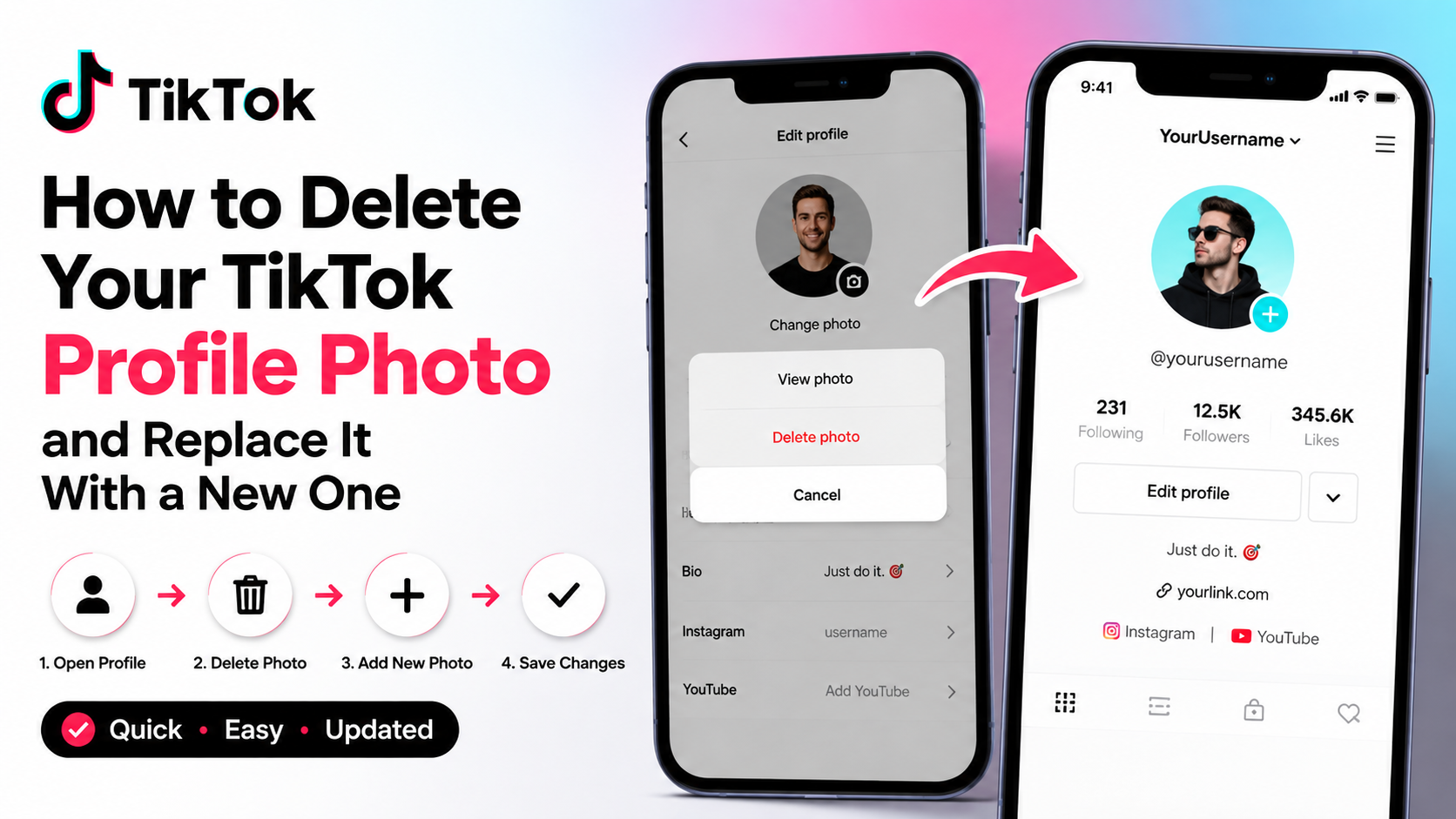
TikTok’s profile-editing options can vary slightly based on your device, region, and app version. In many cases, you can remove the current photo directly. If TikTok does not offer a removal option, you can still replace it with a new image.
Delete a Profile Photo on the TikTok Mobile App
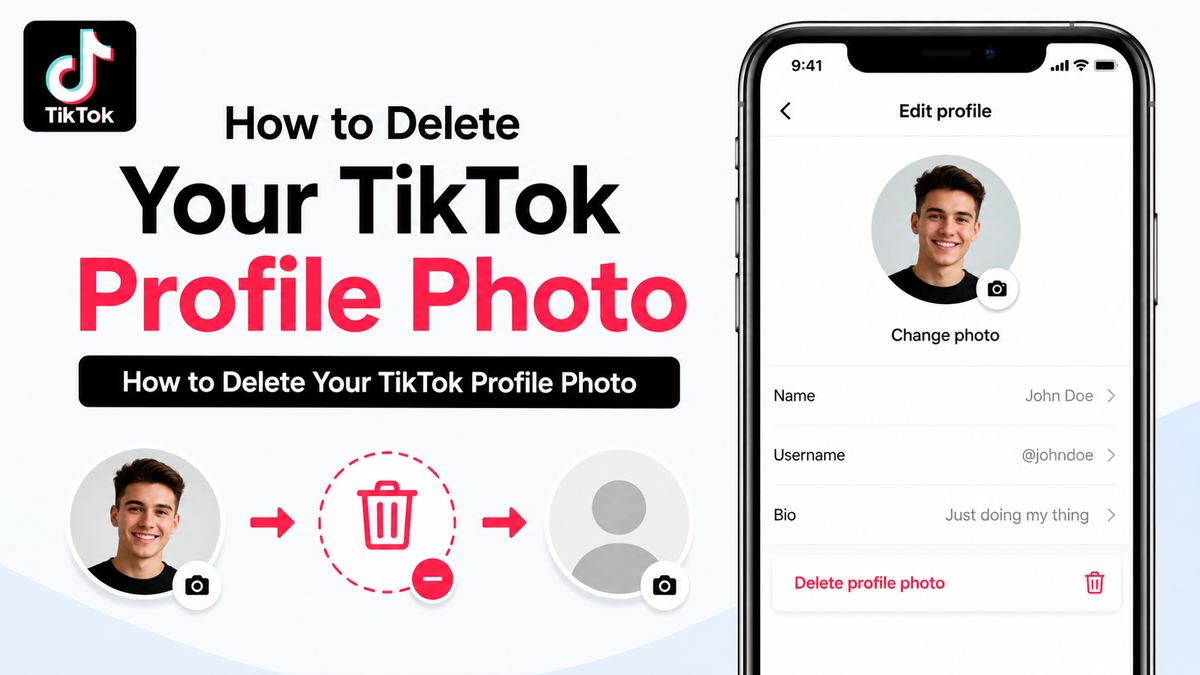
Follow these steps:
- Open the TikTok app and sign in to the account you want to update.
- Tap Profile in the bottom-right corner.
- Select Edit profile.
- Tap your current profile photo or choose Change photo.
- Look for Remove photo, Delete, or a similar option.
- Confirm the change if TikTok asks for confirmation.
- Tap Save if the app displays a save button.
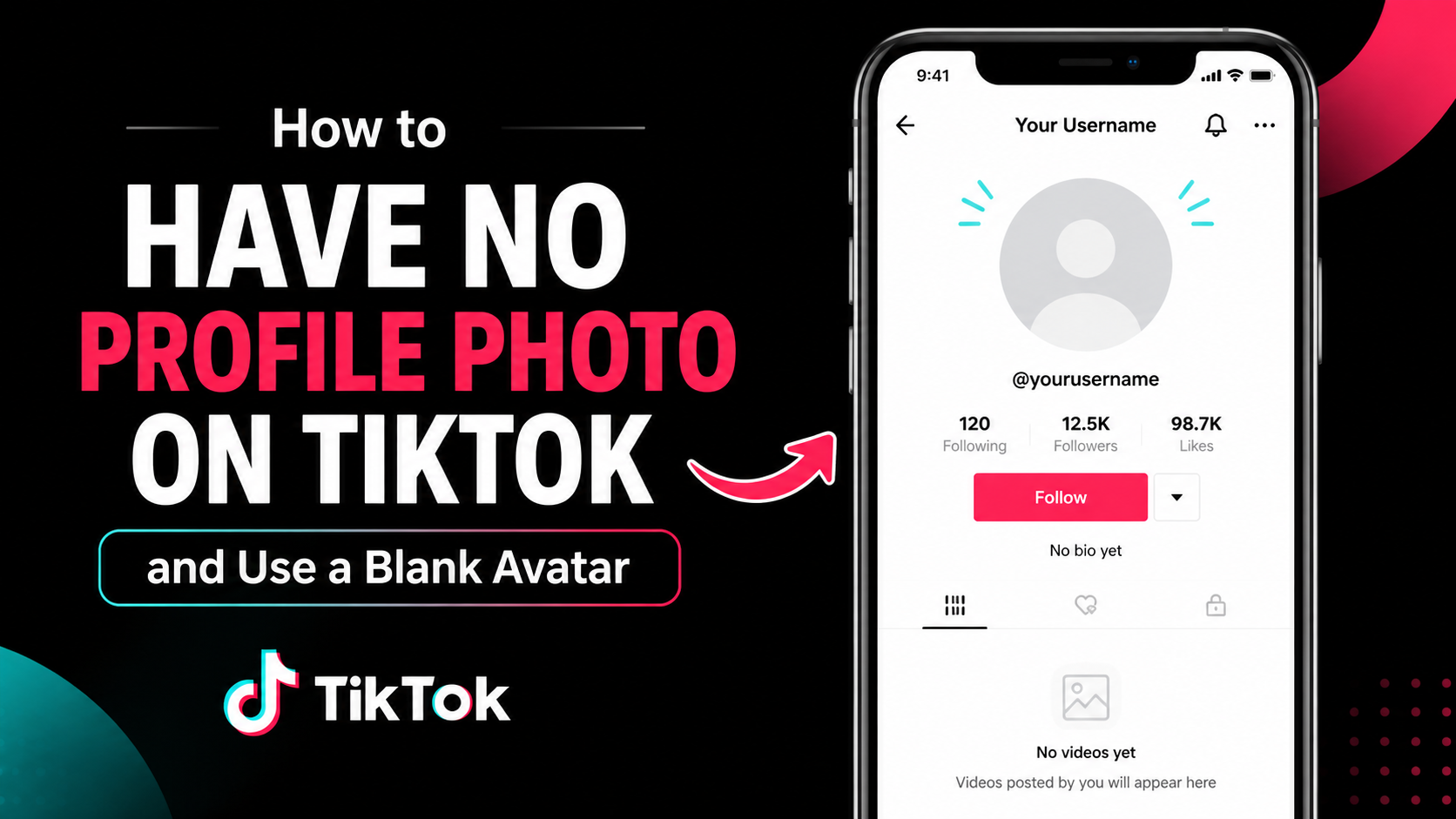
Once removed, TikTok may show a default placeholder image instead of your uploaded photo.
What to Do if You Do Not See “Remove Photo”
Not every TikTok account displays a direct option to delete a profile photo. This is normal and usually reflects differences in the current app interface rather than an account problem.
If you cannot find a removal control:
- Update TikTok from the App Store or Google Play.
- Close and reopen the app, then check Edit profile again.
- Try tapping the photo itself as well as the Change photo label.
- Replace the existing image with a new photo, logo, or neutral placeholder.
- Consider using a profile video if that feature is available and better fits your account.
In practice, most users want to remove an old image because it no longer represents them. Replacing it immediately is usually the stronger option because it keeps the account recognizable and complete.
How to Replace Your TikTok Profile Photo With a New One
Replacing your photo is simple, and you do not need to delete the old one first. Uploading a new image automatically replaces the existing profile picture.
Upload a New Image From Your Phone
To add a new TikTok profile photo:
- Go to Profile.
- Tap Edit profile.
- Select Change photo or tap the profile image.
- Choose Upload photo.
- Pick an image from your device’s photo library.
- Adjust the crop so the subject is centered.
- Confirm the selection and save your profile.
TikTok will replace your previous image with the new one. The update may appear instantly, though cached versions can sometimes take a little longer to refresh for other viewers.
Take a New Profile Photo in the App
If you need a fresh image right away, TikTok may also let you choose Take photo from the profile-photo menu.
This can work well for a casual personal account, but professionals and brands often get better results by preparing an image first. A preselected photo gives you more control over lighting, background, editing, and brand consistency.
For example, a consultant could take a well-lit headshot near a window, crop it square, and upload it rather than relying on a quick in-app camera image.
Choose a Profile Photo That Looks Good on TikTok
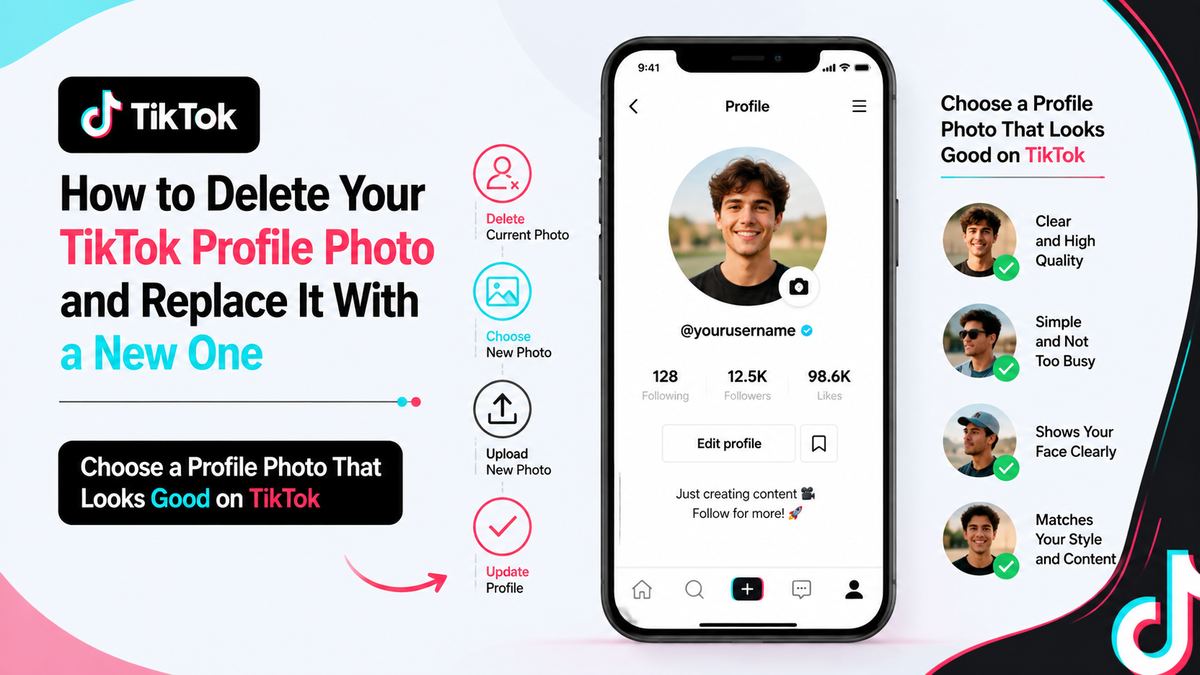
TikTok displays profile photos in a small circle. A visually impressive full-size photo can look cluttered or awkward once it is reduced and cropped.
Use the Right Image Format and Composition
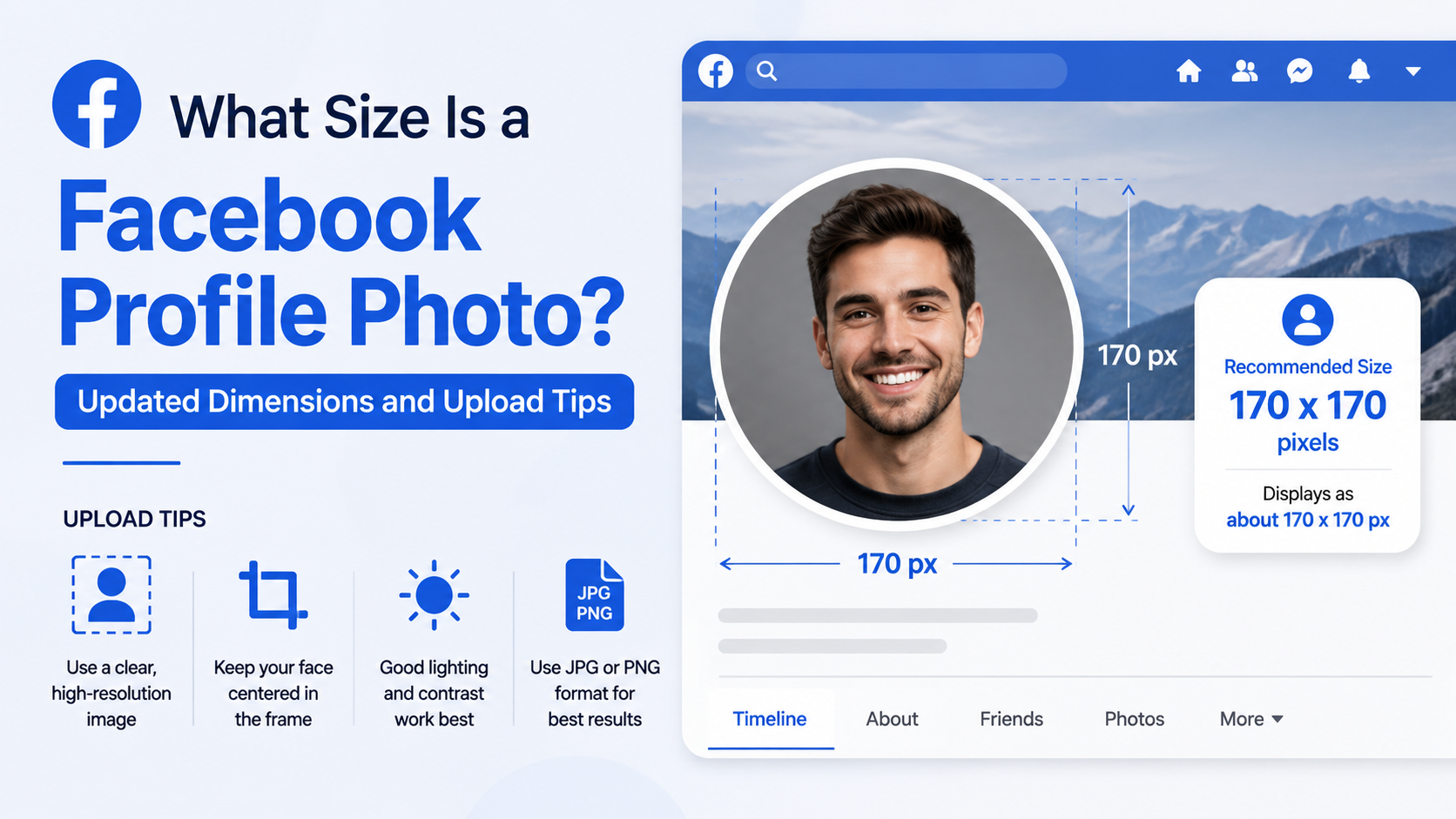
Start with a clear, high-resolution image. A square image is usually easiest to crop and preview, although TikTok may accept other dimensions.
For the best result:
- Use a photo with good lighting and strong contrast.
- Keep the main subject near the center.
- Leave some space around your face or logo.
- Avoid tiny text, detailed backgrounds, and crowded scenes.
- Use a recent image so followers can recognize you offline or on video.
If you are using a logo, test it at a small size before uploading. Text-heavy logos often become unreadable in TikTok’s circular profile frame.
Consider the Circular Crop
TikTok converts your image into a circular profile display. Corners and outer edges may not be visible, so do not place essential details there.
A common mistake is uploading a rectangular business logo with the company name near the edges. After TikTok applies its crop, only part of the branding may appear. A better choice is a simplified logo mark or an icon placed in the center of a square canvas.
Match Your Account’s Purpose
Your profile photo should fit the role of the account.
| Account Type | Strong Profile Photo Choice | |---|---| | Personal creator | Clear, expressive headshot | | Business | Simple logo or recognizable product image | | Consultant or freelancer | Professional, approachable portrait | | Community or nonprofit | Mission-aligned logo or team-approved image | | Anonymous theme account | Distinctive icon, illustration, or branded graphic |
A consistent visual identity makes it easier for viewers to remember your videos and distinguish your account from similar profiles.
Remove an Old Photo Without Losing Your Brand Identity
Deleting a TikTok profile photo can be more than a cosmetic update. If your followers associate you with a familiar image, changing it abruptly may cause a momentary dip in recognition.
Plan a Smooth Transition
When switching from an old photo to a new one, preserve at least one recognizable element where possible. That could be your color palette, pose, logo mark, hairstyle, or visual style.
For instance, if a business is refreshing its logo, it can use the updated logo in the same brand colors. Followers will see that it is new, but still immediately understand it belongs to the same company.
Announce a Major Rebrand
You do not need to announce every profile-picture update. However, if the change is part of a broader rebrand, a quick video can prevent confusion.
You might say:
- “New look, same tutorials—our updated branding is now live.”
- “We changed our name and profile image to better reflect our studio.”
- “If you see this new logo in your feed, it is still us.”
This approach is especially useful for established creators, organizations, and companies with active communities.
Troubleshoot TikTok Profile Photo Update Problems
Most profile-photo changes work immediately. If yours does not, the issue is often related to the app, internet connection, image file, or caching.
Your New Photo Will Not Upload
If TikTok will not accept the new image, try these fixes:
- Confirm that your device has a stable internet connection.
- Use a standard image type, such as JPG or PNG.
- Choose a different image if the file may be corrupted.
- Reduce an unusually large file size.
- Make sure TikTok has permission to access your photos.
- Restart the app and try the upload again.
On iPhone, review photo permissions in Settings > TikTok > Photos. On Android, check TikTok’s app permissions through your device settings.
The Old Photo Is Still Showing
Sometimes you can see the old image after successfully changing it because TikTok or your device has cached the previous version.
Try the following:
- Refresh your profile page.
- Force-close and reopen TikTok.
- Clear TikTok’s cache through the app settings, if available.
- Check the profile from another device or account.
- Wait a short period for the update to propagate.
Avoid repeatedly uploading different photos in quick succession. Give TikTok time to process one change before making another.
The Photo Looks Blurry or Cropped Incorrectly
Blurry results usually come from uploading a low-quality image or enlarging a small original. Incorrect crops occur when the subject sits too close to the edges.
To fix both issues, return to the original image and create a new square version. Center your face, logo, or product image with sufficient empty space around it, then upload that version.
Privacy and Professionalism Considerations
Before you delete a TikTok profile photo or publish a replacement, consider what the image reveals. TikTok is a public-facing platform for many users, and profile images can be visible well beyond your follower list.
Protect Personal Information
Avoid profile photos that unintentionally expose private details, such as:
- A visible home address or license plate.
- A child’s school uniform or location identifiers.
- Workplace credentials you do not want publicly shared.
- Sensitive documents, screens, or personal information in the background.
A simple portrait against a plain background is often safer and more effective than an overly detailed image.
Keep Business Accounts Brand-Safe
If you manage TikTok for an employer or client, use only approved visual assets. Confirm that you have permission to use the logo, headshot, product image, or campaign artwork before uploading it.
It is also wise to keep a copy of the approved image in your organization’s shared asset library. That makes future updates easier and prevents inconsistent versions from appearing across channels.
Frequently Asked Questions
Can I delete my TikTok profile photo completely?
Often, yes. Go to Profile > Edit profile > Change photo and look for a Remove photo option. If that control is not available in your version of TikTok, replace the image with a new photo or a simple placeholder instead.
Does TikTok notify followers when I change my profile photo?
TikTok does not typically send a dedicated notification to followers when you update your profile picture. However, people may notice the new image in comments, messages, search results, and your profile page.
Why can’t I change my TikTok profile photo?
The issue may be caused by a weak connection, missing photo permissions, an outdated app, a temporary TikTok error, or an unsupported image file. Update the app, check permissions, restart TikTok, and try uploading a different JPG or PNG file.
Will changing my profile photo affect my videos or followers?
No. Updating your profile image does not delete videos, reduce followers, reset your likes, or alter your account settings. It only changes the visual image associated with your profile.
What is the best size for a TikTok profile photo?
A clear square image works best because TikTok crops the image into a circle. Use a high-resolution photo, keep the main subject centered, and avoid putting important text or details near the edges.
Conclusion
Learning how to delete a TikTok profile photo and replace it with a stronger image is a small task with a noticeable impact. Start from Profile > Edit profile, remove the existing image if TikTok provides that option, or upload a new photo to replace it directly.
Choose an image that remains clear in TikTok’s circular crop, reflects your account’s purpose, and supports consistent recognition across your online presence. Review your profile after uploading, then make the update part of your regular brand maintenance—especially when your appearance, services, logo, or content direction changes.