August 19, 2026 · Updated August 24, 2026 · 11 min read
How to Add a Photo to Your Outlook Profile and Microsoft Account
On this page
- Why Your Outlook Profile Photo Matters
- How to Add a Photo to a Personal Microsoft Account
- How to Change Your Outlook Profile Photo on the Web
- How to Change Your Photo From Outlook Desktop Apps
- How to Choose a Professional Outlook Profile Photo
- Troubleshooting an Outlook Profile Photo That Will Not Update
- What Happens to Your Photo Across Microsoft 365?
- Frequently Asked Questions
- Conclusion
How to Add a Photo to Your Outlook Profile and Microsoft Account
Your Outlook profile photo is a small detail with a big impact. It helps colleagues recognize you in a crowded inbox, makes Teams and Microsoft 365 interactions feel more personal, and gives your account a polished, professional presence.
The exact process depends on whether you use a personal Microsoft account, such as Outlook.com, or a work or school Microsoft 365 account. This guide explains both paths, including how to choose the right image, update it from different devices, and solve common issues when your new picture does not appear immediately.
Key Takeaways
- Your Outlook profile photo may be managed through your Microsoft Account or your organization’s Microsoft 365 profile.
- Personal-account photos can be changed from the Your info area of your Microsoft Account.
- Work or school users can usually update their picture in Outlook on the web or the My Account portal.
- Use a clear, square, well-lit headshot for the best result across Outlook, Teams, and Microsoft 365.
- HEIC files and animated GIFs are not supported for Microsoft Account profile photos; JPG or PNG is the safest choice.
- New photos can take up to 24–48 hours to update across every Microsoft service.
Why Your Outlook Profile Photo Matters
An Outlook profile photo does more than personalize your account. In professional settings, it makes communication more recognizable and approachable. When coworkers see your image beside an email, calendar invitation, or Teams message, they can connect the name to the person more quickly.
Where Your Photo May Appear
Depending on your account type and organization settings, your picture can appear in:
- Outlook on the web and desktop Outlook
- Microsoft Teams
- Microsoft 365 profile cards
- OneDrive and SharePoint
- Office apps such as Word, Excel, and PowerPoint
- Windows and other devices signed in with your Microsoft Account
For personal accounts, Microsoft uses the same picture across apps and devices connected to that account. For work or school accounts, the image is generally part of your organization’s Microsoft 365 directory.
Personal vs. Work or School Accounts
Before changing anything, identify the account you use:
- Personal account: Typically ends in
@outlook.com,@hotmail.com,@live.com, or another email address used to sign in to Microsoft services personally. - Work or school account: Usually supplied by an employer, school, or organization and managed through Microsoft 365.
This distinction matters because your organization may control profile information, including your photo.
How to Add a Photo to a Personal Microsoft Account
If you use Outlook.com or another personal Microsoft account, the main place to update your image is the Microsoft Account dashboard.
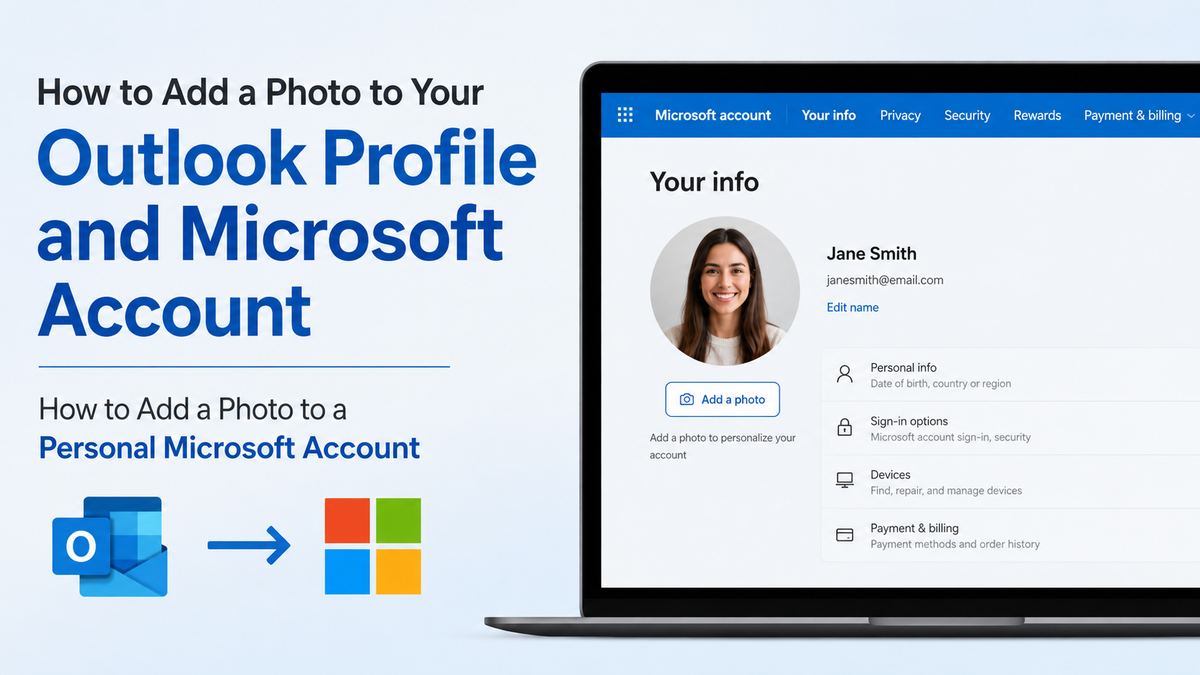
Update Your Picture From a Browser
Follow these steps:
- Go to Microsoft Account and sign in.
- Open the Your info section.
- Select Add a photo or Change photo beneath your current profile image.
- Browse your device and choose the image you want to use.
- Adjust the crop or orientation if prompted, then save the change.
Microsoft notes that the picture may take up to 24 hours to display everywhere your account is used. Microsoft’s account-picture guidance also confirms that the updated image is used across supported apps and devices.
Choose a Compatible Image File
For the smoothest upload, use a standard still-image format:
- JPG/JPEG: Ideal for most photos and smaller file sizes
- PNG: Useful when you want sharper graphics or a simple logo
- BMP, GIF, or TIFF: May work in some Microsoft experiences, but JPG and PNG are more reliable
Avoid HEIC images directly from some iPhones and animated GIFs. If you have an HEIC photo, export or convert it to JPG before uploading.
Make the Crop Work Everywhere
Profile images are usually displayed as a circle, even if you upload a square image. Place your face near the center and leave enough space above your head and around your shoulders.
For example, a full-body vacation photo may look fine in your gallery but become unrecognizable when reduced to a tiny circular Outlook icon. A waist-up or shoulders-up image is a much stronger choice.
How to Change Your Outlook Profile Photo on the Web
Outlook on the web offers a fast route to your profile settings, especially for Microsoft 365 work or school users.
Update a Work or School Photo in Outlook on the Web
- Sign in to Outlook on the web with your work or school account.
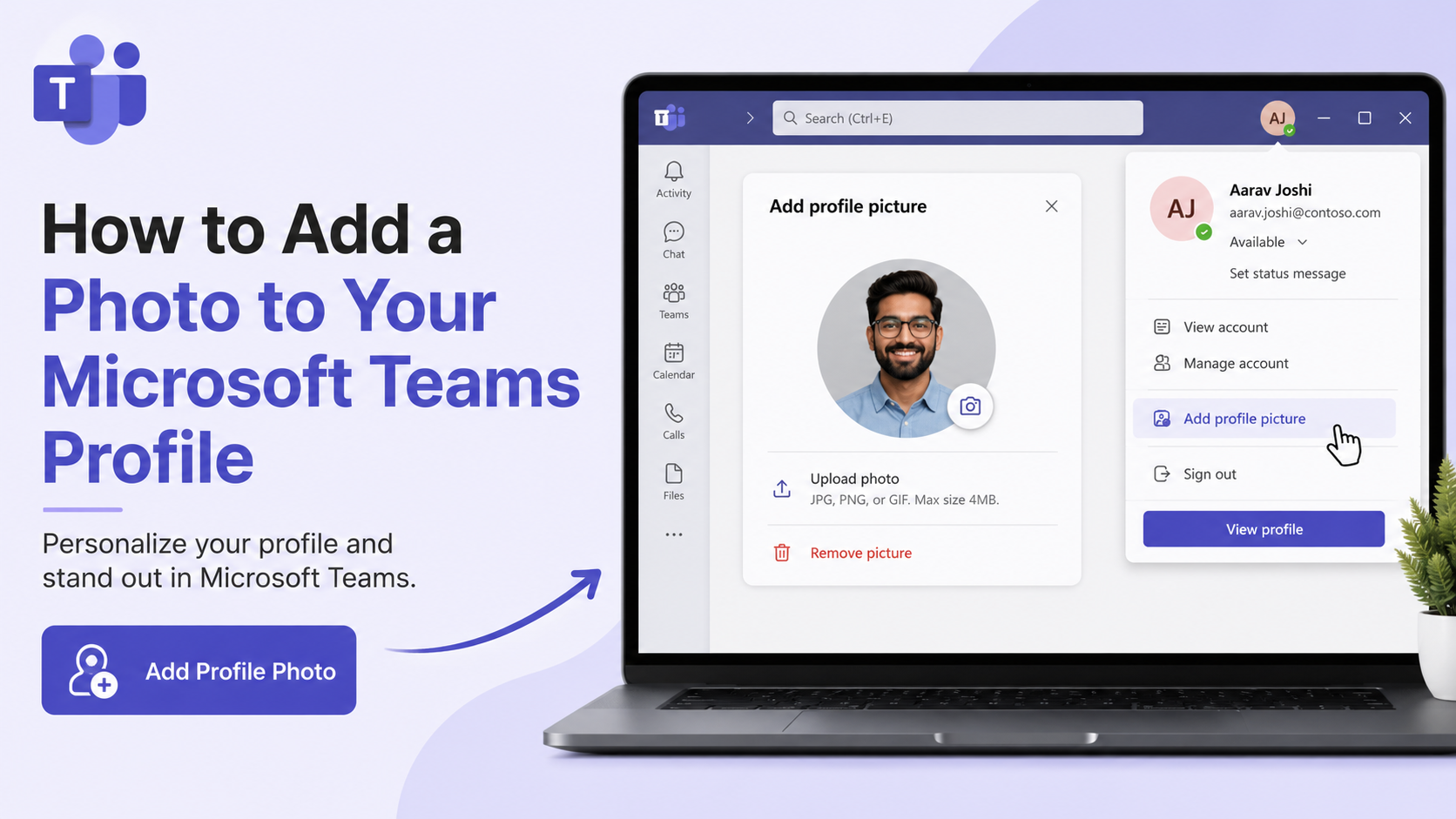
- Select your name, initials, or current photo in the upper-right corner.
- Select your profile photo in the account pane.
- Choose Upload a new photo.
- Select your image and choose Apply or Save.
Microsoft’s current Outlook guidance notes that the photo may appear after you sign in again to Microsoft 365. See the official Outlook on the web instructions.
Use the My Account Portal Instead
If you do not see an upload option in Outlook, try the Microsoft My Account portal:
- Go to myaccount.microsoft.com.
- Sign in with your work or school account.
- Select the edit icon on your current profile photo.
- Upload, resize, and save your new image.
This is often the clearest option for employees and students because it takes you directly to account settings.
When the Option Is Missing
A missing Change photo button is usually an administrative policy, not a problem with your browser.
Your employer or school may:
- Manage profile photos centrally
- Pull photos from an HR or identity system
- Restrict users from editing directory information
- Require approved professional headshots
In that situation, contact your IT help desk, Microsoft 365 administrator, or HR team. Provide the image you want to use and ask whether they can update it for you.
How to Change Your Photo From Outlook Desktop Apps
The Outlook desktop app can direct you to the right online profile page, but it normally does not store the photo independently.
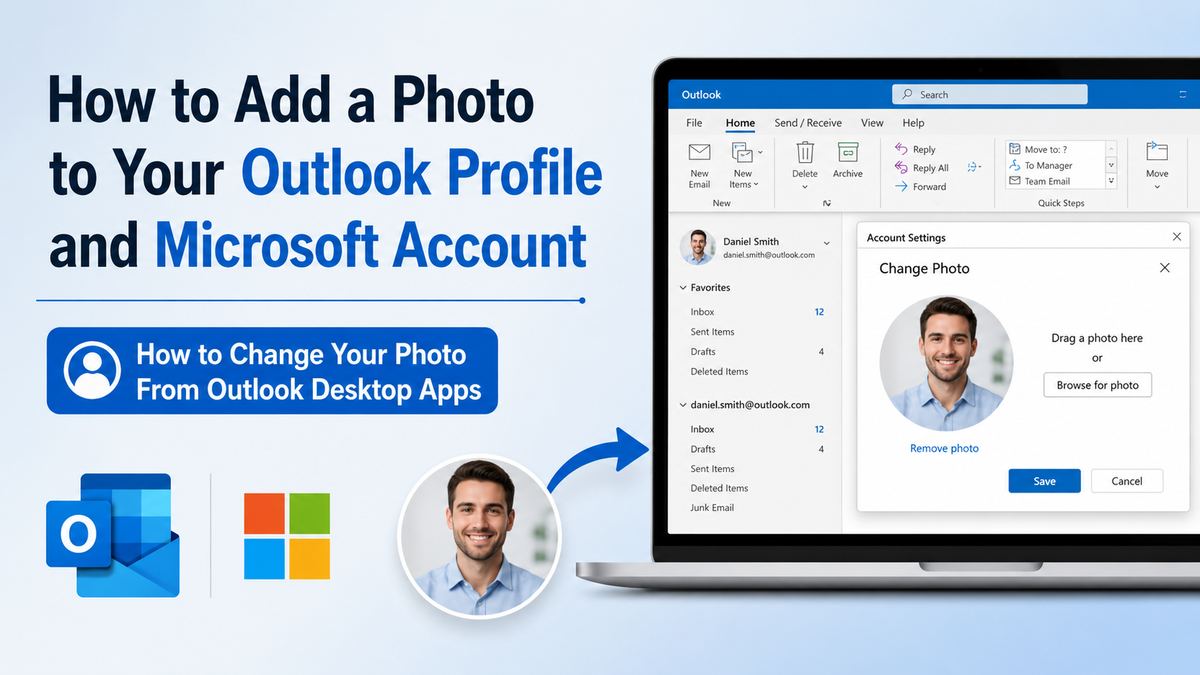
Classic Outlook for Windows
In classic Outlook:
- Select File to open the Account Information page.
- Under your current image, select Change.
- Outlook opens a browser window for your profile settings.
- Select your picture again, choose Change photo, and upload your file.
- Crop or rotate the image if needed, then select Save.
Microsoft advises that this update can take up to 48 hours to appear in every location. Its classic Outlook instructions also explain that desktop Outlook redirects you to the web-based profile experience.
Microsoft 365 Apps as an Alternative
If you use Word, Excel, or PowerPoint, you may also be able to update a work or school photo from:
- File
- Account
- Change photo
That option redirects you to your organization’s profile page. It is useful when Outlook is not open or when you primarily work in another Office app.
Outlook Mobile Limitations
Outlook for iOS and Android can display your profile image, but profile editing options may be limited. Microsoft generally recommends updating your picture through Outlook on the web, a desktop Microsoft 365 app, or your account portal.
If you need a quick mobile solution, open the Microsoft Account or My Account website in your phone’s browser and follow the applicable steps above.
How to Choose a Professional Outlook Profile Photo
The best Outlook profile photo is not necessarily a formal corporate portrait. It should simply help people identify you clearly and reflect the context in which you communicate.
Use These Practical Photo Guidelines
Aim for an image that is:
- Recent and recognizable
- Bright, sharp, and in focus
- Centered on your face and shoulders
- Taken against an uncluttered background
- Appropriate for your workplace or audience
- Square or easily cropped into a square
For most professional readers, a natural headshot with a simple background is ideal. You do not need studio lighting; a well-lit photo near a window can work extremely well.
Avoid Common Profile Photo Mistakes
Avoid images that become unclear at small sizes, including:
- Group photos where people must guess which person is you
- Heavy filters or extreme color effects
- Dark, blurry, or backlit shots
- Images with sunglasses that hide your eyes
- Tiny logos or detailed artwork
- Photos with busy backgrounds
A useful test is to shrink the picture until it is roughly the size of a small app icon. If your face is still instantly recognizable, it will likely work well in Outlook.
Protect Your Privacy
Your profile image may be visible to coworkers, people in meetings, or contacts within your Microsoft environment. Use a photo you are comfortable sharing in that context.
For a personal Microsoft account, consider how the same image may appear on connected Windows devices and Microsoft apps. For work accounts, follow your organization’s photo and branding policies.
Troubleshooting an Outlook Profile Photo That Will Not Update
A successful upload does not always mean an instant change. Microsoft services can cache profile images, and work accounts may sync through multiple systems.
Give Microsoft Time to Sync
For personal accounts, Microsoft says the change may take up to 24 hours to update across services. For some Outlook and Microsoft 365 work-account scenarios, it may take up to 48 hours.
Before trying again:
- Sign out and sign back in to Outlook or Microsoft 365
- Refresh your browser
- Restart the Outlook desktop app
- Check the photo in Outlook on the web after several hours
- Confirm you updated the intended account
Confirm You Used the Right Account
Many people have both a personal Outlook.com account and a work Microsoft 365 account. Updating one does not automatically update the other.
For example, changing the image on your personal @outlook.com account will not necessarily change the profile image colleagues see when you email them from your company address.
Fix Upload and Formatting Problems
If the image fails to upload or looks wrong:
- Convert HEIC to JPG or PNG
- Use a smaller file size
- Crop the photo into a square before uploading
- Rename the file with a simple name, such as
profile-photo.jpg - Try another browser or a private browsing window
- Upload a different JPG to rule out a damaged file
If a photo appears distorted, re-upload the same image and adjust its zoom or crop settings. Adding borders around a portrait or landscape image can preserve more of the original photo inside the square frame.
What Happens to Your Photo Across Microsoft 365?
Microsoft 365 treats profile photos as identity information, which is why one upload can affect multiple services.
Visibility in Outlook and Teams
In a typical work environment, your image can appear beside:
- Sent and received messages
- Teams chats and meetings
- Calendar invitations
- Shared documents and comments
- Organization profile cards
This consistency is useful: a client who knows you from an email thread can recognize you in a Teams meeting without extra introduction.
Organization Controls and Directory Sync
Some companies synchronize employee data from systems such as Active Directory or HR software. If that is your organization’s setup, an administrator may overwrite manual changes or prevent them entirely.
If your photo repeatedly reverts, ask IT whether the organization uses directory synchronization and where profile photos are officially managed. Updating the source system is usually the lasting solution.
Frequently Asked Questions
Can I change my Outlook profile photo without changing my Microsoft Account photo?
It depends on the account. A personal Outlook.com account is tied to your Microsoft Account, so changing the Microsoft Account picture usually affects Outlook and other connected Microsoft services. A work or school account is managed separately from your personal account, so its photo can be different.
Why is my Outlook profile photo not showing for other people?
The update may still be syncing, particularly in Microsoft 365 environments. Allow up to 24–48 hours, then sign out and back in. If the photo still does not show, your organization may control profile images or directory synchronization. Contact your IT administrator for confirmation.
What size should an Outlook profile photo be?
Microsoft experiences can resize the image automatically, but a square image with a clear, centered face works best. Use a reasonably high-quality JPG or PNG; avoid extremely small, blurry files. For Microsoft 365 business uploads, Microsoft specifies an image smaller than 4 MB in its profile-photo instructions.
Can I use a logo instead of a photo?
Yes, especially for a shared mailbox, business account, or brand-facing role, provided your organization allows it. For an individual professional account, a recognizable headshot is usually more effective because it makes communication feel more personal and helps others identify you quickly.
Can I remove my Outlook profile photo?
In many cases, yes, but the available option depends on your account type and organization policy. Personal-account users can replace the image through Microsoft Account settings. Work or school users may need to ask IT to remove or reset the photo if their profile is centrally managed.
Conclusion
Adding an Outlook profile photo is one of the simplest ways to make your Microsoft presence more recognizable and professional. Personal users can update it through the Microsoft Account Your info page, while work and school users can usually change it through Outlook on the web, the My Account portal, or a Microsoft 365 desktop app.
Choose a clear, square JPG or PNG, allow time for syncing, and contact your administrator if your organization controls profile images. Update your Outlook profile photo today so every email, meeting, and Microsoft 365 interaction puts a recognizable face to your name.