August 19, 2026 · 13 min read
Where Can You Change the Color Profile in Photoshop?
On this page
- Understand What a Color Profile Does in Photoshop
- Where to Change Photoshop’s Default Color Settings
- Use Assign Profile to Correct a Tagged or Untagged Document
- Use Convert to Profile for Output Preparation
- Preview a Different Output Profile with Soft Proofing
- Check Which Profile Your Current File Uses
- Avoid Common Photoshop Color Profile Mistakes
- Build a Reliable Workflow for Web and Print
- Frequently Asked Questions
- Conclusion
Where Can You Change the Color Profile in Photoshop?
Color that looks perfect on your monitor can shift dramatically when opened on another computer, posted online, or sent to print. In most cases, the problem is not the design itself—it is the color profile attached to the file.
If you need to change color profile Photoshop settings, there are several places to look, depending on your goal. You may want to set a default working space for future projects, assign the correct profile to a file that was tagged incorrectly, or convert an image for a printer, website, or client workflow. These actions sound similar, but they produce very different results.
This guide explains exactly where Photoshop stores these controls, how to use each one safely, and how to avoid the color-management mistakes that create costly rework.
Key Takeaways
- Use Edit > Color Settings to set Photoshop’s default working color spaces and profile-warning behavior.
- Use Edit > Assign Profile when a document has the wrong or missing profile tag.
- Use Edit > Convert to Profile when preparing artwork for a different output space while preserving its visual appearance.
- Use View > Proof Setup to preview print or output conditions without permanently changing the document.
- Preserve embedded profiles when opening client files unless you have a clear reason to override them.
- Save a copy before major color conversions, especially for print production work.
Understand What a Color Profile Does in Photoshop
A color profile is a set of instructions that tells Photoshop how to interpret numerical color values. For example, RGB values of 255, 0, 0 may look different in Adobe RGB, sRGB, and ProPhoto RGB because each color space can represent a different range of colors.
Without a profile, Photoshop has no reliable way to know what the file’s numbers are supposed to mean.
Color profile versus color mode
Color profiles and color modes are related, but they are not the same thing.
- Color mode defines the basic color model, such as RGB, CMYK, Grayscale, or Lab.
- Color profile defines a specific color space within that model, such as sRGB IEC61966-2.1, Adobe RGB (1998), Display P3, or U.S. Web Coated (SWOP) v2.
You can change an image from RGB to CMYK through Image > Mode, but that is not usually the best place to manage output color. For more controlled results, use Convert to Profile.
Why the right profile matters
Correct color management helps you maintain consistency across devices and outputs. It is particularly important when you are:
- Designing marketing materials for commercial printing
- Preparing product photos for an online store
- Sharing files between photographers, designers, and agencies
- Exporting assets for social media and web browsers
- Matching brand colors across packaging, signage, and digital graphics
For instance, a photographer editing in Adobe RGB may preserve more saturated colors during retouching, but should often export an sRGB version for the web. Otherwise, some browsers or devices may display the image with duller or unexpected colors.
Where to Change Photoshop’s Default Color Settings
The main location for application-wide color management preferences is:
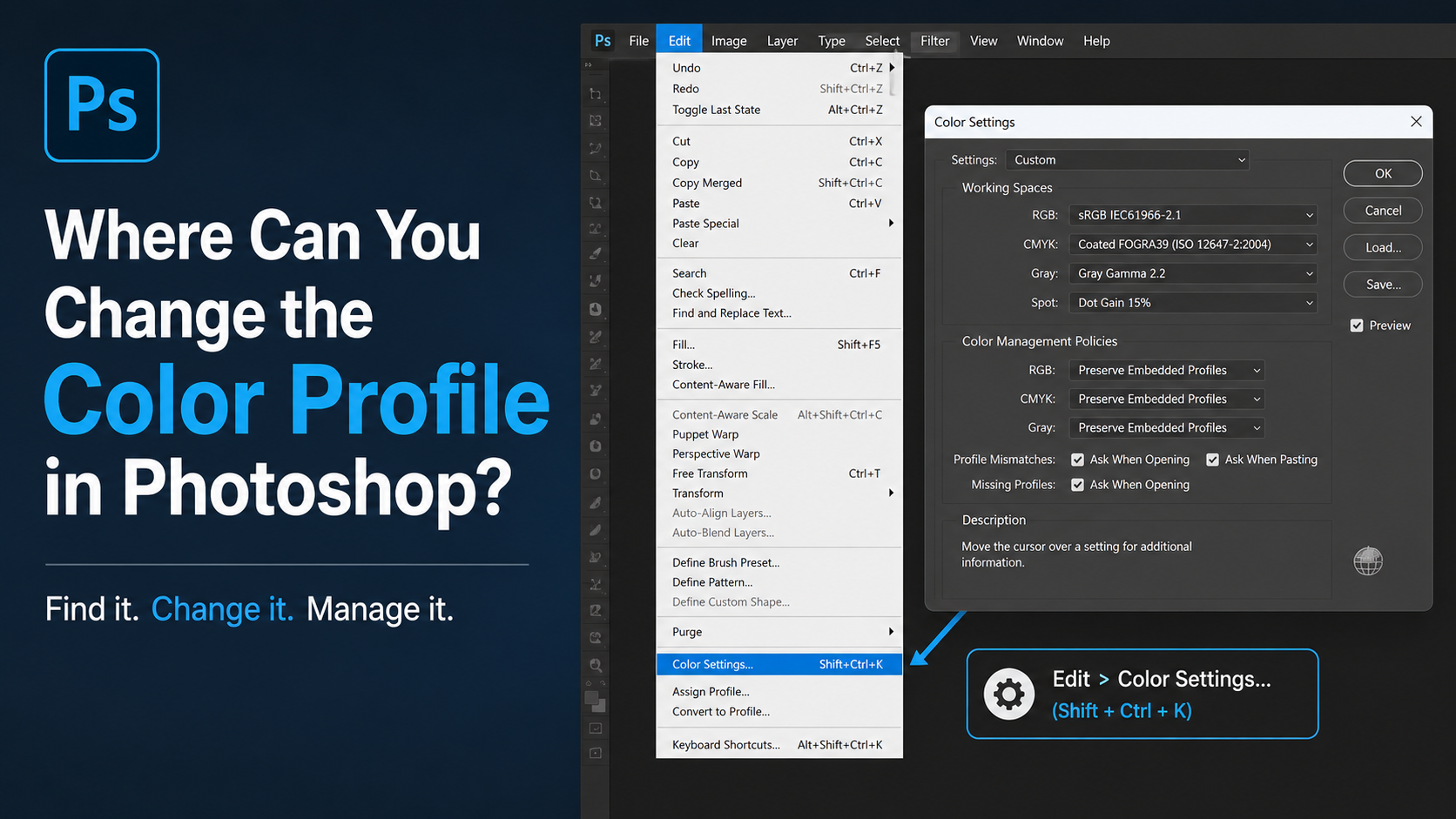
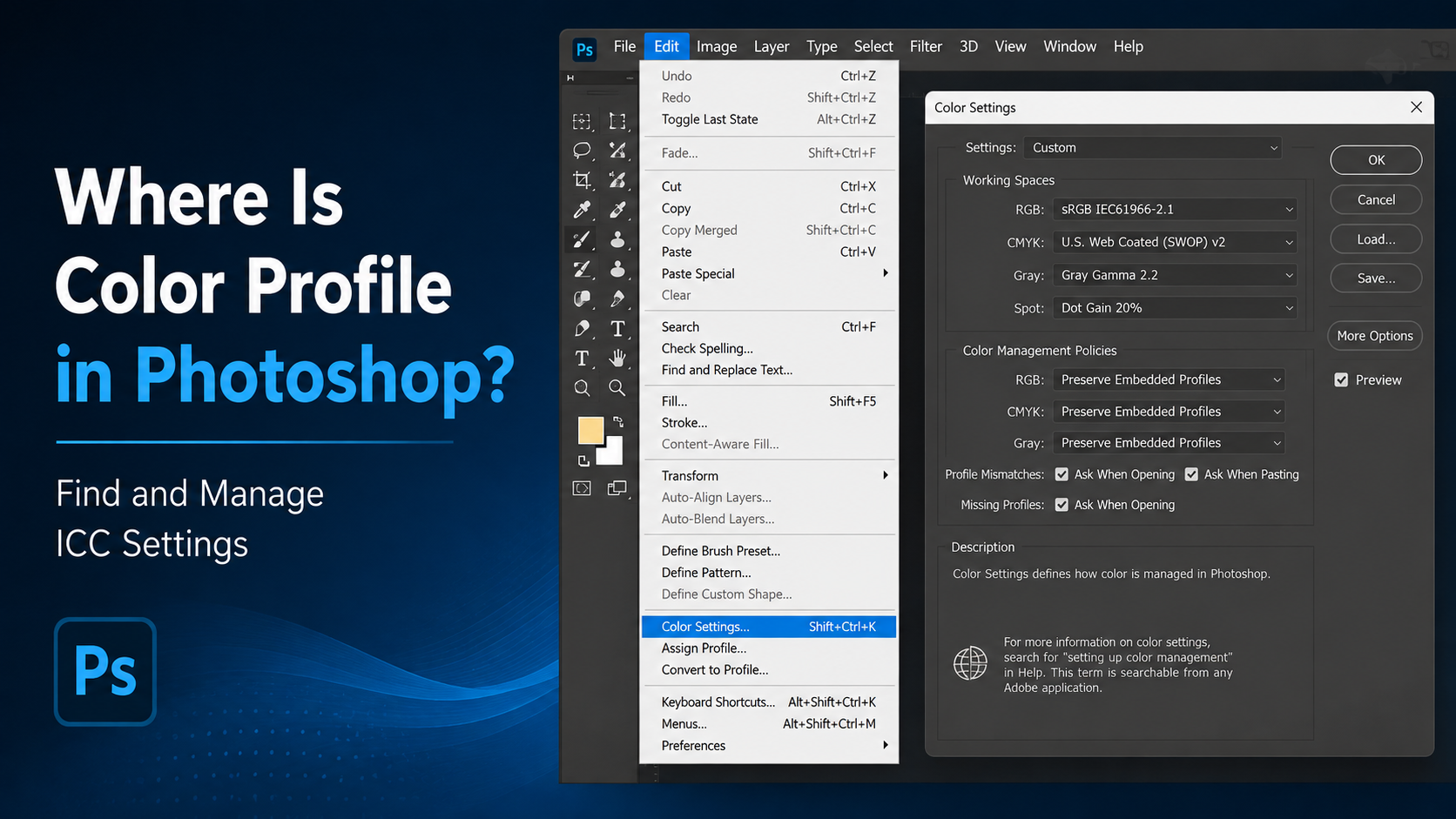
Edit > Color Settings
This panel controls Photoshop’s default working spaces and determines how the program responds when you open files with missing or conflicting profiles.
Set your working color spaces
Inside Color Settings, you can choose working spaces for RGB, CMYK, Gray, and Spot color documents.
Common RGB choices include:
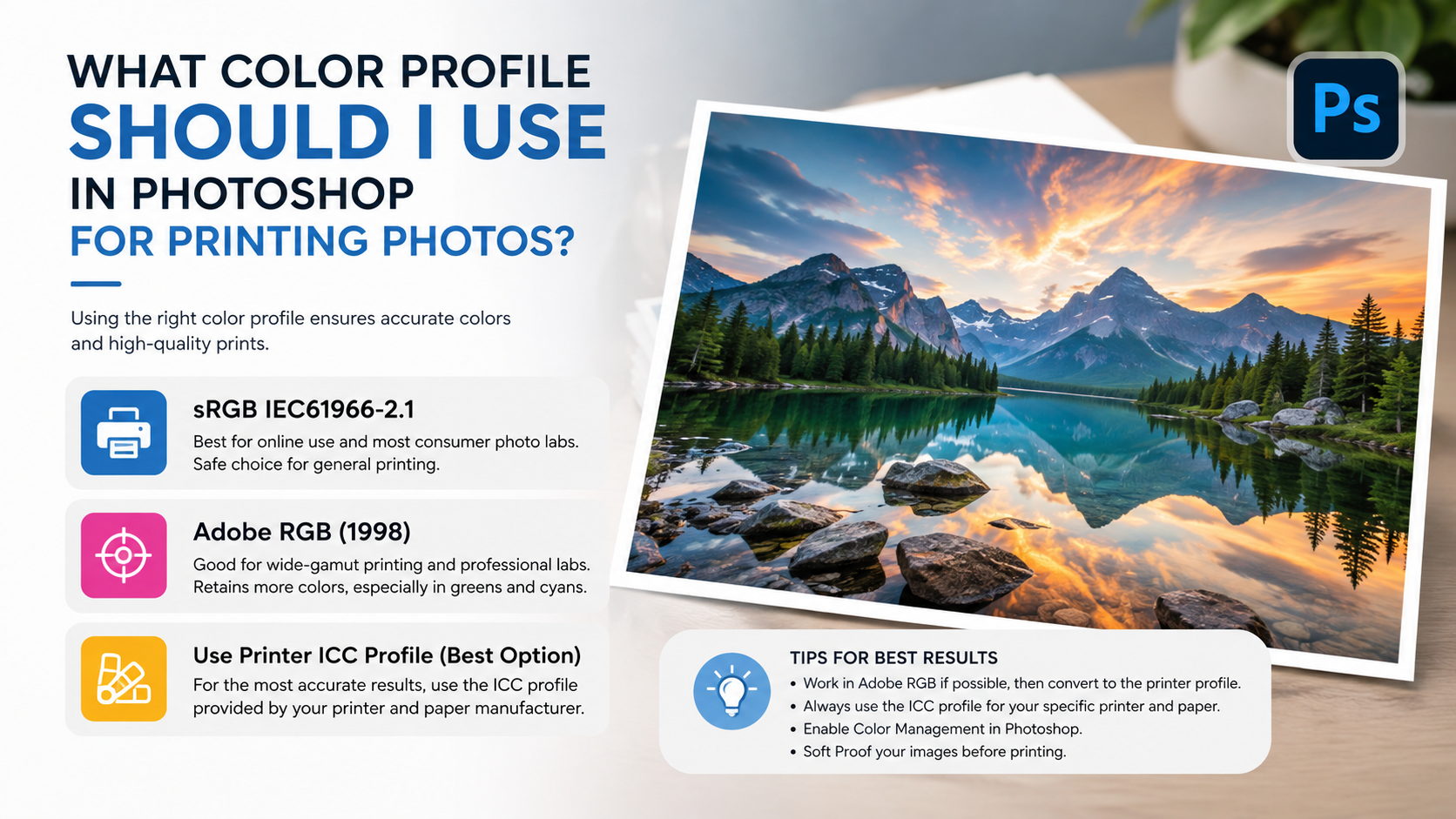
- sRGB IEC61966-2.1: Best default for web graphics, social media, and broadly compatible digital images.
- Adobe RGB (1998): Useful for high-quality photography and print workflows requiring a wider gamut.
- ProPhoto RGB: Often used for advanced photographic editing, especially with high-bit-depth RAW files.
- Display P3: Relevant for projects designed primarily for modern Apple displays and P3-capable screens.
A practical choice for many general users is sRGB. Professional photographers and print-focused designers may prefer Adobe RGB, provided their entire workflow supports it.
Configure color-management policies
The Color Management Policies area tells Photoshop what to do with incoming documents.
A reliable general setup is:
- RGB: Preserve Embedded Profiles
- CMYK: Preserve Embedded Profiles
- Gray: Preserve Embedded Profiles
This tells Photoshop to respect the profile already embedded in a document. It is especially useful when receiving files from clients or collaborators, since forcing all files into one working space can alter their appearance.
Enable the warning options for:
- Profile mismatches when opening files
- Missing profiles when opening files
- Profile mismatches when pasting content
These prompts add a small interruption to your workflow, but they prevent accidental color changes.
Save or synchronize settings for teams
Photoshop includes several preset color-setting configurations, such as North America General Purpose and North America Prepress. Choose a preset that aligns with your production environment, then adjust it only when you understand the consequences.
In Adobe Creative Cloud workflows, synchronized color settings can help Photoshop, Illustrator, and InDesign interpret color consistently. This is especially helpful for agencies and in-house teams producing cross-application campaigns.
Use Assign Profile to Correct a Tagged or Untagged Document
To assign a color profile to the open file, go to:
Edit > Assign Profile
This command changes Photoshop’s interpretation of the existing color numbers. It does not alter the numerical pixel values themselves.
When to use Assign Profile
Use Assign Profile when the image has no profile or has been assigned the wrong one.
Typical examples include:
- A legacy image opens with a “missing profile” warning.
- A client sends an RGB image that looks obviously too saturated or too dull.
- An exported file lost its original embedded profile.
- You know an image was created in Adobe RGB but was incorrectly tagged as sRGB.
Suppose a photographer sends a file that was edited in Adobe RGB, but the file opens as untagged. Assigning Adobe RGB may restore the intended appearance. Assigning sRGB instead could make its colors look incorrect.
The options in Assign Profile
Photoshop typically gives you three choices:
- Don’t Color Manage This Document
Removes or avoids assigning a profile. This is rarely ideal for modern workflows.
- Working RGB
Assigns Photoshop’s current RGB working space to the document.
- Profile
Lets you choose a specific profile from the available list.
Be careful: assigning a profile can visibly change the image. That is expected, because Photoshop is now interpreting the same RGB or CMYK values through different color-space instructions.
Assigning is not converting
This distinction is essential:
- Assign Profile: Keeps the numbers; changes their meaning.
- Convert to Profile: Changes the numbers; aims to preserve their visual appearance.
If you assign sRGB to an Adobe RGB image, Photoshop will not recalculate pixel values. The image may shift because the colors are now being interpreted differently. Use this only when the document’s existing profile information is missing or wrong.
Use Convert to Profile for Output Preparation
To permanently change a document into a new color space, go to:
Edit > Convert to Profile
This is the command most people need when they want to change color profile in Photoshop for delivery, export, or print.
When Convert to Profile is the right choice
Use Convert to Profile when you want the image to retain a similar appearance while becoming compatible with a new destination.
Common scenarios include:
- Converting Adobe RGB artwork to sRGB for a website
- Converting an RGB design to a printer’s requested CMYK ICC profile
- Preparing packaging artwork for a specific press condition
- Creating final client files for a standardized brand workflow
For example, if your master file is in Adobe RGB and you need a web-ready JPEG, convert the copy to sRGB before export. This gives browsers and most consumer devices a much more predictable result.
Choose the destination profile carefully
In the Convert to Profile dialog, select the profile required by the final output.
For web and general digital delivery, choose:
- sRGB IEC61966-2.1
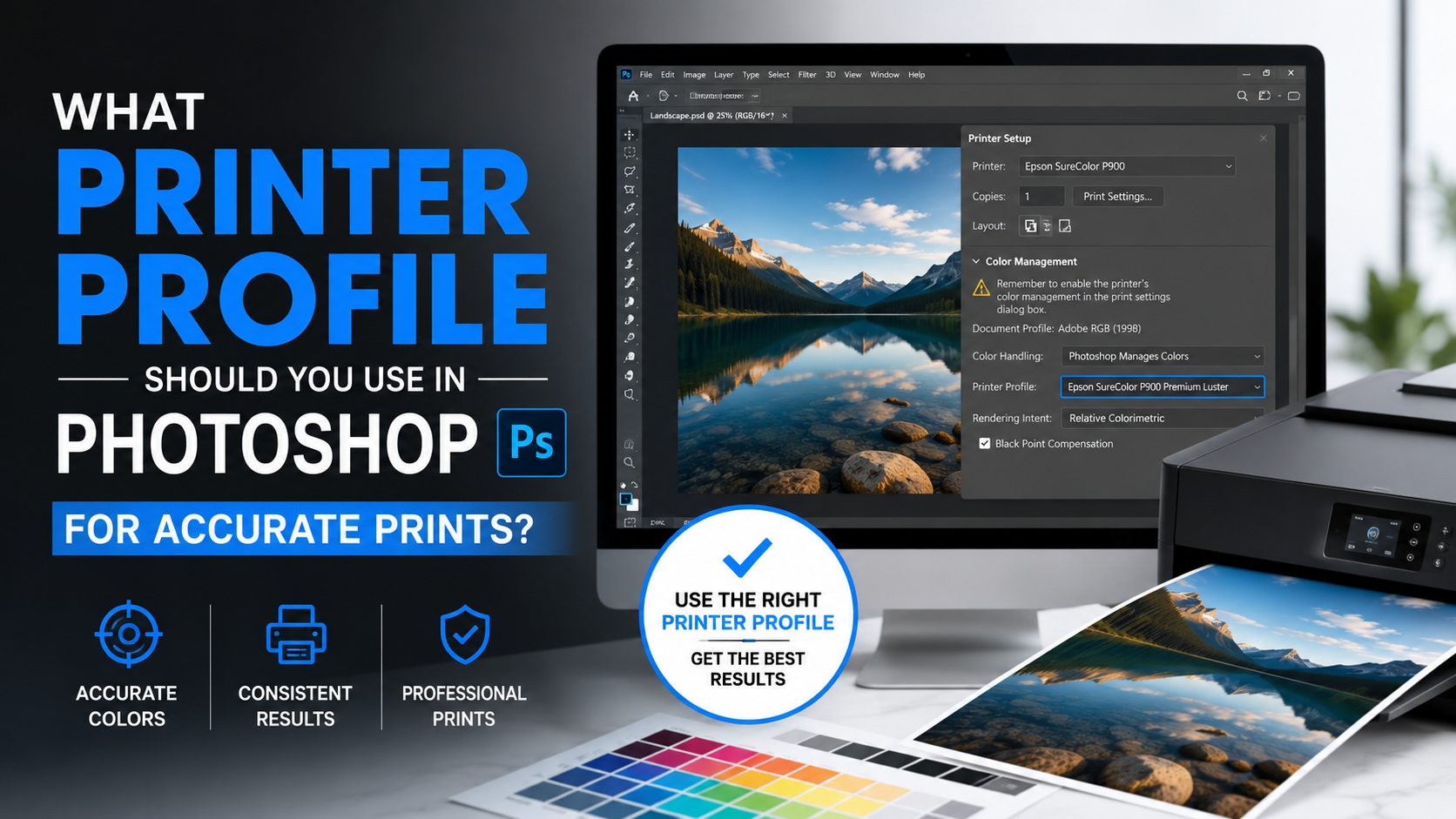
For print, use the profile supplied by the printer whenever possible. Do not assume every commercial printer expects the same CMYK profile. Paper type, press, ink, screening method, and region can all affect the correct target profile.
If a printer specifies a profile such as GRACoL, FOGRA, or a custom ICC profile, use that exact profile and ask whether they want the file converted before submission.
Rendering intent and black point compensation
Photoshop also asks you to choose a rendering intent. The two most commonly useful options are:
- Relative Colorimetric: Preserves in-gamut colors accurately and remaps only colors outside the destination gamut. Often preferred for logos and brand-critical work.
- Perceptual: Compresses the overall gamut to retain visual relationships between colors. Often useful for photographs with many saturated colors.
Enable Black Point Compensation in most standard conversions. It helps map black levels between profiles more smoothly.
There is no single perfect rendering intent for every image. Soft-proof the result and compare both options when print color is important.
Preview a Different Output Profile with Soft Proofing
If you want to see how a file may look after conversion or printing—but do not want to alter the document—use:
View > Proof Setup > Custom
This feature is called soft proofing.
What soft proofing shows you
Soft proofing simulates how the document may appear in another color space, such as a printer profile or a different display/output condition. It is a preview only; it does not modify your pixels or embedded profile.
This is especially valuable for:
- Checking whether bright RGB colors will fall outside a CMYK printer’s gamut
- Reviewing photographs before producing fine-art prints
- Previewing ink-on-paper limitations
- Evaluating whether brand colors need adjustment for print
After setting up a proof condition, toggle it on and off with:
View > Proof Colors
Use gamut warnings to find risky colors
Enable:
View > Gamut Warning
Photoshop highlights colors that cannot be reproduced in the current proof space. For example, highly saturated neon greens, vivid blues, and bright oranges often exceed standard CMYK print capabilities.
A gamut warning does not always mean you must change the color. It means you should inspect the output carefully. In some cases, a small adjustment to hue, saturation, or brightness can preserve the design’s intent more effectively.
Check Which Profile Your Current File Uses
Before making any changes, confirm the document’s existing profile.
Look in the document status area
Photoshop can display the active color profile in the status information near the bottom of the document window. Depending on your workspace and version, click the status display menu and choose an option related to document profile or document dimensions.
You may see information such as:
- RGB/8, sRGB IEC61966-2.1
- RGB/16, Adobe RGB (1998)
- CMYK/8, U.S. Web Coated (SWOP) v2
This gives you a quick confirmation of both color mode and embedded profile.
Check profile information before export
When exporting for web or delivering files to others, confirm that the profile will be embedded. In many export workflows, an option such as Convert to sRGB appears in the export dialog.
For online graphics, enabling conversion to sRGB is usually the safest choice. For print production, follow the printer’s specifications instead of using a generic export assumption.
Avoid Common Photoshop Color Profile Mistakes
Color-management problems often come from using the correct commands at the wrong time.
Do not convert every file automatically
A common mistake is converting all opened images into the working RGB space. This can reduce available color information or alter the file in unnecessary ways.
A better approach is to preserve embedded profiles, work in the document’s intended space, and convert only when the output requirement is clear.
Do not use Assign Profile as a casual correction
If an image “looks wrong,” it is tempting to test profiles until it looks better. But assigning a random profile can create a technically incorrect file even if it appears acceptable on your monitor.
First determine whether the file:
- Has a missing profile
- Has an incorrect embedded profile
- Needs a real conversion for a new output space
- Is being displayed on an uncalibrated monitor
Do not confuse monitor calibration with document profiles
Your display profile and document color profile serve different jobs.
A calibrated monitor helps Photoshop display colors accurately on your specific screen. A document profile tells Photoshop how to interpret the image itself. Changing an image to compensate for an uncalibrated monitor can create incorrect files for everyone else.
For professional work, calibrate your monitor with a hardware calibration device and maintain an appropriate document color-management workflow.
Build a Reliable Workflow for Web and Print
The best profile choice depends on the destination, not on a universal “best” setting.
A dependable web workflow
For websites, social posts, digital ads, and general online sharing:
- Edit the master image in your preferred RGB working space.
- Save a layered master file with its embedded profile.
- Create an export copy.
- Convert the export to sRGB.
- Embed the sRGB profile when saving or exporting.
This workflow provides wide compatibility across browsers, phones, tablets, and standard displays.
A dependable print workflow
For commercial print:
- Ask the printer for its file-preparation guide and ICC profile.
- Keep an RGB master file whenever possible.
- Soft-proof using the printer’s requested profile.
- Correct out-of-gamut areas where needed.
- Convert a copy using Edit > Convert to Profile.
- Deliver the requested format, profile, bleed, resolution, and black-generation settings.
Keeping an RGB master is valuable because it preserves flexibility if another printer, paper stock, or press process is required later.
Frequently Asked Questions
Where is the color profile setting in Photoshop?
For overall Photoshop settings, go to Edit > Color Settings. For the profile of the current document, use Edit > Assign Profile or Edit > Convert to Profile, depending on whether you need to reinterpret or convert the file.
Should I assign or convert a color profile in Photoshop?
Use Assign Profile only when the file is untagged or incorrectly tagged and you know its original intended profile. Use Convert to Profile when preparing a correctly tagged document for a different output space, such as converting Adobe RGB artwork to sRGB for the web.
What color profile should I use for Photoshop web images?
Use sRGB IEC61966-2.1 for most web images. It is the most widely supported color space across browsers, devices, and online platforms.
Does changing a color profile reduce image quality?
A conversion can alter color values, especially when converting from a large gamut to a smaller gamut, such as Adobe RGB to CMYK. It does not inherently reduce resolution, but some colors may be compressed or remapped. Keep a master file in the original working space so you can create new output versions later.
Why do my Photoshop colors look different after printing?
The print process may use a smaller gamut than your screen, particularly if you designed in RGB and printed in CMYK. Differences can also come from the wrong printer profile, uncalibrated displays, paper type, printer settings, or missing embedded profiles. Soft-proofing with the printer’s ICC profile is the best way to catch many of these issues before printing.
Conclusion
The most important thing to remember is that Photoshop offers different color-profile controls for different jobs. Use Edit > Color Settings to manage defaults, Assign Profile to correct missing or incorrect profile tags, and Convert to Profile to prepare files for a new destination without unnecessarily changing their appearance.
For dependable results, preserve embedded profiles, use sRGB for typical web delivery, obtain the correct ICC profile for print, and soft-proof before making final conversions. Start by checking the active profile in your current document, then create a separate output copy before changing anything permanent.
Advertisement