August 19, 2026 · 12 min read
What Color Profile Should I Use in Photoshop for Web Photos?
On this page
- Why Color Profiles Matter for Web Photos
- The Best Photoshop Color Profile for Web Images: sRGB
- Understanding sRGB, Adobe RGB, and ProPhoto RGB
- How to Check the Current Color Profile in Photoshop
- Convert to Profile vs. Assign Profile: The Critical Difference
- Recommended Photoshop Color Settings for Web Work
- How to Export Web Photos Correctly From Photoshop
- Real-World Workflows for Different Web Projects
- Frequently Asked Questions
- Conclusion
What Color Profile Should I Use in Photoshop for Web Photos?
A web photo can look perfect in Photoshop, then appear dull, oversaturated, or strangely shifted after upload. In many cases, the problem is not your editing—it is the color profile.
Choosing the right Photoshop color profile is one of the simplest ways to make web images look more consistent across browsers, phones, laptops, social platforms, and client devices. For most web photography, the answer is straightforward: use sRGB. But getting reliable results also requires knowing when to convert, when to embed a profile, and how to avoid common export mistakes.
Key Takeaways
- Use sRGB IEC61966-2.1 as the default Photoshop color profile for web photos.
- Edit in a wider color space only when your workflow genuinely benefits from it, then convert to sRGB before export.
- Choose Convert to Profile, not Assign Profile, when changing a finished image for web use.
- Embed the sRGB profile during export to help color-managed browsers display images correctly.
- Check exports outside Photoshop, especially when delivering images for websites, social media, or clients.
- Keep your monitor calibrated if accurate color is important to your work.
Why Color Profiles Matter for Web Photos
A color profile tells Photoshop and other color-aware applications how to interpret the numerical color values stored in an image. A pixel with RGB values of 200, 50, and 50 does not automatically represent one universal shade of red. Its actual appearance depends on the color space used to interpret those numbers.
The Role of a Photoshop Color Profile
Photoshop uses color profiles to maintain consistency between:
- Your camera or source file
- Your editing workspace
- Your monitor
- Your exported image
- The viewer’s browser or app
Without this information, the same photo can render differently from one device or application to another.
Why Web Delivery Is Different From Print
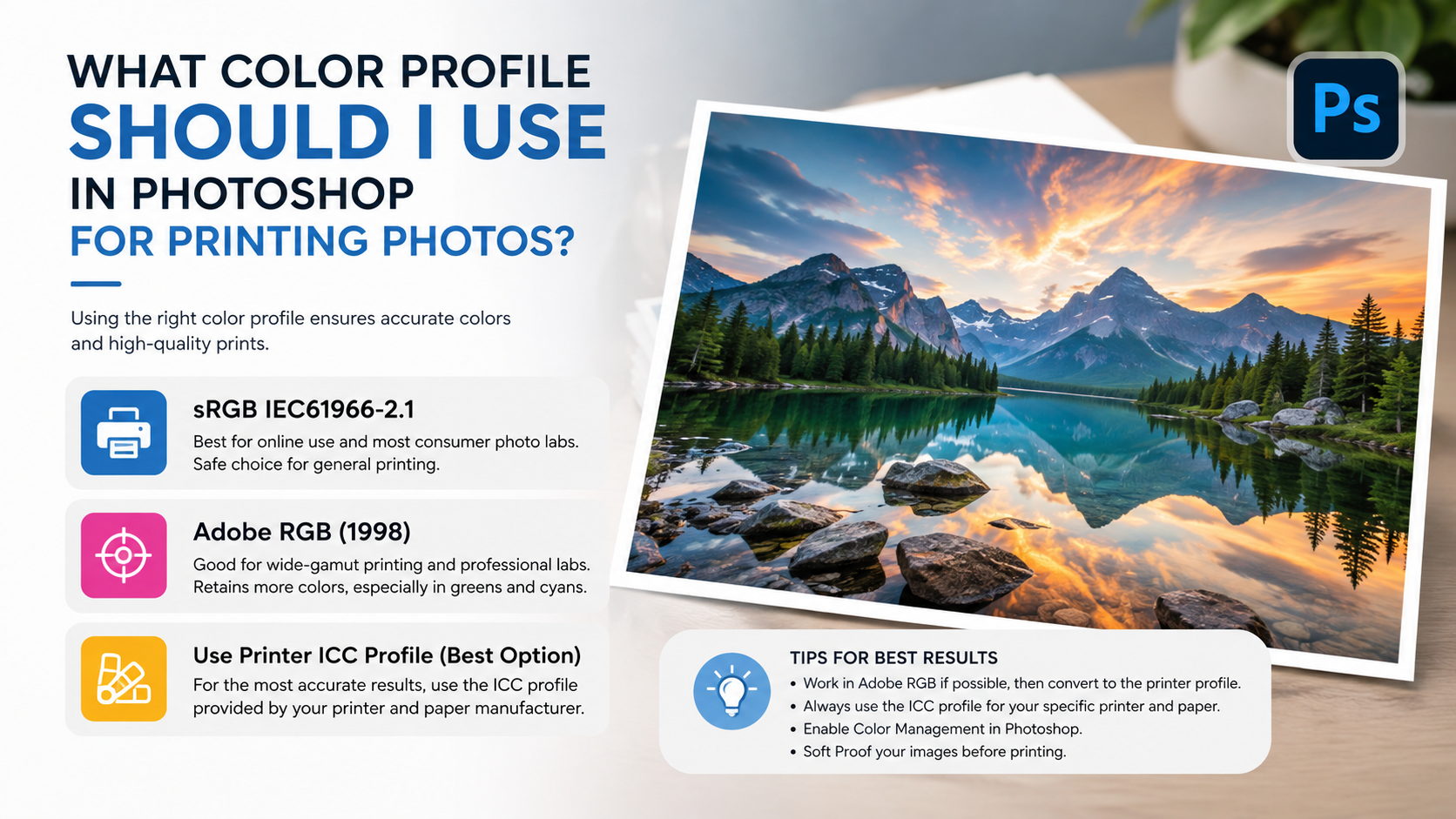
Print workflows often use wide-gamut RGB spaces such as Adobe RGB or ProPhoto RGB, along with printer-specific profiles. Web workflows are different because most online content is designed around the sRGB standard.
Browsers and displays have improved greatly, but sRGB remains the most dependable common denominator. An sRGB export is far more likely to look acceptably consistent on a standard office monitor, an older laptop, a smartphone, or an embedded image viewer.
For web photos, predictability usually matters more than retaining every possible color outside the sRGB gamut.
The Best Photoshop Color Profile for Web Images: sRGB
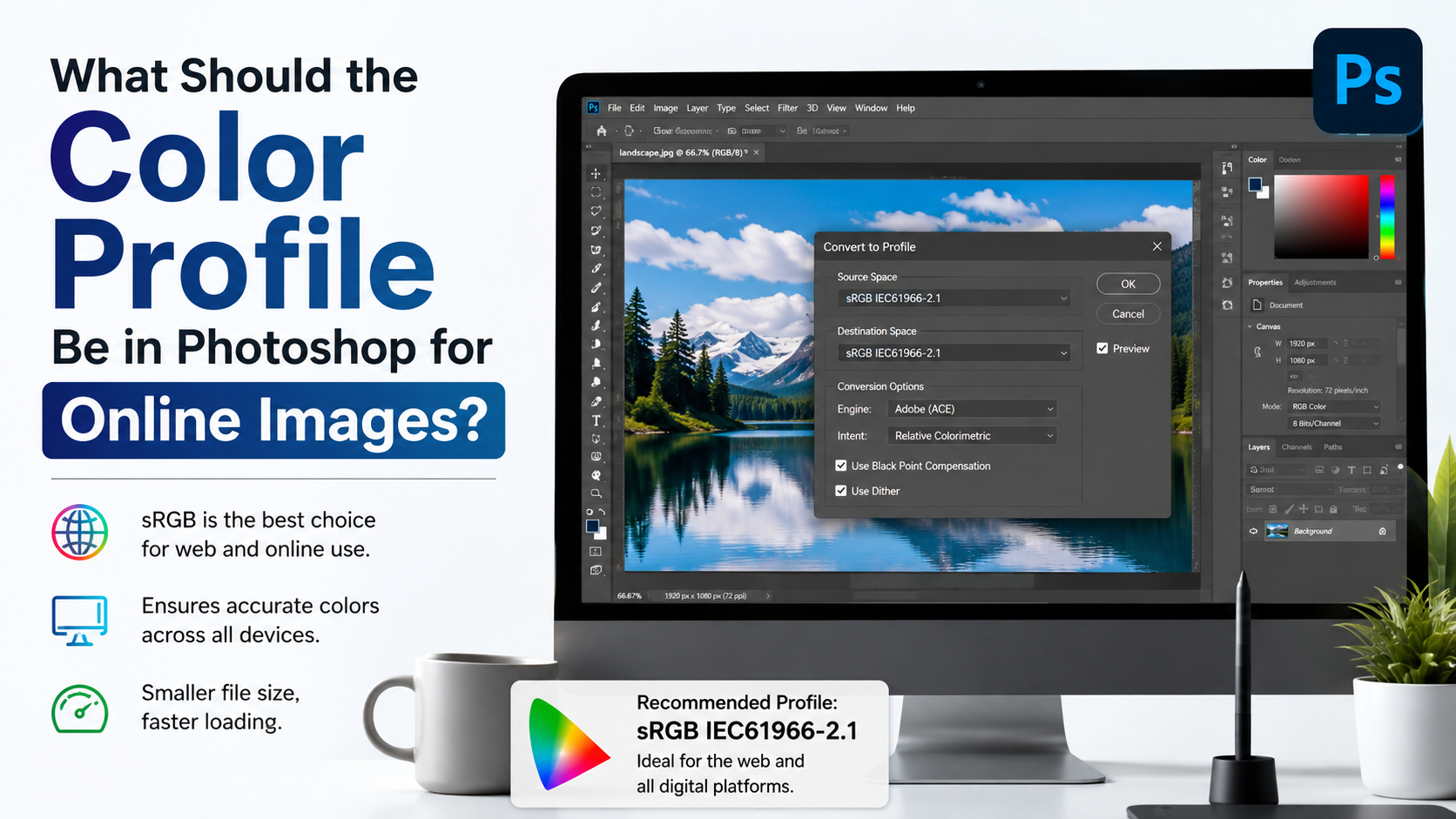
For nearly all website images, blog photos, e-commerce listings, portfolio galleries, email images, and social media graphics, use sRGB IEC61966-2.1.
Why sRGB Is the Web Standard
sRGB was created as a practical standard for displays, web graphics, and consumer devices. It is widely expected by:
- Web browsers
- Content management systems
- Social networks
- Email clients
- Mobile apps
- Most consumer displays
When an image is saved in sRGB, color-managed software can interpret it accurately. When software ignores profiles, it often assumes the image is sRGB anyway. That makes sRGB the safest choice in both modern and less reliable viewing environments.
When sRGB Produces Better Results
Consider a photographer editing an image in Adobe RGB and uploading it to a website without converting it. In a browser or app that does not properly honor the embedded profile, the photo may look muted because Adobe RGB values are being interpreted as sRGB values.
Converting the file to sRGB before export prevents that mismatch. Your bright blue sky, warm skin tones, and saturated product colors are more likely to appear as intended.
The One Profile Name to Look For
In Photoshop, the preferred web profile is usually listed as:
sRGB IEC61966-2.1
Avoid confusing it with a monitor profile. Your display may have its own ICC profile, but that profile is for color management on your specific screen—not for embedding in web images.
Understanding sRGB, Adobe RGB, and ProPhoto RGB
Not every color space is designed for the same job. Choosing well means matching the profile to your final destination.
sRGB: Best for Online Publishing
sRGB has a relatively modest color gamut compared with professional editing spaces, but it is ideal for web delivery.
Use sRGB for:
- Website images
- Blog posts
- Online stores
- Social media content
- Online client galleries
- Email marketing graphics
- Digital ads and banners
Its chief advantage is consistency, not maximum gamut.
Adobe RGB: Useful for Some Print Workflows
Adobe RGB can represent a wider range of colors than sRGB, particularly in certain green and cyan regions. It can be useful when preparing images for high-quality print workflows that support it.
However, Adobe RGB is not the default choice for web images. If you edit in Adobe RGB, convert the final web version to sRGB.
A practical workflow might be:
- Keep the master image in Adobe RGB.
- Create a duplicate for online use.
- Convert that duplicate to sRGB.
- Export the sRGB file for upload.
ProPhoto RGB: Powerful but Demanding
ProPhoto RGB has an extremely wide gamut and is common in high-end RAW workflows. It is helpful when editing 16-bit files from modern cameras because it can preserve color information during major adjustments.
However, it is not appropriate as a final web export profile. Because it is so wide, images may display unpredictably in software that does not manage color correctly.
Use ProPhoto RGB for editing only if you understand the workflow, then convert your finished web image to sRGB.
How to Check the Current Color Profile in Photoshop
Before exporting, verify which profile is attached to the image. This is especially important when you receive files from clients, photographers, stock libraries, or other designers.
Check the Document Profile
In Photoshop, look at the document information near the bottom of the workspace. You can configure it to show the document profile.
You can also open:
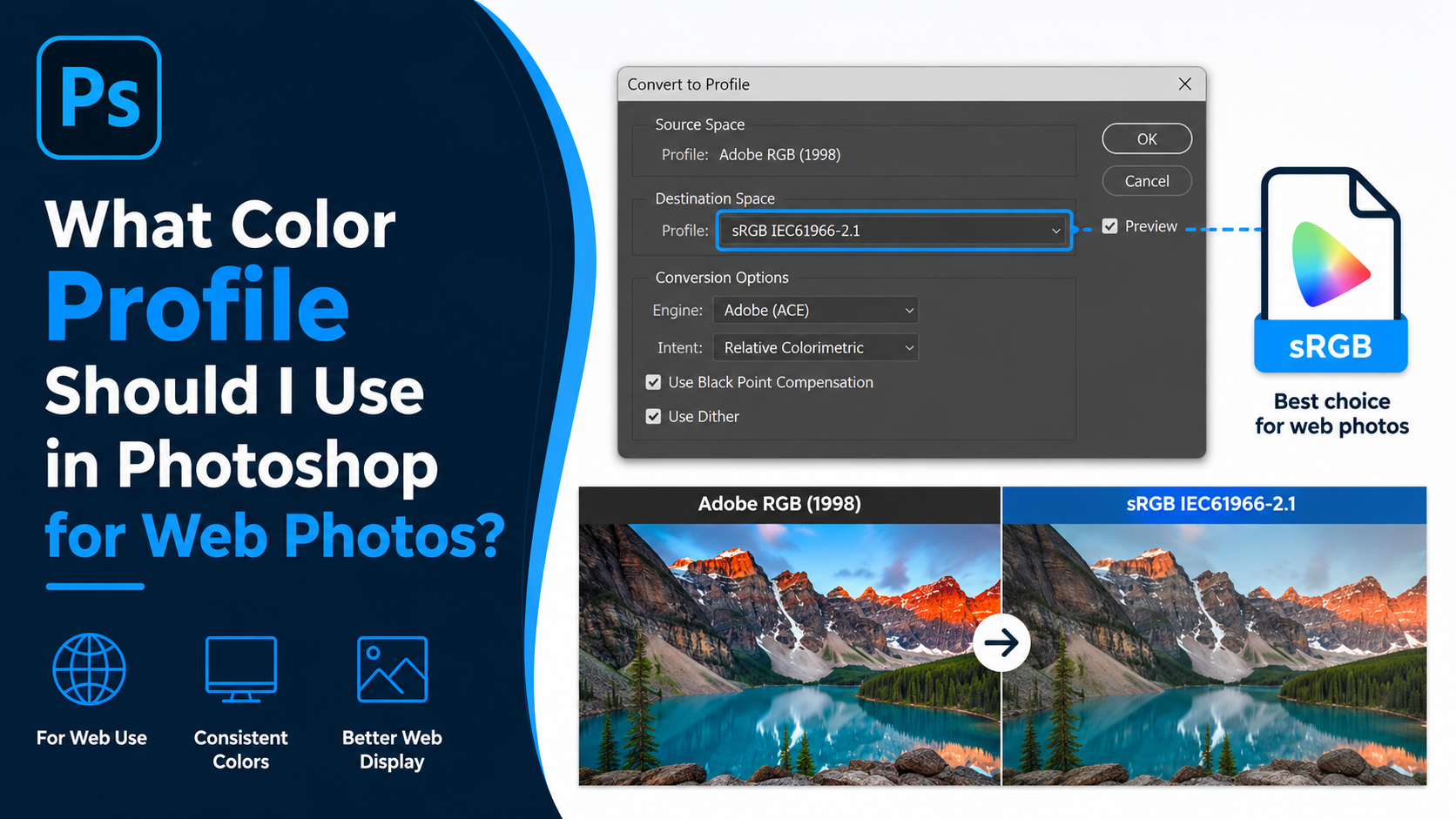
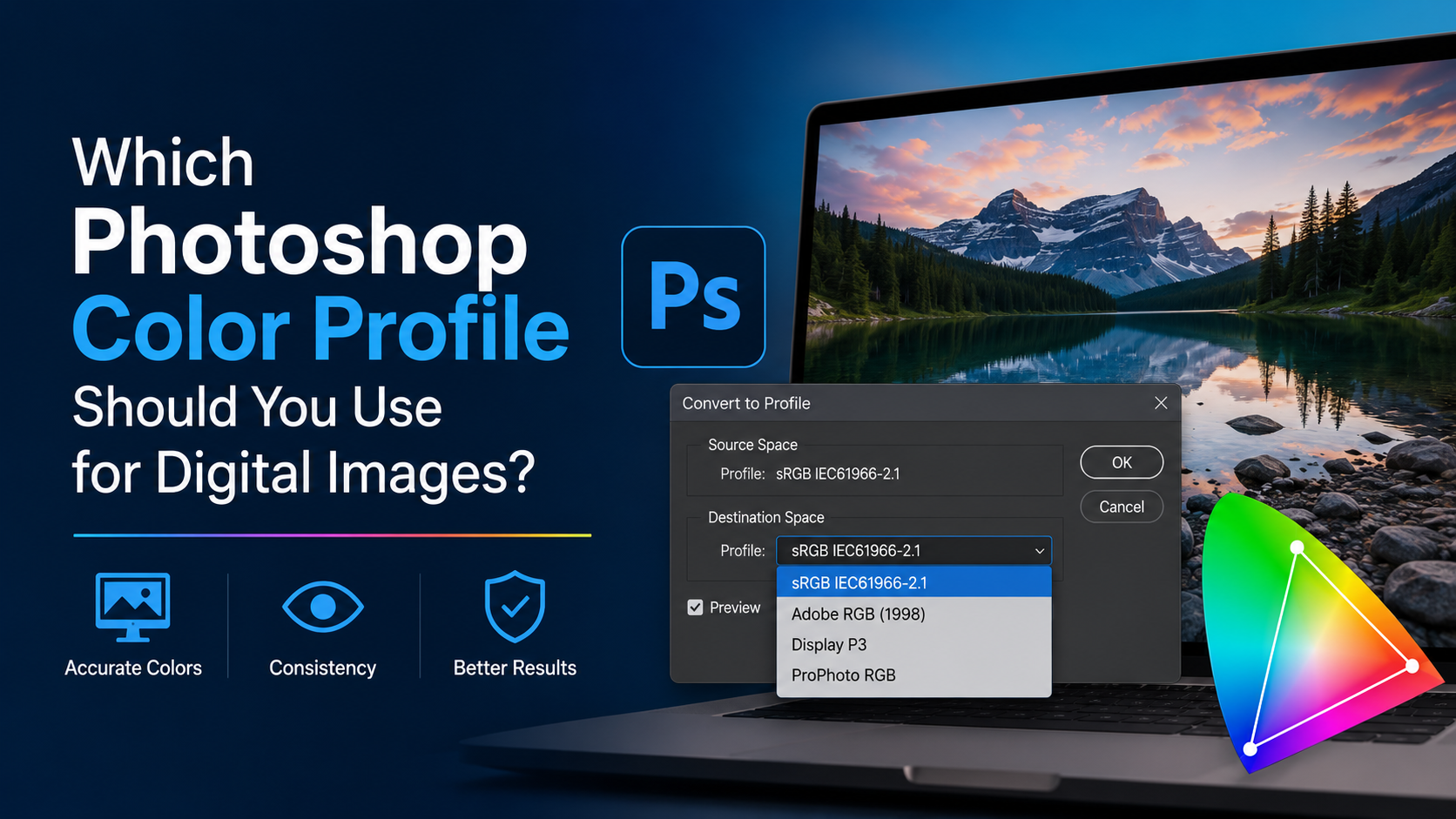
Edit > Convert to Profile
The dialog box displays the current source space and lets you select a destination space.
Use the Document Profile Warning
Photoshop can alert you when opening files with missing or mismatched profiles. Configure these settings through:
Edit > Color Settings
Helpful options include:
- Ask When Opening for missing profiles
- Ask When Opening for profile mismatches
- A working RGB space set to sRGB for web-focused work
These warnings give you a chance to make an informed decision instead of silently accepting an incorrect interpretation.
What to Do With Untagged Images
An untagged image has no embedded color profile. That does not mean the file has no color space; it means Photoshop has not been told how to interpret it.
If you know the file was created for the web, it is often reasonable to treat it as sRGB. If you do not know its origin, inspect it carefully. Assigning the wrong profile can make colors shift dramatically.
Convert to Profile vs. Assign Profile: The Critical Difference
These two Photoshop commands sound similar, but they do very different things.
Convert to Profile Preserves Appearance
Use:
Edit > Convert to Profile
This changes the image’s color values so that it maintains roughly the same visual appearance in the destination color space.
For example, converting an Adobe RGB photo to sRGB recalculates its RGB values so the image continues to look as close as possible to the original while fitting within the smaller sRGB gamut.
For web exports, this is the correct command.
Assign Profile Changes Interpretation
Use:
Edit > Assign Profile
This does not convert the underlying color values. Instead, it tells Photoshop to interpret the existing values through a different profile. The visible colors may change immediately.
Assign Profile is useful only when a file is missing a profile and you know which profile it was originally created in. It is not the normal method for preparing web images.
A Common Mistake to Avoid
Suppose an Adobe RGB image has no embedded profile. If you assign sRGB without confirming the original profile, the image may suddenly look too saturated or otherwise incorrect. That is because Photoshop is reading the same numbers through a different color definition.
When preparing a known Adobe RGB image for the web:
- Ensure Adobe RGB is correctly assigned or embedded.
- Use Convert to Profile.
- Choose sRGB IEC61966-2.1.
- Export the converted copy.
Recommended Photoshop Color Settings for Web Work
Your Photoshop color settings influence how files open, display, and convert. A web-oriented setup makes the workflow simpler and reduces accidental profile mistakes.
Set Your RGB Working Space to sRGB
Open:
Edit > Color Settings
Under Working Spaces, choose:
- RGB: sRGB IEC61966-2.1
This does not automatically convert every document to sRGB, but it establishes a sensible default for new web projects and profile handling.
Use Preserve Embedded Profiles
Under Color Management Policies, select:
- RGB: Preserve Embedded Profiles
This setting respects the profile already attached to an incoming image. It is safer than automatically converting every file on open, particularly if you work with photos intended for print as well as the web.
Enable Profile Mismatch Warnings
Turn on warnings for profile mismatches and missing profiles. They add a small pause to your workflow, but they prevent a lot of avoidable color errors.
This is especially useful when:
- Opening client-supplied artwork
- Editing stock photos
- Receiving files from different photographers
- Reusing old assets
- Working across multiple devices
How to Export Web Photos Correctly From Photoshop
A correctly converted file can still display poorly if exported with the wrong settings. The final export step matters.
Export as JPEG, PNG, or WebP
For most photographs, JPEG is still a practical choice because it balances file size and visual quality. PNG is better for images requiring transparency or crisp graphic details. WebP can provide efficient modern compression where your website workflow supports it.
Use:
File > Export > Export As
or:
File > Export > Save for Web (Legacy)
Convert to sRGB During Export
In the export dialog, enable:
- Convert to sRGB
- Embed Color Profile
Even if you already converted the document, enabling Convert to sRGB is a useful final safeguard for a web-specific export.
Embedding the profile gives color-managed browsers clear instructions. It adds little overhead and improves consistency in modern web environments.
Choose Quality Based on the Image
For JPEG web photos, start around quality 70–85 and inspect the result at 100% zoom. The right setting depends on the image.
Higher-detail scenes may need more quality:
- Foliage and landscapes
- Architecture
- Hair and fabric textures
- Product images with fine details
You can often use lower quality for:
- Soft backgrounds
- Large color gradients with minimal detail
- Small thumbnails
- Informal blog visuals
Always optimize dimensions as well as compression. Uploading a 6,000-pixel-wide photo to display at 1,200 pixels wastes bandwidth and can slow the page down.
Real-World Workflows for Different Web Projects
The right profile workflow becomes clearer when tied to common publishing situations.
Portfolio Website Workflow
A professional photographer may edit a 16-bit RAW image in ProPhoto RGB or Adobe RGB to preserve editing flexibility. For the website:
- Finish edits in the master file.
- Duplicate or export a web version.
- Convert to sRGB.
- Resize to the website’s required dimensions.
- Export as JPEG or WebP with the profile embedded.
- Review the uploaded image on desktop and mobile.
This protects the high-quality master while creating a dependable online asset.
E-Commerce Product Photo Workflow
For product pages, color consistency can affect purchasing decisions. A slightly inaccurate garment, cosmetic, paint, or furniture color can create customer disappointment.
Use sRGB from the final retouching stage onward, and keep lighting, white balance, and monitor calibration consistent. Export with the sRGB profile embedded, then test the result in the actual product-page template.
Social Media Workflow
Most social platforms reprocess uploaded images. Starting with sRGB minimizes the risk of unexpected shifts before the platform compresses or resizes the file.
For social content:
- Design and export in sRGB.
- Use the platform’s recommended pixel dimensions.
- Avoid repeatedly downloading and re-uploading compressed files.
- Keep a high-quality sRGB master for future crops or reposts.
Frequently Asked Questions
Should I use sRGB or Adobe RGB for web photos?
Use sRGB for web photos. Adobe RGB can be useful during certain print-oriented workflows, but sRGB is the more reliable choice for websites, browsers, social platforms, and general online viewing.
Should I embed the color profile in web images?
Yes. Embed the sRGB profile whenever practical. Most modern browsers are color-managed and can use the embedded profile to display the image more accurately. It also helps prevent ambiguity when a file is shared or reused.
Why do my Photoshop exports look dull online?
The most common reason is an Adobe RGB or ProPhoto RGB image being viewed as if it were sRGB. Convert the image to sRGB before export, embed the profile, and check that your browser and website are not applying additional image processing.
Does “Convert to sRGB” reduce image quality?
Converting from a wider color space to sRGB can bring highly saturated colors into the smaller sRGB gamut. However, for standard web delivery, it is usually the right tradeoff. The resulting image is more likely to display consistently for your audience.
Can I edit photos in ProPhoto RGB and still export for the web?
Yes. ProPhoto RGB can be useful for 16-bit RAW editing, especially when making substantial adjustments. Keep it for the master edit, then create an sRGB version specifically for web export. Do not upload the ProPhoto RGB version as your standard online file.
Conclusion
For web photos, sRGB IEC61966-2.1 is the Photoshop color profile you should use in almost every case. It is the safest choice for consistent color across browsers, phones, social networks, and everyday displays.
Build a dependable workflow: preserve the correct source profile, use Convert to Profile to create an sRGB web version, embed the profile during export, and inspect the published result on real devices. Make sRGB your standard web export setting today, and your photos will look far more predictable wherever your audience sees them.
Advertisement