August 19, 2026 · 12 min read
Where Are My Profile Pictures Saved? Phone, Browser, and Social Media Guide
On this page
- Why Your Profile Picture May Be Saved in More Than One Place
- Where Are My Profile Pictures Saved on an iPhone?
- Where Are My Profile Pictures Saved on Android Phones?
- Where Are My Profile Pictures Saved in a Browser?
- Where Social Media Platforms Store Your Profile Pictures
- How to Find an Old Profile Picture
- How to Protect and Organize Profile Pictures
- Common Reasons You Cannot Find a Profile Picture
- Frequently Asked Questions
- Conclusion
Where Are My Profile Pictures Saved? Phone, Browser, and Social Media Guide
You update a profile picture, see it appear on your social account, and then later wonder: where did the actual file go? Is it in your phone’s gallery, your browser downloads, cloud storage, or only on the social platform’s servers?
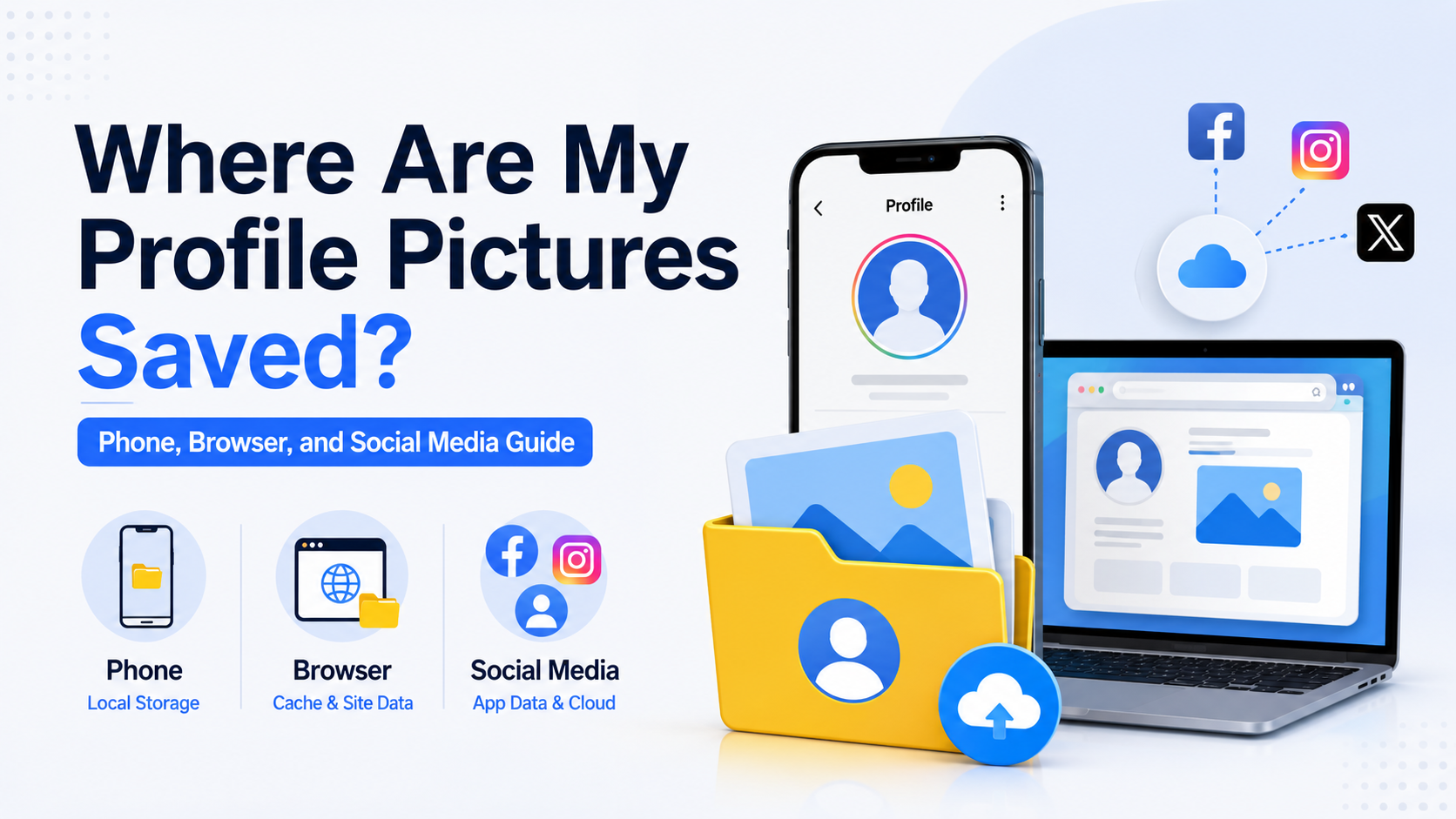
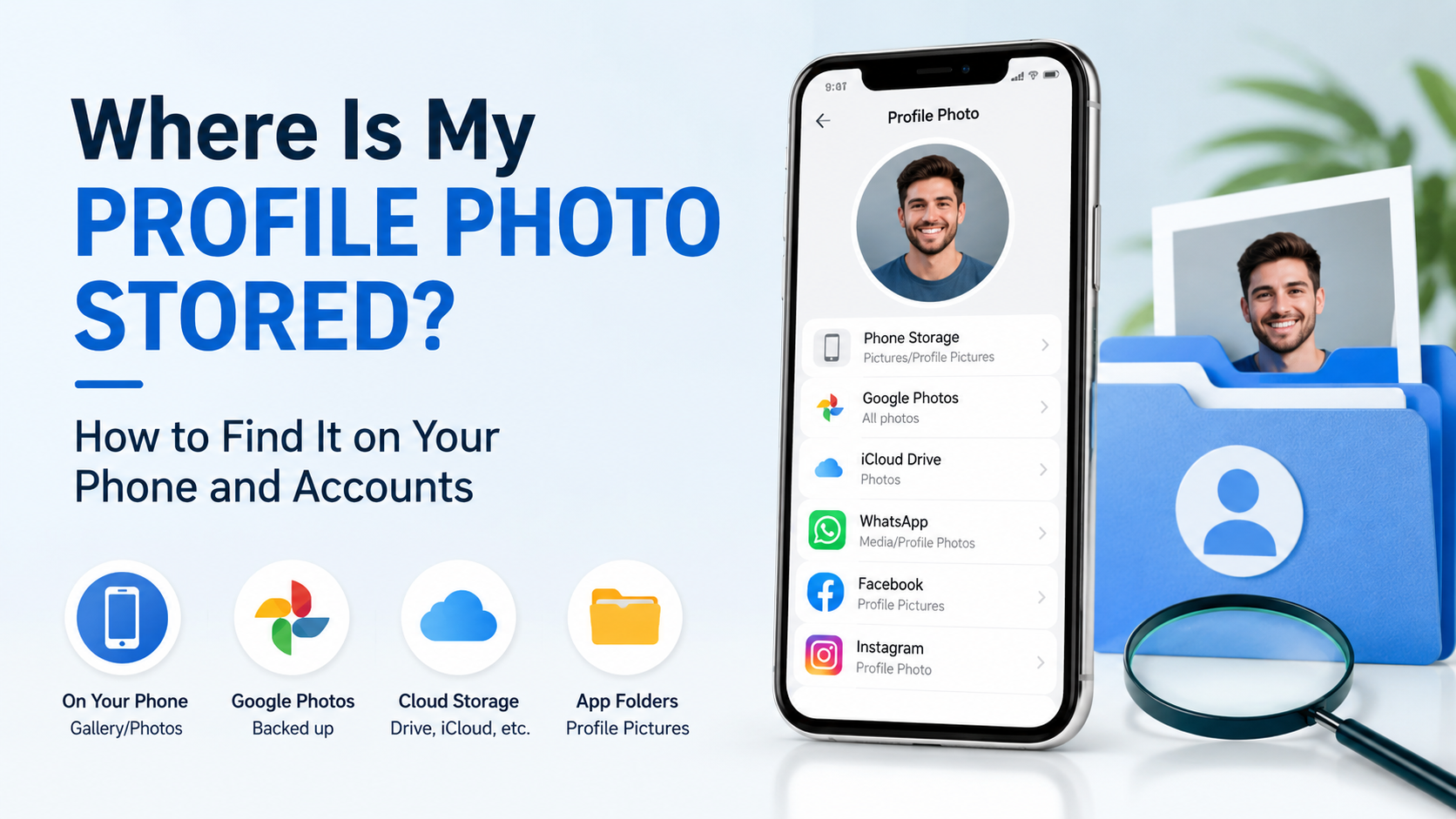
The short answer is that profile pictures can exist in several places at once. Your original image may remain in your phone’s camera roll, while an edited version is saved in an app folder, a downloaded copy sits in your browser’s Downloads folder, and compressed versions live on social media servers. Knowing where to look makes it much easier to recover an old image, remove an unwanted copy, or keep your professional online presence organized.
Key Takeaways
- Your original profile photo is usually stored in your phone’s Photos or Gallery app unless it was deleted or moved.
- Social media platforms generally store a processed copy on their servers after you upload it.
- Browser downloads usually go to the default Downloads folder unless you selected another location.
- Cloud backups such as iCloud Photos, Google Photos, OneDrive, or Dropbox may contain another copy.
- App-specific folders can hold edited, cached, or downloaded profile photos.
- The safest way to preserve an important profile image is to keep a labeled original in a backed-up folder.
Why Your Profile Picture May Be Saved in More Than One Place
A profile picture is not always one single file. Every time you upload, crop, edit, download, share, or sync it, another version may be created.
The original image versus the uploaded version
The image you selected is the original source file. It may have come from:
- Your phone camera
- A screenshot
- A messaging app download
- A desktop folder
- A cloud-storage service
- A professional photographer’s delivery folder
When you upload that image, most platforms create their own optimized version. They may resize it, crop it into a square or circle, reduce its file size, or convert it to a different format.
For example, you might upload a 4 MB portrait photo to LinkedIn. Your phone keeps the original 4 MB file, while LinkedIn stores a smaller version optimized for profile display.
Cached copies and temporary files
Apps and browsers often create temporary cached copies so profile photos load quickly. These files are usually not intended as permanent backups and may disappear automatically when you clear app data, browser data, or storage.
A cached profile picture can explain why you still see an old image in an app even after changing it elsewhere. It does not necessarily mean the old photo is publicly visible.
Where Are My Profile Pictures Saved on an iPhone?
On an iPhone, your original profile picture is most often found in the Photos app. However, the exact location depends on whether you took the photo, downloaded it, edited it, or saved it from another app.
Check the Photos app first
Open Photos and look in these areas:
- Library for all images on the device
- Recents for recently saved or edited files
- Favorites if you previously marked the image
- Albums for screenshots, selfies, or app-created albums
- Search using people, places, dates, or terms such as “selfie”
If you used the same picture for several accounts, search around the date you first updated your profile.
Look in Files and downloaded folders
If you downloaded an image from email, a website, or cloud storage, it may be in the Files app rather than Photos. Check:
- Browse > On My iPhone
- Browse > iCloud Drive
- The Downloads folder
- Folders for OneDrive, Google Drive, Dropbox, or other storage apps
A common scenario is downloading a professional headshot from an email attachment, uploading it as a profile image, and never saving it into Photos. In that case, Files is the better place to look.
Check iCloud Photos
If iCloud Photos is enabled, your image may be synced to your Apple account even if it is not fully stored on the device at the moment. Sign in to iCloud Photos or review your iPhone’s photo synchronization settings to confirm whether the image is backed up.
Where Are My Profile Pictures Saved on Android Phones?
Android devices vary by brand, but the original profile image is usually available through Google Photos, Gallery, or a file manager.
Search Gallery or Google Photos
Start with your main photo app and check:
- Camera
- Screenshots
- Downloads
- WhatsApp Images or Messenger folders
- Edited Photos
- Recently added images
Google Photos is especially useful because it can search by date, face, location, and visual content. If the photo was backed up, it may still be available even after being removed from local device storage.
Use a file manager for app folders
Open Files by Google, your device’s built-in file manager, or another trusted file browser. Look in:
- Internal storage > DCIM
- Internal storage > Pictures
- Internal storage > Download
- Internal storage > Movies or Documents
- App-specific media folders
Some apps save exported or edited images in their own folders. For example, a photo edited in a design app may be in that app’s export folder, while an image received from a messaging service may be in a media subfolder.
Understand app storage limits
Newer Android versions restrict access to some app data folders for privacy reasons. That means you may not be able to browse every cached image directly. This is normal and helps prevent other apps from accessing your private data.
If you need a permanent copy, use the platform’s download option or save the image to Photos, rather than relying on cached app files.
Where Are My Profile Pictures Saved in a Browser?
When you use Facebook, LinkedIn, Google, X, Instagram, Slack, or another service from a web browser, the answer depends on whether you uploaded or downloaded the image.
Uploaded images usually stay in their original folder
Uploading a picture through Chrome, Edge, Firefox, or Safari does not normally move the original file. The browser sends a copy to the website while leaving the source image where it was.
For example, if you select a headshot from Pictures > Professional Photos, that original file should remain in the same folder after upload.
Downloaded profile pictures go to Downloads
If you download your own profile photo or save an image from a website, it usually goes to your browser’s default download location:
- Windows: commonly the Downloads folder
- Mac: commonly the Downloads folder in Finder
- Mobile browsers: often a Downloads area in the browser or Files app
Use your browser’s download history to find the exact location. In most browsers, you can open the download list and select Show in folder or a similar option.
Browser cache is not a reliable archive
Browsers may temporarily store profile images in a cache. However, cached files are difficult to identify, may be incomplete, and can disappear when you clear browsing data.
If you need to keep a profile picture, download it intentionally and save it in a named folder. Do not treat browser cache as backup storage.
Where Social Media Platforms Store Your Profile Pictures
Social media services store uploaded profile pictures on their own servers so the image can appear across the platform. You can usually view or download your photo through account settings, profile pages, or data-export tools.
Facebook and Instagram
Meta platforms commonly keep profile images in account-related media storage. Your current and previous profile photos may remain accessible depending on your privacy settings and account history.
Check your profile’s photo sections, activity settings, or download-your-information tools. Remember that deleting a profile photo from public view may not instantly remove every server backup, thumbnail, or cached version.
LinkedIn stores profile images as part of your professional account data. You can typically replace or remove the current image from your profile-editing settings.
For professionals, it is wise to keep the original headshot outside LinkedIn as well. The platform’s displayed version may be compressed and may not be suitable for a résumé, speaker bio, company page, or print material.
Google accounts, Microsoft accounts, and work platforms
Your account avatar may appear across multiple connected services. A Google profile image can show in Gmail, Google Meet, Drive, and other Google products. A Microsoft account photo may appear in Outlook, Teams, and Windows-related services.
Workplace platforms such as Slack, Teams, Zoom, and company directories may also store a separate copy. Updating your personal social profile does not necessarily update your work profile.
How to Find an Old Profile Picture
If you are asking “where are my profile pictures” because you need an older one, search systematically rather than checking random folders.
Start with the most likely source
Work backward from how you originally got the photo:
- Took it yourself: check Camera, Photos, or Google Photos.
- Received it by email: search email attachments and Downloads.
- Got it from a photographer: check cloud links, client portals, and archived messages.
- Created it in an editing app: check exports and project folders.
- Downloaded it from social media: check browser download history.
This approach is faster than digging through every app folder on a device.
Use account archives and export tools
Many large platforms offer a way to download your account data. These exports can include profile photos, posts, messages, and other media.
Before requesting an export, consider whether you only need a current image. A direct download from your profile is usually quicker. Use a full archive when you need historical copies or want to preserve account records before deleting an account.
Check old devices and backups
An old phone, laptop, external drive, or cloud backup may hold the only full-resolution version of a profile photo. If you find it, immediately copy it to a current backed-up folder.
A useful naming format is:
`text profile-photonameYYYY-MM.jpg `
For instance, profile-photojordan-lee2026-08.jpg is much easier to identify later than IMG_4821.jpg.
How to Protect and Organize Profile Pictures
Profile images often contain more information than people realize. Original photos may include location metadata, timestamps, or higher-resolution detail than you want to share publicly.
Keep a master profile-photo folder
Create one secure folder for approved profile images, such as:
`text Pictures/Profile Photos/ `
Inside it, keep separate files for:
- Original high-resolution photo
- Square social-media crop
- Professional headshot
- Casual personal version
- Brand or company avatar
- Older archived images
This is particularly useful if you manage personal branding, client-facing accounts, or multiple businesses.
Remove metadata when appropriate
Before uploading a photo publicly, consider removing unnecessary location metadata. Most social platforms strip some metadata, but it is better not to rely entirely on platform behavior.
Avoid uploading images that reveal:
- Your home address or workplace details
- Private documents in the background
- Children or other people without their consent
- Vehicle license plates
- Sensitive location information
Review privacy settings after uploading
A photo can be saved safely on your device yet still be visible to more people than intended online. Check who can view your profile photo, whether search engines can index it, and whether old profile pictures remain visible in albums or activity history.
For professional accounts, use the same image intentionally across relevant platforms. For personal accounts, choose privacy settings based on your comfort level and audience.
Common Reasons You Cannot Find a Profile Picture
Sometimes the picture is genuinely missing from the place you expect. That does not always mean it is permanently gone.
The photo was never saved locally
You may have uploaded an image directly from email, cloud storage, or another app without saving it to your camera roll. Look in the original source app or download history.
The app only kept a temporary version
If you selected an image from an app’s cache, edited it in a temporary tool, or cleared storage afterward, the local copy may be gone. The social platform may still have its uploaded version, though usually at reduced quality.
A cloud-sync setting changed
Turning off iCloud Photos, Google Photos backup, or another sync service can make files appear unavailable on a particular device. Check the cloud service through its app or website before assuming the image was deleted.
Frequently Asked Questions
Are profile pictures saved on my phone after I upload them?
Usually, the original image remains where it was before upload, such as Photos, Gallery, Downloads, or a cloud-storage folder. Uploading does not typically create a new permanent copy on your phone unless you save or edit one.
Can I recover an old profile picture from Facebook or Instagram?
Often, yes. Check your profile’s photos, archived content, account activity, or data-download tools. Availability depends on whether the image was deleted, your account settings, and how long ago it was removed.
Why does my profile picture look blurry after uploading?
Most platforms compress and resize images to improve loading speed. Start with a clear, well-lit, high-resolution image and crop it to the platform’s preferred shape before uploading. Avoid repeatedly downloading and reuploading compressed copies.
Where do downloaded profile pictures go on my computer?
They usually go to your browser’s default Downloads folder. Open your browser’s download history and choose the option to reveal the file location if you cannot find it.
Does deleting a profile picture delete the original photo from my device?
No. Removing a profile image from a social platform generally removes the platform copy, not the original file on your phone or computer. You must delete the local image separately if you want it removed there too.
Conclusion
Your profile pictures may be saved in your phone’s gallery, cloud backups, browser downloads, app folders, and the servers of every platform where you uploaded them. The original image is usually the most valuable copy, while social media versions are often compressed and cropped.
Start by checking your Photos or Gallery app, Downloads folder, cloud storage, and the account settings of the platform where you used the image. Then create one backed-up profile-photo folder for the originals you want to keep. A few minutes of organization now can save you from losing the perfect personal or professional photo later.
Advertisement