August 19, 2026 · 13 min read
What Does Embed Color Profile Mean in Photoshop? Beginner-Friendly Guide
On this page
- What Does “Embed Color Profile” Mean in Photoshop?
- Why Embedded Color Profiles Matter
- Common Photoshop Color Profiles Explained
- How to Embed a Color Profile in Photoshop
- Convert to Profile vs. Assign Profile: The Critical Difference
- What Happens If You Do Not Embed a Profile?
- Best Practices for Web, Social Media, and Print
- Troubleshooting Color Profile Warnings in Photoshop
- Frequently Asked Questions
- Conclusion
What Does Embed Color Profile Mean in Photoshop? Beginner-Friendly Guide
Colors that look perfect in Photoshop can appear dull, overly saturated, or strangely tinted when opened on another device. In many cases, the culprit is not the image itself—it is missing or mismatched color-profile information.
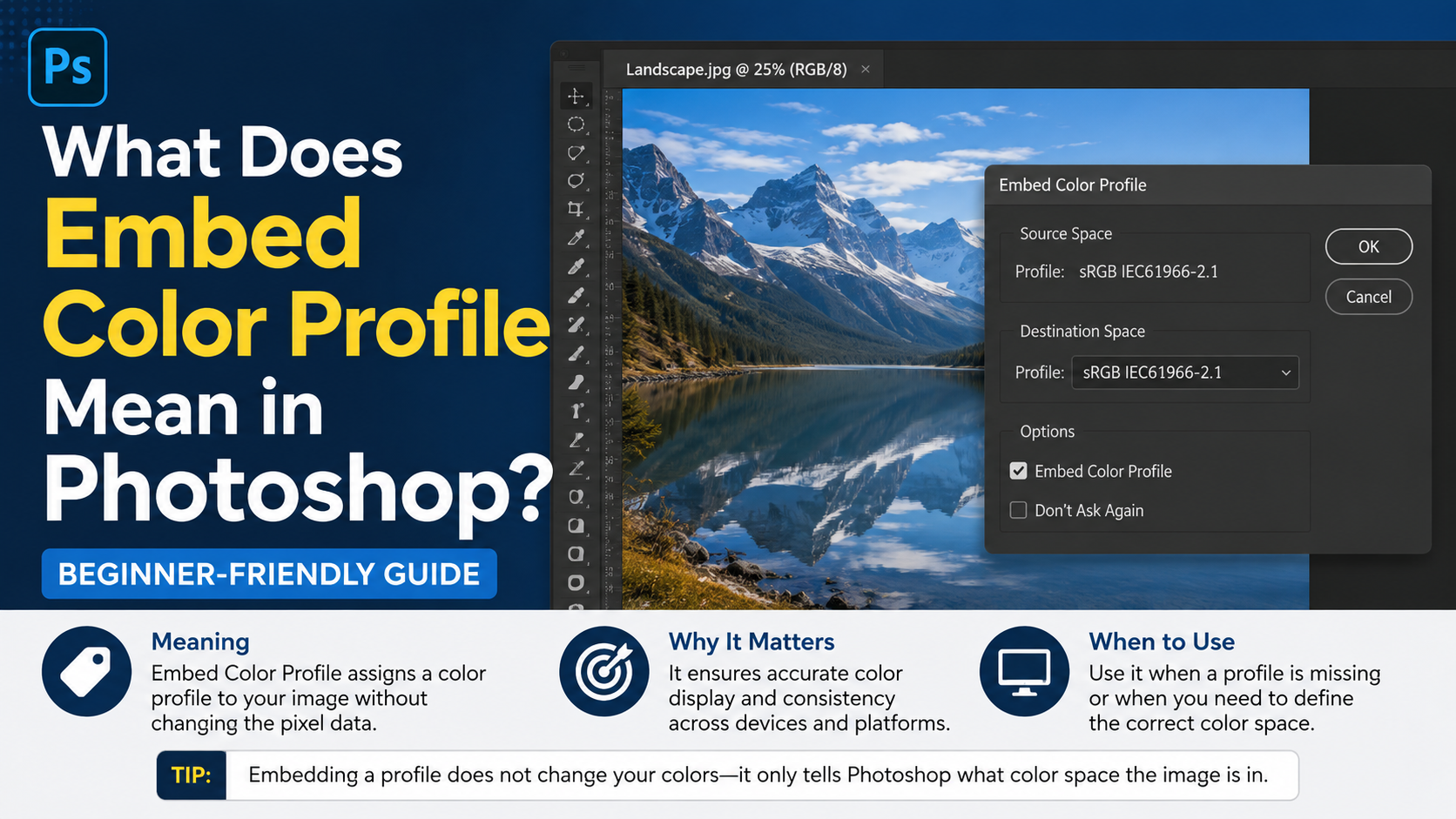
When you choose to embed a color profile in Photoshop, you attach instructions that tell other apps, printers, and devices how to interpret the image’s color values. It is a small setting with a major effect on consistency, especially when sharing files, exporting web graphics, or preparing professional print work.
This beginner-friendly guide explains what the embed color profile Photoshop option does, when to use it, and how to avoid common color-management mistakes.
Key Takeaways
- Embedding a color profile stores color-interpretation information inside an image file.
- The profile does not usually change the image pixels; it helps other software display them correctly.
- sRGB is generally the safest profile for websites, social media, and everyday screen viewing.
- Adobe RGB and ProPhoto RGB can preserve a wider range of colors for advanced editing and print workflows.
- Convert a file to a new profile when changing color spaces; assign a profile only when correcting missing or incorrect profile information.
- Embed profiles when sharing important images, especially JPEGs, TIFFs, PSDs, and print-ready files.
What Does “Embed Color Profile” Mean in Photoshop?
A color profile is a standardized description of how a device or color space represents color. Photoshop uses profiles to translate the numeric color values in an image—such as RGB or CMYK values—into the colors you actually see.
Color Values Need Context
An RGB value like R: 220, G: 40, B: 50 is only a set of numbers. Its visible appearance depends on the color space used to interpret those numbers.
For example, the same RGB values can look different in:
- sRGB
- Adobe RGB (1998)
- ProPhoto RGB
- Display P3
When you embed a profile, Photoshop saves that interpretation guide with the file. When another color-managed application opens the image, it can read the profile and display the intended colors more accurately.
What Photoshop Actually Embeds
The embedded profile contains information about the image’s color space, including its color gamut, white point, gamma, and color response characteristics. It is metadata, not a visible layer or a major addition to file size.
For example, if you save a product photo with an embedded sRGB profile, a browser or design app that supports color management can recognize that the image should be displayed as sRGB.
A Simple Analogy
Think of image pixels as a recipe written in shorthand. A color profile is the legend that explains how to read that shorthand.
Without the legend, another person may interpret the instructions differently. The ingredients are still there, but the final result can look wrong.
Why Embedded Color Profiles Matter
Embedding profiles is one of the simplest ways to make your images more reliable outside Photoshop.
Consistent Display Across Devices
Modern phones, monitors, browsers, and design applications vary widely in their color capabilities. Some displays are limited to sRGB, while others can show wider-gamut colors such as Display P3.
An embedded profile helps compatible software translate the image into the device’s available color range as accurately as possible.
This matters when you share:
- Portfolio images with clients
- Brand assets with a marketing team
- Product photos for an ecommerce site
- Digital ads and social-media graphics
- Photography files for editing or printing
Better Communication With Printers
Print workflows rely heavily on color management. A commercial printer may use a specific CMYK ICC profile based on its press, paper stock, and ink conditions. Embedding the right profile helps the printer understand your intended color appearance.
For example, a brochure designed for coated paper may use a different CMYK profile than a newspaper advertisement. Sending a file without profile information increases the risk of unexpected color shifts.
Fewer Surprises in Collaborative Workflows
If several people open the same Photoshop file, embedded profiles reduce ambiguity. Your teammate can see whether the document was designed in sRGB, Adobe RGB, or a print-specific CMYK space.
This is particularly useful for agencies, photographers, retouchers, and in-house design teams that exchange PSD, TIFF, PDF, and JPEG files.
Common Photoshop Color Profiles Explained
Choosing the right profile depends on where the image will be viewed, edited, or printed.
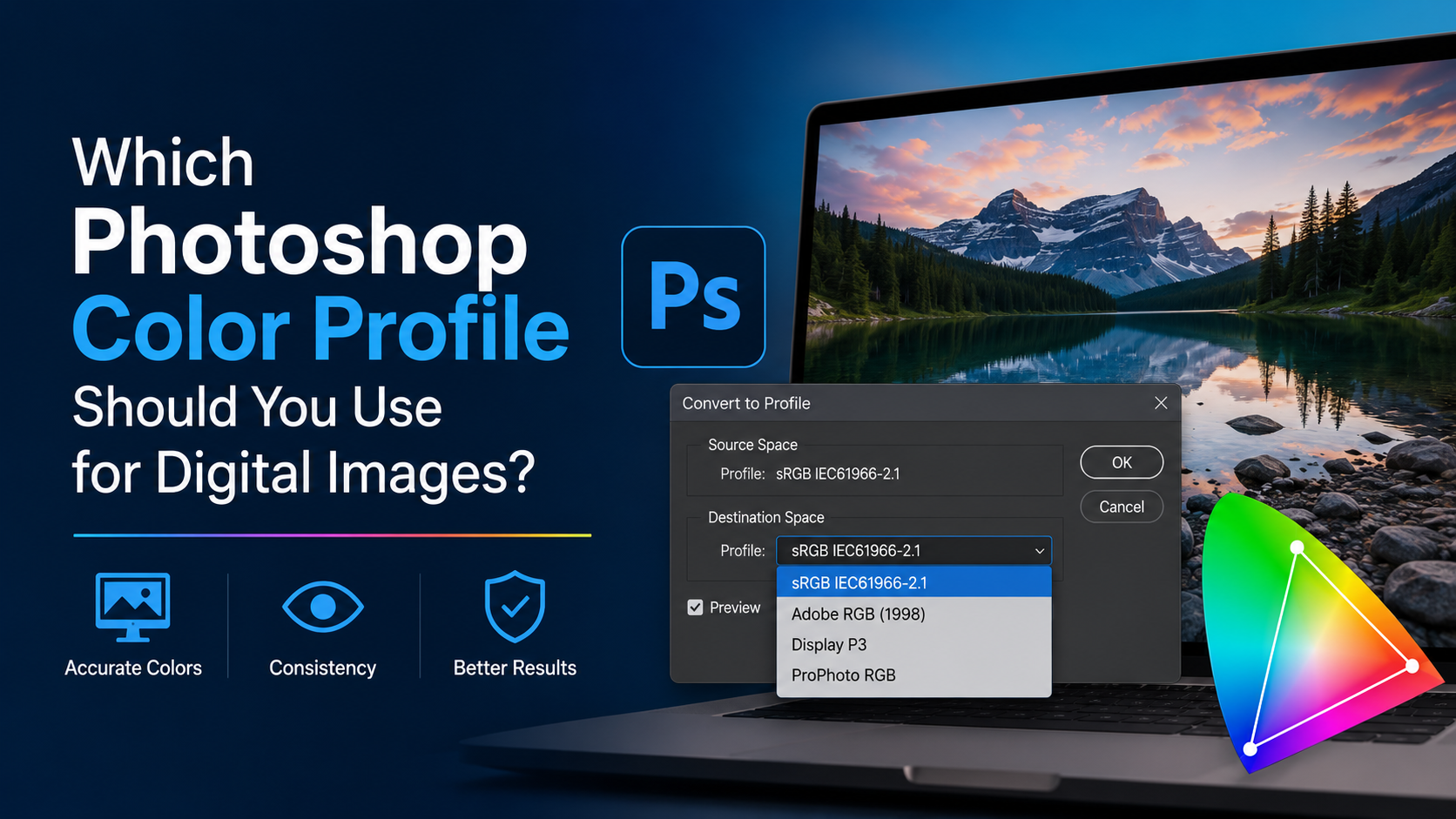
sRGB IEC61966-2.1: Best for Most Screen Content
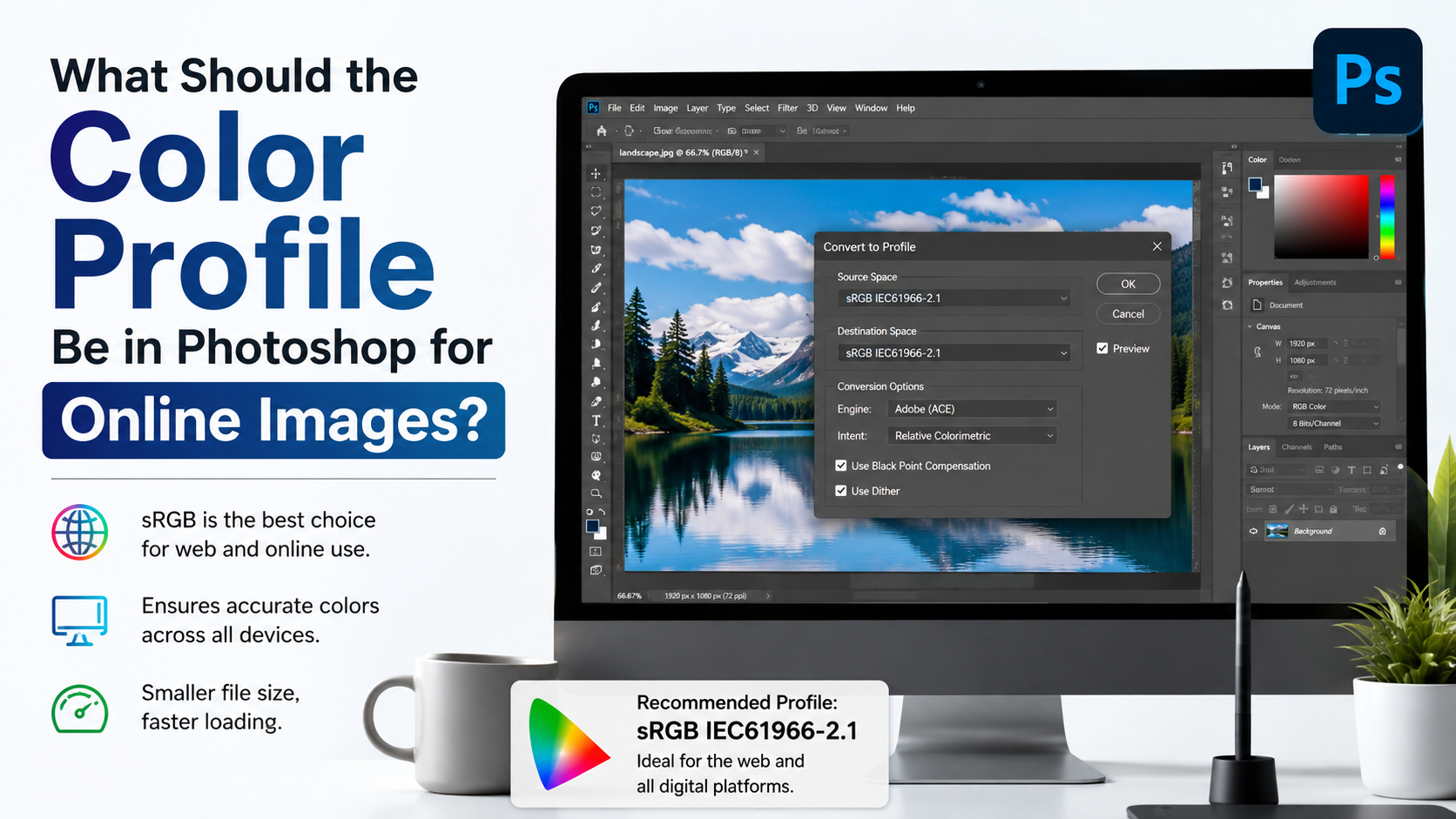
sRGB is the most widely used RGB color space. It is the safest default for web images because most browsers, consumer displays, social platforms, and common apps are designed around it.
Use sRGB for:
- Website images
- Blog graphics
- Email marketing assets
- Social-media posts
- Standard client previews
- Most JPEG exports
If you are unsure which RGB profile to use for a screen-based project, choose sRGB.
Adobe RGB (1998): Useful for Photography and Print
Adobe RGB has a wider color gamut than sRGB, particularly in greens and cyans. It can be useful when working with high-quality photographs intended for professional printing.
However, Adobe RGB requires more careful handling. If an app ignores its embedded profile and assumes sRGB instead, the image may look muted or desaturated.
Use Adobe RGB when:
- Your camera captures Adobe RGB files
- You are editing for a managed print workflow
- Your printer or client specifically requests it
- You understand how to convert files for web delivery
ProPhoto RGB: A High-End Editing Space
ProPhoto RGB is extremely wide-gamut. It is often used in advanced photography workflows because it preserves a large amount of color information during raw processing and intensive editing.
It is not usually ideal for direct web export. Many of its possible colors cannot be displayed on typical monitors or reproduced in print.
A practical workflow might be:
- Edit a high-bit-depth raw photo in ProPhoto RGB.
- Keep the master file in its working space.
- Convert a copy to sRGB before exporting for the web.
- Embed the sRGB profile in the final JPEG.
CMYK Profiles: Built for Specific Print Conditions
CMYK profiles are designed around real printing conditions. A CMYK profile may reflect the behavior of a particular paper, press, ink set, and printing standard.
Avoid choosing a CMYK profile at random. Ask the printer for its preferred ICC profile or PDF export settings before converting a final file.
How to Embed a Color Profile in Photoshop
Photoshop lets you embed profiles during Save As, Save a Copy, and many export workflows.
Embed a Profile When Saving
To save a file with its current document profile:
- Go to File > Save As or File > Save a Copy.
- Choose a file format that supports profiles, such as PSD, TIFF, JPEG, or PNG.
- In the save dialog, enable Embed Color Profile.
- Confirm the displayed profile is the one you intend to use.
- Save the file.
For web JPEGs, this often appears as Embed Color Profile: sRGB IEC61966-2.1.
Embed a Profile Using Export As
For web assets, use File > Export > Export As.
In the export window:
- Choose JPEG, PNG, GIF, or SVG as appropriate.
- Enable Convert to sRGB for standard online use.
- Enable Embed Color Profile when available.
- Export the image.
Converting to sRGB and embedding that profile is a dependable choice for most web publishing workflows.
Check the Current Document Profile
To see the current working profile, look at the document tab or choose Edit > Assign Profile. Photoshop also displays profile information in the document status area when configured to do so.
Before exporting, confirm that the file is using the intended color space. Embedding the wrong profile can be as problematic as embedding none at all.
Convert to Profile vs. Assign Profile: The Critical Difference
These two Photoshop commands sound similar, but they do very different things.
Convert to Profile Changes the Numbers to Preserve Appearance
Use Edit > Convert to Profile when you want to move an image from one color space to another while preserving its visual appearance as closely as possible.
For example, if you prepare an Adobe RGB photo for a website:
- Choose Edit > Convert to Profile.
- Select sRGB IEC61966-2.1 as the destination space.
- Review the conversion options.
- Save or export with the sRGB profile embedded.
Photoshop changes the image’s numeric color values so the visible result remains similar in the new space.
Assign Profile Reinterprets Existing Numbers
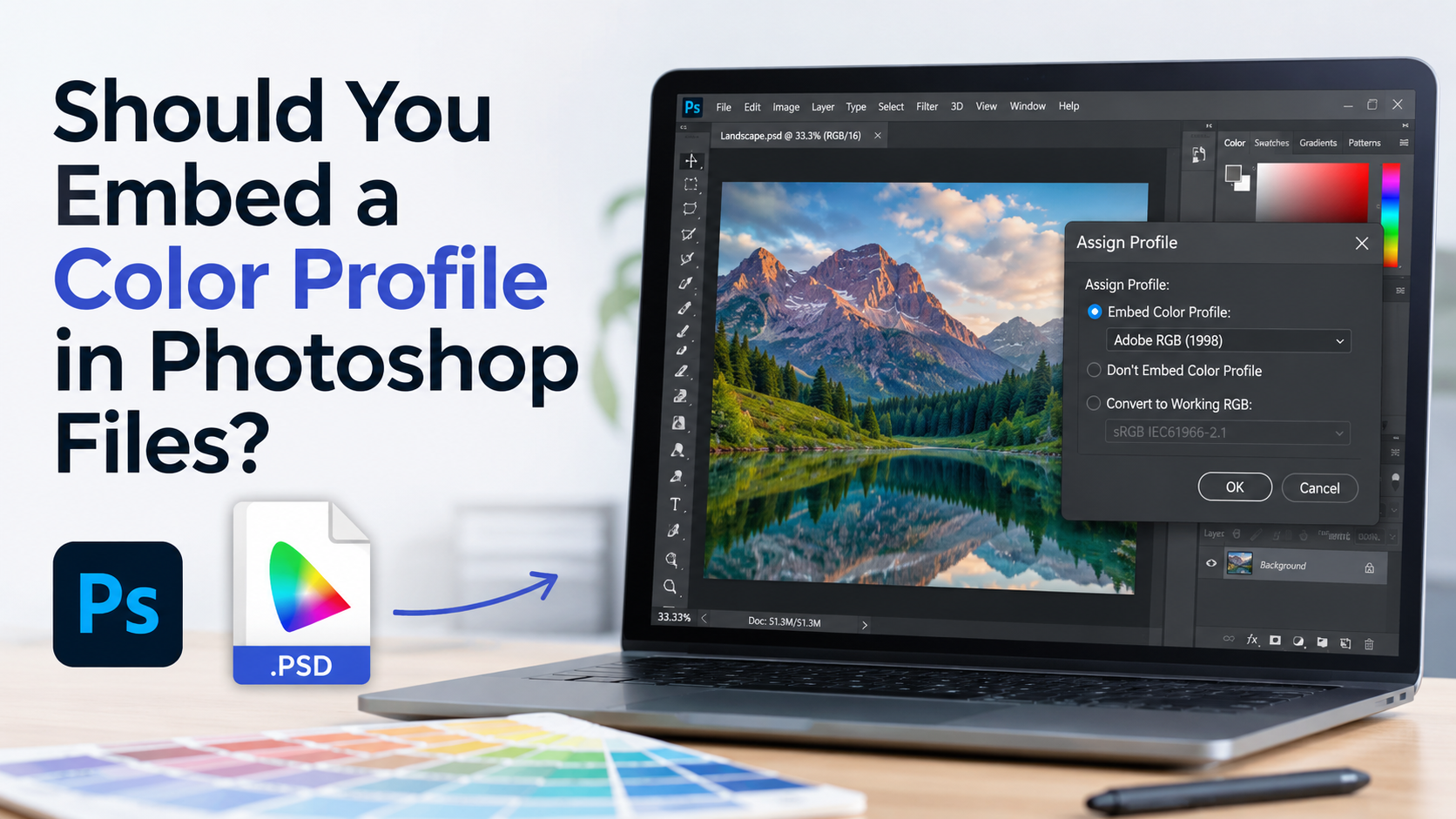
Use Edit > Assign Profile only when an image has no profile or has been tagged with the wrong one.
Assigning a profile does not convert the color values. It simply tells Photoshop to reinterpret the existing values through a different profile. This can make an image change appearance dramatically.
For example, if an untagged image was actually created in Adobe RGB but Photoshop assumes sRGB, assigning Adobe RGB may restore its intended appearance. But assigning Adobe RGB to a genuine sRGB image will likely make its colors look wrong.
The Rule to Remember
- Convert to Profile: Change color spaces while trying to preserve appearance.
- Assign Profile: Correct or define the meaning of existing color numbers.
For most routine web exports, use Convert to Profile, not Assign Profile.
What Happens If You Do Not Embed a Profile?
An image without an embedded profile is called an untagged image. When another application opens it, that application must guess or apply a default color space.
The Risks of Untagged Files
Without profile information, the same image may display differently depending on the app or device. Common outcomes include:
- Colors that look washed out
- Oversaturated reds, blues, or greens
- Reduced contrast
- Skin tones that look unnatural
- Brand colors that no longer match approved designs
A logo created in Adobe RGB but uploaded without a profile may be interpreted as sRGB online. The result can look less vibrant than the version approved in Photoshop.
When Untagged Images May Be Acceptable
Some legacy or specialized workflows intentionally use untagged files, but this is uncommon for general design work. If a vendor or platform explicitly requests an untagged file, follow its technical requirements—but keep a properly profiled master file.
For most users, embedding a profile is the safer default.
Best Practices for Web, Social Media, and Print
The best setting is not always the widest-gamut profile. It is the profile that matches the destination and minimizes confusion.
Best Practice for Websites and Social Platforms
For blogs, online stores, social platforms, newsletters, and digital advertising:
- Convert the final image to sRGB.
- Embed the sRGB profile.
- Use JPEG for photographs and PNG when transparency or crisp graphic edges matter.
- Check exported images in a modern browser before publishing.
While many modern browsers support color profiles, platform processing can vary. sRGB remains the most predictable choice.
Best Practice for Client Delivery
When delivering editable or high-resolution files:
- Keep your original PSD or TIFF with its profile embedded.
- Tell the client which profile the file uses.
- Provide a separate sRGB JPEG preview when needed.
- Avoid flattening or converting master files unless the workflow requires it.
A photographer, for instance, might deliver Adobe RGB TIFF files for print and sRGB JPEGs for online proofing.
Best Practice for Professional Printing
Before final print delivery:
- Request the printer’s specifications and ICC profile.
- Soft-proof the document in Photoshop using View > Proof Setup.
- Convert to the requested output profile only when instructed.
- Embed the requested profile in the final supported file format.
- Review a proof if color accuracy is business-critical.
Brand packaging, fine-art prints, and large-format displays benefit from a proofing step because screens cannot perfectly predict every print condition.
Troubleshooting Color Profile Warnings in Photoshop
Photoshop may show a warning when opening a file with a missing profile or a profile that differs from your working space.
Profile Mismatch Warning
A profile mismatch means the image has an embedded profile different from Photoshop’s current working space.
In most cases, choose Use the embedded profile. This preserves the image’s original color interpretation.
Avoid automatically converting every opened file to your working space unless your workflow specifically requires it.
Missing Profile Warning
If Photoshop says an image has no embedded profile, proceed carefully. You need to determine which color space the file was originally intended to use.
Possible approaches include:
- Ask the file creator which profile was used.
- Compare the file after assigning likely profiles such as sRGB or Adobe RGB.
- Use sRGB as a practical default for typical web-originated images.
- Keep an untouched copy before making profile assignments.
Colors Still Look Different After Export
If an exported image does not match Photoshop, check:
- Whether the file was converted to sRGB for web use
- Whether the color profile was embedded
- Whether the viewing application supports color management
- Whether your display is calibrated
- Whether the platform recompressed or converted the uploaded image
Remember that no profile can make an uncalibrated monitor perfectly accurate. Profiles improve consistency, but display calibration is still important for professional color work.
Frequently Asked Questions
Should I embed a color profile in Photoshop?
Yes, in most cases. Embedding a profile helps other color-managed apps, browsers, and printers interpret your image correctly. For web use, convert to sRGB and embed the sRGB profile.
Does embedding a color profile increase file size?
Yes, but usually only slightly. ICC profiles are small compared with high-resolution image data, and the added consistency is generally worth the minor increase.
Is sRGB or Adobe RGB better in Photoshop?
Neither is universally better. sRGB is best for broad online compatibility. Adobe RGB can be useful for photography and print workflows that can preserve its wider gamut. Choose based on the final destination.
Why do my Photoshop colors look dull after uploading?
Your image may have been exported in Adobe RGB or another wide-gamut space without proper conversion or embedding. Convert a web copy to sRGB, embed the profile, and upload that version.
Can I add a profile to an image after it has been saved?
Yes. Open the file in Photoshop and use Edit > Assign Profile if the image is untagged and you know its intended profile. Then save a new copy with the profile embedded. Use Convert to Profile if you need to change the image to another color space while preserving its appearance.
Conclusion
The embed color profile Photoshop setting is your image’s color instruction manual. It helps browsers, apps, collaborators, and printers understand how your file’s color values should look, reducing unpleasant surprises after export or delivery.
For most digital work, convert your final image to sRGB and embed the profile before publishing. For professional print or advanced photography, use the profile required by the workflow, preserve it in your master files, and convert intentionally. Make profile checking part of every export routine, and your colors will remain far more consistent wherever your work appears.
Advertisement