August 19, 2026 · 10 min read
How to Add a Photo to Your Microsoft Teams Profile
On this page
- Why Your Teams Profile Photo Matters
- Before You Upload: Choose the Right Photo
- How to Add a Teams Profile Photo on Desktop or Web
- How to Add a Teams Profile Photo on Mobile
- Work, School, and Personal Accounts: Know the Difference
- What to Do If Your New Photo Does Not Appear
- Best Practices for a Professional Teams Profile Photo
- Frequently Asked Questions
- Conclusion
How to Add a Photo to Your Microsoft Teams Profile
Your Teams profile photo is a small detail with an outsized effect. It helps colleagues recognize you quickly in chats, meetings, channels, and the Microsoft 365 apps your organization uses every day. Whether you are setting up a new account, refreshing an outdated picture, or replacing generic initials, updating your photo is usually straightforward.
This guide explains how to add a Teams profile photo on desktop, the web, and mobile. It also covers what to do when the upload option is missing, why a new picture may take time to appear, and how to choose an image that feels appropriate for a professional environment.
Key Takeaways
- Select your profile picture in Teams, then choose it again to find the upload option.
- Use a recent, clear, square-cropped headshot for the best result in Teams’ circular photo frame.
- On mobile, open your profile and select Update photo or Edit image.
- Work or school administrators can restrict photo changes, so a missing edit option may require IT support.
- Your new photo can take time to update across Teams, Outlook, and other Microsoft 365 services.
- Check that you are editing the correct account or organization if you use multiple Teams accounts.
Why Your Teams Profile Photo Matters
A Teams profile photo is more than a visual preference. It is a practical part of communicating in a hybrid workplace, especially when people collaborate across departments, time zones, and large meetings.
Make Conversations Easier to Follow
In busy channels and group chats, names alone are easy to overlook. A recognizable photo helps coworkers scan messages and identify the right person quickly. This is especially useful when:
- You work with a large organization or many project teams.
- Several people have similar names.
- New hires, clients, or external guests are joining conversations.
- You regularly participate in video calls with cameras turned off.
For example, a project manager reviewing a fast-moving Teams channel can more easily spot an update from the finance lead when that person has a clear profile image rather than default initials.
Create a More Professional First Impression
Your photo often appears on your Microsoft 365 profile card, not just in Teams. Colleagues may see it when receiving email in Outlook, opening shared files, or viewing your contact details.
A well-chosen photo signals that your profile is current and approachable. It does not have to be a formal corporate headshot, but it should be clear, recent, and suitable for the people you work with.
Before You Upload: Choose the Right Photo
Choosing the image first saves time and helps ensure the final result looks good in Teams’ small, circular display format.
Use a Clear, Recent Headshot
The most effective Teams profile photo usually includes your face and shoulders against an uncluttered background. Aim for a photo that lets someone recognize you at a glance, even when it appears as a small icon.
Consider these guidelines:
- Use a recent photo that still looks like you.
- Face the camera with even lighting.
- Keep your face centered and clearly visible.
- Choose a simple background that does not compete for attention.
- Avoid group photos, heavy filters, or distant shots.
- Wear clothing appropriate for your workplace and role.
A casual but polished image can work well for many organizations. For client-facing roles, a professional headshot may be the better choice. The best option depends on your company culture, but clarity should always come first.
Prepare a Compatible Image File
Microsoft supports most standard static image files, but some formats may not work. In particular, Microsoft notes that HEIC files and animated GIFs are not supported for Microsoft account profile pictures. Converting an iPhone photo to JPG or PNG before uploading can prevent unnecessary errors. Microsoft Support
Square images generally work best because Teams displays profile photos in a circular crop. If your original image is portrait or landscape, leave enough empty space around your head so the crop does not cut off part of your face.
How to Add a Teams Profile Photo on Desktop or Web
The desktop app and web version of Teams use a similar process. Make sure you are signed in to the account you want to update before beginning.
Upload a Photo in Teams
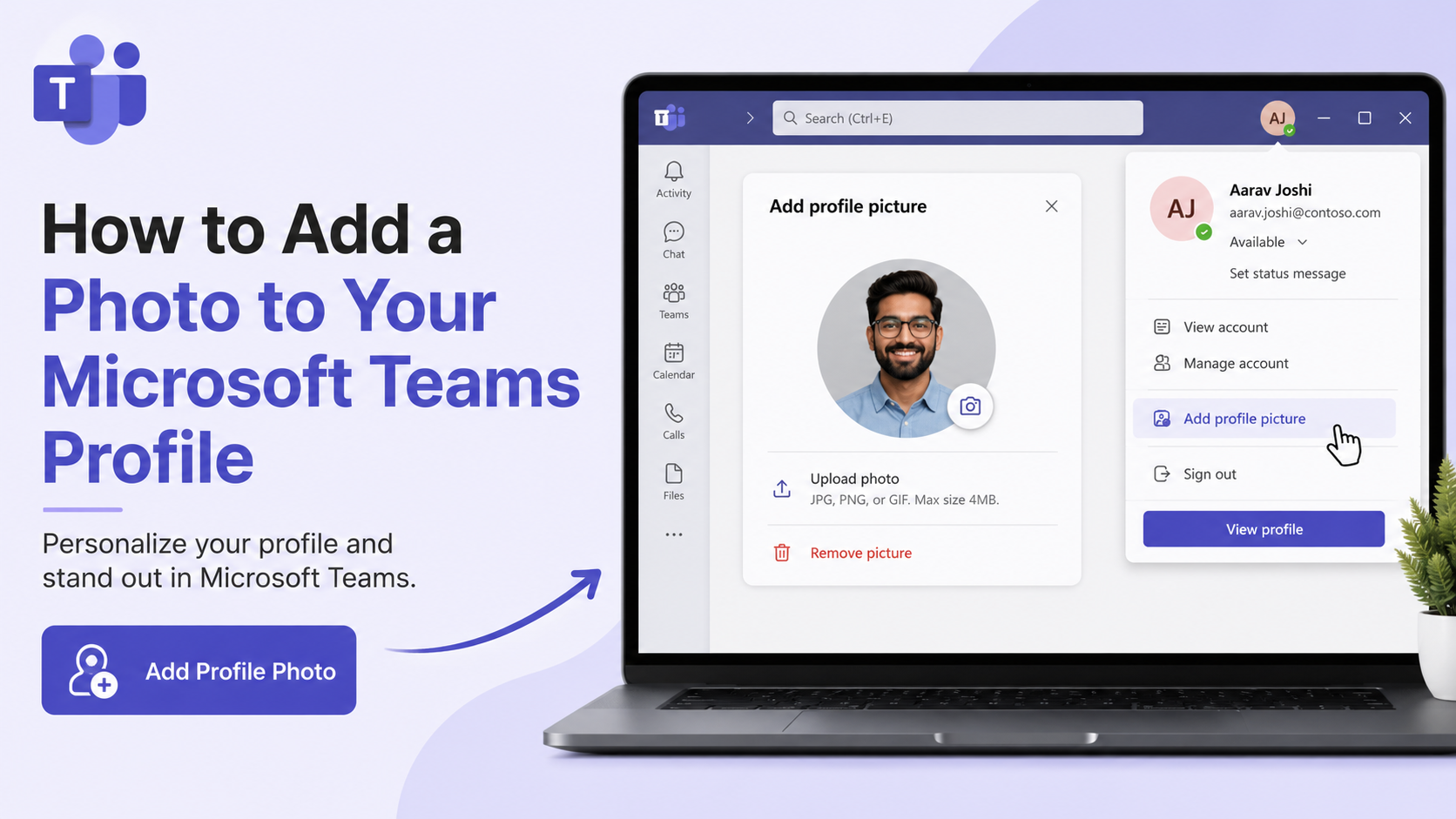
Follow these steps to add or change your image:
- Open Microsoft Teams on your computer or in a supported web browser.
- Select your current profile picture or initials in the top-right corner.
- When the account manager opens, select your profile picture again.
- Choose Upload image.
- Browse to the photo you want to use and select it.
- Adjust the image if Teams offers cropping or positioning controls.
- Select Save to apply the change.
Microsoft’s current Teams guidance uses this profile-picture menu path for desktop users. Microsoft Support
Confirm You Updated the Right Account
Many professionals use more than one Teams identity—for example, a company account, a school account, and a guest account for a client organization. Teams lets you add and switch between accounts and organizations, so it is possible to update a photo in one account while viewing another. Microsoft Support
Before uploading, check the name and email address shown in the profile menu. If necessary, select your profile picture and switch to the correct account first.
How to Add a Teams Profile Photo on Mobile
The exact labels can vary slightly between iPhone and Android versions of Teams, but the general workflow is simple.
Update Your Photo on iPhone
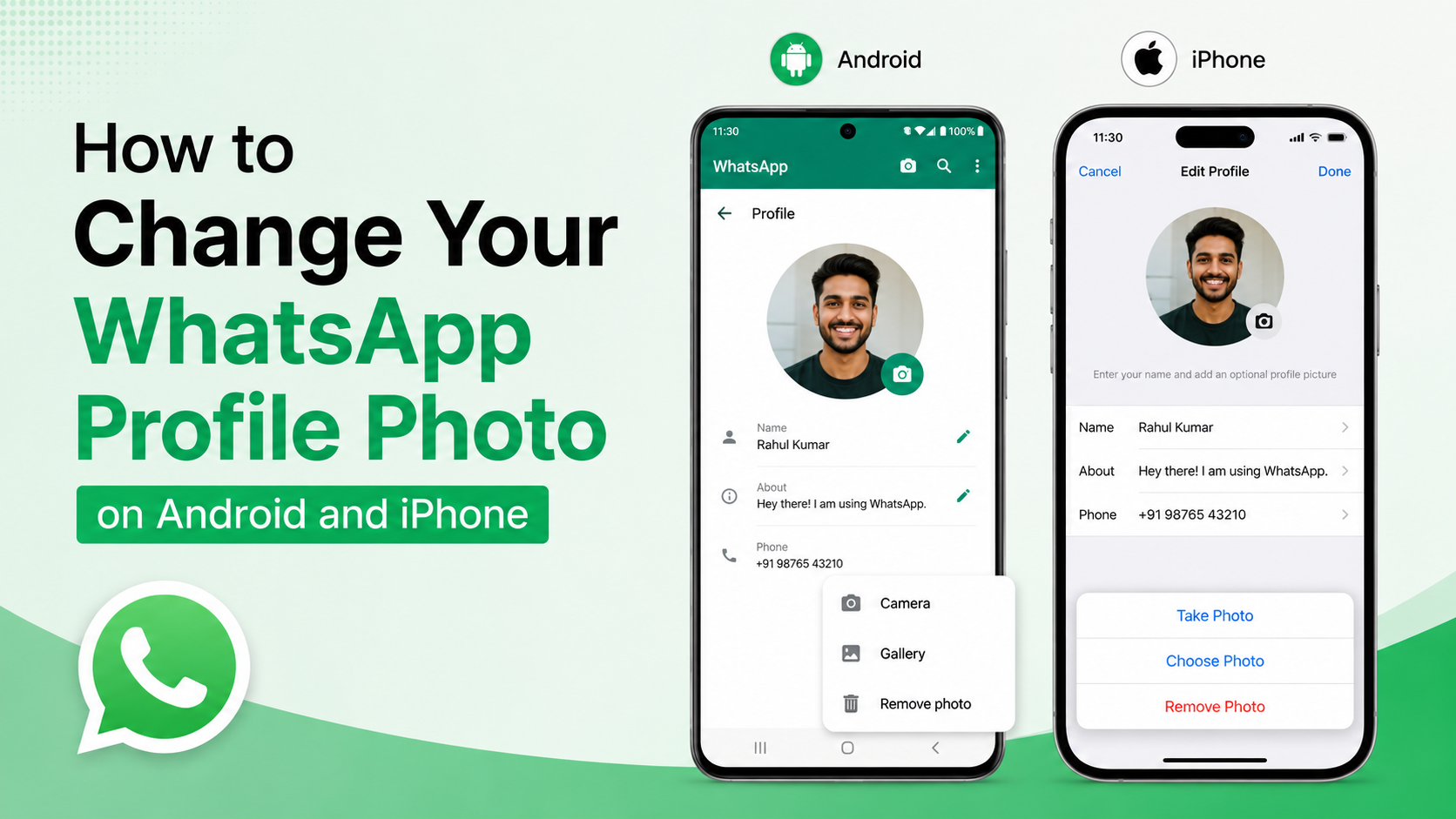
To update your Teams profile photo on an iPhone:
- Open the Microsoft Teams app.
- Tap your current picture or initials near the top-left of the screen.
- Tap your name to open your profile.
- Select Update photo.
- Choose whether to take a new photo or select one from your photo library.
- Confirm the image and save the change.
You may need to grant Teams permission to access your camera or photo library.
Update Your Photo on Android
On Android, the process commonly begins from the More menu:
- Open Teams and tap More.
- Tap your current picture.
- Select Edit image.
- Take a photo or choose one already stored on your device.
- Confirm the update.
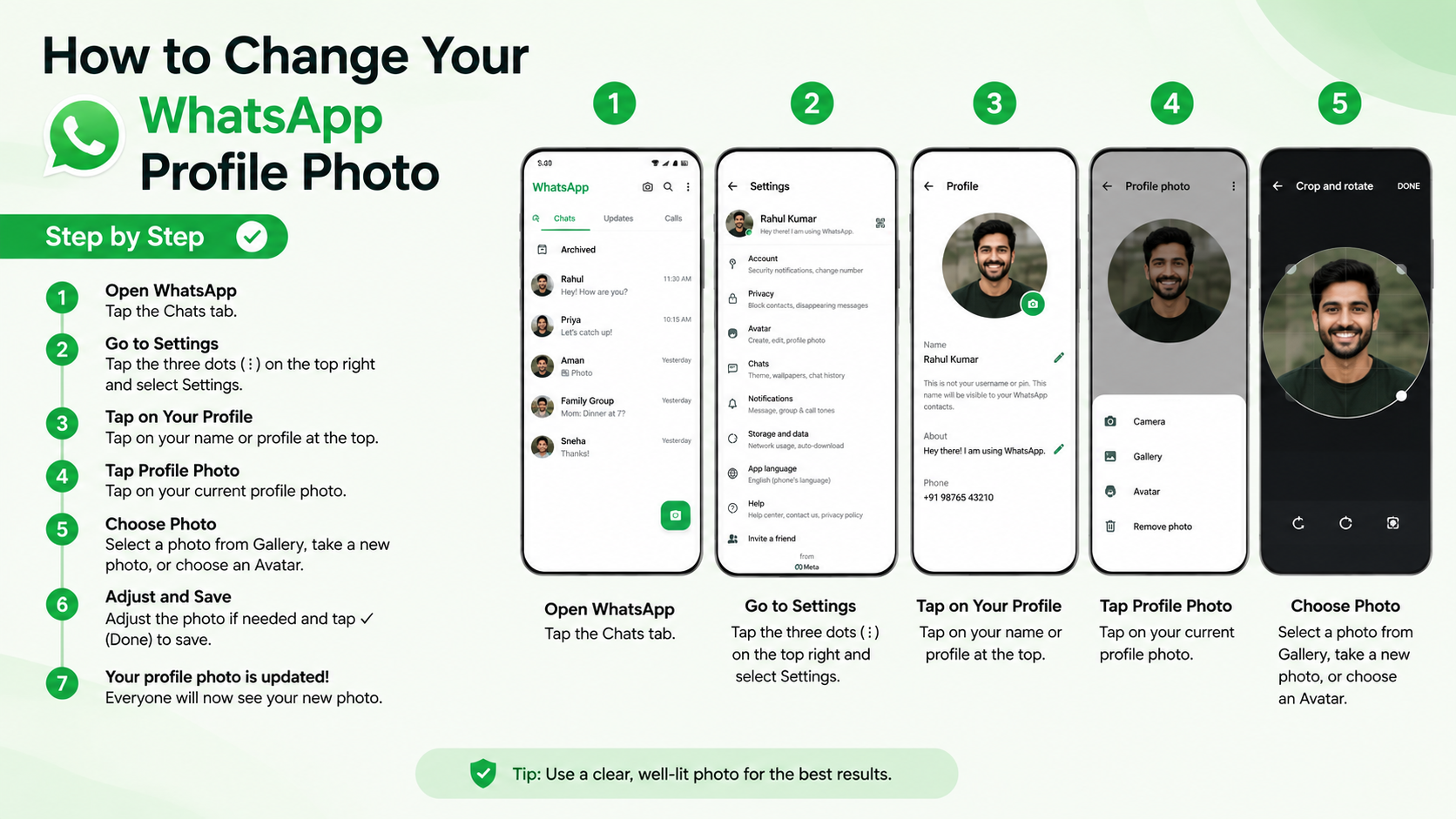
If the button names differ slightly, look for an option such as Update photo, Edit image, or a pencil icon beside your current profile image.
Work, School, and Personal Accounts: Know the Difference
The way your Teams profile photo is managed depends on the type of account you use.
Work or School Teams Accounts
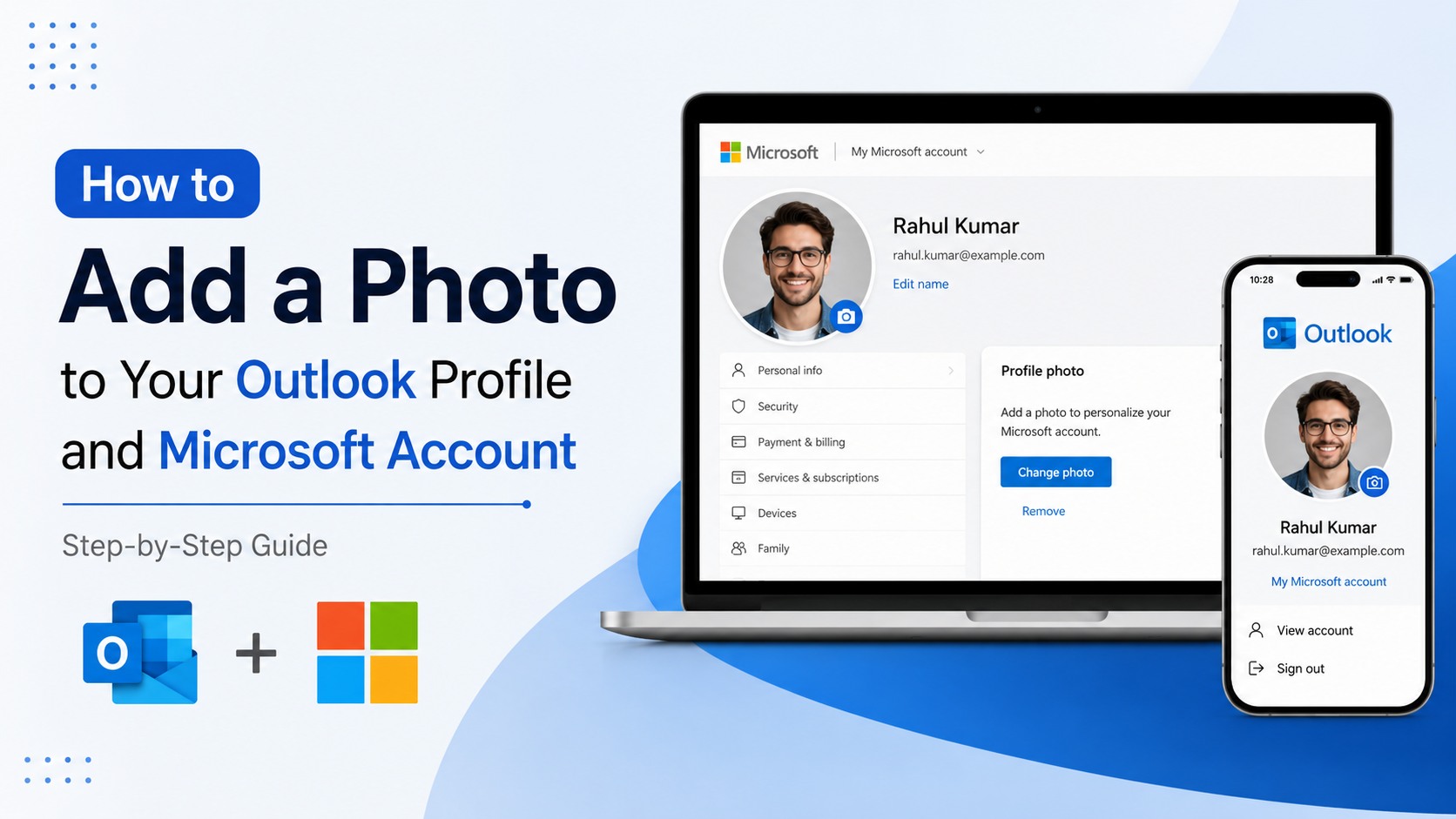
With a work or school account, your profile image may be managed through Microsoft 365 rather than exclusively in Teams. Your organization may also control whether employees can edit their own pictures.
If Teams does not show an upload option, sign in to the Microsoft My Account portal with your work or school account. Select the edit icon on your current photo, upload a replacement, resize it if needed, and save. Microsoft notes that organizations can restrict this setting through IT or HR policies.
This approach is particularly common in regulated industries, schools, and large companies where profile information is centrally managed.
Personal Teams Accounts
Teams Free and other personal Microsoft account experiences can use your Microsoft account image. Changing it may update your profile across Microsoft services connected to that account.
For personal accounts, you can usually select your picture in Teams, select it again, and choose Upload picture or Remove picture. You may also manage your image through your Microsoft account’s profile settings.
What to Do If Your New Photo Does Not Appear
A successful upload does not always mean every Teams screen updates immediately. Profile images can take time to synchronize across Teams, Outlook, Microsoft 365 profile cards, and devices.
Allow Time for Synchronization
Microsoft advises that profile-picture changes may take time to update across Teams channels. For Microsoft account photos, changes can take up to 24 hours to appear everywhere. Microsoft Support
If your new image does not appear right away:
- Wait a few hours before trying another upload.
- Restart Teams.
- Sign out and sign back in if appropriate for your organization.
- Check Teams in a browser and on your mobile device.
- Ask a colleague whether they can see the updated image.
Avoid repeatedly uploading different pictures in quick succession. That can make it harder to tell whether synchronization is still in progress.
Fix a Missing Upload or Edit Option
If you cannot find Upload image, Update photo, or Edit image, consider these common causes:
- You are signed in to the wrong Teams account.
- Your organization has disabled self-service photo changes.
- The Teams app needs an update.
- A mobile permission is blocking access to your photos or camera.
- Your account image is centrally managed through Microsoft 365.
Try the My Account portal for work or school accounts. If photo editing is restricted there as well, contact your IT help desk or HR team and ask about the organization’s profile-photo policy.
Best Practices for a Professional Teams Profile Photo
A strong profile photo makes your profile easier to recognize without distracting from your work identity.
Frame the Photo for a Small Circular Icon
Teams displays a small version of your image in many places. A photo that looks excellent full-screen may not work as well at icon size.
For the best crop:
- Keep your eyes near the upper middle portion of the image.
- Leave space above your head and around your shoulders.
- Use a plain or softly blurred background.
- Avoid tiny visual details that disappear at a smaller size.
- Test the photo by viewing it at a reduced size before uploading.
A centered head-and-shoulders image generally produces the most consistent result.
Respect Privacy and Company Culture
Your profile photo should feel comfortable for you while matching the expectations of your workplace. You do not need to reveal personal details, family members, locations, or hobbies unless that suits your professional context.
If your organization allows alternatives, a clean avatar, company-approved image, or simple branded graphic may be acceptable. However, check internal guidelines first—some companies require employee photos for directories, security, or customer-facing work.
Frequently Asked Questions
Can I add a Teams profile photo without using the desktop app?
Yes. You can update your Teams profile photo through the Teams web app using the same profile menu process. Mobile users can also change it in the Teams app through Update photo or Edit image.
Why can’t I change my Teams profile photo?
Your employer or school may have disabled profile-photo editing. Microsoft specifically notes that IT or HR departments can restrict changes for work or school accounts. Try the Microsoft My Account portal; if editing is unavailable there too, contact your organization’s support team.
How long does it take for a Teams profile photo to update?
It may appear in Teams quickly, but updates can take longer to synchronize across channels, devices, Outlook, and other Microsoft 365 services. In some cases, allow up to 24 hours for the new image to appear everywhere.
Will changing my Teams photo update my Outlook photo?
Often, yes. Work and school accounts commonly share profile information across Microsoft 365 services, including Teams and Outlook. The exact behavior depends on how your organization manages identity and profile settings.
Can I remove my Teams profile photo?
Yes, if your account settings allow it. Open your profile picture in Teams and look for Remove image or Remove picture. If the option is unavailable, your organization may manage the image centrally.
Conclusion
Adding a Teams profile photo is a quick way to make communication clearer and your Microsoft 365 profile more recognizable. Start with a well-lit, recent headshot, upload it through the Teams profile menu, and save your changes. If the option is missing, check the Microsoft My Account portal or ask your IT team whether your organization manages profile photos centrally.
Take a moment to update your Teams profile photo today—your future meeting attendees, chat collaborators, and new colleagues will thank you.
Advertisement