August 19, 2026 · 12 min read
How to Have Multiple Profile Photos on Telegram: Options and Limitations
On this page
- How Multiple Profile Photos Work on Telegram
- How to Add Multiple Profile Photos on Telegram
- How to View, Reorder, and Delete Profile Photos
- Control Who Can See Your Telegram Profile Photos
- What You Cannot Do With Multiple Telegram Profile Photos
- Practical Ways to Separate Personal and Professional Identities
- Best Practices for Multiple Profile Photos on Telegram
- Frequently Asked Questions
- Conclusion
How to Have Multiple Profile Photos on Telegram: Options and Limitations
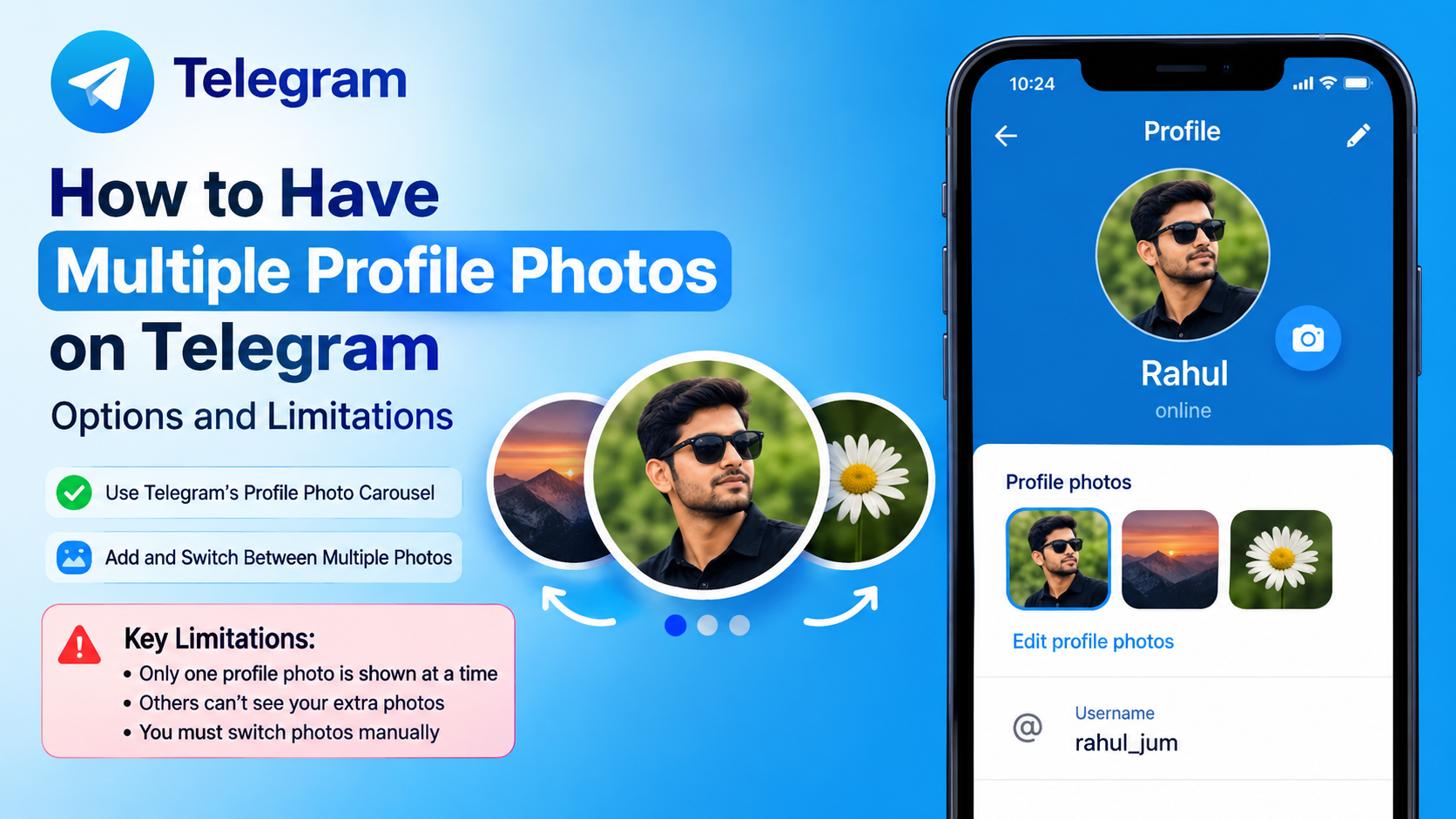
A single profile photo rarely tells the whole story. You may want a polished headshot for clients, a casual photo for friends, and a branded image for communities you manage. Fortunately, Telegram lets users upload multiple profile photos and keeps previous images in a profile-photo history.
However, “multiple profile photos Telegram” does not mean you can freely assign a different photo to every person, group, or audience. Telegram has useful privacy controls and public-profile alternatives, but there are important limits to how photos are displayed. This guide explains what you can do, what you cannot do, and how to choose the right setup.
Key Takeaways
- Telegram lets you upload multiple profile photos, with the newest image typically becoming your main profile photo.
- Previous profile photos remain available in your profile’s photo history until you delete them.
- You cannot assign a unique profile photo to each individual contact, group, or channel from one account.
- Use Telegram’s Profile Photos privacy settings to control who can view your personal image.
- A public profile photo can provide a safer alternative for people who cannot see your private photo.
- Separate Telegram accounts are the most practical option for fully distinct personal and professional identities.
How Multiple Profile Photos Work on Telegram
Telegram treats profile images as a photo history rather than a rotating gallery. When you upload a new image, it becomes your current profile photo while older images can remain attached to your profile.
Your newest photo is the primary image
The latest photo you upload is normally the image people see first in chat lists, search results, and your profile header. It is the closest thing Telegram has to an “active” profile image.
For example, a consultant might set a professional headshot as the latest image before a conference. That photo becomes the main visual identity others see, while older photos can remain in the profile gallery.
Older photos become part of your profile history
People who are allowed to view your profile photos may be able to swipe through older images from your profile. This makes Telegram useful for maintaining a small visual timeline without repeatedly overwriting and losing previous photos.
That said, old photos are not separate audience-specific profile pictures. They are simply earlier images associated with the same Telegram account.
Photos and profile videos can coexist
Telegram also supports profile videos. A short, square video can serve as your current profile visual, with a selected still frame appearing where animated playback is not available.
This can be useful for creators, speakers, and brands. For instance, a fitness coach could use a brief video clip demonstrating movement, while retaining earlier static portraits in the profile-photo history.
How to Add Multiple Profile Photos on Telegram
Adding several photos is simple: upload a new profile photo each time you want to expand or refresh your profile history. Menu labels can differ slightly between iPhone, Android, and Telegram Desktop versions, but the process is broadly the same.
Add photos on the Telegram mobile app
Follow these general steps:
- Open Telegram and go to Settings.
- Tap your current profile photo or account header.
- Choose Set Profile Photo or the camera/edit option.
- Select an image from your device, take a new photo, or choose a video where available.
- Crop, position, and confirm the upload.
- Repeat the process whenever you want to add another profile image.
Each newly uploaded image becomes the current photo. Earlier images are usually retained unless you remove them.
Add photos on Telegram Desktop
On desktop, open the main menu and select Settings, then click your profile image or account details. Choose the edit or camera option to upload a new photo from your computer.
Desktop is especially convenient when you are working with professionally edited images, logos, or consistent brand assets.
Choose files that display well
Profile photos appear small in many parts of Telegram, so clarity matters more than detail. For better results:
- Use a square image with your face, logo, or focal point centered.
- Choose bright, high-contrast images that remain recognizable at thumbnail size.
- Avoid small text, busy backgrounds, and important details near the edges.
- Preview the crop before uploading.
- Use a sharp, professional image for work-facing accounts.
A landscape photo may look excellent in a camera roll but can become unclear once Telegram crops it into a circular or square avatar.
How to View, Reorder, and Delete Profile Photos
Uploading several photos is easy; managing them intentionally is what keeps your profile professional and privacy-conscious.
Viewing your profile-photo history
Open your Telegram profile and tap or click the photo. If multiple images are stored, you can navigate through the available photos. Other users with permission to view your profile photos may be able to do the same.
Review your history occasionally. An image that felt appropriate years ago may not reflect how you want to appear to colleagues, customers, or new contacts today.
Deleting photos you no longer want visible
To remove an older image, open it from your profile-photo history and use the available delete option. Telegram’s exact controls can vary by platform, but the goal is the same: remove the image from your profile history, not merely replace the main photo.
Before deleting, consider whether the image contains:
- Private locations, family members, or children
- Employer or client information
- Event badges, address details, or other identifying information
- Outdated branding or an old business logo
- A photo you would not want a new contact to view
Can you reorder profile photos?
Telegram does not function like a social-media album manager with full manual drag-and-drop ordering. In practice, the newest uploaded image becomes the primary photo. If you want a particular image to be prominent again, re-upload it as your latest profile photo.
This limitation matters for businesses. If your newest photo is a seasonal campaign image, it may push your evergreen logo or professional headshot into the background.
Control Who Can See Your Telegram Profile Photos
Having multiple profile photos is only half the equation. Privacy settings determine who can access them.
Find the Profile Photos privacy setting
In Telegram, go to Settings, then open Privacy and Security and look for Profile Photos. From there, you can select a broad audience and use exceptions where available.
Common visibility choices include:
- Everybody: Any Telegram user can view your profile photo.
- My Contacts: Only people saved in your contacts can view it.
- Nobody: Your profile image is hidden by default.
The exact naming and exception controls may differ by device or app version.
Use exceptions for better control
Exceptions are useful when your contacts list includes a mix of personal and professional relationships. You might allow contacts generally while excluding unfamiliar business leads, former coworkers, or people you do not know well.
Conversely, you may hide your photos from everyone but make them visible to a short list of trusted people.
For example, a recruiter who communicates with many new candidates could use a neutral public-facing image while reserving personal photos for close contacts.
Consider a public alternative photo
Telegram can provide a public profile-photo alternative for people who are not allowed to see your private profile image. This is a valuable privacy feature because it lets you remain recognizable without exposing your most personal photo to everyone.
A strong setup could look like this:
- Private profile photo: A personal portrait visible to contacts.
- Public profile photo: A clean headshot, logo, illustration, or neutral image visible to others.
- Older photo history: Curated images that match the audience allowed to view them.
The key is to treat every visible image as potentially discoverable by the audience permitted through your privacy settings.
What You Cannot Do With Multiple Telegram Profile Photos
Telegram’s feature is helpful, but it is not a full multi-persona system. Understanding the restrictions prevents disappointment and helps you choose a workable alternative.
You cannot assign a different photo to each contact
Telegram does not offer a built-in rule such as “show Photo A to family, Photo B to coworkers, and Photo C to clients.” Your account has one primary profile image, one associated history, and privacy-based visibility controls.
You can decide who sees profile photos, but not create a unique image presentation for every relationship.
You cannot set a separate profile photo for each group
A group member will see the profile identity associated with your account. You cannot present one personal avatar in a family group and an entirely different professional avatar in a work group while using the same account.
If you run a group or channel, the group or channel itself can have its own image. That does not change your personal account photo as an individual member.
Telegram does not automatically rotate photos
Telegram does not rotate your stored profile images on a schedule. If you want a fresh primary image for a launch, holiday, campaign, or event, you must update it manually.
A marketing team, for example, might schedule reminders to update an account photo at the start and end of a campaign rather than expecting Telegram to cycle through approved assets.
Practical Ways to Separate Personal and Professional Identities
If privacy settings and photo history are not enough, you have several practical options.
Use separate Telegram accounts
Using separate accounts is the clearest method for distinct identities. One account can use a personal phone number and casual image, while another uses a business number and professional branding.
This approach is particularly useful for:
- Freelancers who communicate with clients and personal contacts
- Community managers handling brand-facing conversations
- Founders separating customer support from private chats
- Creators with a public audience and a private network
Telegram supports account switching, but each account requires its own phone number. Maintain clear names, usernames, and photos to avoid sending messages from the wrong identity.
Create a professional public-facing profile
If you prefer one account, use a consistent professional image that works across most contexts. Pair it with a clear name, concise bio, and relevant username.
For example, a designer might use a polished headshot or simple logo as the main image, then link their portfolio in the bio. This creates a coherent identity without requiring multiple audience-specific photos.
Use channels and groups for branded communication
A Telegram channel, group, or business-facing bot can have its own dedicated profile image. This is often better than changing your personal profile photo for every project.
A company can keep its founder’s account personal while using a branded channel avatar for announcements, promotions, and customer updates.
Best Practices for Multiple Profile Photos on Telegram
A thoughtful profile-photo strategy improves recognition, trust, and privacy.
Keep your photo history intentional
Do not treat profile-photo history as a storage folder. Keep only images you would be comfortable showing to the people authorized to view them.
A good rule: if an older image would confuse a client, concern an employer, or reveal too much personal information, delete it.
Match the photo to your purpose
Choose a primary photo based on what you want Telegram contacts to understand immediately.
- Personal use: A natural, recognizable portrait works well.
- Professional use: Choose a clean headshot with a simple background.
- Brand or business use: Use a high-resolution logo with ample spacing.
- Creator use: Use a distinctive portrait or recognizable visual mark.
- Privacy-focused use: Use an illustration, avatar, or public-facing alternative image.
Refresh without losing consistency
It is fine to update profile photos, but frequent dramatic changes can make you harder to recognize. Keep one stable visual element, such as similar lighting, color palette, pose, logo treatment, or background.
For a consultant, updating a headshot every year is sensible. Changing between unrelated selfies, logos, memes, and event photos every week is less effective for professional recognition.
Frequently Asked Questions
Can you have multiple profile photos on Telegram?
Yes. Telegram lets you upload multiple profile photos, and older images can remain in your profile-photo history. Your newest upload usually serves as the main image people see first.
Can different people see different profile photos on Telegram?
Not in a fully customized, person-by-person way. You cannot assign a unique photo to each contact or group. However, Telegram’s privacy settings and public-profile alternative can help you show a private image to approved people and a different public-facing image to others.
Do old Telegram profile photos disappear when you upload a new one?
Not necessarily. Older photos can remain accessible in your profile history until you delete them. Review and remove any image you no longer want contacts to see.
Can I use multiple Telegram accounts with different profile photos?
Yes. Each Telegram account can have its own profile photo, name, username, bio, and chat history. This is the best option if you need clearly separate personal and business identities.
Can Telegram rotate multiple profile photos automatically?
No. Telegram does not offer automatic profile-photo rotation. You need to upload a new photo manually whenever you want to change the primary image.
Conclusion
Telegram supports multiple profile photos by preserving a profile-photo history, making it easy to update your current image without immediately losing older ones. Its privacy controls and public-profile alternative also give you meaningful control over who sees your personal visual identity.
The major limitation is customization: one account cannot show a different profile photo to every contact or group. If you need truly separate personal and professional appearances, create and manage separate Telegram accounts. Otherwise, curate your photo history, tighten your privacy settings, and choose a primary image that represents you clearly and confidently.
Advertisement