August 19, 2026 · 10 min read
How to Change Your Profile Photo in WhatsApp Without Losing Quality
On this page
- Why WhatsApp Profile Photos Can Lose Quality
- Choose the Right Image Size Before You Upload
- Prepare Your Photo for WhatsApp’s Circular Crop
- How to Change Your Profile Photo on WhatsApp
- How to Preserve Quality During Editing
- Common Mistakes That Make Profile Photos Look Blurry
- Set the Right Privacy Options for Your Profile Photo
- Frequently Asked Questions
- Conclusion
How to Change Your Profile Photo in WhatsApp Without Losing Quality
Your WhatsApp profile photo is often the first visual impression you make—whether you are chatting with friends, communicating with clients, or representing a business. Unfortunately, a clear image can look soft, pixelated, or awkwardly cropped after you upload it.
The good news is that you can change profile photo WhatsApp settings without sacrificing quality. The key is preparing the image correctly before uploading it, choosing a suitable crop, and avoiding common mistakes that trigger unnecessary compression.
Key Takeaways
- Use a square image with a resolution of at least 640 × 640 pixels.
- Edit and crop your photo before uploading it to WhatsApp.
- Start with the original image file instead of a screenshot or previously compressed copy.
- Keep important details away from the edges because WhatsApp displays profile photos in a circle.
- Avoid repeatedly downloading, editing, and re-uploading the same WhatsApp image.
- Check your privacy settings so the right audience can see your updated photo.
Why WhatsApp Profile Photos Can Lose Quality
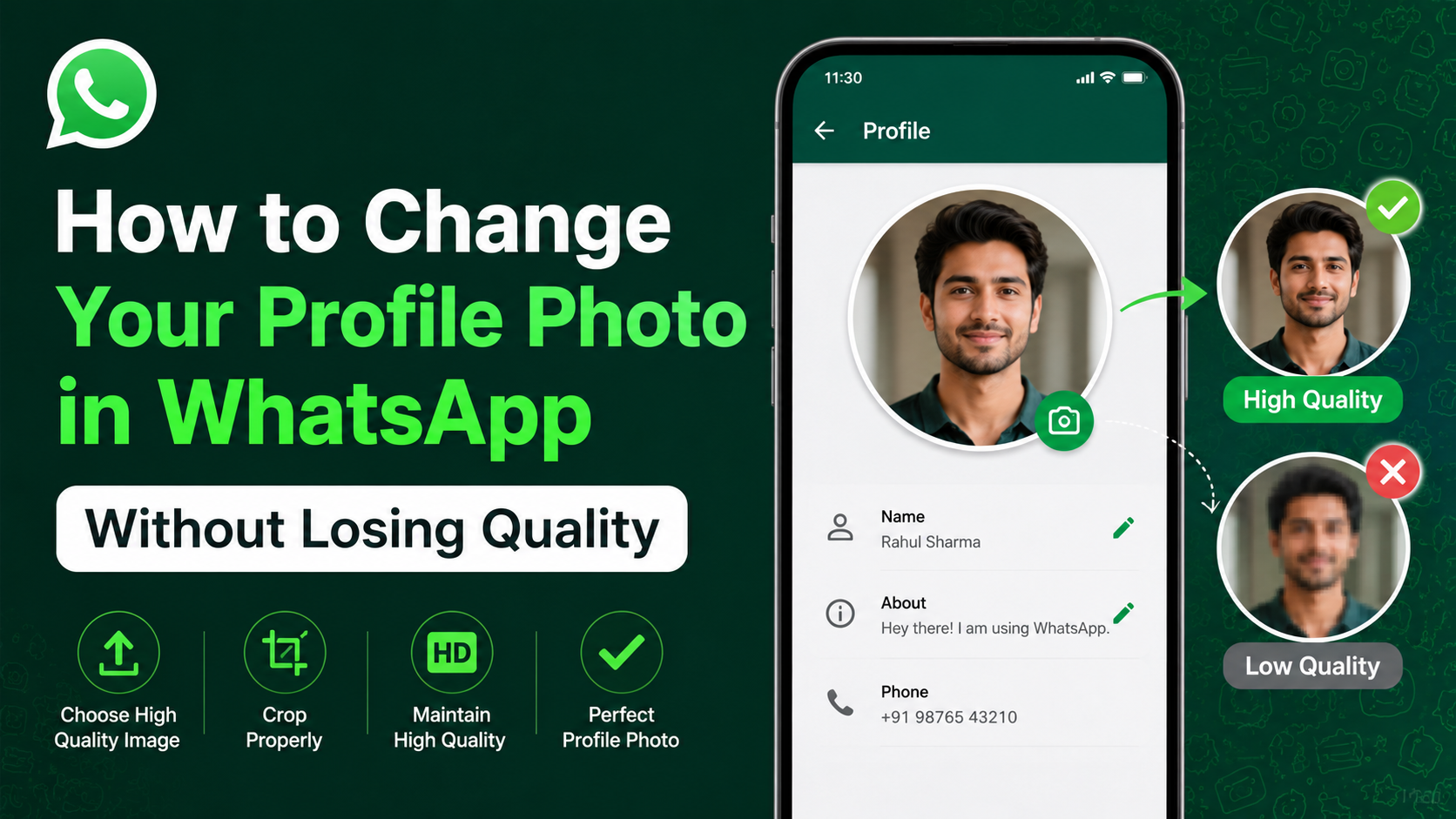
WhatsApp compresses images to help messages and media load quickly across different devices and network conditions. While profile photos are small compared with regular photos, compression can still affect sharpness, color detail, and text readability.
Image Compression and Resizing
When you upload a large photo, WhatsApp resizes it for profile display. This is usually not a problem when the original image is high quality, but a low-resolution or already-compressed image can become noticeably blurry.
For example, a 150 × 150-pixel screenshot may look acceptable in your phone gallery. Once WhatsApp resizes and compresses it, faces, logos, and fine details can become fuzzy.
Circular Display Changes the Crop
Although you may upload a square image, WhatsApp shows profile photos inside a circular frame in many parts of the app. Anything close to a corner may be hidden.
This matters especially for:
- Business logos with text near the edges
- Headshots where the face is too close to the border
- Group photos with people positioned at the corners
- Images with important captions or design elements
Reusing Downloaded WhatsApp Images
A common quality issue happens when someone downloads a profile image from WhatsApp, edits it, and uploads it again. That file may already be compressed, so every additional edit and upload can reduce quality further.
Always work from the original file when possible.
Choose the Right Image Size Before You Upload
You do not need an extremely large image to get a good WhatsApp profile photo. However, your image should be large enough to stay clean after resizing and compression.
Recommended Dimensions
A square image is the safest option because it gives you full control over how the photo appears in the crop tool.
Use these practical guidelines:
- Minimum: 640 × 640 pixels
- Recommended: 1080 × 1080 pixels
- Aspect ratio: 1:1 square
- File type: JPG or PNG
- Best source: Original camera photo or exported design file
A 1080 × 1080 image is an excellent balance: it offers enough detail for a crisp display without creating an unnecessarily huge file.
Use JPG for Photos and PNG for Graphics
Choose the format based on the image type.
- JPG: Best for portraits, selfies, team photos, and natural scenes.
- PNG: Best for logos, illustrations, flat-color graphics, and images containing text.
For instance, a consultant’s headshot will usually look best as a high-quality JPG. A company logo with lettering and clean lines may remain sharper as a PNG.
Keep the File Clean
Avoid using images that have already passed through multiple platforms. Social networks, screenshots, and messaging apps can reduce image quality before you even upload the picture to WhatsApp.
Whenever possible, use:
- The original photo from your camera roll
- The original export from Canva, Photoshop, or another design tool
- A high-resolution photo shared through cloud storage
- A professionally prepared brand asset
Prepare Your Photo for WhatsApp’s Circular Crop
A technically sharp photo can still look poor if it is badly framed. Before you change profile photo WhatsApp settings, make sure the composition works within a circular display.
Center Your Face or Main Subject
For headshots, place your face in the middle of the square canvas. Leave enough room above your head and around your shoulders so WhatsApp’s crop does not cut off important features.
A useful rule is to keep the main subject within the central 70% of the image.
For example, if you use a professional portrait for work, avoid a tightly cropped photo where your forehead or chin sits near the edge. A slightly wider crop will look more polished in WhatsApp’s circular frame.
Leave Safe Space Around Logos
If you use a business logo, add padding around it before exporting the image. A logo that fills the entire square may have letters or icons clipped when the circle is applied.
A simple setup works well:
- Use a square background in your brand color.
- Center the logo.
- Add generous empty space around all edges.
- Test how it appears inside a circle before uploading.
Avoid Tiny Text
Small text does not translate well to a profile photo. Even a sharp PNG can become unreadable at WhatsApp’s small display size.
Instead of including a full slogan, website address, or product list, use a simplified logo mark, initials, or a recognizable visual symbol.
How to Change Your Profile Photo on WhatsApp
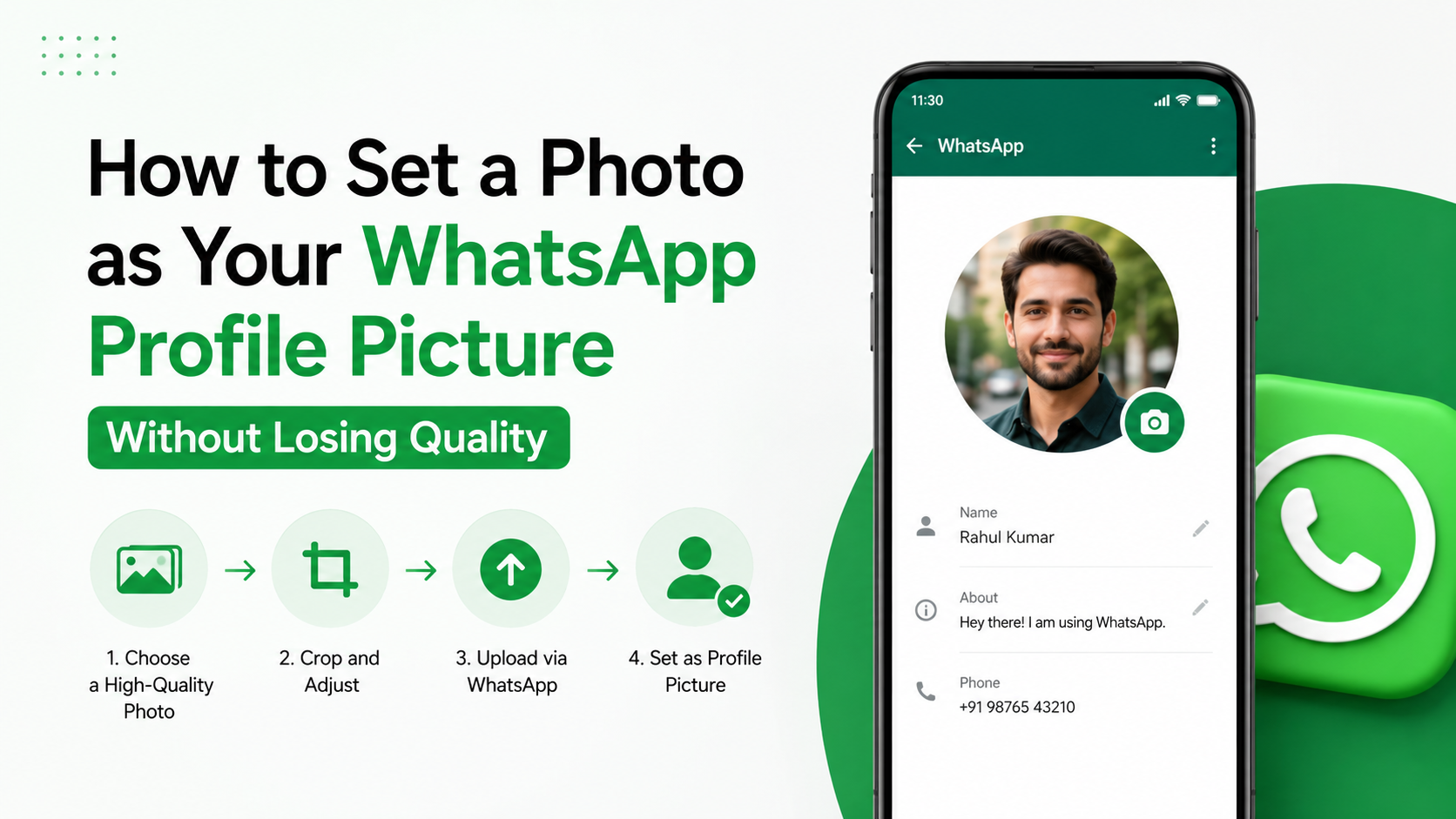
The process is straightforward on both Android and iPhone. The exact labels may vary slightly by app version, but the steps are essentially the same.
Change Your Photo on Android
- Open WhatsApp.
- Tap the three-dot menu in the upper-right corner.
- Select Settings.
- Tap your current profile photo or name.
- Tap the camera icon on your profile image.
- Choose Gallery or Camera.
- Select your prepared square image.
- Adjust the crop and tap Done or Save.
Before confirming, make sure your face, logo, or main subject remains centered within the visible circle.
Change Your Photo on iPhone
- Open WhatsApp.
- Tap Settings in the lower-right corner.
- Tap your name or current profile photo.
- Select Edit.
- Tap Edit below your profile image.
- Choose Take Photo or Choose Photo.
- Position and crop the image.
- Tap Done to save your changes.
If the photo looks too zoomed in, return to your editing app, add more background space, and upload the revised version.
Update a WhatsApp Business Profile Photo
For WhatsApp Business users, your profile photo supports brand recognition and customer trust. Use a clear logo or a professional portrait that matches your other business channels.
A local service business might use its logo for immediate recognition. A freelance consultant may prefer a clear headshot because clients often respond better to a recognizable human face.
How to Preserve Quality During Editing
The best way to avoid blur is to make all edits before the image reaches WhatsApp.
Edit the Original, Not a Screenshot
Screenshots are usually lower quality than the original image. They can also include display scaling, visual artifacts, and reduced color detail.
If you need to crop or retouch a photo, use the original image in your phone’s photo editor or a design tool. Then export one final version for WhatsApp.
Avoid Overediting
Heavy filters, excessive sharpening, and aggressive noise reduction can make an image look unnatural after compression. WhatsApp compression may exaggerate these effects.
Keep edits subtle:
- Brighten dark photos slightly.
- Correct color balance if needed.
- Add mild sharpening only.
- Avoid extreme clarity or texture effects.
- Do not enlarge a tiny image to make it “high resolution.”
Upscaling can increase pixel dimensions, but it cannot restore missing image detail.
Export at High Quality
When exporting from an editing app, choose a high-quality JPG setting or PNG format. Do not export a small “web thumbnail” version if a full-resolution option is available.
For a professional headshot, exporting at 1080 × 1080 pixels with high JPG quality is typically ideal.
Common Mistakes That Make Profile Photos Look Blurry
Even high-quality source images can look weak when handled incorrectly. Avoid these frequent problems.
Uploading a Small Image
A tiny image has too little detail to survive enlargement and compression. This is especially noticeable with faces and branding elements.
Instead, start with a larger original and crop down to a square.
Zooming Too Far In
Zooming inside WhatsApp’s crop tool can magnify the image beyond its useful detail level. If you need a tighter composition, crop the original image externally first.
This gives you more control and avoids relying on an already-small image.
Using Photos Sent Through Multiple Apps
An image sent through several messaging platforms may have been compressed more than once. It may look fine at full size but turn soft when used as a profile image.
Ask for the original file through email, cloud storage, AirDrop, or a file-sharing service when image quality matters.
Forgetting the Background
A cluttered background can make a profile photo look less clear, even when the image itself is technically sharp. A plain or softly blurred background helps faces and logos stand out in a small circular thumbnail.
Set the Right Privacy Options for Your Profile Photo
After you change profile photo WhatsApp settings, decide who should be able to view it.
Find Your Profile Photo Privacy Settings
In WhatsApp, go to:
Settings > Privacy > Profile Photo
You can generally choose from options such as:
- Everyone: Anyone who has your number may see your photo.
- My Contacts: Only people saved in your contacts can see it.
- My Contacts Except: Hide it from selected contacts.
- Nobody: No one can see your profile photo.
The available wording can differ slightly depending on your device and app version.
Choose a Privacy Setting That Fits Your Use Case
For personal use, My Contacts is often a sensible default. For professional networking or customer communication, Everyone may be appropriate if you want clients to recognize you easily.
If you use WhatsApp for both work and private conversations, consider using a professional but non-sensitive photo and limiting visibility to your contacts.
Frequently Asked Questions
Does WhatsApp reduce profile photo quality?
WhatsApp may resize and compress profile photos, but starting with a sharp, properly sized image minimizes visible quality loss. A 1080 × 1080 pixel original with a simple crop generally produces a clean result.
What is the best size for a WhatsApp profile photo?
A square image at 1080 × 1080 pixels is a strong choice. It provides enough detail for WhatsApp’s display while giving you room to crop and position the subject properly.
Why does my WhatsApp profile photo look blurry?
Your image may be low resolution, already compressed, overly zoomed, or repeatedly re-uploaded from another app. Use the original image file, crop it externally, and upload a larger square version.
Can I use a PNG as my WhatsApp profile photo?
Yes. PNG is especially useful for logos, illustrations, and graphics with text. For regular photographs, a high-quality JPG usually provides excellent results with a smaller file size.
How do I stop WhatsApp from cutting off my profile photo?
Create a square image and keep the main subject away from the corners. Since WhatsApp commonly displays the image in a circle, leave enough empty space around faces, logos, and important design elements.
Conclusion
To change profile photo WhatsApp without losing quality, begin with a high-resolution original, prepare it as a square image, and keep the important details inside the center of the frame. Use JPG for photographs, PNG for logos, and avoid screenshots or repeatedly compressed files.
Before you upload your next profile photo, create a clean 1080 × 1080 version, check the circular crop, and update your privacy settings. A few minutes of preparation can make your WhatsApp presence look sharper, more professional, and instantly recognizable.
Advertisement