August 19, 2026 · 11 min read
How to Change Your Instagram Profile Photo Without Losing Quality
On this page
- Understand Instagram Profile Photo Size and Compression
- Choose the Right Source Image Before Uploading
- Prepare Your Image for Instagram’s Circular Crop
- Edit Without Damaging Image Quality
- How to Change Instagram Profile Photo on Mobile
- How to Change Instagram Profile Photo From a Computer
- Fix a Blurry Instagram Profile Photo
- Make Your Profile Photo Work Harder for Your Brand
- Frequently Asked Questions
- Conclusion
How to Change Your Instagram Profile Photo Without Losing Quality
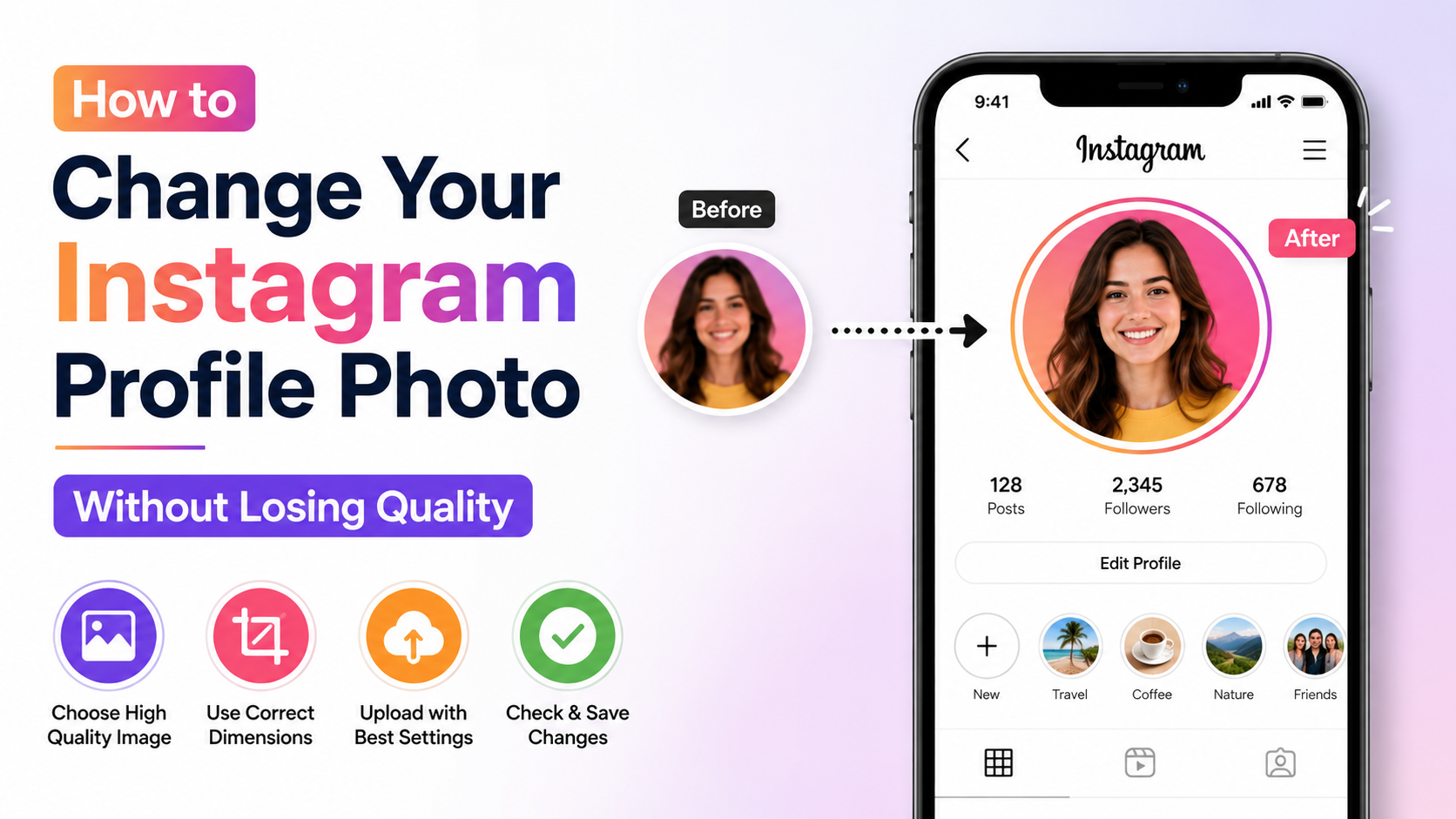
Your Instagram profile photo is small, but it makes a major first impression. Whether you are representing yourself, a personal brand, or a business, a blurry, poorly cropped, or pixelated image can make an otherwise polished profile feel unfinished.
The good news: you can change Instagram profile photo settings without sacrificing image quality. The key is preparing the image correctly before upload and understanding how Instagram crops, compresses, and displays profile pictures.
Key Takeaways
- Start with a square image of at least 320 × 320 pixels; 1080 × 1080 pixels offers more editing flexibility.
- Use a high-quality JPG or PNG file and avoid repeatedly saving or screenshotting the same image.
- Keep your face, logo, or focal point centered because Instagram displays profile photos in a circular crop.
- Upload from the Instagram mobile app when possible to avoid accidental browser-related compression or file issues.
- Preview the image at a small size before publishing, since profile photos are typically viewed as tiny circles.
- Replace blurry source files rather than trying to “fix” quality after Instagram has compressed them.
Understand Instagram Profile Photo Size and Compression
Before you change Instagram profile photo settings, it helps to know what happens after you upload an image. Instagram displays profile pictures as circles, but the uploaded image is handled as a square.
Recommended Profile Photo Dimensions
Instagram profile photos are commonly displayed around 110 × 110 pixels on mobile, though sizing can vary by device and context. Uploading a larger square image gives Instagram enough detail to create a cleaner result.
Use these guidelines:
- Minimum size: 320 × 320 pixels
- Recommended working size: 1080 × 1080 pixels
- Aspect ratio: 1:1 square
- Display shape: Circular crop
- Best file types: JPG for photos; PNG for logos, text, or sharp graphic elements
A 1080 × 1080 image will not necessarily appear sharper than a 320 × 320 image on-screen, but it gives you room to crop and resize without introducing visible pixelation.
Why Instagram Makes Images Look Softer
Instagram compresses uploaded images to reduce loading times and storage demands. Compression is normal, but poor source files can look noticeably worse after processing.
Quality problems usually come from:
- Uploading an image that is too small
- Using an image that has already been compressed several times
- Taking a screenshot instead of using the original file
- Enlarging a low-resolution image before upload
- Saving a photo through multiple editing apps at low quality
For example, a headshot downloaded from a messaging app may already be compressed. Uploading that version to Instagram adds another round of compression, making facial details and edges appear soft.
Choose the Right Source Image Before Uploading
The easiest way to preserve quality is to begin with the best version of your image. Instagram cannot restore detail that is not present in the original.
Use the Original File Whenever Possible
If you hired a photographer, ask for the original edited image rather than downloading the photo from social media, email previews, or chat apps. If you took the photo yourself, use the image directly from your camera roll or cloud library.
Choose an image that is:
- Well lit and sharply focused
- Large enough to crop without becoming blurry
- Free of screenshots, watermarks, and unnecessary borders
- Similar in appearance to the rest of your branding
- Easy to recognize at a very small size
For professionals, a clear headshot with a simple background often works better than a dramatic full-body image. For businesses, a simplified logo usually performs better than one with small text or fine details.
Avoid Images That Will Not Scale Well
Not every image can become a strong profile photo. Avoid using:
- Tiny thumbnails
- Heavily zoomed-in photos
- Images pulled from low-resolution websites
- Over-sharpened or overly filtered edits
- Logos with slogans, URLs, or small lettering
A restaurant logo may look perfect on a menu but become unreadable inside Instagram’s circular profile icon. In that case, use the icon mark alone instead of the complete logo lockup.
Prepare Your Image for Instagram’s Circular Crop
Instagram may let you reposition your photo during upload, but it is better to crop intentionally before you publish. This prevents important elements from being cut off.
Keep the Main Subject in the Center
Although your upload is square, viewers see a circle. The corners of the square will not be visible in the final profile image.
When preparing your photo:
- Center your face, product, or logo.
- Leave breathing room around the edges.
- Keep eyes and facial features in the upper-middle area.
- Avoid placing important text near the corners.
- Make sure logos fit comfortably inside an imaginary circle.
A useful rule is to place your focal point within the center 70–80% of the square canvas. This keeps it visible even when Instagram applies its circular display crop.
Create a Safe Zone for Logos and Branding
Businesses often lose quality not because of compression, but because their logo is too detailed for a small display area. Simplify the visual before uploading.
For example:
- Use a symbol instead of the full company name.
- Remove taglines and small subtext.
- Add a solid background color for contrast.
- Increase spacing around the logo.
- Use a high-contrast version that remains recognizable in light and dark interfaces.
If your brand relies on text, create a custom profile icon with one or two large initials rather than attempting to fit an entire wordmark into the circle.
Edit Without Damaging Image Quality
Editing can enhance your photo, but aggressive edits often create artifacts that become more obvious after Instagram compresses the file.
Use Light, Purposeful Adjustments
For a profile photo, prioritize clarity over artistic effects. Consider making small adjustments to:
- Brightness and exposure
- Contrast
- White balance
- Crop and alignment
- Mild sharpening
- Background cleanup
Avoid extreme filters, aggressive skin smoothing, or excessive sharpening. These effects may look acceptable at full size but can make the image look unnatural or grainy once reduced to a profile icon.
Export at High Quality
When saving your final edit, export a square image at 1080 × 1080 pixels. Use the highest-quality setting available in your editing app.
For photos, a high-quality JPG is generally ideal because it balances file size and visual detail. For a logo, illustration, or image with text, PNG can preserve cleaner edges.
Do not repeatedly export and re-edit the same JPG. Each low-quality save can remove detail. Instead, return to the original image or project file whenever you need to make changes.
How to Change Instagram Profile Photo on Mobile
The Instagram app is the most straightforward way to update your picture. The steps are similar on iPhone and Android.
Update Your Profile Image in the Instagram App
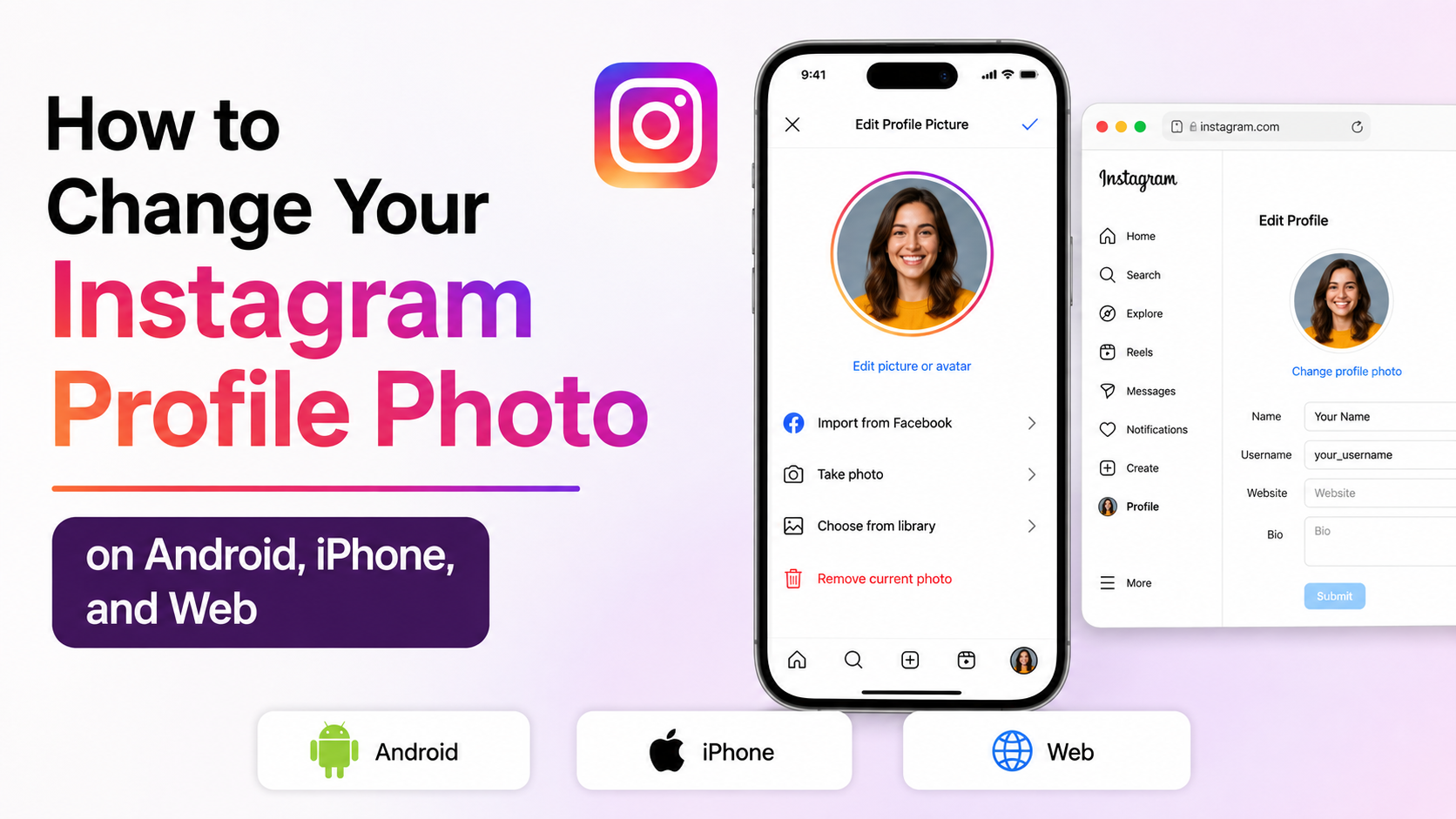
- Open the Instagram app and sign in.
- Tap your profile icon in the bottom-right corner.
- Select Edit profile.
- Tap Edit picture or avatar.
- Choose New profile picture.
- Select the prepared image from your gallery or camera roll.
- Adjust the crop and positioning if needed.
- Tap Done or the checkmark to save.
Once uploaded, visit your profile page and view the image at its normal size. This is the fastest way to confirm that the composition remains clear and centered.
Turn On Instagram’s High-Quality Upload Setting
Instagram offers a setting intended to upload media at higher quality. It is worth enabling, especially if you regularly post professional visuals.
To find it, open Instagram and go to:
Profile → Menu → Settings and activity → Data usage and media quality → Upload at highest quality
The exact labels can differ slightly based on your app version and device. While this setting is often discussed for posts and videos, enabling it is a sensible quality-preserving habit for all uploads.
How to Change Instagram Profile Photo From a Computer
You can also update your profile image using Instagram in a desktop browser. This can be helpful when your final image is stored on a computer or created in design software.
Update Your Photo Through Instagram Web
- Go to Instagram.com and sign in.
- Open your profile page.
- Click Edit profile.
- Select Change profile photo.
- Upload your prepared square image.
- Confirm the crop and save the change.
Before uploading from a computer, make sure you are selecting the original exported file, not a small preview image from a document or a copied browser image.
When Desktop Uploads Make Sense
Desktop uploads are useful when you are working with:
- Brand asset libraries
- Professionally edited headshots
- Adobe Photoshop, Canva, or other design exports
- Team-managed social media accounts
- Logo files that need precise resizing
For example, a marketing team can export a 1080 × 1080 PNG from its brand design tool, check the circular safe zone, and upload the final approved asset directly from a shared folder.
Fix a Blurry Instagram Profile Photo
If you change Instagram profile photo settings and the result still looks blurry, the issue is usually the source image, crop, or compression path.
Troubleshoot the Most Common Quality Problems
Try these fixes:
- Upload the original file rather than a screenshot or downloaded copy.
- Resize the image to 1080 × 1080 pixels before uploading.
- Re-crop with more space around the subject.
- Export again at high quality.
- Use JPG for photographs and PNG for graphics or logos.
- Update the Instagram app before trying again.
- Upload over a stable Wi-Fi connection.
- Wait a few minutes and refresh the app, as processing can briefly affect display quality.
If the image looks sharp in your phone gallery but blurry on Instagram, create a fresh export from the original. Do not enlarge a small, blurry version; resizing cannot create true missing detail.
Check It From Another Device
Instagram’s cached image previews can occasionally make a newly updated photo look worse than it actually is. View your profile from another account, browser, or device before assuming the upload failed.
This matters for businesses and creators. A profile photo may look acceptable on your own high-resolution phone but appear cluttered or unreadable on a smaller device. Testing it from another screen gives you a more realistic audience view.
Make Your Profile Photo Work Harder for Your Brand
Quality matters, but recognition matters just as much. A technically perfect profile photo still needs to communicate who you are at a glance.
Match Your Photo to Your Account Purpose
Choose your image based on the account’s role:
- Personal account: Use a warm, recognizable photo with your face clearly visible.
- Professional account: Use a clean headshot that reflects your industry and personal brand.
- Business account: Use a simple, high-contrast version of your logo.
- Creator account: Use an expressive image that matches your niche and content style.
- Team or organization account: Use a recognizable visual identity, not an unclear group photo.
A financial consultant may choose a polished headshot against a neutral background, while a travel creator may use a bright outdoor image. Both can work well if the subject remains distinct at a small size.
Refresh It Strategically
You do not need to change your photo constantly, but updating it can be valuable when your brand evolves, your appearance changes significantly, or your business completes a rebrand.
Keep consistency across platforms whenever possible. Using the same or similar profile image on LinkedIn, X, TikTok, and your website helps people recognize you more quickly.
Frequently Asked Questions
What is the best size for an Instagram profile photo?
A square 1080 × 1080-pixel image is an excellent choice. Instagram displays profile photos much smaller, but starting with a larger square file helps preserve detail and gives you flexibility when cropping.
Why does my Instagram profile picture look blurry after uploading?
The most likely causes are a low-resolution source image, repeated compression, poor export settings, or uploading a screenshot. Start again with the original image, crop it to a square, and export it at high quality before re-uploading.
Should I use JPG or PNG for my Instagram profile photo?
Use JPG for photographs, especially headshots and lifestyle images. Use PNG for logos, illustrations, or graphics with text, since PNG generally preserves sharp edges and clean color transitions better.
Can I change my Instagram profile photo without notifying followers?
Yes. Instagram does not send a standard notification to followers when you update your profile image. However, people who visit your profile or see your comments, messages, and posts will notice the new image.
Does Instagram crop profile photos into a circle?
Yes. You upload a square image, but Instagram displays it as a circle in most places. Keep important parts of the image centered and avoid placing text or crucial design elements near the corners.
Conclusion
To change Instagram profile photo without losing quality, begin with a sharp original image, format it as a 1080 × 1080 square, and keep the important subject safely centered for Instagram’s circular crop. Use high-quality exports, select the right file type, and always check how the result looks at the small size your audience will actually see.
Take a few minutes to prepare your image before uploading. A clean, recognizable profile photo strengthens credibility, improves brand consistency, and helps the right people recognize you instantly.
Advertisement