August 19, 2026 · 11 min read
How to Change Your Instagram Profile Picture in the Latest App Layout
On this page
- Why Your Instagram Profile Picture Matters
- How to Change Profile Photo Instagram in the Latest App Layout
- Change Your Photo Through Accounts Center
- Choose a Profile Picture That Works at Small Sizes
- Crop Your Image for Instagram’s Circular Frame
- Create Consistency for Personal and Professional Accounts
- Privacy, Visibility, and Account Considerations
- Troubleshooting When Your New Profile Picture Does Not Appear
- Frequently Asked Questions
- Conclusion
How to Change Your Instagram Profile Picture in the Latest App Layout
Your Instagram profile picture is one of the first things people notice—whether they find you through a Reel, a comment, a direct message, or a search result. For individuals, it creates instant recognition. For creators and businesses, it is a small but essential part of a trustworthy, consistent brand.
Fortunately, it only takes a few taps to change profile photo Instagram users see. The challenge is that Instagram’s menu labels and layout can vary slightly by device, account type, and app version. This guide walks through the current mobile-app process, explains the alternate Accounts Center route, and helps you select a profile image that looks polished in Instagram’s circular frame.
Key Takeaways
- Open your profile, tap Edit profile, then select Edit picture or avatar to update your image.
- Choose New profile picture to upload an image from your phone or Take photo to capture one immediately.
- Instagram displays profile photos in a circle, so leave important details away from the image edges.
- Your profile picture is publicly visible, even when your account is private.
- Use a consistent, high-contrast image so followers can recognize you in comments, messages, and search.
- If the update does not appear immediately, check your connection, restart the app, and allow time for the change to sync.
Why Your Instagram Profile Picture Matters
A profile picture may be tiny on screen, but it does a lot of work. It appears beside your name in comments, notifications, direct messages, Story interactions, suggested accounts, and search results. In many of those places, viewers see the image before they see your bio or content.
It Builds Recognition Quickly
People process visual cues faster than usernames. A clear headshot helps friends, clients, or collaborators identify you at a glance. A recognizable logo helps customers distinguish an official business account from a fan page or impersonator.
For example, a freelance photographer might use a well-lit portrait with the same color palette used on their website. A local bakery may use a simplified version of its logo rather than a detailed product photo that becomes unreadable at a small size.
It Supports Credibility
An outdated, blurry, or heavily cropped image can make an otherwise professional account feel neglected. This matters especially if Instagram supports your work, portfolio, recruiting, sales, or networking efforts.
Before changing profile photo Instagram visitors see, consider whether it aligns with:
- Your current name, role, or business identity
- Your website, LinkedIn profile, and other social accounts
- The visual style of your recent posts and Stories
- The audience you want to attract
How to Change Profile Photo Instagram in the Latest App Layout
The standard route is available in the Instagram app on both iPhone and Android. Exact wording can differ slightly, but the path is usually the same.
Use the Edit Profile Button
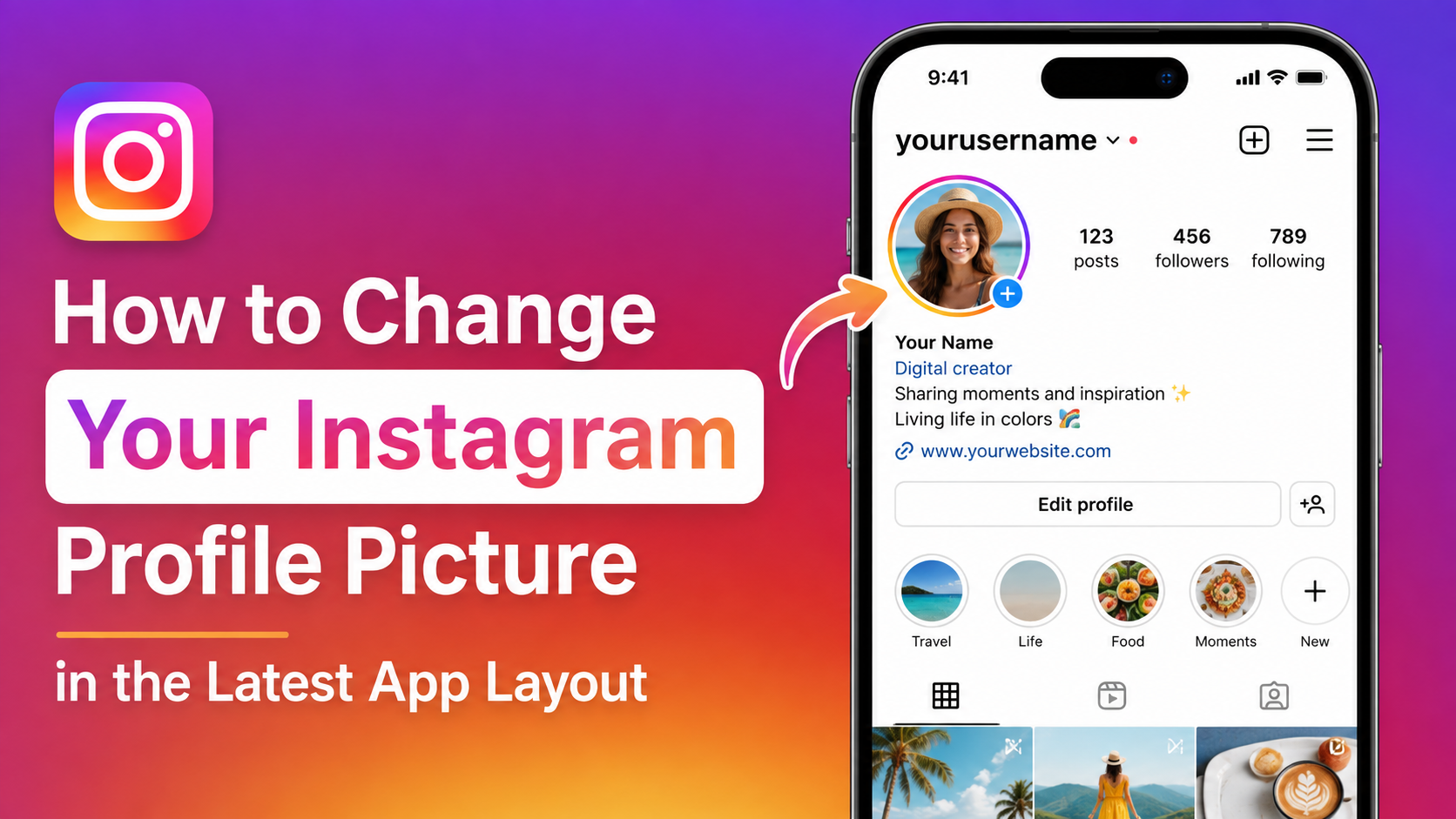
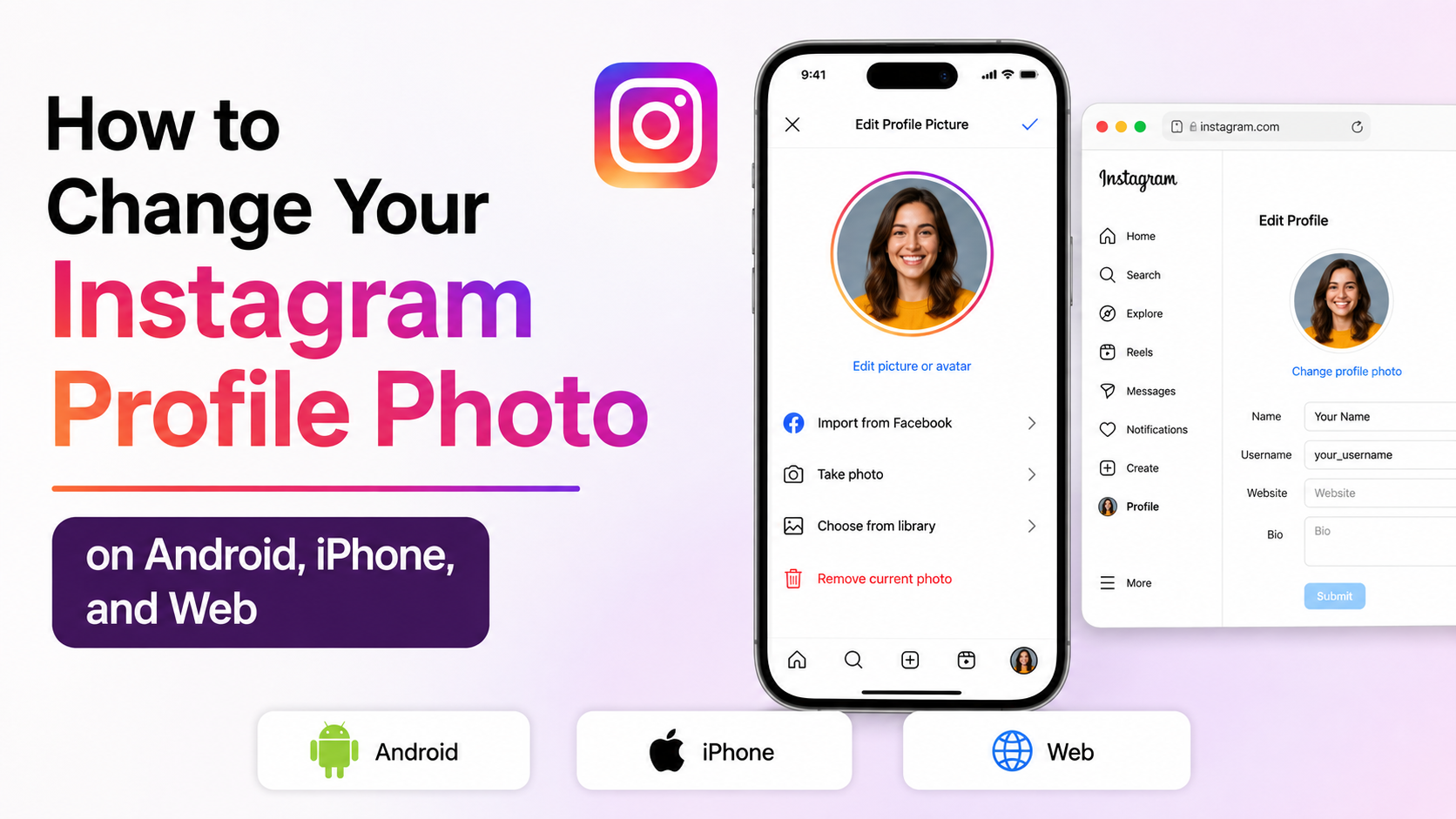
- Open the Instagram app and sign in to the account you want to update.
- Tap your profile picture or profile icon in the bottom-right corner.
- On your profile page, tap Edit profile beneath your bio.
- Tap Edit picture or avatar. On some versions, this may appear as Change profile photo or as your current picture.
- Choose New profile picture.
- Select an image from your phone’s photo library.
- Crop, reposition, or zoom the image as needed.
- Tap Done, Save, or the checkmark icon to confirm.
Your new photo should appear on your profile shortly afterward. It may take a little longer to refresh everywhere Instagram displays it, such as old comments or message threads.
Take a New Picture Instead
If you need an updated headshot immediately, select Take photo instead of choosing an existing image. Instagram will request camera permission if it has not already been granted.
This option is convenient, but take a moment to check the basics:
- Face a window or other soft light source.
- Avoid strong backlighting that turns your face into a silhouette.
- Keep the camera at eye level.
- Use a simple background that does not compete with your face or logo.
For professional accounts, it is often better to take several photos with your regular camera app first, choose the strongest result, make minor edits, and then upload it through Instagram.
Change Your Photo Through Accounts Center
Accounts Center is Meta’s shared settings area for connected Instagram and Facebook accounts. It can be useful when the normal profile-editing path is unavailable or when you manage multiple connected profiles.
Find the Accounts Center Route
- Go to your Instagram profile.
- Tap the three-line menu in the top-right corner.
- Open Settings and activity.
- Tap Accounts Center, usually near the top of the settings page.
- Select Profiles.
- Choose the Instagram profile you want to edit.
- Tap Profile picture.
- Choose Upload new photo and follow the on-screen prompts.
Meta’s Help Center confirms that profile-picture controls may also be managed through Accounts Center. Its official guidance is a useful reference if your menu has changed.
Be Careful With Linked Accounts
If your Instagram and Facebook accounts are linked, Accounts Center may present options related to both. Read each prompt before confirming changes. Sharing a profile image can be useful for a unified personal brand, but it may not suit every situation.
For example, a consultant may want the same professional headshot across platforms. A business owner, however, might use a company logo on Instagram and a personal headshot on Facebook. Choose the route that preserves the distinction you want.
Choose a Profile Picture That Works at Small Sizes
The best image is not necessarily the most artistic one. Because Instagram reduces profile pictures to a very small circle in many placements, clarity matters more than intricate detail.
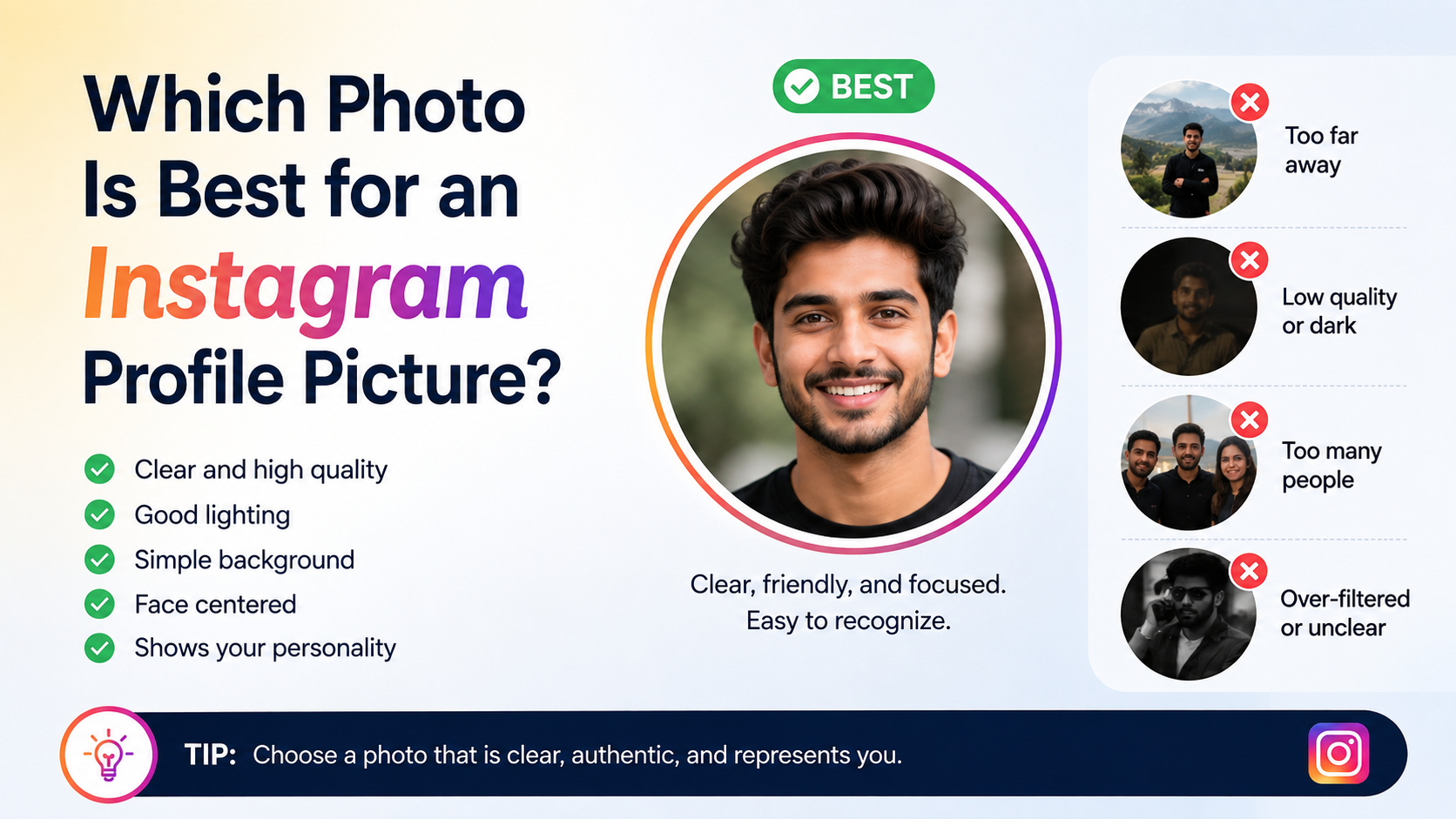
Use a Clear Focal Point
A strong Instagram profile picture usually has one obvious subject: your face, a logo, a mascot, or a simple product mark. Avoid group photos, full-body shots, complex scenery, and busy collages.
For a personal profile:
- Use a recent photo that clearly shows your face.
- Keep your eyes and facial features visible.
- Choose a relaxed expression appropriate for your audience.
- Use contrast between you and the background.
For a business profile:
- Use a logo designed to remain legible at small sizes.
- Remove small taglines or fine-print details.
- Use a recognizable brand color behind the mark if needed.
- Avoid placing too much text inside the image.
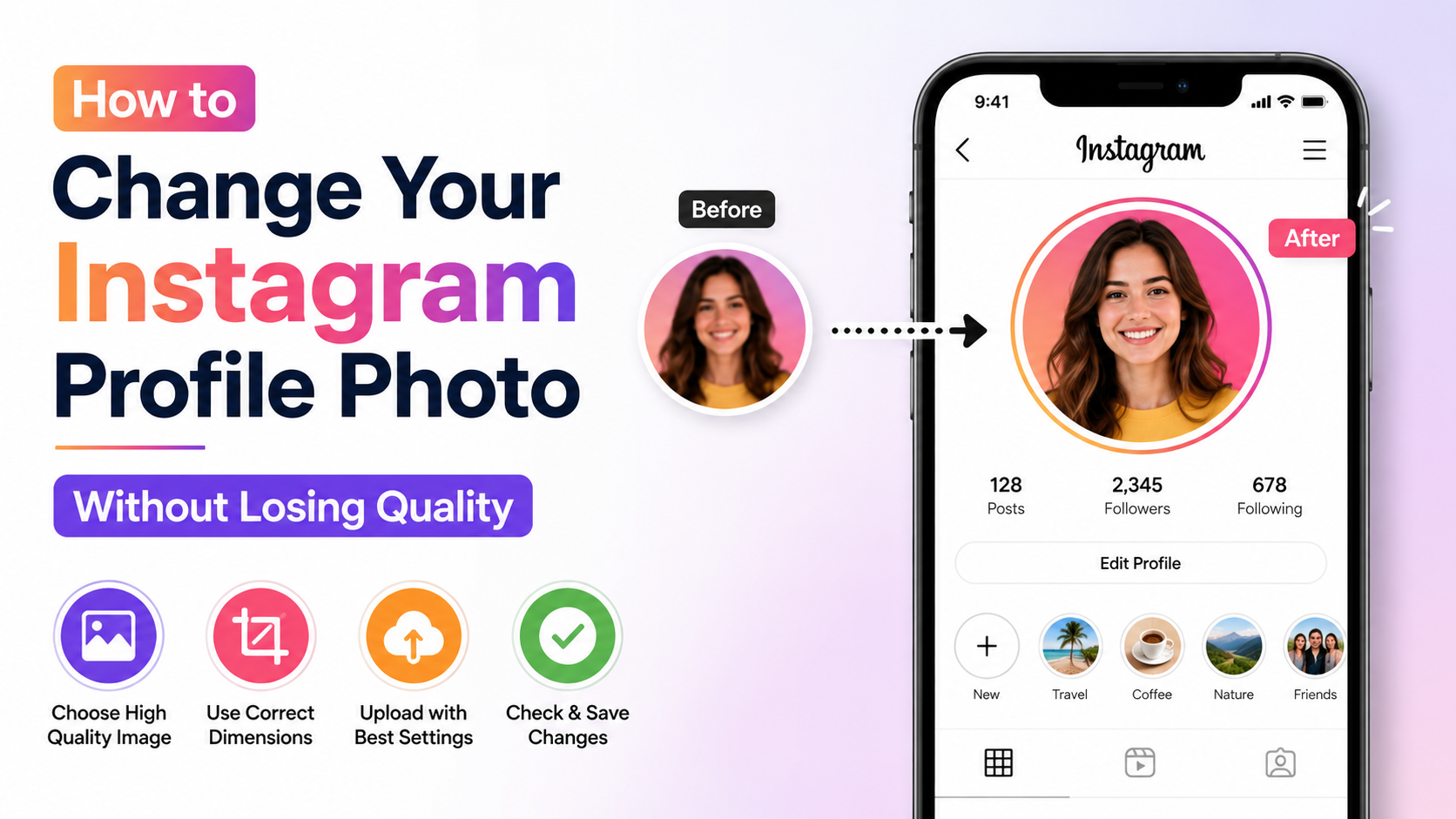
Start With a High-Quality Original
Instagram compresses uploads, so begin with a sharp image. A square image is easiest to position, although Instagram accepts other orientations and lets you crop them.
A practical approach is to prepare a square image before uploading. Keep the most important content centered, leave breathing room around it, and preview it at a small size. If the image only works when viewed large, it is unlikely to perform well as a profile picture.
Crop Your Image for Instagram’s Circular Frame
Instagram may let you upload a square or rectangular image, but viewers see it through a circular crop. Corners disappear, and details near the outer edge can be cut off.
Keep Essential Details in the Center
When adjusting the crop, use pinch-to-zoom and drag gestures carefully. Make sure faces, logos, or icons sit comfortably within the center of the frame.
Avoid these common cropping mistakes:
- Cutting off the top of your hair, head, or logo
- Placing text near the corners
- Zooming in so tightly that the image feels cramped
- Leaving too much empty background around a tiny subject
- Using a logo that touches the circle’s edge
A useful rule is to imagine a smaller circle inside your image. Keep all critical content within that inner area.
Test Before You Commit
After saving, view your profile picture in several places:
- Your profile header
- A recent comment
- A direct-message conversation
- Search results, if available
- Another device or browser
This quick check shows whether the image remains clear in the contexts where most people will encounter it.
Create Consistency for Personal and Professional Accounts
A profile picture should not exist in isolation. It should work with your username, bio, content style, and broader online presence.
Personal Profiles: Prioritize Familiarity
For a personal account, a current and approachable image is usually best. Friends and professional contacts should be able to recognize you without guessing.
If you use Instagram for networking, avoid profile photos that are so heavily filtered, distant, or stylized that they obscure your appearance. Personality is valuable; recognizability comes first.
Creator and Business Profiles: Prioritize Brand Recall
For brands, creators, and organizations, repetition creates recognition. Use the same logo, color treatment, or headshot across the channels your audience uses most.
Consider a simple brand system:
- Profile picture: face or logo
- Bio: concise value statement
- Highlights: matching cover colors or icons
- Posts and Reels: repeatable fonts, colors, or visual style
- Website: the same primary photo or logo
A marketing agency, for instance, could use a clean monogram as its profile image, then reinforce the same colors in Highlight covers and post templates. That consistency makes the account easier to remember.
Privacy, Visibility, and Account Considerations
Changing your profile picture is simple, but it is worth understanding what remains visible and how the update affects your account.
Your Profile Picture Is Public
Your Instagram profile picture can be visible to people on and off Instagram, including people who do not follow you. This is generally true even if your account is private.
Choose an image you are comfortable making public. Do not use a picture that reveals sensitive personal information, private locations, documents, or other people who have not agreed to be shown.
Consider Verification and Identity Needs
If you use Meta Verified or rely on Instagram for a professional identity, keep your profile information accurate and consistent. Significant changes to your photo, name, username, or account details may occasionally trigger additional review or require you to confirm information.
That does not mean you should avoid routine updates. It simply means a professional account should treat its profile picture as part of its public identity, not as an afterthought.
Troubleshooting When Your New Profile Picture Does Not Appear
Most updates work immediately. When they do not, the issue is usually temporary and easy to resolve.
The Photo Will Not Upload
Try these steps:
- Confirm that you have a stable Wi-Fi or mobile-data connection.
- Close and reopen Instagram.
- Make sure Instagram has permission to access your photos.
- Update the app through the App Store or Google Play.
- Try a different image file, preferably a standard JPG or PNG.
- Restart your phone if the app remains unresponsive.
If an image is unusually large or edited in a niche file format, export a standard copy and upload that instead.
The Old Picture Is Still Showing
Sometimes your own app, another person’s app, or a web browser displays a cached version of the previous image.
To check whether the update succeeded:
- Open your Instagram profile from another account.
- Ask a trusted colleague or friend to view your profile.
- Wait a short time, then refresh or reopen the app.
- Sign out and back in only if simpler fixes do not work.
Avoid repeatedly uploading the same image within a few minutes. Give Instagram time to process and distribute the first change.
Frequently Asked Questions
Can I change my Instagram profile picture without posting it?
Yes. Updating your profile picture does not create a feed post or Story. It changes the image associated with your profile, comments, messages, and other account surfaces.
Why does Instagram crop my profile picture into a circle?
Instagram uses a circular display format for profile images. Even if you upload a square image, the corners will not be visible in the final profile-photo display. Keep important content centered to avoid awkward cropping.
Can I use a logo as my Instagram profile picture?
Yes. A logo is often the best option for business, organization, and brand accounts. Use a simplified version with strong contrast and minimal text so it remains recognizable at a small size.
Is my Instagram profile picture public if my account is private?
Yes. Your profile picture may be visible publicly even when your posts and Stories are limited to approved followers. Select an image you are comfortable showing to a broad audience.
Why can’t I find the Change Profile Photo option?
Instagram’s labels vary by app version. Start with Edit profile, then look for Edit picture or avatar, your current photo, or a similar option. If it is missing, use Settings and activity > Accounts Center > Profiles > Profile picture.
Conclusion
To change profile photo Instagram users see, go to your profile, tap Edit profile, select Edit picture or avatar, upload a new image, and save it. If the layout looks different, Accounts Center provides a dependable alternate route.
Choose an image that is clear, centered, high-contrast, and consistent with your personal or professional identity. Then take a minute to view it in comments and messages—not just on your profile page. Update your profile picture today, and make every Instagram interaction instantly more recognizable.
Advertisement