August 19, 2026 · Updated August 23, 2026 · 11 min read
Why Is My Profile Photo Not Showing on WhatsApp? Fixes That Work
On this page
- First, Identify Which Profile Photo Is Missing
- Check WhatsApp Profile Photo Privacy Settings
- Save Contact Details Correctly
- Rule Out Blocking—Without Jumping to Conclusions
- Fix Upload, Image, and Permission Problems
- Refresh WhatsApp and Your Connection
- Check WhatsApp Web, Desktop, and Linked Devices
- When to Reinstall or Contact Support
- Frequently Asked Questions
- Conclusion
Why Is My Profile Photo Not Showing on WhatsApp? Fixes That Work
A missing WhatsApp profile picture can feel surprisingly confusing. You may have uploaded a clear photo, yet contacts still see the default silhouette. Or perhaps you cannot see someone else’s photo and wonder whether your app is broken—or whether they blocked you.
Usually, the answer is simpler: a privacy setting, an unsaved contact, a temporary sync problem, or an outdated app. This guide explains why a WhatsApp profile photo not showing issue happens and walks through the fixes that are most likely to work.
Key Takeaways
- Check Settings > Privacy > Profile photo first; visibility settings are the most common cause.
- If you use My contacts, both phone numbers may need to be saved correctly.
- A missing photo alone does not prove that someone blocked you.
- Update WhatsApp, confirm your internet connection, and restart the app before attempting bigger fixes.
- If your own image will not upload, review photo permissions, file selection, and available device storage.
First, Identify Which Profile Photo Is Missing
Before changing any settings, establish whether the problem affects your image, a single contact’s image, or many contacts’ images. The right fix depends on the pattern.
Your contacts cannot see your photo
If other people say they see a blank avatar instead of your photo, focus on:
- Your Profile photo privacy setting
- Whether their number is in your phone’s contacts
- Whether you excluded them from visibility
- Whether your new image finished uploading
For example, a consultant may set Profile photo visibility to My contacts for privacy, then message a new client whose number has not been saved. The client can chat normally but may still see the default profile icon.
You cannot see another person’s photo
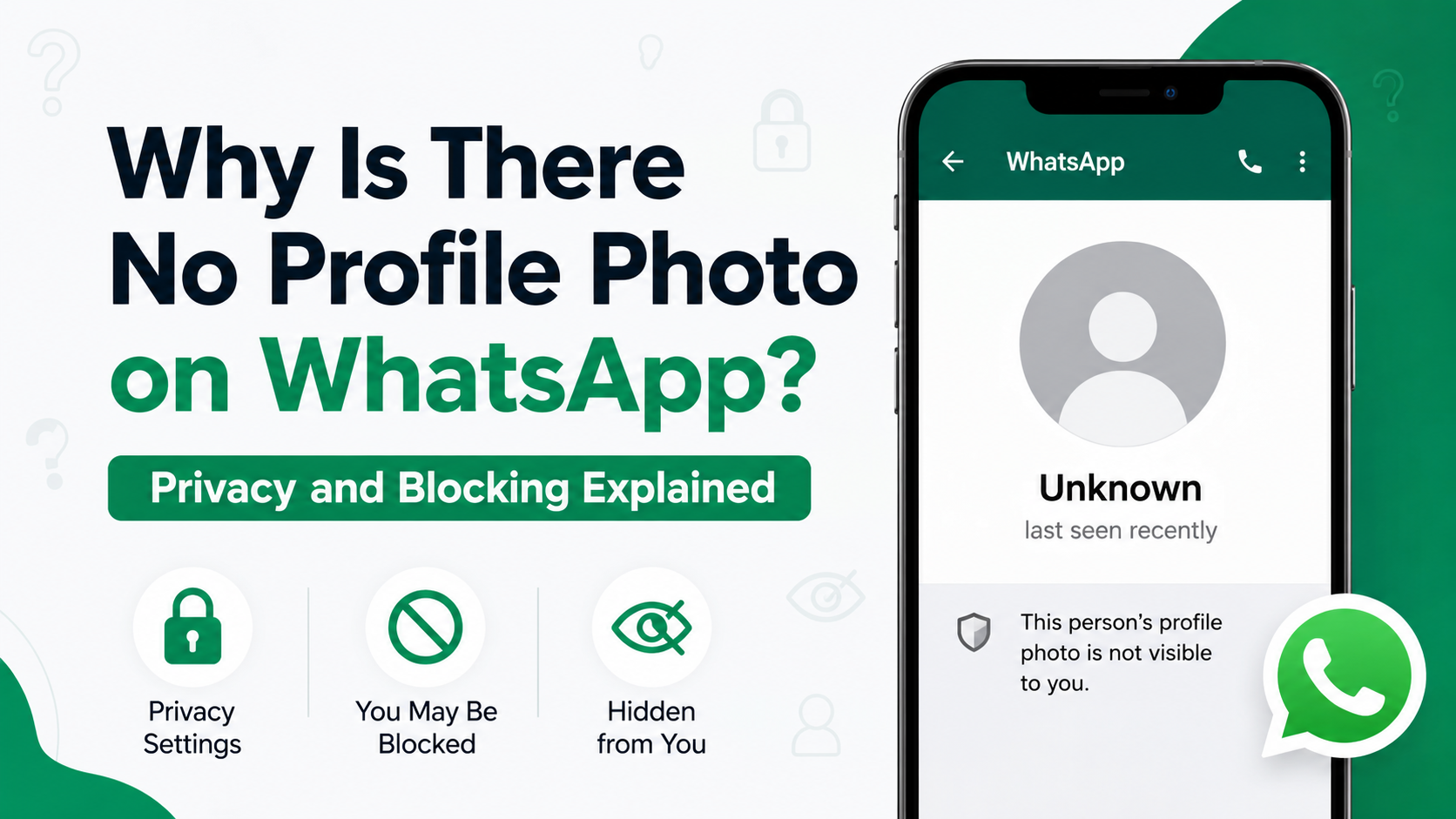
If only one contact’s profile picture is missing, it is often controlled by their settings—not yours. They may have:
- Removed their profile photo
- Set it to Nobody
- Limited it to My contacts
- Excluded you specifically with My contacts except…
- Blocked you
Treat a missing photo as one clue, not proof of any one explanation.
Several or all profile photos are missing
When many contact photos disappear at once, the issue is more likely local to your device or WhatsApp installation. Start with your connection, app version, contact permissions, and device restart.
Check WhatsApp Profile Photo Privacy Settings
Privacy controls decide who can view your profile photo. Even a perfectly uploaded image will not appear to people who fall outside your selected audience.
Review your visibility option
In WhatsApp, open:
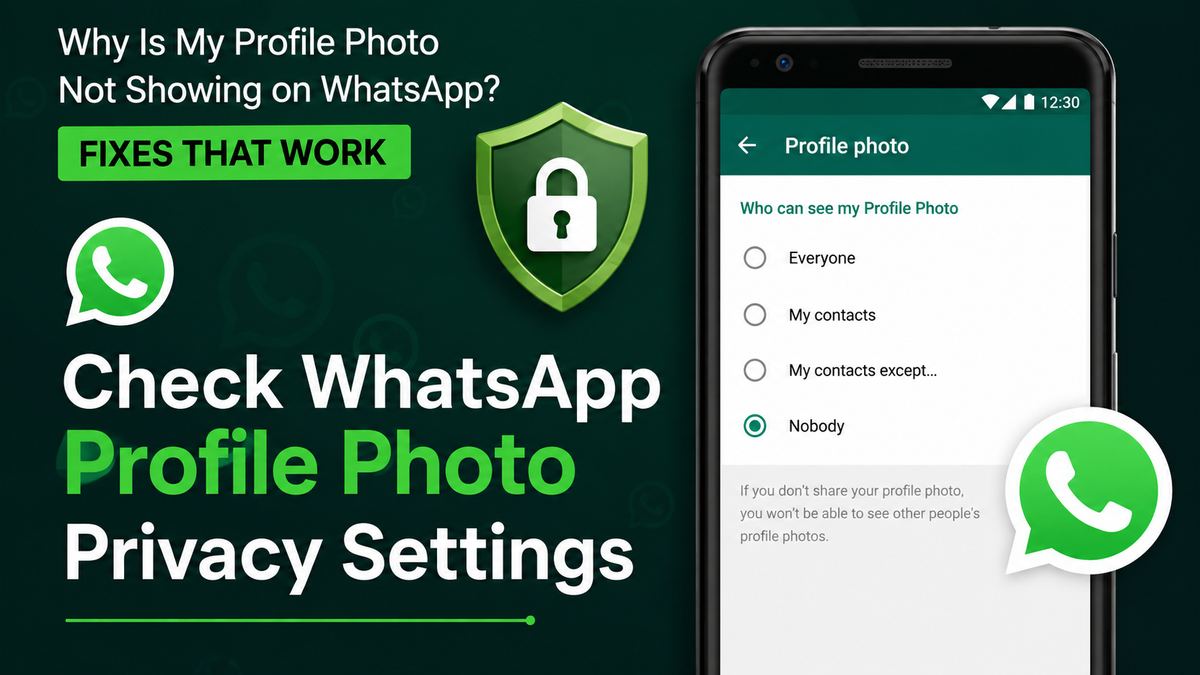
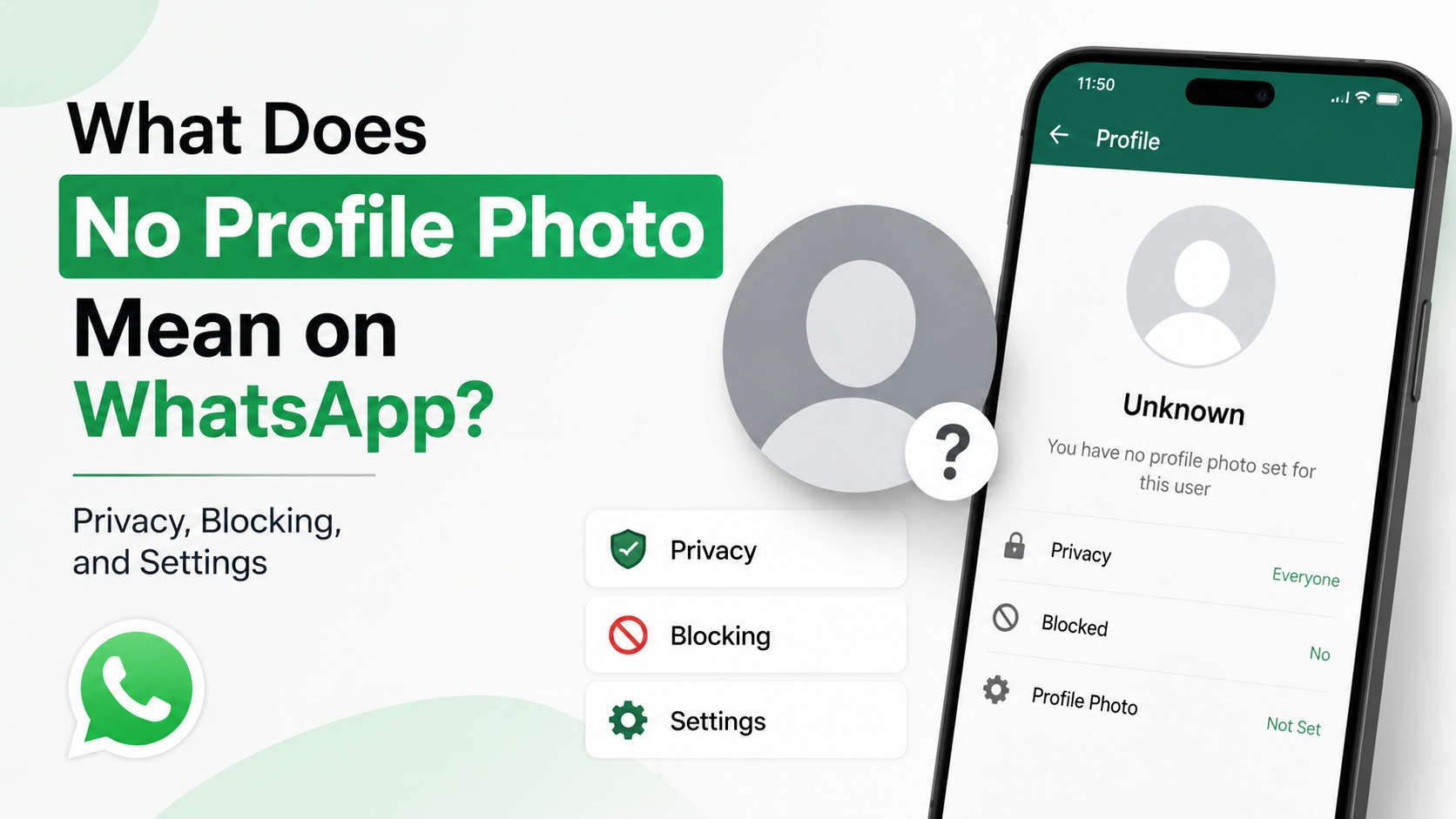
Settings > Privacy > Profile photo
You should see options similar to:
- Everyone: Any WhatsApp user can view the photo.
- My contacts: Only people saved in your address book can view it.
- My contacts except…: Your saved contacts can view it except selected people.
- Nobody: Your profile photo is hidden from everyone.
If your goal is for all customers, colleagues, or new contacts to see your professional image, choose Everyone. If you want a more private setup, use My contacts and save important numbers first.
Inspect the exclusion list
The My contacts except… option is useful, but it is easy to forget an old exclusion. Open the setting and review the selected contacts carefully.
A common real-world case: someone temporarily hides their photo from a former coworker, later adds a new work contact with a similar name, and accidentally excludes the wrong person. The fix is simply removing that contact from the exclusion list.
Ask the other person to check their settings
If you cannot see someone else’s photo, you cannot override their privacy choice. A polite message such as, “I’m seeing the default WhatsApp icon—are my details saved correctly on your end?” is more useful than assuming there is a technical fault.
Save Contact Details Correctly
WhatsApp matches account information to phone numbers, so contact details matter—especially when either person uses My contacts visibility.
Save the number with the full international format
Save phone numbers with the correct country code. For example:
- United States or Canada:
+1 - United Kingdom:
+44 - Australia:
+61
Avoid duplicate records with slightly different versions of the same number. If WhatsApp associates a chat with an outdated or malformed contact entry, privacy-based visibility may not work as expected.
Refresh a newly added contact
After saving a contact:
- Close and reopen WhatsApp.
- Open the chat again.
- Tap the contact name and verify the displayed number.
- Give WhatsApp a few minutes to refresh contact and privacy information.
If the photo still does not appear, edit the contact, correct the number if needed, save it, and reopen WhatsApp.
Check contact permissions
WhatsApp needs permission to access your contacts for reliable contact matching.
On Android, open your device’s Settings > Apps > WhatsApp > Permissions and allow Contacts.
On iPhone, open Settings > Apps > WhatsApp and enable Contacts.
Permission changes can be especially important after moving to a new phone, restoring a backup, or tightening device privacy settings.
Rule Out Blocking—Without Jumping to Conclusions
People often search for “WhatsApp profile photo not showing” because they worry they were blocked. It is understandable, but profile photos are not a reliable block detector.
Why a photo is not enough evidence
A person can hide, delete, or restrict their profile photo without blocking anyone. They may also change privacy settings for professional reasons, reduce visibility to unknown numbers, or simply prefer a blank profile.
Conversely, an old cached photo can sometimes remain visible briefly even after a privacy change. That means both a missing photo and a visible photo can be misleading on their own.
Look at the overall context
Instead of trying to diagnose a block from one detail, consider several signals together:
- Messages consistently remain at one check mark
- Calls do not connect
- You can no longer see profile changes, status, or last-seen information when you previously could
- The photo disappears along with other changes
Even then, WhatsApp intentionally does not provide a definitive “you were blocked” notification. Respect the person’s privacy and avoid repeatedly testing their account.
Fix Upload, Image, and Permission Problems
If you can see your own profile photo but others cannot, the problem may be privacy-related. If you cannot set a photo at all, focus on the upload process.
Upload a fresh, standard image
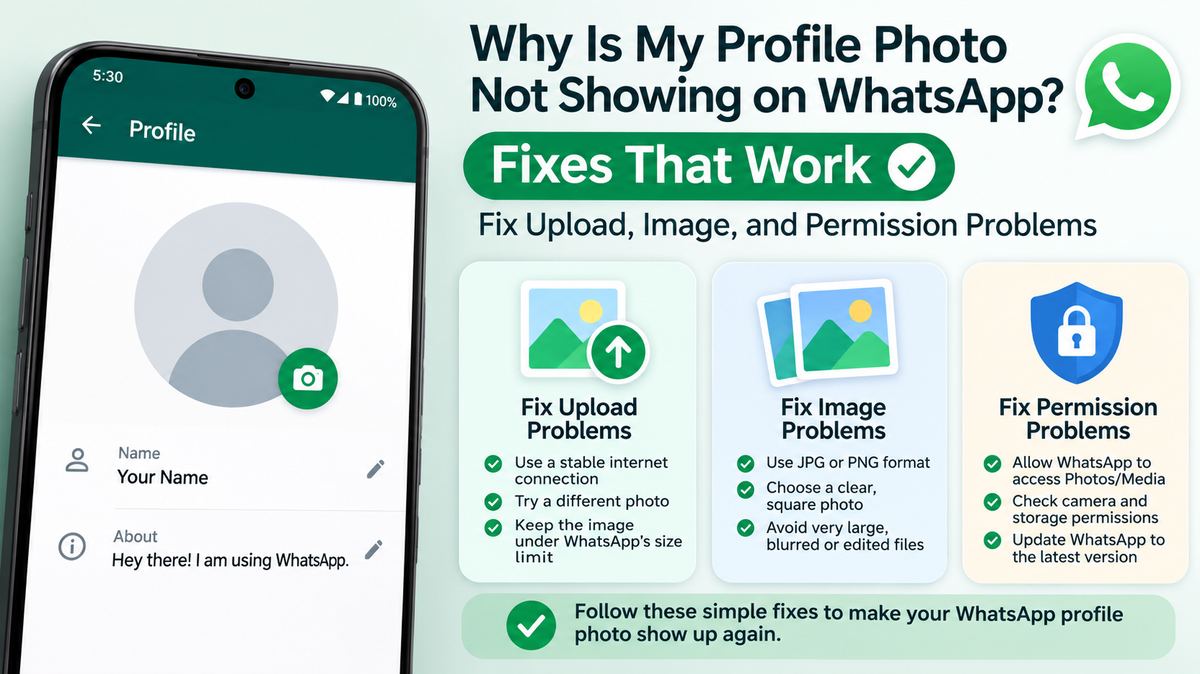
Open your WhatsApp profile, tap the current picture or avatar, and select Edit or Change photo. Choose a common image format such as JPG or PNG.
For best results:
- Use a clear, square or easily cropable image
- Avoid extremely large files
- Choose an image stored locally on the device
- Let WhatsApp finish processing before leaving the screen
A freshly exported photo from a camera or design tool may occasionally be unusually large. Creating a standard JPG copy and uploading that version can resolve the issue.
Allow photo or media access
If WhatsApp cannot access your gallery, it cannot reliably select or upload a new profile image.
Check WhatsApp permissions for Photos, Videos, or Files and media, depending on your device. Then retry the upload.
Check free storage
Low storage can interrupt app tasks, including cache updates and image processing. Clear unneeded downloads, duplicate media, or large files, then restart the phone and try again.
Refresh WhatsApp and Your Connection
Profile photos are delivered through WhatsApp’s service, so poor connectivity or a stale app session can make them fail to load.
Switch networks and restart the app
Try these basic but effective checks:
- Switch between Wi-Fi and mobile data.
- Turn off any VPN temporarily if it is interfering with connectivity.
- Force-close WhatsApp and reopen it.
- Restart your phone.
If profile photos load on Wi-Fi but not mobile data, check whether WhatsApp is restricted from using cellular data or background data.
Update WhatsApp
Install the latest WhatsApp version from the Google Play Store, Apple App Store, or the official desktop source. Updates can resolve bugs involving contact sync, privacy controls, and media display.
For business users, this step matters because an outdated profile image can make a company account look inactive or unprofessional to prospective customers.
Clear cache carefully on Android
Android users can open Settings > Apps > WhatsApp > Storage and choose Clear cache. This removes temporary files, not your chats.
Do not select Clear data unless you have confirmed your chats are backed up and understand the consequences. Clearing data signs you out and may require restoration.
Check WhatsApp Web, Desktop, and Linked Devices
Sometimes the issue is limited to the device you are using.
Compare the phone app with desktop
Open the same conversation on your phone and in WhatsApp Web or Desktop.
- If the photo appears on your phone but not desktop, update or relink the desktop app.
- If it is missing everywhere, the cause is more likely privacy, contact matching, or the other person’s account settings.
- If only your own image is affected across all devices, revisit your Profile photo privacy option.
Relink a device if syncing is stuck
On your phone, open Settings > Linked devices, log out of the affected computer, and link it again. This can refresh the device session and contact-related information.
Use this approach only after confirming the latest app version is installed. Reconnecting a linked device is more useful than repeatedly reinstalling apps without checking the simpler causes first.
When to Reinstall or Contact Support
Reinstallation is a last-resort troubleshooting step, not the first one.
Back up before reinstalling
Before deleting WhatsApp, confirm that your chat backup is complete and that you can access the same phone number and cloud account needed for restoration. Then reinstall WhatsApp from the official app store and sign in again.
This may help if many images, chats, or contact details are failing to sync—but it will not bypass another person’s privacy settings.
Report a persistent technical issue
Contact WhatsApp support through the app if:
- Your photo does not upload after permissions, updates, and network checks
- Many profile images are missing on multiple devices
- The issue began after a specific update and continues after restarting
- You see an error message while changing your profile picture
Include your device model, operating system version, WhatsApp version, a description of what happens, and any exact error message.
Frequently Asked Questions
Why can some people see my WhatsApp photo but others cannot?
Your privacy setting is the most likely reason. If you selected My contacts, only numbers saved in your phone can see it. If you selected My contacts except…, specific contacts may be excluded. Confirm your setting and verify that the affected person’s number is saved correctly.
Does no WhatsApp profile photo mean I am blocked?
No. A missing photo can mean the person removed it, restricted photo visibility, has not saved your number, excluded you from their contacts, or blocked you. WhatsApp does not provide a single definitive sign that confirms blocking.
How long does a new WhatsApp profile photo take to appear?
It often appears quickly, but it can take longer when either person has a weak connection, the app needs to refresh, or contact/privacy information is syncing. Close and reopen WhatsApp, then check again after a short wait.
Why is my profile photo visible to contacts but not new customers?
You likely use My contacts as your Profile photo privacy setting. New customers who are not saved in your phone’s address book will not see the photo. Choose Everyone if appropriate for your privacy needs, or save relevant customer contacts.
Can I force another person’s profile photo to show?
No. You cannot change another user’s privacy settings or retrieve an image they chose to hide. You can only confirm that your WhatsApp app, contact permissions, and saved contact details are working properly.
Conclusion
A WhatsApp profile photo not showing issue is usually resolved by checking privacy visibility, saving contact numbers correctly, refreshing the app, and updating WhatsApp. Start with the simplest explanation: the photo may be intentionally private rather than technically broken.
Review your Profile photo setting now, verify your important contacts, and update the app. If the problem persists across devices after those checks, back up your chats and contact WhatsApp support with the details of the issue.