August 19, 2026 · Updated August 24, 2026 · 11 min read
How to Set a Photo as Your WhatsApp Profile Picture Without Losing Quality
On this page
- Why WhatsApp Profile Pictures Can Look Blurry
- Choose the Right Photo Before You Upload
- Prepare the Correct Image Size and Shape
- Edit for Clarity, Not Artificial Sharpness
- How to Set a Photo as WhatsApp Profile on Android
- How to Set a Photo as WhatsApp Profile on iPhone
- Best Practices for Professional and Business Profiles
- Common Mistakes That Reduce Profile Picture Quality
- Frequently Asked Questions
- Conclusion
How to Set a Photo as Your WhatsApp Profile Picture Without Losing Quality
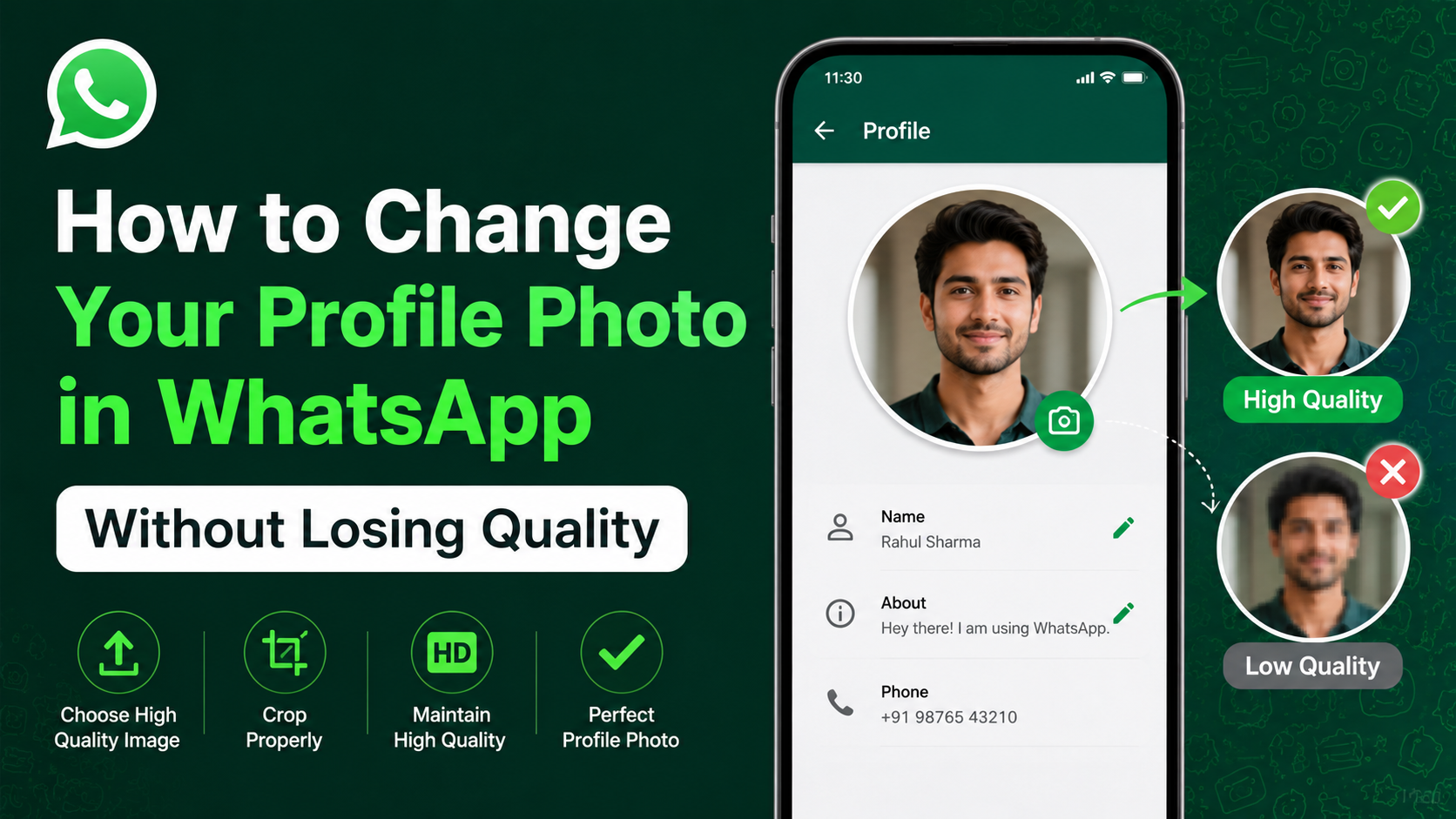
Your WhatsApp profile picture is often the first visual cue people see when they open a chat, scan a group, or look up your contact. Whether you are representing yourself, a business, or a professional brand, a blurry, awkwardly cropped, or pixelated image can make the wrong impression.
The good news is that you can set photo as WhatsApp profile picture while preserving a sharp, polished look. The key is preparing the image for WhatsApp’s circular display and avoiding common quality traps before you upload it.
Key Takeaways
- Start with a high-resolution original rather than a screenshot or heavily compressed file.
- Prepare a square image, ideally at least 640 × 640 pixels, before uploading.
- Leave space around your face, logo, or subject because WhatsApp displays profile photos in a circle.
- Use light edits and export in high quality to avoid visible artifacts.
- Upload from your device’s gallery instead of forwarding an already-compressed image.
- Review how the image looks in WhatsApp’s circular preview before saving it.
Why WhatsApp Profile Pictures Can Look Blurry
WhatsApp optimizes images for fast loading and consistent display across phones, tablets, and desktop apps. That optimization can affect detail, particularly if the original photo is already small, compressed, or edited multiple times.
WhatsApp Resizes Images for Display
A profile photo does not need to remain at its original camera resolution. WhatsApp creates smaller versions for contact lists, chat headers, group messages, and other parts of the app.
This means a 12-megapixel camera photo may be reduced substantially. If you begin with a high-quality file, that reduction is rarely noticeable. If you begin with a tiny or low-quality file, however, the final result can look soft or pixelated.
Compression Builds Up Over Time
Every time an image is saved, screenshotted, forwarded, downloaded from social media, or sent through a messaging app, it may lose detail. This is known as generation loss.
For example:
- A portrait taken directly with your phone camera may look excellent.
- The same portrait posted to social media and downloaded again may be softer.
- A screenshot of that downloaded version may appear noticeably blurry on WhatsApp.
For the best result, locate the original image in your camera roll, cloud storage, or editing project rather than using a forwarded copy.
Choose the Right Photo Before You Upload
The quality of your source image matters more than any setting inside WhatsApp. A well-lit, focused image with enough detail gives the app more information to work with when it resizes the file.
Use a High-Resolution Original
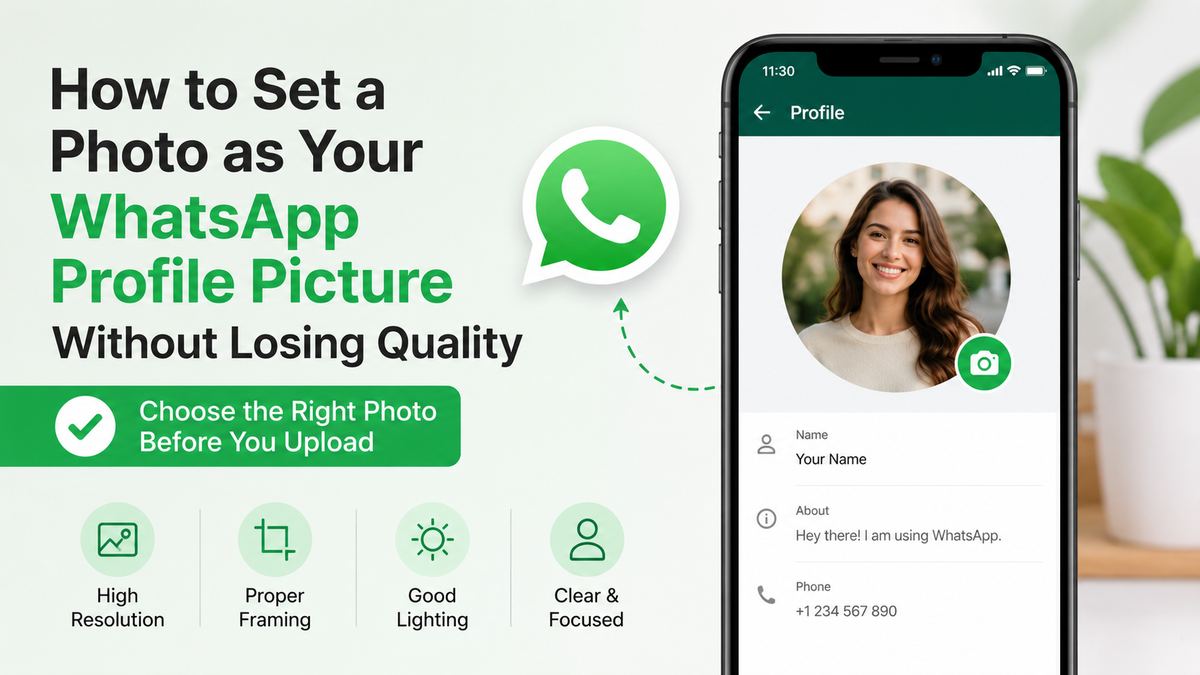
A practical target is a square photo that is at least 640 × 640 pixels. Larger files are fine, especially if you are cropping from a high-resolution camera image.
For personal profile pictures, choose an image where:
- Your face is in focus.
- The lighting is even and natural.
- The background does not compete with the subject.
- Your face occupies a meaningful portion of the frame.
- There is enough space around the edges for circular cropping.
For a business profile, use a clean logo file with clear edges and strong contrast. A vector-based logo exported as a large PNG generally performs better than a small image pulled from a website.
Avoid Screenshots and Thumbnails
Screenshots are convenient but rarely ideal. They are limited by screen resolution and may include compression from the original platform. Similarly, images copied from search results are often thumbnails rather than full-size files.
If you need to set photo as WhatsApp profile for a business, use the official logo source file. If you need a professional headshot, use the exported original from the photographer or your editing app.
Prepare the Correct Image Size and Shape
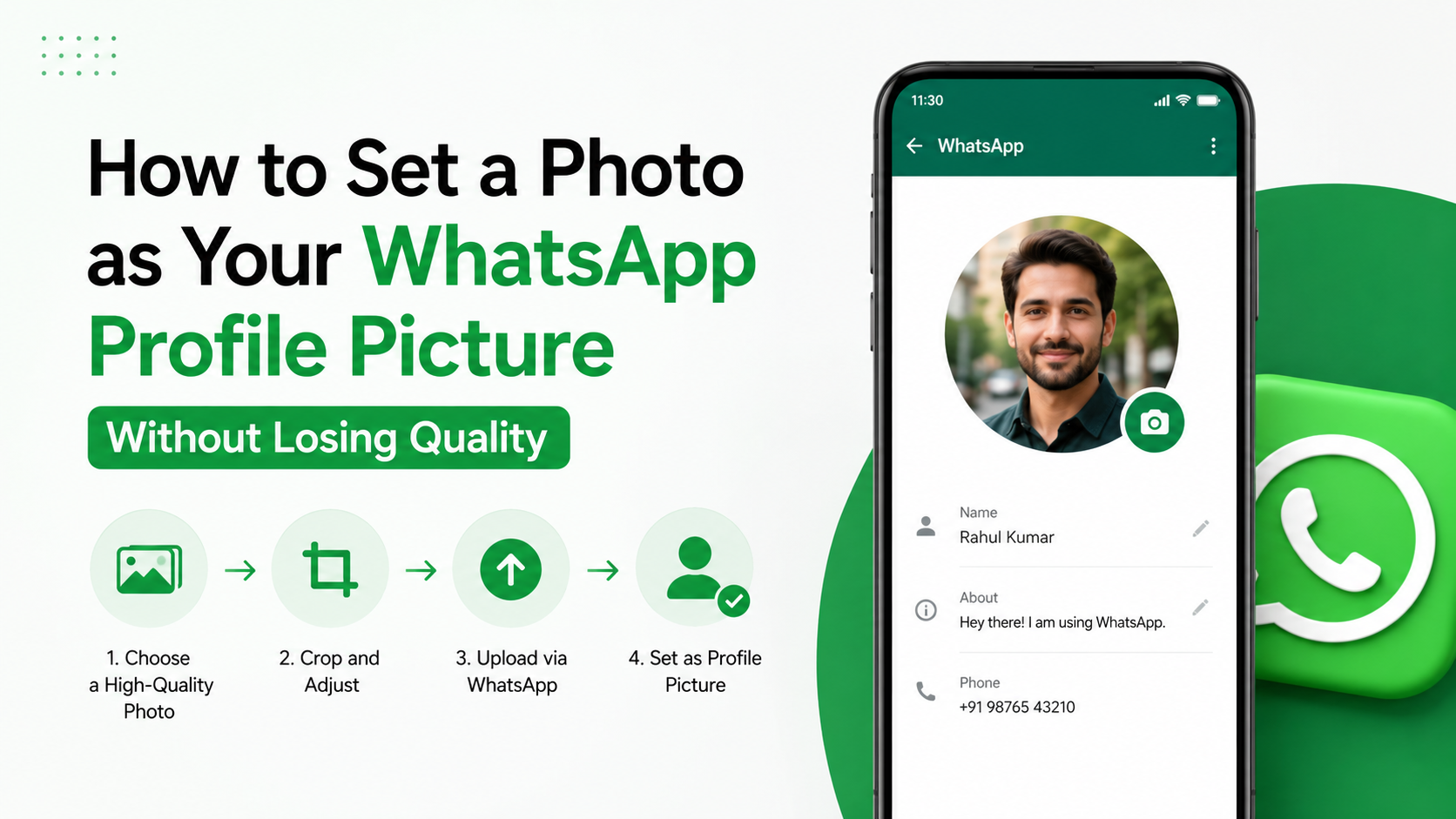
WhatsApp lets you crop your picture during upload, but preparing it in advance gives you more control. This is especially important when the image includes text, a logo, multiple people, or a tightly framed portrait.
Create a Square Canvas
WhatsApp profile pictures are displayed as circles, but the uploaded image is based on a square crop. Start with a 1:1 aspect ratio, such as:
- 640 × 640 pixels
- 1080 × 1080 pixels
- 1200 × 1200 pixels
A square canvas prevents unexpected cropping and makes it easier to see what will remain visible.
If your original image is vertical or horizontal, do not simply stretch it. Instead, crop it thoughtfully or add a matching background around it. Many photo editors, including your phone’s built-in editor, can create a square crop without distorting the subject.
Allow for the Circular Crop
The corners of a square image will not appear in WhatsApp’s circular profile display. Keep important elements away from the corners.
For example, if you use a company logo with a tagline underneath, the tagline may be cropped or become too small to read. A better approach is to use the logo mark alone, centered with comfortable padding around it.
For portraits, position your face near the center and leave some room above the head. An overly tight crop can make the image feel cramped once the circular mask is applied.
Edit for Clarity, Not Artificial Sharpness
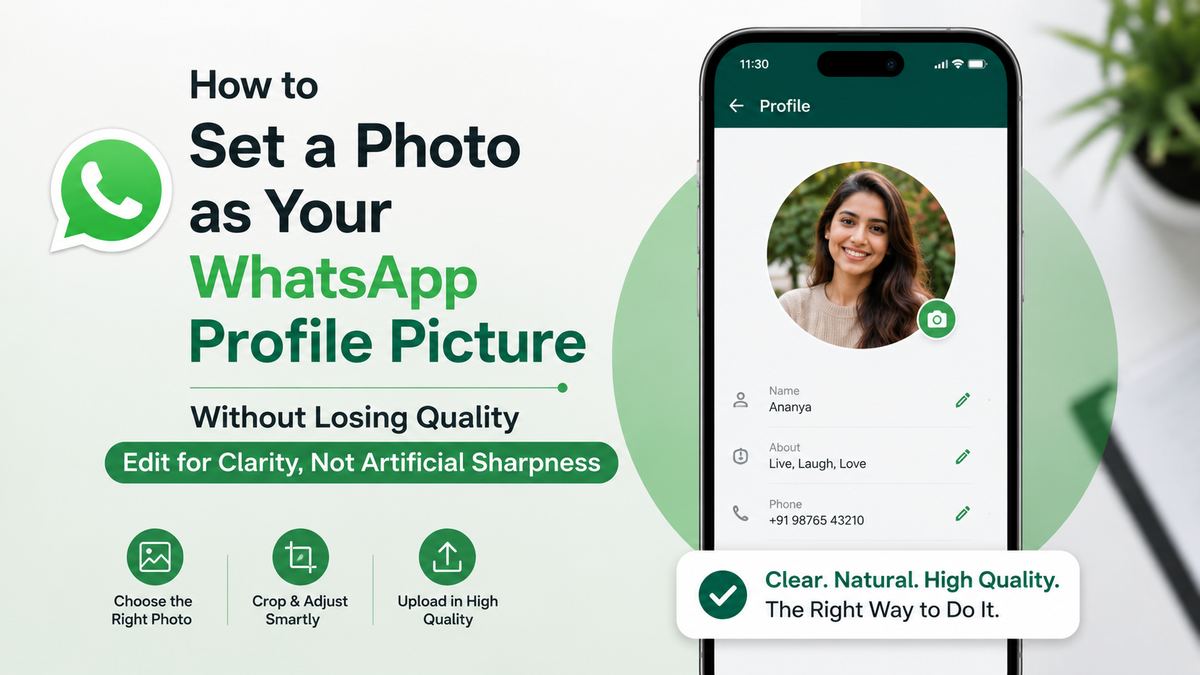
A few thoughtful adjustments can make a profile picture look more professional. Overediting, on the other hand, often creates unnatural skin tones, harsh contrast, and visible compression artifacts.
Make Small, Useful Adjustments
Before uploading, consider these light edits:
- Increase brightness if the photo is underexposed.
- Raise shadows slightly to reveal facial detail.
- Apply modest contrast for separation from the background.
- Correct white balance if the image looks too yellow or blue.
- Use minimal sharpening only when needed.
The goal is to make the subject easy to recognize at a small size. Most contacts will see your profile image as a tiny circle, not as a full-screen photo.
Export in a High-Quality Format
JPEG is a reliable choice for photos, while PNG often works well for logos, illustrations, and graphics with text. When exporting a JPEG, select a high-quality setting rather than a “small file size” or “web compressed” option.
A simple rule is this: edit once, export once, and upload that final file directly to WhatsApp. Repeated exports are more likely to reduce quality.
How to Set a Photo as WhatsApp Profile on Android
The precise layout may differ slightly depending on your Android phone and WhatsApp version, but the process is straightforward.
Update Your Profile Picture
Follow these steps:
- Open WhatsApp.
- Tap the three-dot menu in the upper-right corner.
- Select Settings.
- Tap your current profile photo or name.
- Tap the camera icon on your profile picture.
- Choose Gallery to select a prepared image, or Camera to take a new one.
- Adjust the crop and position the subject in the circular preview.
- Tap Done or Save.
Choose Gallery when you have already prepared the image. This gives you better control than taking a quick photo in poor lighting and uploading it immediately.
Check the Preview Carefully
Before saving, inspect the circular preview for these problems:
- Your face is cut off at the top or sides.
- The main subject is too small.
- Text or logo details sit near the edge.
- The background is distracting.
- The image appears soft due to excessive zooming.
If you need to zoom in heavily just to make the subject visible, return to your gallery and create a tighter, higher-quality crop first.
How to Set a Photo as WhatsApp Profile on iPhone
On iPhone, the steps are similarly simple, but preparing the image in the Photos app beforehand can improve your outcome.
Change Your WhatsApp Profile Picture
- Open WhatsApp.
- Tap Settings in the lower-right corner.
- Tap your name and current profile photo.
- Select Edit below the photo.
- Tap Edit again or choose the photo option.
- Select a photo from your library.
- Move and scale the image in the crop window.
- Tap Choose or Done to confirm.
If the photo needs trimming, open it first in the iPhone Photos app, tap Edit, and select the square crop ratio. Save the adjusted version, then upload it to WhatsApp.
Avoid Excessive Pinch-to-Zoom
Pinching to zoom during the WhatsApp crop step can be useful, but it cannot create detail that was not present in the original. Zooming too far into a small image makes pixelation more visible.
For a polished headshot, crop the original at full resolution in Photos, Lightroom, Canva, or another editor before changing it in WhatsApp.
Best Practices for Professional and Business Profiles
A WhatsApp profile image can support trust, recognition, and consistency—especially for freelancers, sales teams, consultants, and customer-facing businesses.
Select the Right Image for Your Purpose
Use a professional headshot when people primarily interact with you as an individual. A clear head-and-shoulders photo is typically more approachable than a distant full-body image.
Use a logo when the WhatsApp account represents a business, department, or shared customer support line. Keep the design simple enough to work at a very small size.
For example, a real estate agent may use a bright, current headshot to make client conversations feel personal. A property management company with multiple staff members may use its recognizable logo instead.
Keep Branding Consistent
If you use the same profile image on LinkedIn, Instagram, email signatures, and WhatsApp, contacts are more likely to recognize you quickly. Consistency matters more than elaborate design.
For business logos:
- Use the same brand colors used elsewhere.
- Avoid long taglines and tiny text.
- Center the logo within a square background.
- Test the image at a small size before uploading.
Common Mistakes That Reduce Profile Picture Quality
Most blurry or poorly framed profile images are caused by preventable preparation mistakes.
Uploading a Low-Quality Copy
Do not use a photo that has been:
- Forwarded repeatedly through messaging apps.
- Downloaded from a social media preview.
- Captured as a screenshot.
- Enlarged from a very small original.
- Saved many times after editing.
Instead, find the highest-resolution original available.
Forgetting the Circular Display
A square image may look perfect in your gallery but fail inside WhatsApp’s circular display. Check that faces, logos, and important visual details remain inside the center area.
Using Too Much Text
Text is difficult to read in small profile images. If your logo relies on a business name or slogan, consider using only the icon or initials for WhatsApp. Your account name and business description can provide the additional context.
Frequently Asked Questions
What size should a WhatsApp profile picture be?
A square image of at least 640 × 640 pixels is a strong practical choice. You can use 1080 × 1080 pixels for extra flexibility, but WhatsApp will resize the image for display. The important factors are a sharp source file, square composition, and safe spacing around the subject.
Why does my WhatsApp profile photo look blurry after uploading?
The most common cause is a low-quality source image. Screenshots, downloaded social images, forwarded photos, and aggressively compressed files have less detail before WhatsApp processes them. Upload the original high-resolution image directly from your gallery whenever possible.
Can I stop WhatsApp from compressing my profile picture?
WhatsApp controls how profile images are processed and displayed, so there is no setting that completely disables optimization. You can minimize visible quality loss by beginning with a sharp, properly sized image and avoiding repeated compression before uploading.
Should I use JPEG or PNG for my WhatsApp profile photo?
Use JPEG for photographs because it provides good quality with manageable file sizes. Use PNG for logos, icons, and graphics with crisp lines or text. In both cases, upload a high-quality source and keep the design simple.
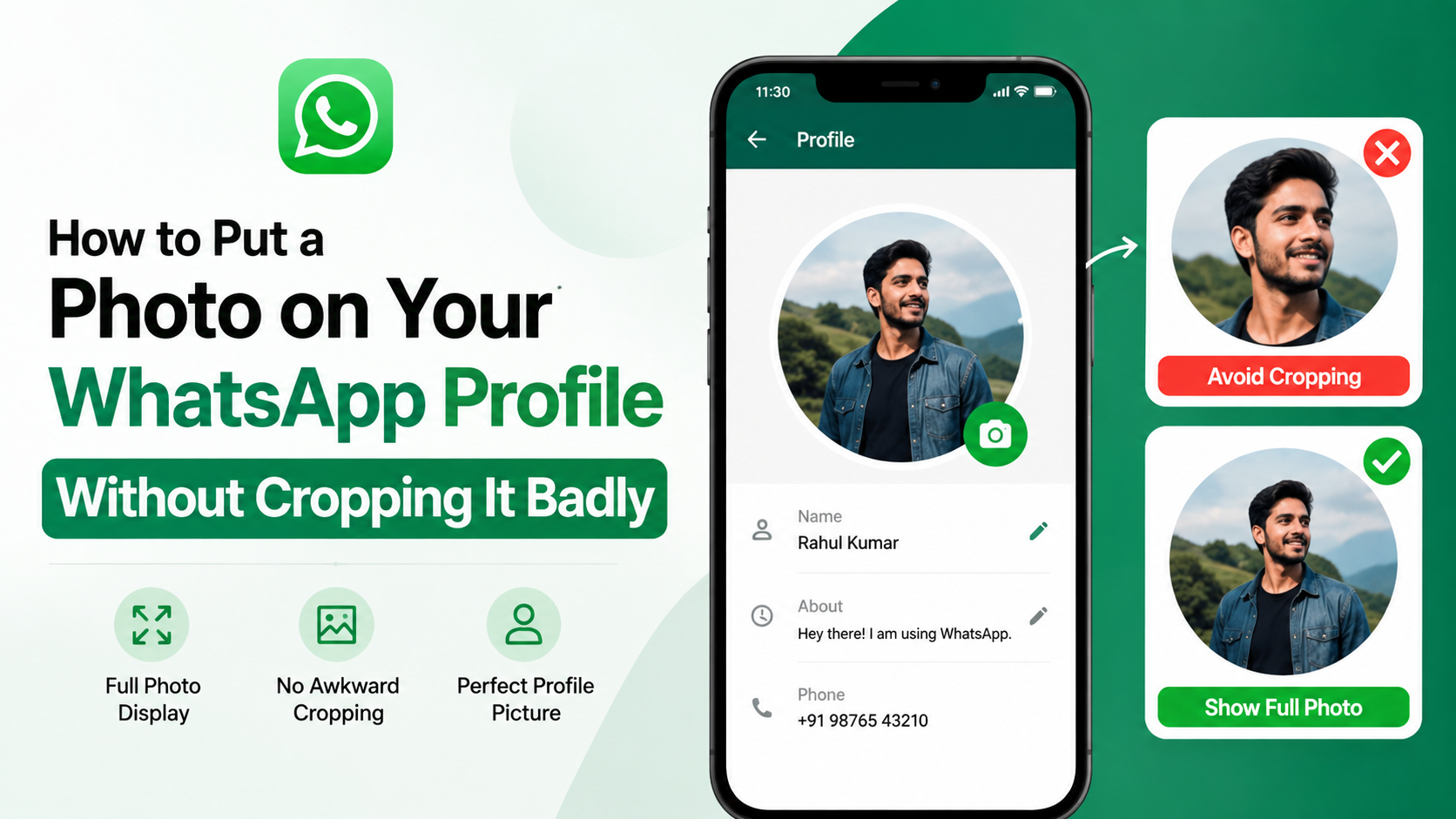
How can I make my WhatsApp profile picture fit without cropping my face?
Prepare the image before uploading. Create a square canvas and add background space around the original photo if necessary. This lets you preserve the full subject while keeping your face centered within WhatsApp’s circular crop area.
Conclusion
To set photo as WhatsApp profile without losing quality, begin with the best original image you have, prepare it as a square, and account for WhatsApp’s circular display. Use light edits, avoid screenshots and forwarded copies, and review the crop before saving.
Take a minute to update your profile picture using these guidelines. A sharp, well-composed image makes every conversation look more credible, recognizable, and professional.