August 19, 2026 · Updated August 24, 2026 · 10 min read
How to Put a Photo on Your WhatsApp Profile Without Cropping It Badly
On this page
- Understand How WhatsApp Crops Profile Photos
- Choose the Right Image Size and Shape
- Frame Your Face for a Better Personal Profile Photo
- Adapt a Tight Photo Without Losing Important Details
- Create a Professional WhatsApp Profile Photo
- Edit for Clarity Before You Upload
- Upload and Reposition the Photo in WhatsApp
- Avoid Common WhatsApp Profile Photo Mistakes
- Frequently Asked Questions
- Conclusion
How to Put a Photo on Your WhatsApp Profile Without Cropping It Badly
Your WhatsApp profile photo is often the first visual cue people see when they open a chat, save your number, or look you up in a group. Yet a great portrait can quickly become unflattering when WhatsApp’s circular display cuts off your hair, face, logo, or carefully chosen background.
The good news is that you do not need advanced design skills to prevent bad cropping. With the right image size, enough space around the subject, and a few simple editing choices, you can create a WhatsApp profile photo that looks intentional on both personal and professional accounts.
Key Takeaways
- Use a square image, ideally at least 640 × 640 pixels, before uploading.
- Keep your face, logo, or main subject centered with generous space around it.
- Design for WhatsApp’s circular preview, not just the square upload area.
- Add a plain or blurred background when your original photo is too tightly framed.
- Preview the image at a small size before setting it as your WhatsApp profile photo.
- Avoid placing important details near the corners, where the circular crop may hide them.
Understand How WhatsApp Crops Profile Photos
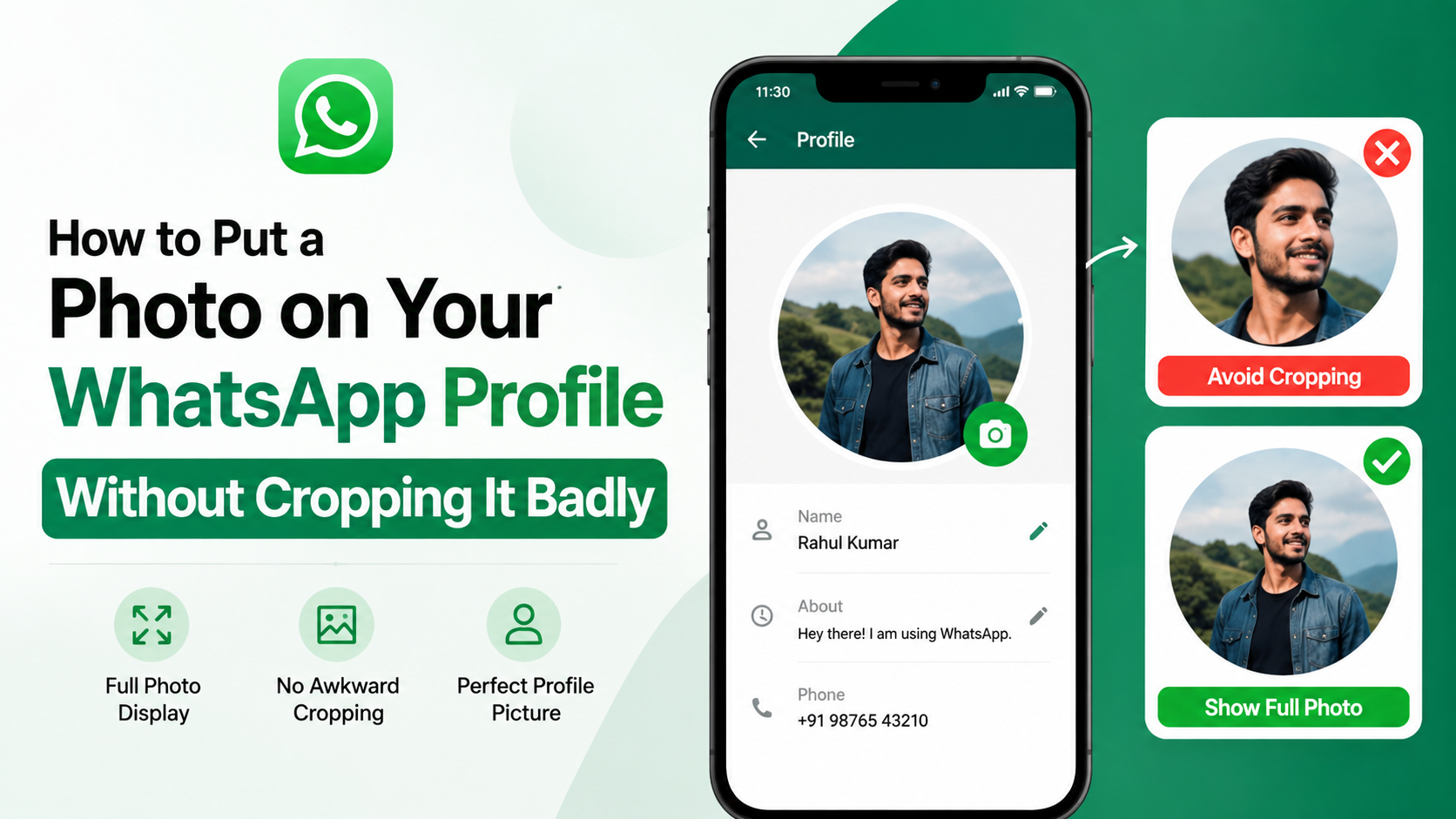
WhatsApp lets you upload a photo in a square frame, but it displays that image as a circle in many parts of the app. This difference is the main reason profile pictures can look poorly cropped.
The square upload versus the circular display
When selecting an image, WhatsApp provides a square crop tool. However, contacts usually see the final image inside a circular profile-photo frame. The corners of your square photo may therefore disappear from view.
For example, if your face is close to the upper edge of the square, the circular display can make it appear as though your hair has been cut off. If you use a business logo with text near its corners, some lettering may become unreadable.
Why small previews matter
Most people do not view profile photos at full size. They see them as tiny circles in chats, calls, group participant lists, and notifications. A photo that looks acceptable while editing may be unclear once reduced.
Before uploading, ask yourself:
- Is the main subject recognizable at a small size?
- Is the face or logo centered?
- Are important details safely inside the middle of the image?
- Does the image still work if the corners disappear?
Choose the Right Image Size and Shape
Starting with the correct dimensions gives you much more control over the final result.
Use a square canvas
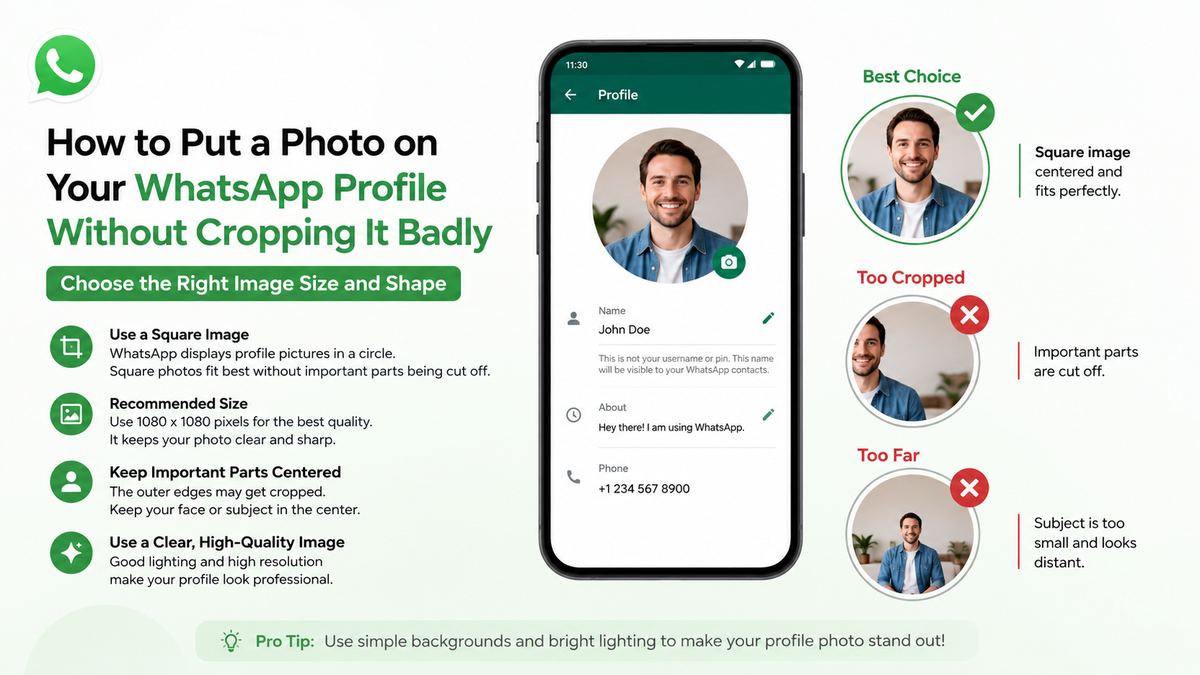
Create or crop your image as a square before adding it to WhatsApp. A practical size is 640 × 640 pixels or 1080 × 1080 pixels. Higher-resolution images generally stay cleaner when WhatsApp compresses them.
A square canvas also makes it easier to predict what will appear within the circular profile photo.
Keep a safe area around the subject
Imagine a circle inside your square image. The central area of that circle is your safe zone. Your face, product, logo, or key visual element should remain well within it.
For a headshot, leave visible room:
- Above your head
- On both sides of your face
- Below your chin and shoulders
- Around any branding or text
A simple rule: avoid letting the most important part of the photo touch any edge of the square canvas.
Frame Your Face for a Better Personal Profile Photo
For personal use, a strong WhatsApp profile photo should feel natural while remaining easy to recognize.
Use a head-and-shoulders composition
A head-and-shoulders photo usually performs better than a full-body image. At small sizes, a distant full-body photo can make your face nearly impossible to identify.
Position your face near the center, but do not zoom in too tightly. A little breathing room prevents WhatsApp’s crop from cutting into your head or shoulders.
Pick a background that supports the subject
Busy backgrounds can distract from your face and become visually messy in a small circle. Choose a background that provides contrast without competing for attention.
Good options include:
- A softly blurred outdoor scene
- A plain wall in a complementary color
- A workspace with minimal visual clutter
- A simple gradient or neutral backdrop
For example, a navy shirt against a pale gray wall creates a clearer profile image than the same shirt against a crowded restaurant background.
Adapt a Tight Photo Without Losing Important Details
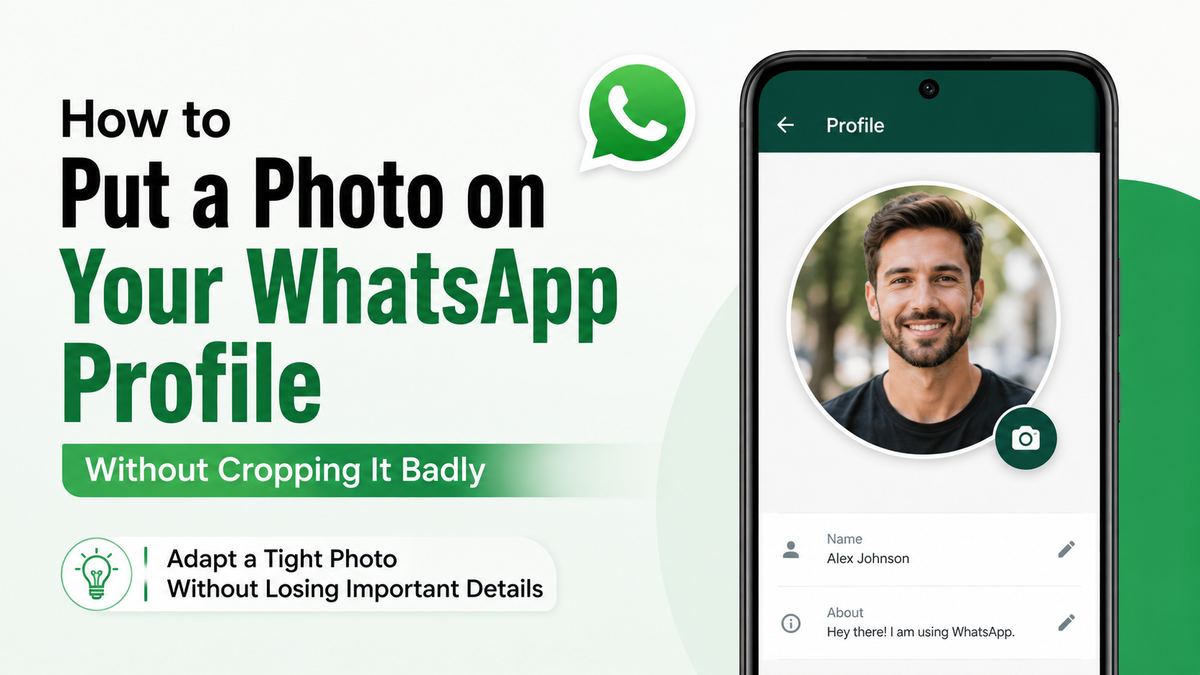
Sometimes the photo you want to use was taken too close up. Instead of accepting a bad crop, expand the image composition.
Add borders or background space
Use a photo editor to place the original image on a larger square canvas. You can fill the new space with a solid color, a blurred version of the photo, or a subtle background texture.
This technique is especially useful when:
- Your face fills most of the original photo
- A group photo cuts off people at the sides
- A product image has no margin around it
- A logo is too wide for a circular crop
A white, black, beige, or brand-colored border can make the final profile picture look deliberate rather than improvised.
Use a blurred-background effect
Many mobile editing apps allow you to duplicate your image, enlarge the duplicate for the background, blur it, and place the original photo in the center. The result preserves your original framing while fitting neatly into a square.
This is particularly effective for portrait photos taken in vertical orientation. It maintains the image’s natural proportions without stretching or cutting away important areas.
Create a Professional WhatsApp Profile Photo
For consultants, freelancers, business owners, and customer-facing teams, a WhatsApp profile photo contributes to credibility.
Match the image to your role
A professional profile photo does not need to be overly formal, but it should match the expectations of your audience. A real-estate agent, recruiter, therapist, designer, or sales professional may each use a different visual style while still appearing trustworthy.
A strong professional headshot generally includes:
- Clear lighting on your face
- Eye-level camera positioning
- A neat, uncluttered background
- Clothing appropriate to your industry
- A relaxed and approachable expression
Use logos carefully for business accounts
If your WhatsApp account represents a company, a logo can be appropriate. However, logos designed for websites or printed materials may not work at profile-photo size.
Simplify where possible. Use a symbol, monogram, or icon version of the logo rather than a full horizontal logo with a tagline. Text often becomes unreadable in the small circular display.
For instance, a bakery could use its recognizable cupcake icon instead of a full logo containing the business name, slogan, phone number, and website.
Edit for Clarity Before You Upload
Small refinements can make a major difference, but excessive editing can reduce authenticity.
Prioritize lighting and contrast
Increase brightness slightly if your face or subject appears dark. Add modest contrast so the photo remains visible against WhatsApp’s interface and various contact-list backgrounds.
Avoid heavy filters that alter skin tones or hide natural detail. Your profile photo should help people recognize you quickly.
Sharpen selectively and avoid overprocessing
A little sharpening can help define a face or logo after resizing. Too much sharpening creates harsh outlines and visible digital noise.
Before saving your final image, check that:
- The photo is not blurry or pixelated
- Colors look natural
- The subject separates clearly from the background
- No important details sit near the corners
- The image still looks good when viewed small
Upload and Reposition the Photo in WhatsApp
Once your image is prepared, the final step is to set it correctly inside WhatsApp.
Update your profile photo
On most devices, the process is straightforward:
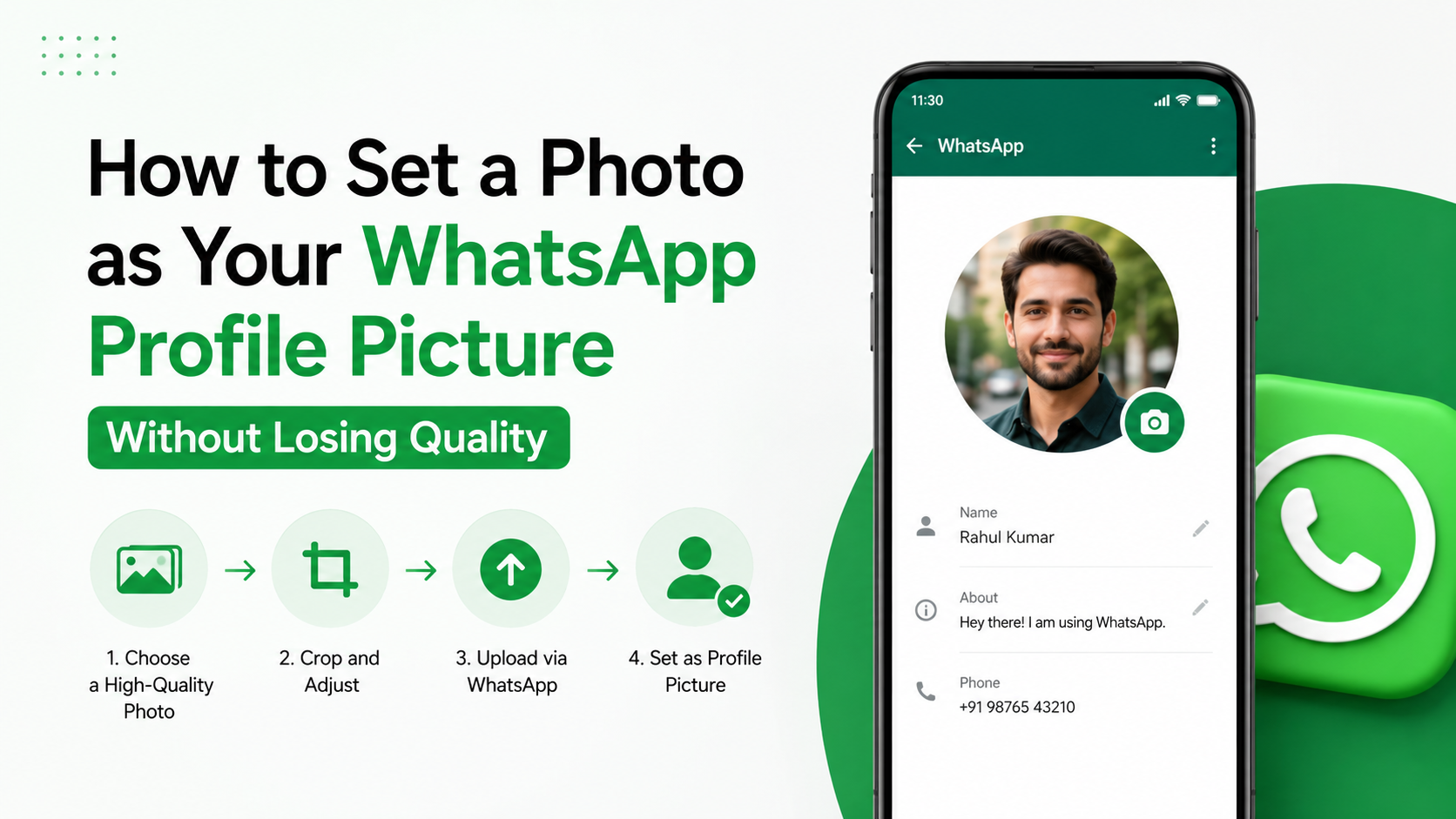
- Open WhatsApp and go to Settings.
- Tap your current profile photo or profile name.
- Select the camera or edit icon.
- Choose a photo from your gallery or take a new one.
- Reposition and scale the image within the square crop area.
- Confirm the update.
The exact labels may differ slightly between Android and iPhone versions, but the workflow is similar.
Check the result from another view
After uploading, view your profile photo in a chat, group, or contact list. This gives you a more realistic sense of how other people will see it.
If the image feels too zoomed in, return to your editor and add more background space. Trying to force an overly tight image into WhatsApp’s crop tool usually produces a weaker result.
Avoid Common WhatsApp Profile Photo Mistakes
A few frequent mistakes can make even a high-quality photo look unprofessional.
Placing key details in the corners
Corners are the least reliable part of a WhatsApp profile photo because the circular display hides them. Avoid putting faces, text, logos, or product details there.
Using group photos without enough separation
Group photos can work for casual accounts, but they are often difficult to read at a small size. If several people are close together, viewers may not know which person is you.
Choose a photo where you are centered and clearly separated from everyone else, or crop the image into an individual portrait.
Uploading screenshots or low-quality images
Screenshots, heavily compressed images, and old photos can look soft after WhatsApp processes them. Begin with the best-quality source image available, then resize it rather than enlarging a small file.
Frequently Asked Questions
What size should a WhatsApp profile photo be?
Use a square image of at least 640 × 640 pixels. A 1080 × 1080-pixel image offers even more flexibility and usually stays sharp after compression. Keep the important subject within the central area because WhatsApp commonly displays the image as a circle.
Why does WhatsApp crop my profile photo so much?
WhatsApp uses a square selection area during upload but shows the finished profile picture in a circular frame in many places. If the original photo is tightly framed, the circle can hide parts of the image or make the subject appear too large.
Can I use a full photo without cropping it?
You can preserve the full original image by placing it on a larger square background before uploading. Add a solid border, blurred background, or neutral canvas around the photo so WhatsApp has room to crop without cutting into the subject.
Is it better to use a photo or a logo for WhatsApp Business?
It depends on how customers interact with the account. A personal photo often builds trust for service providers, consultants, and sales professionals. A logo can work well for a recognizable brand, provided it is simple, centered, and readable at a tiny size.
How often should I change my WhatsApp profile photo?
Change it when your appearance, role, branding, or business identity has meaningfully changed. Consistency helps people recognize you, especially in professional settings, so avoid frequent changes unless there is a clear reason.
Conclusion
A well-prepared WhatsApp profile photo is less about finding a perfect picture and more about framing it for the platform. Start with a square canvas, keep the main subject centered, leave safe space around the edges, and preview the image as a small circle before finalizing it.
Take a few minutes to adjust your current photo using these guidelines, then upload it with confidence. A clear, balanced profile image makes every WhatsApp interaction feel more polished, recognizable, and professional.