August 19, 2026 · Updated August 23, 2026 · 11 min read
How to Have No Profile Photo on Facebook Without Deleting Your Account
On this page
- Why You Might Want No Profile Photo on Facebook
- What Happens When You Remove Your Facebook Profile Picture
- How to Remove Your Current Profile Picture on Facebook
- How to Remove Old Profile Photos and Protect Your Privacy
- Alternatives to Having No Profile Photo on Facebook
- Strengthen Your Facebook Privacy Beyond the Profile Photo
- Common Problems When Removing a Facebook Profile Picture
- Frequently Asked Questions
- Conclusion
How to Have No Profile Photo on Facebook Without Deleting Your Account
A Facebook profile photo can make it easier for friends, colleagues, and clients to recognize you—but not everyone wants one displayed. You may be taking a break from social visibility, separating work from personal life, or simply prefer a more private online presence.
The good news is that you can have no profile photo on Facebook without deactivating or deleting your account. Removing your current profile picture leaves your account, friends, messages, groups, and saved content intact. The key is to remove the active image and then review any older photos that may still be visible.
Key Takeaways
- Deleting your current profile picture does not delete or deactivate your Facebook account.
- Facebook may display a default silhouette after you remove the active image.
- Your current profile picture is generally public while it remains active.
- Old profile pictures can still exist in your Profile Pictures album after you change or remove the current one.
- You can delete old images or adjust their audience settings for better privacy.
- Review your profile using Facebook’s “View As” feature to see what other people can access.
Why You Might Want No Profile Photo on Facebook
Choosing not to use a profile photo is a practical privacy decision, not a sign that you need to leave Facebook altogether. Your account can still be useful for Messenger, private groups, Marketplace, events, professional communities, and keeping up with friends.
Privacy and personal boundaries
A recognizable photo can make it easier for strangers, former contacts, or automated systems to connect your Facebook profile with other online information. Removing it can reduce the amount of visual information available at a glance.
For example, someone who uses Facebook mainly to participate in neighborhood groups may prefer not to make their face immediately visible to every group member.
Professional separation
Many people maintain a Facebook account for personal connections but use LinkedIn or a company website for professional visibility. A blank Facebook profile picture can help create a clearer boundary between those spaces.
This can be especially useful for teachers, healthcare workers, public-facing employees, and freelancers who want to keep a personal account without making it a professional contact point.
A temporary reset
You may also want to remove a profile photo during a life change, after a breakup, while traveling, or simply while deciding what image best represents you. Facebook does not require you to replace one profile image with another.
What Happens When You Remove Your Facebook Profile Picture
Before making the change, it helps to understand the difference between removing a profile image and deleting an account.
Your account stays active
Removing your profile picture does not affect your:
- Friends list
- Facebook posts and comments
- Messenger conversations
- Group memberships
- Pages, events, and Marketplace activity
- Login credentials or account settings
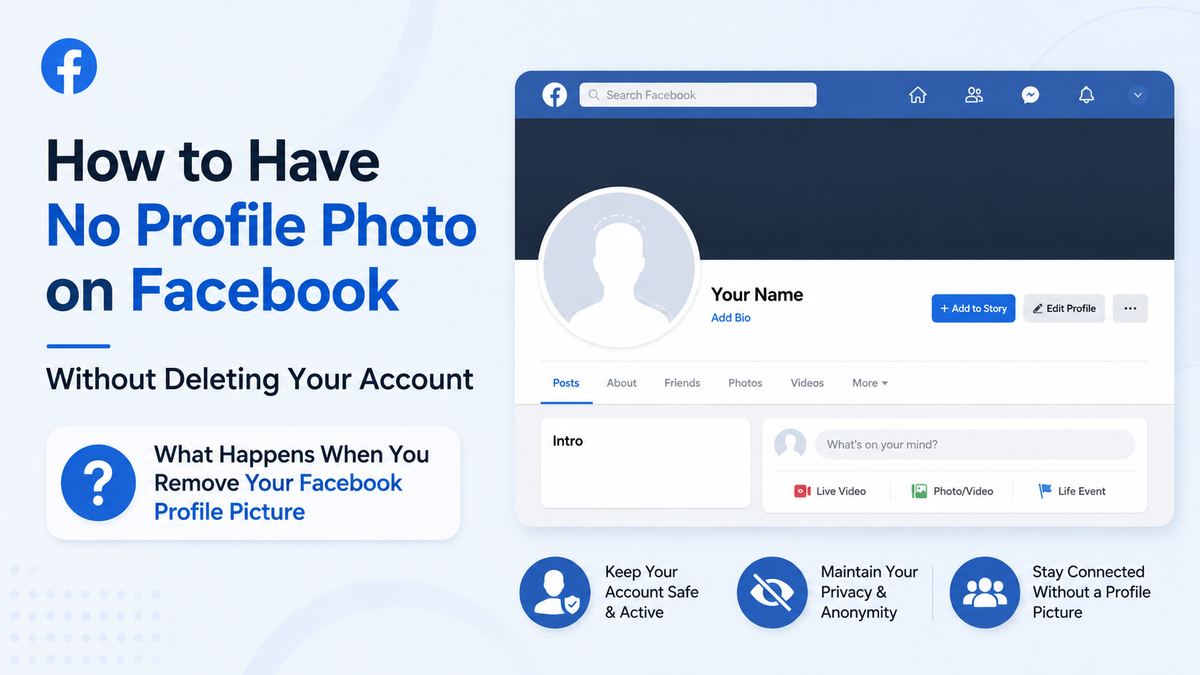
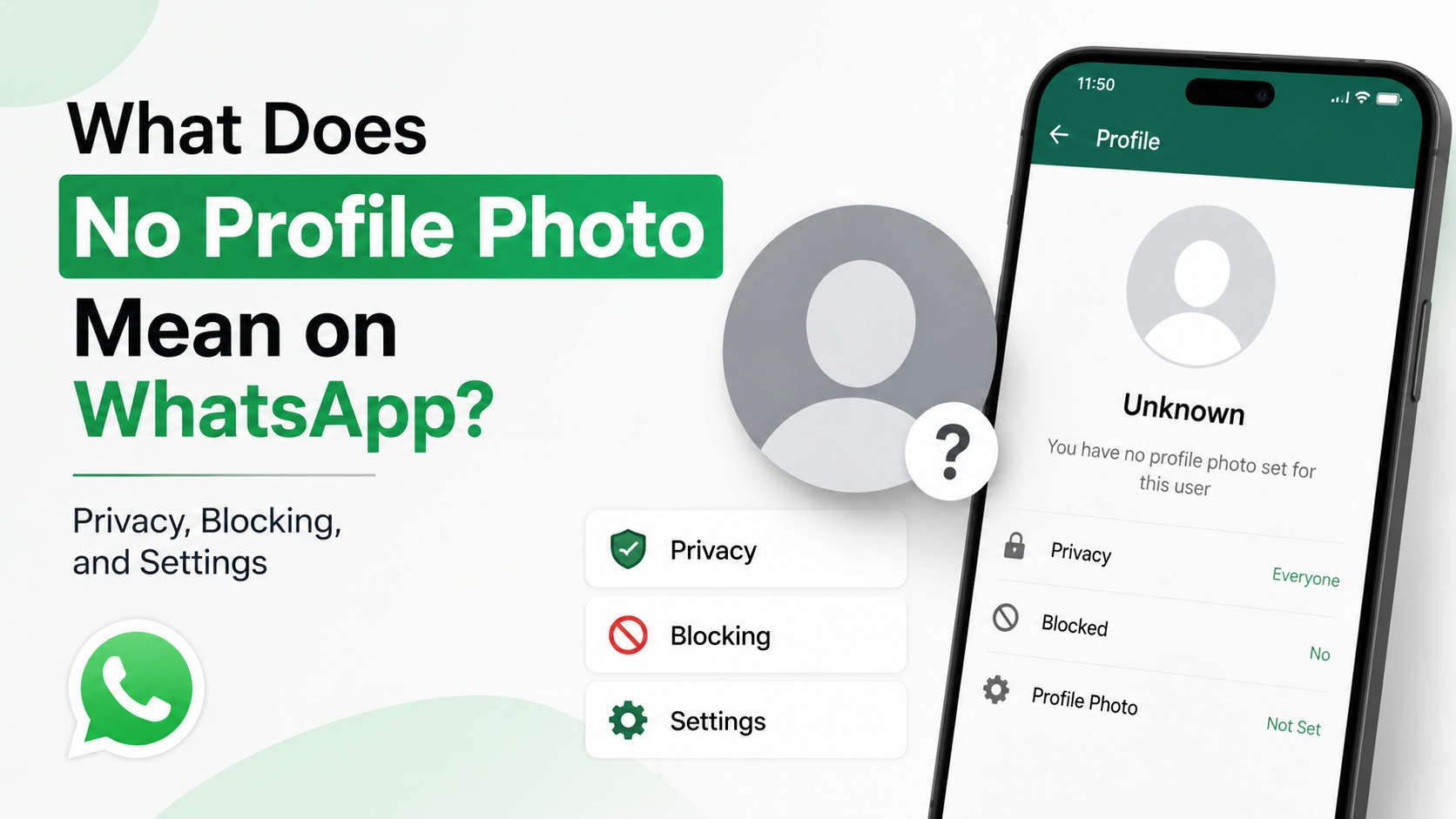
Your profile will remain searchable according to your existing privacy settings. Facebook will normally display its standard default profile icon in place of your image.
Your current profile image is no longer active
Facebook identifies your active profile picture in several places, including your profile header, comments, posts, and Messenger-related surfaces. Once removed, the default icon replaces the active photo.
Facebook notes that a current profile picture is public while it is active, so removal is the most direct option when your goal is to avoid displaying a personal image. Facebook’s profile-photo guidance also explains that profile-photo thumbnails can appear alongside your name across the platform.
Older photos may remain
Removing the active photo does not necessarily erase every picture you have ever used. Previous profile photos can remain in your Profile Pictures album, where they may still have their own visibility settings.
That distinction matters: no active profile picture is not always the same as no profile images stored on Facebook.
How to Remove Your Current Profile Picture on Facebook
The menu labels can vary slightly by device and app version, but the basic process is straightforward.
On desktop
- Log in to Facebook.
- Select your profile picture in the top-right corner.
- Click your name to open your profile.
- Select Photos, then Albums.
- Open the Profile Pictures album.
- Open the photo currently being used as your profile picture.
- Select the options menu—often shown as three dots or an edit icon.
- Choose Delete Photo.
- Confirm the deletion.
Facebook’s current Help Center instructions use this same route: profile, Photos, Albums, Profile Pictures, then delete the selected image. See Facebook’s official deletion steps.
On the Facebook mobile app
- Open the Facebook app and tap your profile icon or name.
- Go to your profile page.
- Tap Photos and open Albums.
- Select Profile Pictures.
- Open the current image.
- Tap the three-dot menu or photo options.
- Select Delete photo and confirm.
If you do not immediately see the delete option, open the image fully rather than selecting it from the album grid. Interface wording may differ between iPhone, Android, Facebook Lite, and mobile browsers.
Confirm that the photo is gone
Return to your profile after deletion. Your image area should show Facebook’s default silhouette or blank-style placeholder rather than the photograph.
Then check places where you recently commented or posted. Facebook may take a brief moment to update thumbnails throughout the service, but the removed image should no longer be your active profile photo.
How to Remove Old Profile Photos and Protect Your Privacy
If your objective is complete visual privacy, do not stop after removing the current picture. Review every image in the Profile Pictures album.
Delete old profile images you no longer want stored
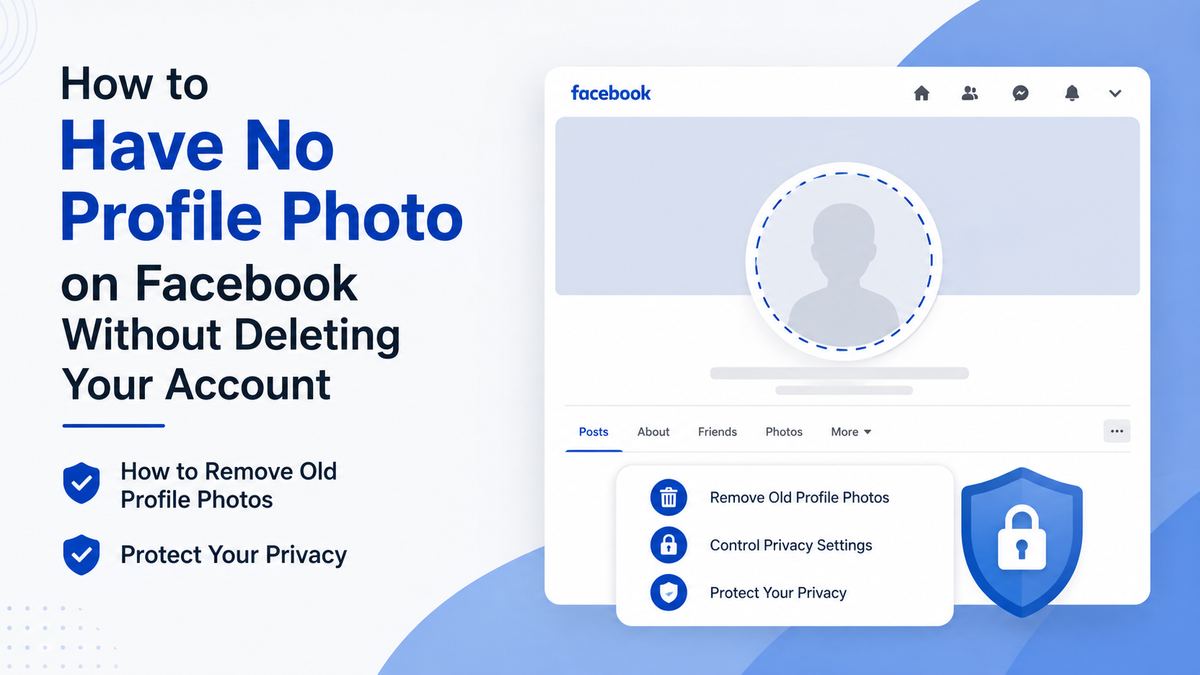
Open Photos > Albums > Profile Pictures and review each photo individually. Delete any image you no longer want Facebook to retain on your profile.
This is the cleanest choice when an old image is personal, outdated, sensitive, or no longer relevant. Remember that deleting a Facebook copy cannot remove screenshots or copies other people may already have saved.
Change the audience for photos you want to keep
If you prefer to keep an old image but limit access, adjust its audience where Facebook allows it.
Typical audience options include:
- Public: Anyone can view it, including people outside Facebook.
- Friends: Only your Facebook friends can view it.
- Only Me: Visible only to you.
- Custom: Lets you include or exclude selected people, when available.
Facebook explains that past profile photos can have their privacy adjusted, although the current profile image is treated differently from old ones. Its photo privacy guidance is a useful reference when you are reviewing stored images.
Check tagged photos separately
Profile-picture removal does not remove photos posted by other people. Search through your tagged photos, and untag yourself from images you do not want connected to your profile.
For a stronger privacy routine, turn on timeline and tag review. That gives you a chance to approve tagged content before it appears on your profile timeline.
Alternatives to Having No Profile Photo on Facebook
A completely blank profile photo is the most direct privacy approach, but it is not the only option. Consider what you want your account to communicate.
Use a non-identifying image
You can use an abstract image, landscape, illustration, pet, logo, or color block instead of a photo of yourself. This preserves a recognizable visual marker for friends without displaying your face.
For instance, a consultant who uses Facebook groups for industry discussions might use a simple brand mark. Friends can still recognize the account, while the profile remains less personally revealing.
Keep in mind that an active profile picture is still publicly viewable, even if it does not show your face.
Use an avatar carefully
A Facebook avatar may feel less personal than a photograph, but it is still a visible representation linked to your account. If privacy is your priority, review avatar visibility settings or avoid using one as your profile image.
An avatar can be a reasonable compromise for someone who wants a friendly visual presence in Messenger while not using a real photograph.
Choose a neutral professional visual
A neutral image can work well when you need an account for professional groups or local organizations. Examples include:
- A company logo, if the account use complies with Facebook’s policies
- A simple monogram
- A clean icon related to your field
- A generic landscape or pattern
Avoid using someone else’s face or misleading imagery. A profile should not create confusion about who operates the account.
Strengthen Your Facebook Privacy Beyond the Profile Photo
Removing your image is one useful step, but privacy works best as a broader account review.
Review who can find and contact you
Go to Settings & privacy > Settings and look for options related to audience, visibility, and how people find or contact you. Consider reviewing:
- Who can send you friend requests
- Who can see your friends list
- Whether search engines outside Facebook can link to your profile
- Who can look you up using your email address or phone number
- Who can follow your public posts
A person with no profile photo but fully public contact and profile settings may still be easy to identify or reach.
Limit the audience for past and future posts
Check the audience selector before publishing new posts. If you have a long public posting history, Facebook’s Limit Past Posts option can help change formerly public posts to a friends-only audience in bulk.
Be thoughtful before using bulk controls: they may not alter every type of content, such as posts shared in groups, public Pages, or material posted by other people.
Use “View As” to inspect your public profile
Facebook’s View As feature lets you see how your profile appears to people who are not your friends. This is one of the best ways to confirm whether your profile photo, cover photo, posts, or personal details are visible more broadly than intended.
Run this check after changing your picture and privacy settings. It turns assumptions into a practical verification step.
Common Problems When Removing a Facebook Profile Picture
Sometimes a removed image appears to remain visible. Usually, the issue is temporary or relates to a different copy of the photo.
The old image still appears in Messenger
Messenger may temporarily cache profile photos. Close and reopen the app, update it if needed, and give Facebook time to synchronize the change across services.
If the image persists for an extended period, sign out and back in or check the image on another device or browser before assuming the removal failed.
You cannot find the delete option
First, verify that you opened the image in the Profile Pictures album. A photo displayed on your timeline may be a post, not the image file itself.
Also check whether you are logged into the correct account. If you manage a Facebook Page, remember that your personal profile picture and the Page’s profile picture are separate.
An old photo is still visible to others
Open the specific old image and inspect its audience setting. If you want it completely unavailable, delete it rather than relying only on a narrower audience selection.
If someone else uploaded the image, you cannot delete their original post from their account. You can remove your tag, request removal from the uploader, and adjust your tagging controls.
Frequently Asked Questions
Can I have no profile photo on Facebook and still use Messenger?
Yes. Removing your Facebook profile picture does not disable Messenger or erase your conversations. Messenger may show Facebook’s default profile icon after the change, although the update can take a little time to appear everywhere.
Will deleting my profile picture delete my Facebook account?
No. Deleting a profile picture only removes that image from your account. Your profile, friends, posts, groups, and login access remain active unless you separately choose to deactivate or delete the account.
Can I hide my current Facebook profile picture instead of deleting it?
Not completely. Facebook states that current profile pictures are public. You can adjust privacy for previous profile photos, but if you do not want a current image visible, removing it is the more reliable choice.
Can people still find me on Facebook without a profile picture?
Yes. Depending on your settings, people may still find you through your name, mutual friends, email address, phone number, groups, comments, or other profile information. Review your audience and discoverability settings if you want a lower-profile presence.
Why does my old Facebook profile photo still show up?
It may remain in your Profile Pictures album, appear in an old post, be cached temporarily, or have been reposted by someone else. Review your album, delete or restrict old images, and check tagged content separately.
Conclusion
Having no profile photo on Facebook is entirely possible without deleting your account. Remove the active profile image, review older photos in your Profile Pictures album, and check your broader privacy settings to make sure your account matches your comfort level.
Take a few minutes now to delete or restrict old profile images, inspect your public profile with “View As,” and choose whether a default icon, neutral image, or no photo at all best supports your privacy goals.