August 19, 2026 · 11 min read
What Does “My Contacts” Mean for WhatsApp Profile Photo Privacy?
On this page
- What “My Contacts” Means on WhatsApp
- How WhatsApp Profile Photo Privacy Options Compare
- How to Set Your WhatsApp Profile Photo to My Contacts
- Important Limits of the My Contacts Setting
- Profile Photo Privacy for Personal Use
- Profile Photo Privacy for Professionals and Businesses
- How to Keep Your Privacy Settings Up to Date
- Frequently Asked Questions
- Conclusion
What Does “My Contacts” Mean for WhatsApp Profile Photo Privacy?
Your WhatsApp profile photo can reveal more than you might expect. It may show your face, workplace, family, location clues, or brand identity—often at a glance. That makes the privacy setting behind it important.
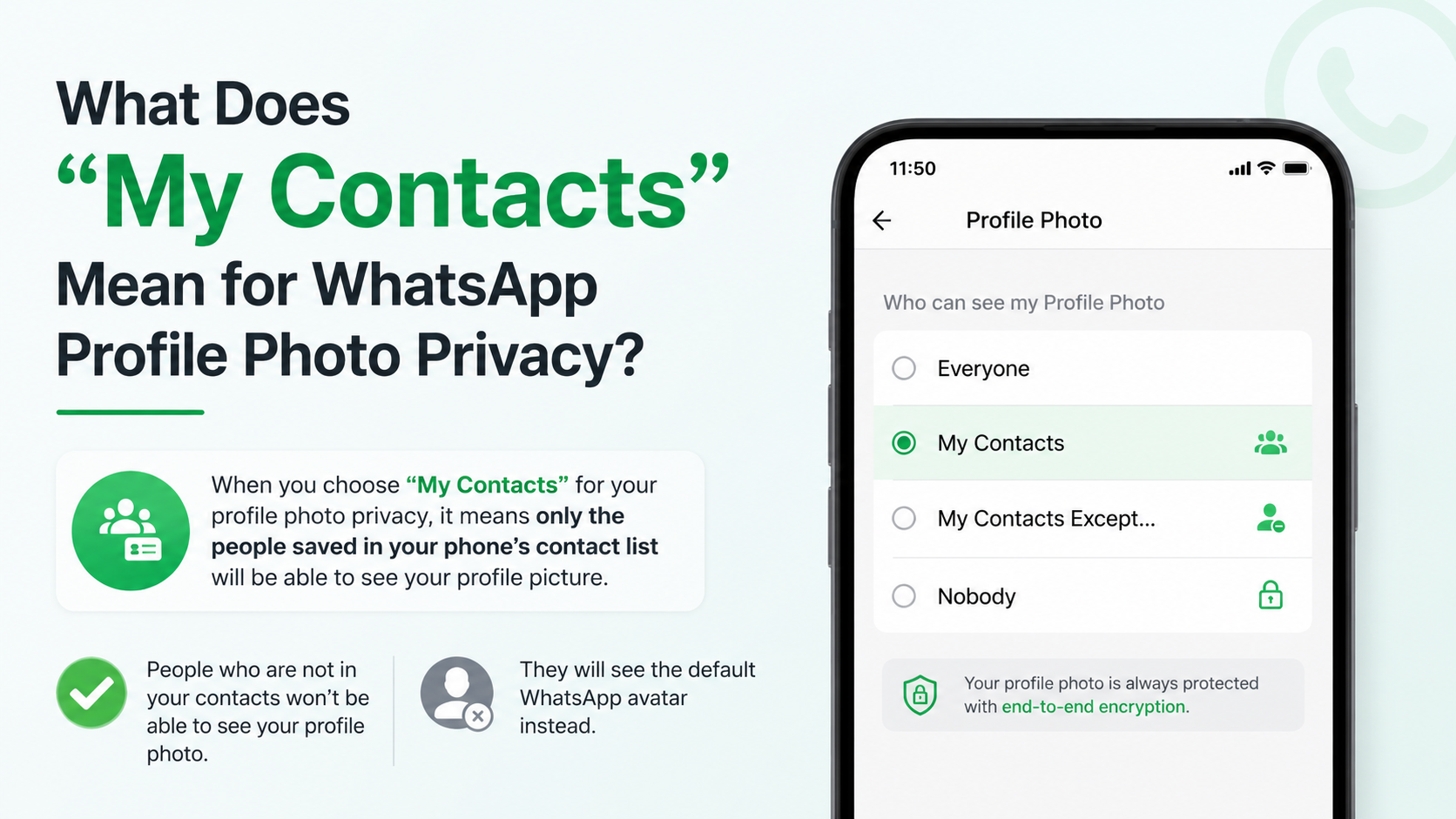
If you select “My Contacts” for your WhatsApp profile photo, your image is visible only to people whose phone numbers you have saved in your device’s address book. It is a useful middle ground: more private than sharing your photo with everyone, but still convenient for friends, family, colleagues, and clients you know.
However, “My Contacts” does not mean every person you have ever messaged, everyone in a group, or anyone who has saved your number. Understanding that distinction helps you control your digital first impression more confidently.
Key Takeaways
- WhatsApp profile photo My Contacts means only people saved in your phone’s contacts can view your profile picture.
- A person saving your number does not automatically give them access to your photo.
- Unsaved numbers, unknown group members, and new leads generally cannot see your photo when this setting is enabled.
- Use My Contacts Except… when you want most contacts to see your photo but need to exclude specific people.
- Use Nobody for maximum profile-photo privacy without blocking anyone.
- Review your contact list regularly, especially if you use WhatsApp for work, sales, or networking.
What “My Contacts” Means on WhatsApp
The My Contacts setting limits profile photo visibility to the contacts you have saved on your phone. WhatsApp uses your address book to determine who is included.
In simple terms, if you have saved someone’s number as “Alex Morgan,” Alex can see your profile photo. If an unknown number sends you a message and you have not saved it, that number cannot see your profile photo under this setting.
Your Saved Contacts Control Access
The key point is that access is based on your contact list, not the other person’s.
For example:
- You save your colleague Priya’s number: Priya can see your photo.
- Priya saves your number, but you do not save hers: Priya cannot see your photo under My Contacts.
- An unfamiliar number messages you about a marketplace listing: that person cannot see your photo unless you save their number.
- A group member is not in your contacts: they generally cannot see your photo just because you share a group.
This gives you practical control over who gets a visual view of your account.
It Is Not the Same as “People You Chat With”
Many users assume that messaging someone automatically makes them a contact for privacy purposes. It does not.
A conversation, missed call, group membership, or shared community does not automatically place someone inside your My Contacts audience. You must save their number to your device’s address book for them to qualify.
That distinction is especially helpful when communicating with:
- Delivery drivers and service providers
- Marketplace buyers or sellers
- Event attendees
- Temporary contractors
- Unknown group participants
- New business inquiries
How WhatsApp Profile Photo Privacy Options Compare
WhatsApp offers several profile photo visibility choices. Each serves a different privacy goal.
| Privacy setting | Who can see your profile photo | Best for | | --- | --- | --- | | Everyone | Any WhatsApp user, including unsaved numbers | Public-facing brands and highly accessible accounts | | My Contacts | Only people you have saved | Most personal users | | My Contacts Except… | Saved contacts, excluding people you choose | Selective privacy and boundary-setting | | Nobody | No one can see your photo | Maximum privacy or minimal-profile accounts |
Everyone: Broad Visibility, Less Control
Choosing Everyone makes your profile picture available to any WhatsApp user who can access your account details, including numbers you have not saved.
This can be appropriate for a public-facing business account. For instance, a local salon may want prospective customers to recognize its logo immediately when they message.
For personal accounts, though, this setting can expose your image to unfamiliar people. Consider whether your photo includes identifying details such as children, a home address in the background, a work uniform, or a vehicle license plate.
My Contacts: A Practical Default
For many users, WhatsApp profile photo My Contacts is the best everyday setting. It gives trusted people a recognizable image while filtering out most strangers.
A practical example: You use WhatsApp for family conversations, school groups, and work messages. Your saved contacts can identify you easily, while people who obtain your number through a group or forwarded message cannot automatically see your photo.
My Contacts Except…: Fine-Tuned Privacy
My Contacts Except… is useful when you want to keep your photo visible to most saved contacts but hide it from particular people.
You might use it to exclude:
- A former partner
- A difficult client
- A former coworker
- A family member who crosses boundaries
- A contact you cannot easily remove yet
This setting changes only photo visibility. It does not stop the selected person from sending messages or calling you. If you need to prevent contact entirely, blocking may be the more appropriate option.
Nobody: Complete Profile Photo Privacy
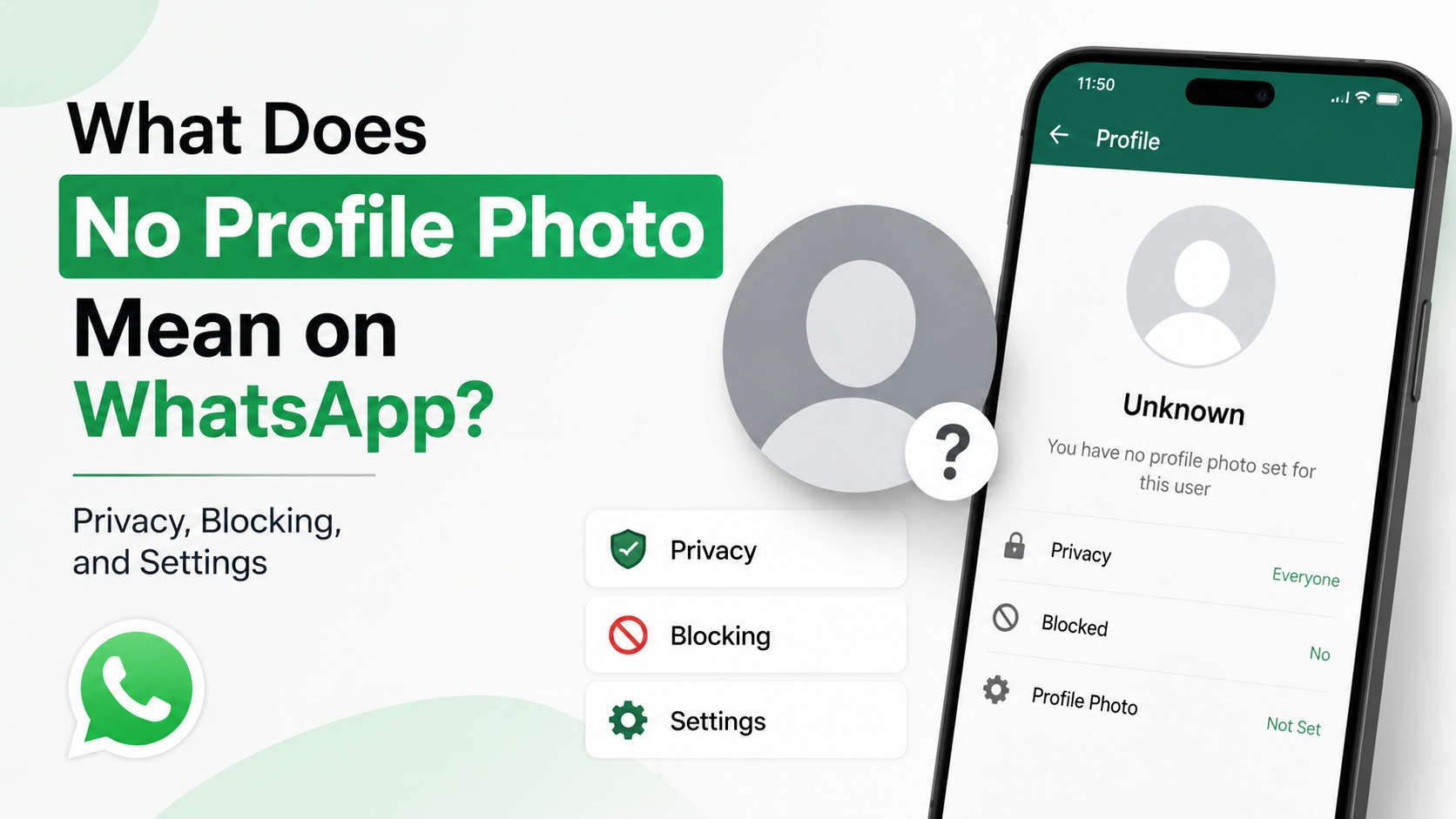
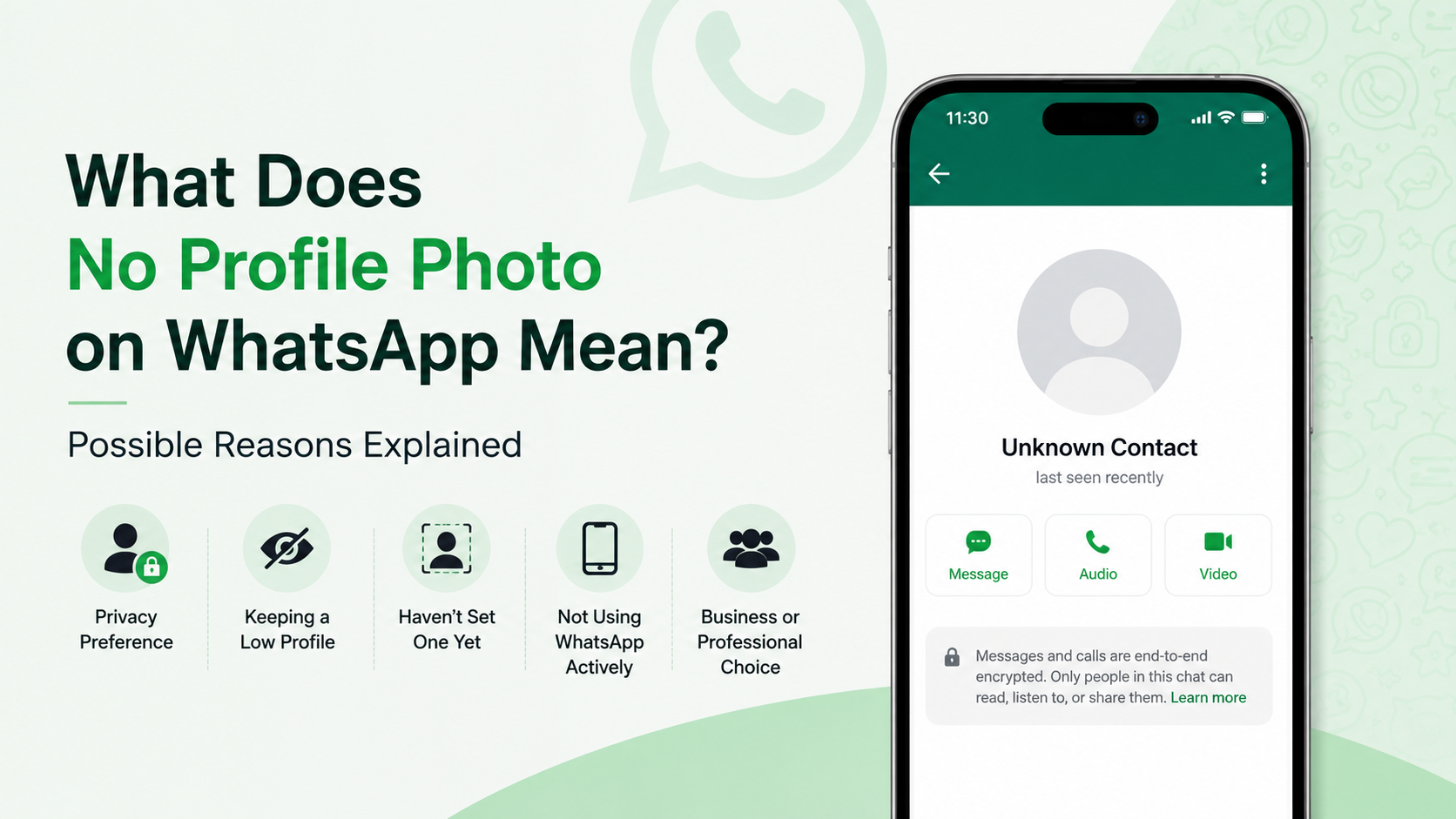
Selecting Nobody hides your profile photo from everyone. People will see WhatsApp’s default profile icon instead of your current image.
This is useful if you are concerned about impersonation, unwanted attention, workplace boundaries, or harassment. It can also be a sensible temporary measure while you sort out your contact list.
How to Set Your WhatsApp Profile Photo to My Contacts
The exact menu labels may differ slightly between Android and iPhone versions, but the process is straightforward.
On Android
- Open WhatsApp.
- Tap the three-dot menu in the upper-right corner.
- Select Settings.
- Tap Privacy.
- Choose Profile photo.
- Select My Contacts.
On iPhone
- Open WhatsApp.
- Tap Settings in the bottom navigation.
- Select Privacy.
- Tap Profile Photo.
- Choose My Contacts.
Once selected, the setting applies to your account, not just one individual chat.
Check the Result From an Unsaved Number
If privacy matters, test the change. Ask a trusted friend who is not saved in your address book to check what appears on your WhatsApp profile.
They should see a default profile image instead of your photo. This quick check can help confirm that your setting and contact syncing are working as intended.
Important Limits of the My Contacts Setting
My Contacts offers meaningful control, but it is not a complete privacy solution. It determines who can view the photo in WhatsApp; it cannot control what approved viewers do after seeing it.
Contacts Can Still Save or Share What They See
Anyone who can view your photo may be able to take a screenshot, save it, or share it outside WhatsApp. Privacy settings reduce access, but they cannot guarantee that visible content stays private.
For that reason, avoid using a profile picture that contains sensitive information, such as:
- A child’s school uniform or location
- Boarding passes, event tickets, or documents
- Your home exterior or address details
- Employee badges or security credentials
- Financial information or account numbers
A simple headshot, a neutral image, or a personal logo is often safer.
Contact Syncing Matters
WhatsApp relies on your phone’s address book. If you add someone as a contact, they may become eligible to view your profile photo when My Contacts is active.
This means your privacy audience can change whenever your contacts change.
For example, if you save a new vendor’s number after a project begins, that vendor may be able to see your profile picture. If that is not desirable, either avoid saving the number, use My Contacts Except…, or change your photo privacy setting temporarily.
It Does Not Block Communication
Hiding your photo from someone does not prevent messages, calls, or group interactions. The person may still see other information depending on your separate settings for About, Status, Last Seen, and online presence.
If someone is harassing, impersonating, or repeatedly contacting you, profile-photo privacy alone is not enough. Consider blocking and reporting the account through WhatsApp.
Profile Photo Privacy for Personal Use
Personal WhatsApp users usually want a balance between recognizability and safety. My Contacts often achieves that balance, but your ideal setting depends on your situation.
A Sensible Setup for Most People
A strong baseline configuration is:
- Profile Photo: My Contacts
- About: My Contacts or Nobody
- Status: My Contacts Except… or Only Share With…
- Last Seen: My Contacts or Nobody
- Groups: My Contacts Except…
This combination reduces the amount of personal information exposed to strangers while keeping WhatsApp convenient for people you know.
When to Choose More Privacy
Consider Nobody or My Contacts Except… if you are:
- Dealing with harassment or unwanted attention
- Leaving a job or ending a relationship
- Joining large public groups
- Selling items online
- Traveling and communicating with many temporary contacts
- Using the same number for private and public purposes
In these situations, reducing profile visibility can remove an easy source of personal information for unfamiliar people.
Profile Photo Privacy for Professionals and Businesses
For professionals, profile photos affect trust and recognition. A blank default icon can appear impersonal, while a public photo can expose personal details. The right choice depends on whether you use a personal or business-oriented account.
Separate Personal and Professional Identity
If you use WhatsApp for clients, consider using a professional-looking photo rather than a personal family image. A clear headshot, company logo, or brand mark can establish credibility without revealing unnecessary private details.
For example, a freelance designer might use a clean headshot on a client-facing account, while keeping a personal account photo limited to close contacts.
Decide Whether Public Visibility Is Necessary
A business that receives inquiries from unfamiliar customers may benefit from Everyone, particularly if the photo is a logo. It helps people confirm they have reached the correct business.
However, an employee using a personal WhatsApp number for occasional work communication may prefer My Contacts. This prevents unknown leads from viewing a personal image before a relationship exists.
Ask one question: “Would I be comfortable with any person who gets this number seeing this image?” If the answer is no, do not use Everyone.
How to Keep Your Privacy Settings Up to Date
Privacy is not a one-time setup. Your contacts, work situation, and online exposure can change over time.
Review Settings After Major Changes
Check WhatsApp privacy settings after events such as:
- Starting or leaving a job
- Changing your phone number
- Joining a large group or community
- Ending a relationship
- Posting your number publicly
- Beginning freelance or client work
- Handing your phone to a child or family member
A two-minute review can prevent an old profile photo or permissive setting from reaching the wrong audience.
Audit Your Contact List
Because My Contacts depends on saved numbers, a contact-list audit is essential. Remove stale entries and label important contacts accurately.
You may find:
- Old clients you no longer need
- Duplicate contacts
- Numbers with no name attached
- Former coworkers
- One-time marketplace contacts
- Contacts imported from a shared work device
Removing a contact may also remove their profile-photo access when My Contacts is enabled. Before deleting anything important, confirm that you will still have another way to reach that person if needed.
Frequently Asked Questions
Does “My Contacts” mean people who have my number?
No. My Contacts means people whose numbers you have saved in your own phone’s contacts. Someone can save your number without being able to see your photo under this setting.
Can people in a WhatsApp group see my profile photo if I do not save them?
Not if your profile photo setting is My Contacts and they are not saved in your address book. Being in the same group does not automatically make someone one of your contacts for photo privacy purposes.
What does someone see when they cannot view my WhatsApp profile photo?
They typically see WhatsApp’s default profile placeholder rather than your current image. They may still be able to message or call you unless you use separate privacy controls or block them.
Can I hide my profile photo from one person only?
Yes. Select My Contacts Except… in the Profile Photo privacy settings, then choose the contact or contacts you want to exclude. They can still communicate with you unless you block them.
Does hiding my profile photo also hide my WhatsApp status or last seen?
No. WhatsApp manages Profile Photo, Status, About, Last Seen, and online visibility through separate settings. Review each option individually to create the privacy level you want.
Conclusion
The WhatsApp profile photo My Contacts setting means your picture is visible only to people you have personally saved in your address book. It is a practical privacy choice for most users because it keeps your profile recognizable to trusted people while reducing exposure to unknown numbers.
For stronger control, use My Contacts Except… to exclude specific people or choose Nobody to hide your photo completely. Take a moment to review your contact list and related privacy settings today—your profile photo is small, but controlling who sees it can make a meaningful difference.
Advertisement