August 19, 2026 · 12 min read
Does Indeed Have Profile Photos? How to Add and Optimize Yours
On this page
- Does Indeed Have Profile Photos?
- How to Add an Indeed Profile Photo
- What Makes a Good Indeed Profile Photo?
- Indeed Profile Photo Rules and Common Rejection Reasons
- How to Optimize Your Indeed Profile Beyond the Photo
- Privacy, Visibility, and Inclusive Job Searching
- Troubleshooting an Indeed Profile Photo Upload
- Frequently Asked Questions
- Conclusion
Does Indeed Have Profile Photos? How to Add and Optimize Yours
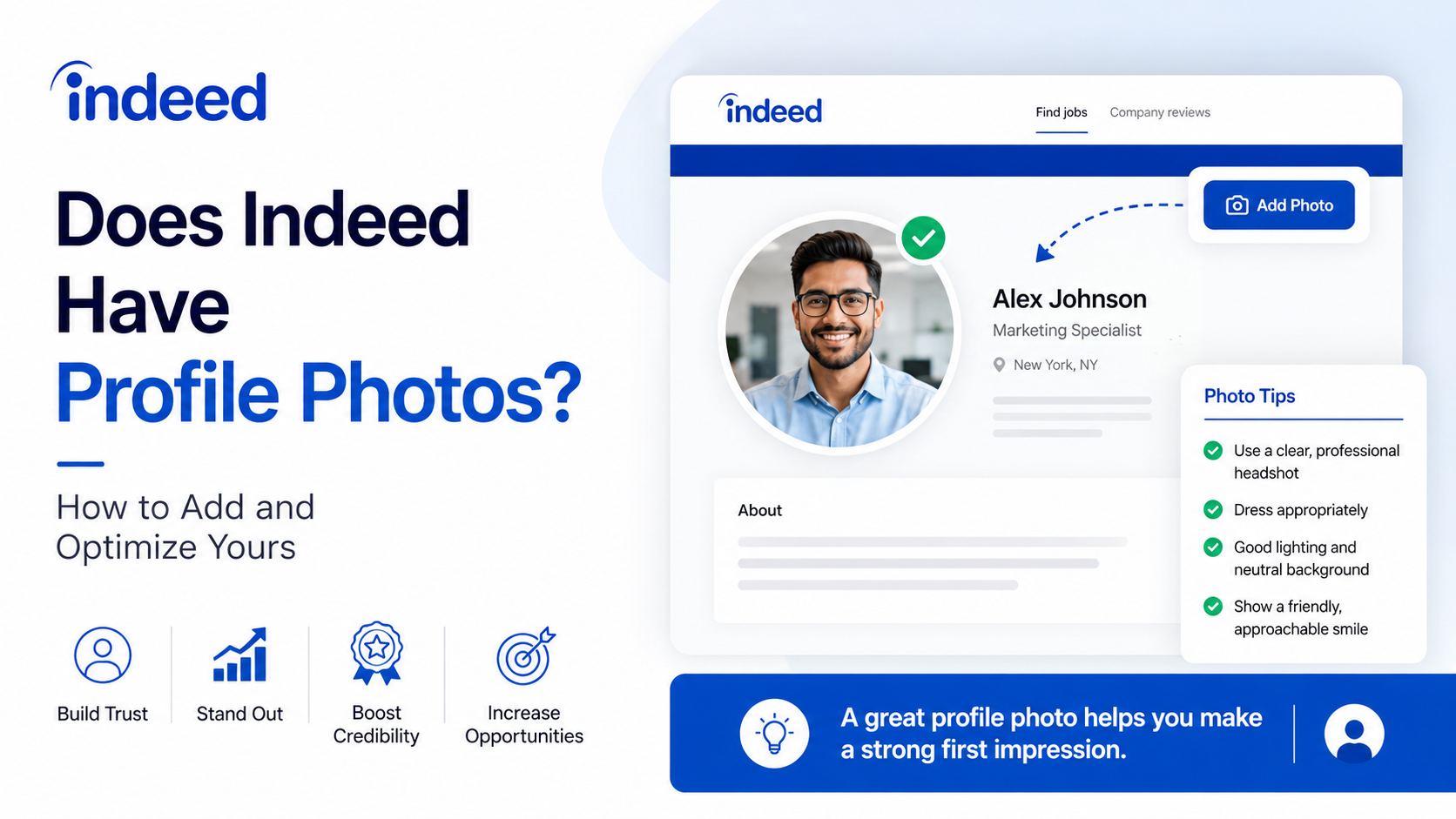
An Indeed profile photo may seem like a small detail, but understanding how the feature works can save you time—and help you make smarter decisions about your job-search presence. Unlike platforms such as LinkedIn, Indeed treats photos as an optional, limited-access profile feature rather than a core way for employers to evaluate candidates.
That distinction matters. A polished photo can make your own profile feel complete, but your experience, skills, resume, and application materials remain the elements that employers use to assess your fit. Here is what to know about adding an Indeed profile photo, choosing an appropriate image, and strengthening the rest of your profile.
Key Takeaways
- Indeed profile photos are optional and currently available only to some U.S. job seekers through the mobile app.
- Employers do not currently see an Indeed profile photo, so it should not be your main job-search priority.
- Use a clear, recent, professional-looking headshot with good lighting and a simple background.
- Upload JPG, PNG, or HEIC files under 30 MB, then crop carefully before confirming.
- Avoid group images, logos, promotional graphics, QR codes, and anything that reveals sensitive information.
- Put most of your effort into an accurate resume, relevant skills, targeted work history, and profile privacy settings.
Does Indeed Have Profile Photos?
Yes—but availability is limited
Indeed does offer a profile-photo feature for job seekers, but it is not universally available in every country, device, or account experience. Indeed describes the feature as a gradual rollout for job seekers in the United States, accessed through its job-search mobile app.
If you do not see a camera icon near your profile contact information, the feature may not yet be available to your account or device. It is not a required profile field, and you can still use Indeed fully without uploading a photo.
Employers do not currently see your photo
This is the most important point: Indeed states that employers do not currently see job seekers’ profile photos. The image is part of your personal profile experience, not a visible substitute for your resume or professional portfolio.
That means an Indeed profile photo is different from a LinkedIn headshot. It is fine to upload one if you like having a more personalized profile, but it is unlikely to affect whether an employer finds, contacts, or interviews you.
For job-search impact, prioritize:
- A keyword-rich professional headline
- Recent and measurable work experience
- Skills that match your target roles
- A tailored resume for each application
- Clear job-search preferences and availability
Why Indeed limits photo visibility
Keeping photos outside the employer-facing evaluation process can help maintain focus on qualifications. Hiring should center on the experience, skills, certifications, and results that make you a strong candidate—not on appearance.
It can also reduce pressure for job seekers who prefer not to share a personal image online. Since the feature is optional, you can choose the approach that best fits your comfort level and privacy preferences.
How to Add an Indeed Profile Photo
Before you begin
Start by confirming that you are signed in to the Indeed mobile app and that your account has access to the feature. You will generally need a completed, verified account before the photo option appears.
Prepare an image that meets the basic technical requirements:
- File type: JPG, PNG, or HEIC
- File size: Under 30 MB
- Subject: A clear photo of you
- Quality: Sharp, upright, and well lit
Choose the image before opening the app so you can upload it quickly without settling for an old or low-quality photo.
Upload an existing image
To add an image from your phone’s photo library:
- Open the Indeed app and sign in.
- Go to your Profile tab.
- Find and tap the camera icon near your contact information.
- Select Choose from library.
- Choose your preferred photo.
- Move, zoom, or crop the image as needed.
- Tap Confirm to upload it.
After upload, you should receive a confirmation message. The image may take a few moments to appear on your profile.
Take a new photo in the app
If you do not already have an appropriate headshot, use the in-app camera option:
- Tap the camera icon on your profile.
- Choose Take photo.
- Stand in front of a simple background with light facing your face.
- Take several shots if the app allows it.
- Review the framing and select Confirm.
A quick, intentional photo in natural window light often looks more professional than a heavily filtered picture taken in poor lighting.
What Makes a Good Indeed Profile Photo?
Keep the image simple and recognizable
A strong professional photo does not need studio equipment, a formal suit, or elaborate editing. It simply needs to present you clearly and credibly.
Aim for a head-and-shoulders composition where your face is easy to recognize. Look toward the camera, use a natural expression, and leave a little space above your head. Your image should still look like you when a recruiter meets you in an interview.
A reliable formula is:
- Neutral or uncluttered background
- Soft lighting from a window or bright room
- Face centered and in focus
- Clothing appropriate for your field
- Recent image that reflects your current appearance
For example, a customer-service professional might wear a neat blouse, collared shirt, or smart casual top against a plain wall. A creative professional can show more personality through color or style, as long as the image remains clear and work-appropriate.
Dress for your target role
Your clothing should reflect the industry and position you want—not necessarily your current job. You do not need to overdress, but you should look intentional.
Consider these practical standards:
- Corporate, finance, or legal roles: Business professional or polished business casual.
- Healthcare, education, or public service: Clean, approachable, professional attire.
- Retail, hospitality, or operations: Neat, simple clothing that looks prepared and dependable.
- Creative or tech roles: Professional casual clothing that fits the culture without becoming distracting.
Avoid clothing with offensive text, large logos, or overly busy patterns. The viewer’s eye should go to your face first.
Skip filters and excessive retouching
Heavy filters, face-smoothing apps, dramatic color effects, and AI-generated alterations can create an image that feels less trustworthy. Small adjustments to brightness, crop, or color balance are reasonable. Major changes to facial features or appearance are not.
The best result is a photo that looks polished but authentic.
Indeed Profile Photo Rules and Common Rejection Reasons
Follow Indeed’s content guidelines
Indeed moderates uploaded profile photos. Your photo should be a professional depiction of you and should not misrepresent your identity. You should also have the right to use the image.
Images may be rejected or removed if they include:
- Multiple people, children, or an unclear subject
- Company logos, advertisements, or promotional materials
- Website links, QR codes, or calls to action
- Violence, sexual content, hate symbols, or illegal-drug imagery
- Smoking, drinking, or otherwise unprofessional activity
- Government IDs, financial details, addresses, or confidential work information
- Blurry, pixelated, rotated, or poorly framed visuals
A clean headshot avoids nearly all of these problems.
Avoid accidental privacy mistakes
A seemingly harmless image can reveal more than you intend. Before uploading, inspect the background closely. A desk, whiteboard, badge, name tag, computer monitor, mail, or family photo may contain personal or confidential details.
For example, a photo taken in an office could accidentally reveal a client name on a screen behind you. A photo outside your home might show an address number. When in doubt, use a plain wall or a softly blurred, non-identifying background.
What to do if your photo is removed
If Indeed rejects or removes your image, do not keep retrying the same file. Instead:
- Read any notice from Indeed about the issue.
- Choose a different image that clearly shows only you.
- Check focus, orientation, file format, and file size.
- Remove logos, text, background details, or promotional elements.
- Upload the replacement through the app.
If the upload fails without a moderation message, try a smaller JPG or PNG file and confirm your app and connection are current.
How to Optimize Your Indeed Profile Beyond the Photo
Treat your resume as the main conversion tool
Because employers do not currently see your Indeed profile photo, your resume has far more influence. It should make it easy for an employer to identify what you do, where you have delivered results, and why you fit the role.
Use accomplishment-based bullets rather than duty-only descriptions. Instead of writing:
- “Responsible for answering customer calls”
Try:
- “Resolved an average of 50 customer inquiries per day while maintaining a 95% satisfaction rating.”
Specific outcomes give hiring teams evidence of your value.
Add role-specific keywords naturally
Indeed’s search and matching tools rely on the information in your profile and resume. Review several job descriptions for your target role and identify recurring terms, tools, certifications, and skills.
A project coordinator, for instance, may include relevant terms such as:
- Project scheduling
- Stakeholder communication
- Budget tracking
- Microsoft Excel
- Jira or Asana
- Status reporting
- Cross-functional collaboration
Use only keywords you can honestly support with experience. Keyword stuffing can make a profile harder to read and create problems if you are asked about those skills in an interview.
Complete the sections employers can actually use
A complete profile can help with faster applications and more relevant opportunities. Review these sections regularly:
- Work experience
- Education
- Licenses and certifications
- Skills
- Preferred job titles
- Location and work preferences
- Availability and employment eligibility
Keep dates, titles, and employer names consistent between your Indeed profile, resume, LinkedIn profile, and application responses. Inconsistencies can create unnecessary questions.
Privacy, Visibility, and Inclusive Job Searching
Decide whether employers can find your profile
Indeed lets job seekers manage employer visibility through profile privacy settings. If you make your profile discoverable, employers may find your resume or profile in searches and contact you about relevant roles.
Before enabling visibility, make sure your information is current. Remove outdated job titles, incomplete roles, and old contact details. If you are searching discreetly while employed, review the option to block certain employers where available.
Do not share unnecessary personal details
Your job-search profile should show professional qualifications, not sensitive personal data. Avoid listing your full birth date, government identification numbers, bank information, full home address, or other private records.
The same principle applies to your photo: share only what supports a professional online presence. A simple headshot is enough; there is no need to reveal your home, family, or personal routine.
Choose what feels right for you
Since an Indeed profile photo is optional and not employer-facing, there is no disadvantage to skipping it. You may decide not to upload one for privacy, personal, cultural, or accessibility reasons. That choice does not make your application less complete.
A strong job search is built on clear qualifications and thoughtful applications. Whether or not you use a photo, focus on presenting your experience accurately and confidently.
Troubleshooting an Indeed Profile Photo Upload
Check feature availability first
If there is no camera icon in your profile, first confirm that you are using the Indeed mobile app and are located in the United States. The feature is still being rolled out, so not every account will necessarily have access.
There may be no setting you can switch on to force availability. Continue maintaining your profile and check again after app updates.
Fix common upload errors
If the photo option appears but the upload fails, work through this checklist:
- Convert the file to JPG, PNG, or HEIC.
- Make sure the file is smaller than 30 MB.
- Use a different image if the original appears damaged or too large.
- Check that your internet connection is stable.
- Update the Indeed app.
- Retry the upload from the Profile tab.
- Crop out extra people, text, or distracting background elements.
If a new image is rejected, choose a clearer professional headshot rather than trying to edit the rejected image heavily.
Know the editing limitations
Indeed’s photo tools are designed for basic upload and cropping. Do not expect advanced filters, retouching controls, or a gallery for managing multiple images.
Do your light editing before uploading. Crop the image to center your face, adjust brightness if needed, and save a high-quality copy. Keep the original file so you can make changes later if necessary.
Frequently Asked Questions
Can employers see my Indeed profile photo?
No. Indeed currently states that employers do not see profile photos. Employers evaluate the professional information you share through your resume, profile, and applications instead.
Is an Indeed profile photo required?
No. Uploading a photo is optional. You can create a strong Indeed profile, apply for jobs, and be found by employers without one.
How do I add a photo to my Indeed profile?
If your account has access, open the Indeed mobile app, go to Profile, tap the camera icon near your contact information, and choose a picture from your library or take a new one. Crop it, then confirm the upload.
Why can’t I find the photo upload option on Indeed?
The feature is limited and being gradually rolled out. It is currently intended for U.S. job seekers through Indeed’s mobile app, so it may not yet appear for every user, region, or device.
What kind of photo should I use on Indeed?
Use a recent, clear head-and-shoulders image of yourself in good lighting. Choose simple professional clothing and a neutral background. Avoid group photos, logos, filters, advertisements, blurry images, or backgrounds containing private information.
Conclusion
Indeed does have an optional profile-photo feature, but it is not the centerpiece of your job-search strategy. Availability is limited, and employers do not currently see the image. If you choose to add an Indeed profile photo, use a clear, professional headshot that respects the platform’s content and privacy guidelines.
Then put your strongest effort where it counts: update your resume, quantify your accomplishments, add relevant skills, tailor each application, and review your visibility settings. Open your Indeed profile today, check whether photo upload is available to you, and make sure every employer-facing detail communicates the value you bring.
Advertisement