August 19, 2026 · 11 min read
How to Do Profile Photo in WhatsApp: Complete Beginner Guide
On this page
- Why Your WhatsApp Profile Photo Matters
- How to Set a Profile Photo on WhatsApp for Android
- How to Set a Profile Photo on WhatsApp for iPhone
- How to Set a Profile Photo in WhatsApp Web and Desktop
- How to Choose the Best WhatsApp Profile Photo
- Control Who Can See Your WhatsApp Profile Photo
- Common Problems When Changing a WhatsApp Profile Photo
- Tips for Keeping Your WhatsApp Profile Professional
- Frequently Asked Questions
- Conclusion
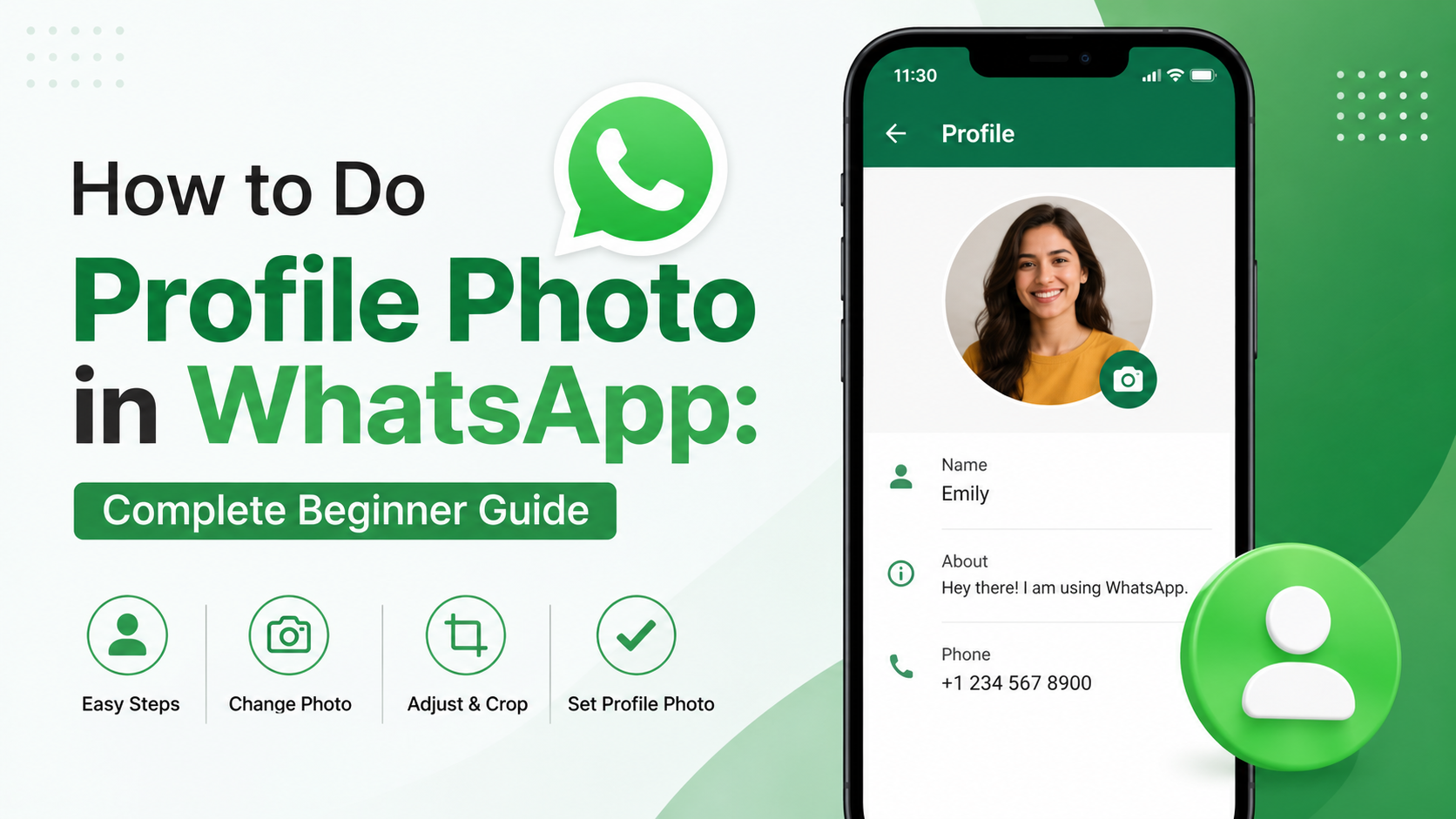
How to Do Profile Photo in WhatsApp: Complete Beginner Guide
Your WhatsApp profile photo is often the first visual detail people notice when they open a chat, view your contact information, or look for you in a group. Whether you want to use a professional headshot, a family photo, a logo, or simply a favorite image, setting it up takes only a few minutes.
This beginner-friendly guide explains how to do profile photo in WhatsApp across mobile devices and WhatsApp Web. You will also learn how to choose the right image, control who can see it, and solve common profile-photo problems.
Key Takeaways
- You can set or change your WhatsApp profile photo from Settings in just a few taps.
- WhatsApp lets you upload a saved image or take a new photo directly from the app.
- Use the privacy settings to decide whether everyone, only your contacts, or nobody can view your photo.
- A clear, well-lit face photo works best for personal and professional accounts.
- If a profile photo does not update, check your internet connection, permissions, and app version.
Why Your WhatsApp Profile Photo Matters
A profile photo helps people recognize you quickly. This is especially useful when someone has many WhatsApp chats, belongs to busy groups, or receives messages from new contacts.
For personal use, your photo can make conversations feel warmer and more recognizable. For business communication, it can reinforce trust and professionalism.
Personal Benefits
A recognizable WhatsApp photo can help friends, relatives, classmates, and community members identify you without checking your phone number.
For example, if you are in a family group with several people who have similar names, a clear profile picture makes it easier for everyone to know who is sending a message.
Professional Benefits
If you use WhatsApp for work, clients and colleagues may form an initial impression from your image. A simple, polished headshot can make your account look more credible.
Good examples include:
- A recent, well-lit headshot for freelancers and consultants
- A company logo for a business account
- A consistent photo that matches your LinkedIn or company profile
- A clear image with minimal distractions in the background
How to Set a Profile Photo on WhatsApp for Android
The steps for Android phones are straightforward. Depending on your phone model and WhatsApp version, the labels may look slightly different, but the overall process is the same.
Open Your WhatsApp Profile Settings
Follow these steps:
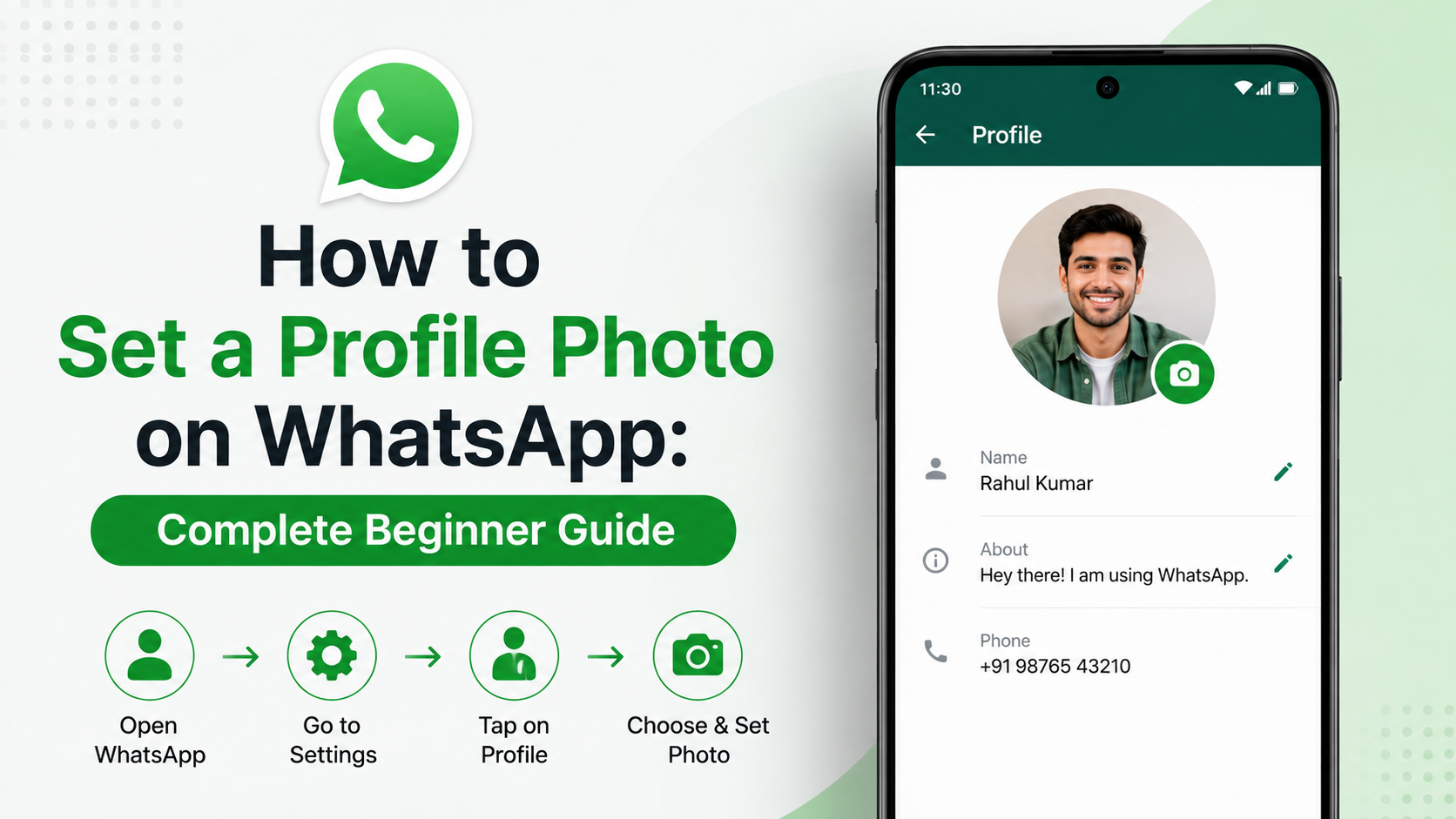
- Open WhatsApp on your Android phone.
- Tap the three-dot menu in the upper-right corner.
- Select Settings.
- Tap your name or current profile area at the top of the screen.
- Tap the camera icon or your existing profile photo.
Choose or Take a New Photo
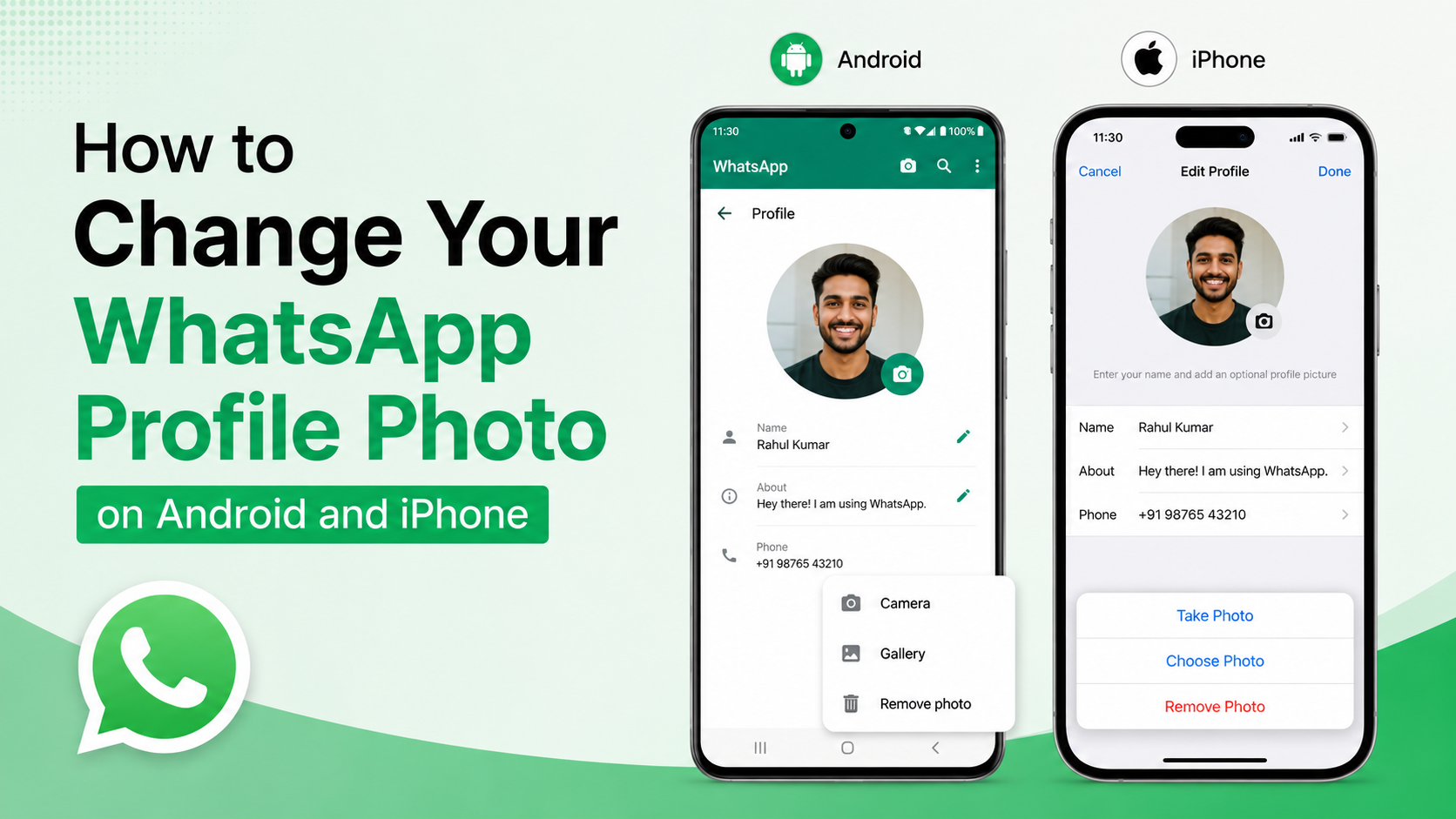
WhatsApp will usually give you options such as:
- Gallery: Choose an existing image from your phone.
- Camera: Take a new picture immediately.
- Remove photo: Delete your current profile picture.
Select Gallery if you already have a photo saved. Select Camera if you want to capture one on the spot.
After choosing the image, WhatsApp lets you crop and position it inside the circular profile-photo frame. Adjust the image so the most important part—usually your face or logo—is centered.
Save the Photo
Once you are satisfied with the crop, tap Done, Save, or the checkmark icon. Your new image should appear on your WhatsApp profile immediately.
If it does not appear right away for others, give the app a few moments to sync over a stable internet connection.
How to Set a Profile Photo on WhatsApp for iPhone
If you use an iPhone, the process is very similar, although the menu layout differs slightly from Android.
Find Your Profile in WhatsApp Settings
- Open WhatsApp on your iPhone.
- Tap Settings in the bottom-right corner.
- Tap your name or profile card at the top.
- Tap Edit near your current profile photo.
- Tap Edit again on the photo area.
Upload or Capture Your Image
You can then choose from options such as:
- Take Photo: Open the iPhone camera and take a new image.
- Choose Photo: Pick an image from your Photos library.
- Remove Photo: Delete the existing picture.
Choose the image you want, then use the crop controls to position it properly within WhatsApp’s circular frame.
Confirm Your Changes
Tap Choose or Done after adjusting the image. WhatsApp will update the profile photo automatically.
If you use an iPhone for business communication, consider selecting a high-quality photo with a clean background. This keeps the image sharp even when it appears as a small circle in a chat list.
How to Set a Profile Photo in WhatsApp Web and Desktop
WhatsApp Web and the desktop app also allow you to change your profile photo. This is useful if your preferred image is stored on your computer.
Update Your Photo in WhatsApp Web
- Open WhatsApp Web in your browser.
- Link your WhatsApp account by scanning the QR code if necessary.
- Click your profile picture in the upper-left area.
- Click the profile picture again.
- Select the option to upload a photo.
- Choose an image file from your computer.
- Crop and position the photo.
- Save the changes.
Use WhatsApp Desktop
The steps in the WhatsApp desktop application are nearly identical:
- Open the desktop app.
- Click your profile picture or menu.
- Open your profile details.
- Select the profile-photo area.
- Upload, crop, and save your image.
This option is convenient for businesses that want to upload a branded logo or a professionally edited headshot from a desktop folder.
How to Choose the Best WhatsApp Profile Photo
Knowing how to do profile photo in WhatsApp is only part of the process. The image itself affects how clearly people can identify you.
Choose a Clear, High-Quality Image
WhatsApp profile photos display at a relatively small size. Images that look good full-screen may become hard to understand when reduced to a small circle.
Choose a photo that is:
- Bright and in focus
- Centered around the main subject
- Free of heavy blur or dark shadows
- Easy to recognize at a small size
- Not overcrowded with people or objects
For example, a close-up headshot usually works better than a distant vacation photo where your face occupies only a tiny part of the image.
Consider the Circular Crop
WhatsApp uses a circular display for profile images. Important details near the corners of a square photo may be cut off.
Before saving, check that:
- Your face is not too close to the top or bottom edge.
- A business logo fits fully inside the circle.
- Text remains readable after cropping.
- The background does not distract from the main subject.
Use a Photo That Matches Your Purpose
Your ideal image depends on who you communicate with most often.
For personal accounts, you might choose a smiling portrait, a family photo, or a favorite hobby image. For professional use, choose something more neutral and consistent with your public work identity.
A real estate agent, for instance, may use a friendly headshot in business attire. A small bakery may use its logo or a clean image of its signature product.
Control Who Can See Your WhatsApp Profile Photo
WhatsApp gives you control over profile-photo privacy. This is important if you want to limit visibility to trusted people.
Open Profile Photo Privacy Settings
On Android:
- Open WhatsApp.
- Go to Settings.
- Tap Privacy.
- Tap Profile photo.
On iPhone:
- Open WhatsApp.
- Tap Settings.
- Select Privacy.
- Tap Profile Photo.
Choose the Right Visibility Option
WhatsApp commonly provides these privacy options:
- Everyone: Anyone who has your number may see your profile photo.
- My Contacts: Only people saved in your contacts can see it.
- My Contacts Except: Lets you hide the photo from specific contacts.
- Nobody: No one can see your profile image.
For most people, My Contacts offers a sensible balance between privacy and convenience.
Privacy Example for Professionals
Suppose you use WhatsApp to communicate with customers but do not want your photo visible to unknown numbers. Set the profile photo to My Contacts, then save only verified clients or business contacts.
If you use WhatsApp mainly with family and close friends, you may prefer My Contacts Except to exclude certain people without blocking them.
Common Problems When Changing a WhatsApp Profile Photo
Usually, your profile image updates quickly. If something goes wrong, a few simple checks can resolve the issue.
The Photo Will Not Upload
If WhatsApp cannot upload your photo, try these steps:
- Confirm that your Wi-Fi or mobile data connection is working.
- Close and reopen WhatsApp.
- Restart your phone.
- Try using a smaller or different image file.
- Check whether WhatsApp has permission to access your photos.
- Update WhatsApp through the Google Play Store or Apple App Store.
On Android, photo permission settings are usually found under Settings > Apps > WhatsApp > Permissions. On iPhone, check Settings > WhatsApp > Photos.
Your Contacts Cannot See the New Photo
If others still see your old photo or no photo at all, consider these possibilities:
- Their WhatsApp app may not have refreshed yet.
- Your privacy setting may prevent them from viewing it.
- They may not have your phone number saved if you selected My Contacts.
- A weak connection may have delayed the update.
Ask one trusted contact to reopen WhatsApp or wait a few minutes before assuming there is a problem.
The Photo Looks Blurry or Poorly Cropped
Blurry images usually result from low-quality source photos, screenshots, or excessive zooming.
To improve the result:
- Start with the original image rather than a screenshot.
- Avoid enlarging a very small photo.
- Choose a clear image with good lighting.
- Re-crop the image so the subject is larger and centered.
Tips for Keeping Your WhatsApp Profile Professional
A WhatsApp photo can become part of your personal brand, particularly if you use the platform for client communication, networking, or team coordination.
Keep Your Image Current
Use a relatively recent photo that looks like you today. An outdated photo can make in-person meetings or video calls more awkward, especially if clients are trying to identify you.
Updating your profile photo every few years is usually enough unless your role, brand, or appearance changes significantly.
Avoid Overly Busy Designs
For logos, avoid using designs with tiny text or complicated graphics. WhatsApp displays the image in a small circular space, so simple designs work best.
A recognizable logo mark or one short brand name is generally more effective than a full promotional graphic.
Separate Personal and Business Use When Needed
If you use WhatsApp Business, consider using a logo for the business profile and reserving your personal WhatsApp profile for a portrait or personal image. This creates clearer boundaries and helps customers recognize the right account.
Frequently Asked Questions
Can I set a WhatsApp profile photo without showing it to everyone?
Yes. Go to Settings > Privacy > Profile Photo and select My Contacts, My Contacts Except, or Nobody. These options let you limit who can view your image.
Why can’t I see someone else’s WhatsApp profile photo?
They may have changed their privacy settings, removed their photo, not saved your number, or blocked you. A missing photo alone does not prove that you have been blocked.
Can I use a logo as my WhatsApp profile photo?
Yes. A logo is a good choice for a business, organization, or creator account. Make sure it is simple, high-resolution, and easy to recognize within WhatsApp’s circular crop.
Does WhatsApp notify contacts when I change my profile photo?
WhatsApp does not normally send a direct notification to your contacts when you update your photo. However, people may notice the new image when they open your chat or view your profile.
Can I remove my WhatsApp profile photo completely?
Yes. Open your profile photo settings and choose Remove Photo. Your account will then show the default WhatsApp profile icon instead of an image.
Conclusion
Learning how to do profile photo in WhatsApp is simple, whether you use Android, iPhone, WhatsApp Web, or the desktop app. Open your profile settings, upload or take a photo, crop it carefully, and save your changes.
Choose an image that matches your purpose, keep it clear and recognizable, and review your privacy settings so the right people can see it. Update your WhatsApp profile photo today to make your chats more personal, professional, and easy to recognize.
Advertisement