August 19, 2026 · Updated August 23, 2026 · 11 min read
Why Did My Instagram Profile Photo Disappear? Causes and Easy Fixes
On this page
- Start by Confirming Whether the Photo Is Actually Missing
- Temporary Instagram App Glitches and Server Delays
- Internet Connection and Data-Saving Settings
- Cache Problems and Outdated App Versions
- Your Profile Photo Upload Did Not Process Correctly
- Account Restrictions, Security Issues, and Unauthorized Changes
- Browser, Device, and Account-Specific Display Issues
- When to Contact Instagram Support
- Frequently Asked Questions
- Conclusion
Why Did My Instagram Profile Photo Disappear? Causes and Easy Fixes
Seeing a blank circle where your profile image should be can be surprisingly stressful—especially if you use Instagram for work, a personal brand, or customer communication. When an Instagram profile photo disappeared, the problem may be as simple as a temporary loading issue, or it may point to an account, connection, or app setting that needs attention.
The good news: most missing-profile-photo issues are easy to resolve. This guide explains what may have happened, how to identify the cause, and which fixes to try first.
Key Takeaways
- Check whether the missing photo appears on another device or account before changing anything.
- Refreshing Instagram, clearing cache, or updating the app resolves many temporary display errors.
- A weak connection can prevent profile images from loading even when your account is fine.
- If you recently changed your photo, Instagram may still be processing or syncing the update.
- Account restrictions, login issues, and third-party tools can occasionally affect profile details.
- Re-uploading a properly sized image is often the quickest solution when the file itself is the issue.
Start by Confirming Whether the Photo Is Actually Missing
Before troubleshooting, determine whether the image is gone from Instagram or simply not displaying on your device.
Check Your Profile From Another Account
Ask a trusted friend to view your profile, or use a second Instagram account. If they can see your photo while you cannot, the issue is likely local to your phone, browser, internet connection, or app cache.
If nobody can see the image, the profile picture may have been removed, failed to upload, or been affected by an account-level issue.
A quick comparison can save time:
- Only you cannot see it: Focus on the app, cache, connection, or device.
- Others cannot see it either: Re-upload the photo and review account status.
- The photo appears inconsistently: Give Instagram time to sync, then refresh across devices.
Test Instagram on the Web
Open Instagram in a browser and sign in. If your photo appears there but not in the mobile app, the problem is almost certainly app-related.
This is particularly useful for social media managers. A brand account may look broken in one employee’s app while appearing completely normal to followers and customers.
Temporary Instagram App Glitches and Server Delays
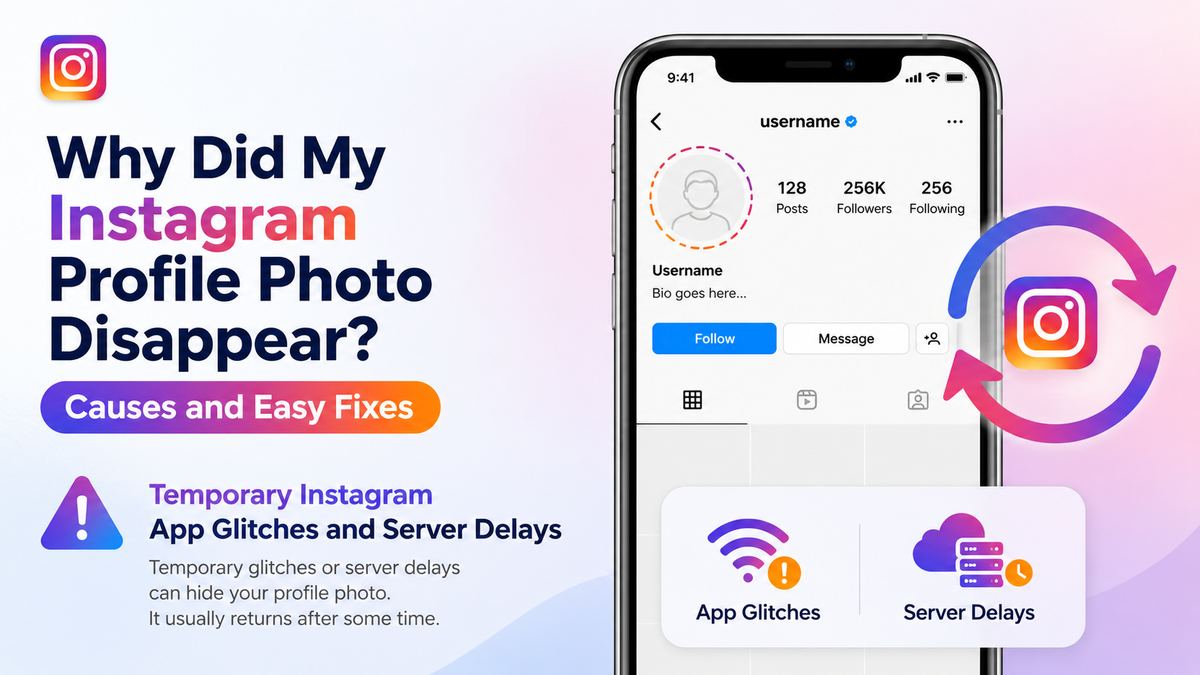
Instagram occasionally experiences temporary bugs, slowdowns, and sync delays. These can affect profile images, stories, messages, feeds, and other visual elements.
Refresh the App Completely
Do more than close Instagram from the screen. Force-close the app, wait a few seconds, and reopen it. This starts a new session and prompts the app to request fresh account data.
You can also try these simple actions:
- Pull down on your profile page to refresh it.
- Switch to another account and back again.
- Log out, then sign back in.
- Restart your phone.
For example, if your profile photo disappeared immediately after you edited your bio or username, the change may still be syncing. A fresh login often forces the updated details to load correctly.
Check for Widespread Instagram Problems
When multiple Instagram features are acting strangely, the issue may not be your account. You may notice that profile photos, Reels thumbnails, messages, or Stories also fail to load.
In that situation, avoid repeatedly changing your profile photo. Multiple uploads during an outage can create confusion about which image should appear once Instagram returns to normal.
Instead:
- Wait for a short period.
- Restart the app once.
- Check again from a browser or another device.
- Re-upload only if the image remains missing after the platform is working normally.
Internet Connection and Data-Saving Settings
Profile photos are small files, but Instagram still needs a stable connection to load them. Spotty Wi-Fi, limited mobile data, VPN routing, and data-saving settings can interfere with image display.
Switch Between Wi-Fi and Mobile Data
Try loading your profile on a different connection. If you are on Wi-Fi, temporarily switch to cellular data. If you are on mobile data, connect to a reliable Wi-Fi network.
This quick test helps identify whether the issue is network-specific. Corporate Wi-Fi networks, public hotspots, and restrictive firewalls can sometimes block or delay image delivery.
Review Data Saver and VPN Settings
Instagram’s data-saving features can reduce data use by limiting media loading. While profile images usually still appear, restrictive settings can contribute to inconsistent loading.
Also consider whether you are using:
- A VPN with an unstable server
- An ad blocker or privacy filter
- A work or school network
- Low Data Mode on your phone
Disable these temporarily and reload your profile. If the image returns, re-enable services one at a time to identify the source of the conflict.
Cache Problems and Outdated App Versions
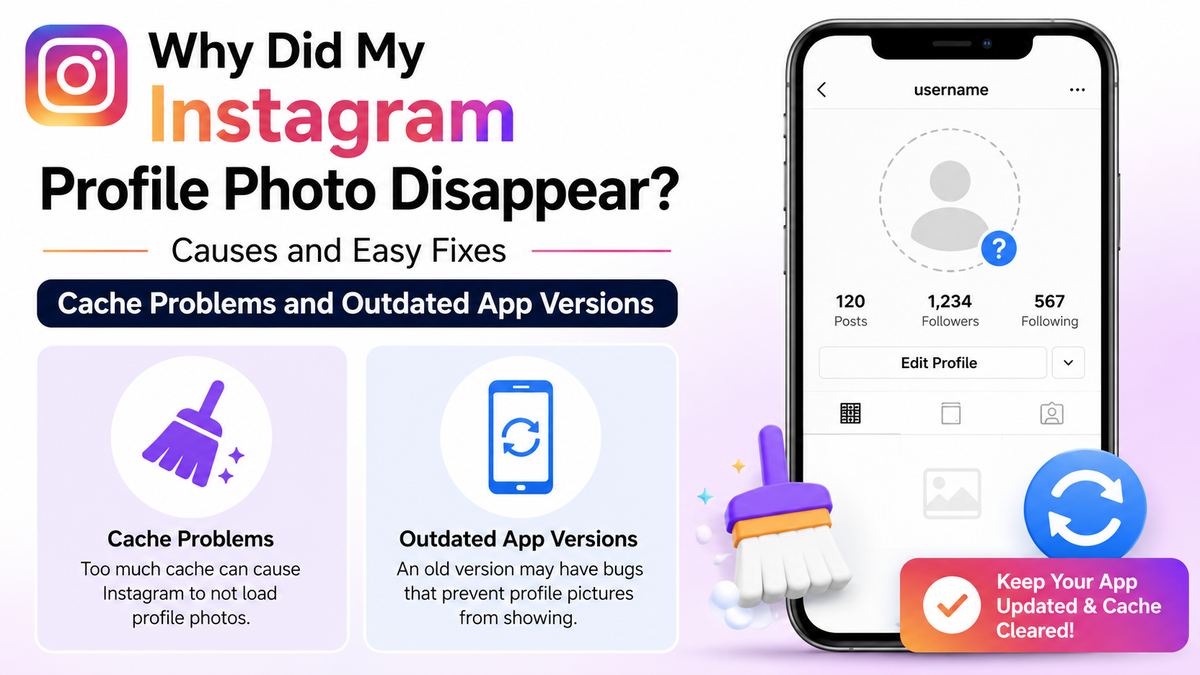
An outdated app or corrupted cached data is one of the most common reasons an Instagram profile photo disappears only for the account owner.
Update Instagram
App updates often include stability improvements and fixes for display bugs. Visit your device’s app store and install the latest available version of Instagram.
Updating is especially important if you recently upgraded your phone’s operating system. Older app versions may not work smoothly with newer system features.
After updating:
- Open Instagram.
- Visit your profile.
- Refresh the page.
- Check whether the image now appears.
Clear Cache or Reinstall the App
Android users can usually clear Instagram’s cache through the device settings. This removes temporary files without deleting your Instagram account.
On iPhone, uninstalling and reinstalling the app is often the most effective equivalent. Make sure you know your login details before doing so.
A clean reinstall can help when:
- Your profile photo is blank only in the app.
- Other images fail to load as well.
- Instagram crashes or behaves unusually.
- Updating the app did not solve the issue.
For professionals managing several accounts, be careful to save passwords securely before logging out or reinstalling. Getting locked out during a campaign or launch can create a larger problem than the missing image itself.
Your Profile Photo Upload Did Not Process Correctly
If you recently changed your photo, the upload may have failed or the image file may not have processed correctly.
Re-Upload a New Copy of the Image
Go to your profile, select Edit Profile, and upload the photo again. Ideally, use a clean copy of the original file rather than a screenshot or image that has been repeatedly edited and compressed.
For best results, choose an image that is:
- Square or easily crop-friendly
- Clear at a small size
- Well lit and centered
- Free of extremely thin borders or tiny text
- Saved in a common image format, such as JPG or PNG
Instagram displays profile photos in a circle. Important details near the corners may be cropped out, making the image appear blank or poorly framed even when the upload succeeded.
Avoid Over-Editing Immediately After Uploading
After you upload a replacement, give Instagram time to process it. Constantly changing the image, logging in and out, or switching networks can make it harder to tell whether the update succeeded.
A practical approach is to upload once, wait several minutes, then check from:
- Your own Instagram app
- Instagram in a browser
- A second account or a friend’s account
If the photo shows in at least one place, syncing may simply be catching up.
Account Restrictions, Security Issues, and Unauthorized Changes
Sometimes a missing profile image is connected to a broader account problem. This is less common, but worth investigating if other details—such as your name, bio, email address, or linked accounts—also changed unexpectedly.
Review Login Activity
Check Instagram’s account security settings for unfamiliar devices or locations. If you see activity you do not recognize, change your password immediately and enable two-factor authentication.
Signs of possible unauthorized access include:
- Your profile photo changed or vanished without your action.
- Your bio or username was edited.
- You received password reset emails you did not request.
- Posts, messages, or follows appeared that you did not make.
A missing profile photo alone does not prove that your account was compromised. However, combined with other unusual behavior, it should be treated seriously.
Check Account Status and Recent Notifications
Instagram may limit features or take action on content when it detects a policy issue, suspicious activity, or unusual automated behavior. Review in-app notifications and your account status for any notices.
If you use scheduling platforms, analytics tools, or follower-management services, temporarily disconnect any tools you do not fully trust. Services that request your Instagram password or promise rapid growth can put your account at risk.
Browser, Device, and Account-Specific Display Issues
If your profile photo appears correctly for everyone else, you may be dealing with a device-specific issue rather than an Instagram problem.
Try Another Device or Browser
Sign in from another phone, tablet, or desktop browser. If the image loads elsewhere, troubleshoot the original device by updating the operating system, restarting it, and clearing Instagram’s cached data.
Browser users should also try:
- Opening Instagram in a private or incognito window
- Disabling extensions temporarily
- Clearing browser cache and cookies
- Using a different browser
Extensions that block trackers, media, or scripts can sometimes prevent parts of Instagram from displaying as intended.
Rule Out an Account-Switching Mix-Up
People who manage personal, creator, and business profiles may accidentally inspect the wrong account. Confirm the username at the top of your profile before assuming the image disappeared.
This sounds obvious, but it is a common real-world issue for agencies and business owners juggling multiple logins. A blank image on a newly created account may simply be mistaken for the established brand account.
When to Contact Instagram Support
If your Instagram profile photo disappeared and none of the usual fixes work, report the issue through the app.
Report the Technical Problem Clearly
Use Instagram’s in-app help options to report a problem. Include concise details, such as:
- When the photo disappeared
- Whether you recently changed it
- Whether other people can see it
- Your device type and app version
- The troubleshooting steps you already tried
Screenshots can be useful, particularly when the image appears in a browser but not in the mobile app.
Avoid Repeatedly Submitting the Same Report
Submitting many identical reports rarely speeds up support. It is better to send one detailed report, keep your app updated, and monitor your account for notifications.
If you suspect someone accessed your account, prioritize security recovery steps over a standard technical report.
Frequently Asked Questions
Why is my Instagram profile photo blank but everyone else can see it?
This usually indicates a local issue with your app, browser, device, or internet connection. Force-close Instagram, switch networks, update the app, and clear the cache or reinstall it. Checking the account in a browser is an effective way to confirm that the photo itself is still live.
Can Instagram remove my profile picture?
Instagram may take action on account content or features in certain circumstances, but a missing profile photo is more often caused by a failed upload, syncing delay, app bug, or account access issue. Check your notifications and account status if you believe Instagram removed something.
How long does it take for a new Instagram profile picture to appear?
It often appears quickly, but it can take longer to sync across devices, browsers, and other viewers’ apps. Wait several minutes, then check from another account or browser before deciding the upload failed.
Why did my Instagram profile photo disappear after I changed my username?
Profile edits can trigger a temporary refresh or sync delay. Reload the app, sign out and back in if needed, and check from a browser. If the image remains missing for all viewers, upload it again through Edit Profile.
Will reinstalling Instagram delete my account or posts?
No. Reinstalling removes the app from your device, not your Instagram account or published content. You will need to sign back in, so ensure you have access to your password and two-factor authentication method first.
Conclusion
When your Instagram profile photo disappeared, start with the simplest explanation: a temporary app, cache, connection, or syncing issue. Verify what other people can see, update or refresh Instagram, test another network or device, and re-upload the image if necessary.
If profile changes occurred without your permission, secure the account immediately and review its recent activity. Take a few minutes to work through the checks in this guide, then restore a clear, recognizable profile image that keeps your personal or professional Instagram presence looking trustworthy.