August 19, 2026 · Updated August 24, 2026 · 9 min read
How to Add a New Photo to Your WhatsApp Profile From Your Gallery
On this page
- Why Your WhatsApp Profile Photo Matters
- Prepare the Right Photo in Your Gallery
- How to Add a Photo to WhatsApp Profile on Android
- How to Add a Photo to WhatsApp Profile on iPhone
- Get the Best Crop and Image Quality
- Control Who Can See Your WhatsApp Profile Photo
- Troubleshooting When WhatsApp Will Not Upload Your Photo
- Frequently Asked Questions
- Conclusion
How to Add a New Photo to Your WhatsApp Profile From Your Gallery
Your WhatsApp profile photo is often the first visual cue people see when they receive your message, open a chat, or search for your contact. Whether you want a polished professional headshot, a recent personal photo, or a recognizable brand image, updating it takes only a few moments.
This guide explains exactly how to add photo to WhatsApp profile from your phone’s gallery, on both Android and iPhone. You will also learn how to choose the right image, control who can view it, and fix common problems when WhatsApp will not display or upload your new photo.
Key Takeaways
- You can update your WhatsApp profile photo directly from the app’s profile settings.
- The process is similar on Android and iPhone, although menu labels may differ slightly.
- Choose a clear, centered image because WhatsApp displays profile photos in a circular crop.
- Review privacy settings to control whether everyone, contacts, or selected people can see your photo.
- If an image will not upload, check app permissions, connection quality, and image format.
- A professional, current profile photo can make business and personal conversations more recognizable and trustworthy.
Why Your WhatsApp Profile Photo Matters
A WhatsApp profile photo is more than a decorative detail. It helps people immediately identify who they are messaging, especially in busy group chats, customer conversations, workplace communities, or family groups.
Make Conversations More Recognizable
When someone has many unread chats, names alone may not be enough to identify a contact quickly. A recognizable image makes it easier for friends, colleagues, and clients to spot your messages.
For example, a freelancer who uses WhatsApp to speak with clients may use a well-lit headshot rather than a logo or casual group photo. This creates a more personal and professional first impression.
Support Your Personal or Professional Image
Your choice of photo can reflect how you use WhatsApp:
- Personal use: A recent, friendly photo can make it easier for friends and family to recognize you.
- Professional use: A clean headshot, company logo, or brand image may be more appropriate.
- Business accounts: A consistent logo can reinforce brand recognition across customer conversations.
Because WhatsApp profile pictures appear small, clarity matters more than artistic complexity.
Prepare the Right Photo in Your Gallery
Before you add photo to WhatsApp profile, take a moment to select an image that will work well in the app’s circular profile display.
Choose a Clear, Centered Image
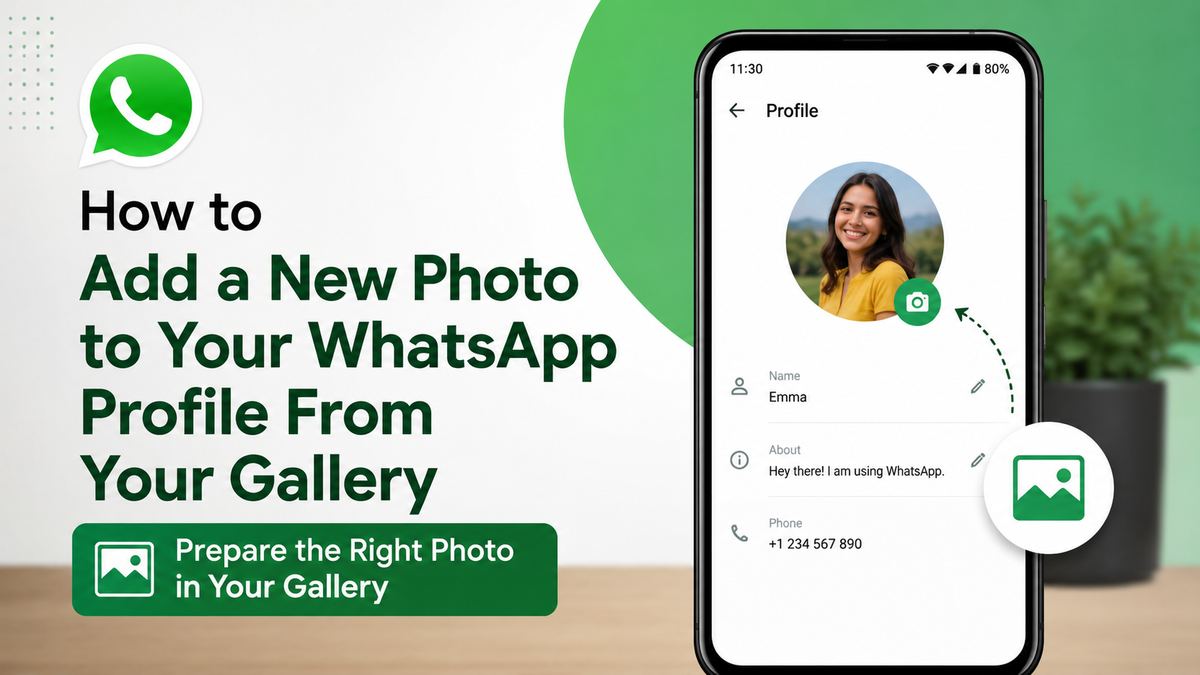
WhatsApp crops profile photos into a circle. Images with a face, logo, or important object placed near the edge may lose crucial details after cropping.
For the best result, choose a photo that has:
- Good lighting and a sharp subject
- A centered face, product, or logo
- Enough empty space around the subject
- A simple or uncluttered background
- A square or nearly square composition
For instance, if you use a landscape photo where your face is near one side, WhatsApp may crop part of your face out. A portrait with your face centered will usually look much better.
Edit the Image Before Uploading
You can make basic improvements in your phone’s gallery or photo-editing app before uploading. Consider:
- Cropping the image to a square
- Brightening a dark image
- Removing distracting background elements
- Using a higher-resolution version of a logo
- Avoiding text that is too small to read in a circular icon
You do not need an expensive editing tool. Your phone’s built-in crop, brightness, and contrast controls are usually enough.
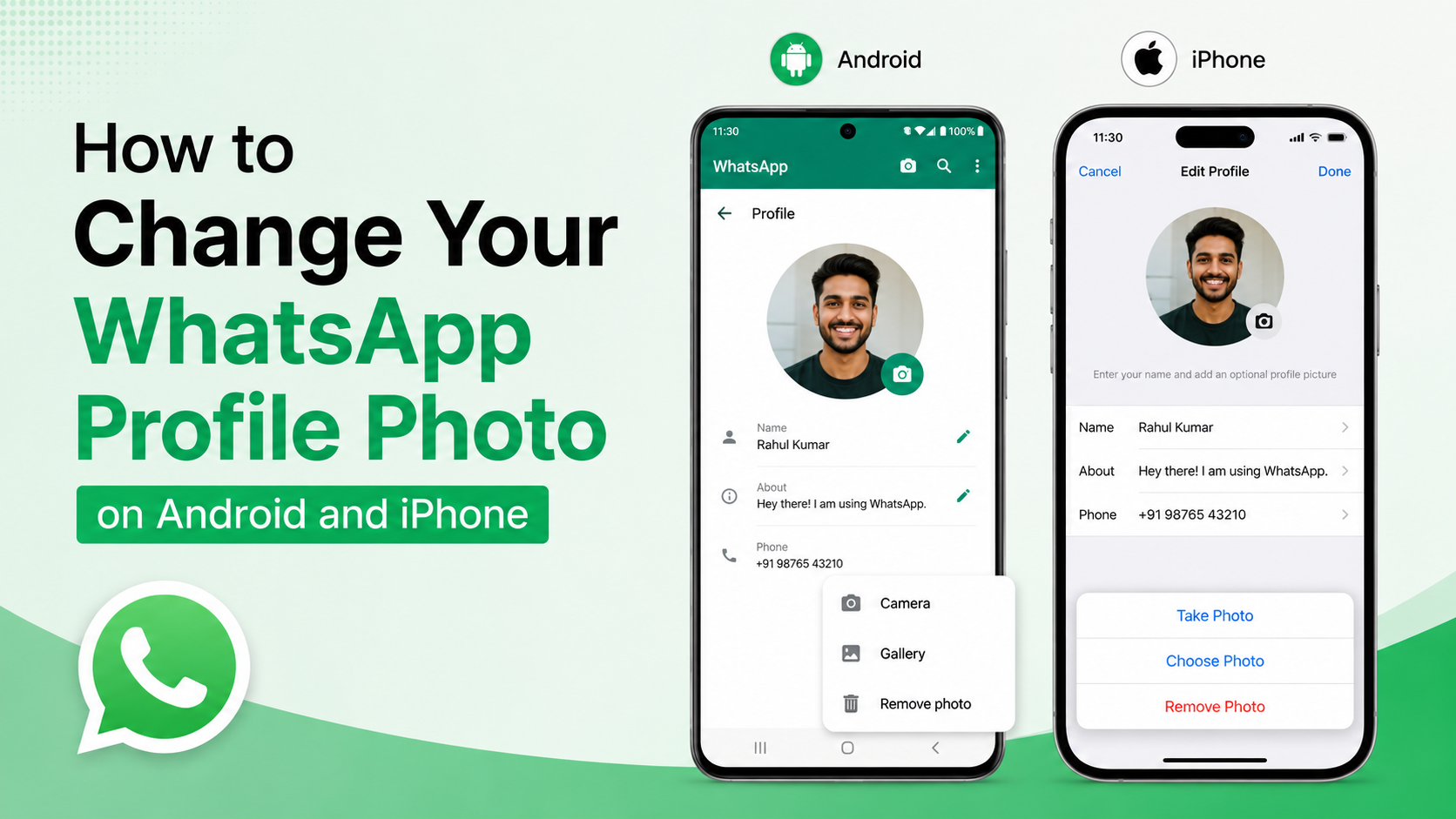
How to Add a Photo to WhatsApp Profile on Android
On Android, you can update your profile photo through WhatsApp’s Settings menu.
Open Your WhatsApp Profile Settings
Follow these steps:
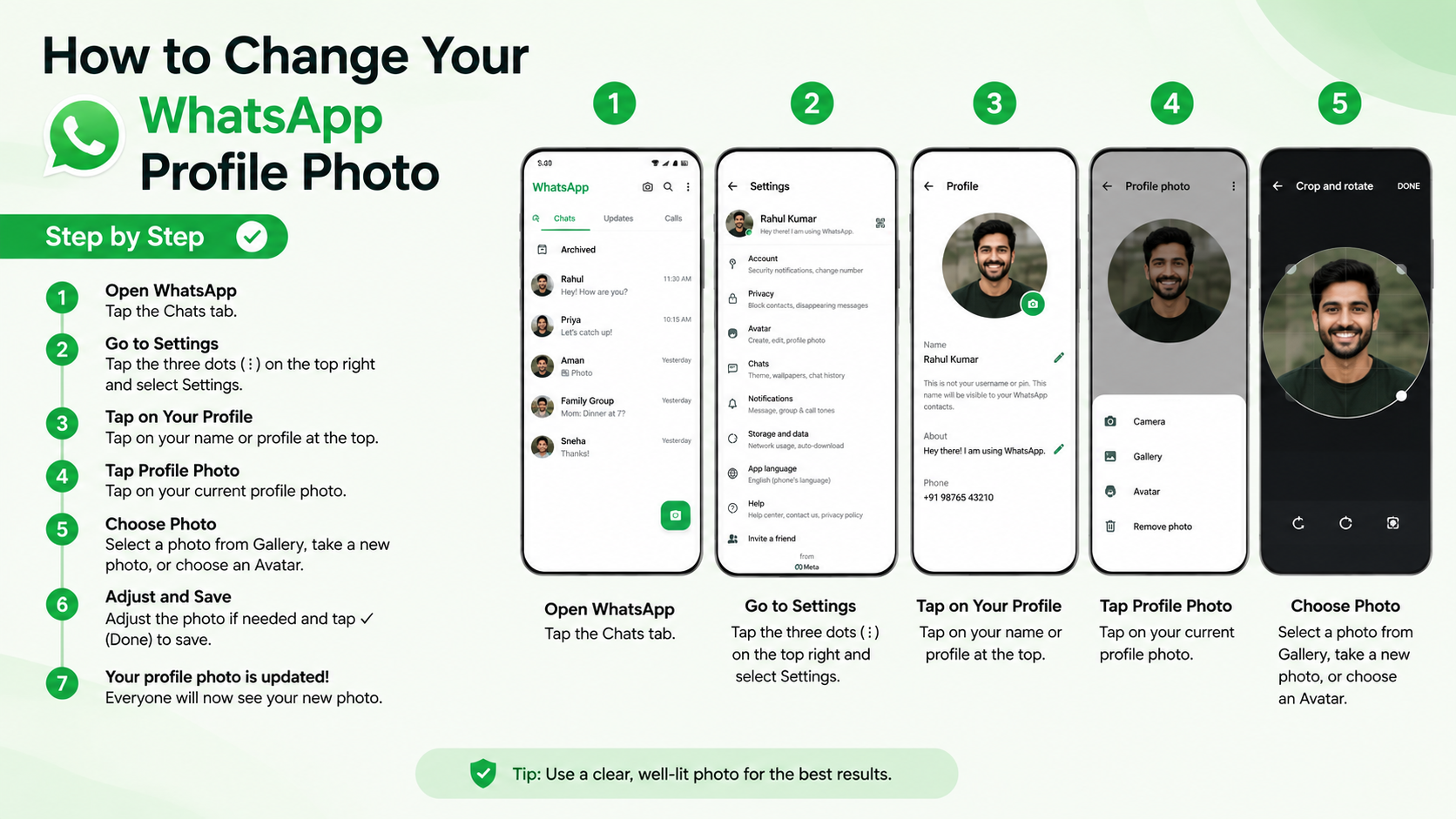
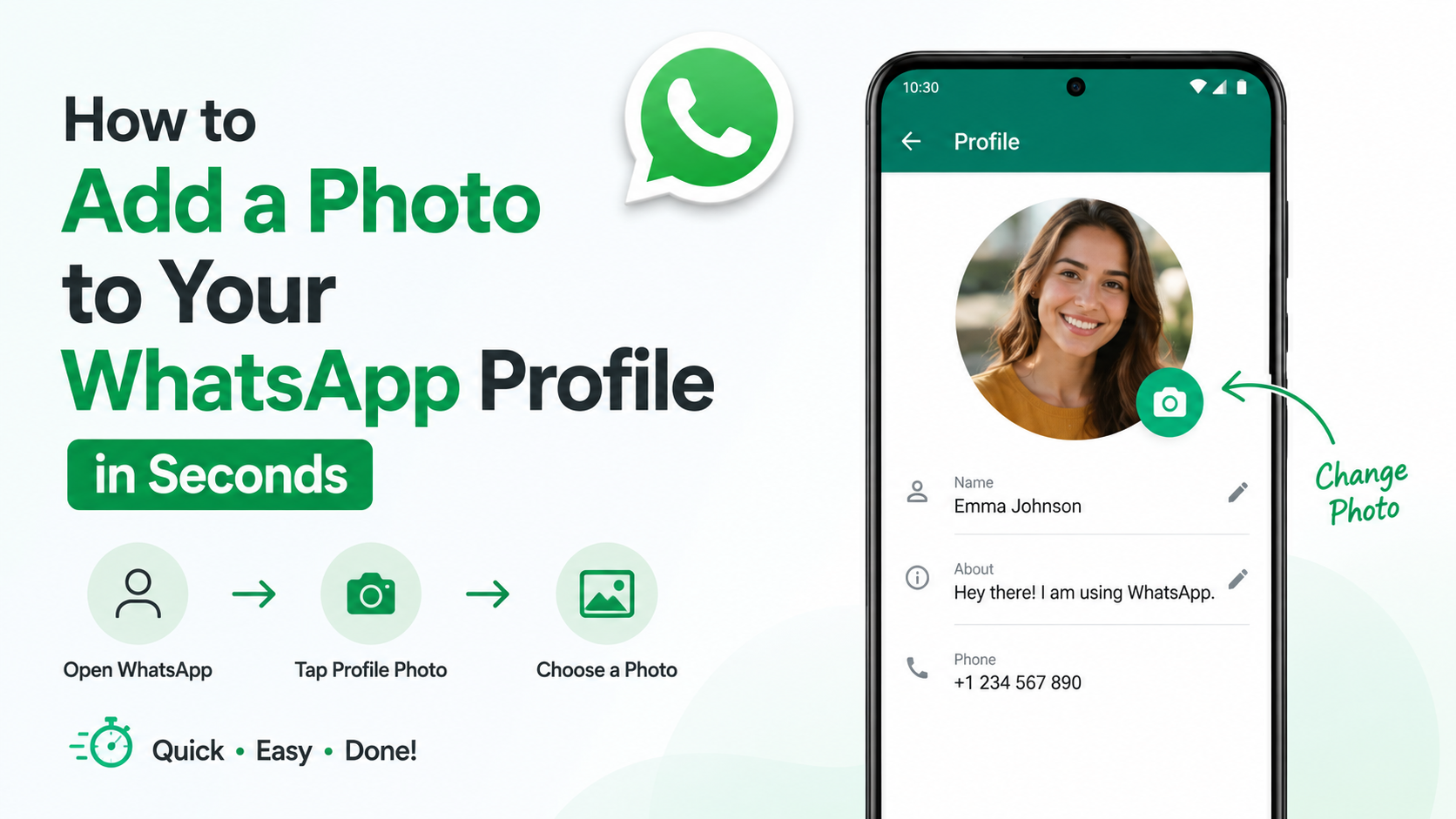
- Open WhatsApp on your Android phone.
- Tap the three-dot menu in the top-right corner.
- Select Settings.
- Tap your name or current profile photo at the top of the screen.
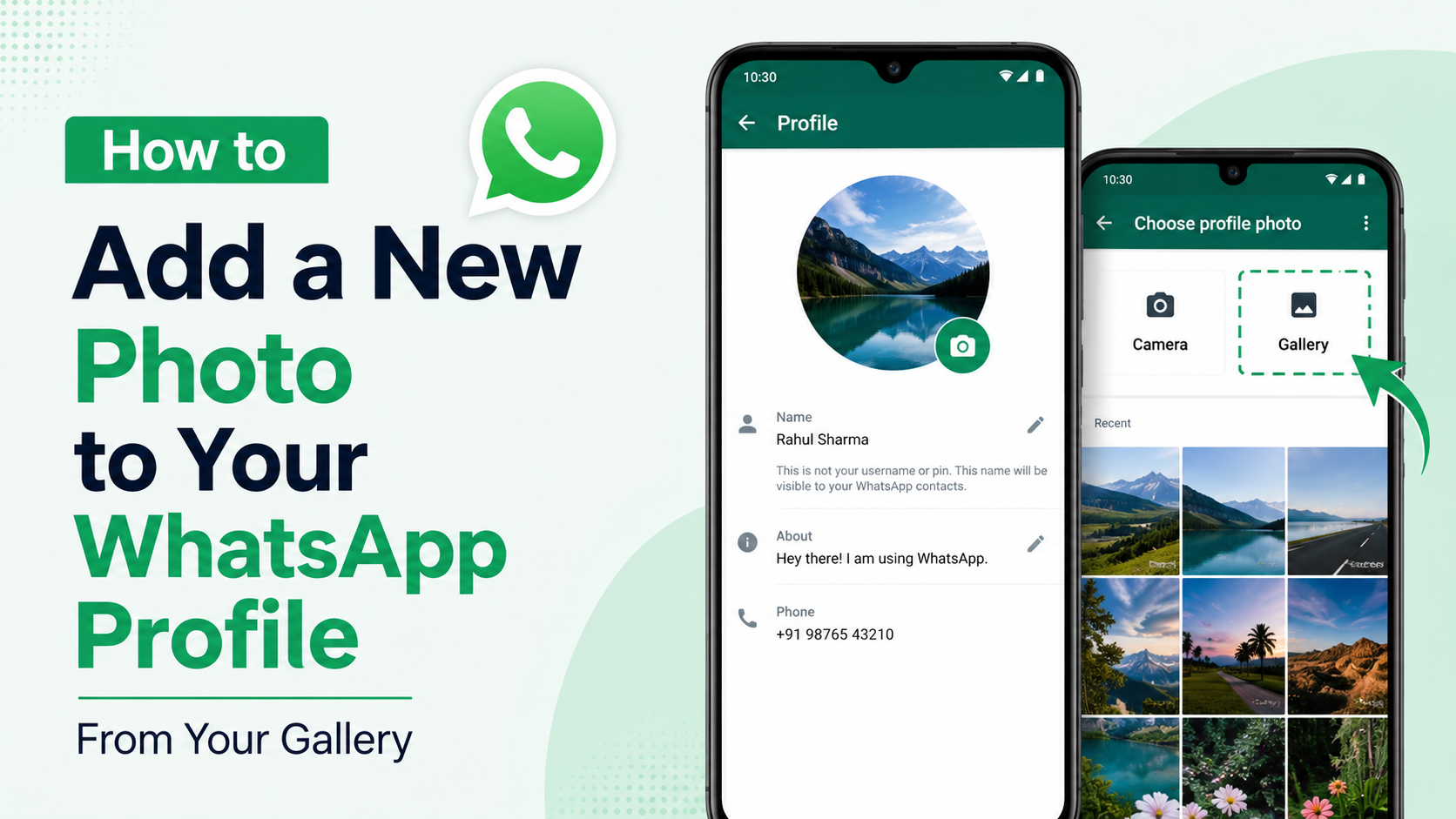
- Tap the camera icon on your existing profile image.
Depending on your WhatsApp version, you may see options such as Gallery, Camera, or Remove photo.
Select an Image From Your Gallery
To upload a new image:
- Tap Gallery.
- Browse your albums and select the photo you want to use.
- Adjust the crop so the important part of the image fits inside the circular frame.
- Tap Done, Save, or the checkmark icon.
WhatsApp should update your profile picture immediately. Other people may see the change based on your privacy settings and their app refresh timing.
Example: Updating a Professional Headshot
Imagine you have just taken a new headshot for work. Save the image to your phone, crop it so your face is centered, then follow the steps above. If the image is for clients or coworkers, confirm that your profile-photo privacy setting allows your contacts to view it.
How to Add a Photo to WhatsApp Profile on iPhone
The process on an iPhone is straightforward and begins from the WhatsApp Settings tab.
Access Your Profile in WhatsApp Settings
To change your photo on iPhone:
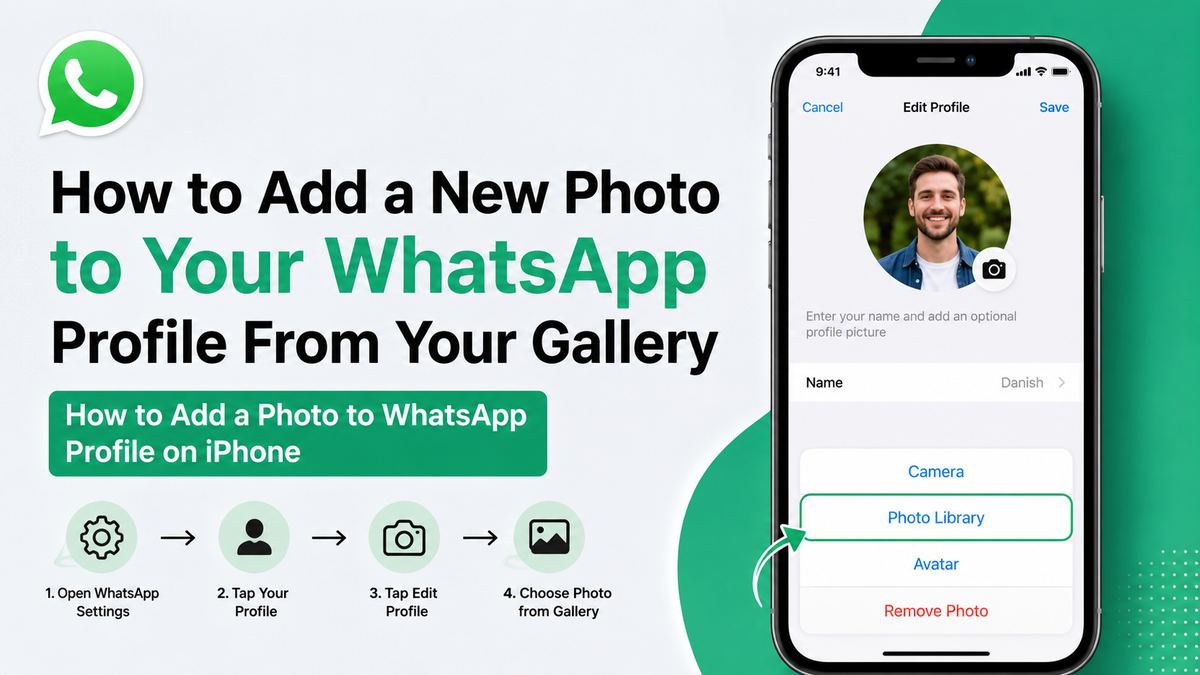
- Open WhatsApp.
- Tap Settings in the bottom-right corner.
- Tap your name and current profile photo at the top.
- Tap Edit near your profile image.
- Select Choose Photo.
You can also choose Take Photo if you want to capture a new image immediately.
Pick and Position Your Gallery Photo
After choosing Choose Photo:
- Select an image from your Photos library.
- Move and resize it within WhatsApp’s crop frame.
- Make sure the main subject remains visible in the circular preview.
- Tap Choose or Done to confirm.
If WhatsApp asks for access to your photos, approve the request. Without photo-library permission, the app cannot display your gallery images for selection.
Get the Best Crop and Image Quality
A photo can look excellent in your gallery but less effective once it becomes a small circular profile icon. Optimizing the crop makes a noticeable difference.
Position the Important Details Inside the Circle
Do not assume that the entire rectangular image will appear. WhatsApp’s circular frame may trim the corners and outer edges.
When adjusting the image:
- Keep faces in the center rather than near the border.
- Make logos large enough to remain legible.
- Avoid placing important text at the top, bottom, or corners.
- Zoom out slightly if the crop cuts off your subject.
A business logo with a long company name, for example, may become unreadable. A simplified icon version of the logo is usually more effective.
Use a Suitable File and Resolution
WhatsApp compresses images, so start with a reasonably clear photo. JPEG, PNG, and standard phone-camera formats generally work well.
Avoid:
- Extremely blurry or low-resolution images
- Screenshots with unreadable text
- Images with excessive filters or heavy compression
- Photos that are too dark or backlit
- Sensitive documents or personal information
A high-resolution original gives WhatsApp more image data to work with, even though the final profile photo appears small.
Control Who Can See Your WhatsApp Profile Photo
Adding a photo is only part of the process. You should also decide who can view it.
Update Profile Photo Privacy Settings
In WhatsApp, open:
Settings > Privacy > Profile Photo
You will typically see options such as:
- Everyone: Anyone with your number may see your profile photo.
- My Contacts: Only people saved in your contacts can view it.
- My Contacts Except…: Hide it from specific contacts.
- Nobody: No one can view your profile photo.
The exact wording can vary slightly by device and WhatsApp version.
Choose Privacy Based on How You Use WhatsApp
For personal users, My Contacts is often a balanced choice. It lets friends and family identify you while limiting visibility to unknown numbers.
For professionals who receive messages from new clients, Everyone may be appropriate if your profile photo is part of your public-facing business identity. If you work with sensitive clients or prefer a more private account, use My Contacts Except… to exclude selected people.
Troubleshooting When WhatsApp Will Not Upload Your Photo
If you cannot add photo to WhatsApp profile, the problem is usually related to permissions, connectivity, app settings, or the source image.
Check Photo Permissions
WhatsApp needs permission to access your gallery.
On Android, open your phone’s app settings, select WhatsApp, and confirm that Photos and videos or Files and media access is allowed.
On iPhone, go to Settings > WhatsApp > Photos and allow photo access. If access is limited, make sure the image you want is included in the approved selection.
Resolve Common Upload Problems
Try these steps if the photo still does not update:
- Switch between Wi-Fi and mobile data.
- Restart WhatsApp.
- Restart your phone.
- Update WhatsApp from the App Store or Google Play.
- Choose a different image from your gallery.
- Edit and save a fresh copy of the image before uploading.
- Check that your phone has available storage space.
If your new photo appears for you but not for others, ask a trusted contact to refresh WhatsApp or reopen the chat. Profile updates can take a little time to appear across devices.
Frequently Asked Questions
Can I add a WhatsApp profile photo without using my camera?
Yes. When you tap the camera or edit icon on your current profile photo, choose Gallery on Android or Choose Photo on iPhone. You can then select any supported image stored in your phone’s gallery.
Why does WhatsApp crop my photo into a circle?
WhatsApp uses circular profile-photo displays throughout the app. The original image remains rectangular or square in your gallery, but WhatsApp shows only the portion that fits inside its circular frame. Center the important subject before saving.
Can strangers see my WhatsApp profile picture?
It depends on your privacy setting. Go to Settings > Privacy > Profile Photo and choose whether Everyone, My Contacts, selected contacts, or nobody can view it.
How often can I change my WhatsApp profile photo?
WhatsApp does not impose a practical limit on how often you can update your profile photo. You can change it whenever you want, whether you are refreshing a personal picture, updating a company logo, or replacing an outdated image.
Why is my WhatsApp profile photo blurry?
Blurriness may occur if the original image is low resolution, heavily compressed, zoomed in too far, or poorly lit. Use a clear original photo, keep the crop balanced, and avoid repeatedly saving and sharing compressed copies before uploading.
Conclusion
To add photo to WhatsApp profile from your gallery, open your profile settings, select your current photo, choose an image from your gallery, adjust the circular crop, and save it. The process is quick on both Android and iPhone, but a thoughtful photo choice can have a lasting effect on how people recognize you.
Choose an image that is clear, centered, and appropriate for your audience, then review your profile-photo privacy settings before sharing it. Update your WhatsApp profile photo today to make every conversation more recognizable, personal, and professional.